View Two Slides Side by Side in the Same PowerPoint Presentation
Compare two slides from the same PowerPoint presentation side by side in Normal view. Use New Window and Arrange All on the View tab instead of clicking back and forth.


PowerPoint and Copilot users, I have a great tip for you. When Copilot redesigns a slide, I like to keep the original and the new version next to each other so my audience can compare them. Clicking back and forth between two slides gets distracting fast. PowerPoint can show two slides from the same presentation side by side in Normal view, and it only takes three clicks on the View tab.
Compare slides in the same presentation
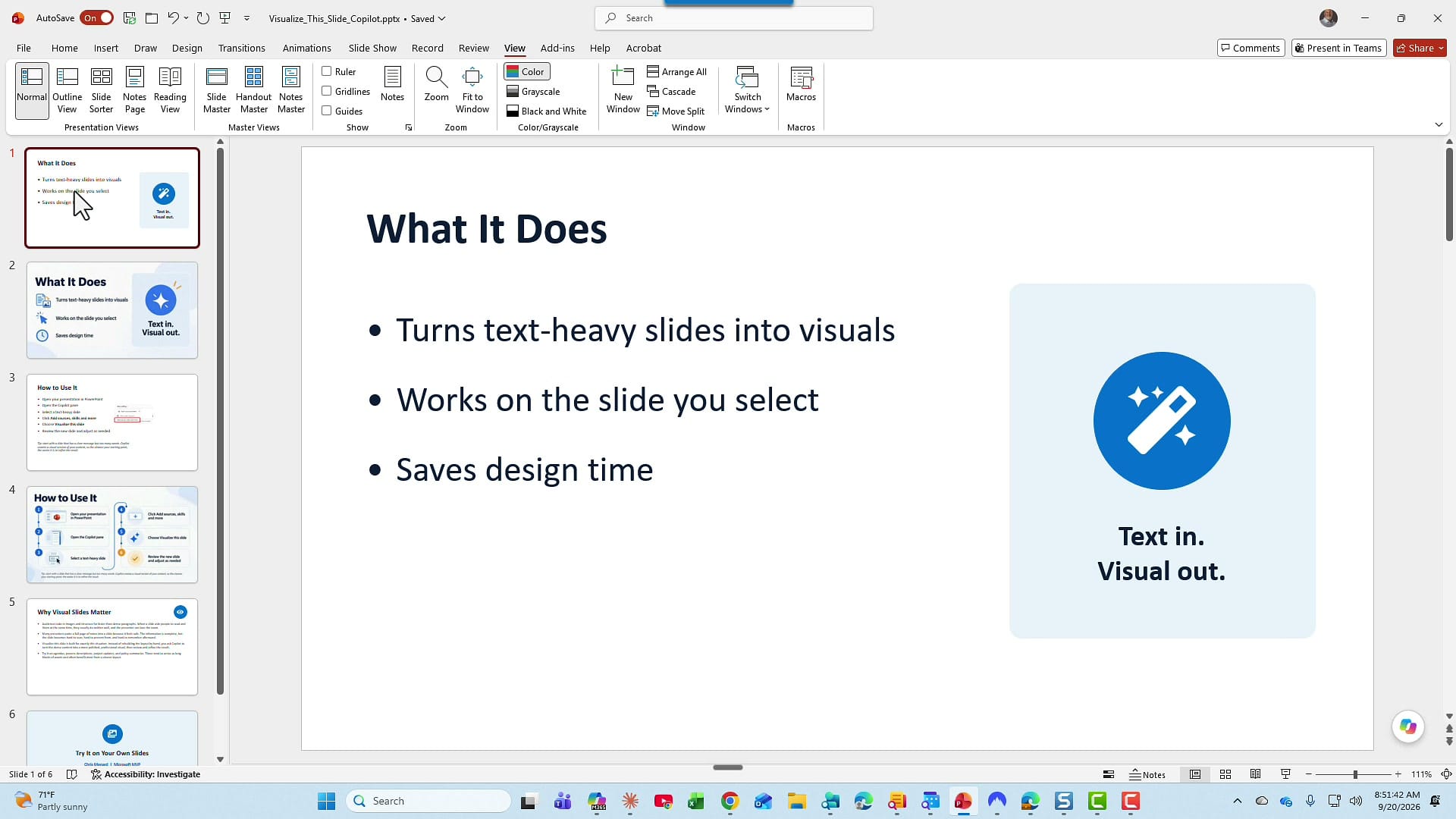
Here is my example. Slide 1 is titled What It Does, with three bullets and an image over on the right.
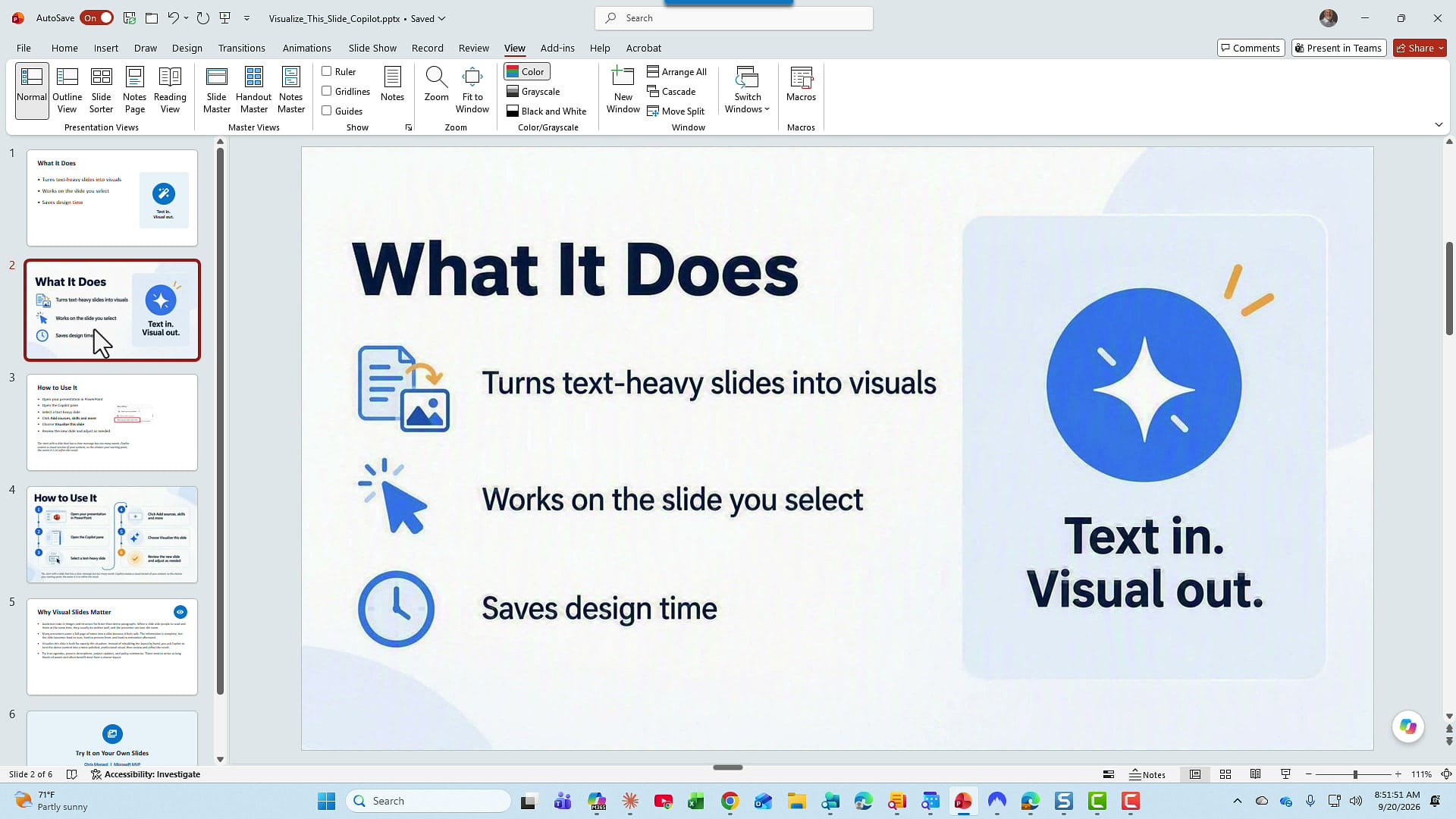
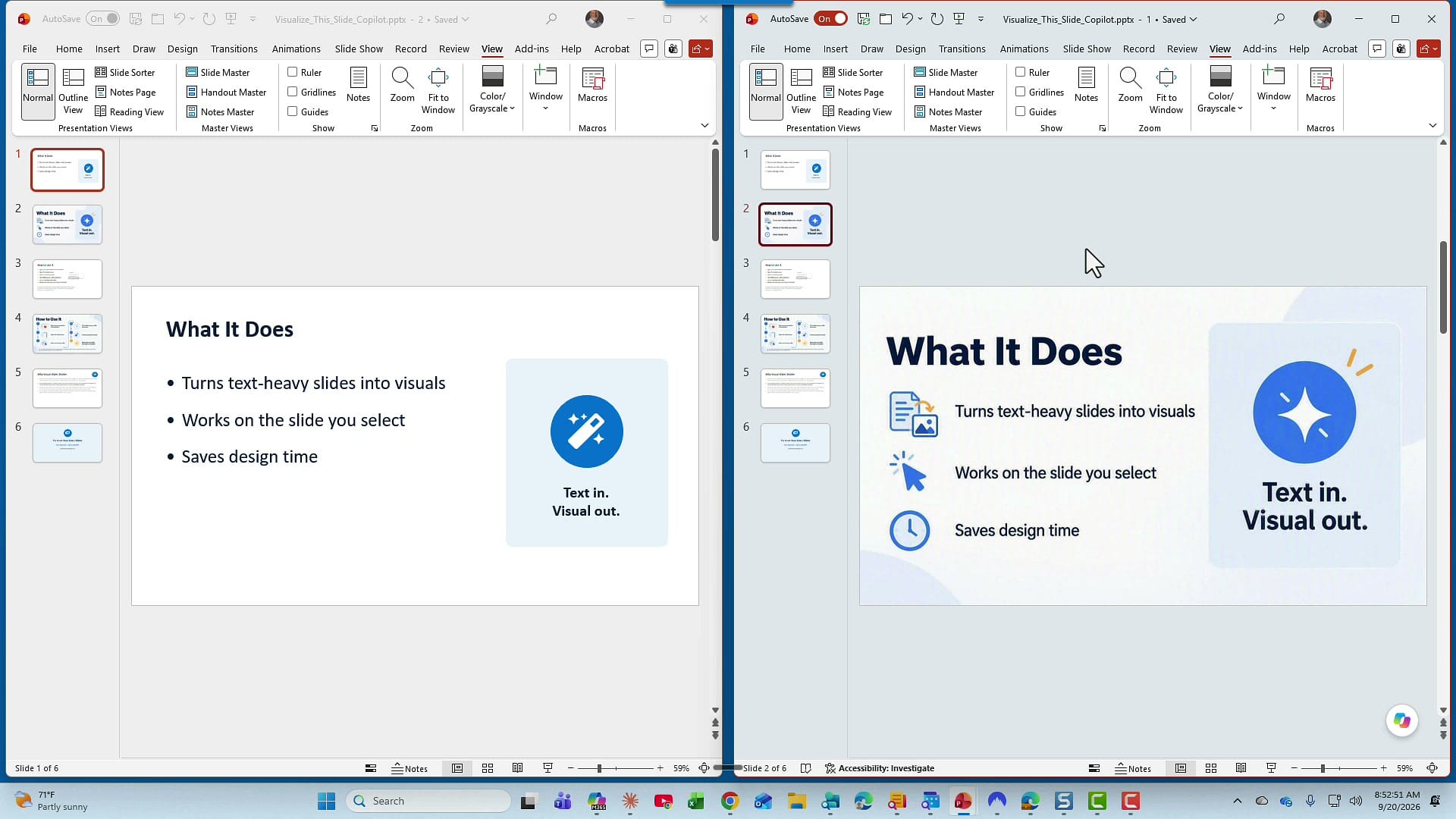
Slide 2 is the exact same slide with the same information, but it is much more visual. Instead of going back and forth between slides 1 and 2, I want to see them at the same time. I have other pairs like this in the presentation too, so this setup pays off more than once.
Start with only one presentation open
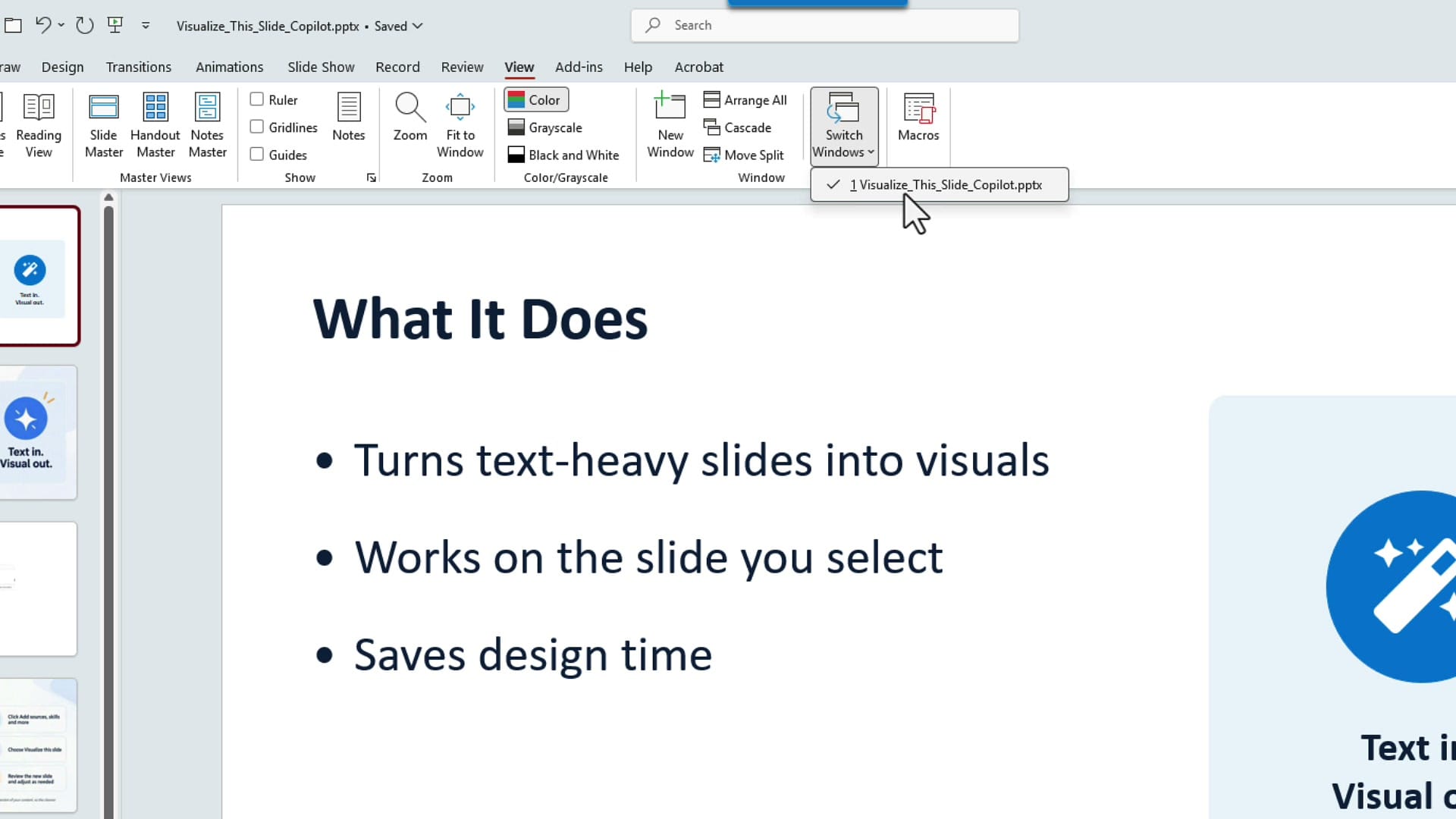
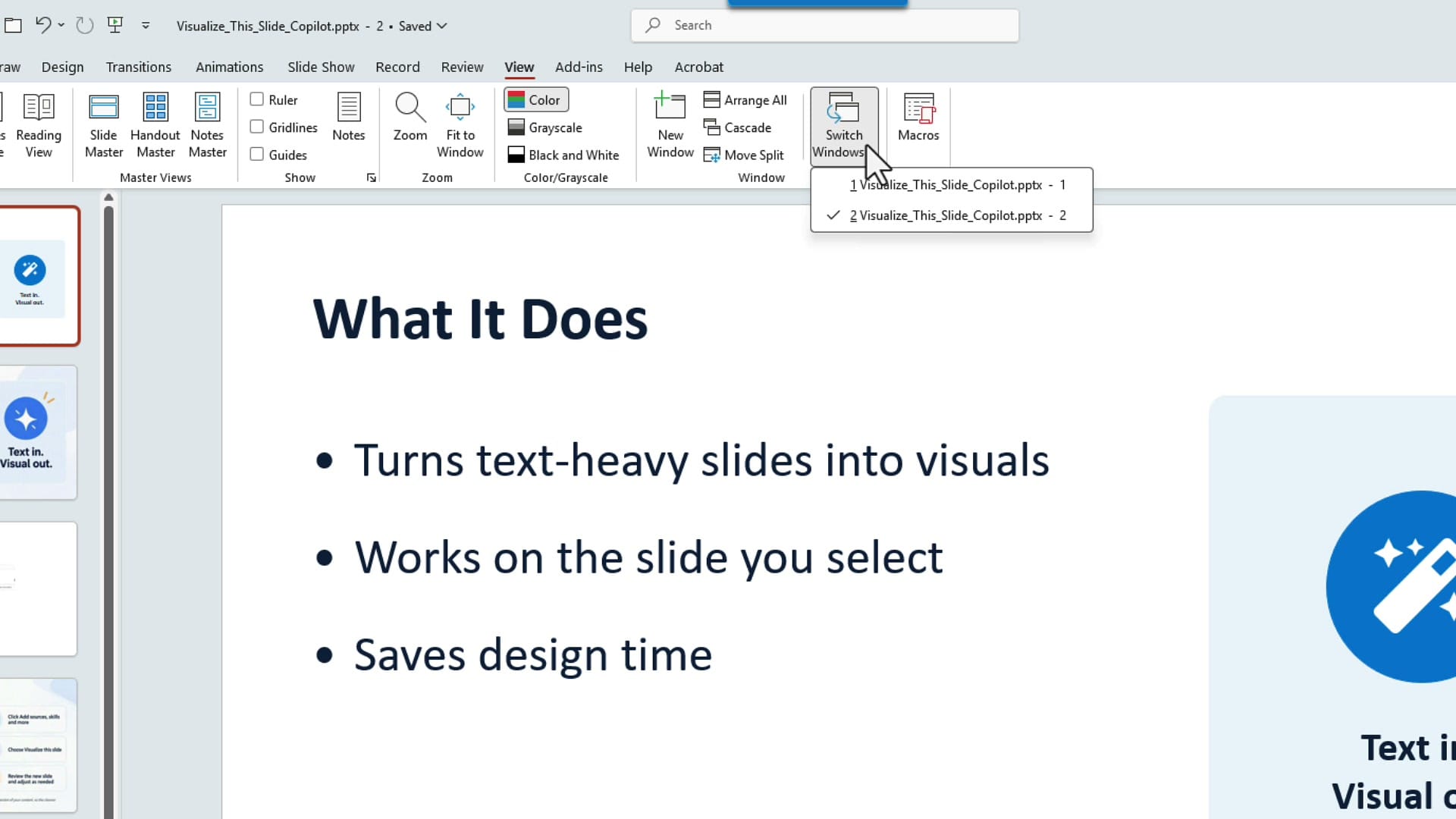
Go to the View tab. Before you do anything else, I encourage you to have only the presentation you need open. The command we use in a moment arranges every open PowerPoint window, so extra presentations just get in the way. To check, click Switch Windows in the Window group. Mine lists only one presentation.
Open another window of your presentation
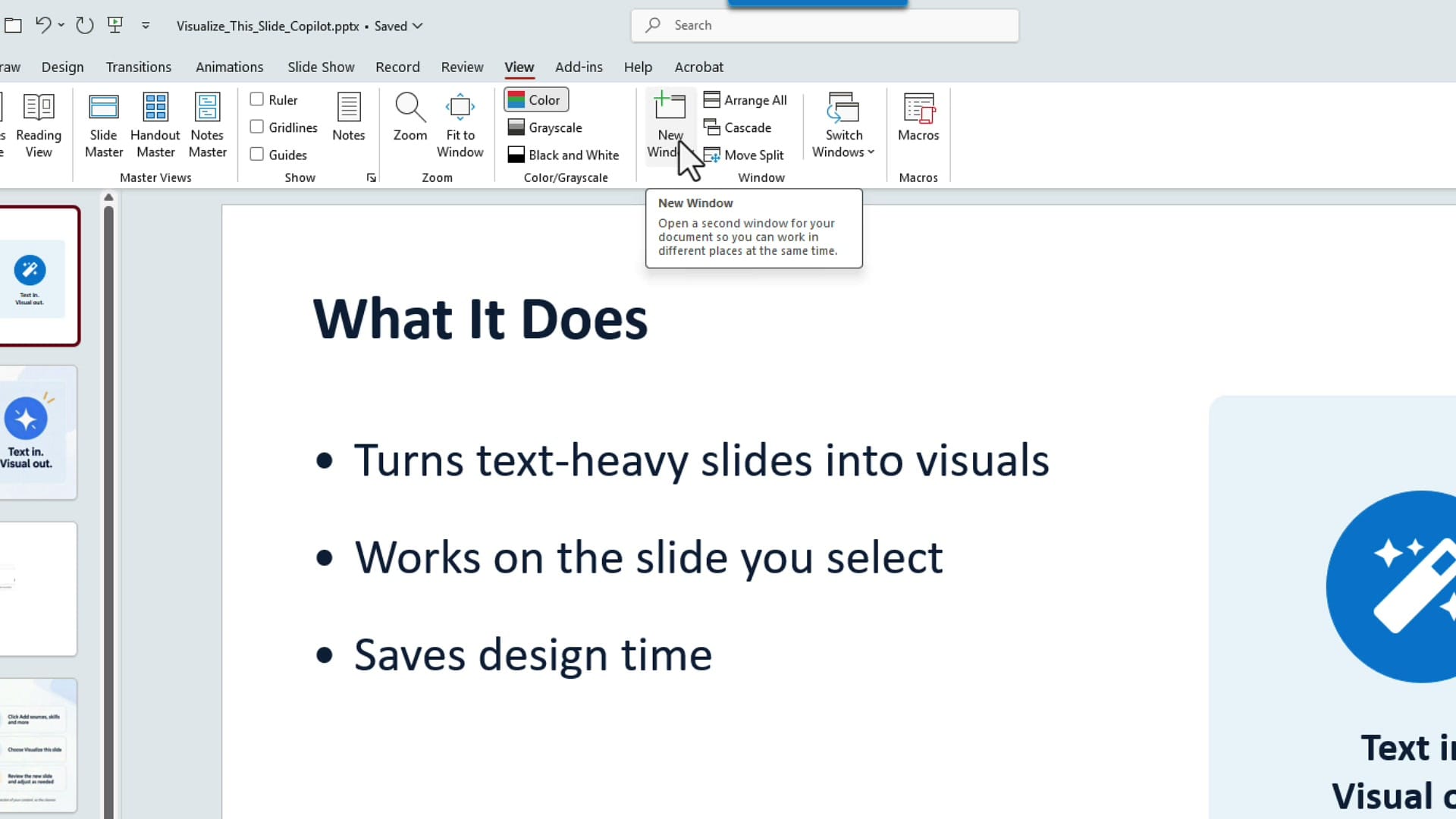
Still on the View tab, click New Window. PowerPoint opens a second window of the exact same presentation, not a copy of the file. Any edit you make in one window shows up in the other.
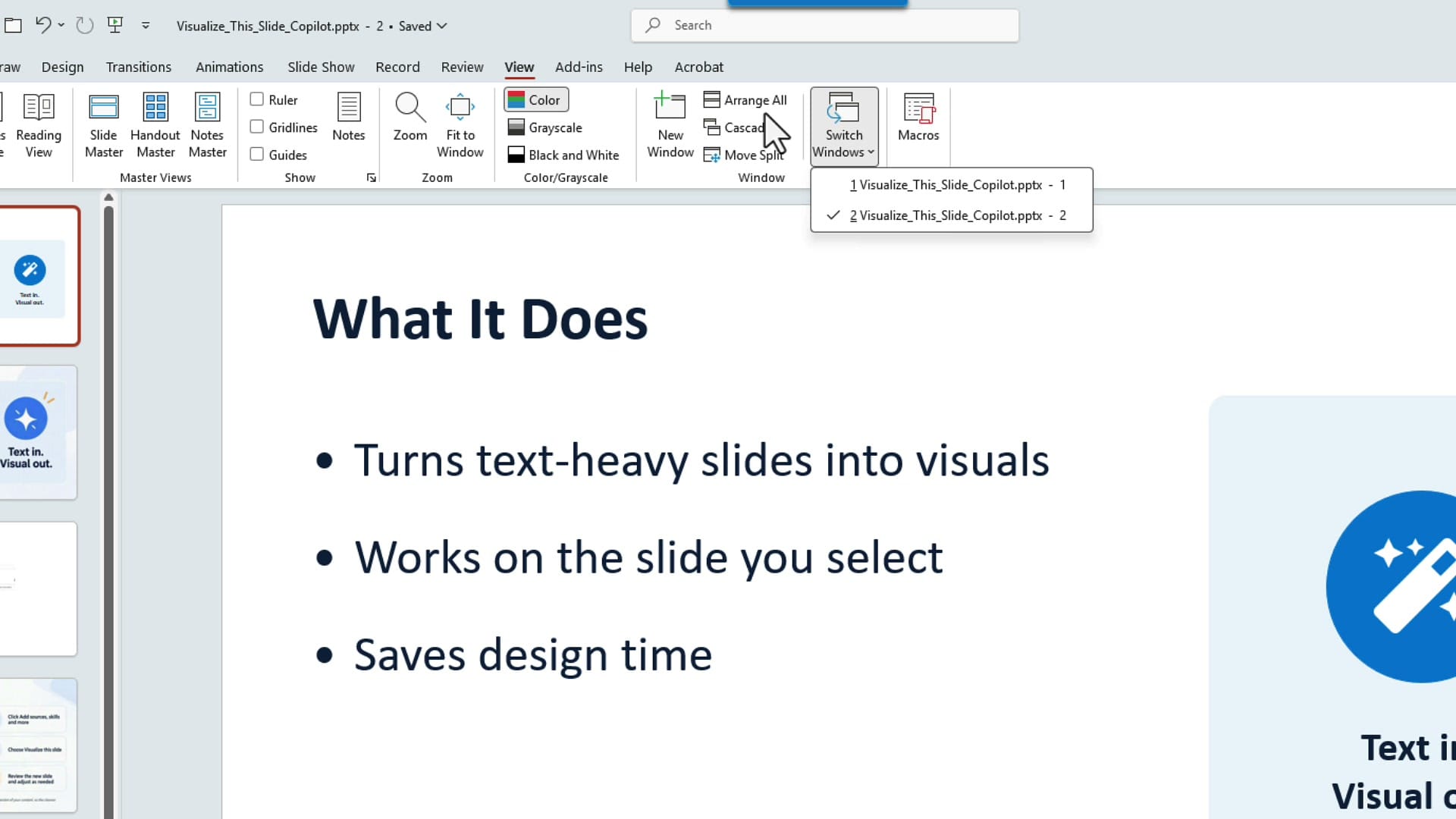
Look at the title bar and you will see the file name now ends in 2. Click Switch Windows again and you will see the same presentation listed twice, as window 1 and window 2.
Arrange the slides side by side
Now select Arrange All in the Window group. PowerPoint places the two windows next to each other.
It doesn't matter which window shows which slide. I have slide 1 on the left and slide 2 selected on the right. Now I can see both slides without clicking back and forth.
Compare text and visual slide layouts
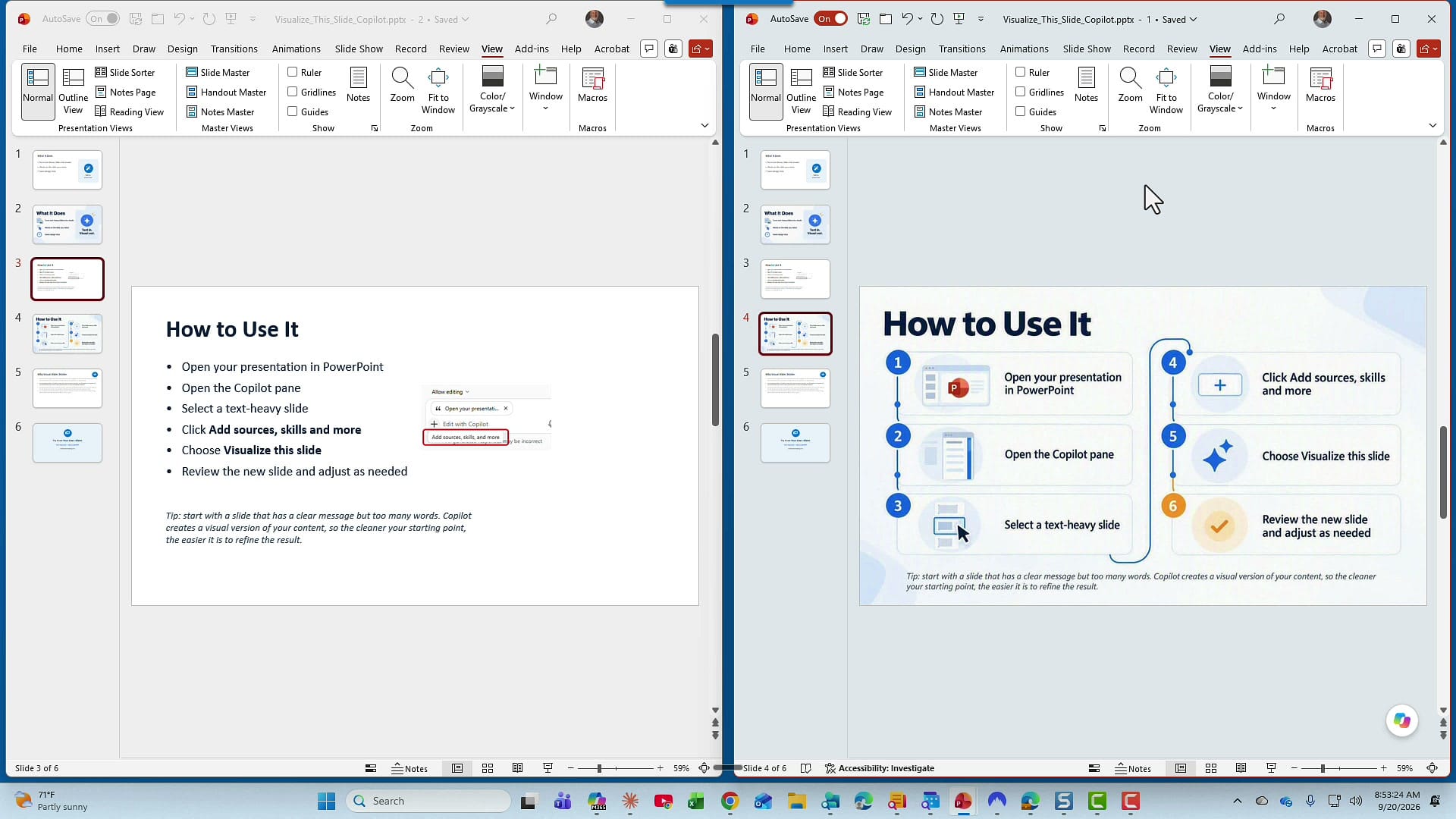
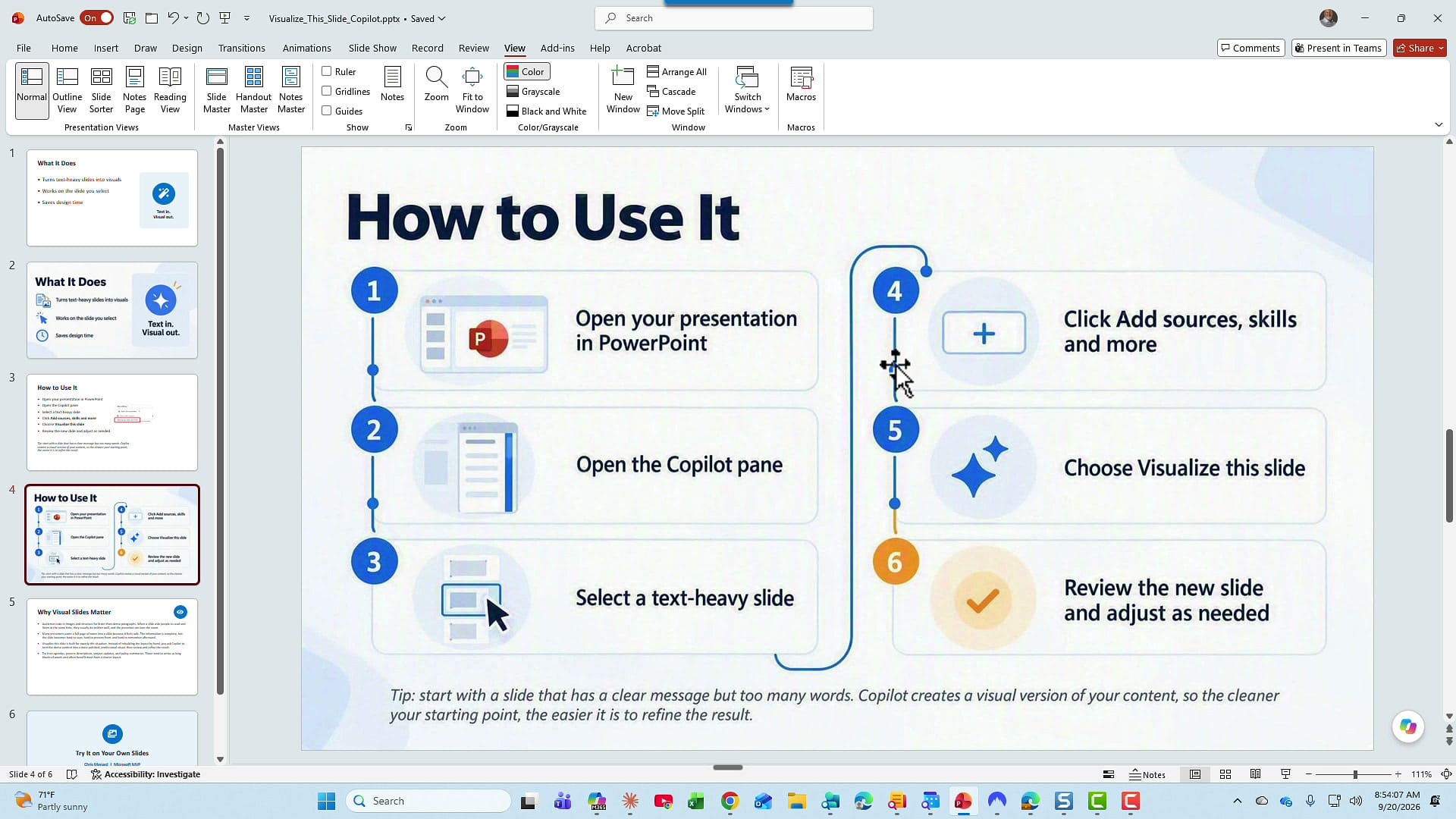
Each window has its own thumbnail pane, so you can click any slide on either side. I clicked slide 3 in the left window and slide 4 in the right window. Here is how I would walk an audience through the comparison:
- The title, How to Use It, did not change on either slide.
- Open your presentation in PowerPoint, the first bullet on the text slide, became step 1 on the visual slide, complete with a PowerPoint graphic.
- Open the Copilot pane became step 2, again with its own visual.
I'm not telling anyone which slide to pick. I'm letting them see both versions at the same time and decide. The same approach works well when you are reviewing the new titles from Copilot's Sharpen slide titles skill against your originals.
Return to one presentation window
When you're done, close one of the windows. It doesn't matter which one, because they are the same presentation. Then maximize the other, and you're back to a single window.
How I made the visual slides
Every visual slide in this example came from Visualize this slide, one of the new Copilot skills in PowerPoint. If you have a Microsoft 365 Copilot license, it turns a text-heavy slide into a visual version. I'm putting together a separate tutorial on that skill.
Related guides
 Chris Menard
 Chris Menard
 Chris Menard
 Chris Menard
 Chris Menard