Delete Blank Columns in Excel: 3 Easy Ways
Blank columns break sorting, filtering, and PivotTables. Remove them with Go To Special, a COUNTA helper row, or Power Query's Column quality view.


Blank columns and blank rows in your Excel data may look harmless, but they cause real problems. I see this all the time when people send me Excel files or when I download data from another system. I am going to pick on blank columns here, but everything applies to blank rows too.
Below are three ways to get rid of them: Go To Special when the blank columns have no header, a COUNTA helper row when the empty columns do have a header, and Power Query when you keep getting the same messy data over and over.
Why blank columns break your data
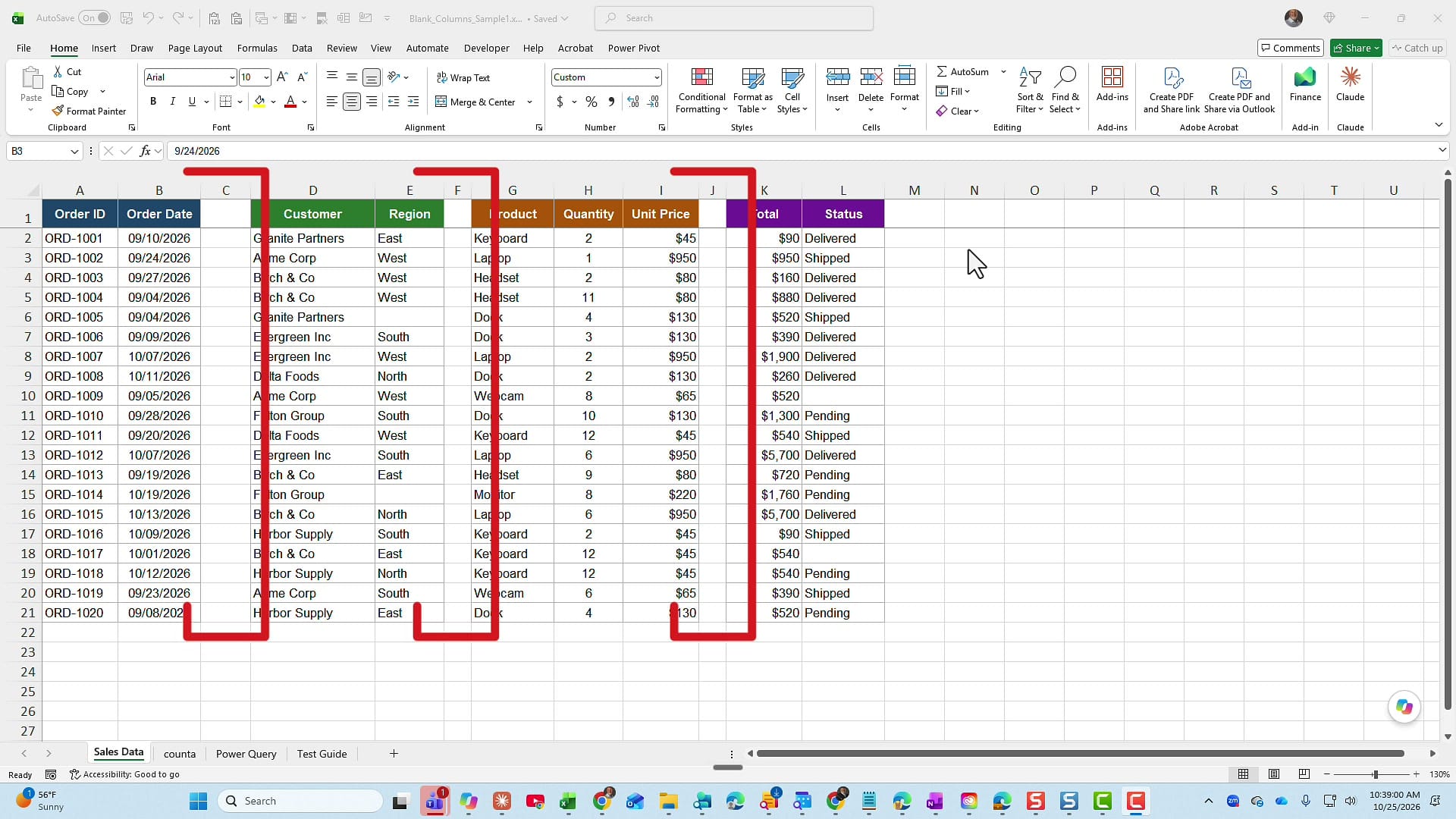
Here is my sample order data. Columns C, F, and J are completely empty. They split what should be one data set into four separate blocks.
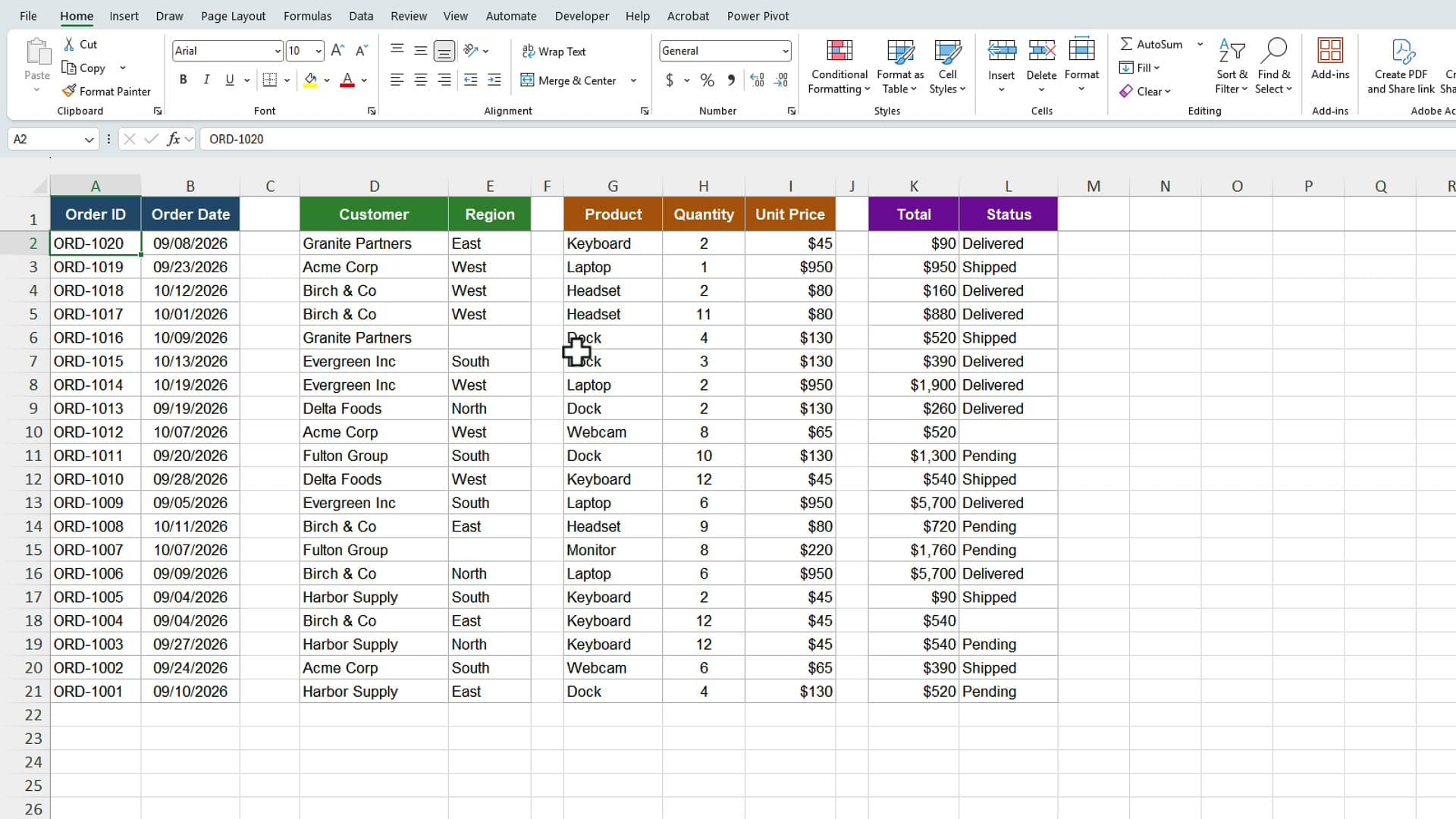
Watch what happens when I sort. I click in column A, go to Sort, and sort the Order IDs Z to A, largest to smallest. Columns A and B sort. Columns D and E, G through I, and K and L do not. Excel stops at the first blank column, so the customers, products, and totals are no longer lined up with the right order IDs.
Sorting is not the only thing that gets messed up. Filtering and PivotTables also treat each block as separate data. It is just a disaster, so let's fix it.
Method 1: Delete empty columns with Go To Special
This first method assumes that if a column has no header, there is no data below it. In my example that is true: C1, F1, and J1 are empty.
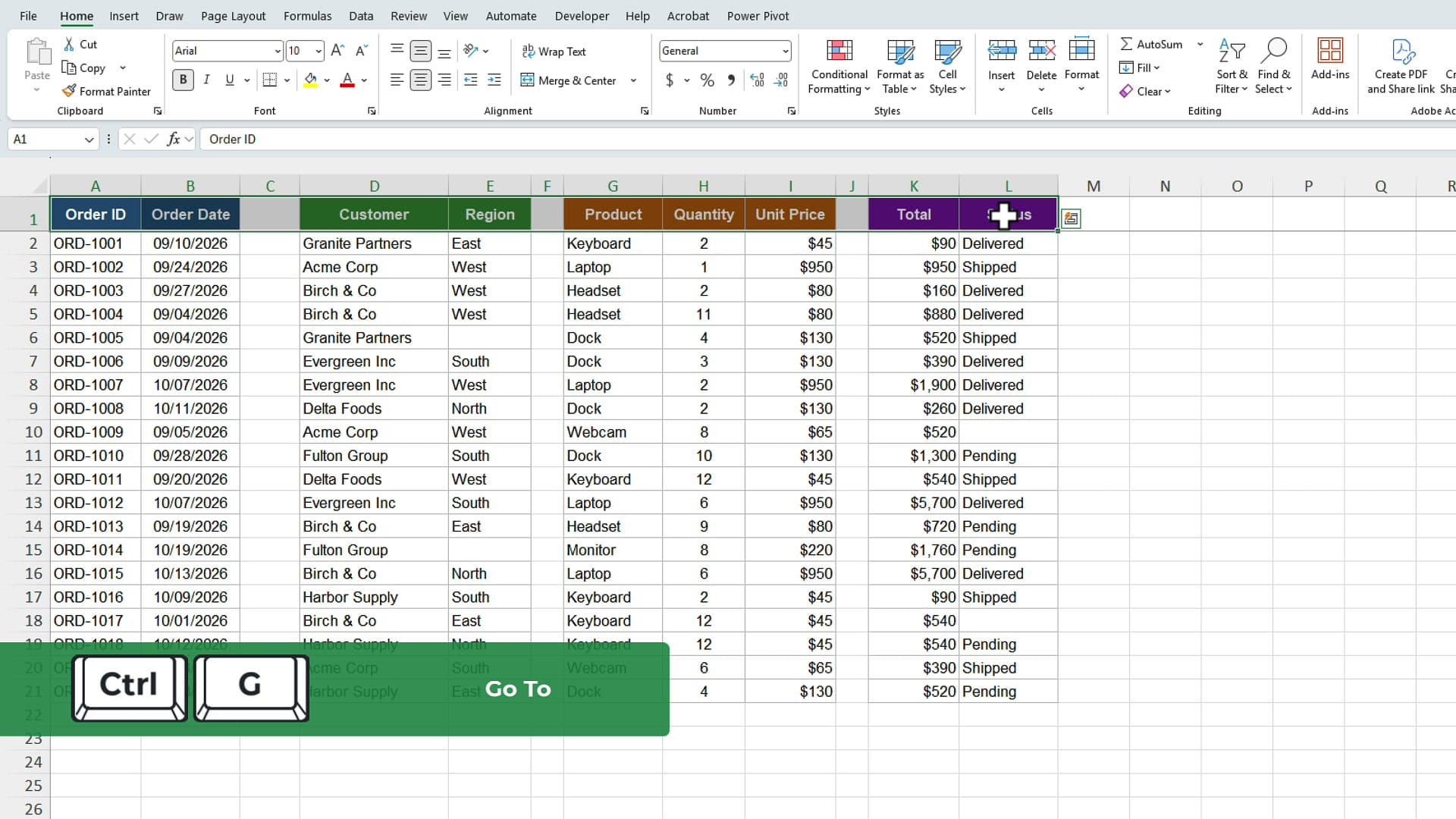
Select the header row from A1 over to L1. Then press Ctrl + G on the keyboard to bring up the Go To dialog box.
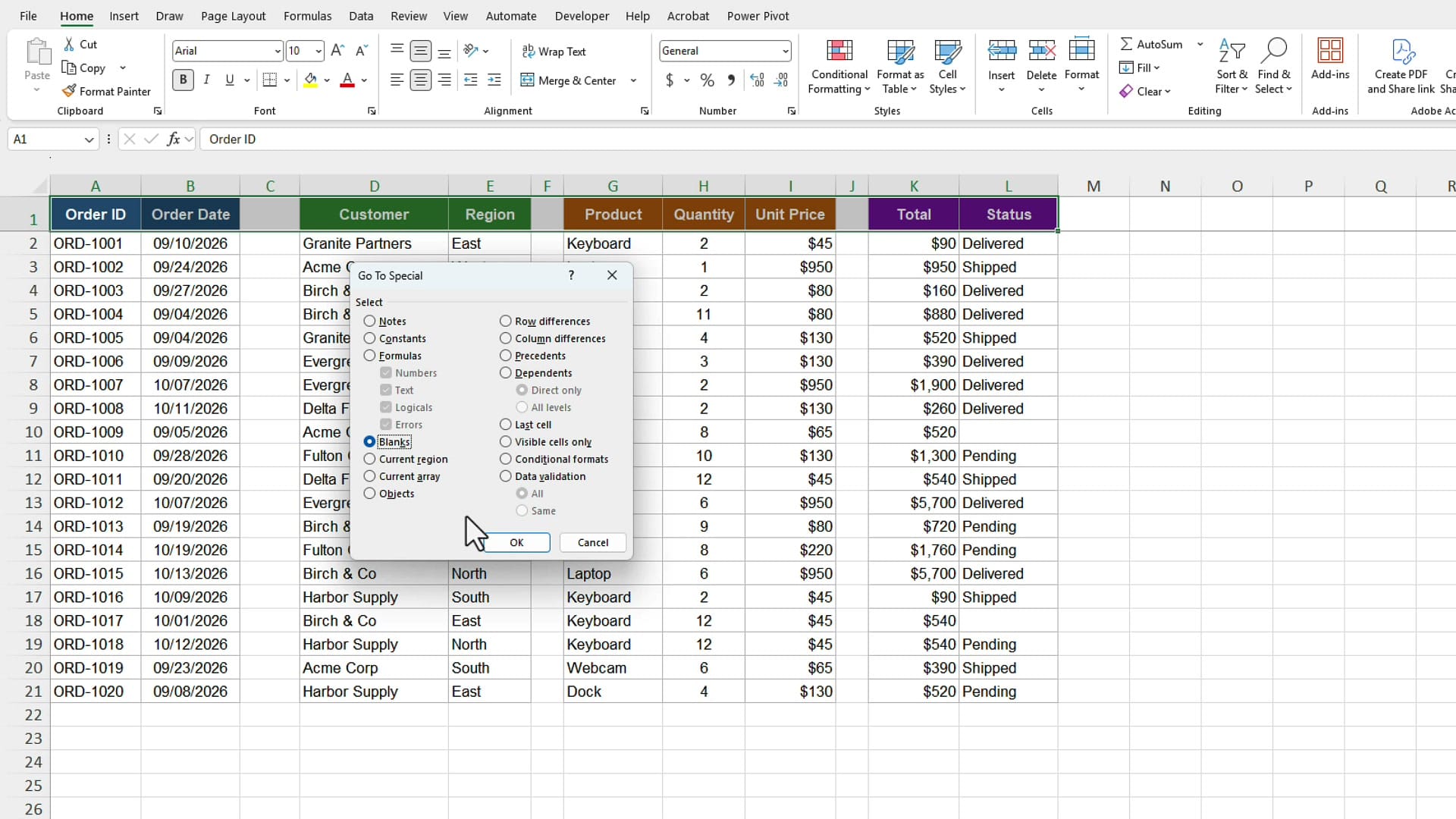
Click the Special button at the bottom of Go To. In Go To Special, select Blanks and click OK. If you have used Go To Special to fix blanks before, this is the same dialog box.
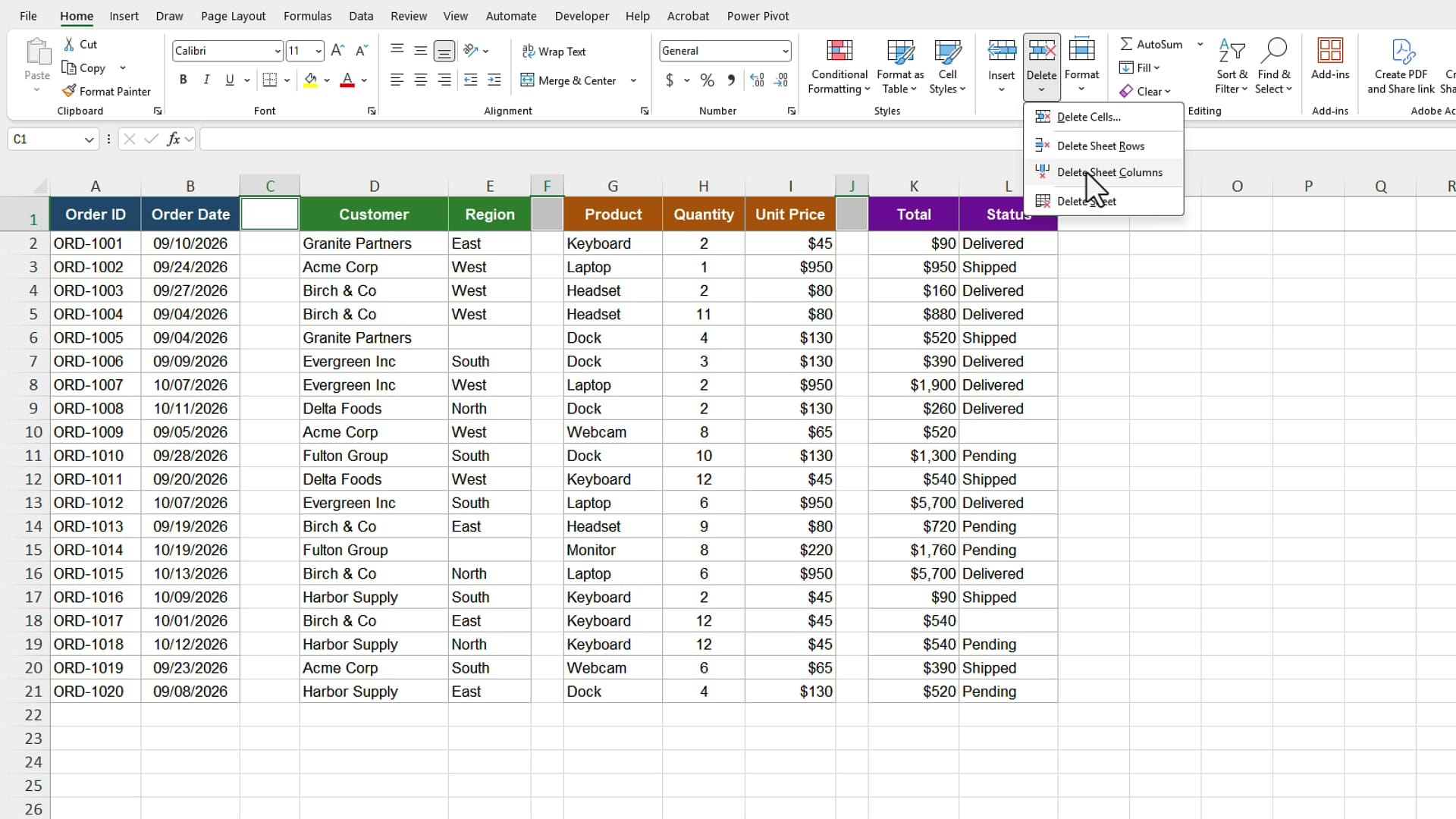
Now only C1, F1, and J1 are selected. Go to the Home tab, click the Delete dropdown in the Cells group, and choose Delete Sheet Columns.
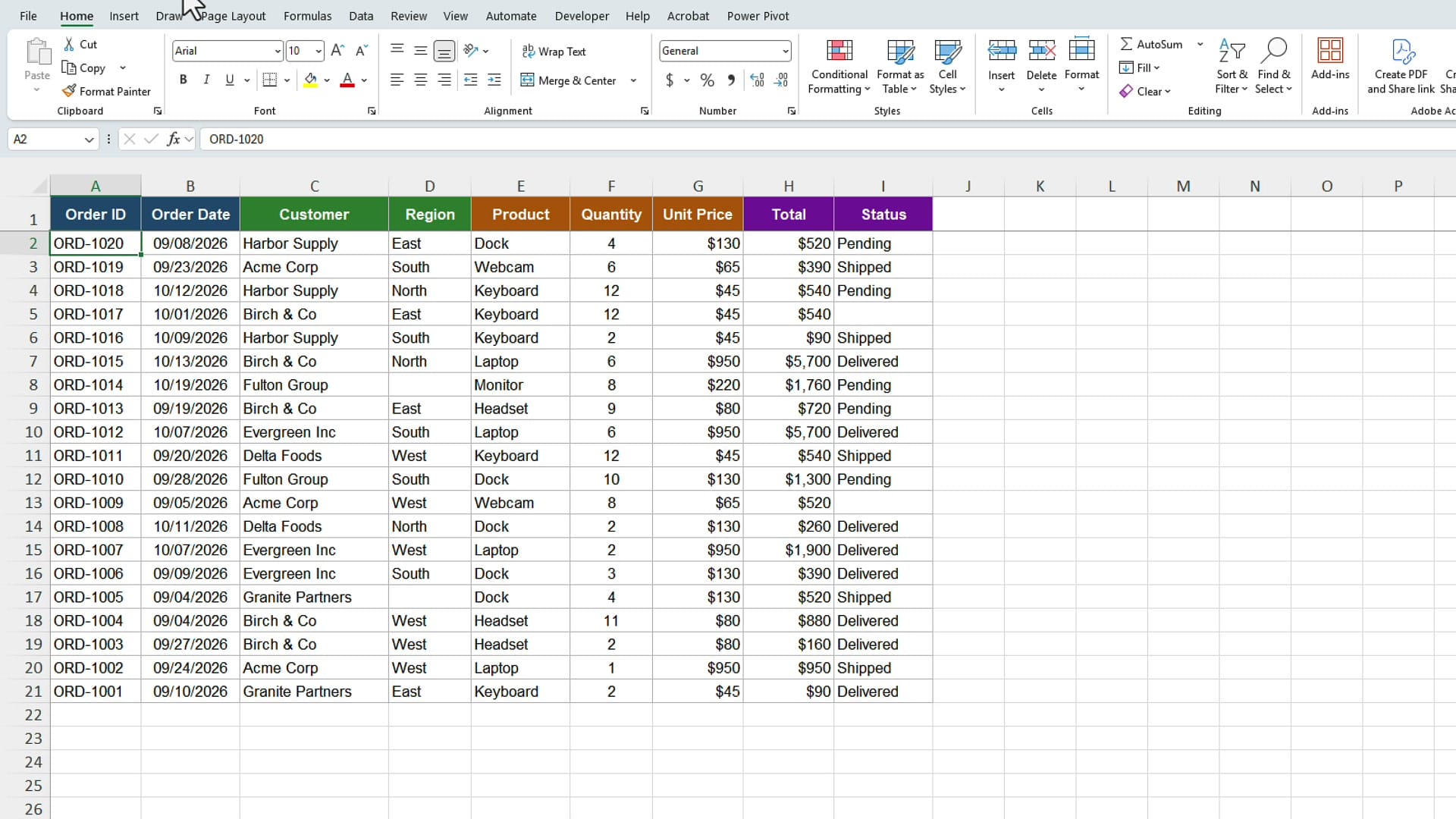
All three columns are gone, and the data is one continuous set. Let's test it. I right-click in A2, choose Sort, and sort Z to A again. This time every column sorts together. Granite Partners, which was on the first row, now sits at the bottom with its correct order. Press Ctrl + Z to undo the sort if you want the original order back.
Method 2: Check columns with headers using COUNTA
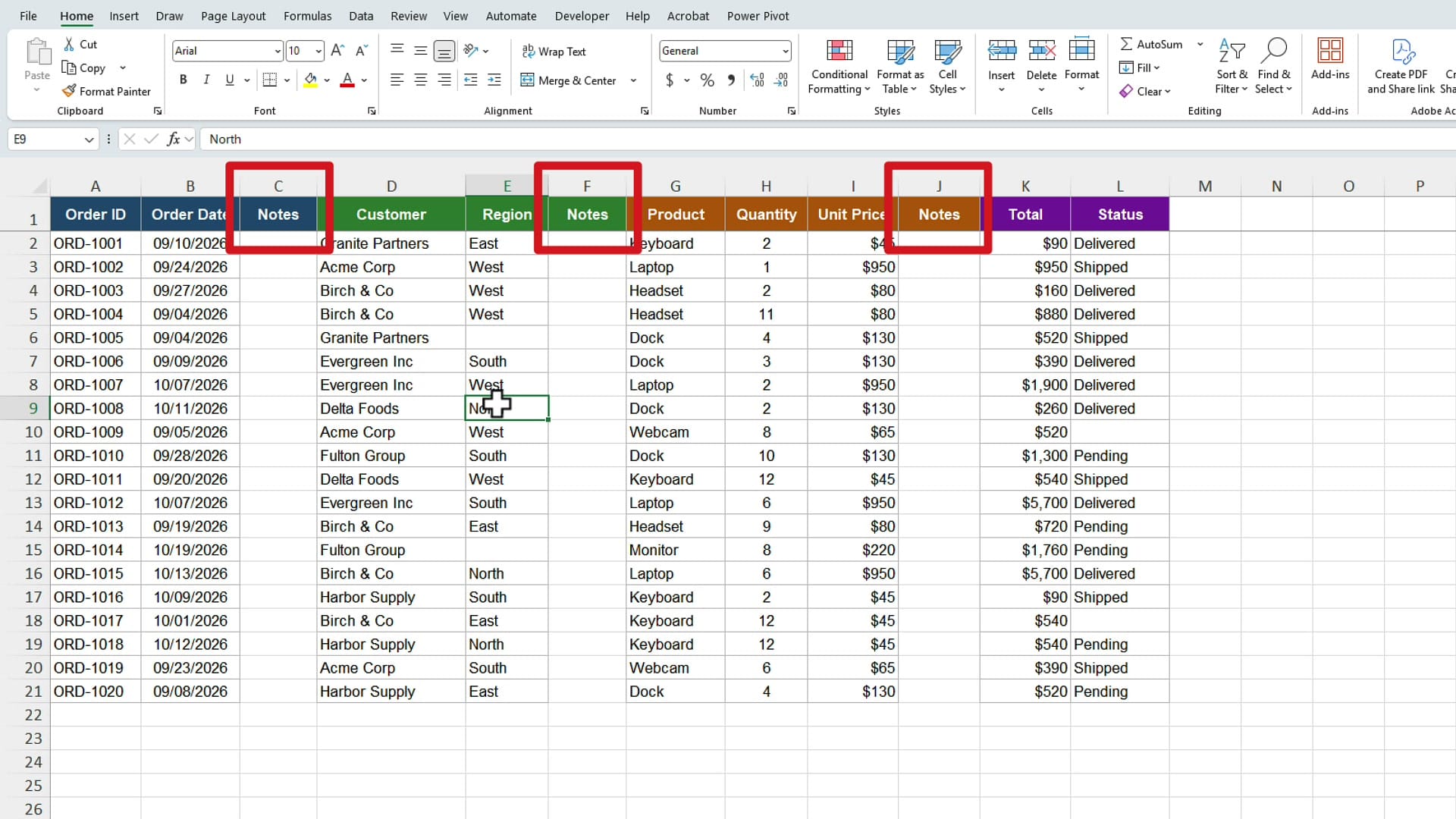
The second example is trickier. Here, the empty columns do have headers. C1, F1, and J1 all say Notes, but nothing was ever typed below them. I have seen data like this a lot, and the header may not be called Notes. Because the header cell is filled in, Go To Special on the header row will not find these columns.
The fix is a helper row. Insert a row above the headers, and in A1 use the COUNTA function to count everything in that column, from A2 down to the last row of data:
=COUNTA(A2:A22)Column A returns 21: the header plus 20 rows of data. Copy the formula across the helper row. COUNTA counts every cell that is not empty, so a column that only has a header returns 1.
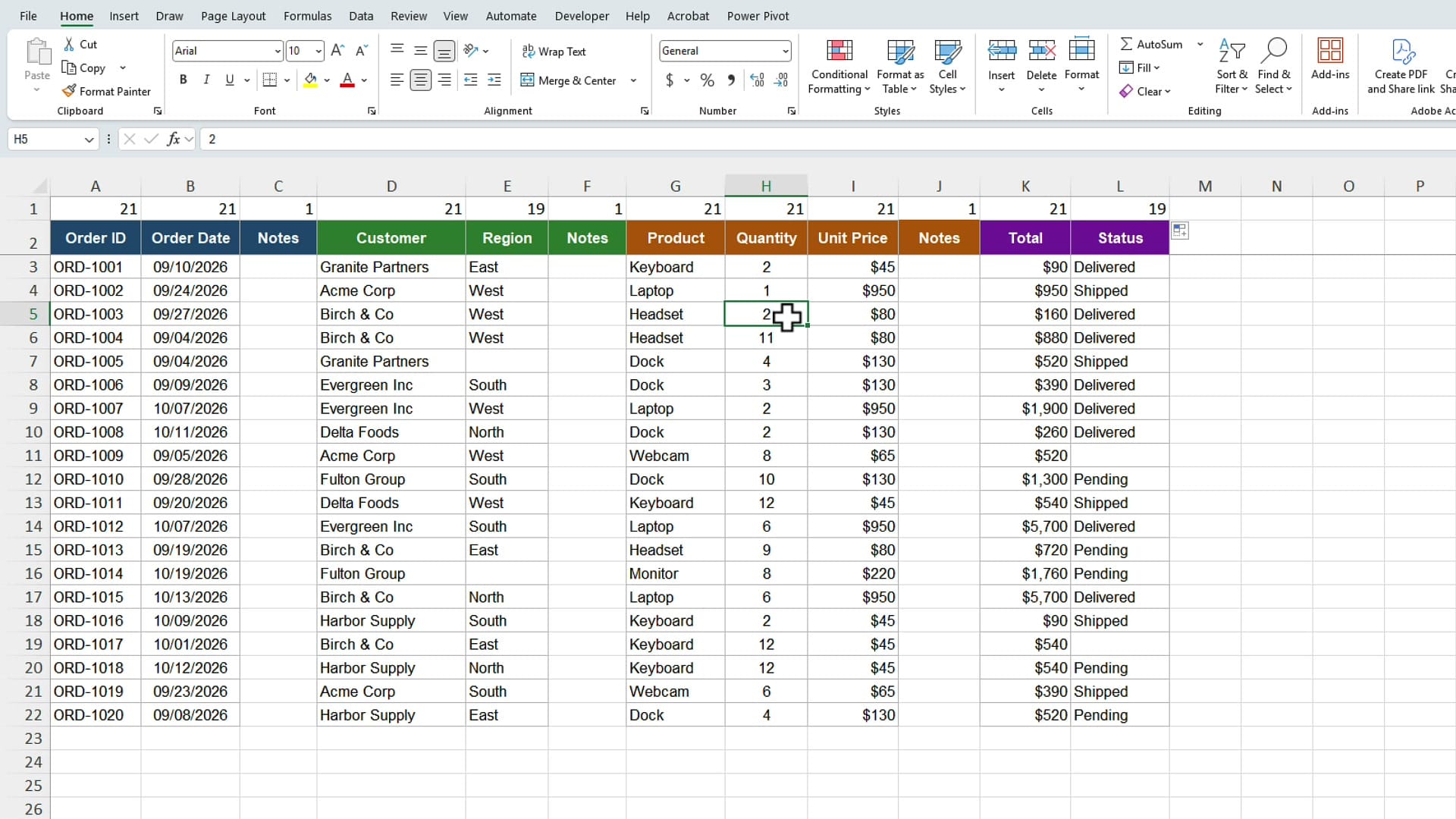
Every column showing a 1 is one you can delete. Here that is C, F, and J. Select those columns, delete them, and then delete the helper row.
Method 3: Load your data into Power Query
If you keep getting data with blank columns, this is the method I would go with. Back to my original data with the empty columns in C, F, and J.
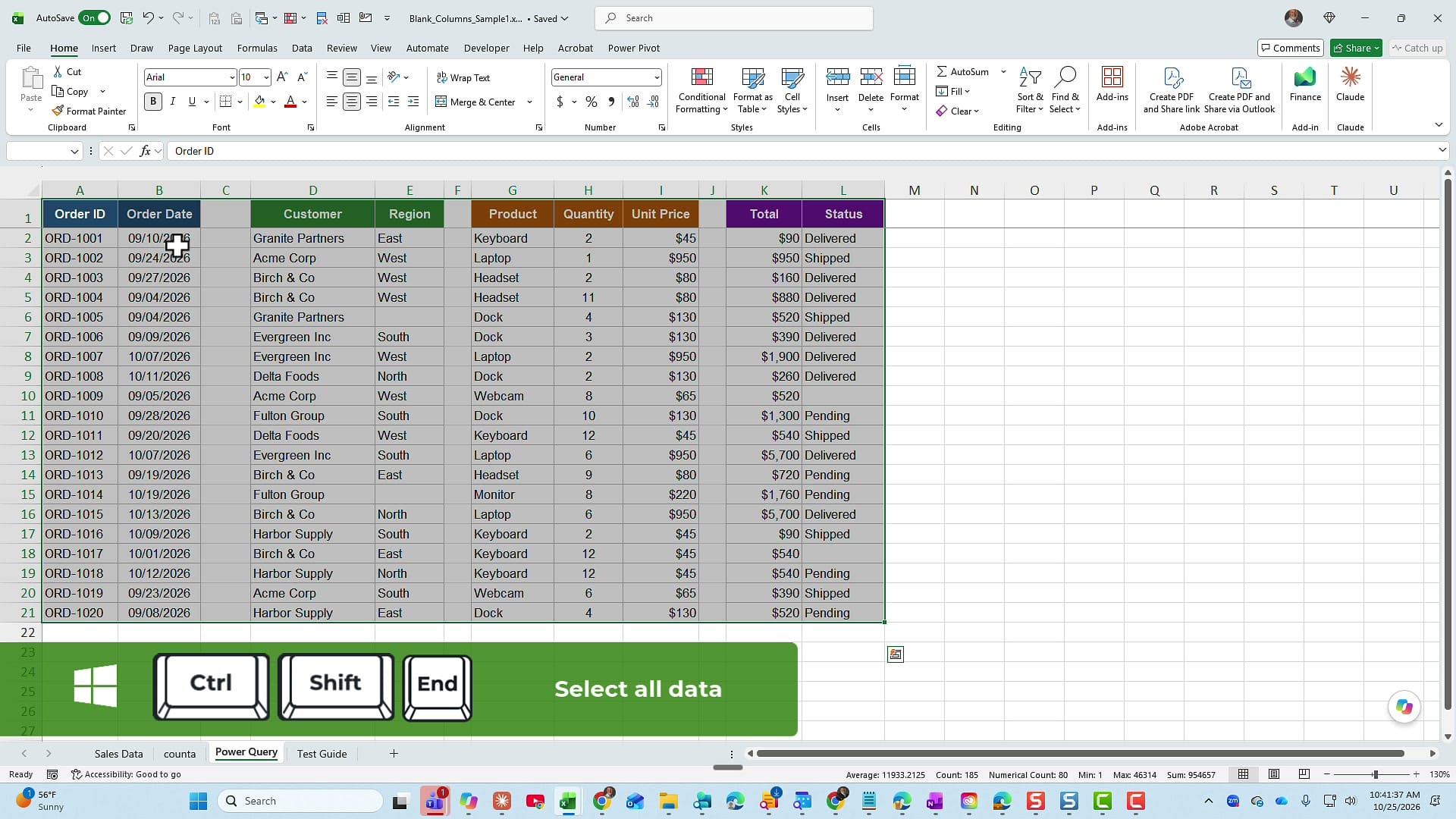
First, select all the data. Click A1, then press Ctrl + Shift + End. The End key is on the keyboard below Home. That jumps to the last cell of your data and selects everything in between, including the blank columns.
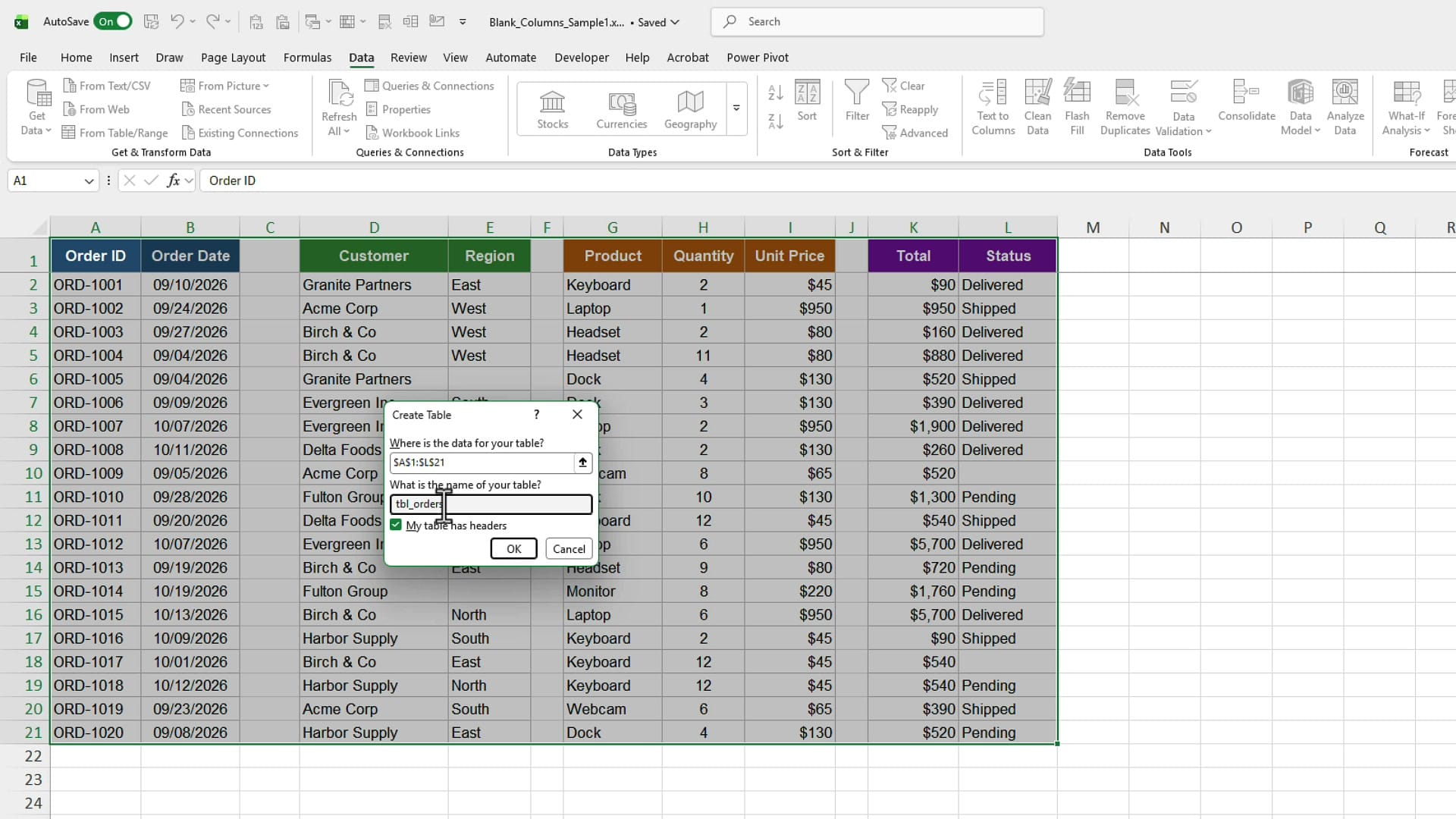
Go to the Data tab and click From Table/Range. The Create Table dialog box opens. Excel now lets you name your table when you create it, so if you have that option, use it. I named mine tbl_orders. Make sure My table has headers is checked, and click OK.
Excel launches the Power Query Editor. You can see the empty columns there, renamed Column1, Column2, and Column3, but on real data you do not want to sit and scroll across looking for them.
Find empty columns with Column quality
In the Power Query Editor, go to the View tab. In the Data Preview group, check Column quality.
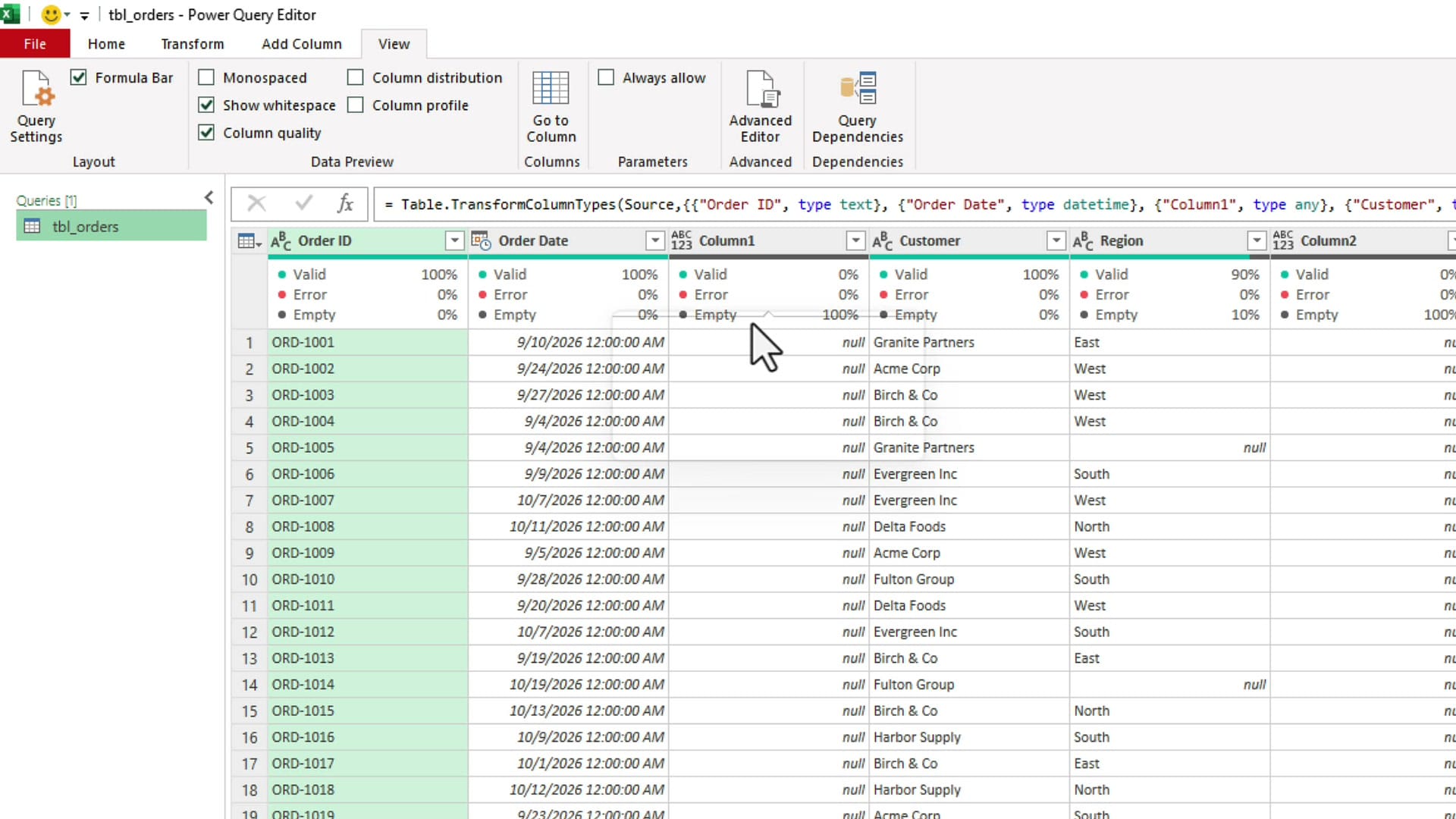
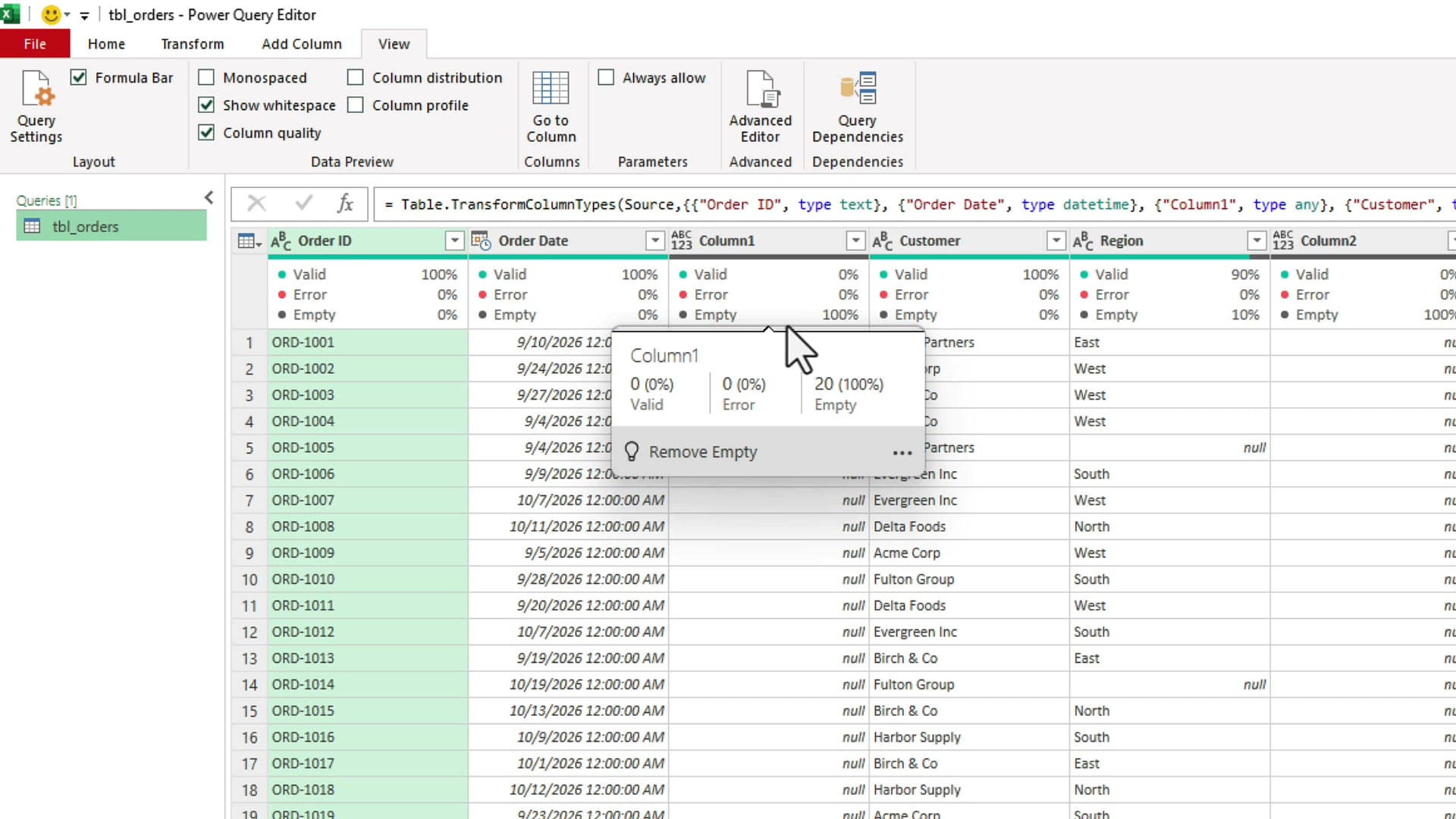
Now every column shows Valid, Error, and Empty percentages right under the header. Order ID is 0% empty. Order Date is 0% empty. Column1 is 100% empty. Hover over the bar and you get the exact count: 20 out of 20 rows are empty.
Column2 is also 100% empty, and if you scroll a little to the right, so is Column3. Compare that with the Region and Status columns, which are only 10% empty. Those have a couple of missing values, but they are real data and should stay.
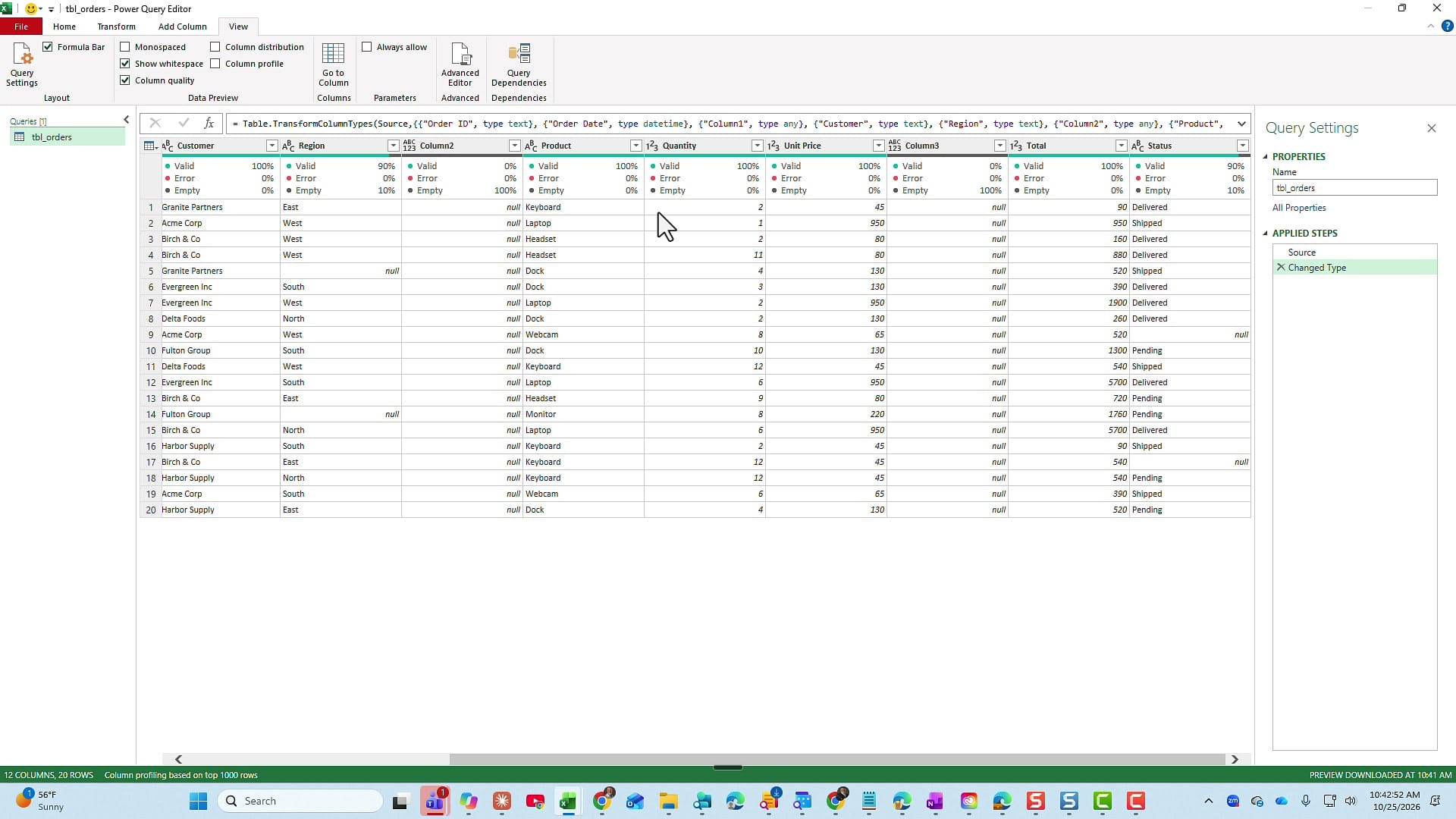
Now delete the columns that are completely empty. Hold Ctrl, click the Column1, Column2, and Column3 headers, then right-click and choose Remove Columns. When you are done, click Close & Load on the Home tab. The next time you get new data, refresh the query instead of cleaning it by hand again.
Which method should you use?
If the blank columns have no header, Go To Special on the header row is the fastest. If the empty columns have headers, a COUNTA helper row tells you exactly which ones are safe to delete. And if this is data you receive regularly, Power Query with Column quality turned on shows you every empty column at a glance, and the clean-up is saved for next time.
If you have another method for removing blank columns that I did not cover, let me know. I am happy to look into it.
Related guides
 Chris Menard
 Chris Menard
 Chris Menard
 Chris Menard
 Chris Menard