
Power Query: Remove Extra Spaces in the Middle of Words (Beyond TRIM)


Extra spaces are one of the most common data problems in Excel — leading spaces, trailing spaces, and the trickiest of all, extra spaces in the middle of words. The TRIM function handles all three. But what happens when you switch to Power Query for a larger data cleanup? Power Query's built-in Trim only removes leading and trailing spaces — it leaves the middle ones in place.
Here is the workaround.
The Problem: Extra Spaces in the Source Data
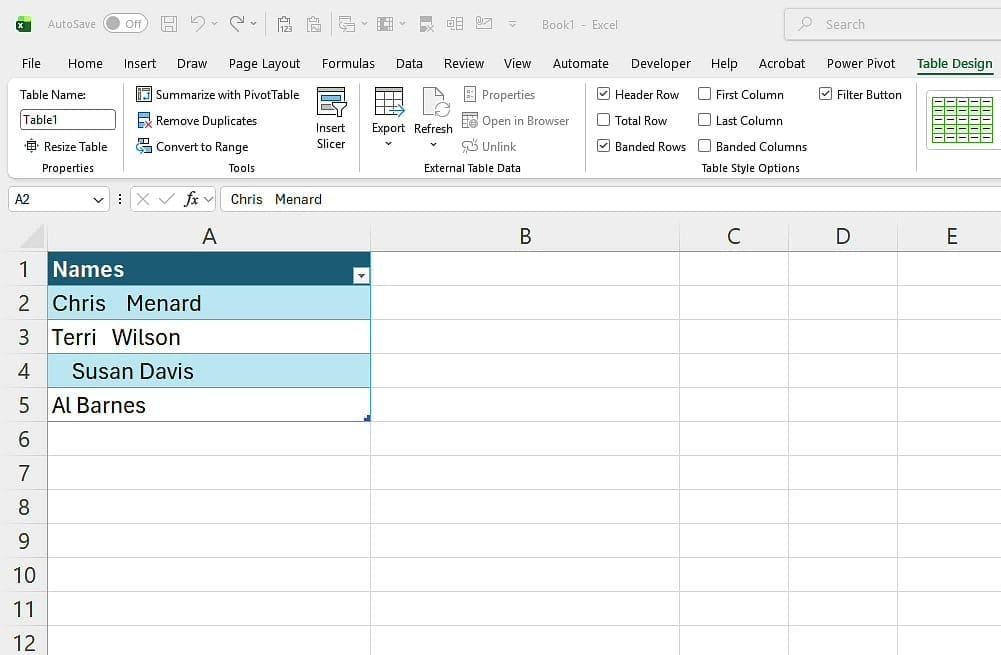
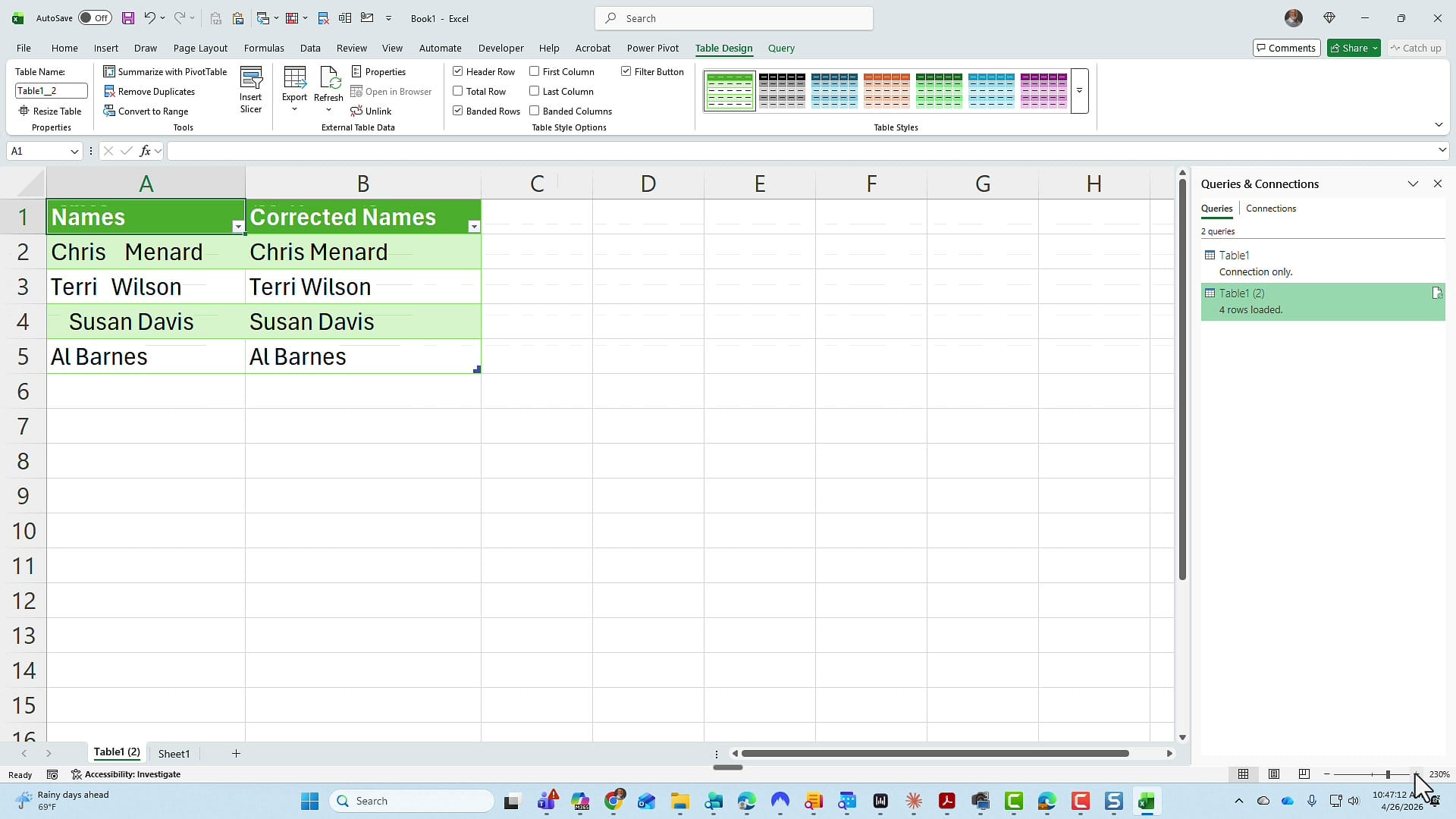
Here is a small Names table with extra spaces in different positions. "Chris Menard" has two spaces between the names, "Susan Davis" has a leading space, and "Al Barnes" has trailing spaces. These are the kinds of issues that break sorting, lookups, and matches in Excel.
The Easy Way: Excel's TRIM Function
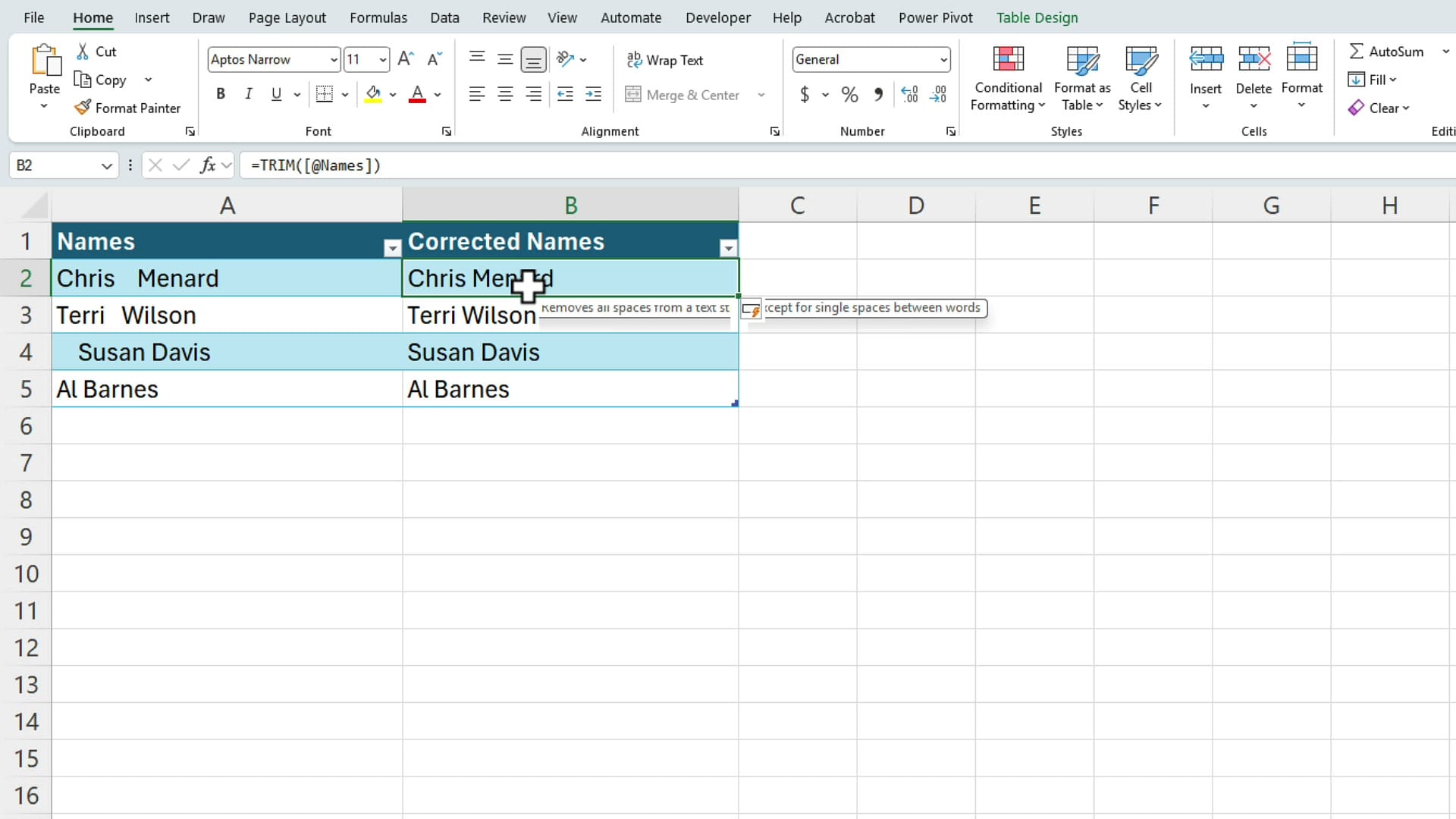
If you only need to clean spaces, the TRIM function in Excel is the fastest fix. In a new column called Corrected Names, type =TRIM([@Names]) and Excel removes leading, trailing, and extra middle spaces in one step. Copy and paste as values if you want to lock in the result.
For simple cases, this is enough. But if you have a larger data cleanup workflow — multiple transformations, joins, refreshable queries — you probably want Power Query. And that is where things get tricky.
The Problem: Power Query's Trim Doesn't Remove Middle Spaces
Load the table into Power Query (right-click the table > From Table/Range), then right-click the column and choose Transform > Trim. The leading and trailing spaces disappear, but the double space between "Chris" and "Menard" stays.
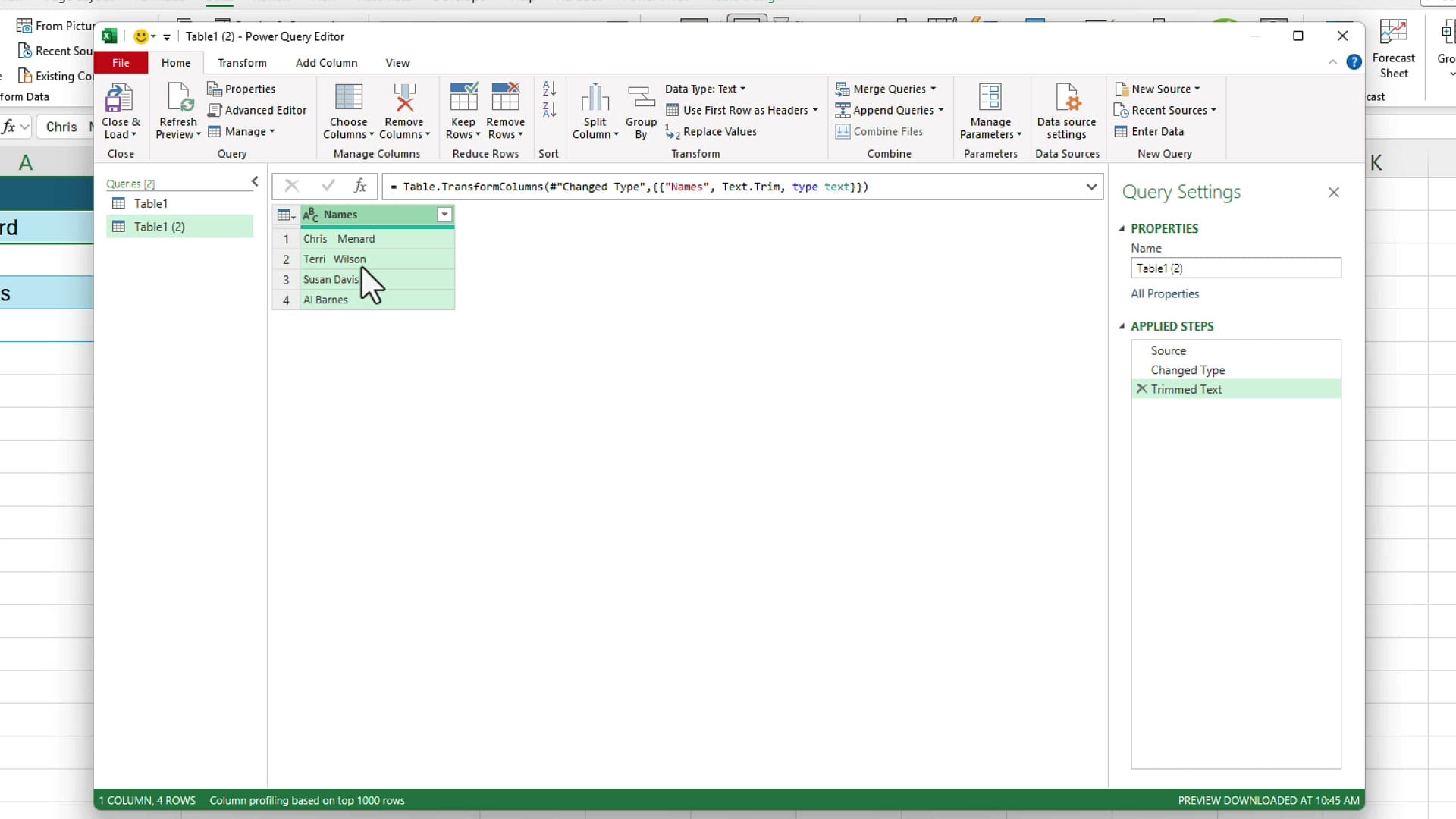
Excel's TRIM function and Power Query's Trim transformation behave differently. To replicate the full Excel TRIM behavior in Power Query, you need a custom formula.
The Fix: A Custom Column Formula
I am decent at Power Query but not an expert at writing M code. So I asked Claude (M365 Copilot would also work) for a Power Query formula that replicates Excel's TRIM behavior. The prompt included an example with extra spaces. Claude gave me two options — here is the one I used:
Text.Combine(List.Select(Text.Split(Text.Trim([YourColumn]), " "), each _ <> ""), " ")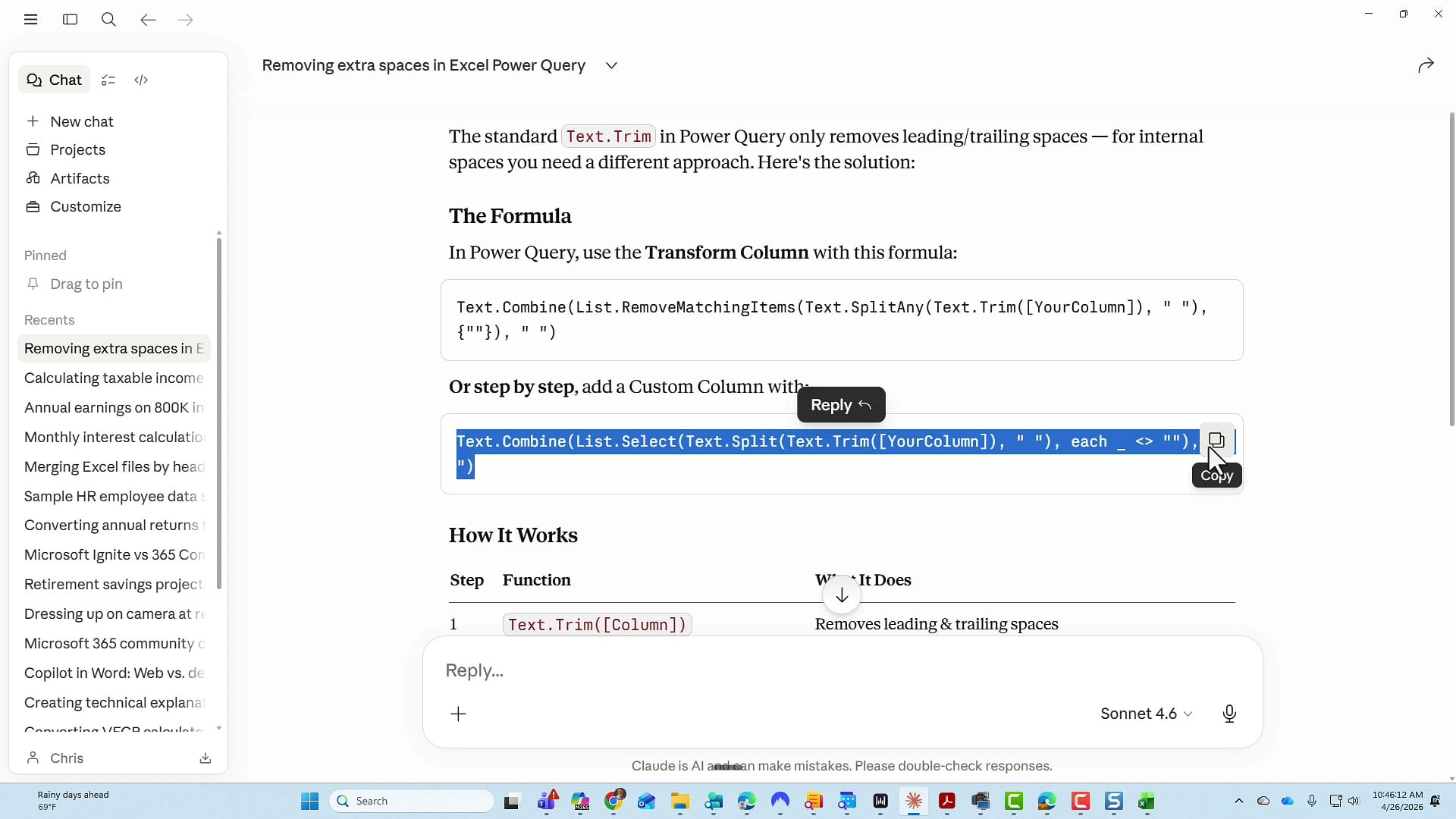
Apply the Formula in Power Query
Back in Power Query, remove the failed Trim step from the Applied Steps panel on the right. Then go to Add Column > Custom Column. Name the new column Corrected Names, paste the formula, and replace [YourColumn] with your actual column name (in this case, [Names]).
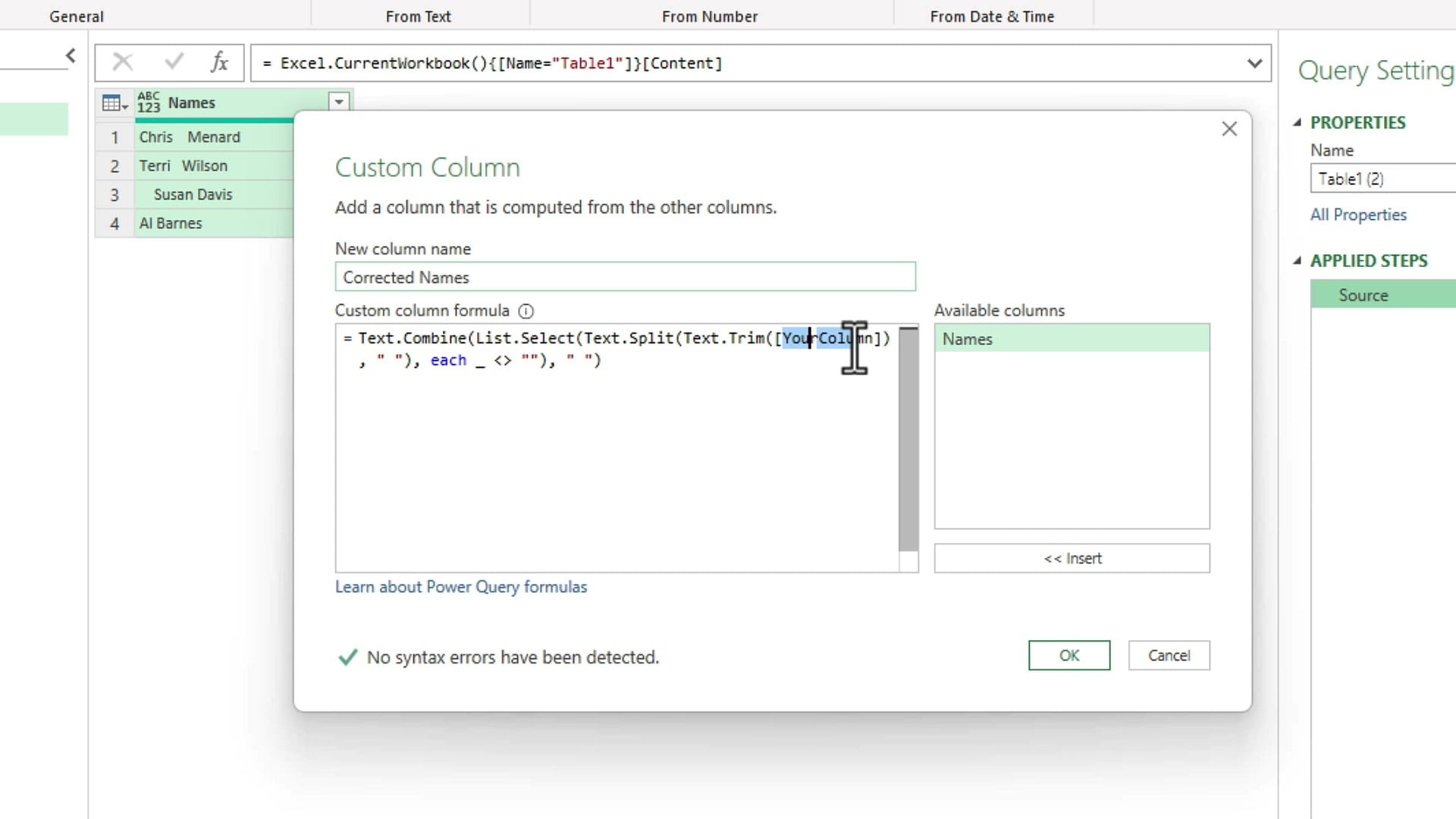
Click OK, then go to Home > Close & Load. The result is a new Corrected Names column with all extra spaces — leading, trailing, and middle — fully removed.
How the Formula Works
The formula combines four functions:
Text.Trim([Names])— removes leading and trailing spaces from each valueText.Split(..., " ")— splits the remaining text on every space, producing a list of words and empty stringsList.Select(..., each _ <> "")— keeps only the non-empty entries (this discards the empty strings created by consecutive spaces)Text.Combine(..., " ")— joins the remaining words back together with a single space between each
The result behaves exactly like Excel's TRIM function but inside Power Query, so it works with refreshable queries, larger datasets, and more complex transformation pipelines.
Related Power Query and Excel Tutorials
 Chris Menard
 Chris Menard
 Chris Menard
 Chris Menard
 Chris Menard
Want to learn more? Visit courses.chrismenardtraining.com for online training courses.



