How to Use Microsoft 365 Copilot Cowork to Build Word Docs, PowerPoint Decks, and Outlook Emails in One Prompt

Microsoft Copilot Cowork is the most exciting addition to Microsoft 365 Copilot I have used in a while. It is a multi-step agent that works across Outlook, Word, PowerPoint, and your other apps at the same time — give it one prompt and it can search your mailbox, build deliverables in parallel, and even follow up by drafting an email and dropping a meeting on your calendar.
In this article, I walk through a real example I ran this morning. I asked Cowork to look through my Outlook inbox and sent items for conference-related emails, summarize them in a Word document, build a high-level executive PowerPoint, and then send everything to a colleague with a Teams meeting attached.
Copilot Chat vs Copilot Cowork: when to use each
Before opening Cowork, it helps to understand how it is different from regular Copilot Chat. Microsoft Copilot actually made the comparison graphic below for me, and it sums it up well.
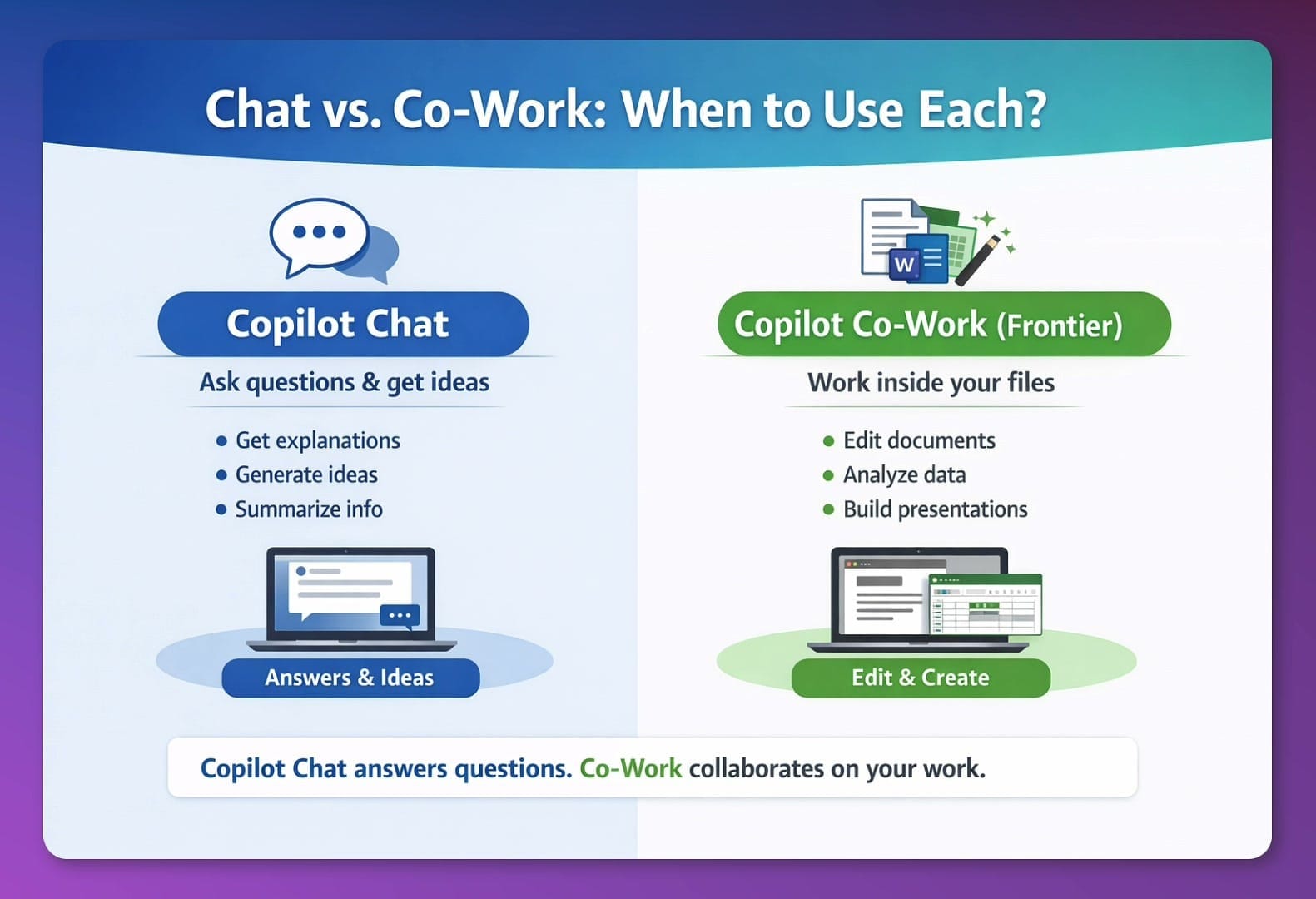
Here is how I think about it: Chat is like a really intelligent coworker you ask a single question — Q&A or one task, one output. Cowork can do multiple items across multiple applications. In my example below, it uses my Outlook, PowerPoint, and Word to create something, and if I add more content later it can keep updating those files. It also has a very specific output folder where everything gets stored, so you never lose track of what it built.
Navigate to Cowork and the Frontier program
Two important points right off the top. Cowork lives behind Microsoft 365 Copilot's Frontier program — your admin has to opt you into Frontier before you will see it. To me, Frontier is basically a preview of future Copilot features. It is easy for an admin to enable.
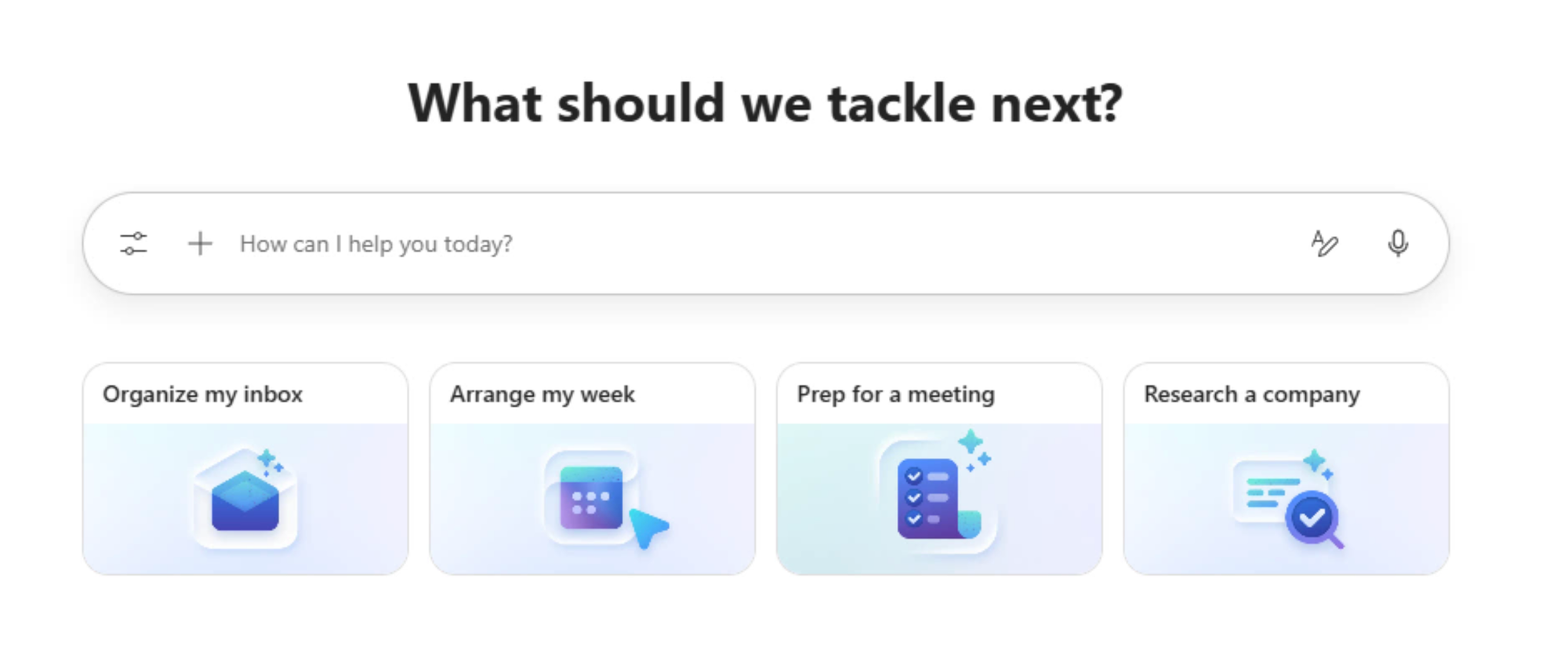
When you arrive at the Cowork home page, you will see four starter items running from left to right: Organize my inbox, Arrange my week, Prep for a meeting, and Research a company. I have already played with these — for example, I ran "Research a company" against Nvidia, which is a great way to get familiar with what Cowork does. But for this video I wanted to build something from scratch.
Enable Anthropic and pick your model
Look at the top right corner — you will see an Auto dropdown. That is where you choose which model Cowork uses to drive the work.
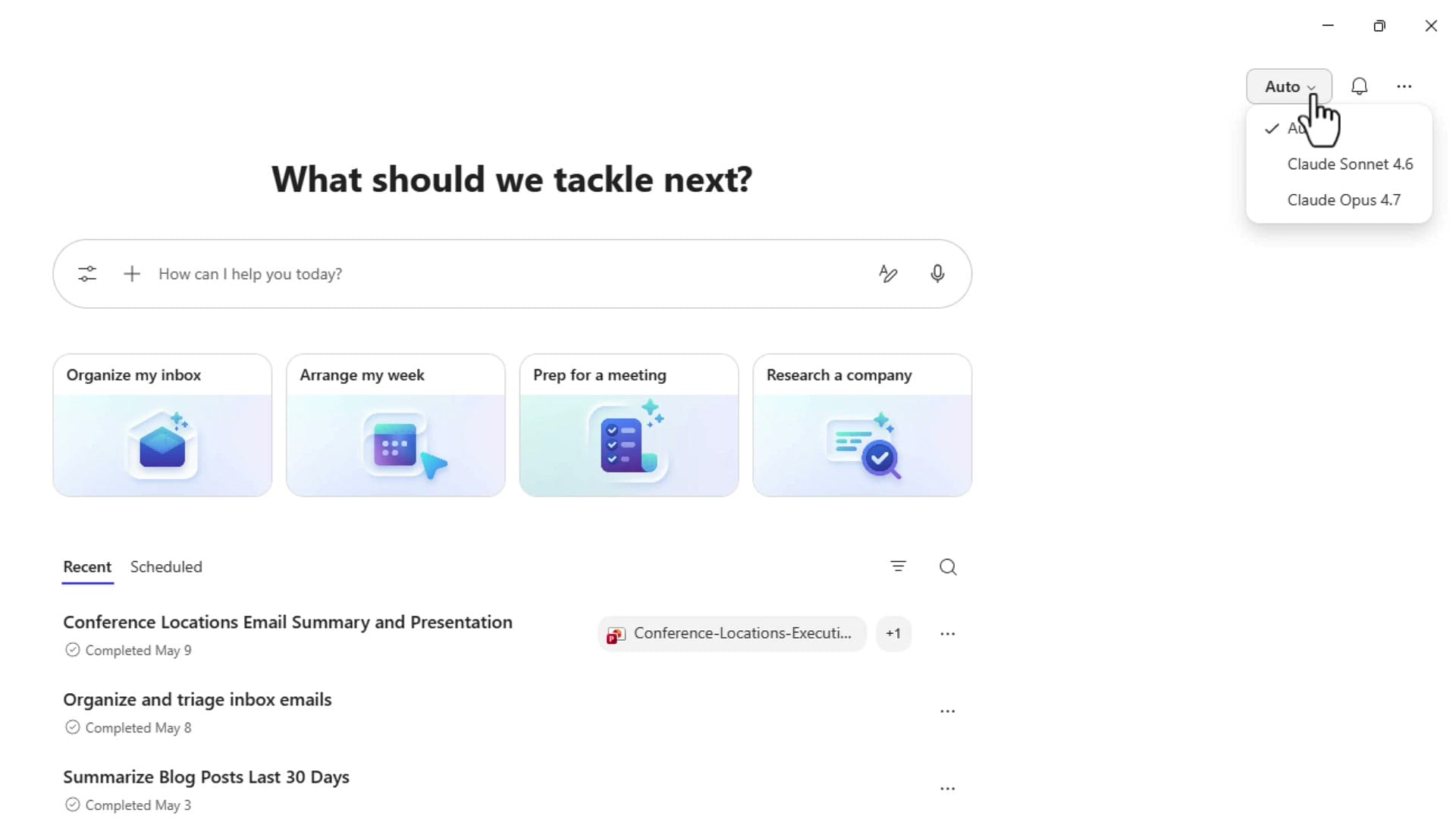
To get Claude Sonnet 4.6 and Claude Opus 4.7 in this dropdown, the same admin who put you in Frontier has to turn on Anthropic in your environment. Once that is done, you can pick the model manually or just leave it on Auto, which is what I do for most prompts. If you want more background on how Anthropic's Claude models are showing up across Microsoft 365 Copilot, see my write-up on the three recent Excel Copilot updates, including the Anthropic Claude integration.
The prompt I used
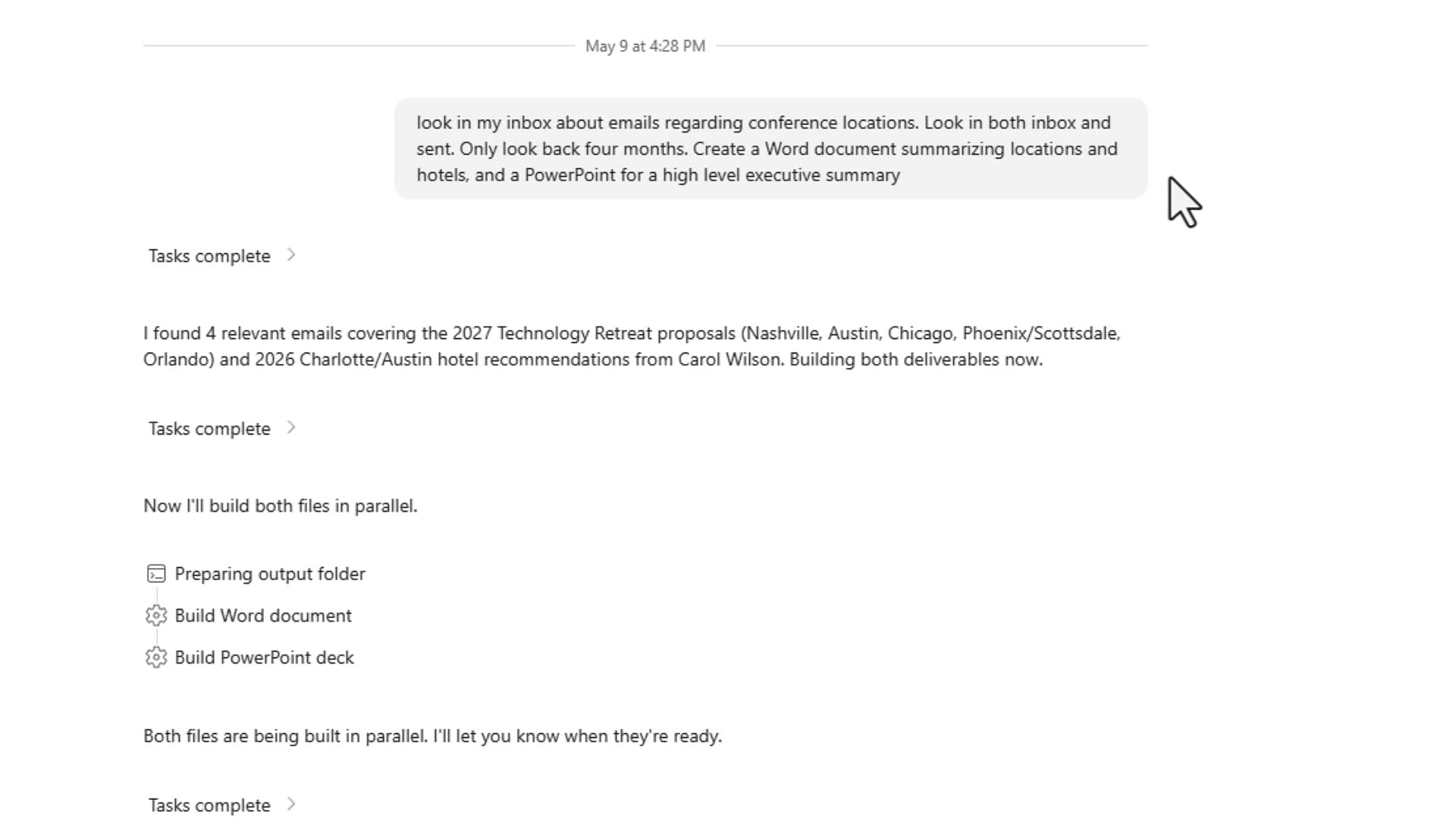
Cowork sessions take a little while to run, so I had already entered my prompt before recording. The nice thing is that while it is running, you can keep working on other stuff in another tab. Here is the prompt at the top of my session:
Look in my inbox about emails regarding conference locations. Only go back and look four months. Look in both inbox and sent items. Create a Word document summarizing locations and hotels, and a PowerPoint for a high level executive summary.
Notice the structure — I gave it a specific search scope (subject area + time range + which folders), then I asked for two different deliverables at the same time. That is the part that makes Cowork different from Chat. One prompt, two parallel outputs.
Check the source emails in Outlook
Before I trust any output, I like to see the source material. Here is the Outlook search I did for the word conference in my mailbox — these are the emails Cowork was about to read from.
Watch Cowork build both files in parallel
Back in Cowork, the agent went to work. It listed the tasks it planned to run, found four relevant emails covering the 2027 Technology Retreat proposals (Nashville, Austin, Chicago, Phoenix/Scottsdale, Orlando) and 2026 Charlotte/Austin hotel recommendations from Carol Wilson, and then said it was building both files at the same time.
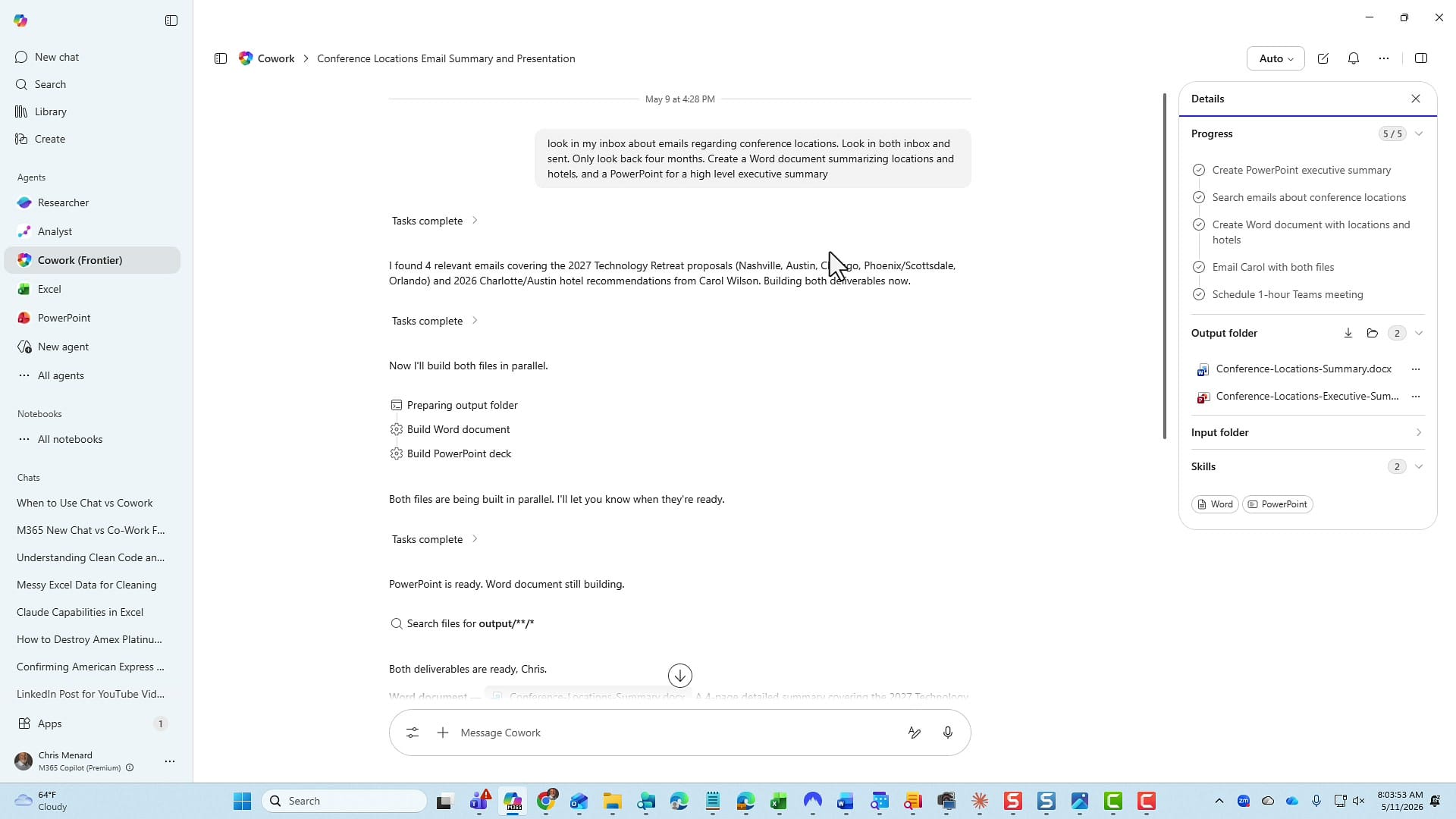
It will occasionally ask you a question if something is ambiguous, but in this run it had enough context to finish without checking back in. As soon as the PowerPoint was ready, it kept going on the Word document and told me where the outputs would land.
If you are wondering where these files actually live: Cowork stores them in OneDrive → Documents → Cowork → Sessions. Every time you run a new prompt you get a new session folder, and inside each session there is an Output subfolder with the files it produced.
You can also open the files straight from the Output panel in the Cowork interface — you do not have to leave Cowork to review what it built.
Review the Word document
I told Cowork I wanted a two-page Word document, and that is what I got. It even put footers at the bottom of each page. Page one is a clean executive overview with a candidate cities table; page two goes deeper into the hotel recommendations.
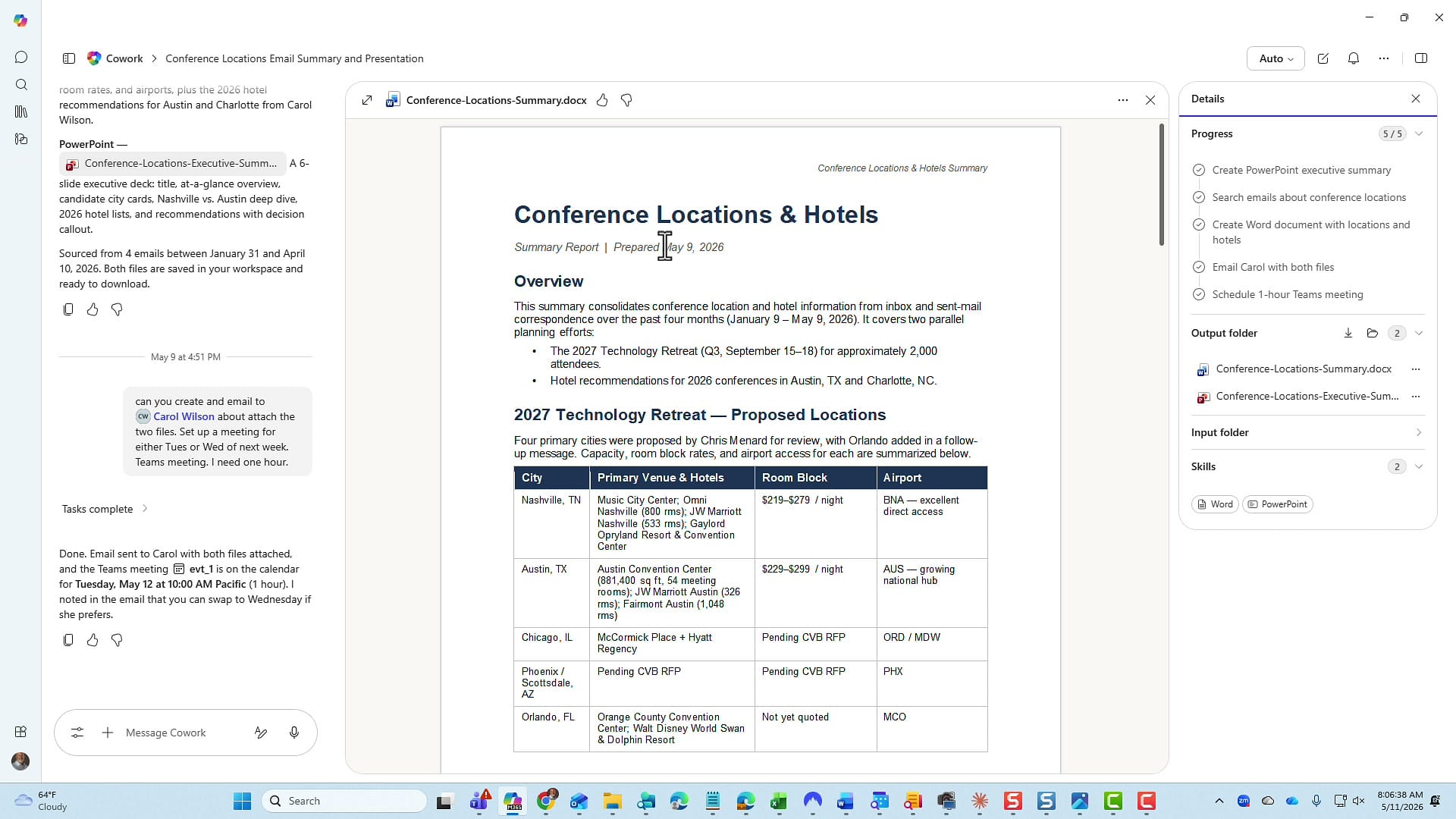
The summary report includes the prepared date — which was the day I ran the session — so the document is self-dating.
If you want to compare how Cowork's document builder differs from the in-document Copilot you already know, I broke that down in Copilot in Word: Summary Differences Between Word for the Web and Word Desktop.
Review the PowerPoint
I was really impressed with how well the PowerPoint was formatted. Six slides total, all on-brand and well-structured.
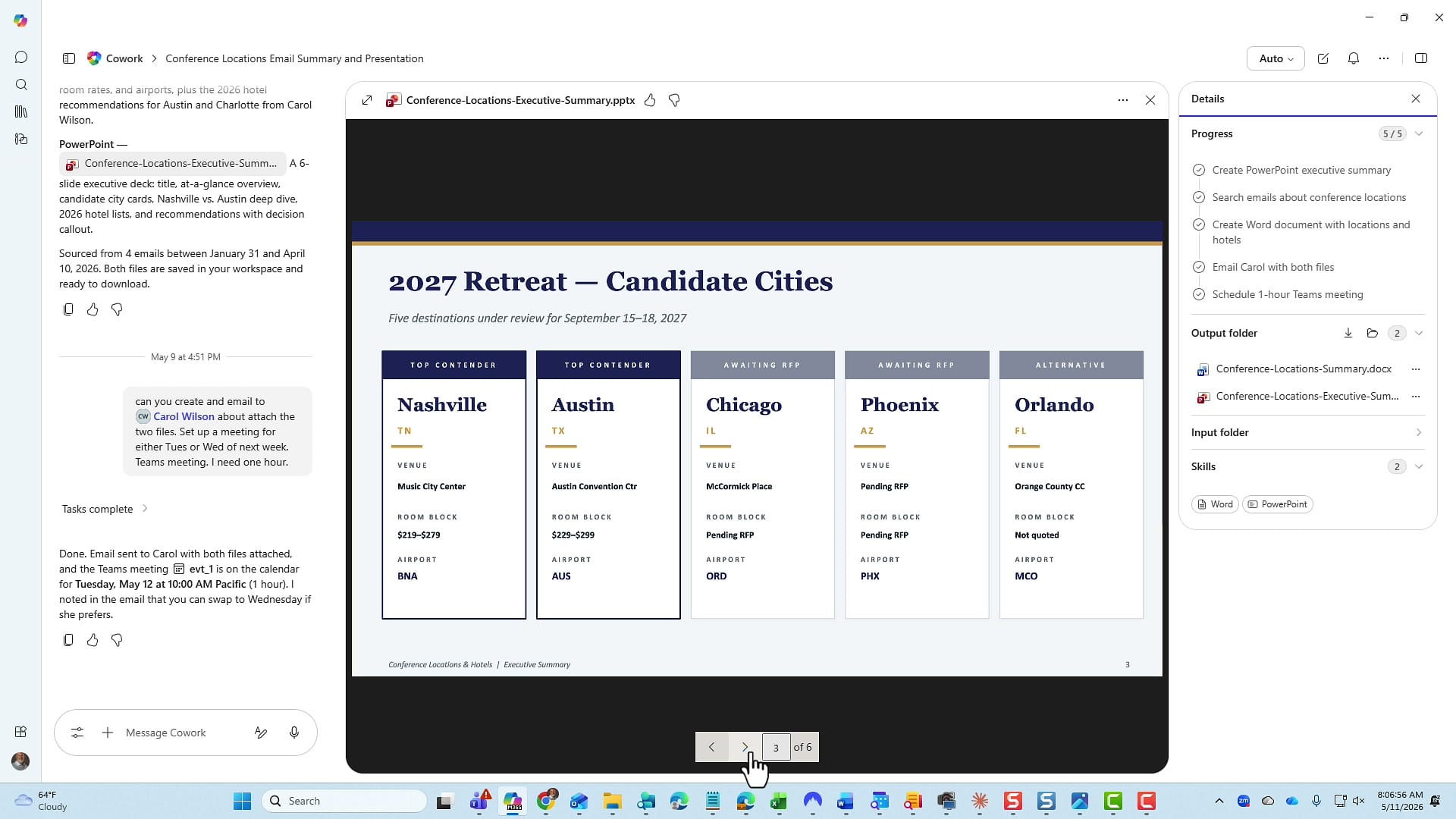
The deck walks through the cities, top contenders (with number of attendees and required square footage), recommended hotels, and finishes with key next steps and decisions. That structure is exactly what I would want for a high-level executive summary — nothing I had to rewrite. Cowork is doing the same kind of work I covered in creating PowerPoint presentations from Excel files with M365 Copilot, except now the source data is your email instead of a spreadsheet.
Follow up: send the email and schedule a Teams meeting
Now the part I really like. After Cowork delivered the files, I sent it a follow-up prompt in the same session:
Can you create and email to Carol Wilson about the attached two files. Set up a meeting for either Tues or Wed of next week. Teams meeting. I need one hour.
I could have rolled this into the first prompt, but I wanted to see how Cowork handled a follow-up. It went off and did everything — drafted the email, attached both deliverables, and put the meeting on my calendar.
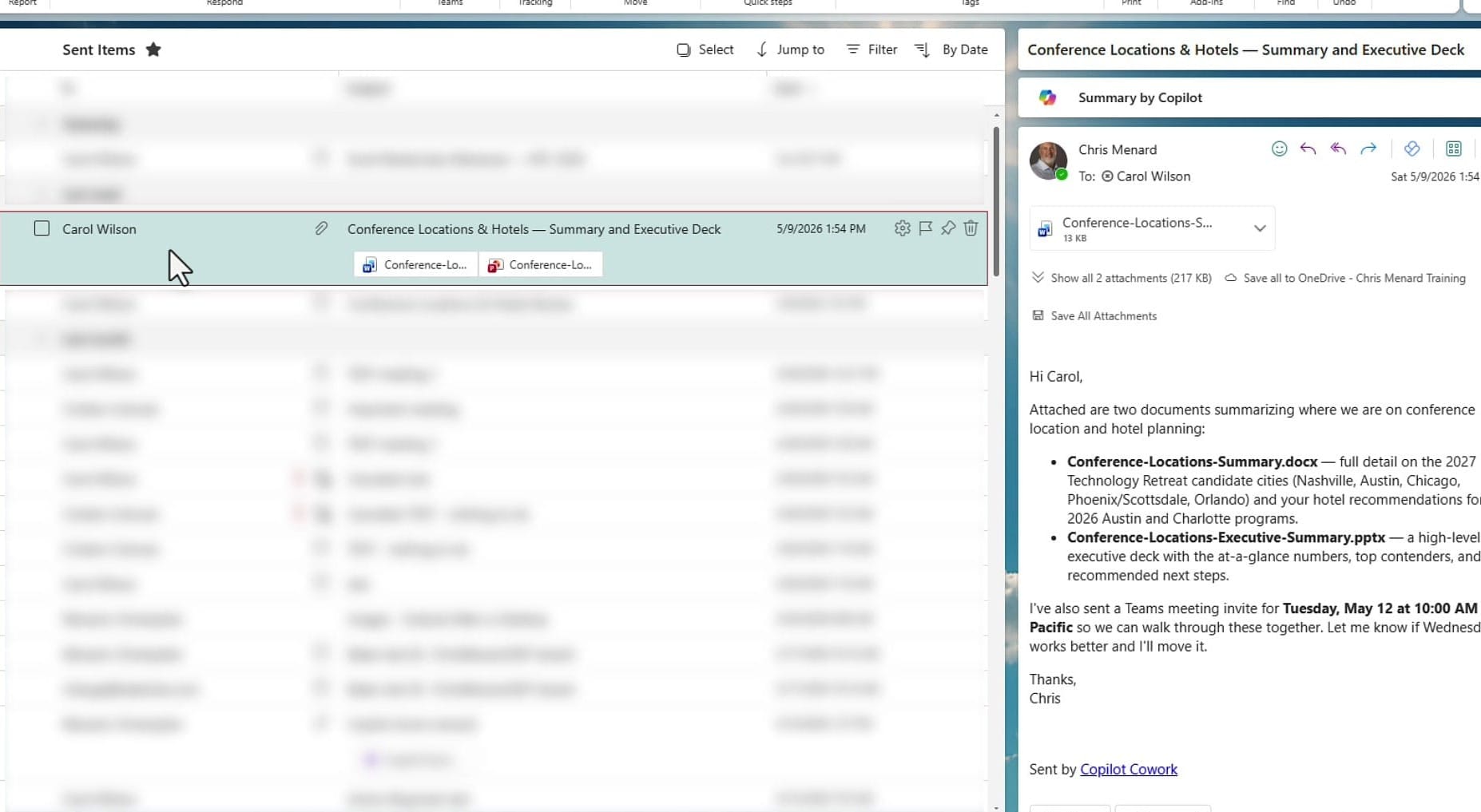
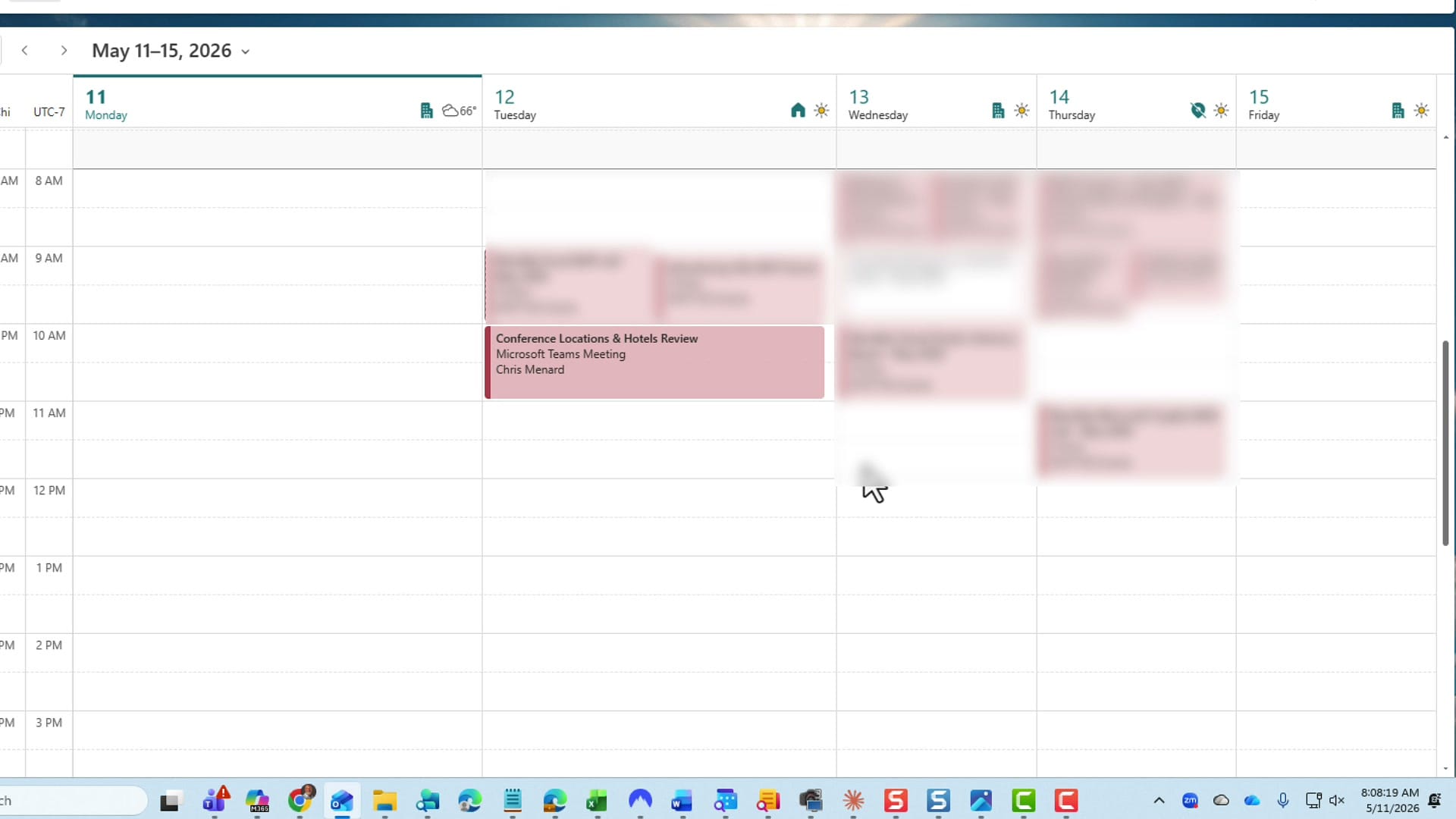
And here is the calendar invite Cowork created. Tuesday May 12 at 10:00 AM Pacific — one hour, and it set it up as a Teams meeting as requested.
If you want to do this part on its own — without the whole Cowork flow — Copilot in Outlook can already schedule meetings from a conversation. I walk through that in Scheduling Meetings with Copilot in Microsoft Outlook.
My take
Cowork right now, for me, is a phenomenal new feature in Microsoft 365 Copilot. The combination of multi-app reach, parallel output, organized session folders, and the ability to keep iterating in the same chat is what makes it different from anything else in Copilot today. If your admin has not enabled Frontier and Anthropic yet, this is the feature worth asking about.
I will have more Cowork videos with completely different prompts coming up. If you have a workflow you would like to see me try, leave it in the YouTube comments.
Related guides