Excel Copilot Got 3 Updates: New Icon Location, Preview Mode & Anthropic Claude Models


Microsoft Copilot in Excel just picked up three updates I think you'll want to know about. I caught these on Saturday, May 2nd, 2026, and they change how I use Copilot day to day. Let's walk through each one.
Update 1: The Copilot Icon Moved Out of the Ribbon
If you opened Excel today and panicked because the Copilot icon disappeared from the Home tab — relax. It hasn't gone anywhere. Microsoft has moved it.
The Copilot icon now lives in the bottom-right corner of your worksheet, floating above the data area. The same change applies to Word and PowerPoint.
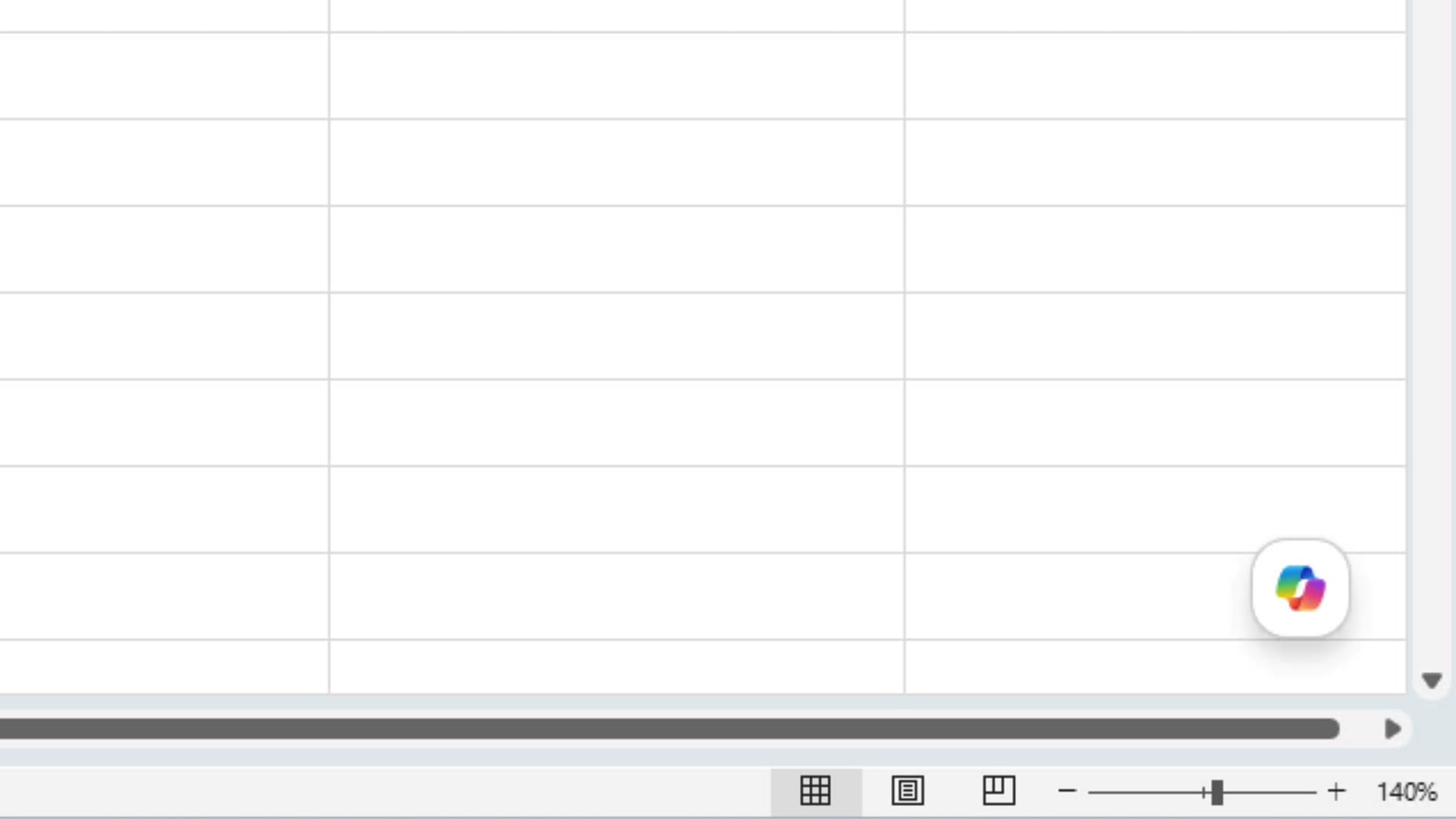
According to Microsoft, the reason for the move is access. You no longer have to be on the Home tab to launch Copilot — it's available regardless of which tab you're working on. I actually like the change. One click from anywhere beats hunting for it on a specific ribbon.
Update 2: Copilot Previews Its Changes Before Applying Them
The second update is one of those small things that turns out to be really useful. When Copilot is about to add columns, formulas, or formatting to your sheet, it now shows you a purple highlight over the cells it's going to change before it commits the change.
To see it in action, I clicked the Copilot icon and opened a new chat. Notice the panel says Edit with Copilot — that's the editing mode where Copilot can modify the workbook directly.
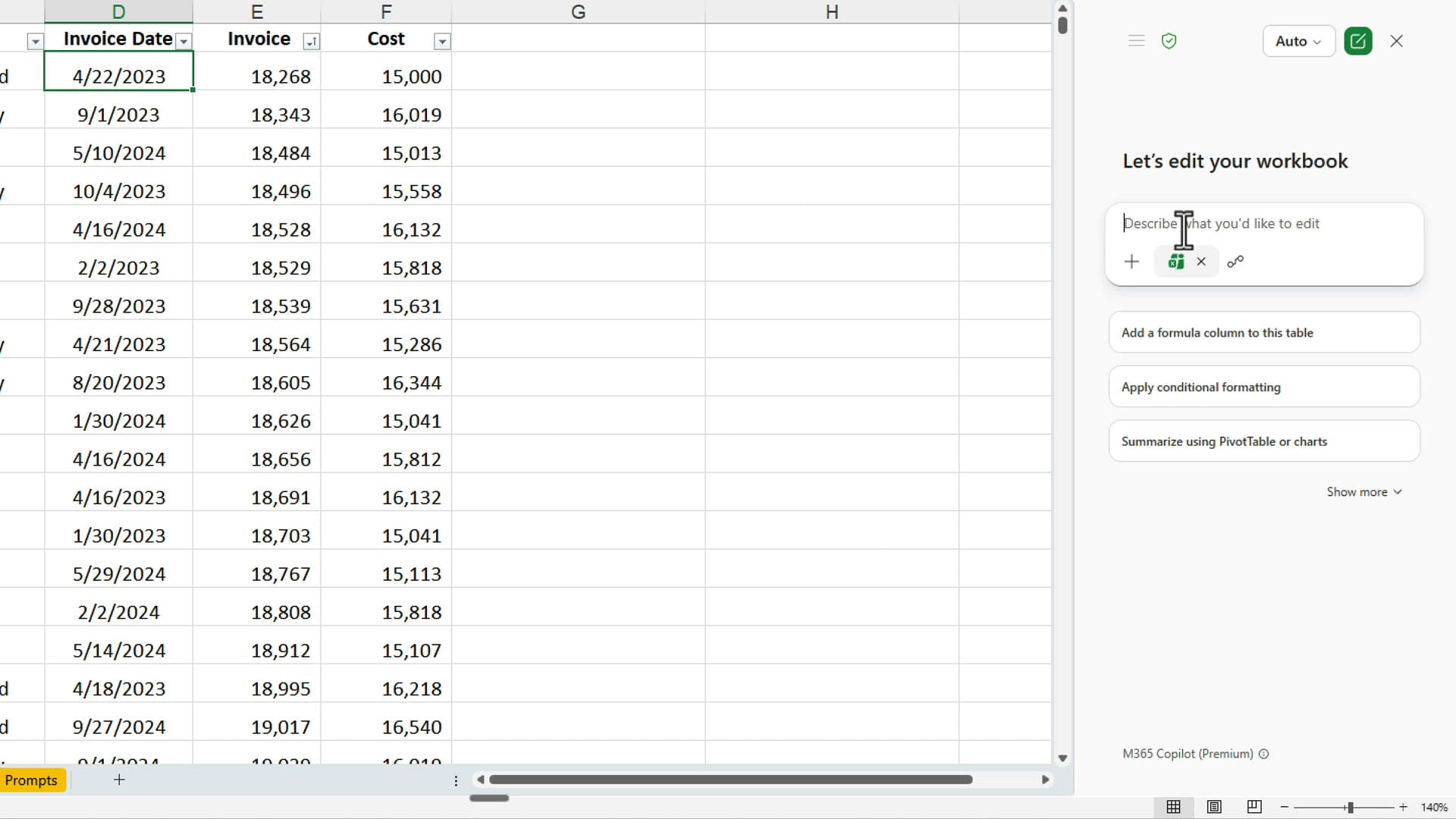
For my example, I asked Copilot to:
- Calculate the dollar difference between Invoice and Cost for every record
- Calculate that difference as a percentage of the invoice amount
- Apply conditional formatting so any row with a difference of 16% or higher gets a light yellow background
The first time I sent the prompt, Copilot jumped straight to the conditional formatting without adding the helper columns I expected. So I followed up: "Can you go ahead and add two columns for the dollar difference and the percentage difference?" That's when the new preview kicked in.
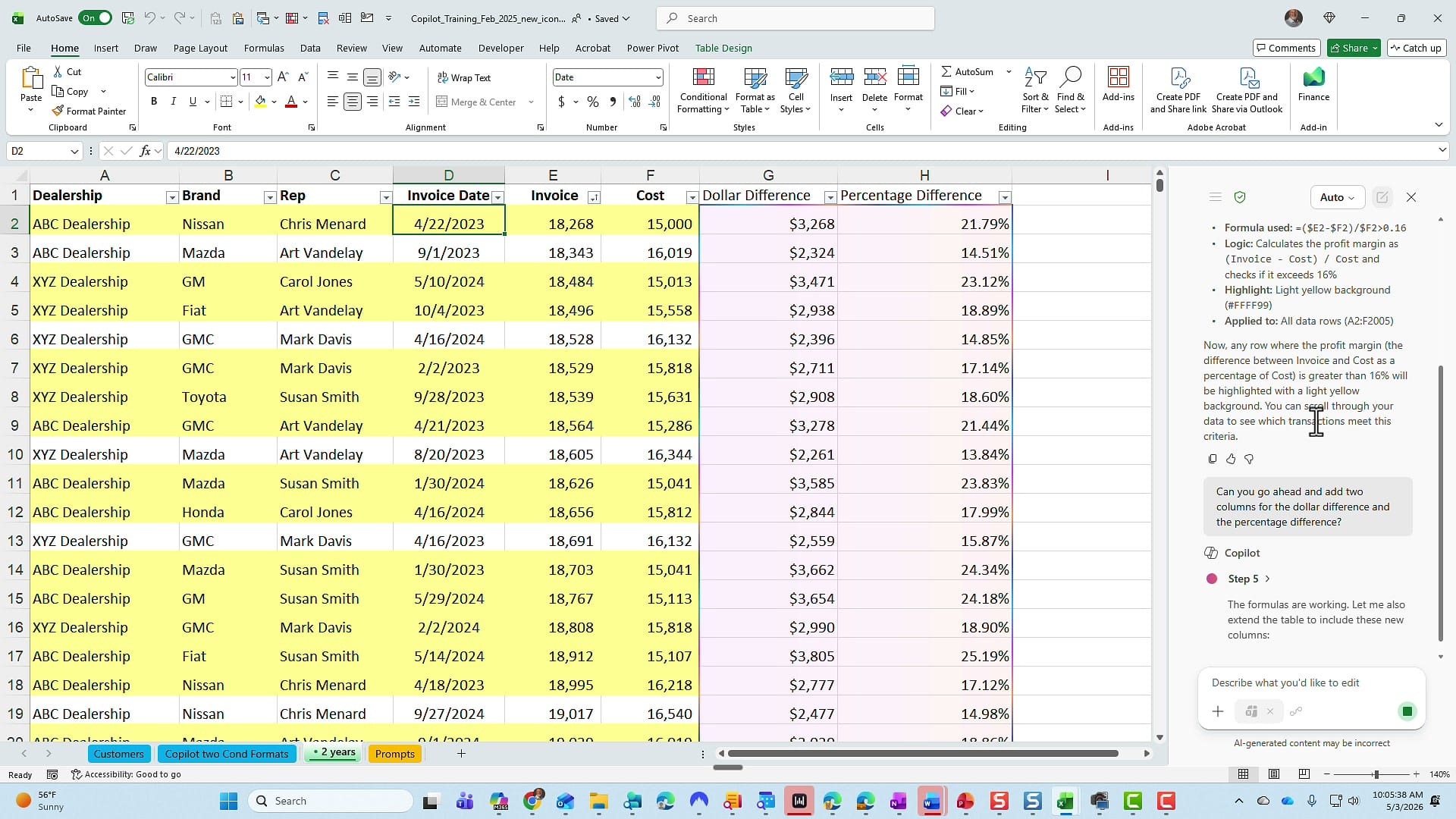
That purplish background is the new preview. It's showing me precisely what Copilot is adding. If Copilot were only changing certain cells — say, formatting a few rows — only those cells would be highlighted. You see the change before it lands.
Once the work finishes, you get the final result with both helper columns and the yellow conditional formatting applied. The dollar and percentage columns are also handy as a check figure: I can scan down and confirm Copilot highlighted the correct rows. If you don't need the helper columns afterward, you can delete them — but I usually keep them in real life so I have a record of the math.
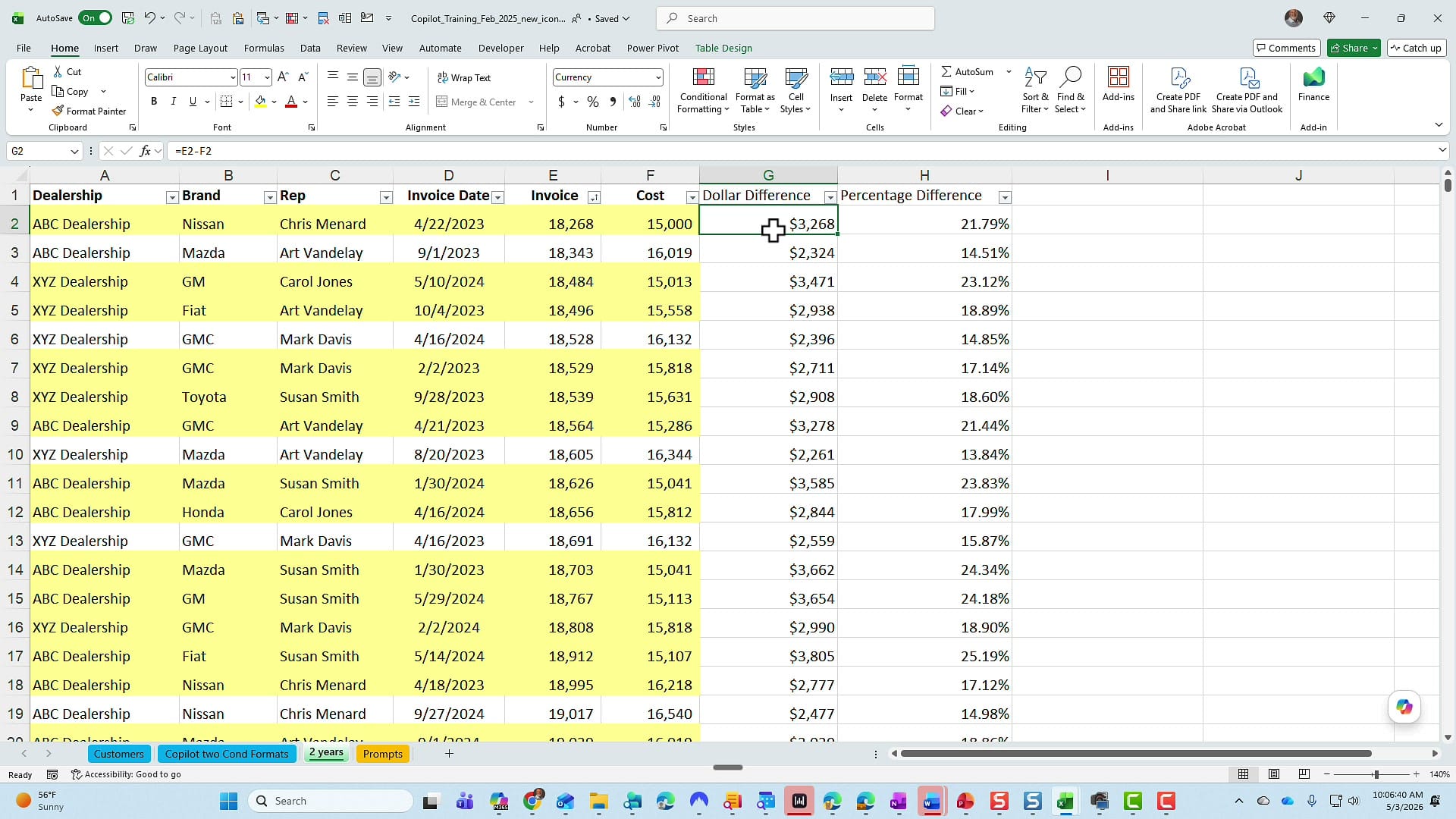
Update 3: Claude Models from Anthropic Are Now Available
Here's the one I was most excited about. If you're an admin and you've turned on Anthropic in your Microsoft 365 admin center, your users can now pick a Claude model directly inside Copilot in Excel.
Open Copilot, click the Auto dropdown at the top of the pane, and you'll see the list of available models.
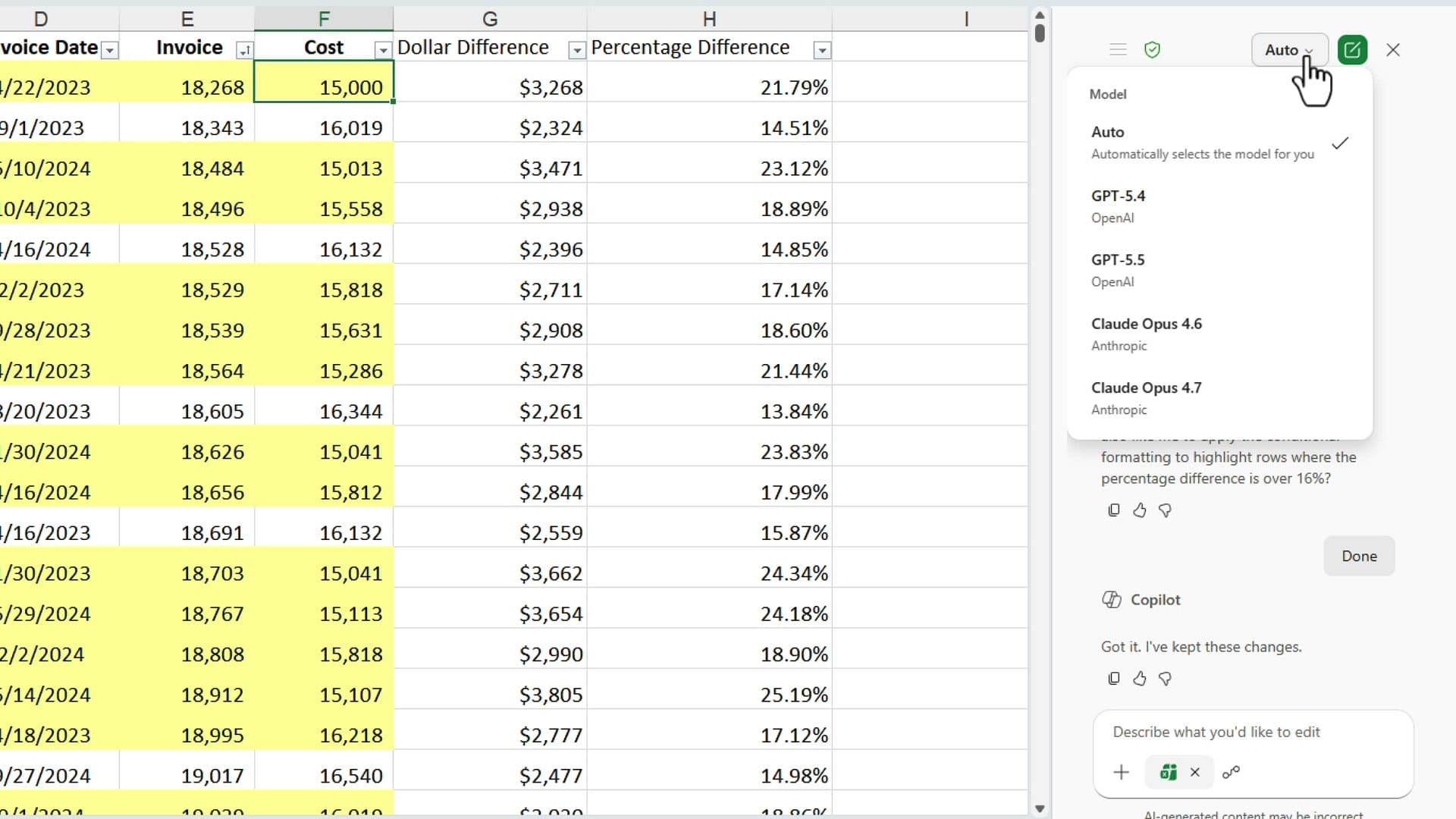
I have GPT-5.4, GPT-5.5, Claude Opus 4.6, and Claude Opus 4.7 to choose from. You can pin a specific model for a task, or leave it on Auto and let Copilot decide. Either way, having Anthropic's models in the mix is a real win — different models handle reasoning and instructions differently, and now you can match the tool to the task.
Quick Recap
- Copilot icon moved from the Home tab ribbon to the bottom-right corner of the workbook in Excel, Word, and PowerPoint.
- Purple preview shows you exactly which cells Copilot will change before it commits — much easier to catch issues early.
- Anthropic Claude models (Opus 4.6 and 4.7) are now selectable inside Copilot once Anthropic is enabled in the admin center.
Related Excel Copilot guides
 Chris Menard
 Chris Menard
 Chris Menard
 Chris Menard
 Chris Menard