How to Add Checkboxes in Excel with Claude AI (and Count Them with COUNTIF)

Share
How to Add Checkboxes in Excel with Claude AI (and Count Them with COUNTIF)


I wanted to see whether Claude inside Microsoft Excel could handle something visual instead of a formula: adding a column of real, clickable checkboxes. One short prompt, no fiddling with Form Controls — that was the test. Here's how it went, plus the manual fallback and the formula I use to count the ticks.

The setup

I'm working in a spreadsheet of fictitious customers. I need to track whether each one has been notified about a new return policy, and I want that to live in column I with a checkbox in every row — not text, not a Yes/No dropdown, an actual checkbox.
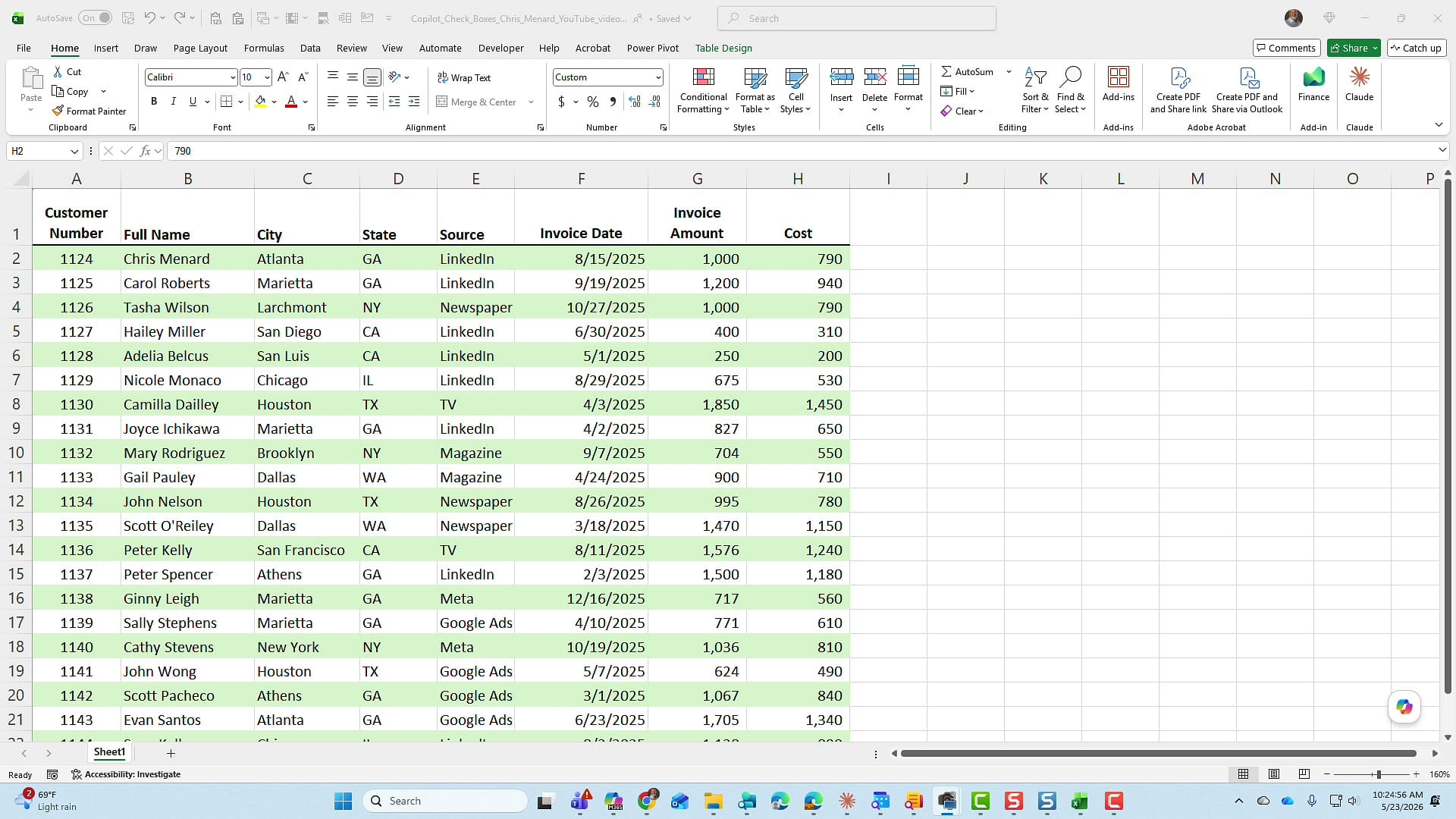
Excel spreadsheet of fictitious customers with columns through Cost — no checkbox column yet, column I empty
The starting spreadsheet: customer data with the Claude add-in available in the ribbon (top right). I want to add a "Notified about return policy" column in column I with a checkbox in every row.

The prompt I sent to Claude

I clicked the Claude button in the ribbon to open the task pane, then typed exactly what I wanted into the prompt box:

Add a column and name that column "Notified about return policy". Inside that column, I actually want to see checkboxes.

The wording matters. I specifically named the column so Claude wouldn't guess at the heading, and I called out "checkboxes" so it would use the native control instead of TRUE/FALSE text or a workaround.
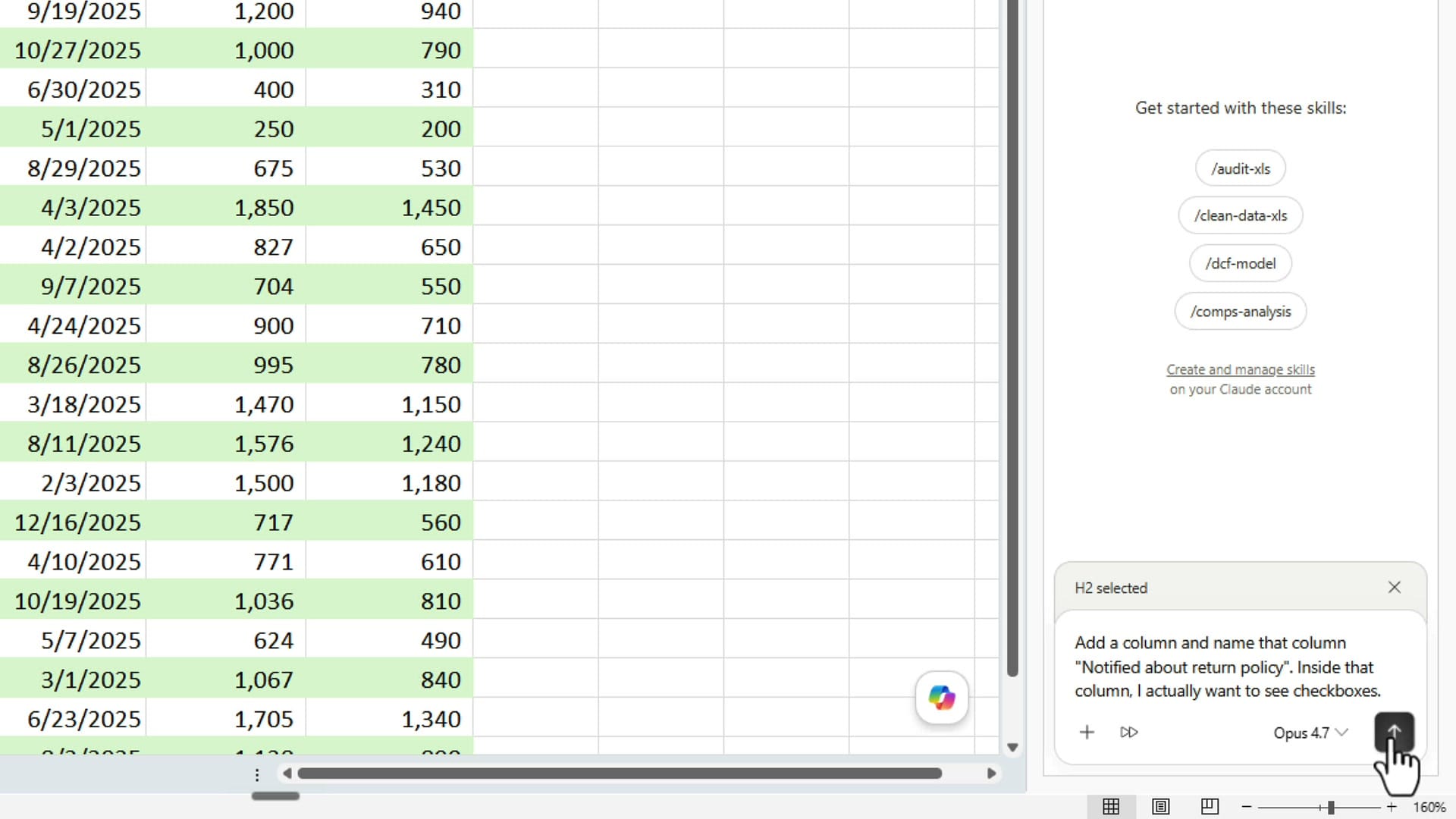
Claude task pane in Excel with prompt typed asking to add a column named Notified about return policy with checkboxes inside
The prompt I sent to Claude: "Add a column and name that column 'Notified about return policy'. Inside that column, I actually want to see checkboxes." Notice that "H2 selected" tag at the top — that's Claude grabbing the current selection as context. I'm on the Opus 4.7 model here.

What Claude built

A few seconds later Claude had added column I, titled it Notified about return policy, and dropped a checkbox into every row of the table. No formulas to clean up afterward — these are Excel's native checkboxes, the same ones you'd get from the Insert tab.
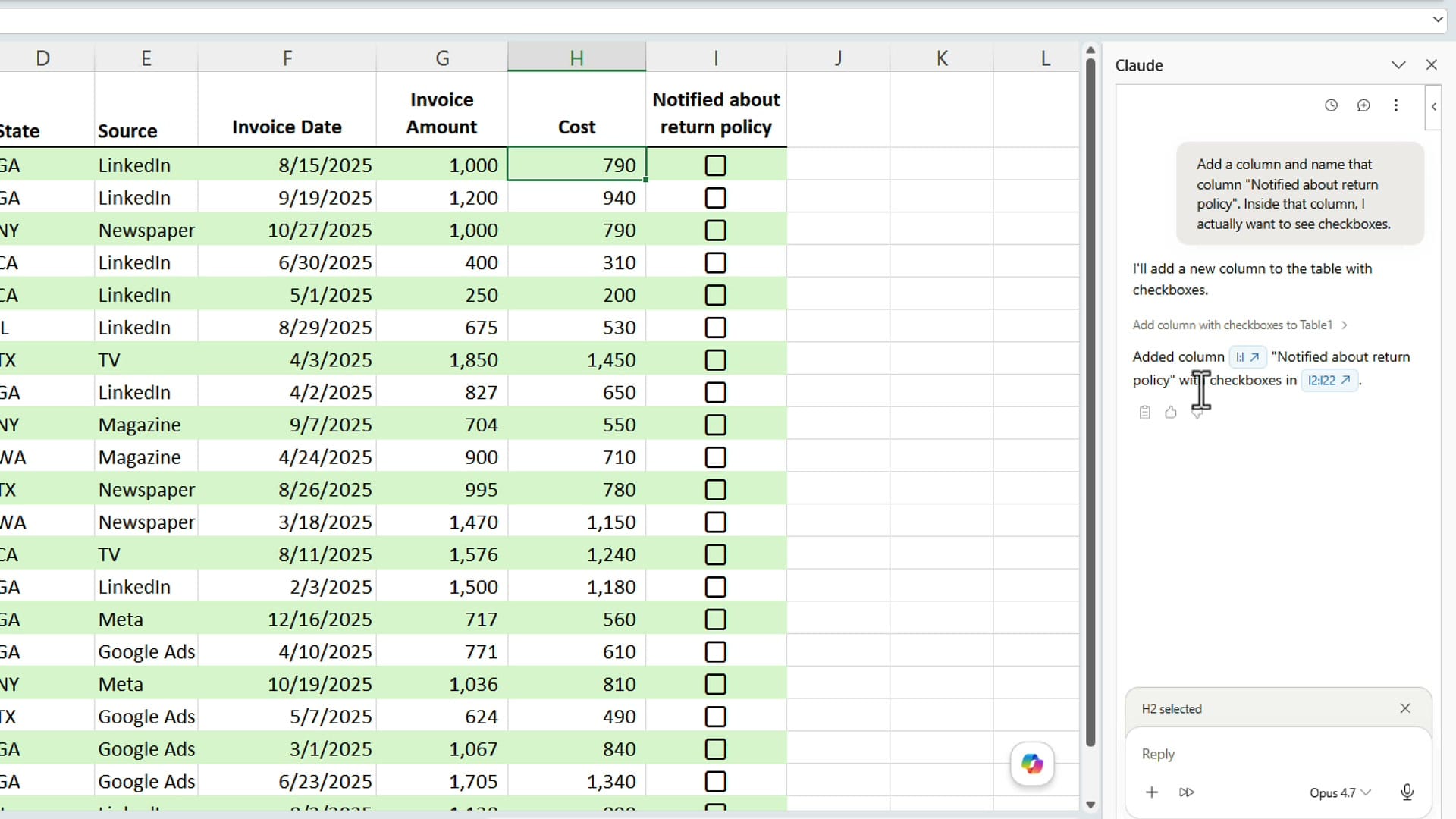
Excel column I now shows Notified about return policy heading with native checkboxes in every row generated by Claude
Result: Claude added column I with the exact heading I asked for and dropped a real, clickable Excel checkbox into every row. No formulas, no Form Controls — these are the new native checkboxes.

I clicked a few of them to confirm they behave the way I expected: tick on, tick off, no surprises.
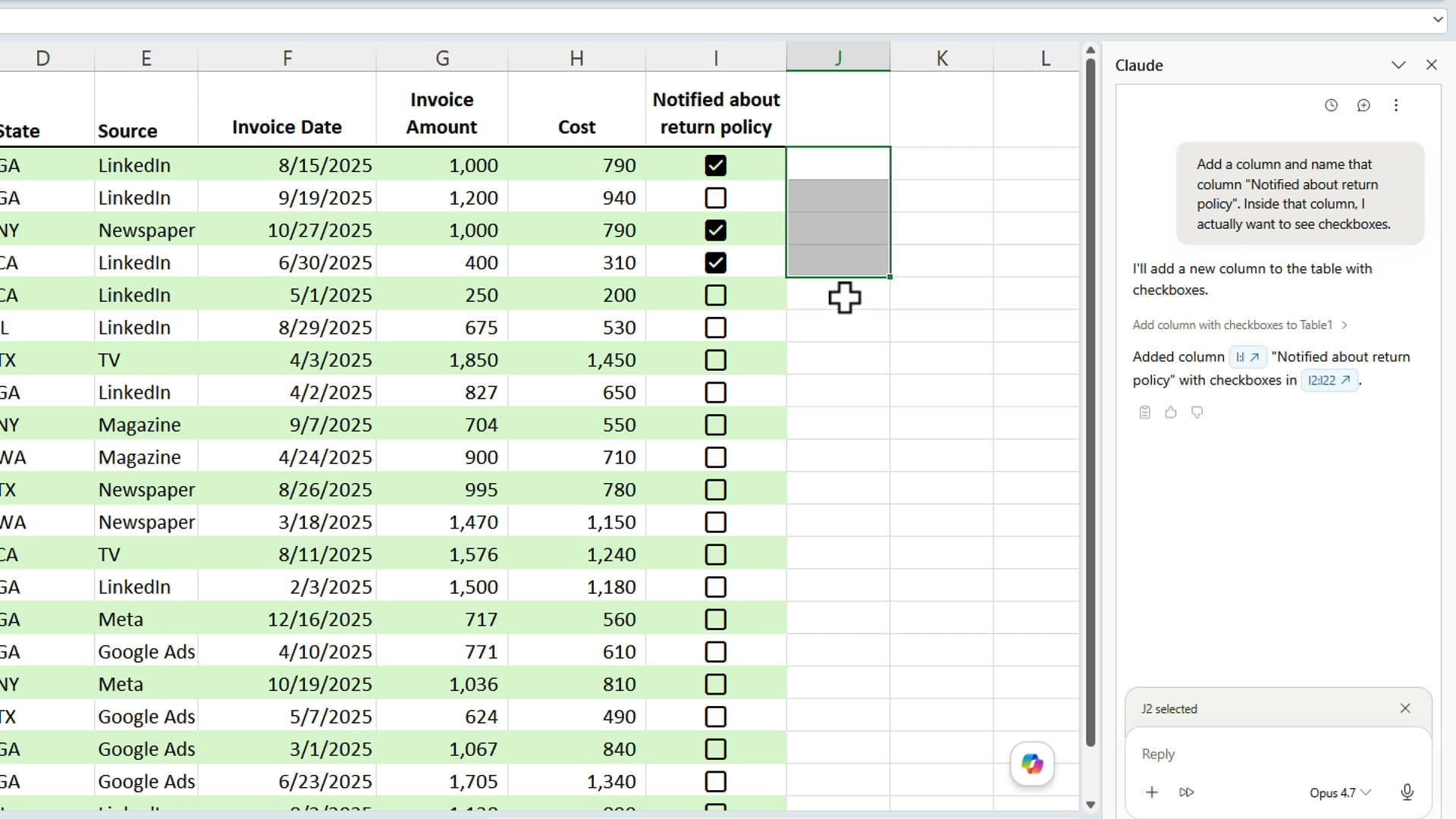
Several checkboxes ticked in column I, showing they behave like normal Excel checkboxes
Quick sanity check — I clicked a few boxes and they tick on and off just like manually inserted checkboxes. Each box stores TRUE when checked and FALSE when unchecked.

Don't have Claude? Insert checkboxes manually

If you don't have the Claude add-in available, you can get the same result yourself in a couple of clicks. Select the range you want to fill, then on the Insert tab, in the Controls group, click Checkbox. Excel drops a native checkbox into every selected cell. I've covered this in more detail in my guide to the new Excel Checkbox feature.
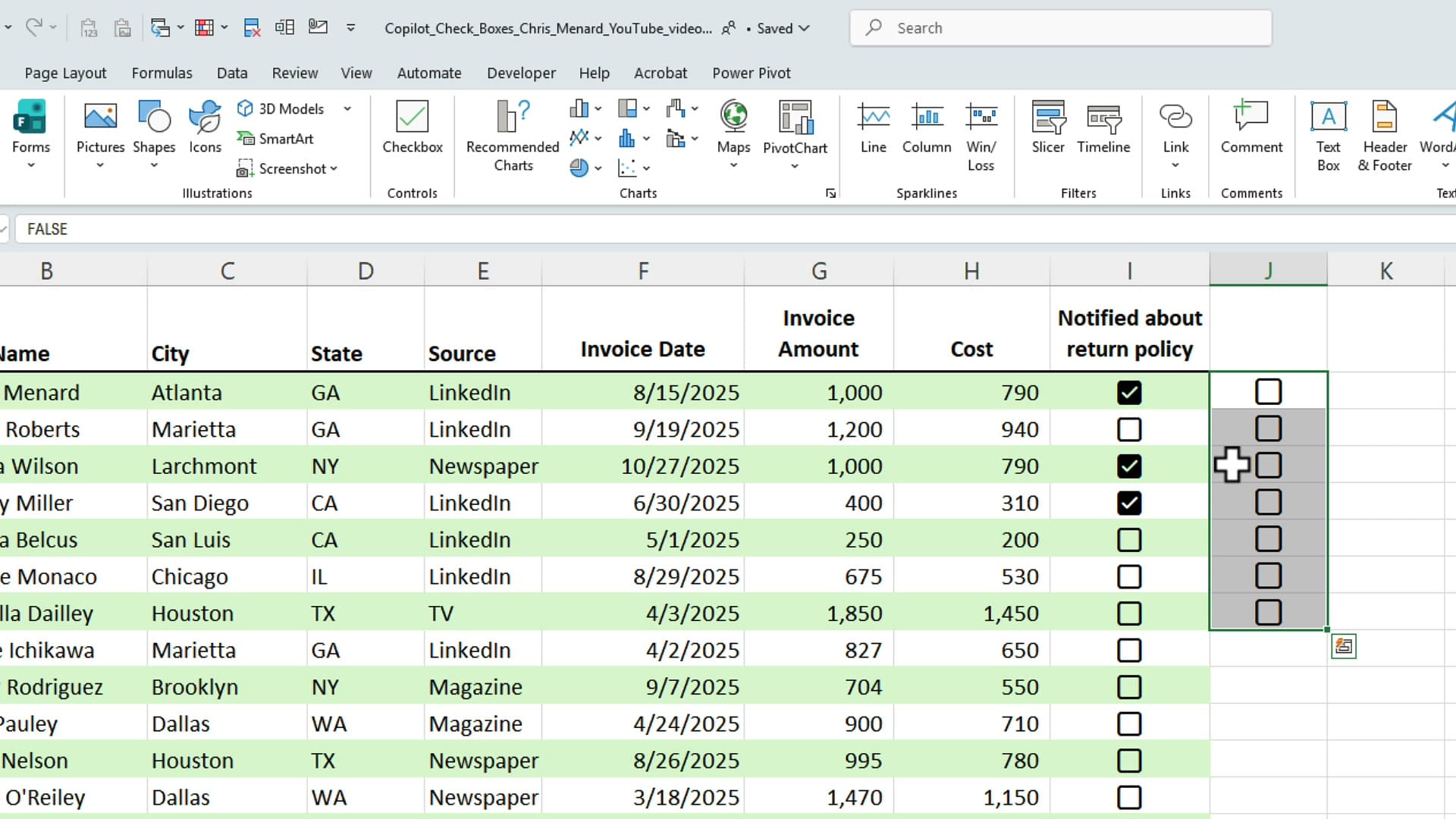
Excel Insert tab open with the Checkbox button highlighted in the Controls group
No Claude add-in? Same result manually: select your range, go to Insert > Controls > Checkbox. Excel drops a checkbox into every selected cell.

Count the ticks with COUNTIF

Once your checkboxes are in place, counting them is straightforward. Each checked box is stored as TRUE and each unchecked box as FALSE, so COUNTIF handles it directly:

=COUNTIF(range, TRUE) — counts the boxes that are checked.
=COUNTIF(range, FALSE) — counts the ones still unchecked.

In this example I'd point the range at column I. The "still unchecked" count is the one I actually care about — that's how many customers haven't been notified yet.
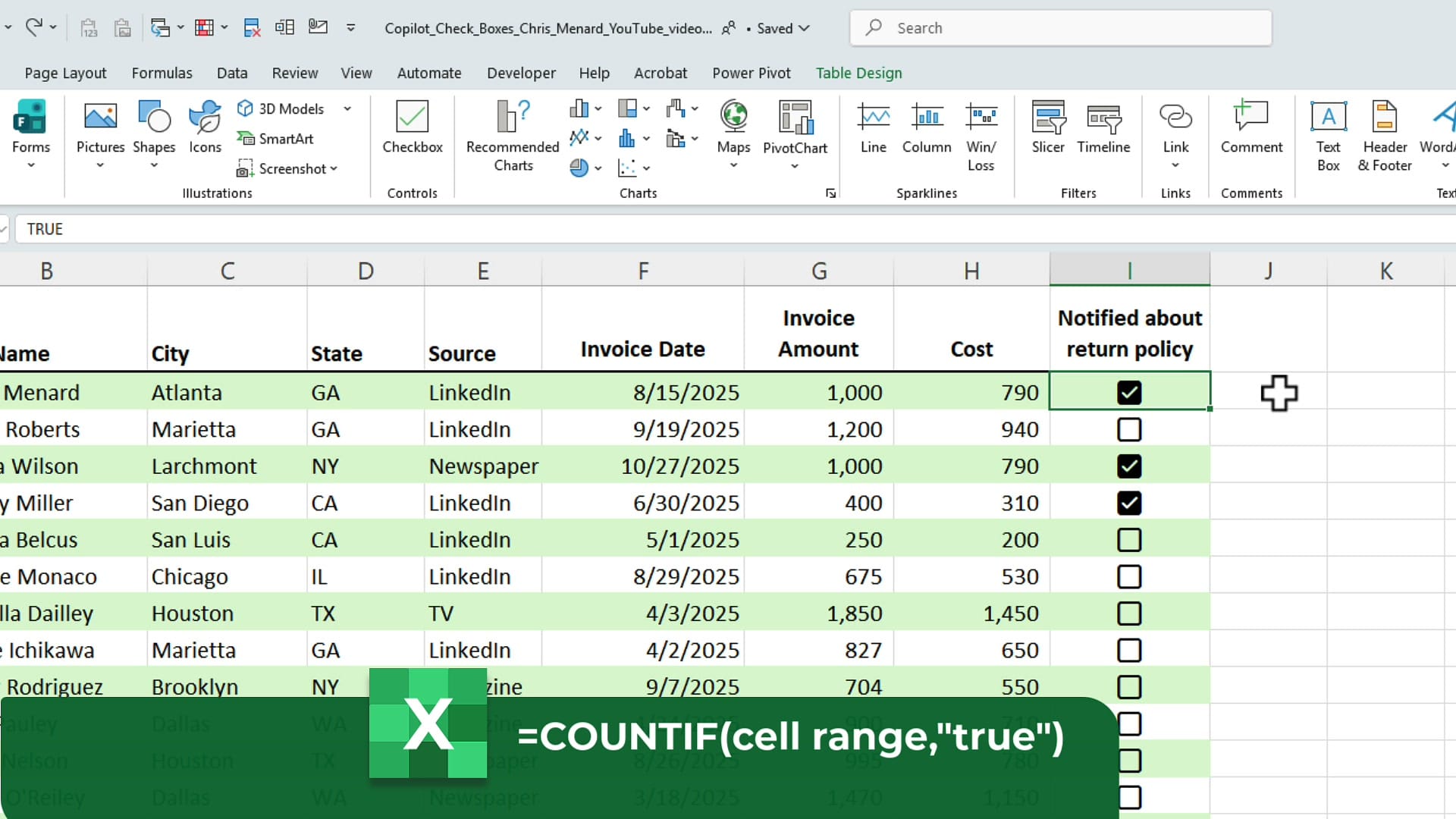
Excel screen with overlay showing the COUNTIF formula equals COUNTIF cell range comma true
To count how many boxes are ticked, use =COUNTIF(range, TRUE). Swap TRUE for FALSE to count the unchecked ones — handy for tracking how many customers still need follow-up.

Bottom line

The takeaway: Claude in Excel handles UI work like inserting native checkboxes just as cleanly as it handles formulas. If you've got the add-in, a single descriptive prompt saves you a trip to the Insert tab. If you don't, the manual path is a few clicks longer — and COUNTIF closes the loop either way.

How to Use the New Checkbox Feature in Microsoft Excel
Microsoft Excel now supports native checkboxes — a feature many users have been requesting. This works in Microsoft 365 for Windows and Excel on the web. How to Insert Checkboxes Select the range w
How to Use Claude in Excel to Clean Messy Data (Step-by-Step Walkthrough)
I wanted to see how well Claude in Excel can actually clean data — not just a row or two, but a genuinely messy spreadsheet with broken dates, inconsistent states, extra spaces everywhere, dollar sign
Excel Copilot Got 3 Updates: New Icon Location, Preview Mode & Anthropic Claude Models
Microsoft Copilot in Excel just picked up three updates I think you'll want to know about. I caught these on Saturday, May 2nd, 2026, and they change how I use Copilot day to day. Let's walk through e
Claude in Excel: Cross-Sheet XLOOKUP and Building a Data-Validated HR Spreadsheet from Scratch
Two real tests of the Claude add-in for Excel: a cross-sheet XLOOKUP profit calculation, and building an HR spreadsheet from scratch with data validation dropdowns, hidden source lists, and dynamic ta
How to Find Duplicates Across Excel Worksheets Using COUNTIF
When you have employee data, customer lists, or inventory records spread across multiple worksheets, identifying duplicates between them can be tricky. The COUNTIF function makes this straightforward