How to Use Claude in Excel to Clean Messy Data (Step-by-Step Walkthrough)


I wanted to see how well Claude in Excel can actually clean data — not just a row or two, but a genuinely messy spreadsheet with broken dates, inconsistent states, extra spaces everywhere, dollar signs glued to text, and possible duplicates lurking in the rows. So I built a fictitious order file using Microsoft Copilot, sprinkled in just about every formatting sin I could think of, and turned Claude loose on it. The result was honestly better than I expected, and the workflow is something I think a lot of Excel users will want to keep in their back pocket.
The Messy Data: What We're Starting With
Before we hand anything off to Claude, it helps to see exactly what's wrong. Here's the spreadsheet I created — all the data is fake, but the problems are very real:
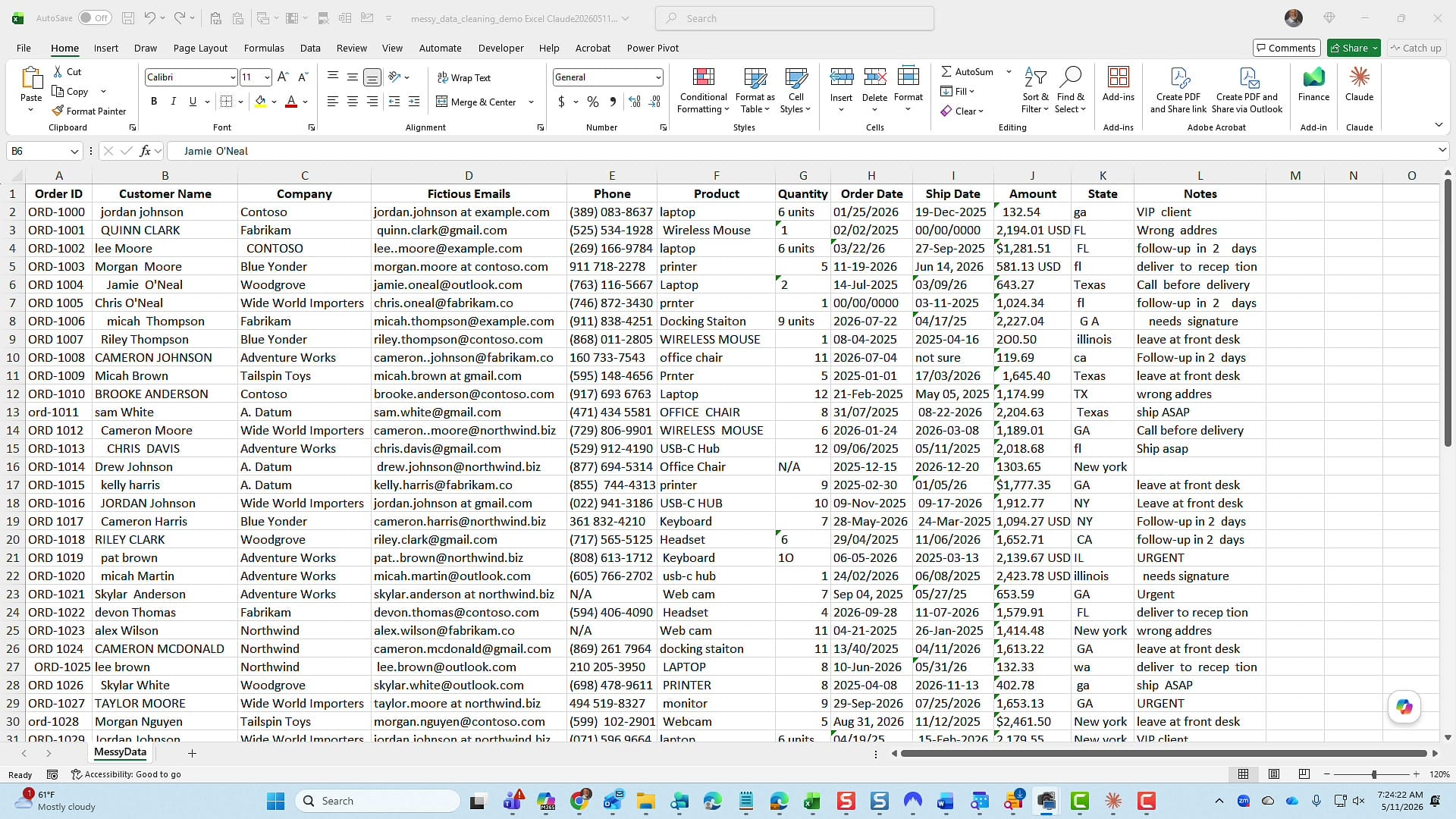
Walking down the columns, here are the problems I spotted:
- Order ID — Most have a hyphen (
ORD-1000), but some don't (ORD1015). - Customer Name — Extra spaces all over the place, which silently breaks lookups and sorting.
- Company — Extra spaces and inconsistent case ("CONTOSO" vs "Contoso").
- Fictious Emails — Look at cell D4:
[email protected]has two periods between Lee and Moore. - Phone — Not consistent. Some use parentheses, some don't, some have dashes in odd spots.
- Quantity — Cell G2 has the word "
6 units" spelled out instead of a number. - Order Date / Ship Date — Mixed formats: some look like
02/02/2025, others like2025-02-02or13-Apr-2025. - Amount — Some are real numbers, but several are stored as text — you can see the green triangle in the top-left corner of those cells. A few even have "USD" jammed into the value.
- State — All over the map (literally). Look at row 8: "G A" with a space and a capitalized G instead of "GA". Some states are spelled out, some are two letters, some are wrong case.
- Notes — Free-text comments that don't really need cleaning, but Claude leaves them alone anyway.
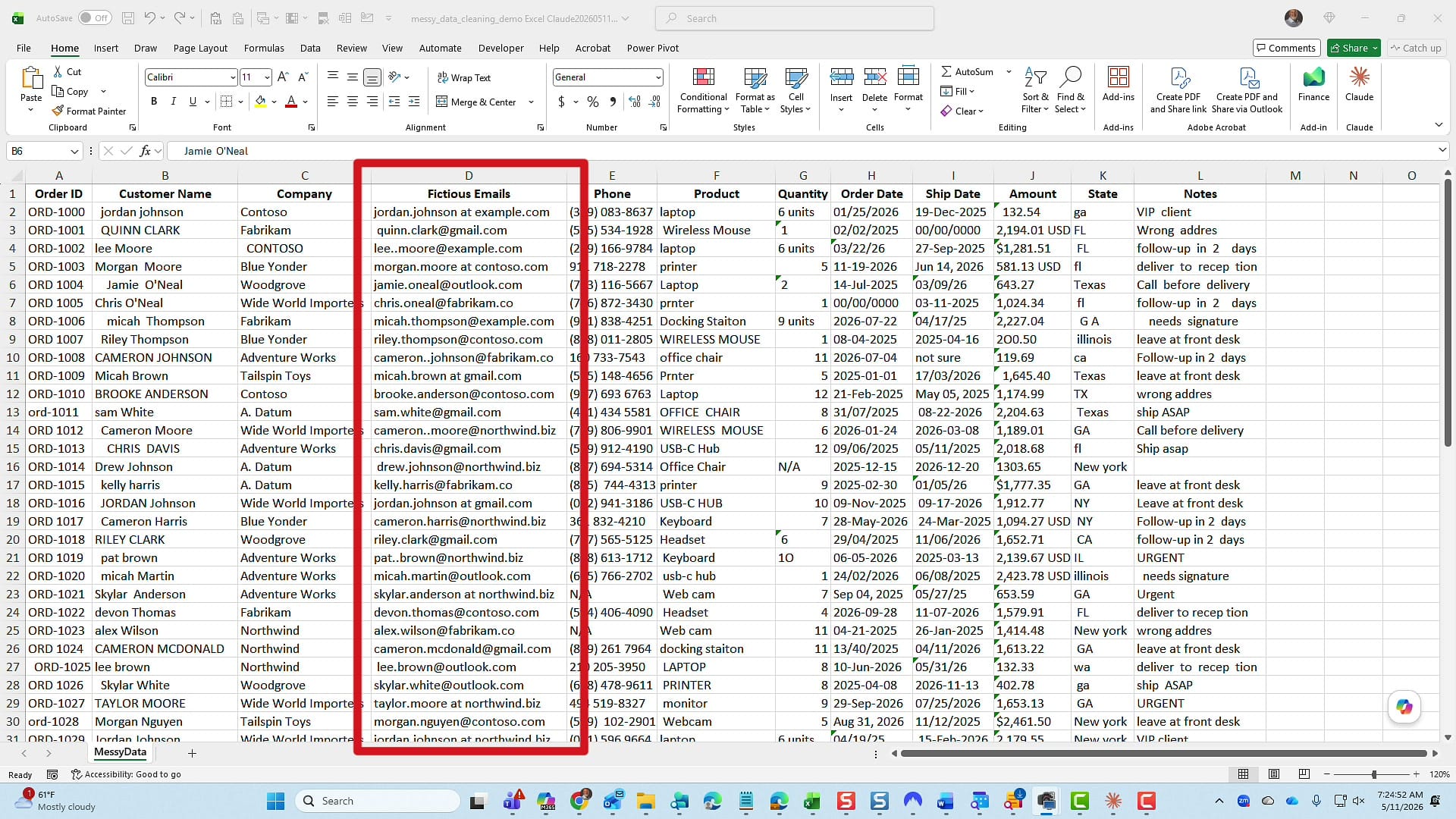
One important note before we start: this file is saved locally on my computer. It is not in OneDrive, not in SharePoint, not on the web. Claude in Excel works directly on the local file, which is one of the things I really like about it.
Opening Claude in Excel and Picking the Clean Data Skill
With the file open, I clicked the Claude icon in the ribbon to start a new chat. The right-hand pane offers a few skills — these are pre-built workflows Claude can run for you. The one I want is Clean Data XLSX.
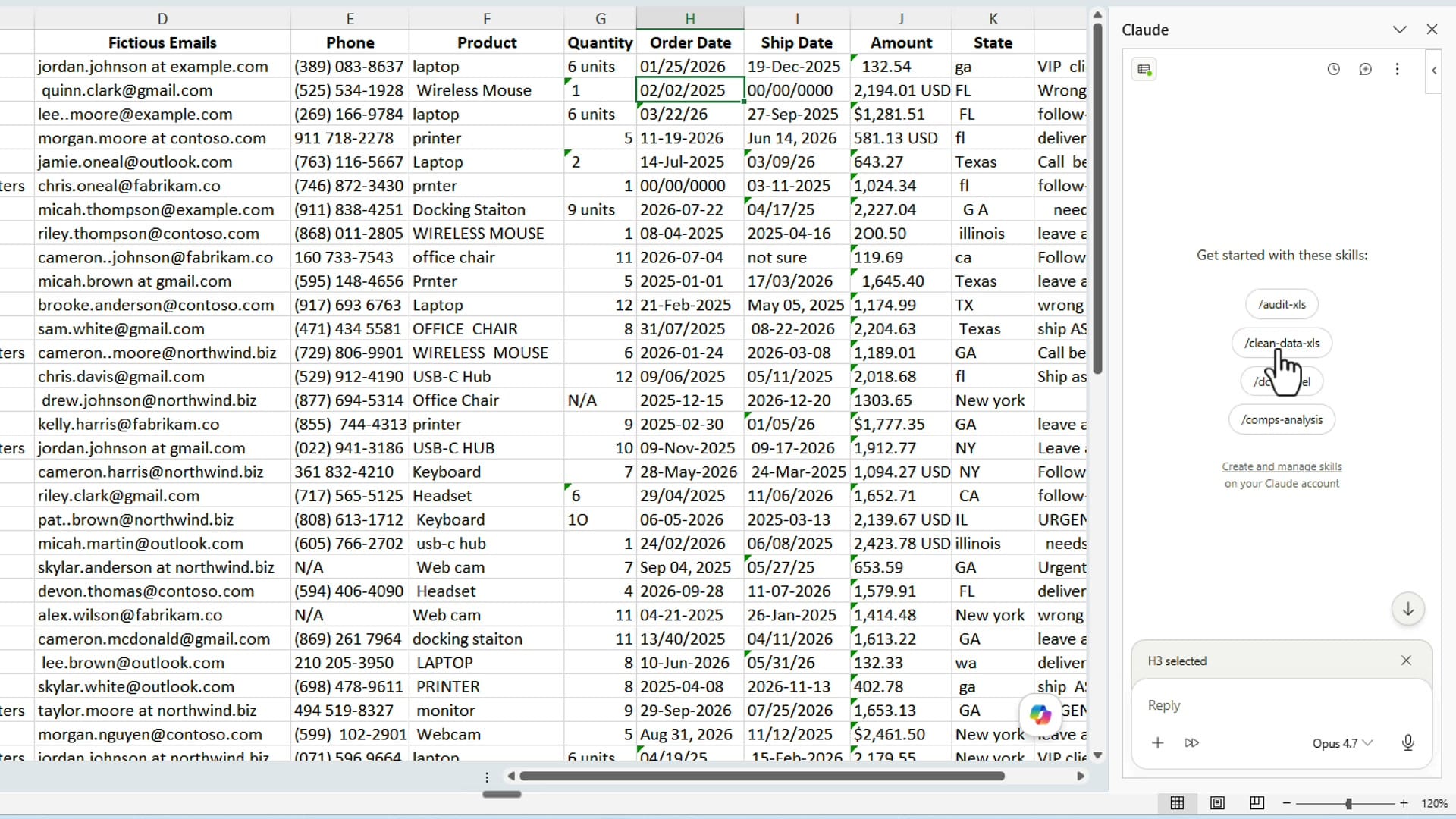
Below the skill, there's a model picker. Right now Claude is running Opus 4.7, but you can also choose Opus 4.6 or Sonnet 4.6. I stuck with 4.7 — it is the most capable of the three and worth the extra usage cost for a job like this.
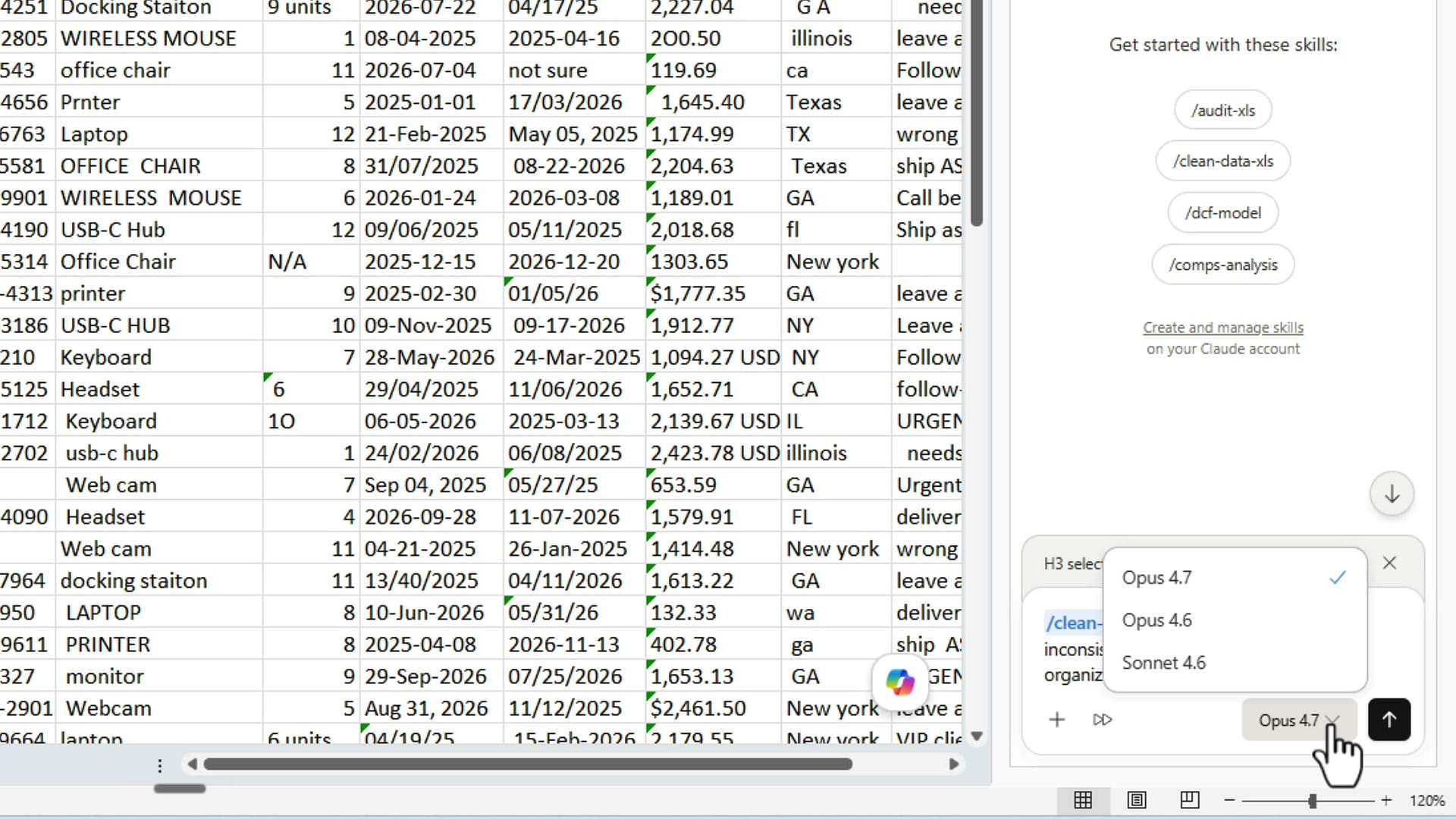
I could have typed extra instructions before sending — for example, "treat all dates as US format MM/DD/YYYY" or "put zeros in blank quantities" — but I deliberately left it blank to see how Claude handles the ambiguity. As you'll see, it asks before guessing.
Claude's Proposed Cleanup Plan
Once I sent the request, Claude responded with a column-by-column plan instead of just diving in. I really like this — it tells me exactly what it's going to do before touching anything:
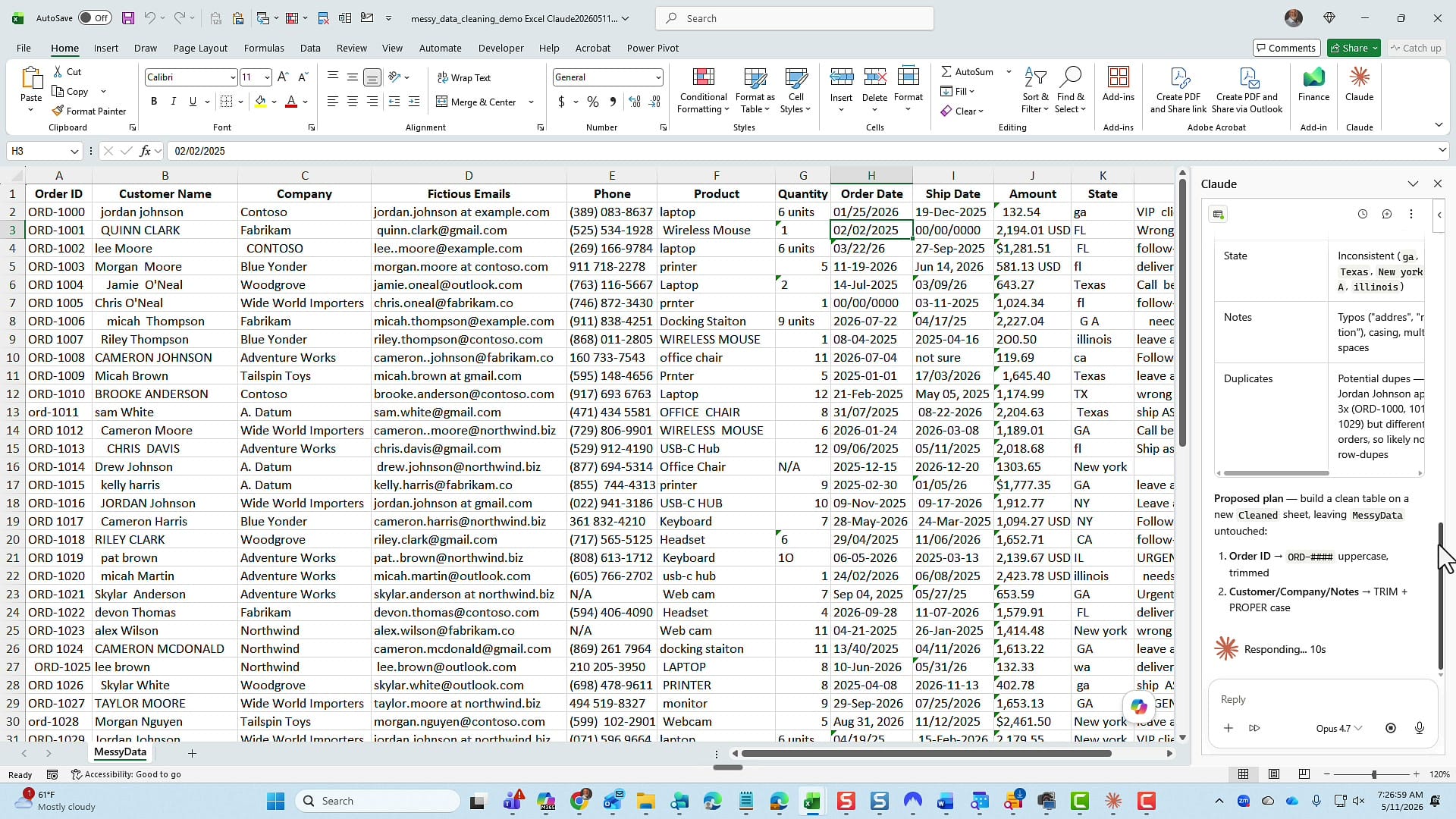
The plan covered the things I cared about:
- Amounts — strip the dollar sign, get rid of "USD," and fix the text-as-number cells so they're real numbers.
- State — map every variation to the two-letter USPS code. Texas becomes TX, New York becomes NY, "G A" becomes GA.
- Excel Table — convert the cleaned result into a real Excel table so I can filter and grow it later. I didn't ask for this, but I love that it's included.
Answering Claude's Questions
Before writing anything, Claude paused and asked me three things. This is exactly the kind of human-in-the-loop behaviour you want for data work — assumptions made silently are how you end up with months of misformatted invoices.
Question 1: How should dates be parsed?
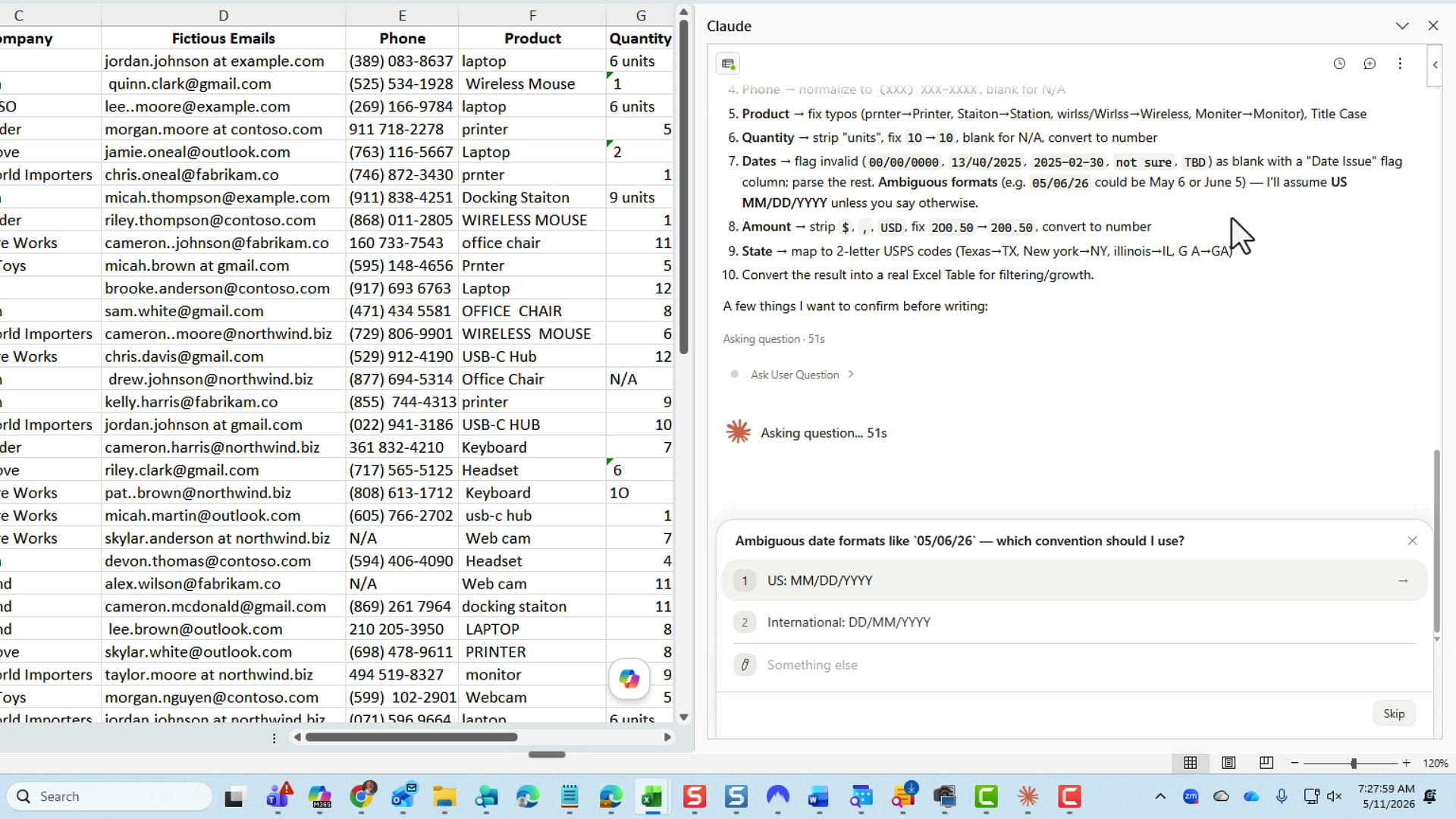
05/06/26 could be May 6 or June 5. Claude won't guess — it asks. I picked US format.Ambiguous dates like 05/06/26 could legitimately be May 6 or June 5 depending on convention. I picked US MM/DD/YYYY. If you're in Europe or Australia, you'd pick the international option instead.
Question 2: What to do with blank or invalid dates?
I chose to leave them blank and flag them in a new column — that way I don't lose visibility on the rows that need a human review. The alternative ("just pick today's date") would have buried the problem.
Question 3: How to handle potential duplicates?
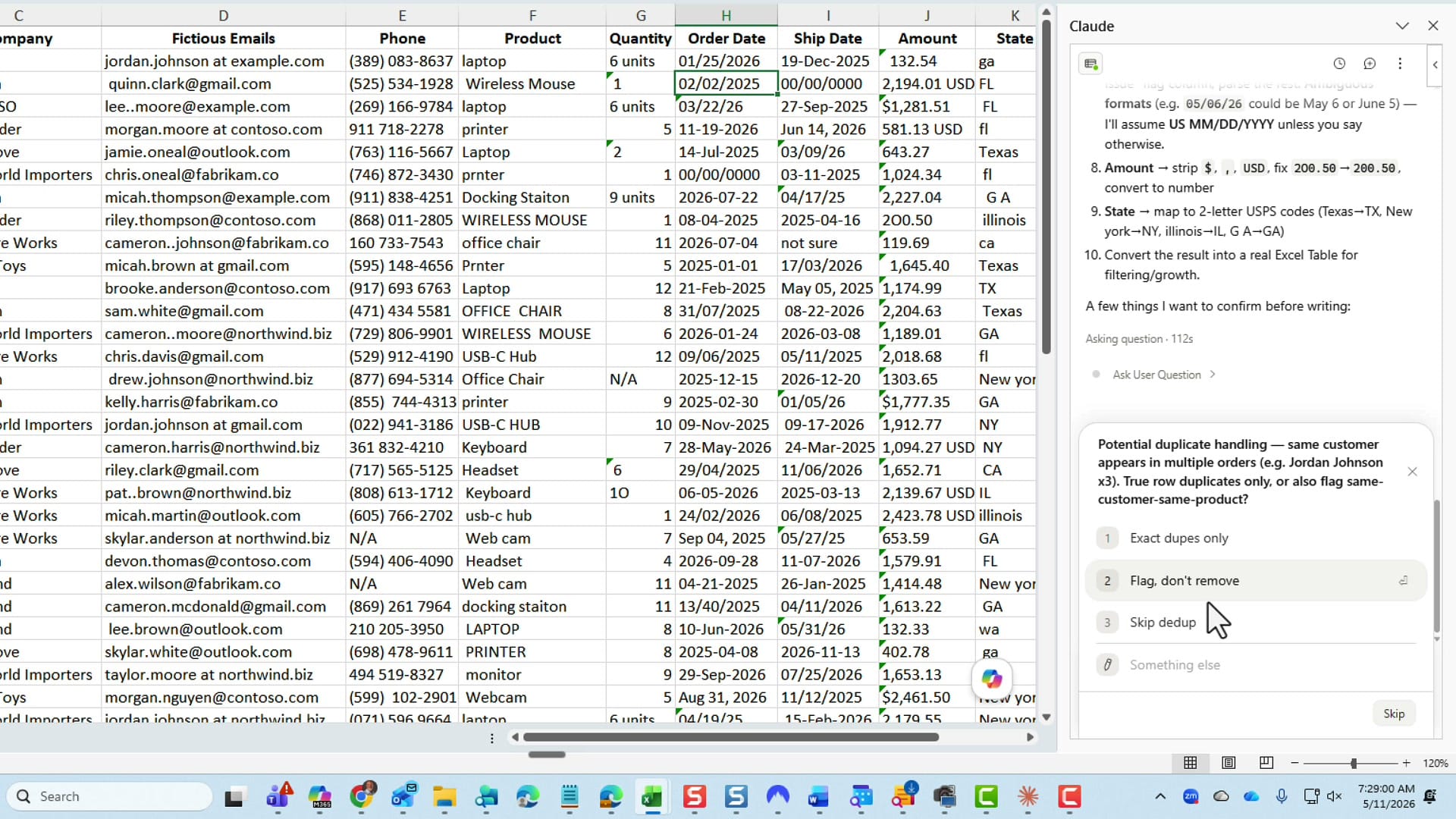
I picked flag and don't remove. When real money is involved I never want an AI deleting records — I want it pointing at the suspicious rows so I can decide.
The Output Lands on a New Worksheet
One thing I didn't explicitly ask for but really appreciated: Claude put the cleaned data on a brand-new worksheet called Cleaned, and left my original MessyData sheet completely untouched. That's exactly the right default. I can compare the two side by side and make sure nothing important got lost in translation.
A Quick Note on Claude Pro Usage Limits
This isn't really a tip, but it's something you should know if you're working through a heavy cleanup job. I'm on a paid Claude Pro account, and a job this size used a meaningful slice of my limits.
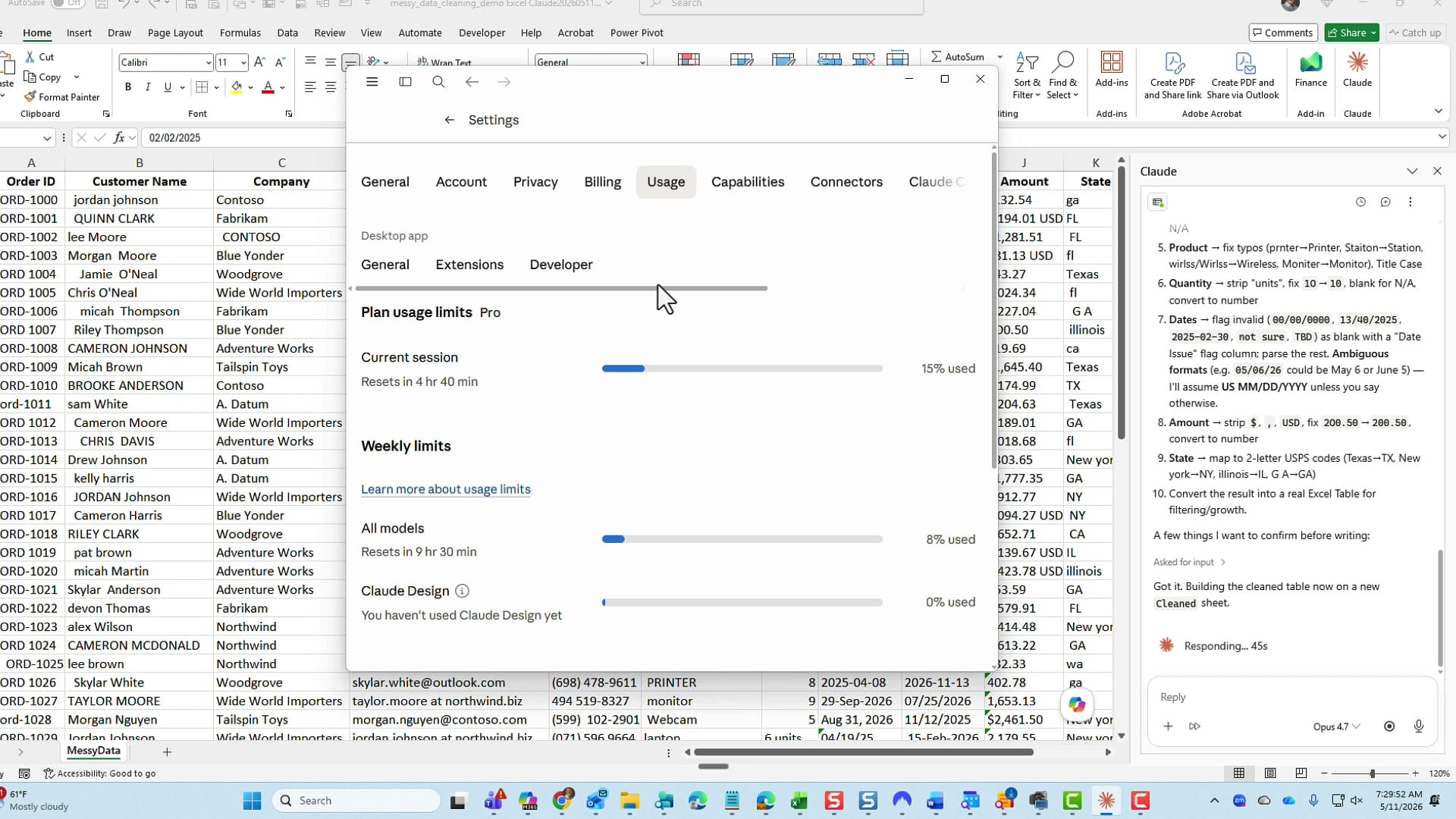
If you plan to run several large cleanups in a session, keep an eye on usage. Opus 4.7 is the strongest model but it also consumes more of your weekly allowance than Sonnet would.
How Claude Handled the Duplicate Check
This is the part that genuinely impressed me. Claude flagged two rows — Jordan Johnson and Alex Wilson — that ordered the same product. But instead of just marking them as duplicates, it actually looked at the rest of the row and reported back:
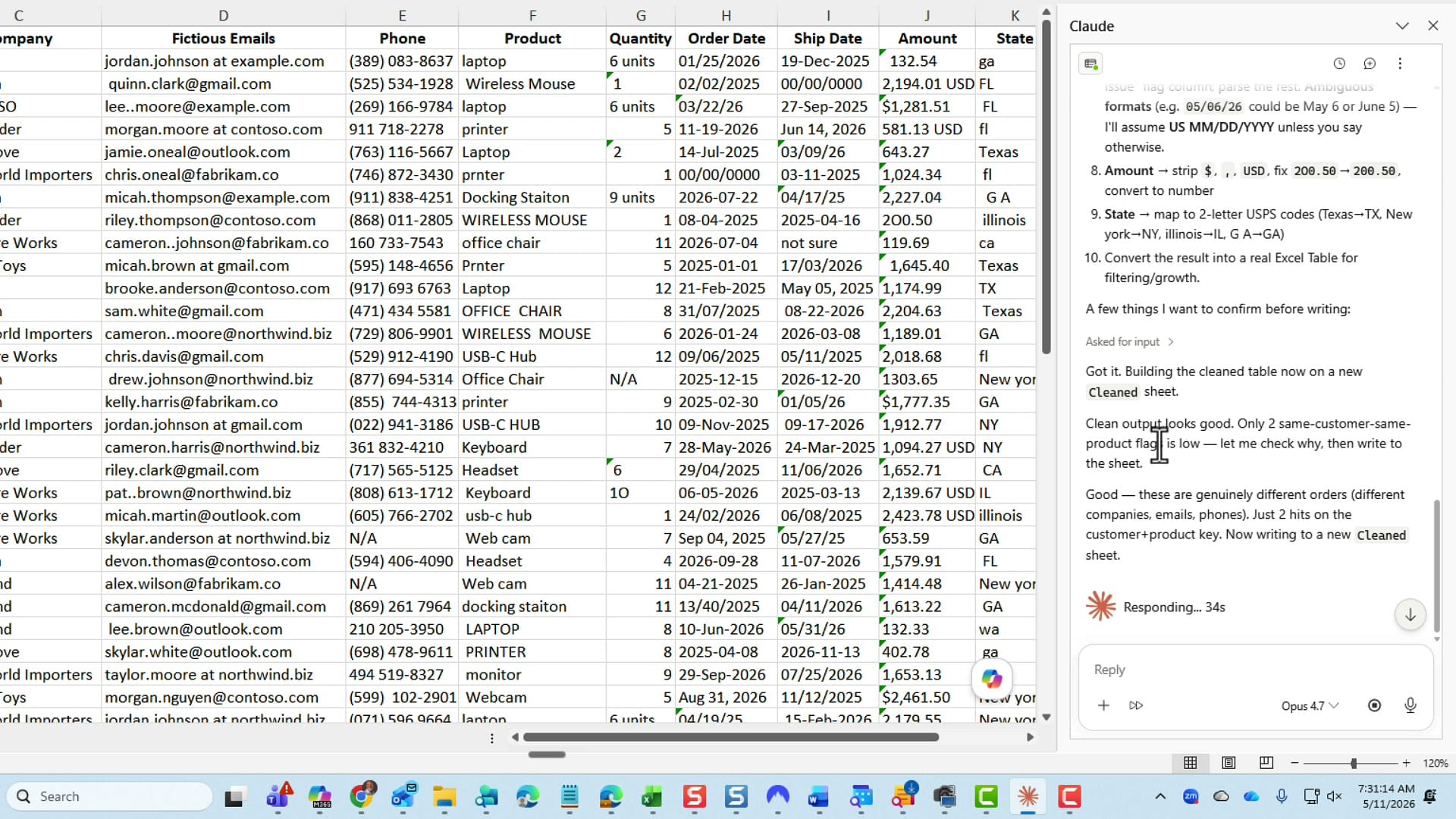
It told me explicitly: these are two different customers placing different orders for the same product, so they are not duplicates. That's the difference between a dumb dedupe and an intelligent one.
Inspecting the Cleaned Data
Once everything finished, Claude dropped me a summary of what changed, with two clickable flag groups: "8 rows with date issues" and "2 rows flagged as possible dupes." Clicking either one highlights the affected rows on the Cleaned sheet so you can review them. Here's what the cleaned output actually looks like:
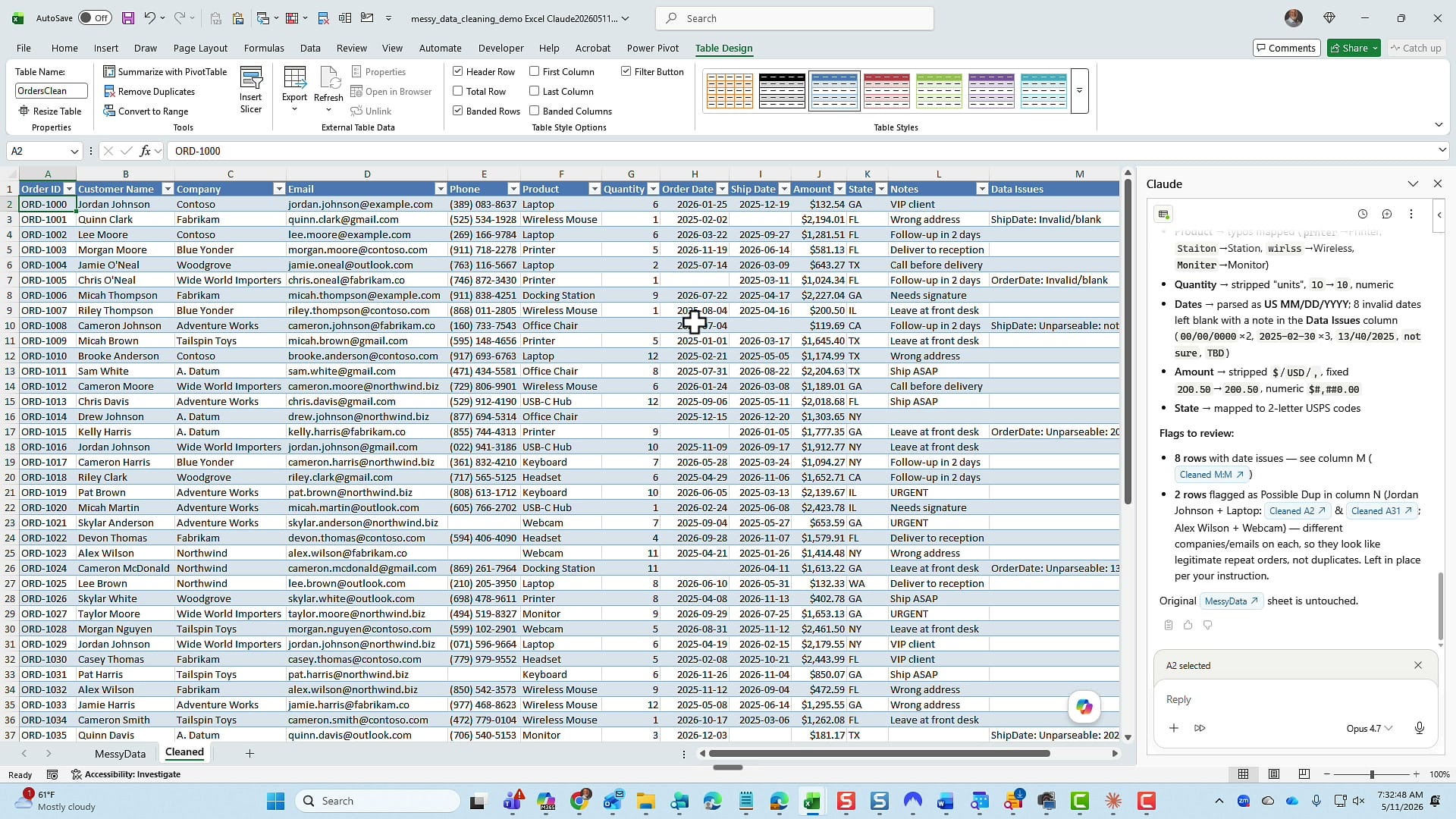
Cleaned sheet, automatically converted to an Excel table with banded rows and filter dropdowns. Compare row 8: "G A" is now "GA" without the space.Going column by column, here's what got fixed:
- Order ID — every value now has a hyphen (
ORD-1000,ORD-1015). Fully consistent. - Customer Name — extra spaces gone, proper case applied. Compare these to the original mess and the difference is obvious.
- Company — case fixed, extra spaces stripped.
- Email —
[email protected]is now[email protected]. The phantom double-period is gone. - Quantity — "6 units" is now just
6. Blanks are preserved as blanks (I could have asked for zeros instead — that's a prompt choice). - Order Date / Ship Date — every date is now an actual Excel date, formatted consistently as YYYY-MM-DD. They sort correctly when I apply a sort filter, which is the real test.
- Amount — no more "USD" suffix, no more dollar sign as text. Real numbers in every cell, right-aligned, ready for SUM and AVERAGE.
- State — all two-letter codes. Hawaii correctly shows as HI, the broken "G A" is GA.
And here's the bonus column I didn't ask for but genuinely appreciate:
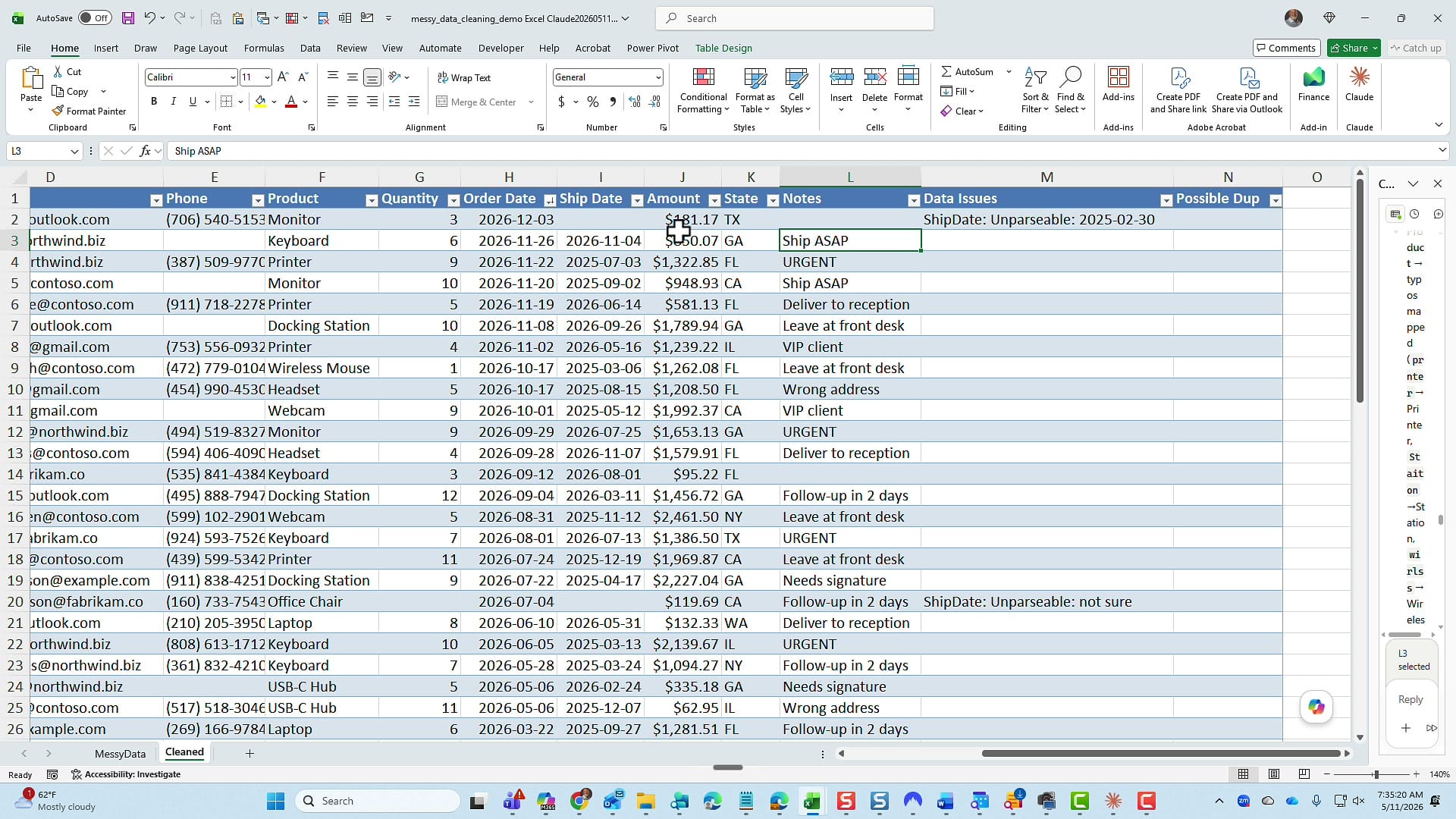
Notice the flags: "ShipDate: Invalid/blank," "ShipDate: Unparseable: 2025-02-30" (which is not a real date — February only has 28 or 29 days), and "Possible Dup" on the rows Claude flagged earlier. I didn't request a flag column, but Claude added one because the underlying data needed it. That's exactly the right call.
What I'd Do Differently Next Time
If I ran this again, I'd add two things to my initial prompt to save Claude from having to ask:
- Specify the date format up front. "Treat all dates as US MM/DD/YYYY" eliminates question 1 and lets Claude get straight to work.
- Specify blank handling. If you want zeros instead of blanks in numeric columns (Quantity is the obvious one), say so in the prompt.
Beyond that, I'd leave everything else as-is. The new-worksheet default, the Excel table conversion, and the Data Issues column are all the right choices, and I'd rather have them happen automatically than have to ask for each one.
Why This Workflow Matters
I've tested several AI tools on messy Excel data over the past year. What Claude got right here is not just the cleaning itself — it's the workflow around the cleaning: asking before assuming, preserving the original sheet, converting to a real Excel table, flagging suspect rows instead of silently deleting them, and being honest when two rows aren't actually duplicates.
And it did all of this on a local file. No need to upload my data to the cloud, no need to copy and paste into a chat window, no concerns about a file being too large for an attachment. Claude works right inside Excel, right on the file that's sitting on my hard drive. For anyone handling sensitive customer data, that local-file capability alone makes the integration worth the Pro subscription.
If you want to see how Claude handles different kinds of Excel work, my walkthrough on cross-sheet XLOOKUP and data-validated HR spreadsheets with Claude covers more advanced territory — building formulas and entire sheets from scratch. And if you're curious how the same job looks in Copilot's Agent Mode, that's a useful side-by-side comparison.
For now, I'm a thumbs-up on this skill. Claude did a fabulous job of cleaning a deliberately broken spreadsheet, and the output is genuinely usable as-is.
Related guides