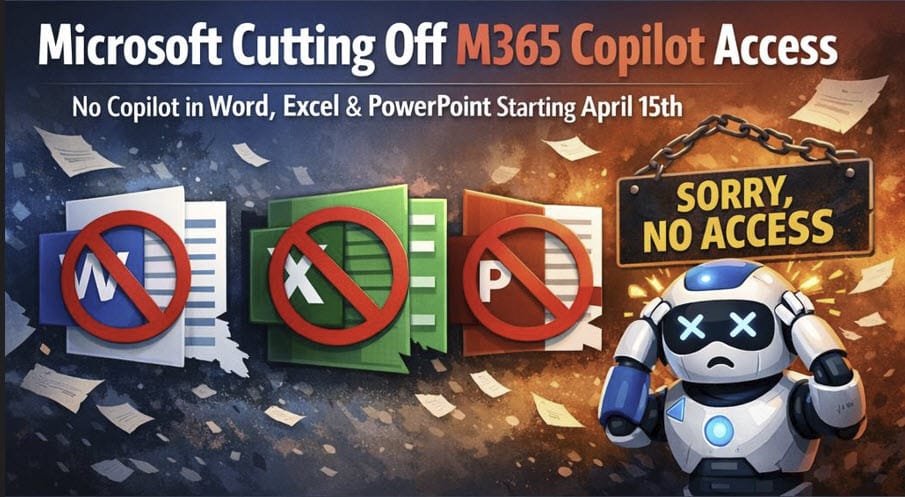
Microsoft 365 Copilot Chat's New Look: How Work IQ Replaces the Work and Web Toggle


Microsoft 365 Copilot Chat is getting a redesign, and I got it early at the end of May. This is the layout that rolls out to all users in July 2026, with an opt-in toggle available in June if you want to try it sooner.
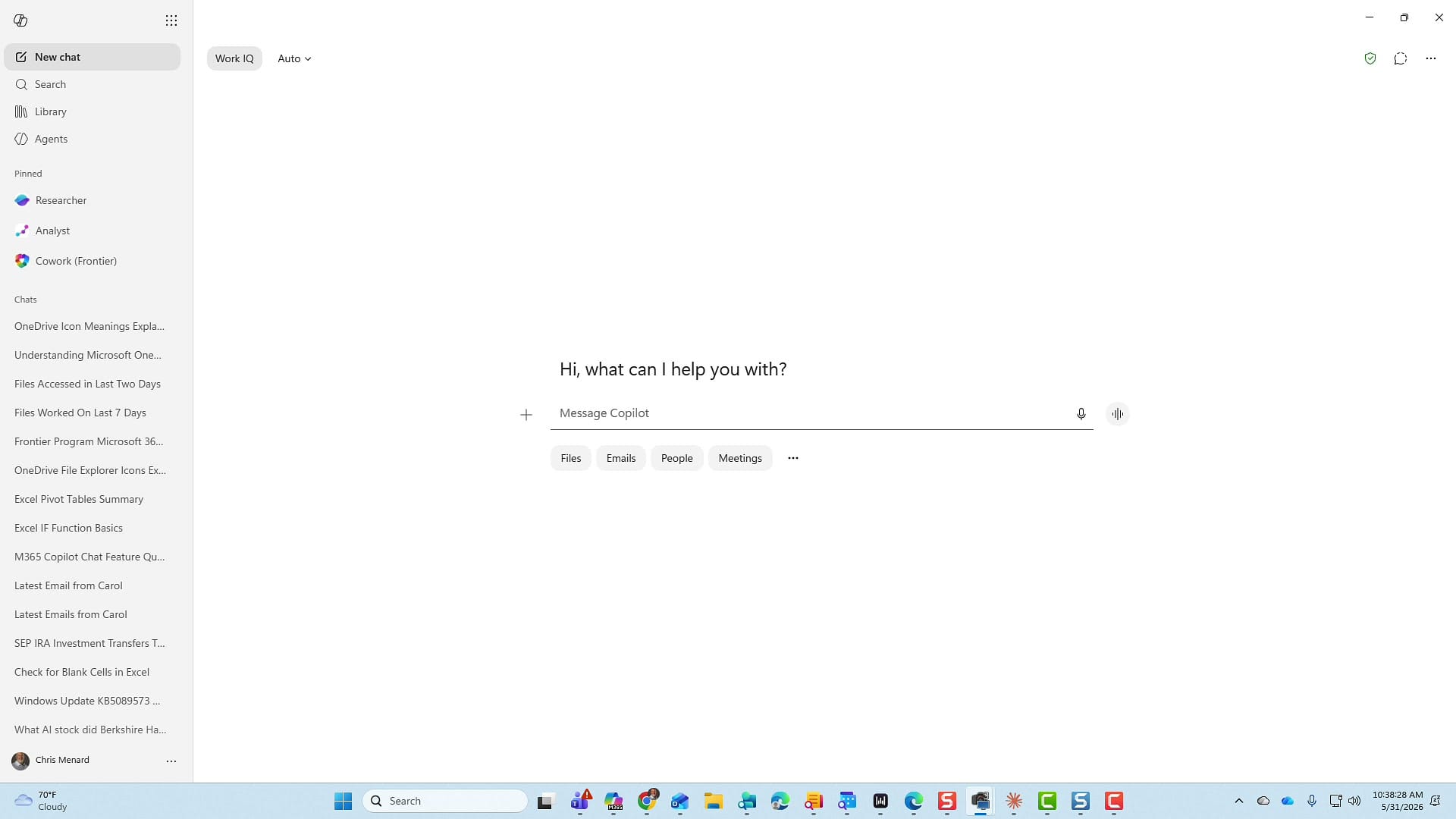
If you use Copilot Chat every day, the first thing you'll ask is the same thing I did: where did the Work and Web toggle in the top middle go? It's gone. In its place is a single feature called Work IQ, and that's where most of the change lives.
Let me walk you through every change in the new interface, what Work IQ actually does, and the two simple ways to steer Copilot toward your work data or the web.
The new interface at a glance
The old Work and Web toggle that used to sit in the top center is gone. Over on the left you now have Work IQ, and Microsoft has pushed the prompt box front and center so it's the first thing you see. Directly below the prompt box are your content sources — Files, Emails, People, Meetings, and more — so you can point Copilot at a specific type of content right from the start.
Choosing a model
If you're wondering where the model picker went, look to the left under Auto. Click it and you still get Quick Response for answers right away, Think Deeper when you want it to take longer for a better answer, the GPT models from OpenAI, and — if your tenant has Anthropic turned on — Claude (shown here as Opus). You may not see Claude in your tenant if it hasn't been enabled by your admin.
![[object Object]](https://storage.ghost.io/c/e2/1e/e21e3b5f-51d7-4ef2-b0a0-78a7adac5d23/content/images/2026/06/copilot-chat-model-selector-claude-gpt.jpg)
Starting a new chat and pointing at content sources
To start a fresh conversation, click New Chat. I'll be honest — I'd rather not have to click up here every time I want a clean slate, but that's where it lives. When you want Copilot to pull from your files, emails, people, or meetings, those buttons are right below the prompt box. Microsoft is clearly trying to keep the prompt box the center of attention.
Enterprise Data Protection and settings
Up in the top right, your Enterprise Data Protection green check mark is still there, and next to it is your temporary chat. The three dots open Settings and more, where you'll find Scheduled prompts, Chat settings, and a toggle to completely disable Web Search. I'd encourage you not to disable web search — leave it on. I'll show you a cleaner way to control where Copilot looks in a moment.
![[object Object]](https://storage.ghost.io/c/e2/1e/e21e3b5f-51d7-4ef2-b0a0-78a7adac5d23/content/images/2026/06/copilot-chat-settings-web-search-toggle.jpg)
What Work IQ does
Here's the heart of the update. Microsoft heard that people weren't always sure when to use Work versus Web, so Work IQ now has that intelligence built in. If you have a paid Microsoft 365 Copilot license, Work IQ reads your prompt and decides whether to pull from your work data, the web, or both.
As an example, I asked, "Show me files that I have worked with the past two days." That prompt is clearly asking for work data. I'd been working on YouTube videos all day, so Copilot came back with my Copilot blog drafts, Excel files, and Power Query training content — even showing the icon of the app each file came from.
![[object Object]](https://storage.ghost.io/c/e2/1e/e21e3b5f-51d7-4ef2-b0a0-78a7adac5d23/content/images/2026/06/copilot-work-iq-pulling-work-data.jpg)
Turning Work IQ off for a web-only search
So how do you do a web-only search? The simplest way is to turn Work IQ off. Click it and you'll see a strikethrough appear through the words "Work IQ" — and notice it automatically starts a new chat for you, so you don't have to click New Chat first. You can toggle it on and off from here whenever you like.
![[object Object]](https://storage.ghost.io/c/e2/1e/e21e3b5f-51d7-4ef2-b0a0-78a7adac5d23/content/images/2026/06/copilot-work-iq-disabled-strikethrough.jpg)
With Work IQ off, the chat is truly web only. To prove it, I asked it to show me the latest emails from a coworker, Carol Wilson. Fingers crossed it would tell me it couldn't — and it did. It replied that it doesn't have access to my email or Outlook inbox, because I'd disabled Work IQ. Turn Work IQ back on and you get a new chat automatically.
![[object Object]](https://storage.ghost.io/c/e2/1e/e21e3b5f-51d7-4ef2-b0a0-78a7adac5d23/content/images/2026/06/copilot-web-only-no-email-access.jpg)
The easier way: control the source in your prompt
I mentioned I would not go into the three dots and disable Web Search. The reason is that you'll occasionally ask something where you have a lot of work data — emails, Teams chats, files — but Copilot might also reach out to the web. What I've found far easier is to just tell it in the prompt: "Only look at my work data. Don't pull anything from the web." That has worked every single time I've done it. For most prompts, though, Work IQ is smart enough to know on its own whether to grab work content or web content.
Demo: letting Work IQ choose
Here's a real test. I wanted to know what the different Microsoft OneDrive icons mean — the blue cloud, the white check mark on a green background, and the green check mark on a white background. I actually have emails about those, but I phrased the question generally without telling Copilot where to look, so I expected it to lean on the web. It walked through what every icon means, and when I scrolled to the bottom and clicked Sources, it had done nothing with my work data — exactly what I expected for a general question.
![[object Object]](https://storage.ghost.io/c/e2/1e/e21e3b5f-51d7-4ef2-b0a0-78a7adac5d23/content/images/2026/06/copilot-work-iq-auto-web-sources.jpg)
Demo: forcing a work-only answer
Now I did a new chat and asked the same OneDrive icon question, but this time I added: "Only pull from work stuff. I do not want anything from the web." Copilot found multiple results across my enterprise data and gave me a clean explanation, citing exactly where it pulled from — my own Word documents, emails, and PowerPoints. I scrolled to Sources and clicked it, and everything was from my enterprise data. That one line in the prompt is all it takes.
![[object Object]](https://storage.ghost.io/c/e2/1e/e21e3b5f-51d7-4ef2-b0a0-78a7adac5d23/content/images/2026/06/copilot-force-work-only-prompt.jpg)
The plus sign still has your options
One last thing on the plus sign next to the prompt box. Click it and you still get Add work content, Upload, Take screenshot, and Add capabilities. Under Add capabilities you'll find Research a topic, Analyze data, Create a document, Create a workbook, Create a presentation, Create a visual, and Create content or code — plus the option to chat with an agent. Nothing you relied on has disappeared; it's just tucked behind the plus.
![[object Object]](https://storage.ghost.io/c/e2/1e/e21e3b5f-51d7-4ef2-b0a0-78a7adac5d23/content/images/2026/06/copilot-plus-sign-add-capabilities.jpg)
Start a voice chat
To the right of the prompt box you've got your microphone, and next to it the Start a new voice chat button. If you've never used it, give it a try — you can talk to Copilot back and forth like you're chatting with a colleague at work. It's a great feature that's easy to miss.
![[object Object]](https://storage.ghost.io/c/e2/1e/e21e3b5f-51d7-4ef2-b0a0-78a7adac5d23/content/images/2026/06/copilot-start-voice-chat.jpg)
The takeaway
The redesign looks different, but nothing important was taken away. Work IQ replaces the old Work and Web toggle with built-in intelligence that reads your prompt and chooses the right source. When you want to be certain, you have two levers: toggle Work IQ off for a web-only chat, or simply tell Copilot in the prompt to use only your work data. Remember that Work IQ's ability to reach your emails, files, and meetings depends on having a paid Microsoft 365 Copilot license. If you have any questions about the new layout, drop them in the comments on the video.
Related guides
 Chris Menard
 Chris Menard
 Chris Menard
 Chris Menard
 Chris Menard