Auto-Reschedule Conflicting Meetings with Copilot in Outlook


If you have a paid Microsoft 365 Copilot license, there's a genuinely useful new calendar feature in Outlook: automatic meeting rescheduling. When a conflict arises, Copilot detects it and moves the meeting for you — no manual back-and-forth required. Here's exactly how to set it up.
Requirements and Supported Apps
You need a paid Microsoft 365 Copilot license to use this feature. It works in three apps:
- New Outlook (desktop)
- Outlook on the web
- Microsoft Teams
It does not work in Outlook Classic.
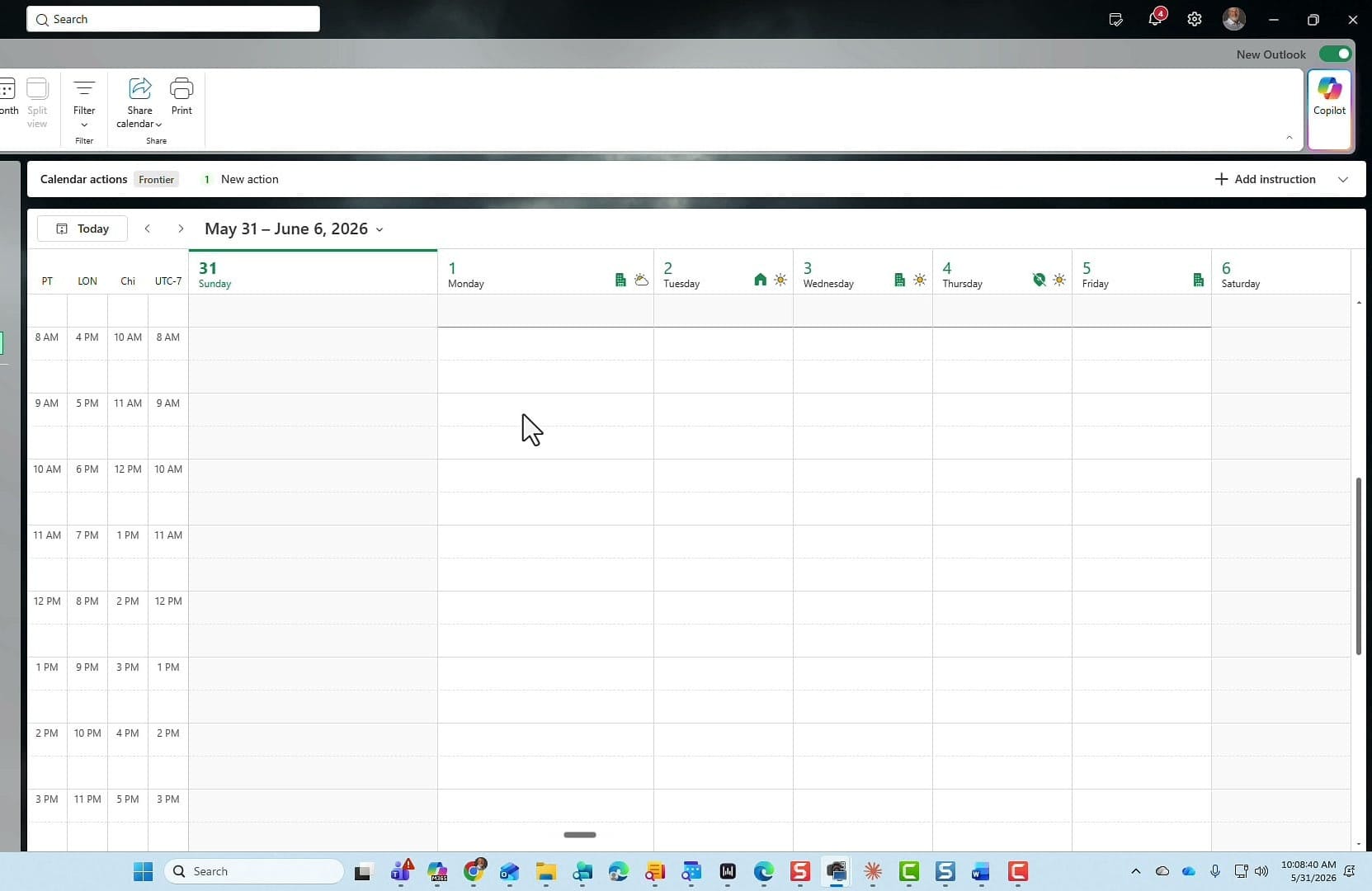
Creating a Meeting Invite with Auto-Reschedule Enabled
Open a new meeting invite in new Outlook. Fill in the title and attendees as normal, and you'll notice a new option near the scheduling area: "If conflicts arise, let Copilot reschedule this event." Toggle this on.
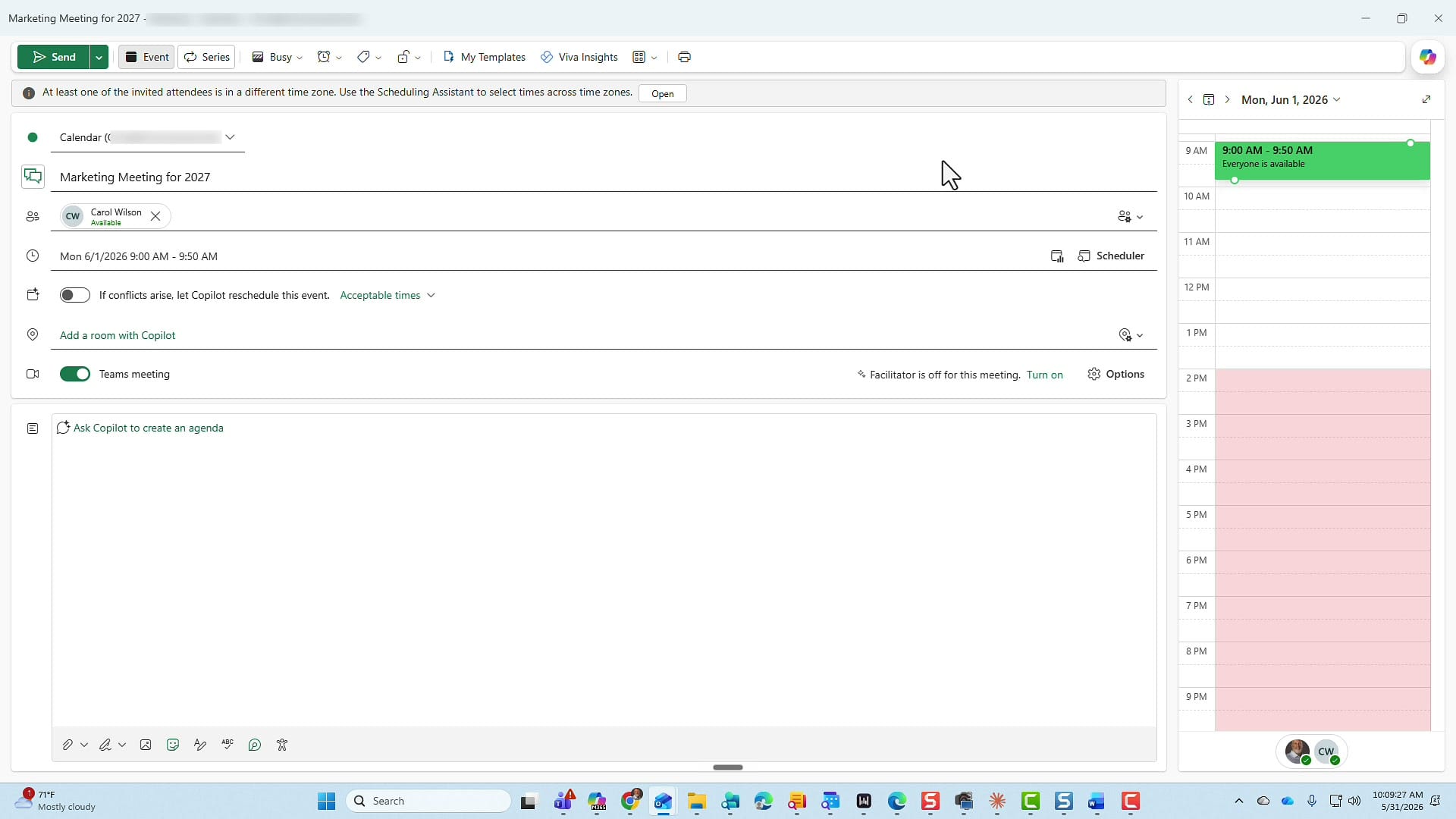
Whether the meeting is a Teams meeting or not makes no difference — the feature works either way.
Setting Preferred Reschedule Times
Once the toggle is on, an "Acceptable times" link appears beside it. Click it to open a date and time picker where you define your preferred rescheduling windows.
You can select:
- Acceptable days from a calendar view
- Time slots: Morning (before 12 PM), Midday (12–1 PM), Afternoon (after 1 PM), or Custom
For example, if you know your attendee is consistently free in the afternoons on Monday, Tuesday, and Wednesday, select those days and check "Afternoon." Copilot will only move the meeting to times that fall within this window.
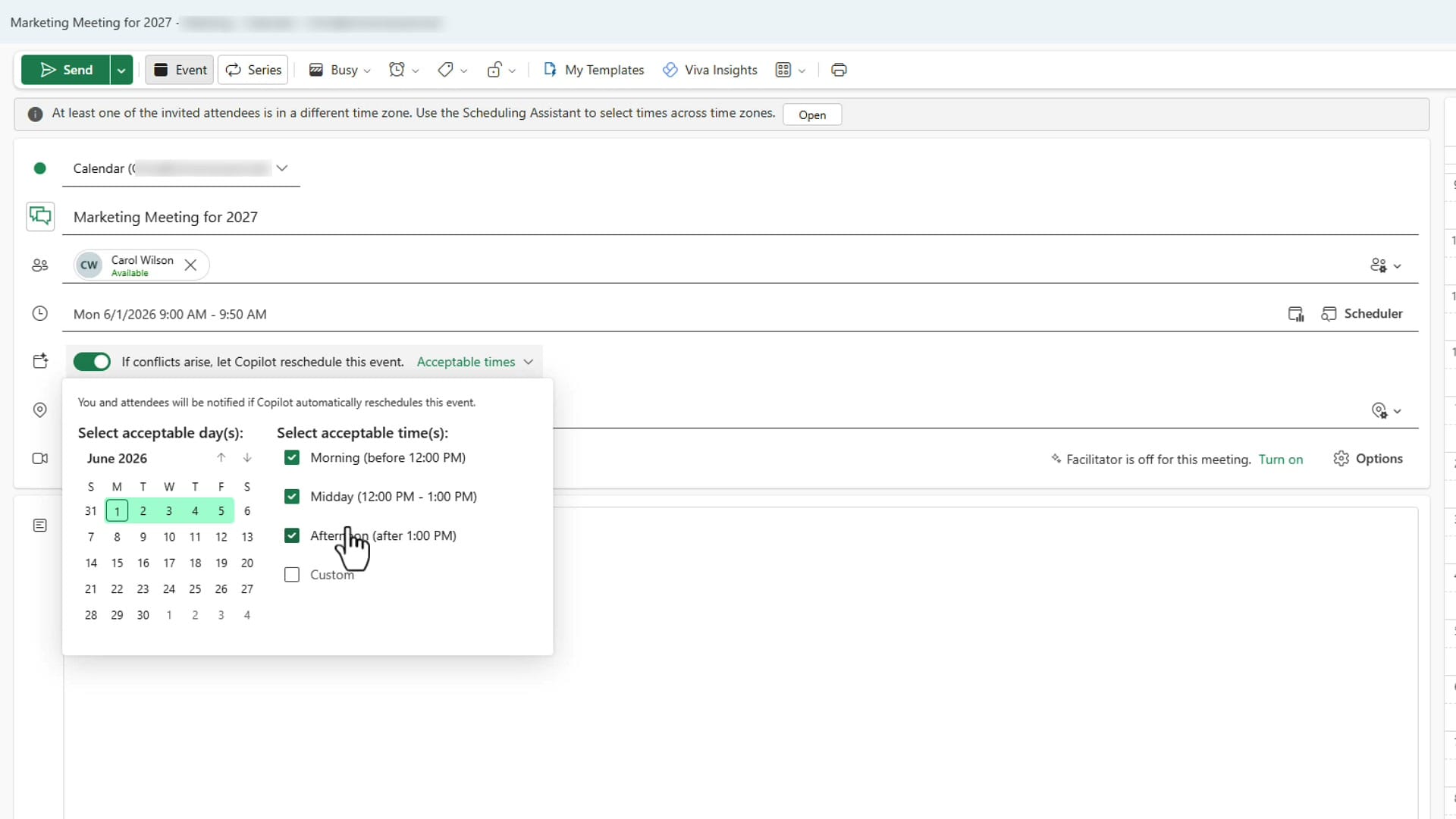
Once your preferences are set, hit Send.
Testing It: Creating a Conflict
To see it in action, schedule another event that overlaps with the original meeting. It doesn't need attendees — just something that sits in the same time slot. Once the conflict exists, Copilot goes to work.
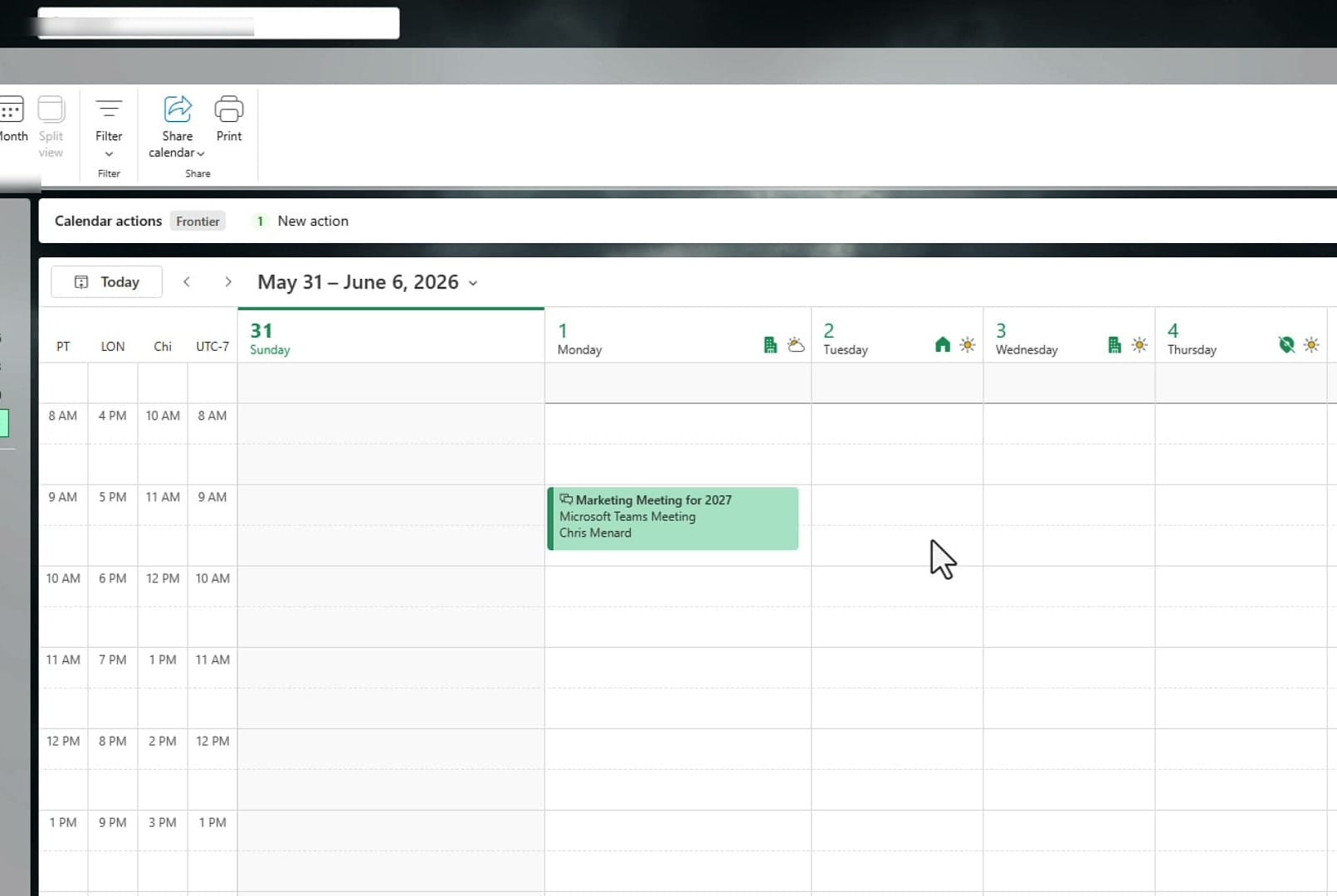
In my test, it took under 60 seconds — though Microsoft says to allow up to 60 to 180 seconds. The meeting was automatically moved from Monday morning to Tuesday afternoon, exactly within the preferred window I had configured.
The Email Notification
After Copilot reschedules the meeting, you receive an automatic email from Microsoft Copilot with the subject "Successfully rescheduled [Meeting Name]." Inside the email you'll find:
- The new date and time for the event
- The previous time it was originally set for
- A "View event" link to open it directly in your calendar
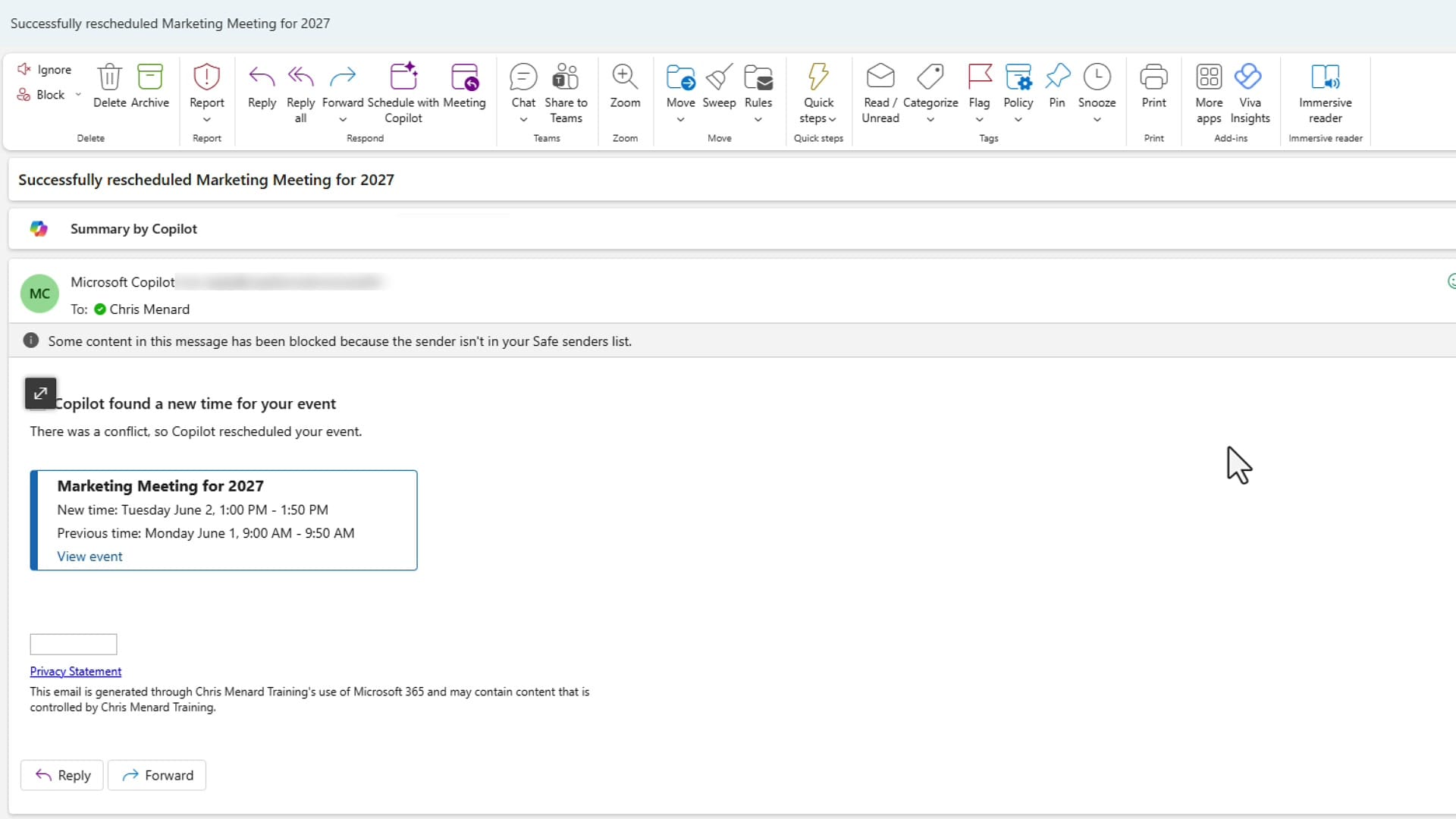
You're not left wondering whether Copilot actually did anything — the confirmation email makes it clear.
Important Limitation: One-on-One Meetings Only
There is one significant constraint to know about: this feature only works for one-on-one meetings. If you add a second attendee to the invite, the Copilot reschedule toggle becomes greyed out and unavailable.
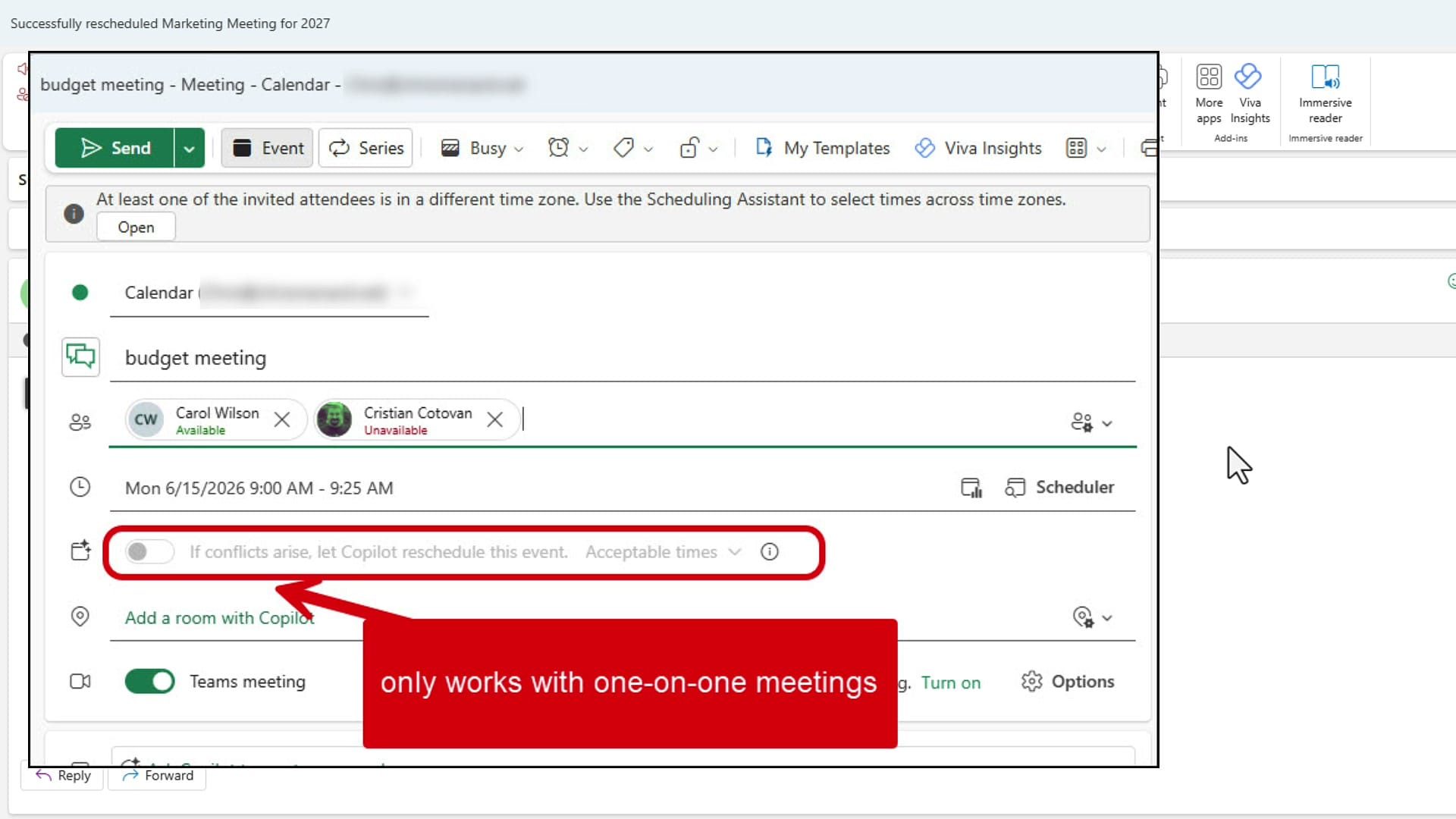
Keep this in mind when deciding which meetings to enable auto-reschedule for. For one-on-one check-ins, project syncs with a single colleague, or recurring meetings with a direct report, this feature is a genuine time-saver.
Related Outlook and Copilot Guides
 Chris Menard
 Chris Menard
 Chris Menard
 Chris Menard