Microsoft Teams Live Captions: A Quick Walkthrough

If you're not using live captions in Teams meetings yet, here's a quick rundown of what's possible — it's more customizable than most people realize.
Why Turn On Live Captions?
Live captions in Microsoft Teams are one of the most underused features in the app — and one of the most useful. Whether you're in a noisy environment, working through a fast-paced conversation, or just someone who reads better than you listen, captions give you a second way to follow along without missing a beat. And here's the part most people don't realize: turning them on doesn't notify anyone else in the meeting. They're completely private to you, so there's no reason not to use them whenever they'd help.
1) Accessibility
Captions make meetings usable for colleagues who are deaf or hard of hearing, and for anyone who processes written text better than audio.
2) Noisy or Quiet Environments
Joining from an airport, a coffee shop, or an open office? Captions keep you following along even when audio is a struggle — or when you have to mute your own mic.
3) Non-Native Speakers
Reading along in real time (or with real-time translation) makes it far easier to keep up with fast talkers or unfamiliar accents.
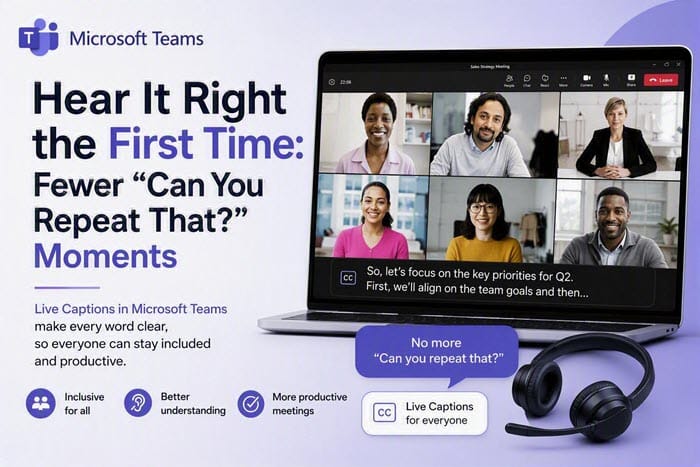
4) Fewer "Can You Repeat That?" Moments
Missed a name, a number, or an acronym? Glance at the caption instead of interrupting the meeting.
5) Better Focus
Some people simply retain information better when they can see it as well as hear it.
How to Turn On Live Captions
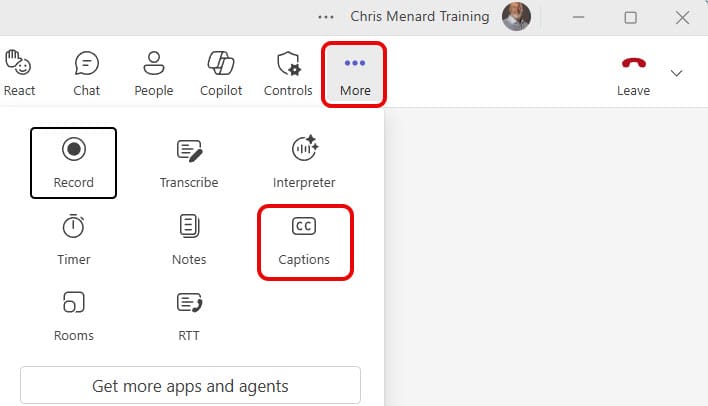
Turn On Captions — During a meeting, click More (•••) in the toolbar, then select Captions. You'll find it next to Record, Transcribe, and Interpreter. When you turn on Live Captions, they are only on for you. No one knows you are using Live Captions.
After you turn on Live Captions, your language will be your default language. For me, that is English. Over to the right, you have three options. Let's explore those.
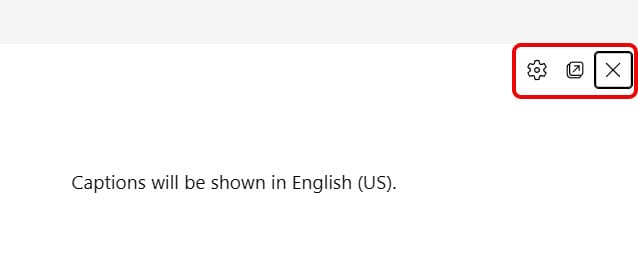
The three options are
- Open Caption Settings.
- Open captions in new window.
- Hide live captions. The keyboard shortcut is Alt+Shift+C
Open Captions Settings Options
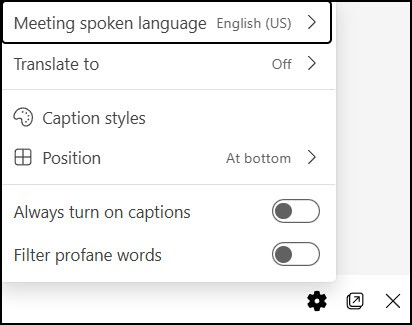
This is where you'll find a lot of options, including:
- Setting the meeting spoken language
- Translate to
- Caption styles
- The position of the caption
- Always turn on captions
- Filter profane words
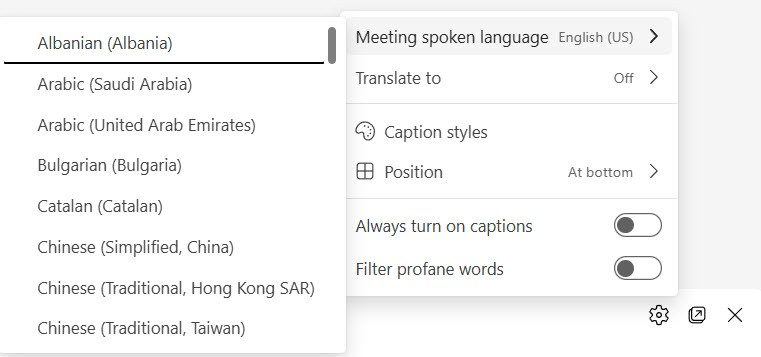
Meeting Spoken Language
This tells Teams what language is being spoken during the meeting, which the captioning engine uses to transcribe accurately. It defaults to your Teams language setting, but if a meeting is being conducted in a different language, updating this ensures captions come through correctly instead of garbled or mismatched text.
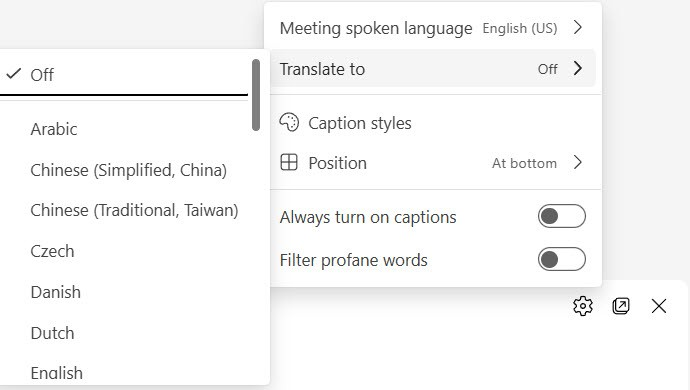
Translate To
This is separate from spoken language — it controls what language the captions are displayed in, regardless of what's being spoken. If you set spoken language to English but Translate To to Spanish, you'll see live-translated Spanish captions while everyone else hears English. It's especially useful for global teams or meetings where not everyone shares a first language.
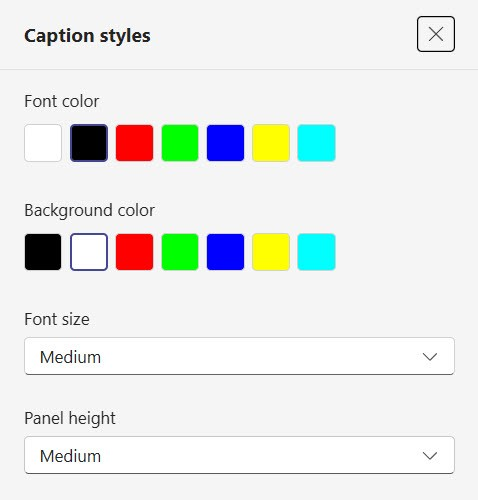
Caption Styles
Here you can adjust font color, background color, font size, and panel height to make captions easier to read. This helps with visibility in bright rooms, personal contrast preferences, or simply making text large enough to read comfortably on a smaller screen.
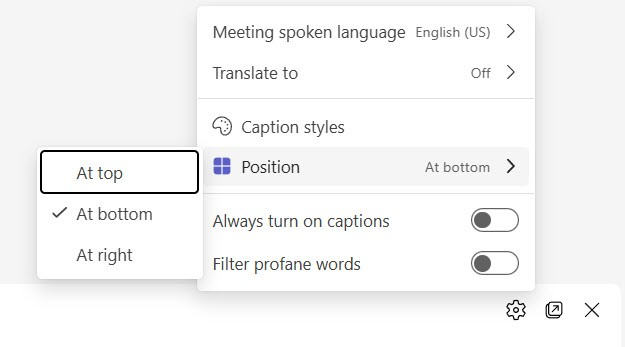
Position
This controls where captions appear on screen — at the top, at the bottom, or on the right. It's a small setting, but it matters if captions are covering shared content, a speaker's video, or anything else you need to see clearly during the meeting.
Always Turn On Captions
Toggling this on means captions will automatically appear every time you join a Teams meeting, so you don't have to manually turn them on each time. It's a good option if you've found captions genuinely useful and don't want to think about enabling them meeting after meeting.
Filter Profane Words
This setting censors profanity in the caption text, replacing it with symbols or blanked-out characters. It's useful in professional settings, recorded meetings, or any situation where you want cleaner, more polished captions on display.
Stopping Live Captions
To stop live captions, click Hide live captions. The keyboard shortcut is Alt+Shift+C
Upcoming live hands-on presentations
APC Conference - September 2026
I'll be speaking at the APC Conference 2026 in Nashville (Gaylord Opryland, September 13–16), where I'm leading hands-on sessions on two of my favorite topics: Advanced Excel Mastery and M365 Copilot Essentials Masterclass. If you're attending, come say hello — I'd love to talk shop on everything from Excel formulas and automation to getting the most out of Copilot in your daily workflow.
Live Stream on Teams Newest Features
Also in September 2026 (exact date TBD), I'll be going live on LinkedIn with a session on the latest Microsoft Teams features. It's open to everyone, no registration required — more details coming soon.
University of Georgia - Executive MBA Training - October 2026
The following month, I'll be delivering a full day of hands-on Excel training on Saturday, October 3, for the Executive MBA program at the University of Georgia's Terry College of Business. We'll cover PivotTables, data analysis, charts, and working with financial data—practical skills built for busy professionals who need Excel to work harder for them.