Prepare for Questions with Microsoft Copilot in PowerPoint
Microsoft Copilot's new Prepare for questions skill in PowerPoint reads your whole deck and predicts the objections your audience will raise, with slide-level evidence for each one.

If you have a paid Microsoft 365 Copilot license, PowerPoint is getting three new Copilot skills. One of them, Prepare for questions, reads your entire deck and tells you where your audience is going to push back — before you ever stand up to present. I want to walk you through exactly how it works.
This is the skill I reach for on any deck that has to survive a room full of decision makers. It does not rewrite your slides. It plays the skeptic, and it points at the specific slide numbers where your argument is thin.
What you need first
These skills require a paid Microsoft 365 Copilot license — the premium one, not the free Copilot Chat. They are still rolling out, so if you do not see them yet, check again in a few weeks.
The deck I am testing this on
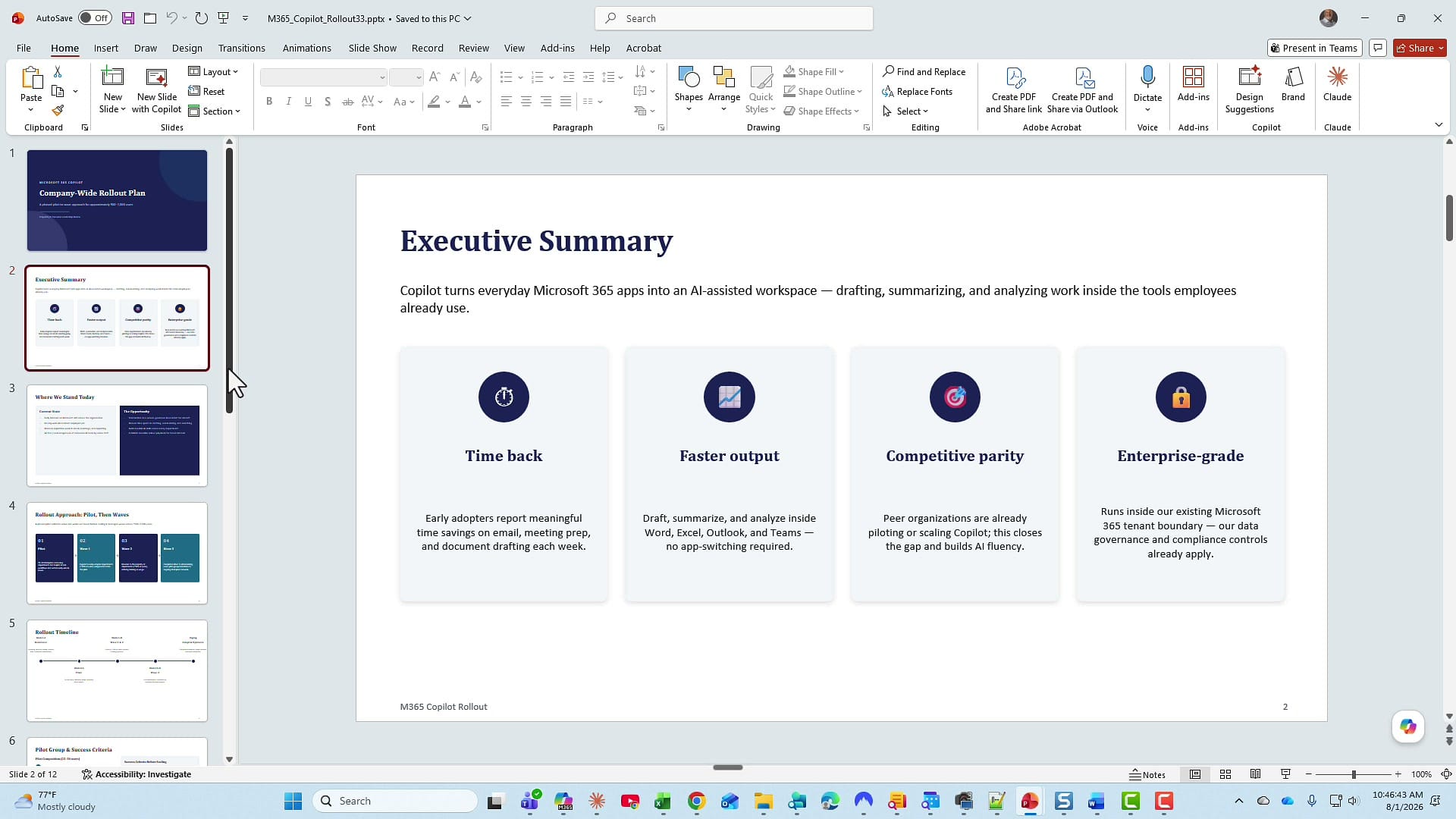
I am using a 12-slide presentation about rolling Microsoft 365 out to a company of 500 to 2,000 users. I built the deck with Copilot, so it looks polished — executive summary, rollout waves, licensing, an investment overview, and a "How We'll Measure Success" slide. That is exactly the kind of deck that feels finished and still falls apart under questioning.
Download the file below to practice:
Where to find the new Copilot skills in PowerPoint
Open Copilot from the icon in the bottom right of the PowerPoint window. If your Copilot icon is not where you expect it, Microsoft has been moving it — I covered that in my post on the recent Copilot updates in Word, Excel, and PowerPoint.
With the Copilot pane open, click the plus symbol under the prompt box. In that menu you will see Choose skills.
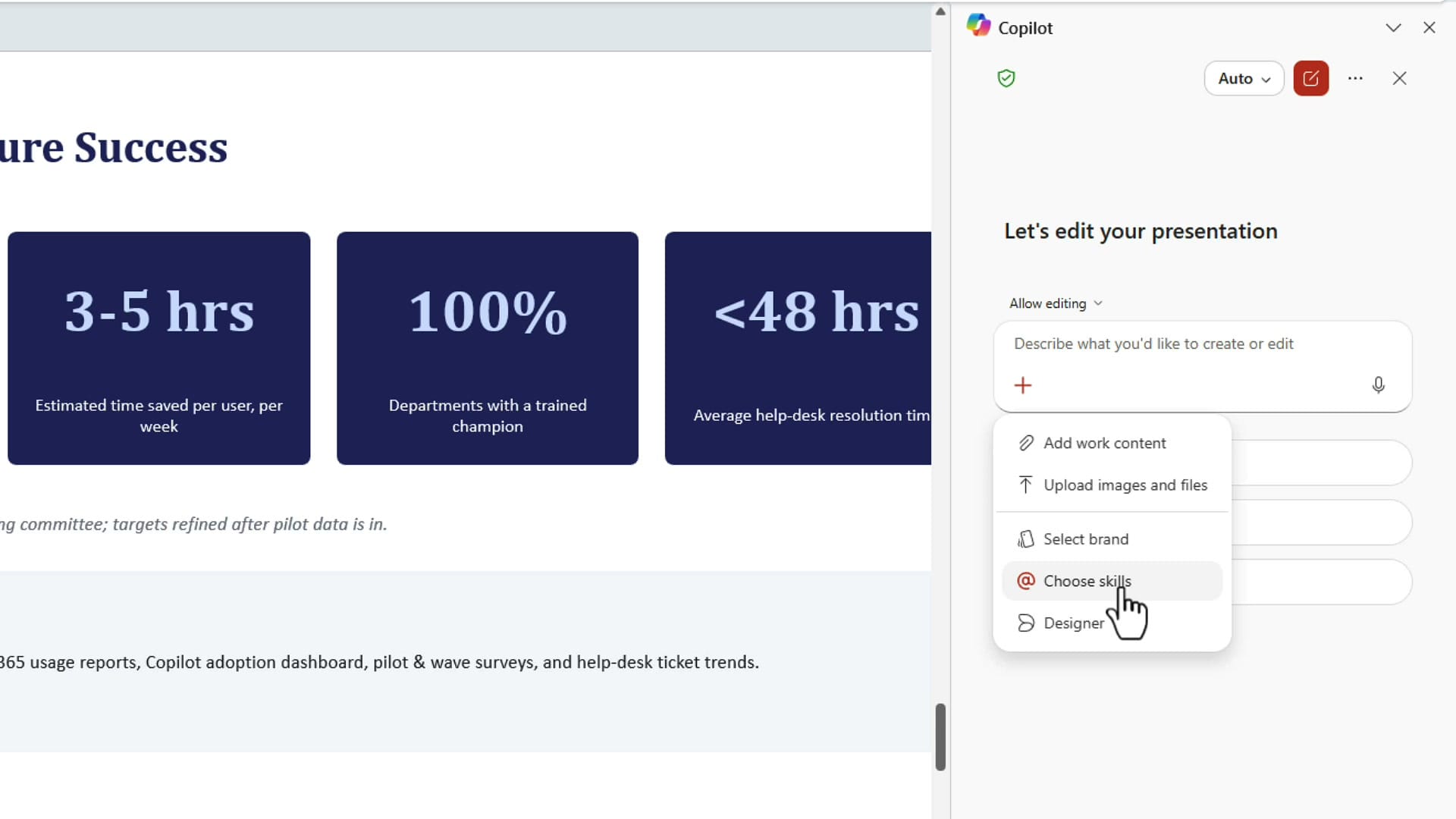
Click Choose skills and you get the three new options:
- Visualize this slide — turn text-heavy slides into polished visuals
- Review this presentation — improve slides with strong storytelling
- Prepare for questions — predict audience questions or concerns
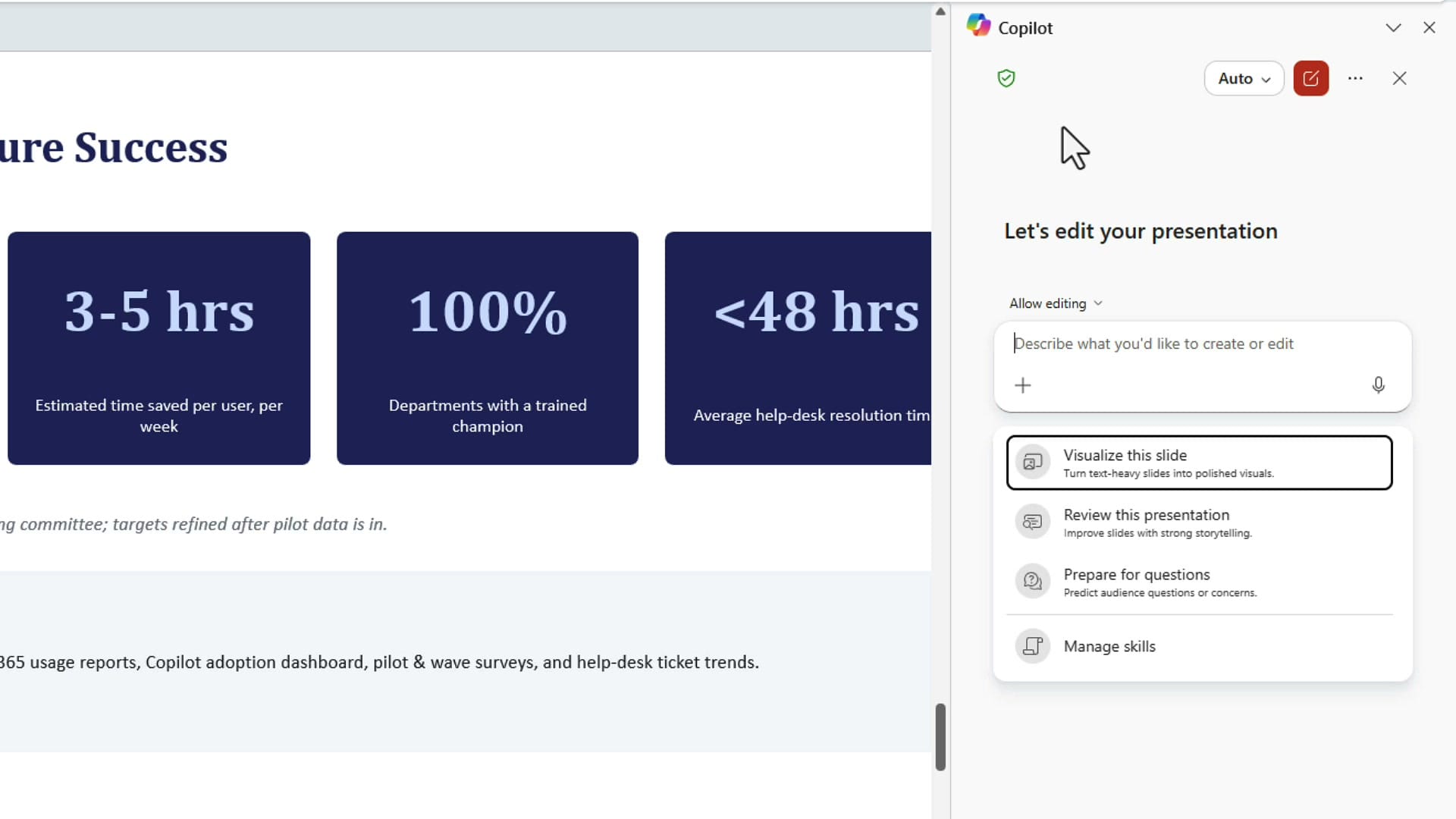
Manage skills: turning them on and off
Below that list, past a thin divider line, there is Manage skills. Click it and you get a Skills & plugins panel with a toggle for each skill, plus a separate entry for Custom skills.
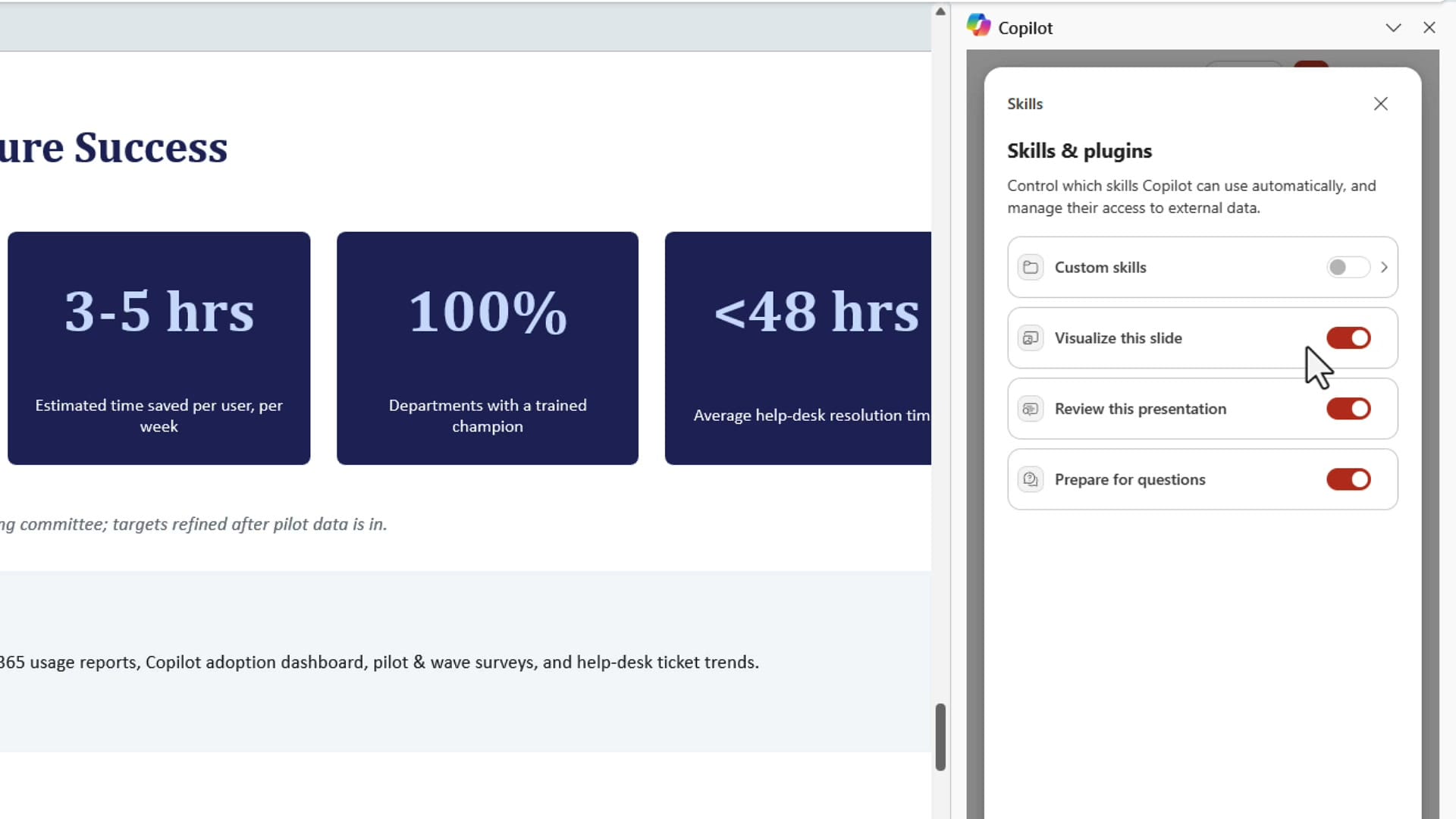
My first reaction was: why would I turn any of these off when there are only three? I am speculating, but I think Microsoft is planning to ship a lot more skills. Once you have 15 of them and you only use four or five, being able to hide the rest makes sense. For now I leave all three running.
Running Prepare for questions
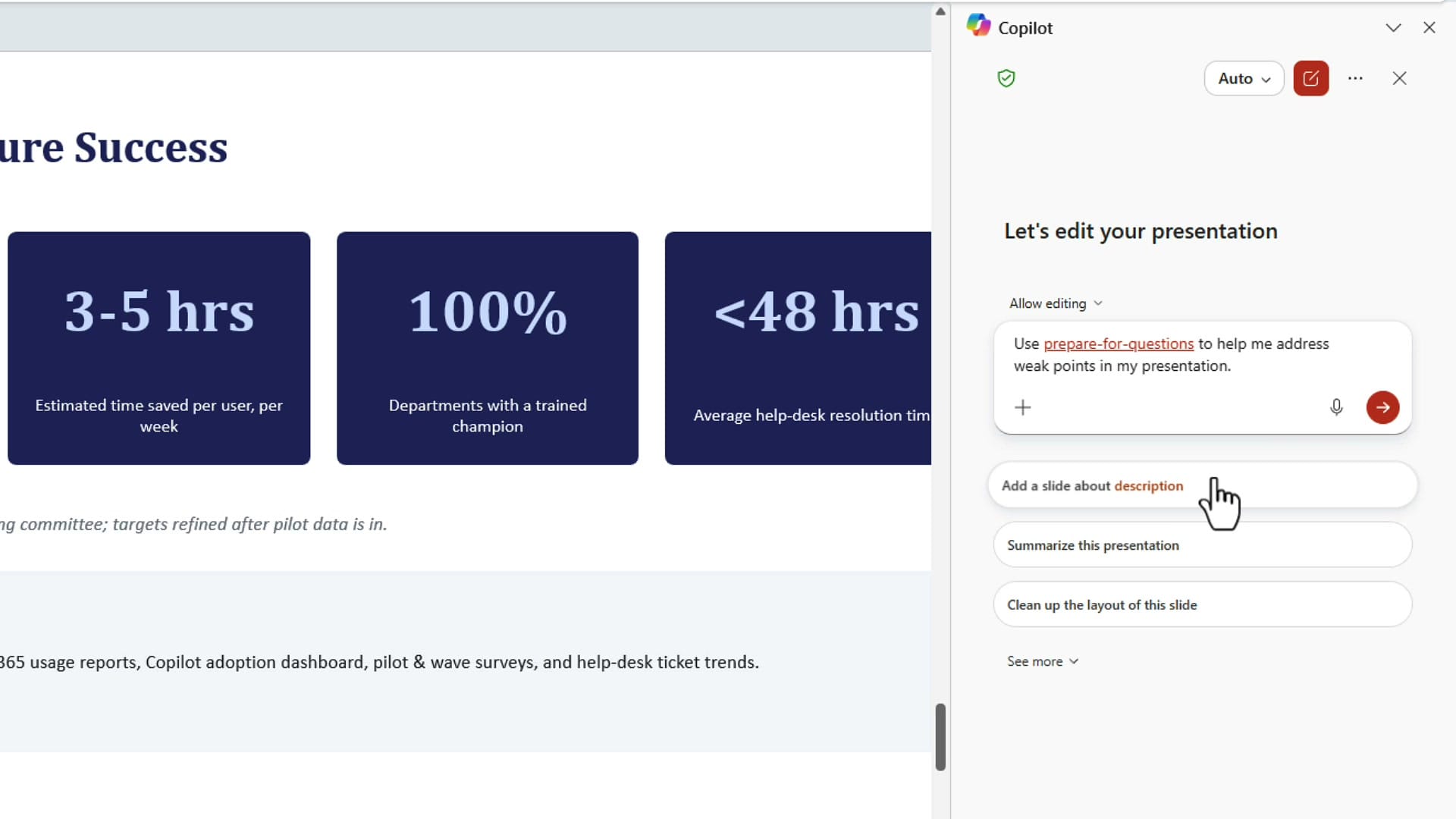
Close the Manage skills panel, click the plus symbol again, go to Choose skills, and pick Prepare for questions. Copilot writes the prompt for you: "Use prepare-for-questions to help me address weak points in my presentation." You do not have to type anything — just send it.
Answer the three setup questions
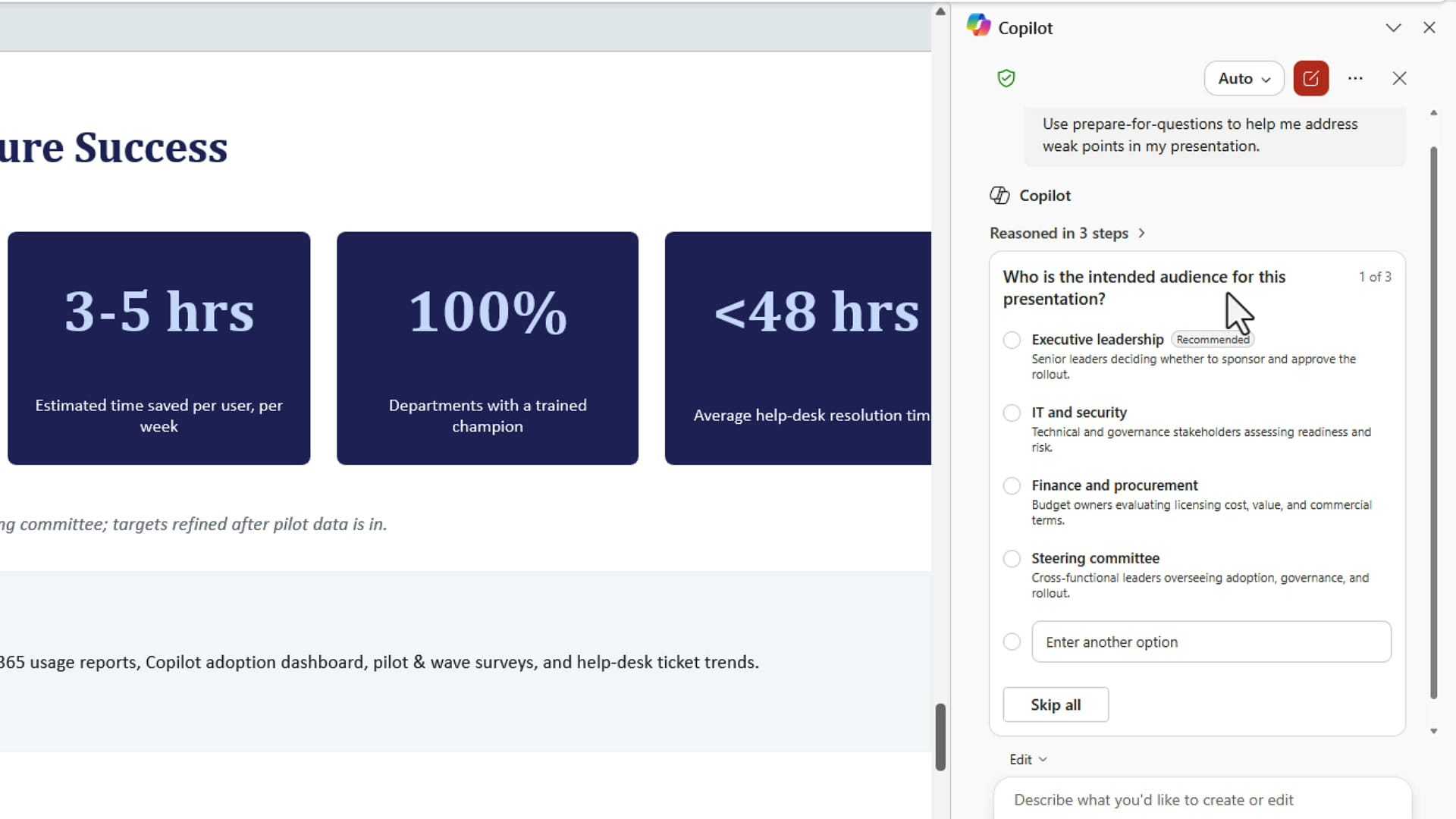
Here is the part I did not expect. Instead of dumping generic advice, Copilot interviews you first — three questions, and it recommends an answer for each based on what is already in the deck.
Question 1 of 3: Who is the intended audience for this presentation? The choices are Executive leadership (recommended), IT and security, Finance and procurement, and Steering committee. There is also a free-text box if none of those fit. I picked leadership.
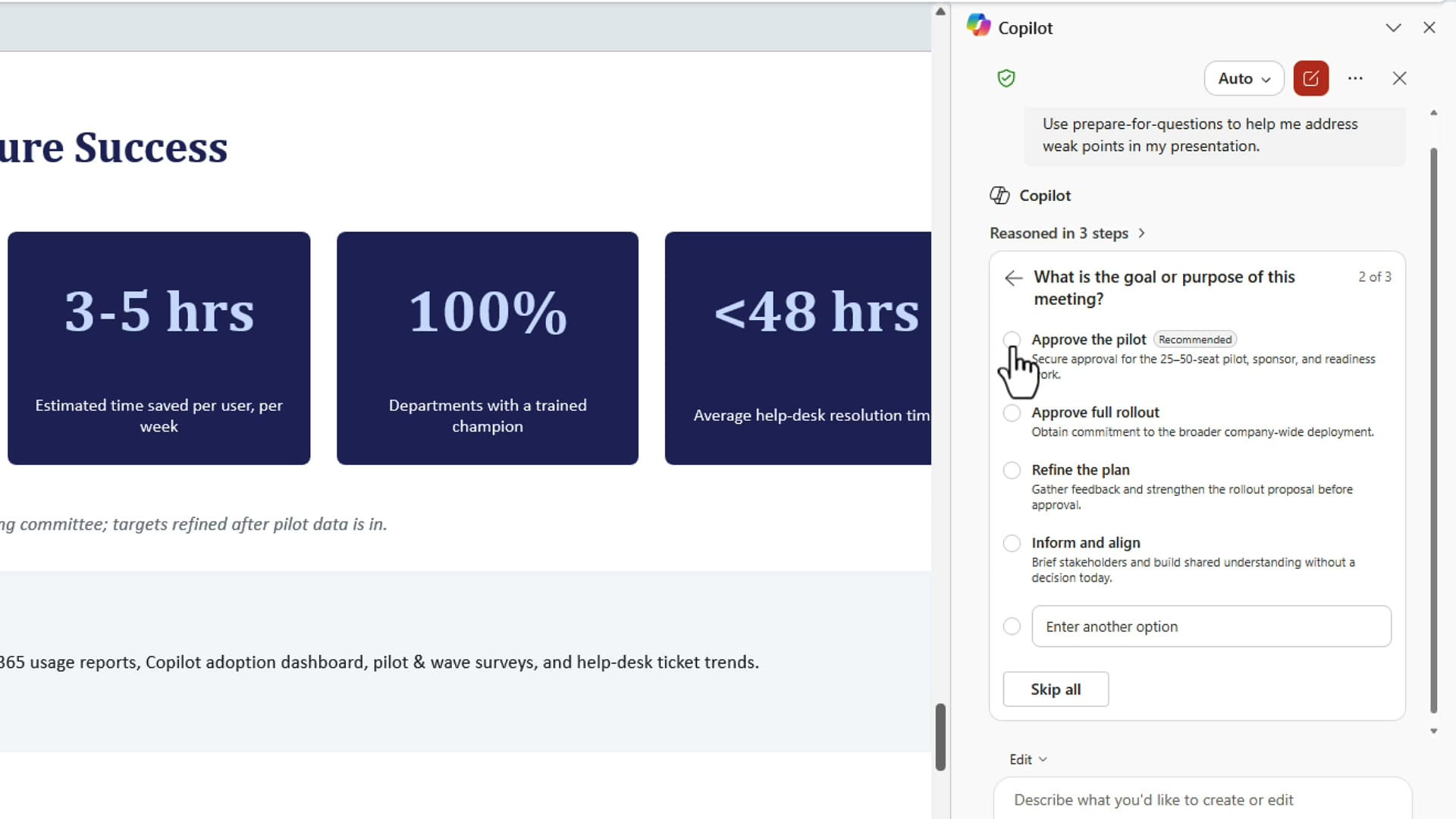
Question 2 of 3: What is the goal or purpose of this meeting? Approve the pilot (recommended), Approve full rollout, Refine the plan, or Inform and align. I chose approve the pilot.
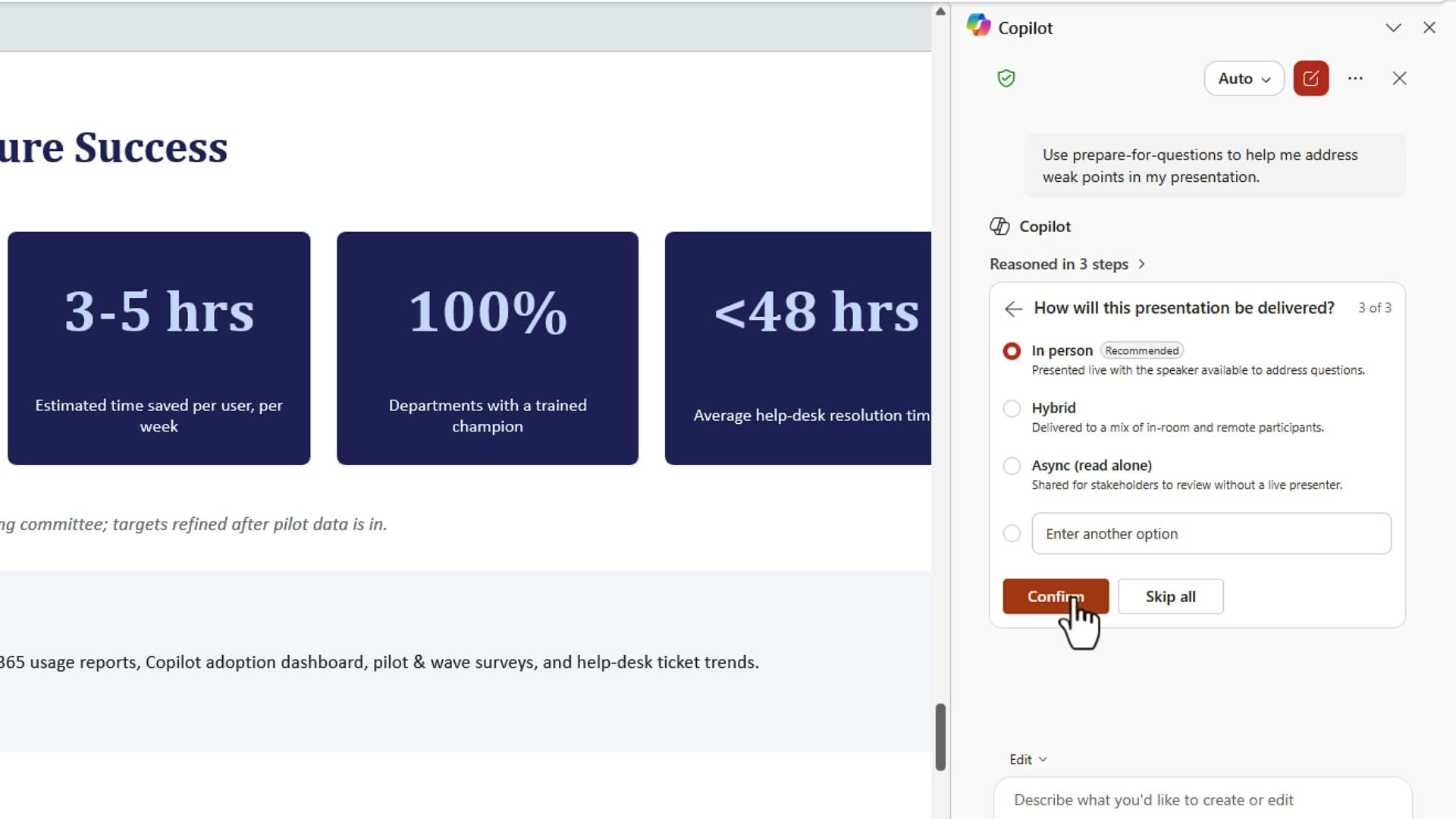
Question 3 of 3: How will this presentation be delivered? In person (recommended), Hybrid, or Async (read alone). I said in person, then clicked Confirm. If you would rather skip the interview, there is a Skip all button on every step.
Those three answers change the output. A deck read alone by finance needs different reinforcement than a deck you present live to leadership.
What Copilot hands back
After it finishes reading the deck, Copilot returns a list under the heading Top objections. Each one has a short title, a severity rating, and four parts: Objection, Acknowledge, Reframe, and Evidence. Because I asked it to prepare for questions, every objection is phrased as an actual question someone would say out loud.
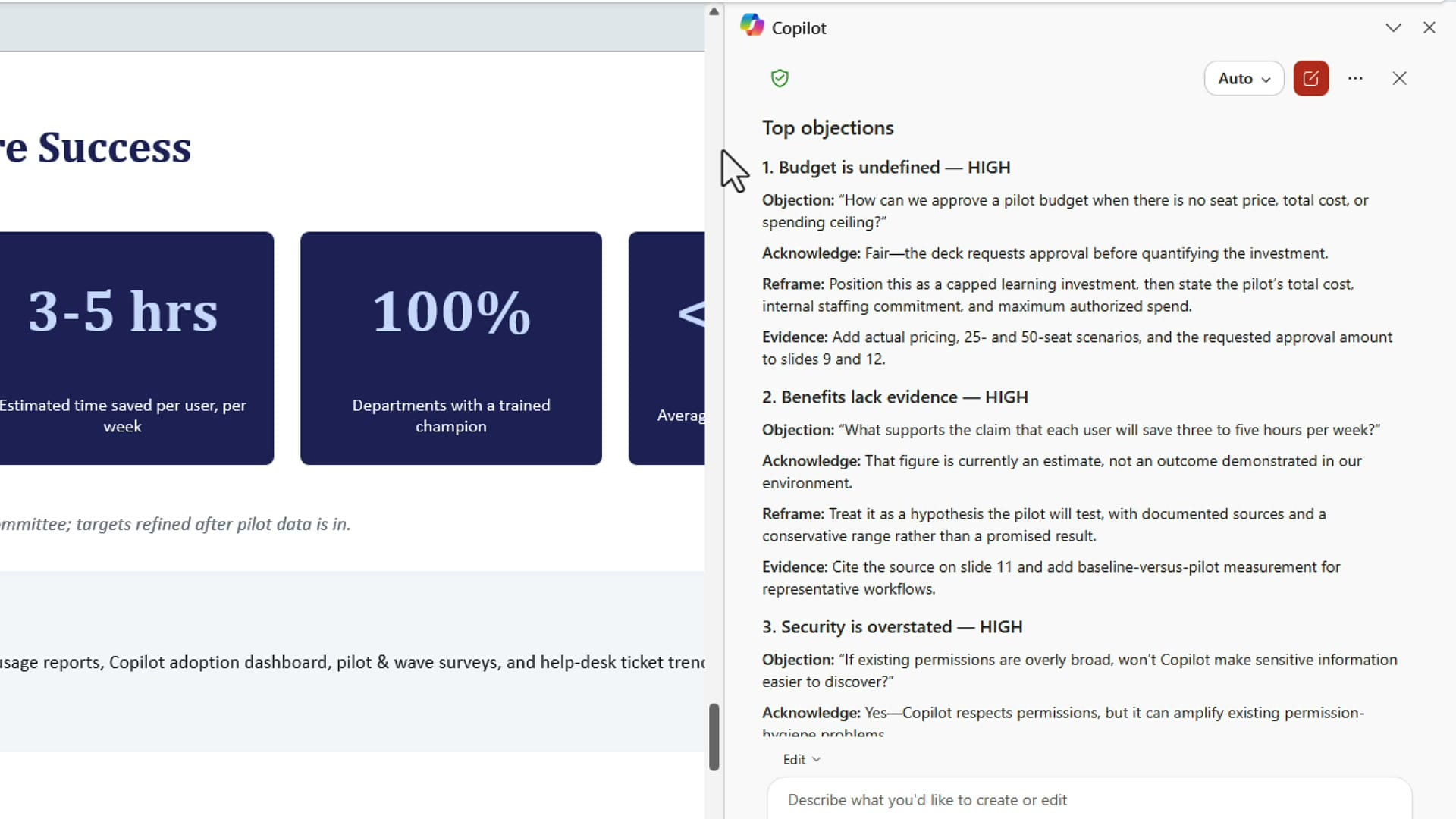
My first objection came back rated HIGH: "Budget is undefined." The question: "How can we approve a pilot budget when there is no seat price, total cost, or spending ceiling?"
That is a fair hit. The acknowledge line admits the deck asks for approval before quantifying the investment. The reframe suggests positioning it as a capped learning investment and stating the pilot's total cost, staffing commitment, and maximum authorized spend.
Follow the evidence back to specific slides
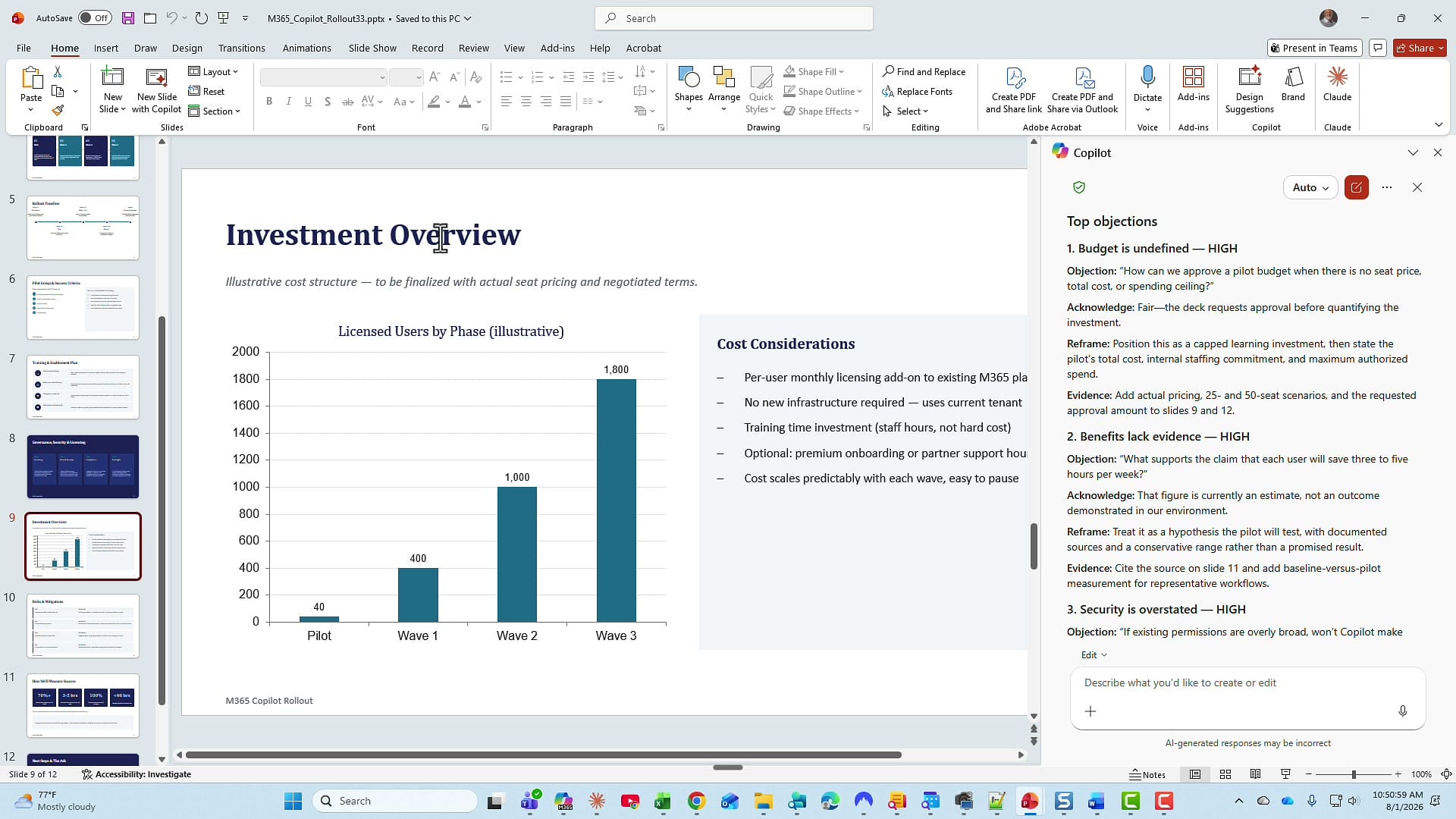
The Evidence line is what makes this useful rather than just interesting. For the budget objection it told me to add actual pricing, 25- and 50-seat scenarios, and the requested approval amount to slides 9 and 12.
So I went to slide 9, "Investment Overview." It has a bar chart of licensed users by phase — 40 in the pilot, then 400, 1,000, and 1,800 across three waves — and a Cost Considerations box. And Copilot is right: there is not a single dollar figure on the slide.
Then slide 12, "Next Steps & The Ask," which asks leadership to sign off on 25 to 50 pilot seats. Asking for a signature on seats with no price attached is exactly the gap Copilot flagged.
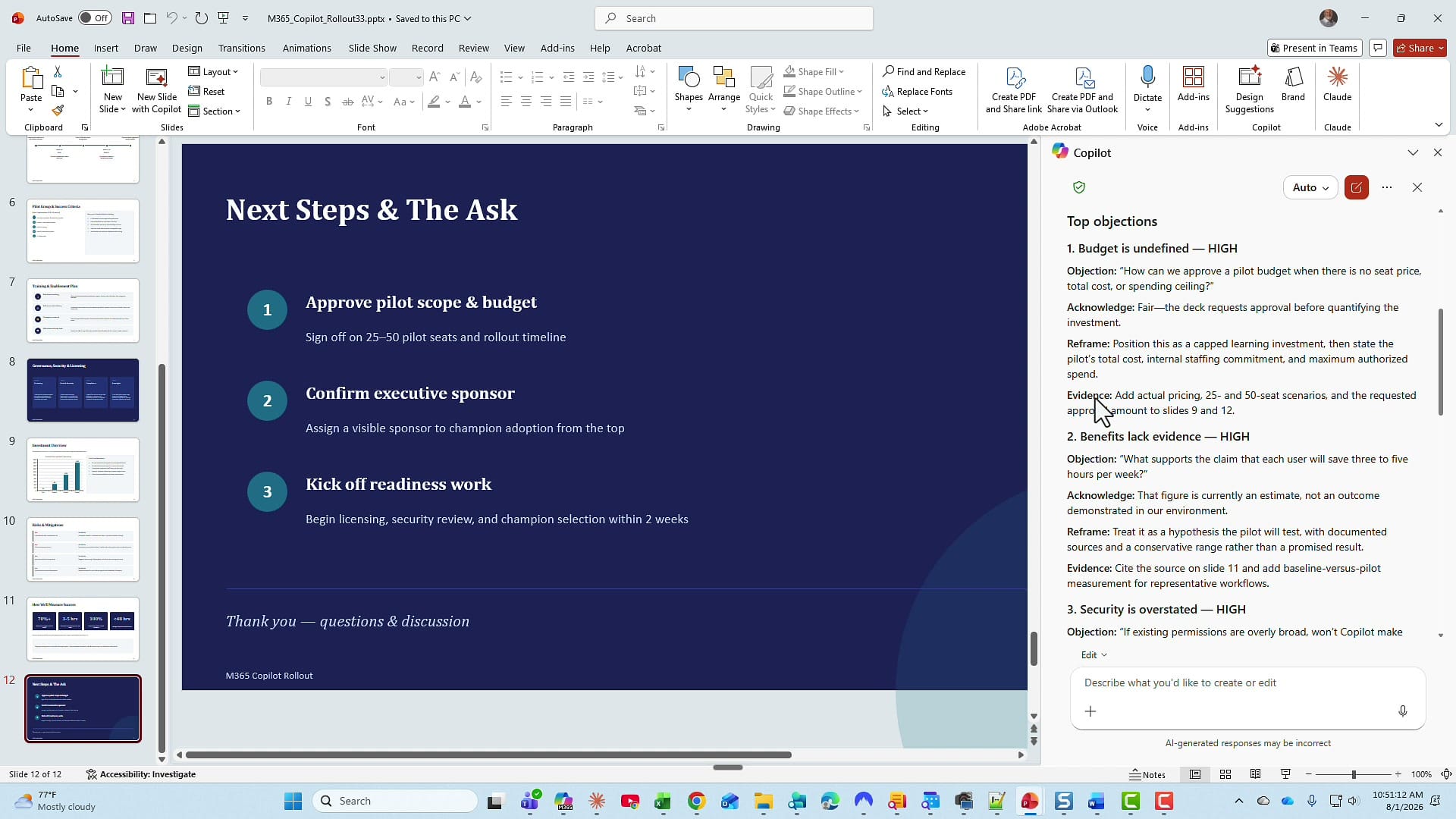
The second objection, also rated HIGH, was "Benefits lack evidence": "What supports the claim that each user will save three to five hours per week?"
The evidence line pointed me to slide 11. Sure enough, the second tile on my "How We'll Measure Success" slide reads "3-5 hrs — estimated time saved per user, per week," with nothing behind it. Copilot's suggestion was to cite the source and add baseline-versus-pilot measurement for representative workflows.
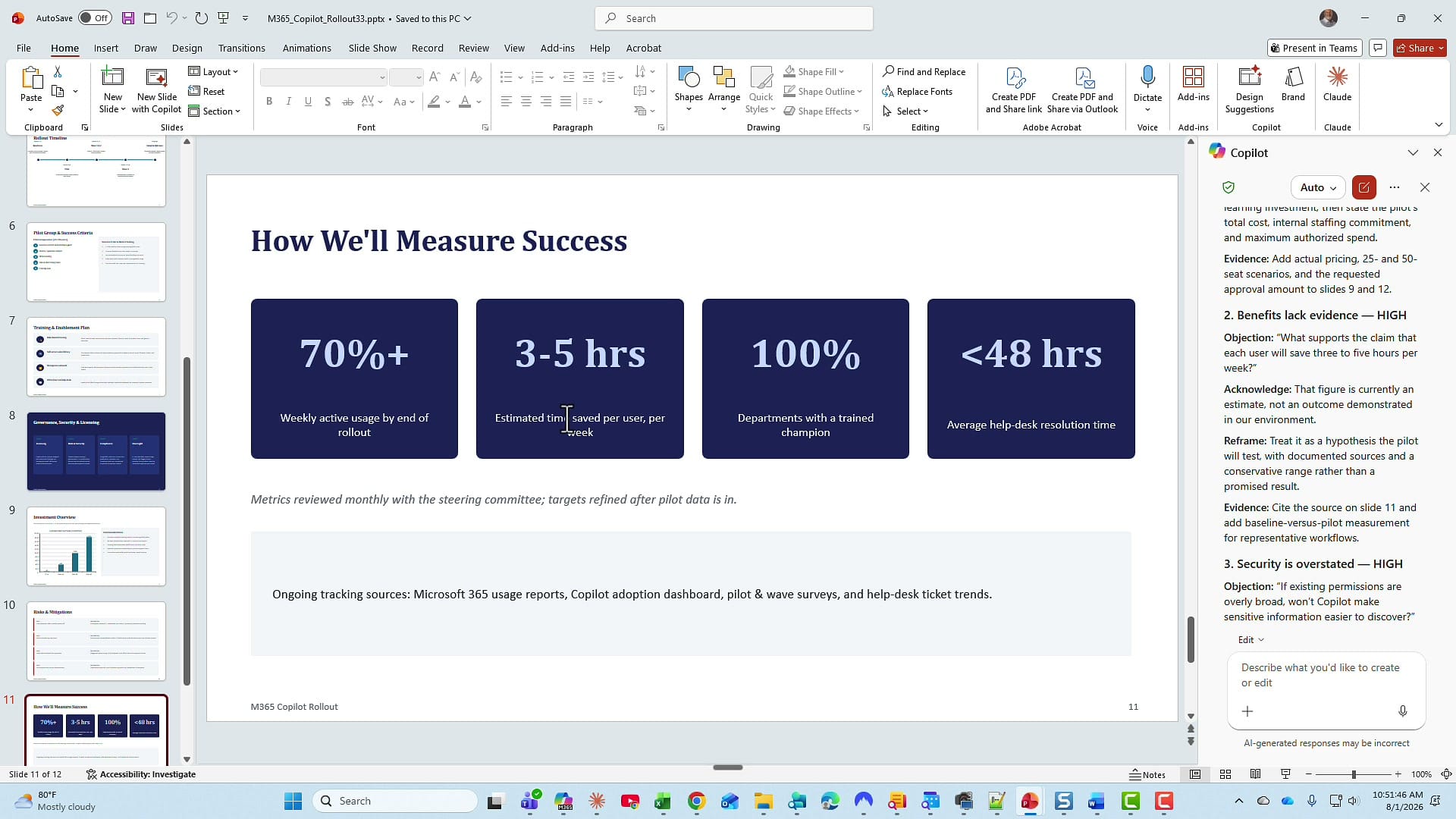
A third HIGH objection covered security: "If existing permissions are overly broad, won't Copilot make sensitive information easier to discover?"
Copilot acknowledged that yes, it respects existing permissions but can amplify existing permission-hygiene problems.
Keep scrolling for the medium-priority items
The list does not stop at three. Scroll down and you get objections rated MED as well — things like "Alternatives were not compared" ("Why Copilot rather than targeted licenses, the status quo, or another enterprise AI tool?") and "Decision gates are vague" ("What specific result would cause us to pause or cancel after the pilot?"). Those come with the same four-part breakdown and slide-level evidence.
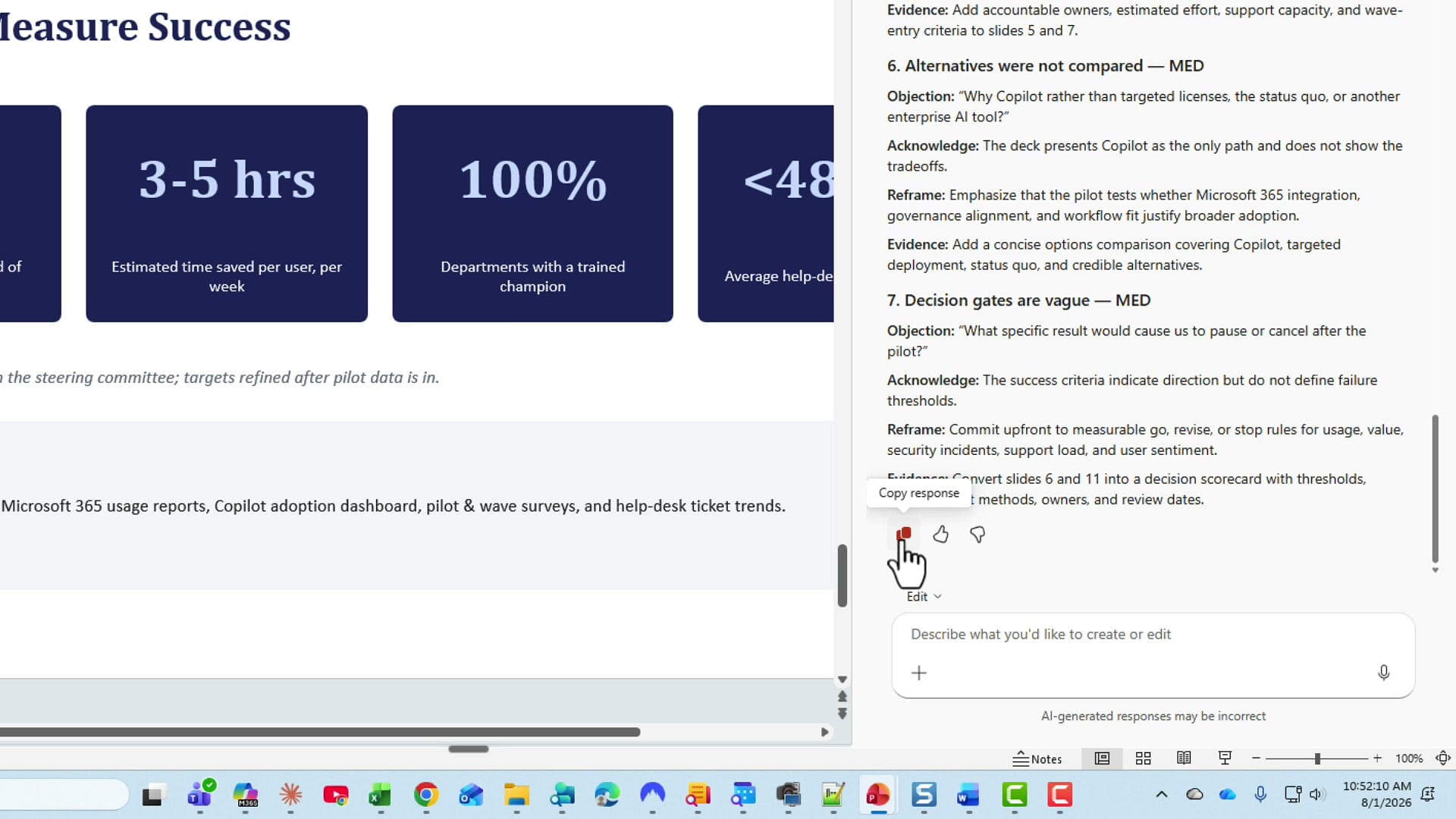
These are questions I would not have thought of on my own. Either I go back and add the evidence to the deck, or at minimum I walk into the room ready to answer them.
Copy the response out of PowerPoint
Scroll to the very bottom of Copilot's answer and you get the normal Copy response button. I tested it in a blank Word document with Ctrl + V, and the whole Q&A came across — roughly three pages of prep notes.
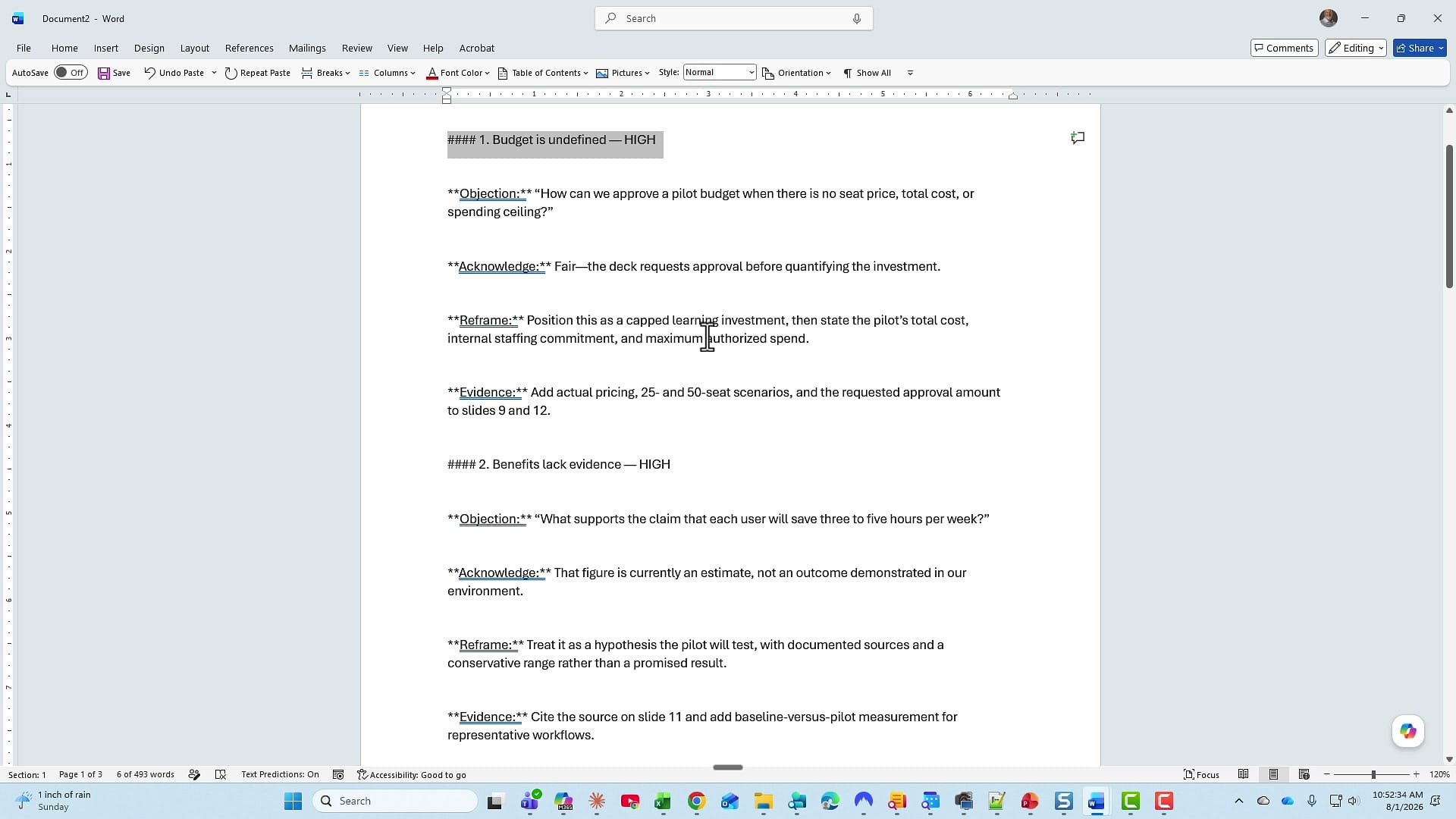
One thing to watch: the paste brings the Markdown formatting characters with it. You will see #### in front of each objection title and ** around the labels. A quick find and replace cleans that up if you plan to share the document.
From there it goes anywhere — Word, OneNote, or a Teams chat with the colleague presenting alongside you.
Why use this before an important deck
Copilot is not judging your design here. It is stress-testing your argument and telling you which slide number to fix. Run it after your deck is built but before you rehearse, answer the three setup questions honestly, and work down the HIGH-rated objections first. Even if you disagree with half of them, the other half will save you from being caught flat-footed.
Related guides