
Presenter Coach in PowerPoint - Rehearse your slide show

Microsoft PowerPoint includes a great feature or presentation coach that allows you to rehearse your presentation using the automated 'Rehearse with Coach' functionality. Rehearse with Coach is there to tell you your pace, if you're going too fast or too slow. It also tells you if you use filler words such as 'uh', 'umm', 'like', etc., whether you are using sensitive phrases, profanity and also detects if you're reading from your slides - which you should avoid, and instead try to summarize your points during your presentation.

**Presenter Coach in PowerPoint - Slide Show - Rehearse with Coach**
Presenter Coach works with
- PowerPoint for Microsoft 365 - PowerPoint for Microsoft 365 for Mac - PowerPoint for the web - PowerPoint for iPad - PowerPoint for Android tablets
YouTube video
PowerPoint Presentations: Rehearse with Coach to improve your presentation
How to use Presenter Coach in PowerPoint for Windows?
1. Open your presentation in PowerPoint for Windows desktop. 2. In the **Slide Show** tab, in the Rehearse group, select **Rehearse with Coach**. The presentation opens in a full-screen view, similar to Slide Show. _See the screenshot at the top of this article._ 3. Select **Start Rehearsing** in the dialog box. To receive on-screen guidance, which I recommend and do in my video, check that **Show real-time feedback** is selected. _See the screenshot below._ 4. Wait to start speaking until you see **Listening...** appear in the dialog box. 5. As you speak, Coach gives on-screen guidance about pacing, inclusive language, use of profanity, filler words, and whether you're reading the slide text. _See the screenshot below._ 6. When you're through, exit full-screen view. Coach opens a Rehearsal Report that summarizes what it observed, and offers recommendations. To see the recommendations, select Learn More in the section of the Rehearsal Report that you want more information about. _See the screenshot below._
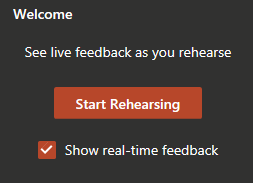
**Start Rehearsing in PowerPoint**
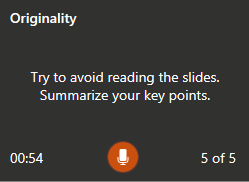
**Rehearse coach** - _Reading your slides_
The Rehearsal Report shows:
- Total time spent in your presentation - Number of slides - Your pace as words per minute - Average pace over time - Originality - were you reading your slides? - Filler word like um, like, uh, and so. - Sensitive Phrases
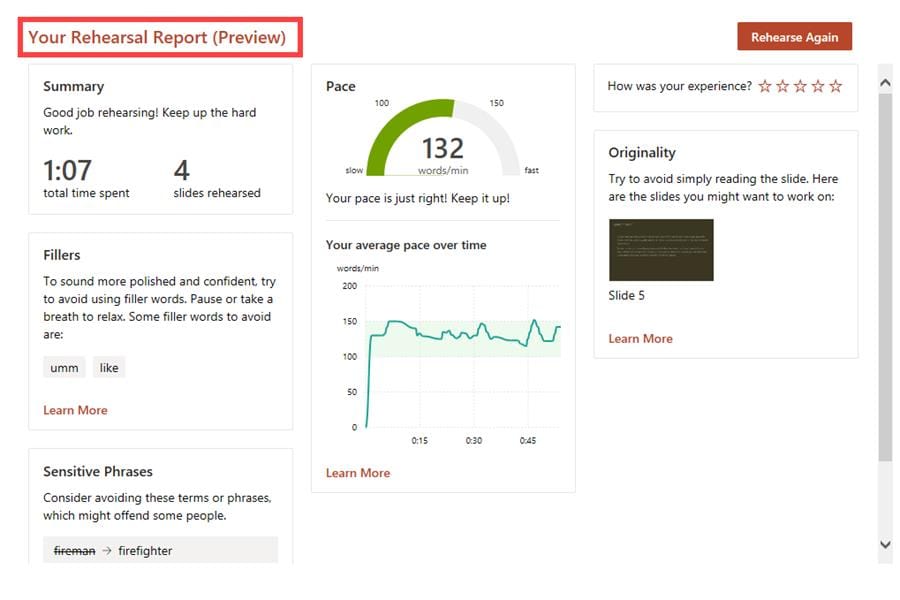
**Rehearsal Report**



