Copilot Cowork Figured Out a Complex Mail Merge
Use Microsoft Copilot Cowork to match files in a OneDrive folder to the right people, draft personalized Outlook emails with different attachments, and send them after you approve. Tested with 3 people and 6 files, then 48 people and 96 files.


Can Copilot Cowork look in a folder full of files, figure out which files belong to which person, build an Outlook mail merge that attaches different files to different people, let me check it, and then send everything out? I tested it with a OneDrive folder, and it did all of that with very little help from me.
This is the full walkthrough of the test I wrote about in 6 Files. 3 People. Can Copilot Cowork Figure It Out? I'll show you the prompt I used, what Cowork did with three people and six files, and what happened when I scaled it up to 48 people and 96 files.
The files in OneDrive
I created a folder in my OneDrive called _Conf_Files_cowork. Every file in it is fictitious. There is a conference schedule for Carol, one for Chris, and one for Cristian, plus an expense guidelines document for each of them.
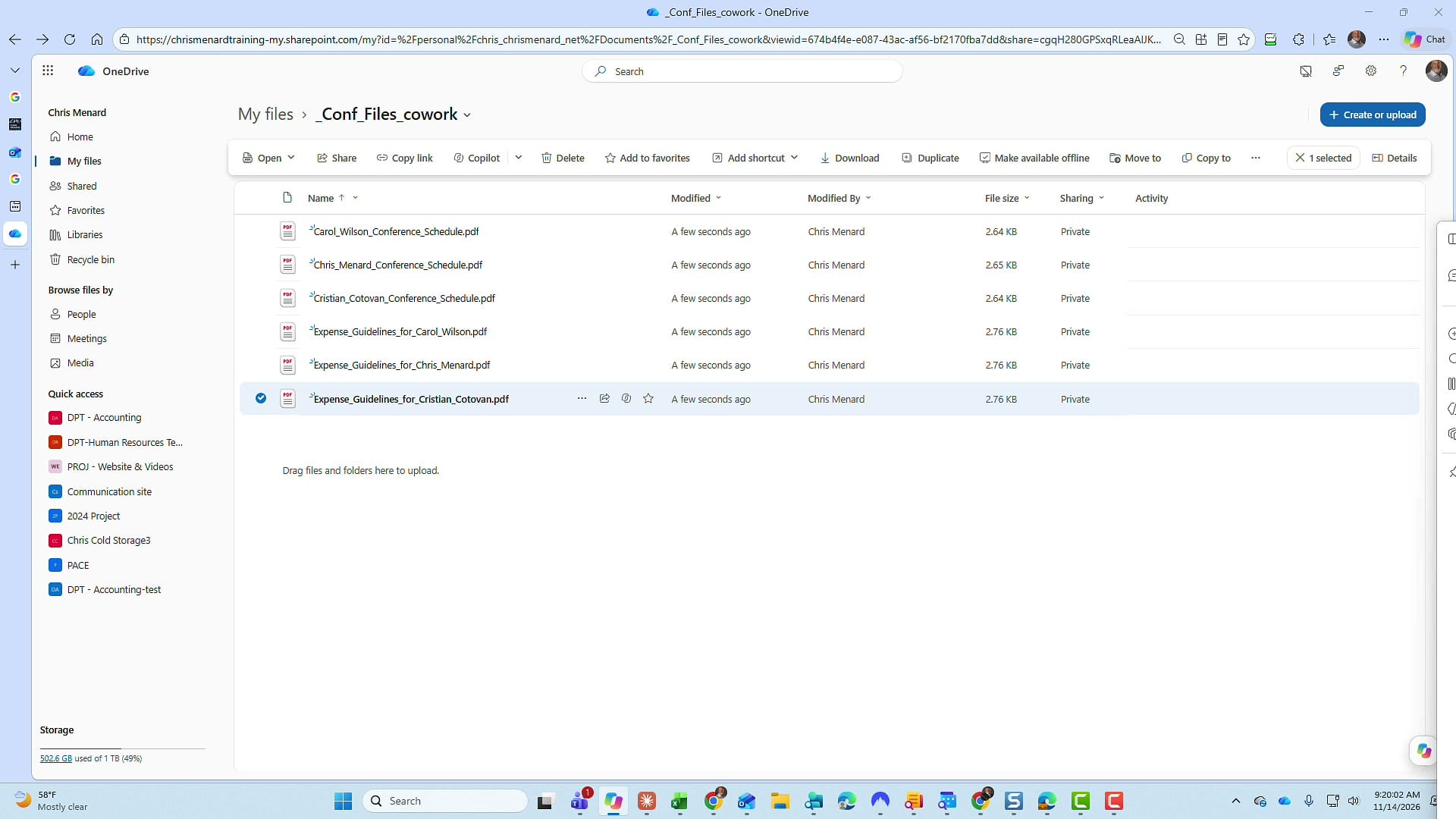
Each PDF has the person's name in the filename and inside the document, like "Prepared for Carol Wilson." What the files don't have is an email address. Cowork has to work that part out on its own.
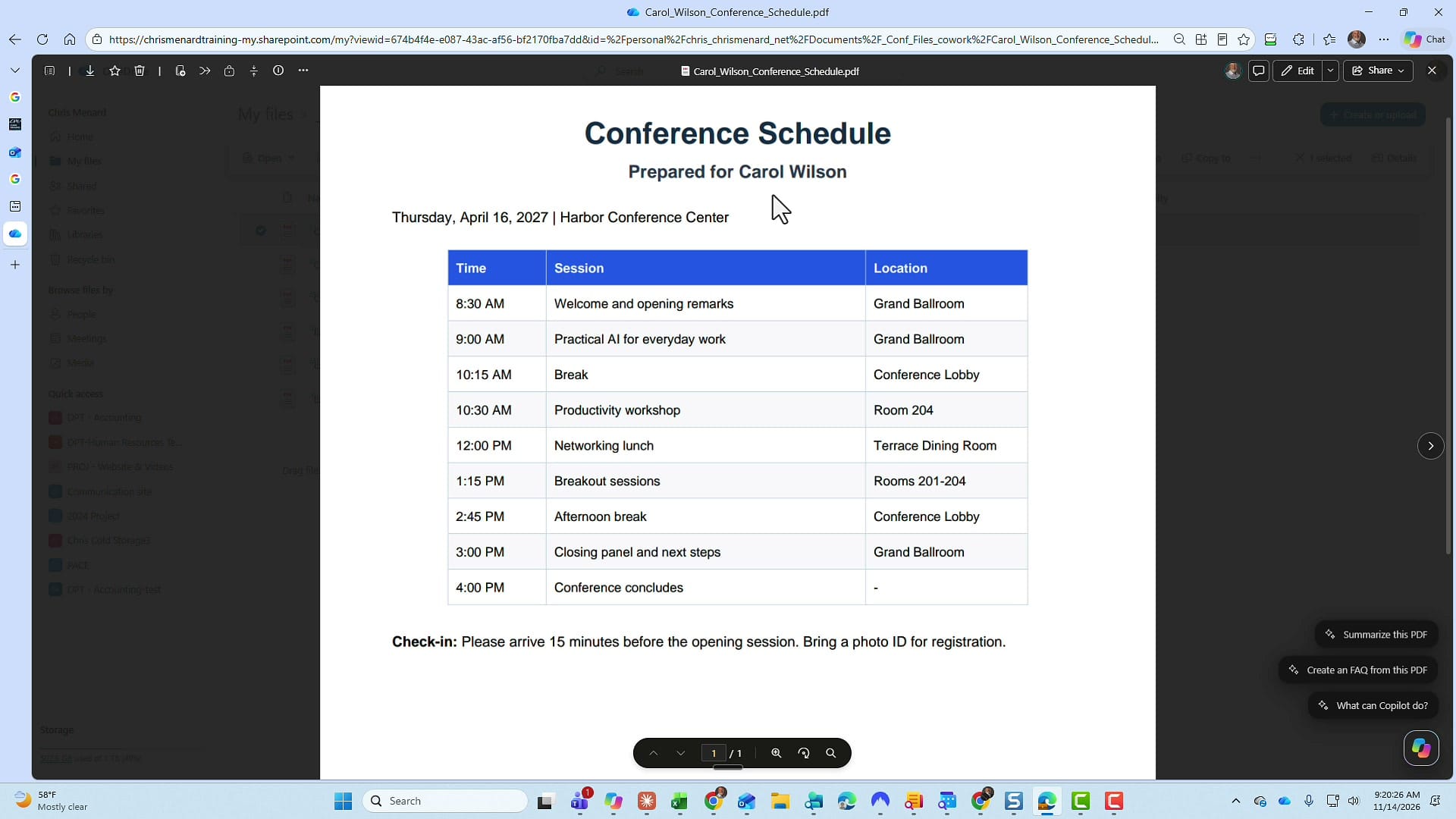
I took a screenshot of the OneDrive folder. I wanted to see if Cowork could find the folder location from just a screenshot, without me having to go get a link.
Open Cowork (and know about the credits)
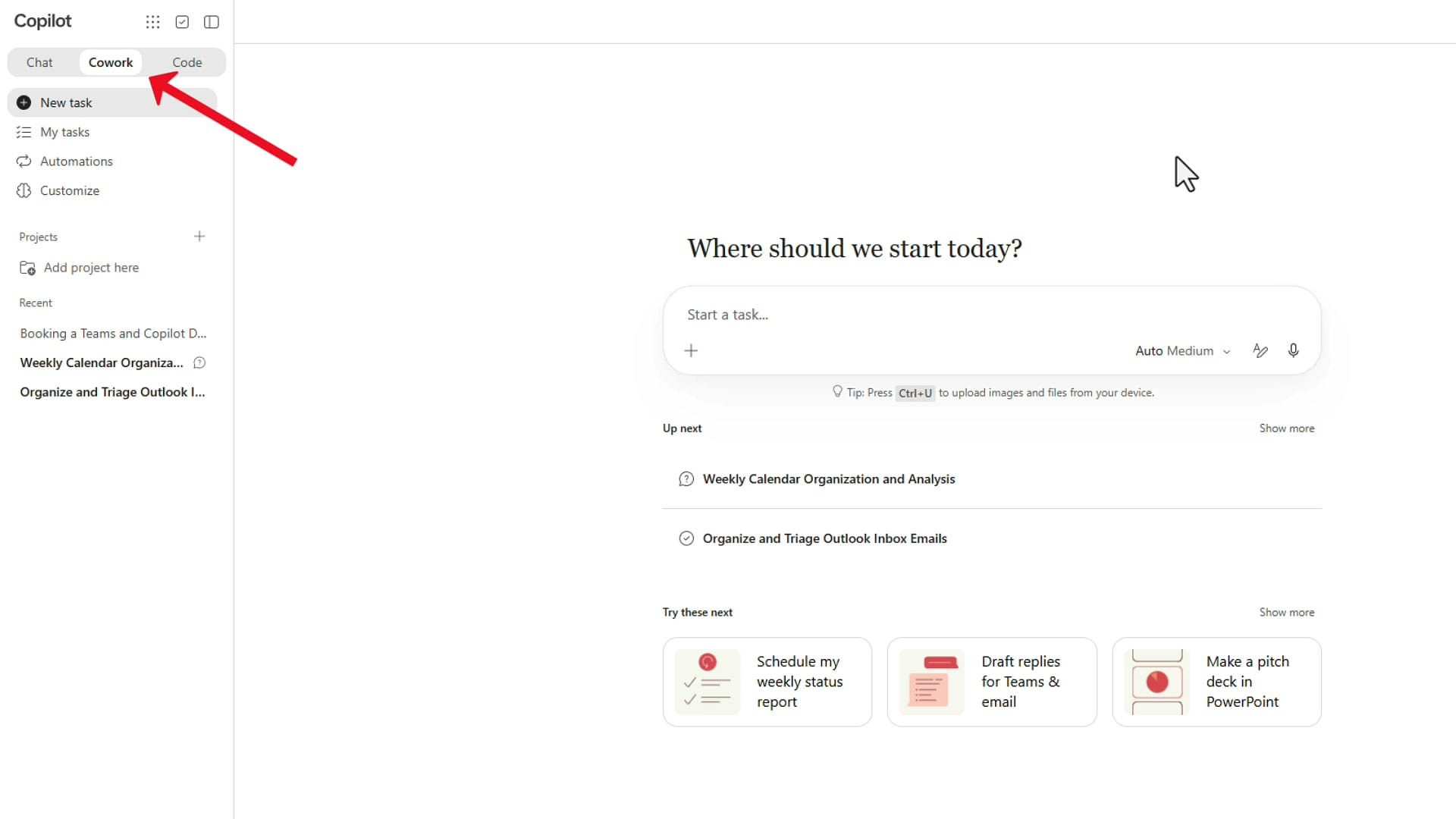
In Microsoft Copilot, click the Cowork tab in the top left, next to Chat and Code.
Before you try this: Cowork uses usage-based billing (UBB). It costs money on top of your Copilot license. If Cowork isn't working for you, you will probably need to request credits, and your admin has to assign them. I explain the new billing model in Home, Chat, Cowork, Code, USL & UBB Explained.
Let Cowork find the OneDrive folder from a screenshot
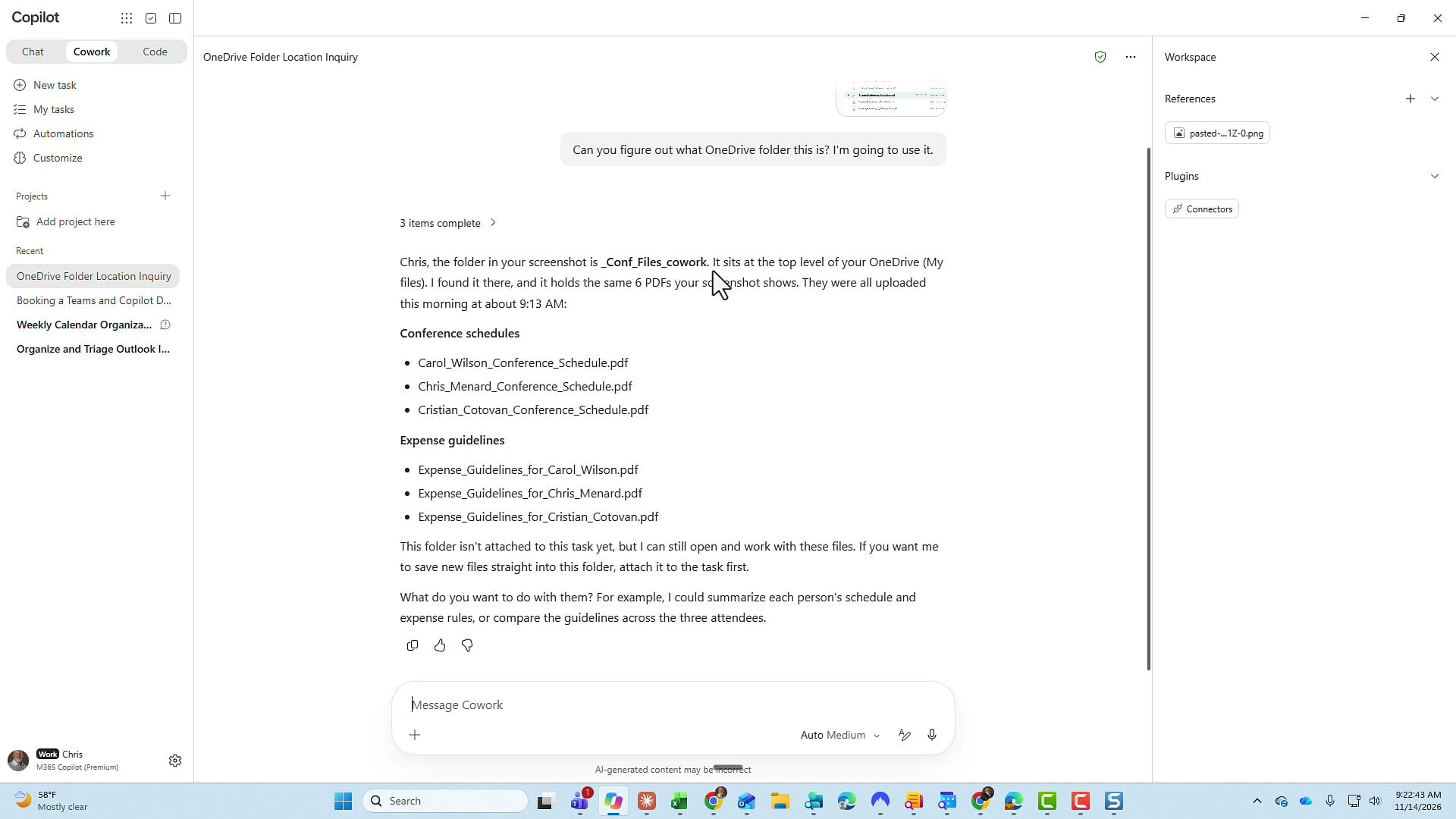
I pasted the screenshot and asked one simple question: "Can you figure out what OneDrive folder this is? I'm going to use it."
Cowork found the folder and came back with the folder name, where it sits in my OneDrive, and the six PDFs. It even organized them into conference schedules and expense guidelines. I didn't ask it to do that.
Write the mail merge prompt
The thing that makes this an advanced mail merge is that one person can get multiple attachments. Cowork has to go into the OneDrive folder and find the right files for each person. Here is what my prompt asked for:
- Review all the PDFs in the OneDrive folder and work out which files belong to which person, based on the filenames and the information inside the PDFs.
- Prepare one separate email for each person and attach only the PDFs meant for that person.
- Use my email address for me. For everyone else, find the right person in my organization and use their work email. If there is more than one possible match, stop and ask me.
- Use the subject "Your Conference Documents."
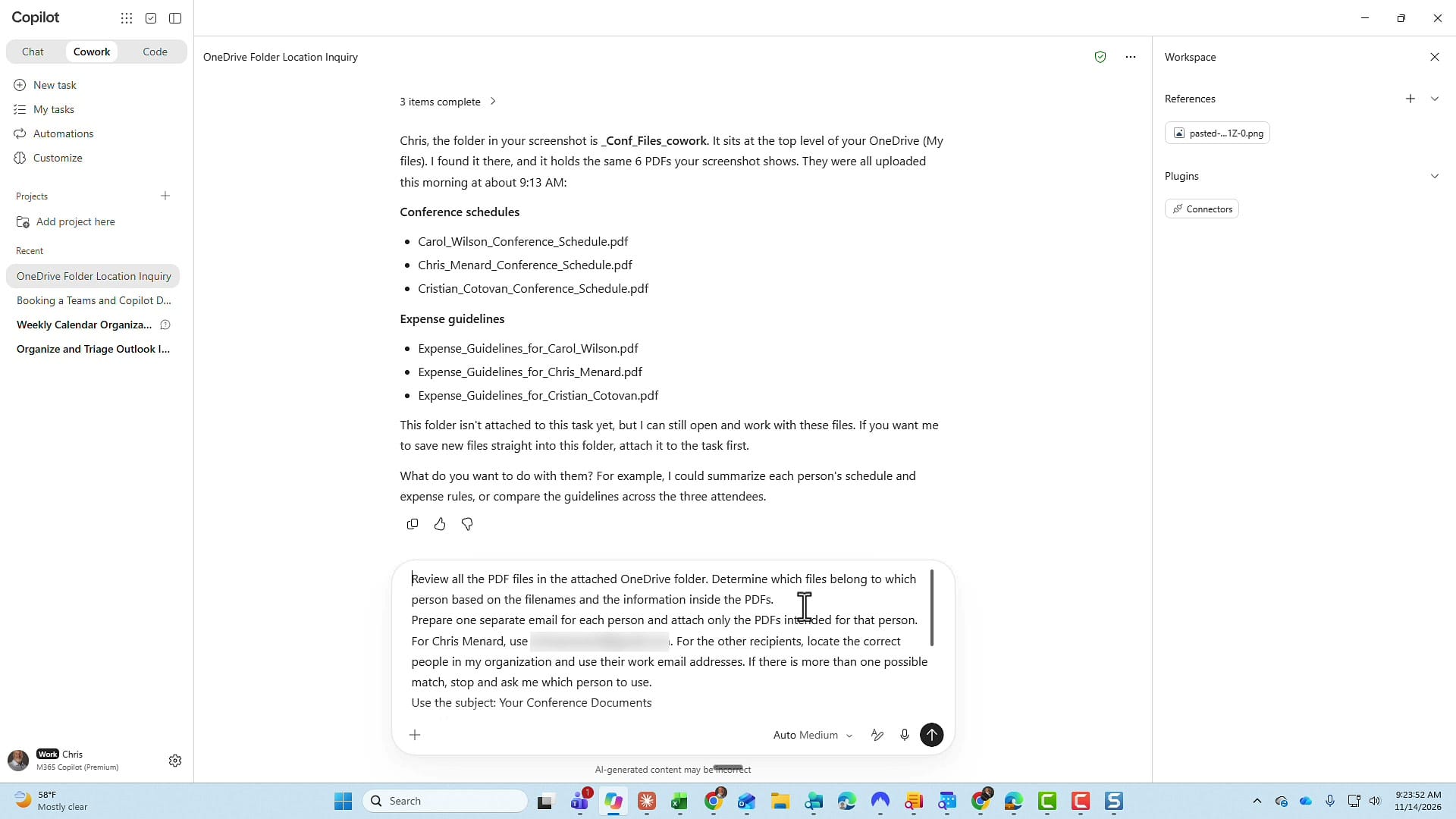
Then I gave it the message. Because Cowork knows each person's name, I could start with "Hi [First Name]."
Hi [First Name],
Attached are your conference documents.
Thanks,
Chris
The last line of the prompt is the important one: before sending anything, show me each recipient, the email address you selected, and the files you intend to attach. Wait for my approval before sending.
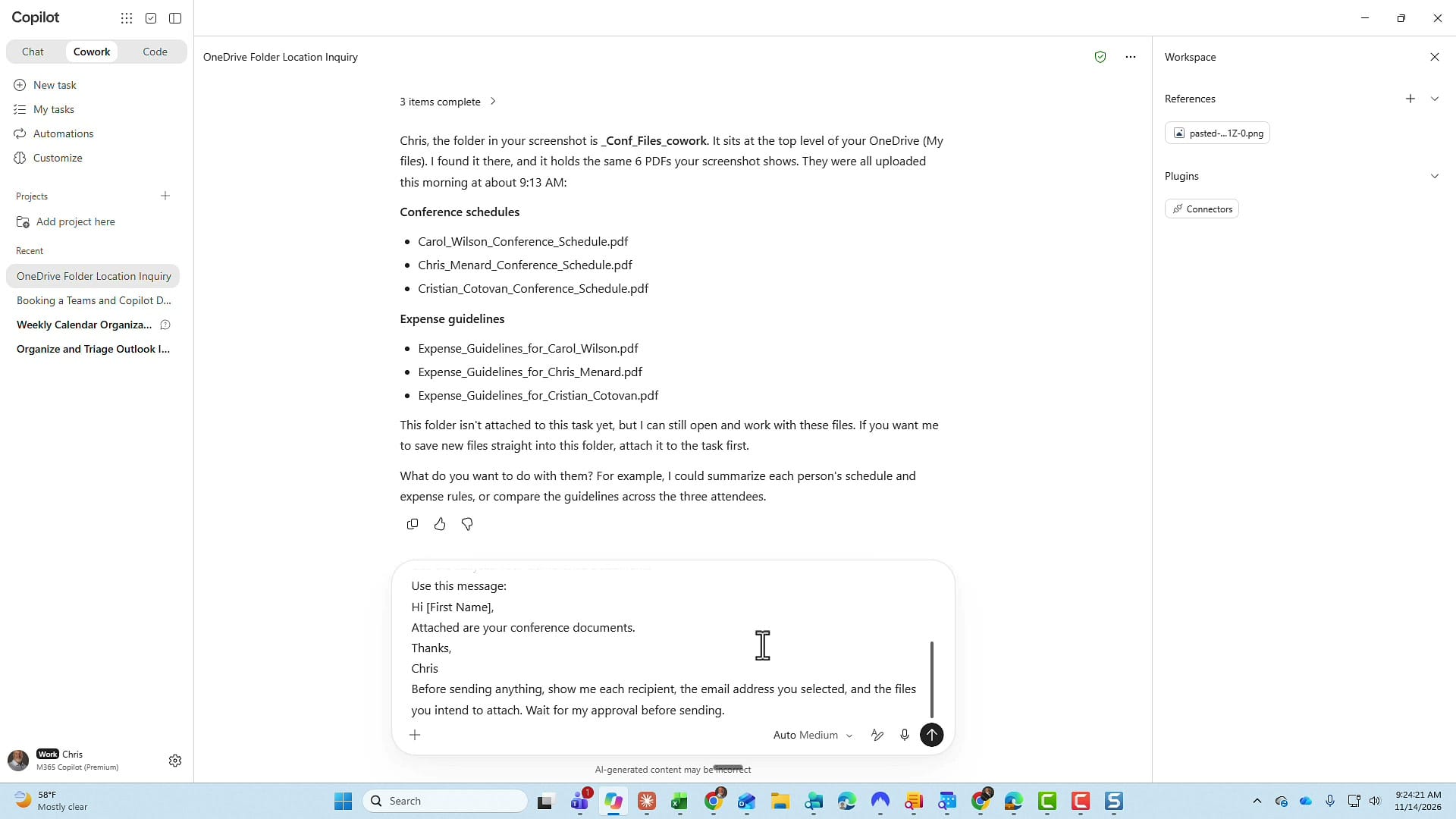
All of the email addresses in this test were mine, so it was all internal. I've blurred them out in these screenshots.
Review the recipients and attachments
Cowork read all six PDFs and came back with a table: each recipient, the email address it picked, and the files it planned to attach. It also told me how it chose the work addresses. For example, there was only one Carol Wilson in my organization. It had this correct, and nothing had been sent yet.
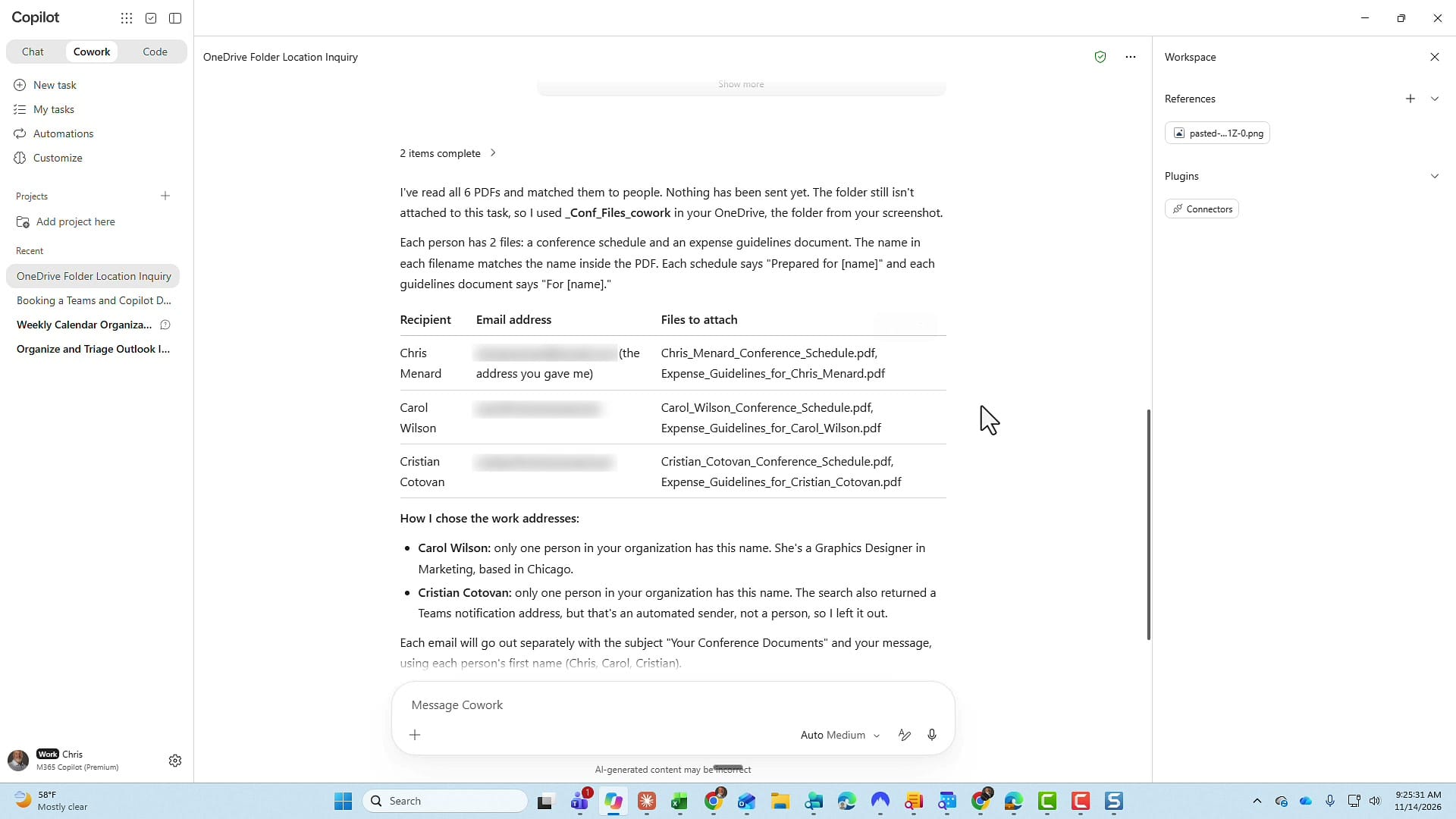
Cowork asked me to reply "approved" to send the three emails, so that's what I typed.
Approve and send each email
Each email shows up as a draft card with the subject "Your Conference Documents" and the "Hi, first name" greeting. A few things to know here:
- Every email ends with Sent by Copilot Cowork. I asked Cowork if it could remove that line, and the answer was no. It doesn't bother me.
- You may see an External recipients warning. In my case, the external recipient was me, so that was fine.
- You can click Send on each email one at a time, click Approve All (3), or use the drop-down for Approve All (3) & don't ask again.
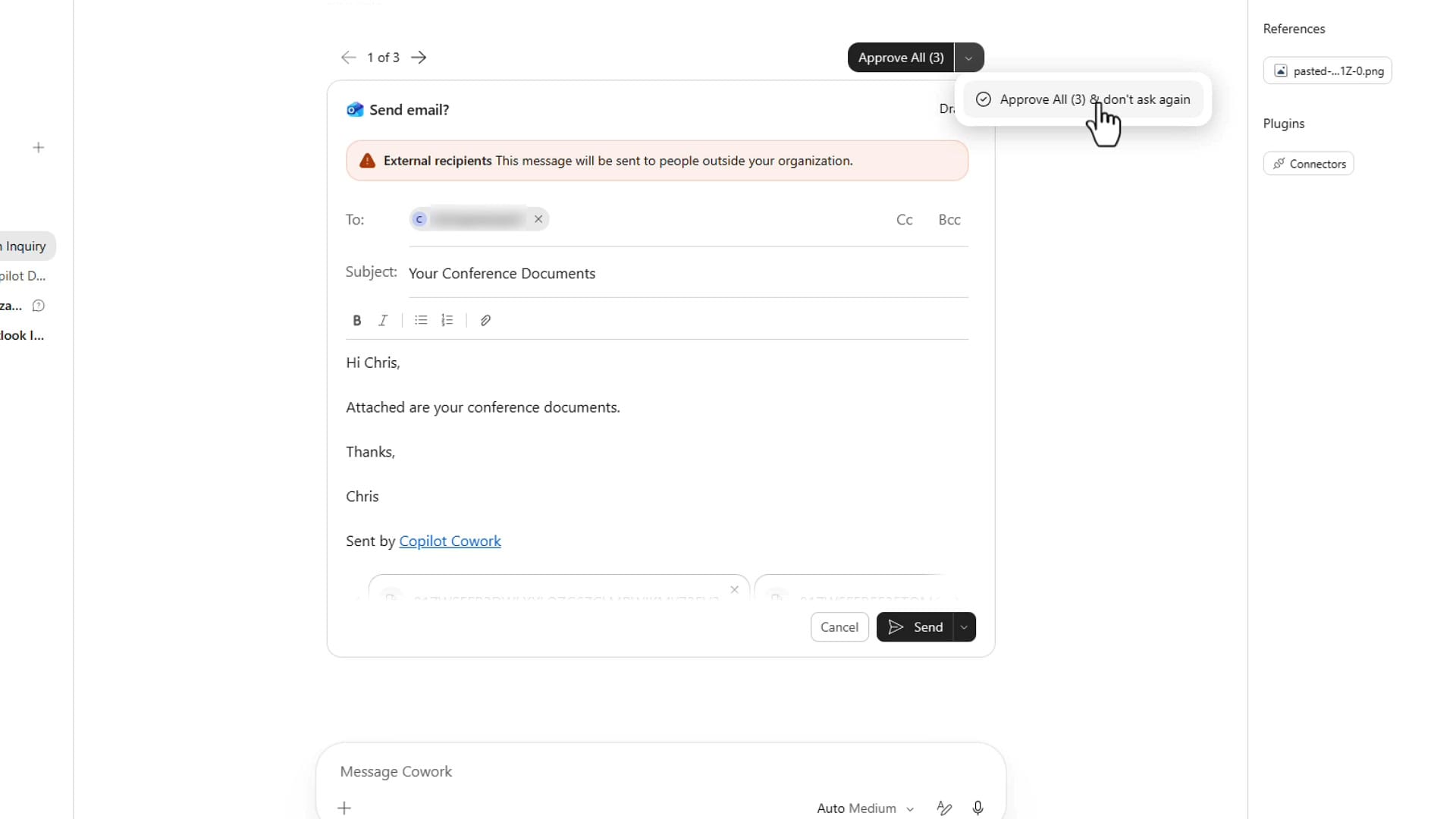
I sent mine one at a time so I could check each one. You could approve all three at once.
Check the sent emails in Outlook
Over in Outlook, my Sent Items had all three emails, to Cristian, Carol, and Chris, each with two PDFs attached. The test worked.
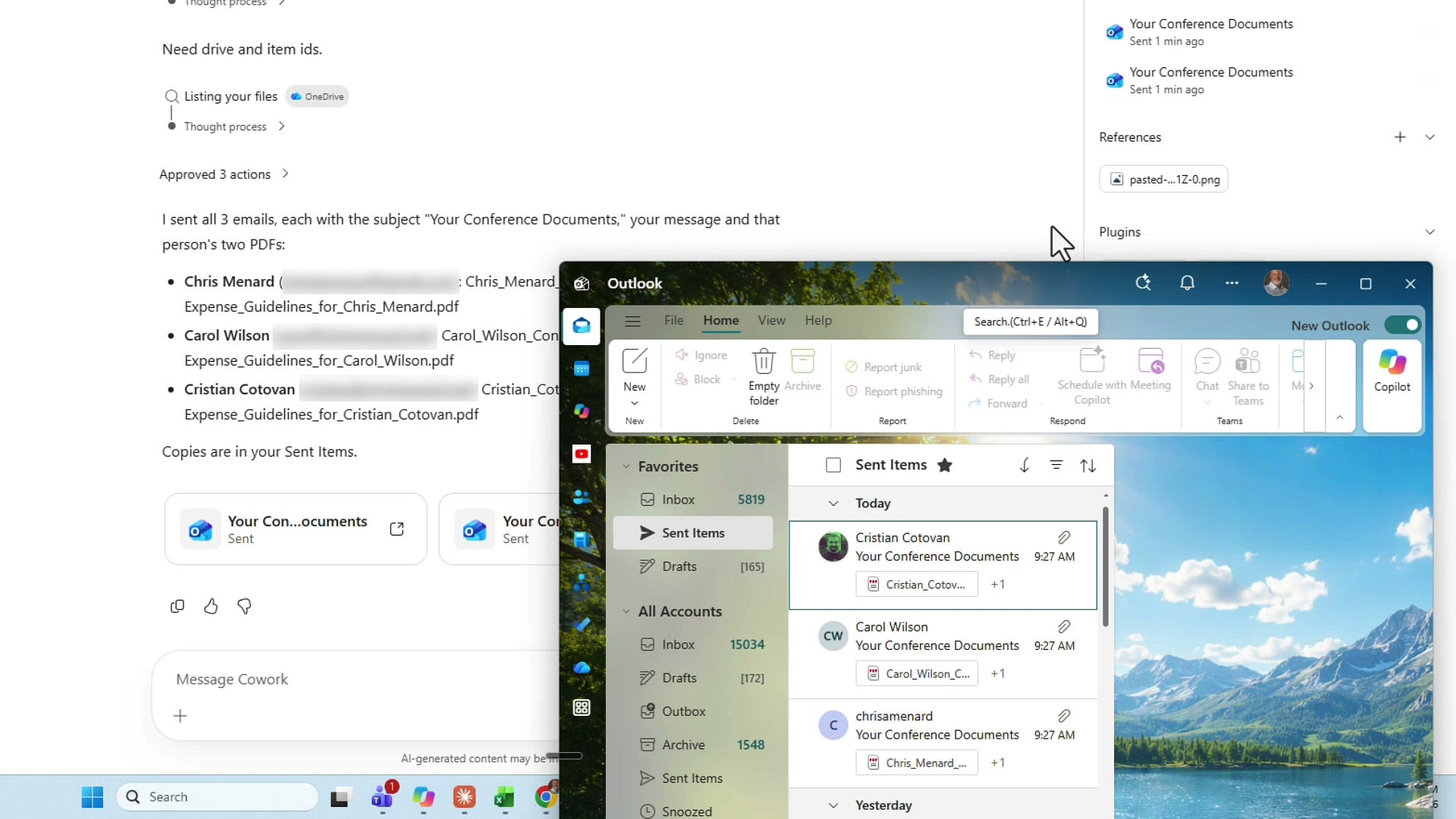
Check how many credits the task used
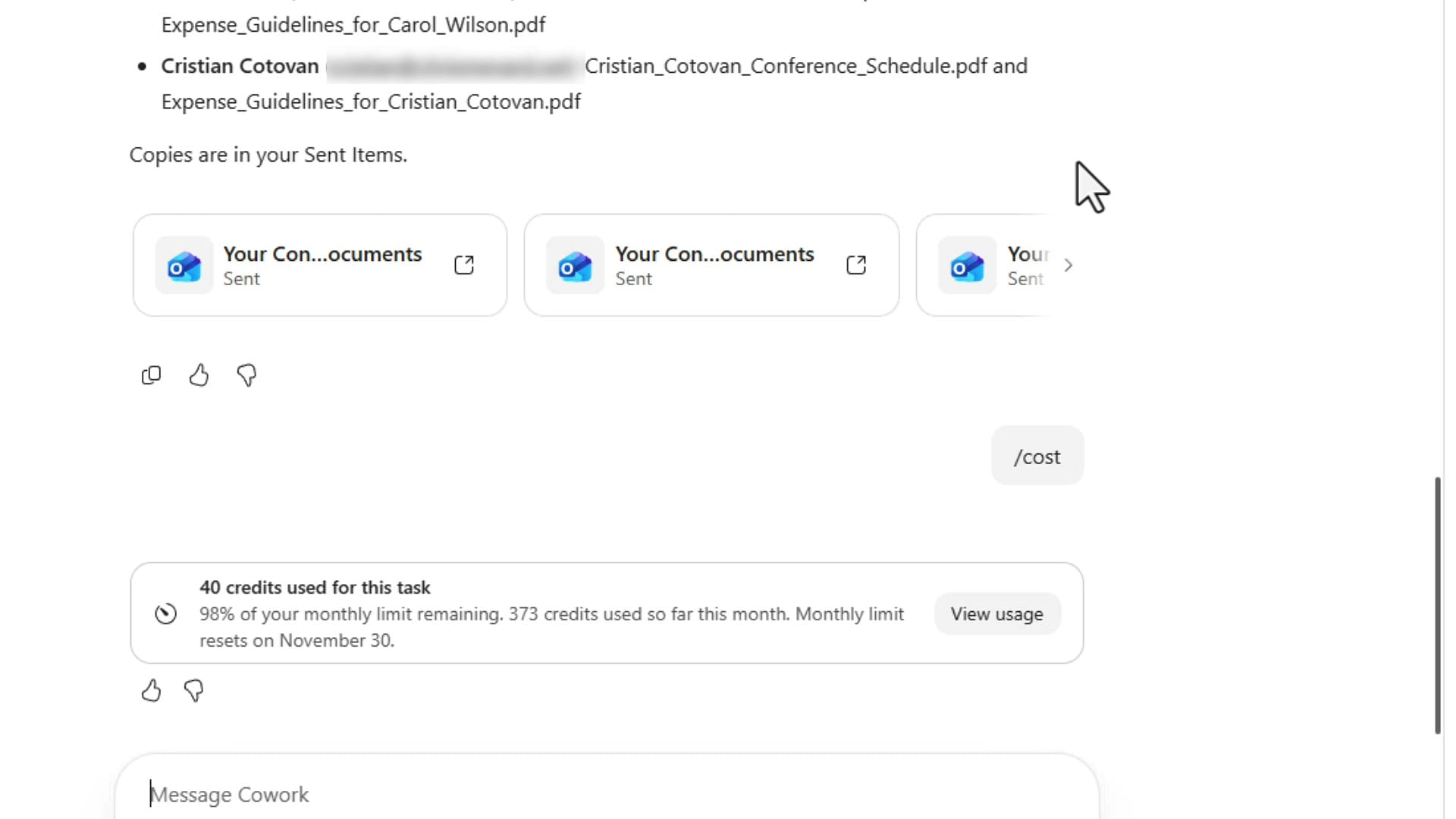
Here's a quick trick. In Cowork, type /cost and press Enter. Cowork tells you how many credits the task used. This one used 40 credits. 100 credits is $1, so this mail merge cost less than a dollar.
Compared with Power Automate
I have done this before with Power Automate, and it worked, but it took a lot more effort. I had to build an Excel file with everyone's email address, and put the URL of every file each person needed on a separate line. With Cowork, I gave it a folder and a prompt. If you prefer the classic approach, my Excel, Word, and Outlook mail merge still works for personalized emails, but it doesn't handle different attachments for each person.
Scale it up: 48 people and 96 files
Honestly, with three people and six files I could have just sent the emails myself. So I made the test harder. I created 48 new fictitious recipients and 96 PDF files that needed to go to them. Names are in column B and emails in column C. Every address uses example.com, a domain reserved for documentation by the Internet Assigned Numbers Authority (IANA), so nobody can own it.
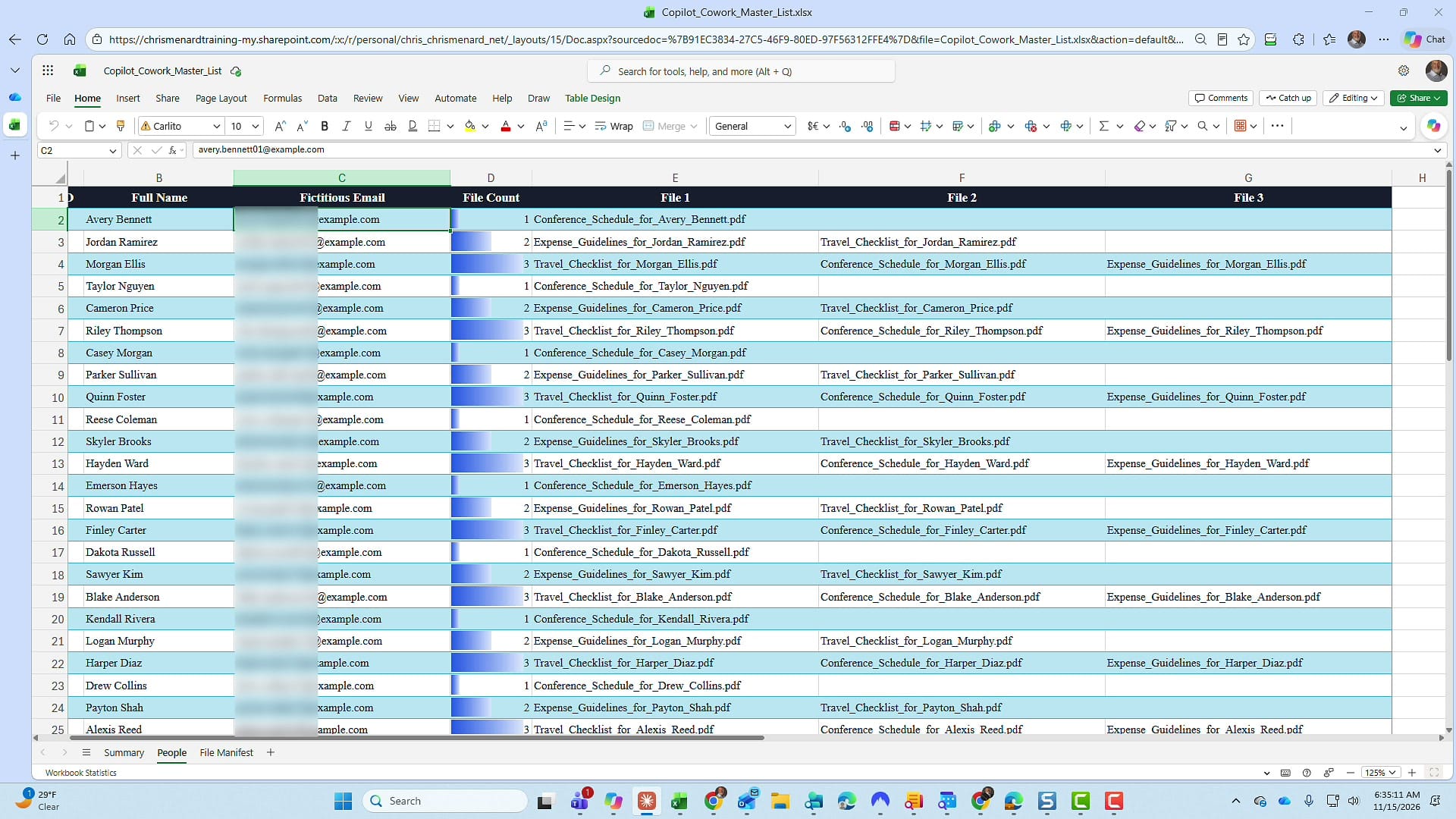
This Excel file matches all 48 people to their 96 files. Uploading it to Cowork would have been unfair, because the answer is already in it. So I only gave Cowork the names and email addresses.
The 96 new files went into the same OneDrive folder. Select everything and you can see there are 102 files: the six from the first test plus the 96 new ones.
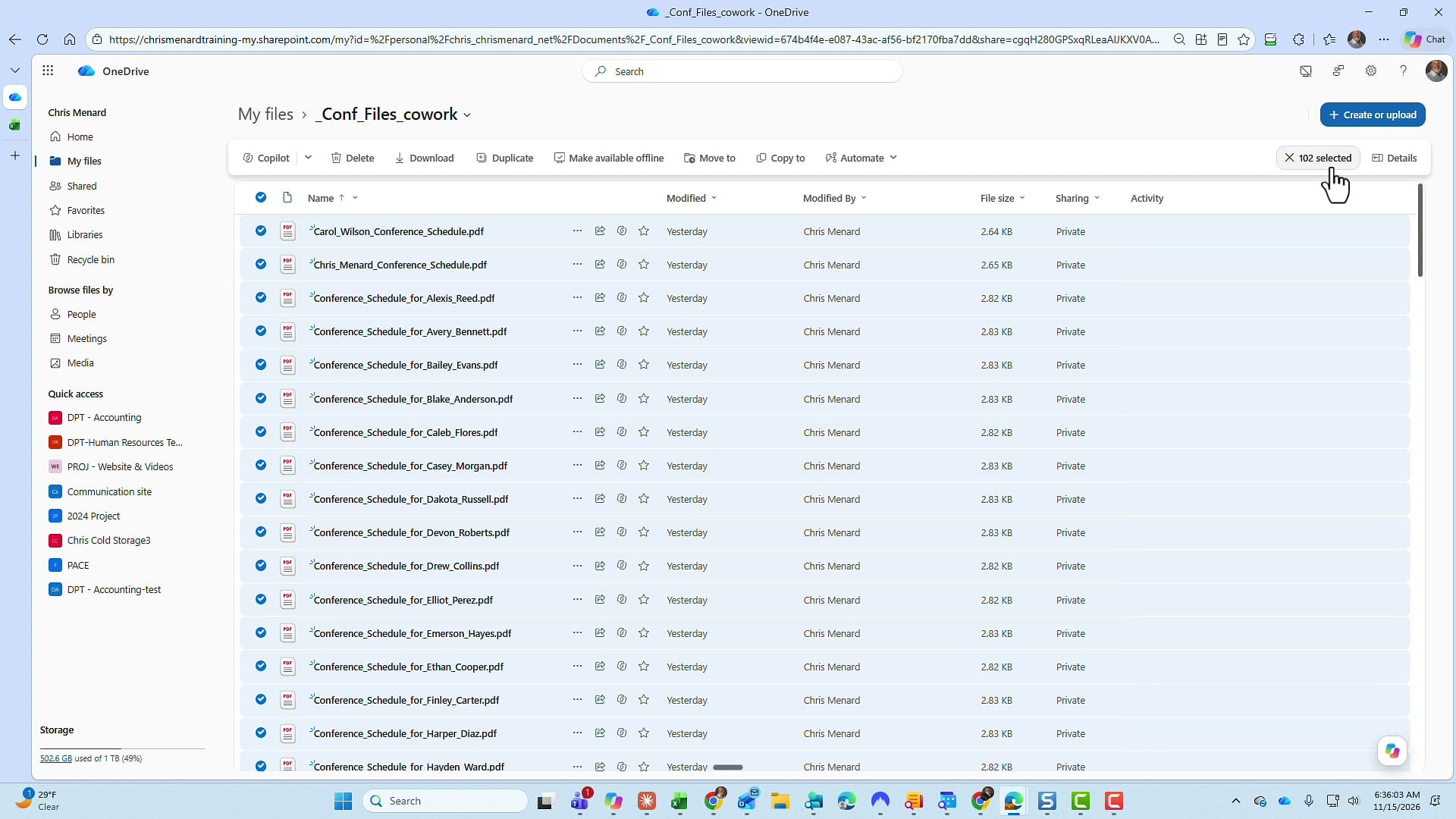
Run the larger test in Cowork
I went back to the same Cowork task and added this prompt, then pasted the 48 names and emails below it:
In the same OneDrive folder we've been using, I have added 96 additional files. They need to go out to multiple people. I'm going to paste down below their names and emails. Match them up and show me the match-up first. If you have any questions, let me know.
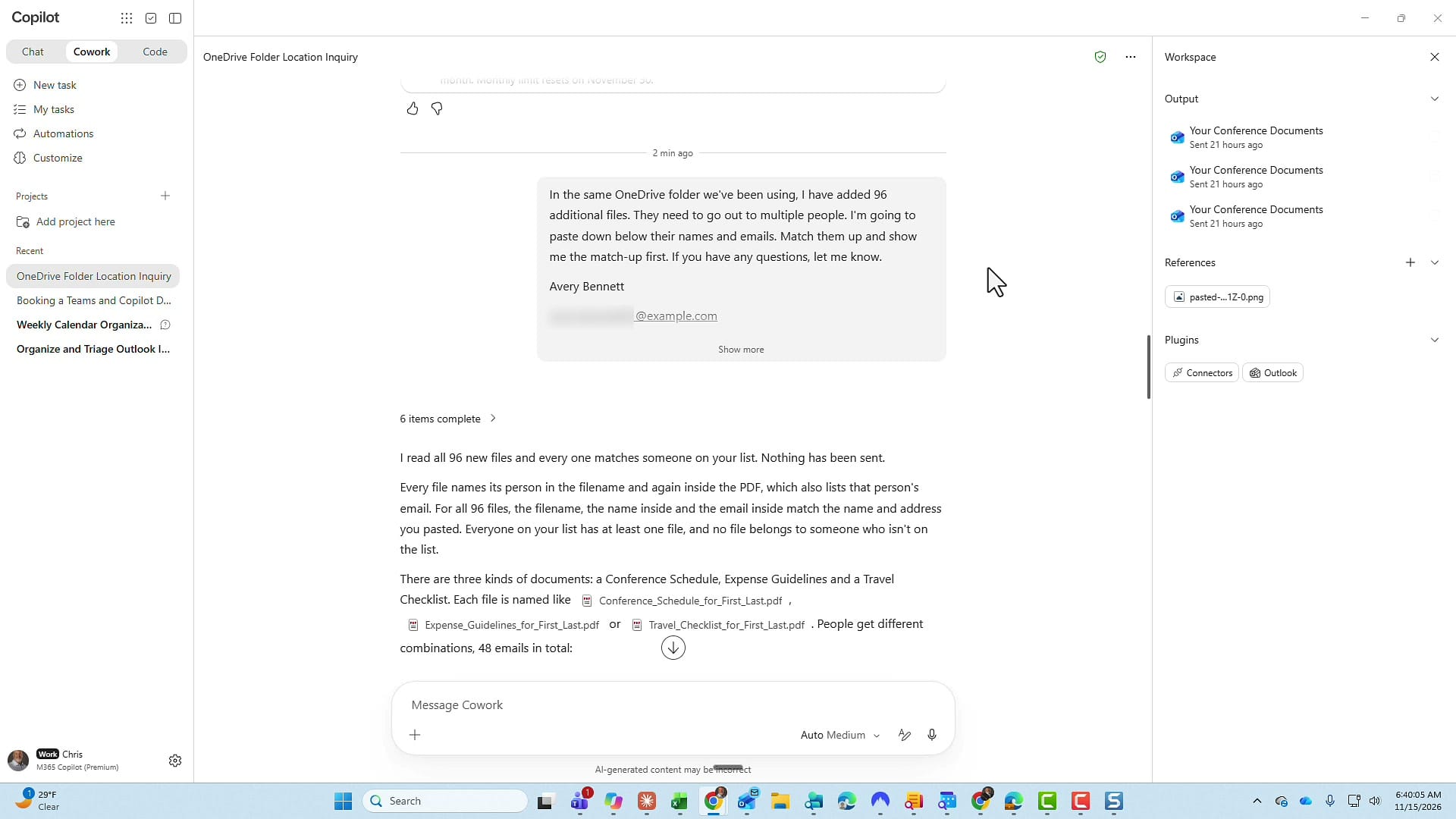
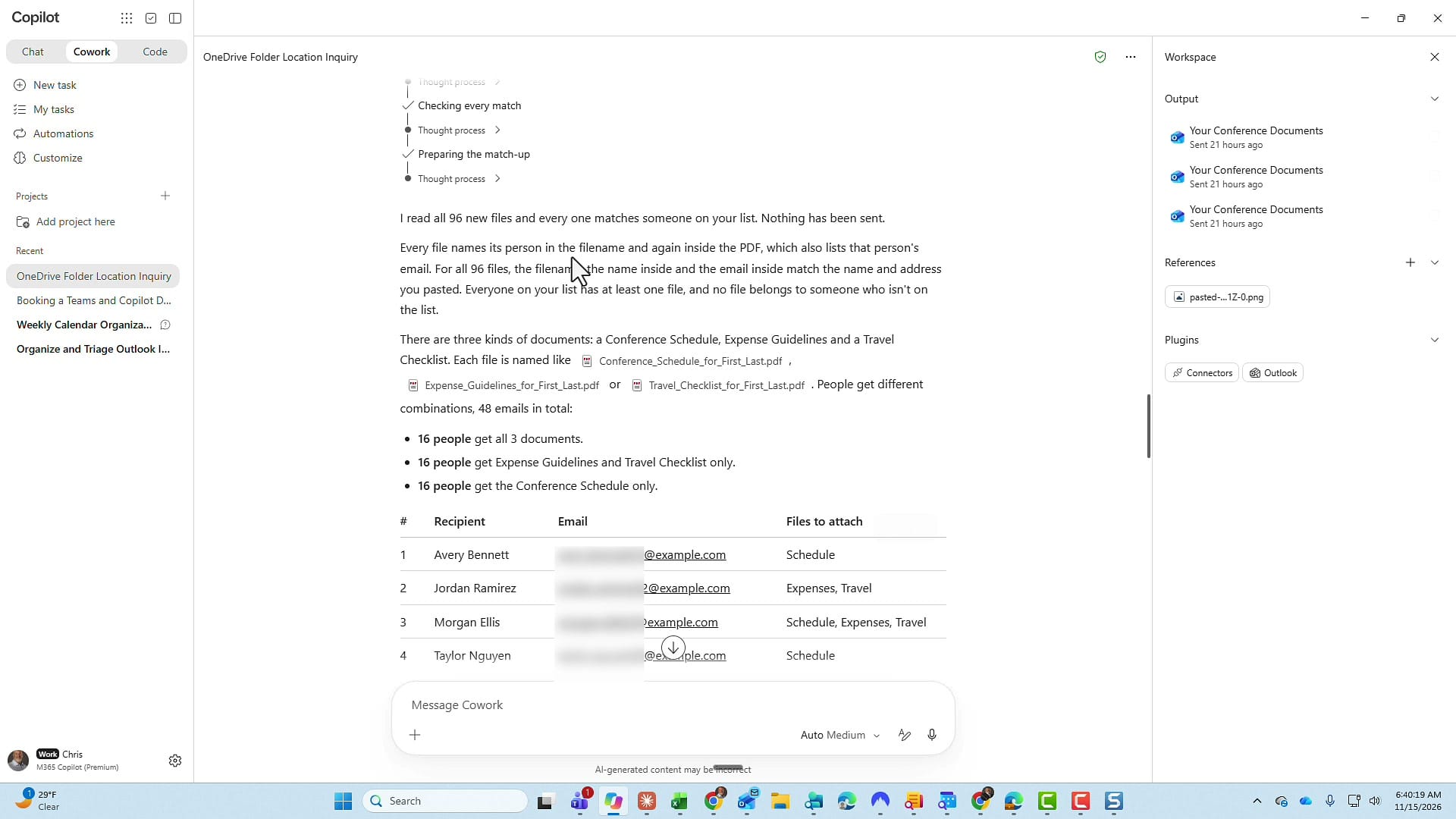
When Cowork finished, it had read all 96 files and nothing had been sent. It found three kinds of documents: a conference schedule, expense guidelines, and a travel checklist. It also worked out the combinations:
- 16 people get all three documents.
- 16 people get the expense guidelines and travel checklist only.
- 16 people get the conference schedule only.
Verify the matches against the master list
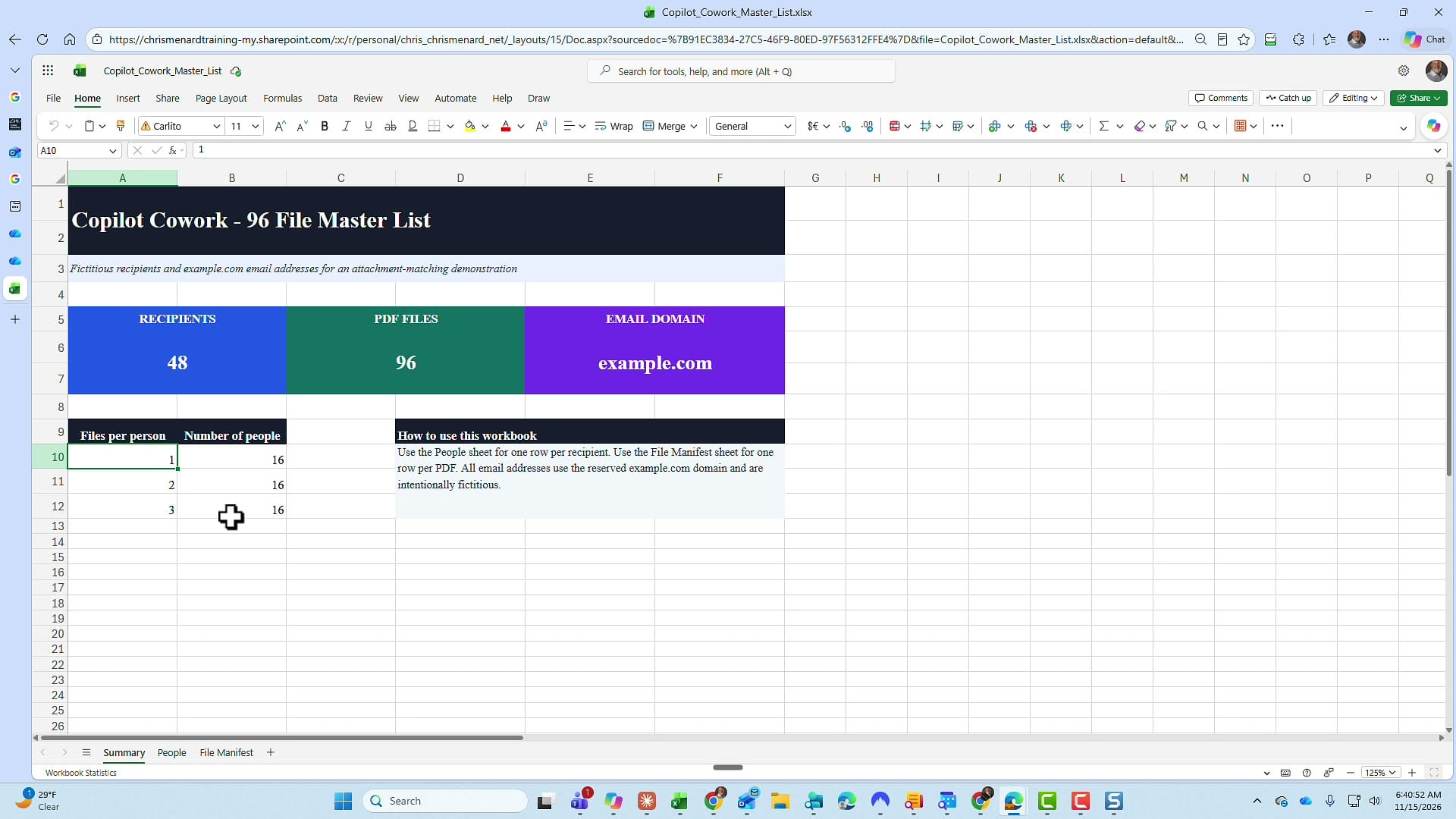
To prove it was right, I went back to my master Excel file. Files per person: 1, 2, and 3, with 16 people in each group. That is exactly what Cowork came up with, and it never had access to this file. It only had names and emails.
Back in Cowork, all 48 people are listed with their email and the files they're getting. Cowork also pointed out that three people share the last name Bennett, so it kept their files and addresses separate. It left the six files from the first test alone because those had already been sent. Then it asked if it should send them with the same subject and message as before.
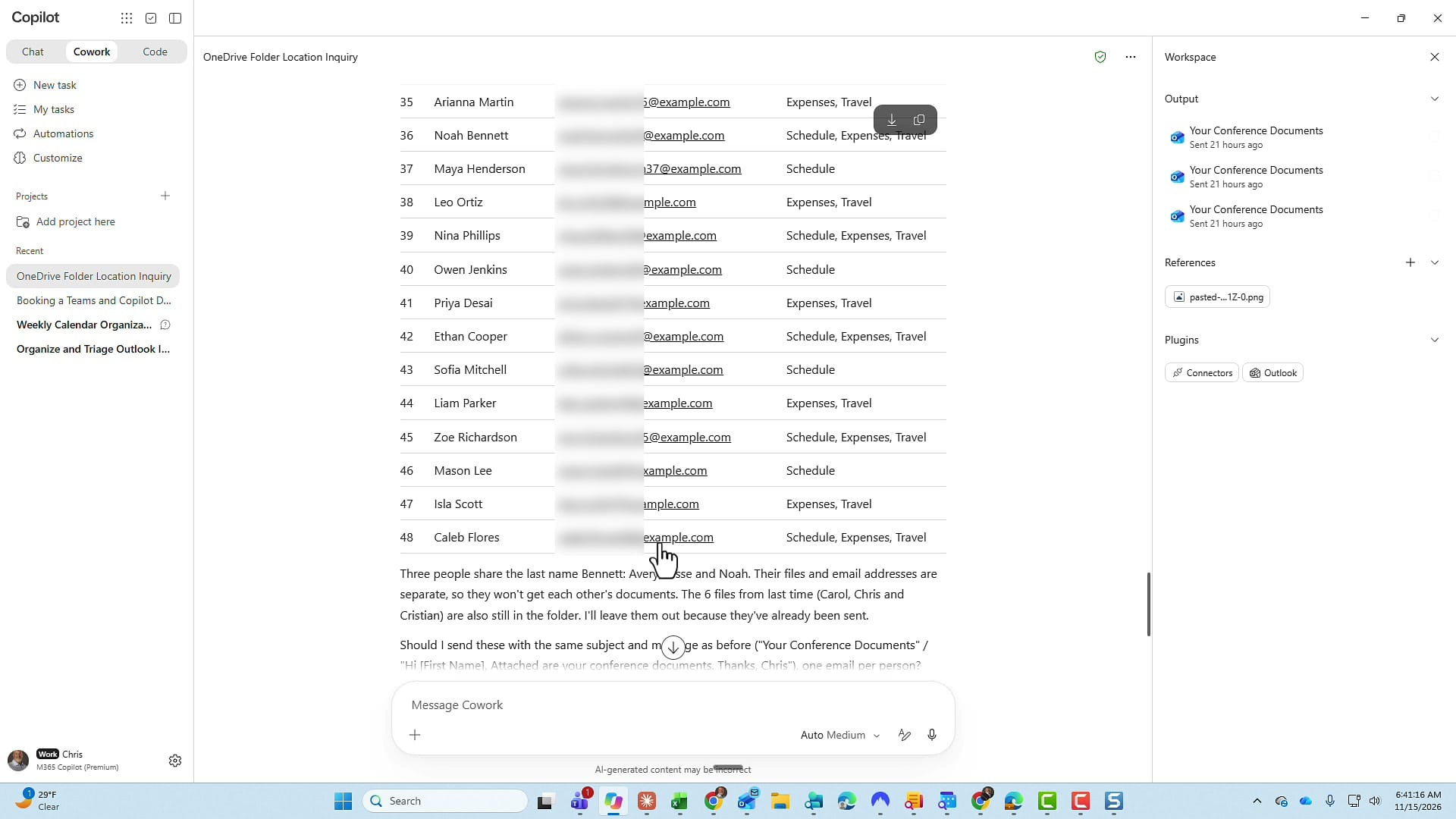
The answer would be yes. Because these are fictitious addresses, I didn't send them, but the first test already showed the sending part works.
Quick recap
- Cowork can find a OneDrive folder from a screenshot.
- Describe what belongs in each email, give it the message with a "Hi [First Name]" greeting, and tell it to show you everything and wait for your approval before sending.
- Review the recipients, addresses, and attachments, then send one at a time or use Approve All.
- Type /cost to see how many credits the task used. 100 credits is $1.
- With only names and emails, Cowork matched 96 files to 48 people correctly. No lookup spreadsheet, no Power Automate flow.
This is a great example of when you'd use Microsoft Copilot Cowork. If you have any questions, please put them in the comments. Thank you for your time.
Related guides
 Chris Menard
 Chris Menard
 Chris Menard
 Chris Menard
 Chris Menard