
How to Create PowerPoint Presentations from Excel Files with M365 Copilot

Microsoft 365 Copilot can now create PowerPoint presentations directly from Excel files. Instead of manually building slides from spreadsheet data, you point Copilot at your Excel file and it generates a complete presentation with charts, tables, and organized sections — all in under a minute.
This feature requires a Microsoft 365 Copilot license. Here's how it works using a real Microsoft financial statement as the source data.
Setting Up Your Excel File
The example uses a Microsoft Corporation financial statement Excel file with multiple worksheets — Balance Sheets, Cash Flows, Comprehensive Income, Segment Revenue, Quarterly Income Statements, and more. The file contains real financial data from fiscal years 2021 and 2022.
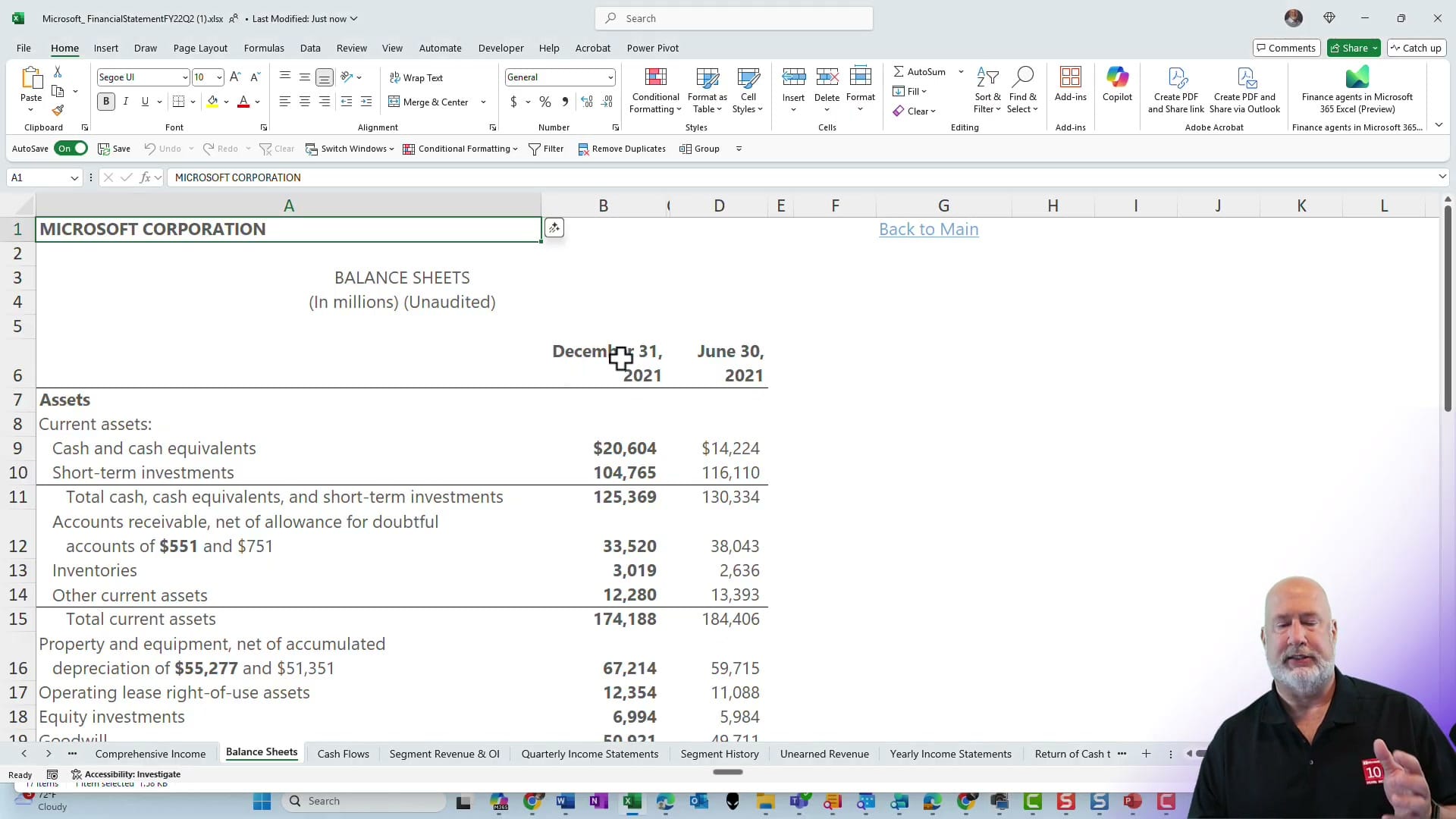
The key requirement: your Excel file needs to be saved to OneDrive or SharePoint. Copilot references cloud-stored files, so local-only files won't work.
Creating the Presentation with Copilot
Open PowerPoint and click Create with Copilot from the Home screen (or open a blank presentation and click the Copilot button). In the Copilot dialog, click Reference files and select your Excel file from OneDrive. You can add a description of what you want, or simply let Copilot analyze the data and decide.
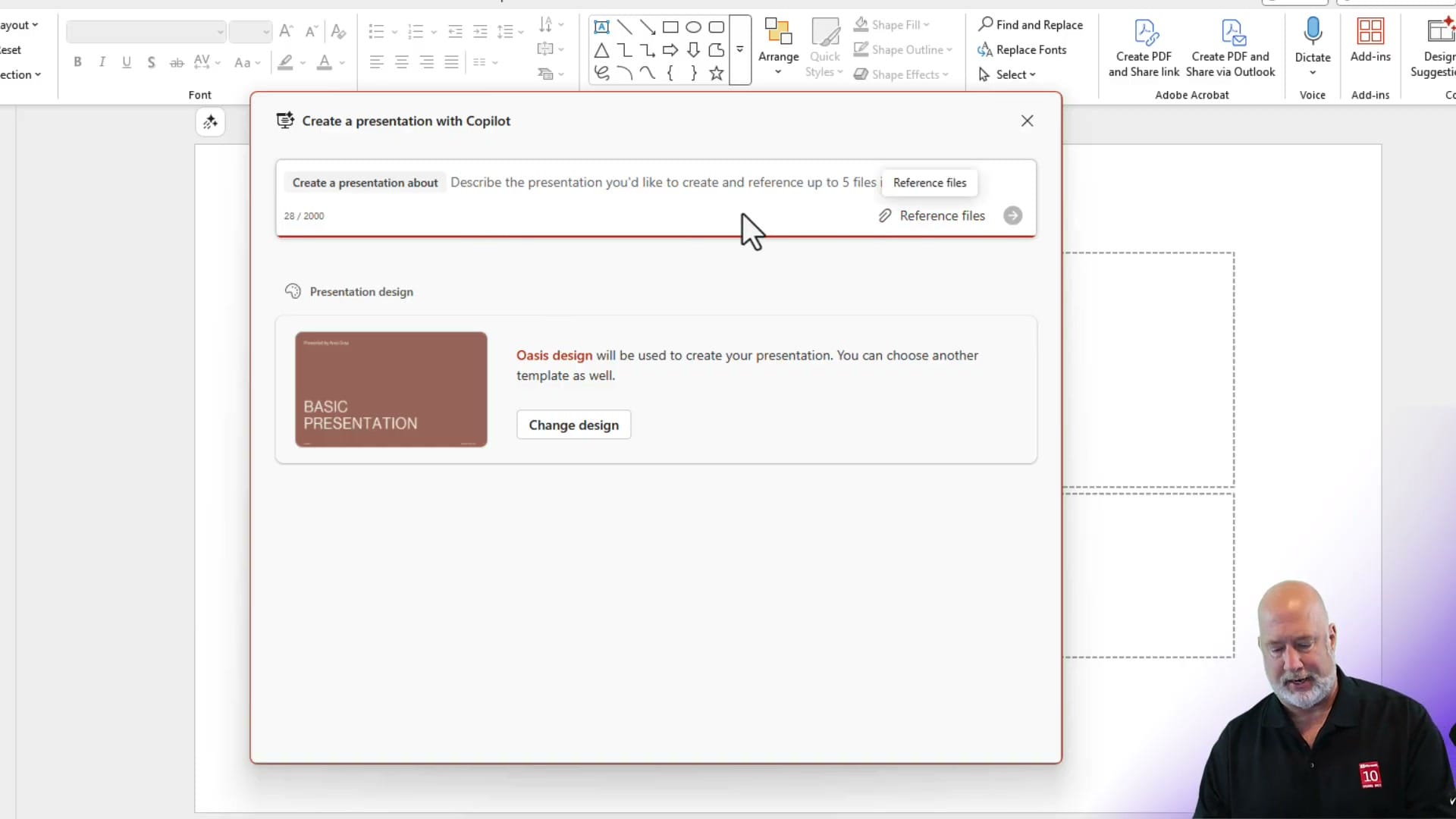
You can also choose a presentation design before generating. Copilot shows a default template (like Oasis) with a Change design button if you prefer a different look.
Reviewing the Generated Slides
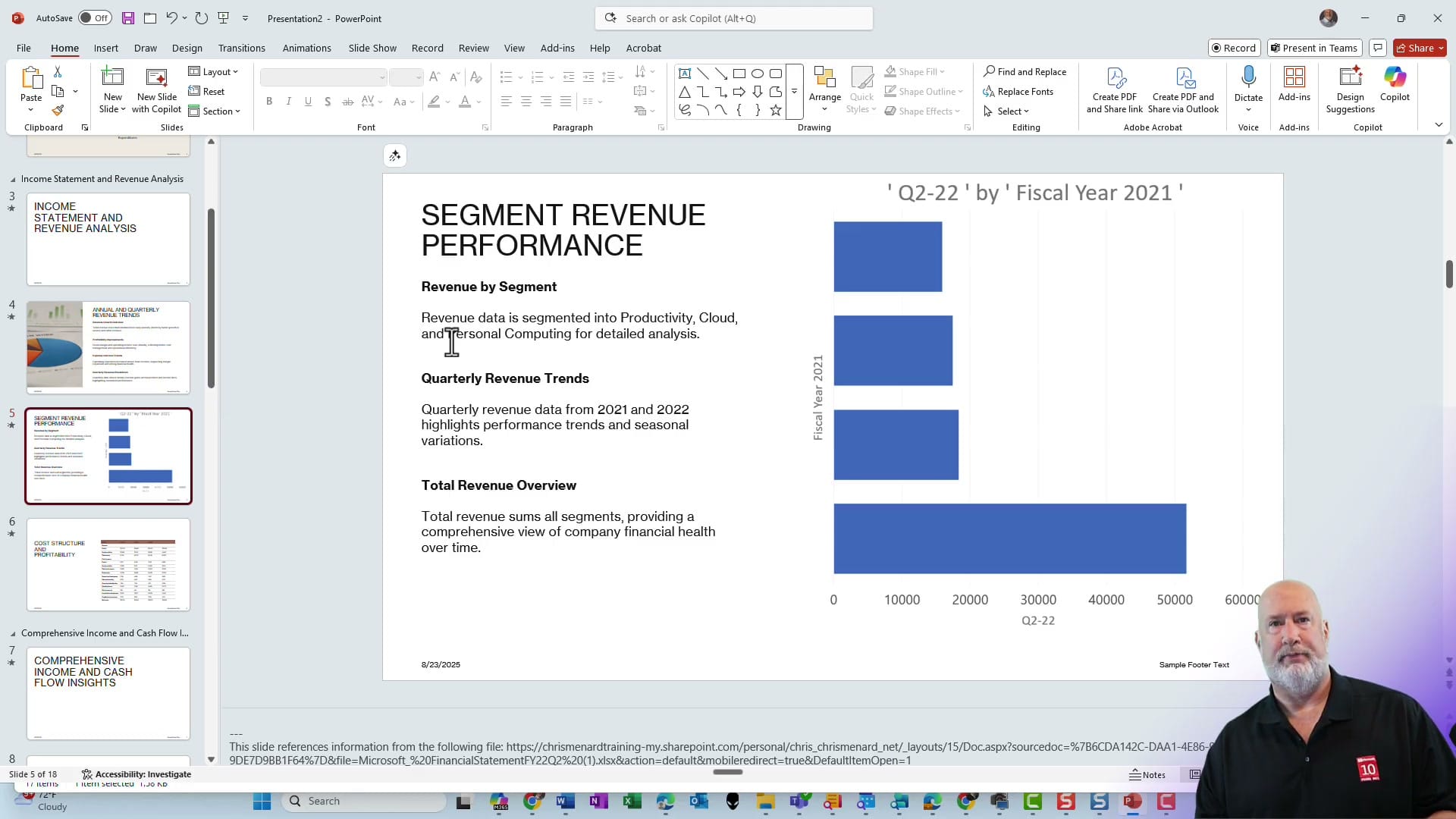
Copilot generates a full presentation — in this case, 18 slides organized into logical sections: Financial Performance Overview, Income Statement and Revenue Analysis, Comprehensive Income and Cash Flow Insights, and Balance Sheet and Asset Overview.
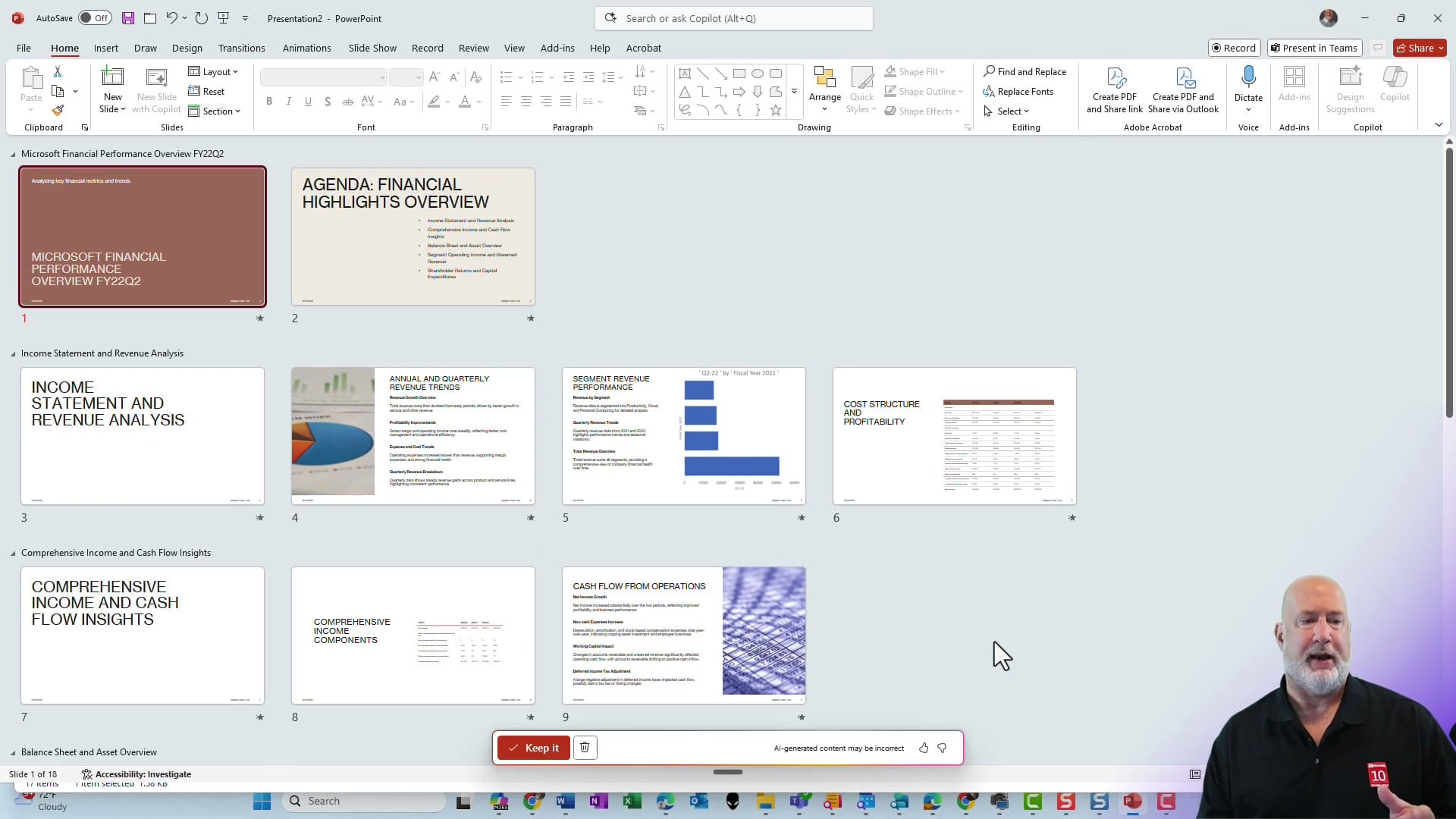
Each slide pulls data directly from the Excel file. Copilot creates bar charts for revenue trends, tables for detailed breakdowns, and text summaries that interpret the numbers. A "Keep it" button appears at the bottom — click it to finalize the presentation.
Customizing After Generation
The generated presentation is fully editable. You can:
- Delete slides you don't need
- Rearrange sections by dragging slides
- Edit text, chart labels, and formatting
- Use Copilot to translate slides into other languages
- Add your own slides alongside the AI-generated ones
Each slide includes a footer noting the source file reference, so you can trace where the data came from.
Tips for Better Results
- Clean data helps — Well-structured Excel tables with clear headers produce better slides
- Multiple worksheets work — Copilot reads across tabs and creates sections for each
- Be specific if needed — You can type a prompt like "Focus on revenue trends" alongside the file reference
- Review AI content — The "AI-generated content may be incorrect" warning means you should verify numbers against your source
- Save to OneDrive first — Files must be cloud-accessible for Copilot to reference them
Related guides
 Chris Menard
 Chris Menard
 Chris Menard
Want to learn more? Visit courses.chrismenardtraining.com for online training courses.



