
Outlook - 7 Calendar Tips Every User Should Know

We spend a lot of time in our Outlook calendar. With these calendar tips and tricks, you'll learn how to use your calendar efficiently. I'll demonstrate to you how I use my Outlook desktop calendar to be more productive.
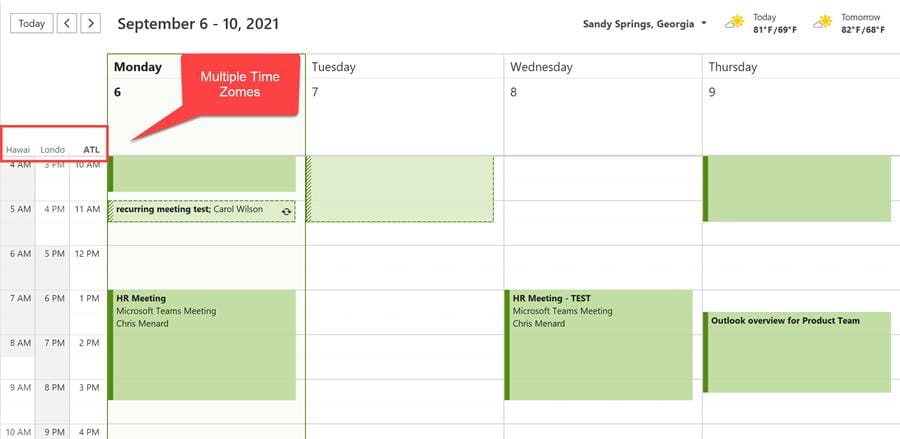
Multiple Time Zones in Outlook
YouTube Video
Outlook - 7 Calendar Tips Every User Should Know
Tip 1 - Ctrl keys to quickly access navigation icons
| | | | --- | --- | | **Keyboard shortcut** | **Action** | | CTRL + 1 | Email | | CTRL + 2 | Calendar | | CTRL + 3 | People / Contacts | | CTRL + 4 | Task |
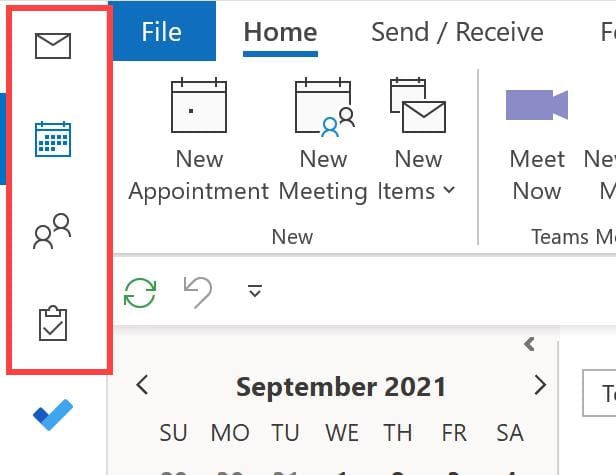
CTRL keys in Outlook to access Navigation icons
Tip 2 - See multiple months
You can resize the folder pane to view multiple months. You can move if left and right and up and down.
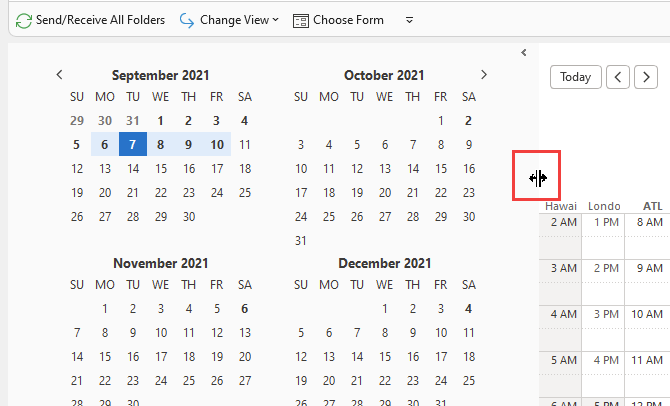
View multiple months in Outlook calendar
Tip 3 - Calendar Views
_1:03 in the video_
The following views allow you to see times zones:
- Day - Work Week - Week
To get back to Today, click wither Today or use the keyboard shortcut **Ctrl + T**.
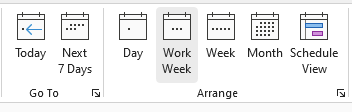
Calendar views in Outlook
Tip 4 - Add Time Zones
In Day, Work Week, and Week view you can show 1 to 3 times zones.
Steps to show time zones:
1. Go to **File**, and click **Options**. 2. Click **Calendar**. 3. In the Time Zones section, add the time zones you want to view 4. Click **OK**.
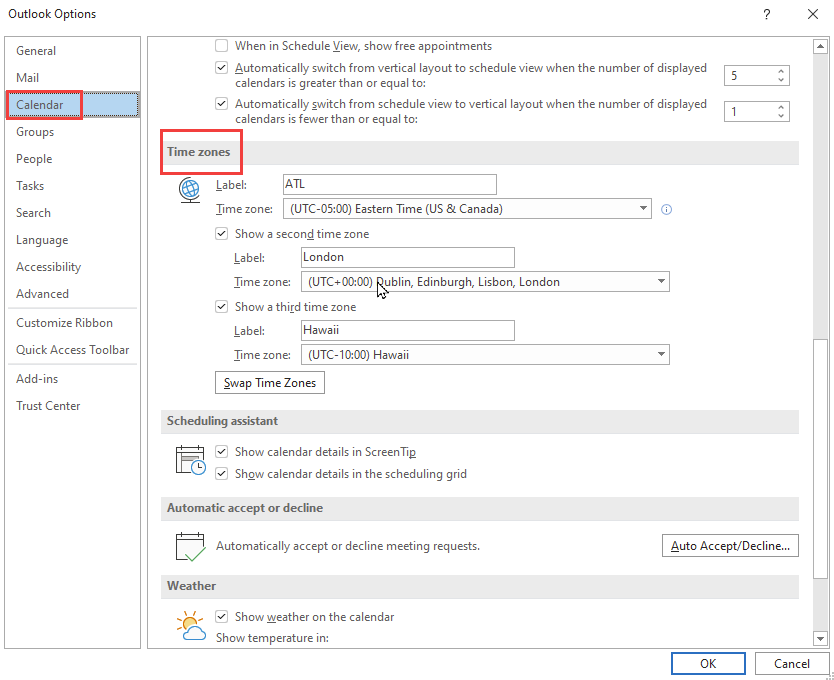
Add Time Zones in Outlook calendar
Tip 5 - End Meetings Early
Back-to-back meetings are tough. It is impossible to go from one meeting to the next, yet we keep scheduling back-to-back meetings. Outlook has a great feature so that you can end meetings early.
Options for meetings less than one hour, you can end early:
- 5 minutes - 8 minutes - 10 minutes
Options for meetings one hour or longer, you can end early:
- 5 minutes - 10 minutes - 15 minutes
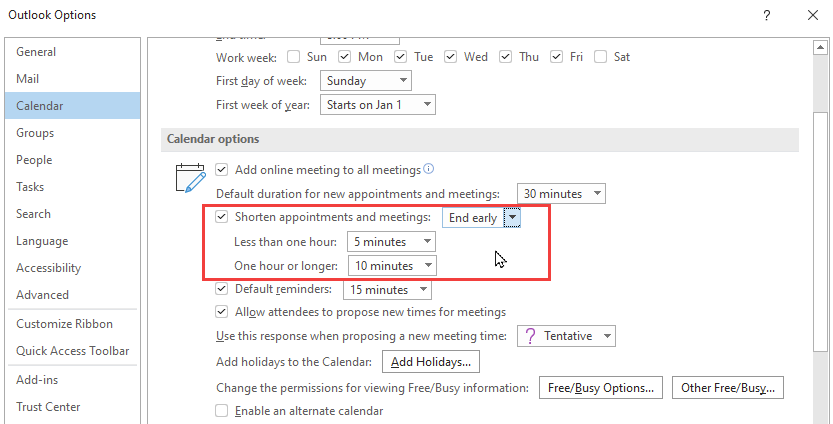
Outlook End Meetings Early
Tip 6 - Ctrl to select individual dates
You can select individual dates to show in your calendar by using the Ctrl key.
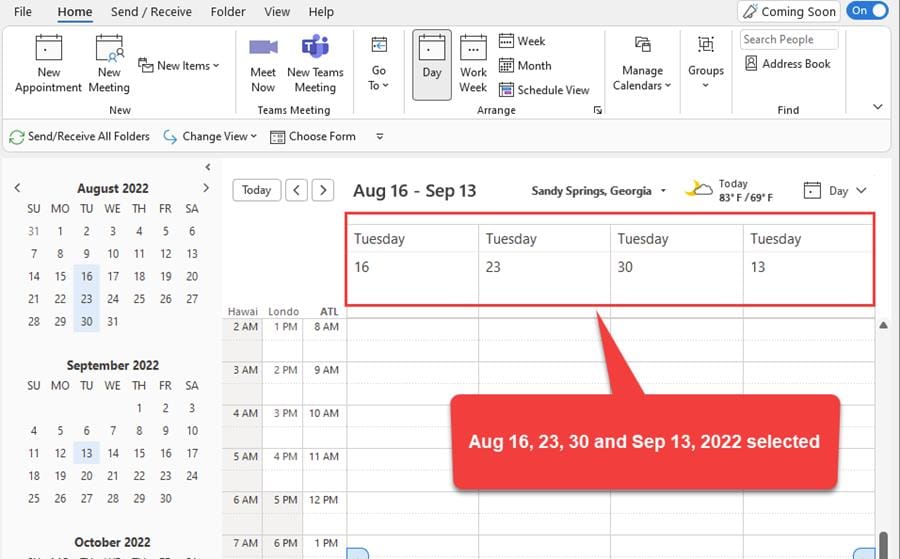
Ctrl to select individual dates in Outlook
Tip 7 - Send calendar in an email message
If you need to meet with co-workers, use the Scheduling Assistant in Outlook. If you need to meet with many people internally and externally, you may want to use the Find Time poll feature, but if you want to meet with one person outside your company, send them your calendar in an Outlook email.
Steps to send calendar availability
1. Go to Mail and start a **new email**. 2. Click the **Insert** tab. 3. Click **Calendar** in the Include group. 4. Select the date range and the detail or availability to show. 5. Click **OK**. 6. **Send** the email.
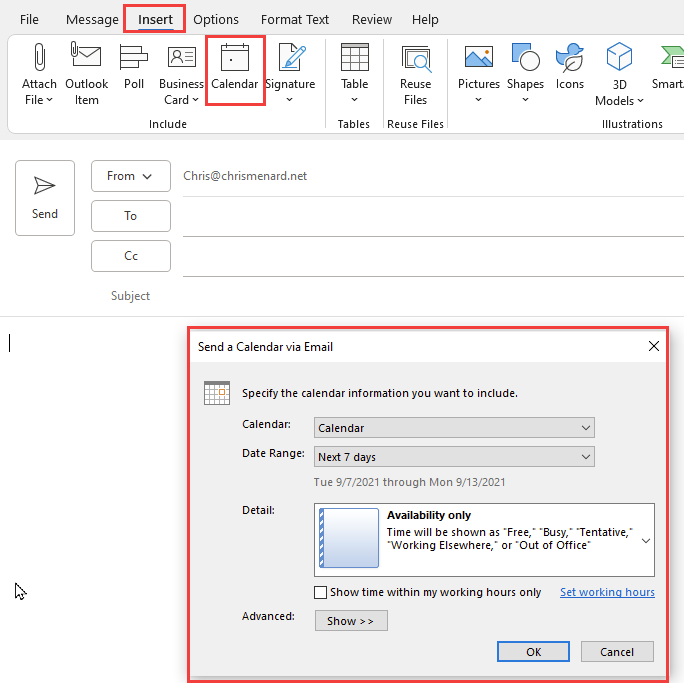
Send calendar availability in an email message



