Microsoft 365 Copilot Updates: Smart Suggestions, Docking, and Shortcut in Word, Excel, and PowerPoint
New Microsoft 365 Copilot updates in Word, Excel, and PowerPoint: smart suggestions on hover, docking the button to the far right, the Alt+C shortcut, and the upcoming Dock to the Ribbon option.


If you have a Microsoft 365 Copilot license, a handful of changes are rolling out to the Copilot button in Word, Excel, and PowerPoint. They show up the same way in all three apps, so once you learn them in one, you know them everywhere. Here is what is new and how to make the button work the way you want.
Smart suggestions on the Copilot button
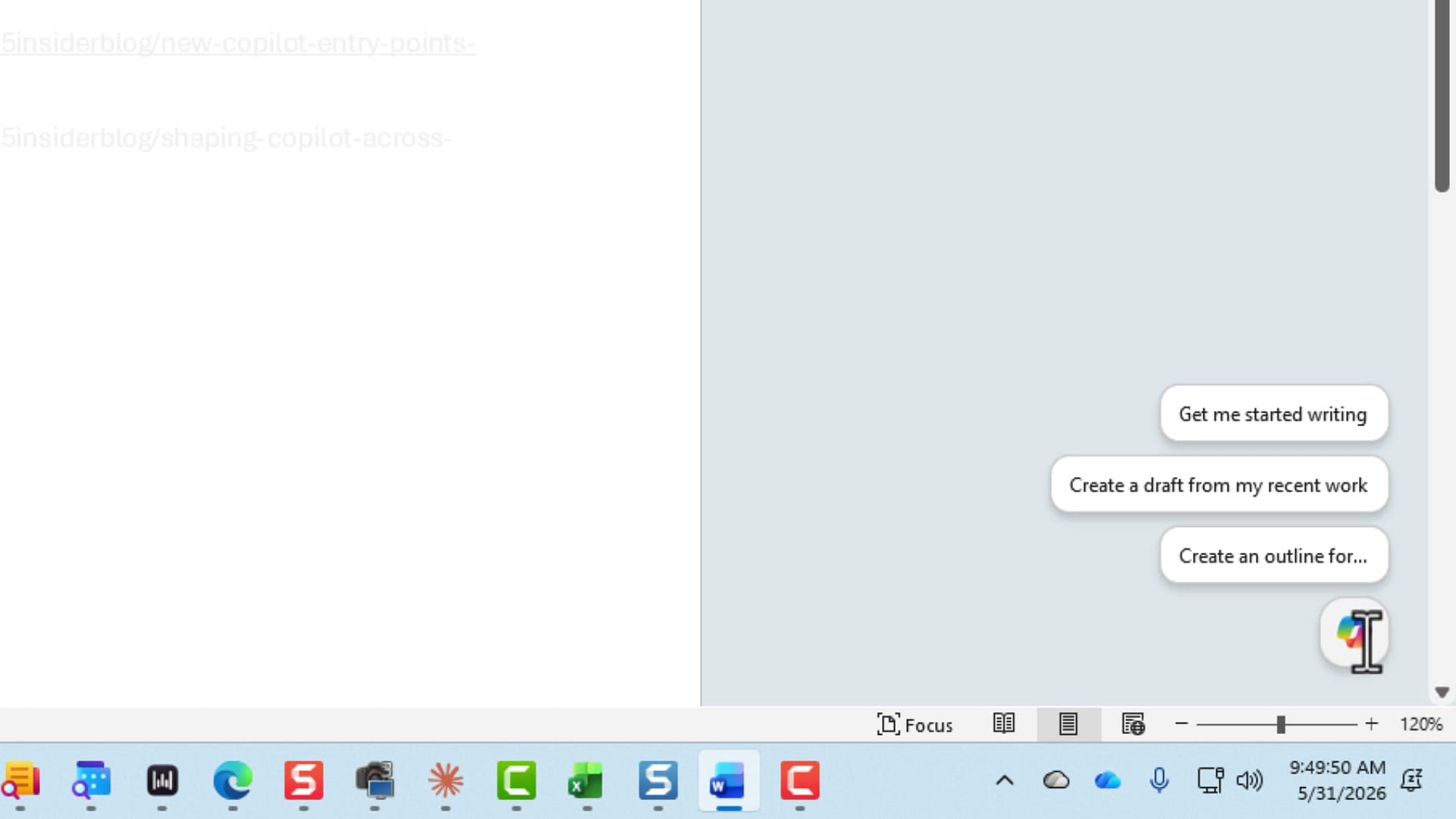
The Copilot icon floats in the lower-right corner of your document. Mouse over it and you now get smart suggestions — quick starting points so you do not have to type a prompt from scratch.
In Word I get three: Get me started writing, Create a draft from my recent work, and Create an outline for… You will see three suggestions in Excel and three in PowerPoint as well, tailored to whatever you are working on in that app.
Dock the Copilot button so it stops floating
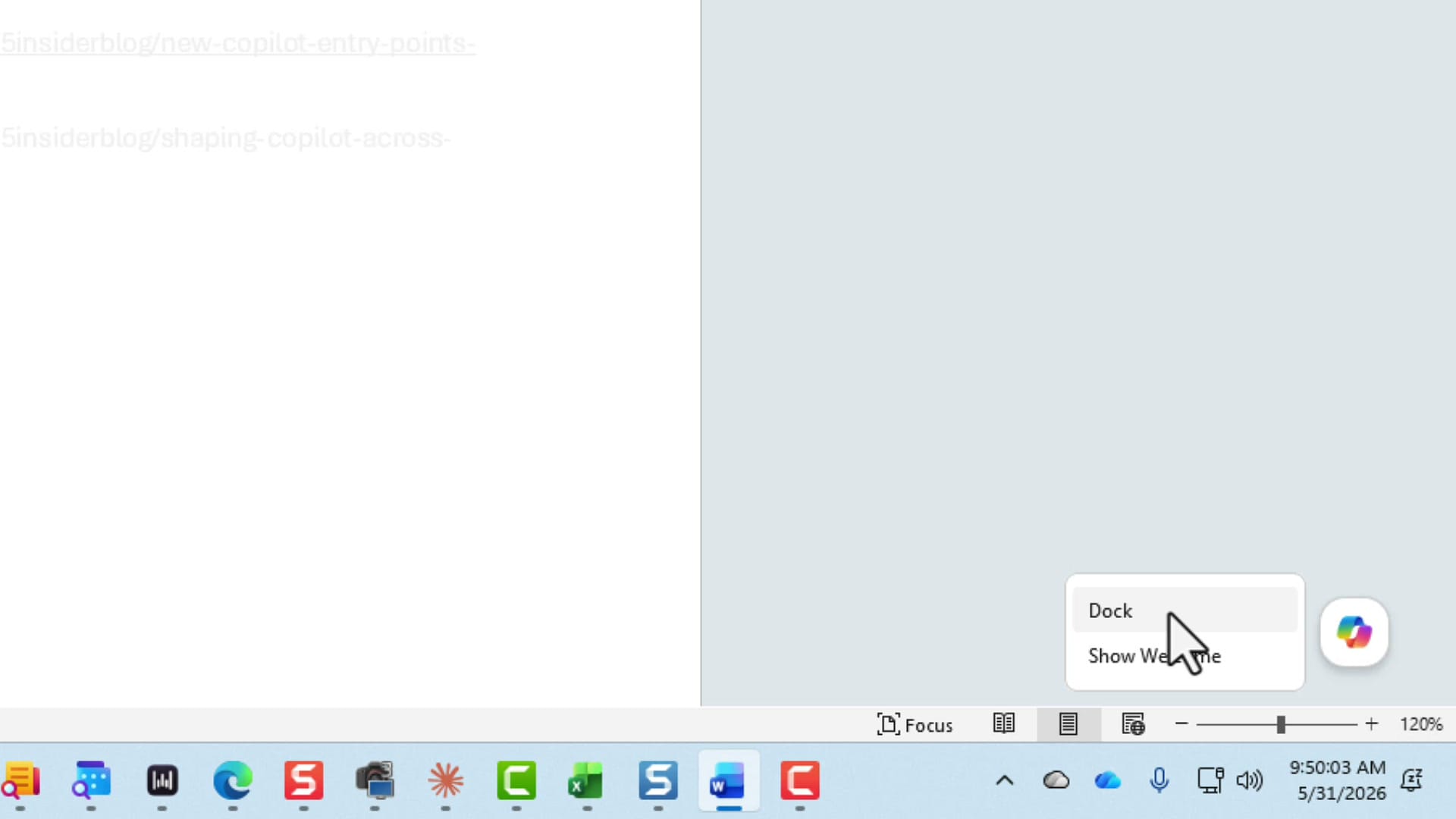
Right-click the icon and you get a new option: Dock. Choose it and the button moves to the far right of your window instead of floating over the bottom of your content.
I prefer it docked. It stays out of the way of the text I am working on, and it is still one click away whenever I want it.
Open Copilot with Alt+C
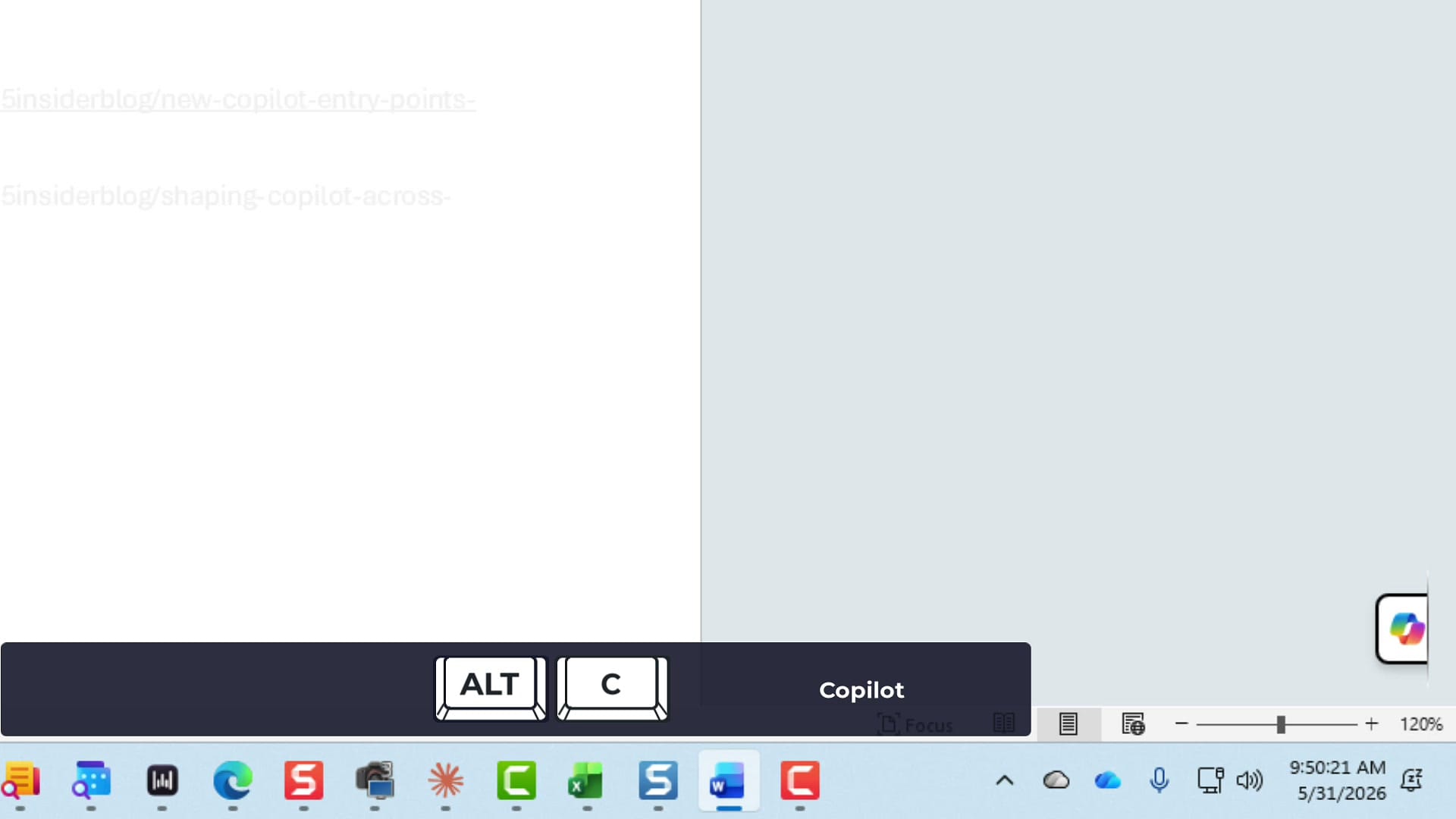
If you are deep in a file and want to jump to Copilot without reaching for the mouse, press Alt + C — C for Copilot. That activates the icon in the bottom-right corner.
The button does not have to be docked for the shortcut to work. Once it is active, clicking it opens Edit with Copilot so you can start working right away. Press Alt + C again any time to bring the smart suggestions back.
Coming soon: Dock to the Ribbon
Honestly, the floating button has bugged me — I preferred it back on the Home tab. Good news is on the way. According to a Microsoft 365 Insider blog post, a third option is coming to that right-click menu, between Dock and Show Welcome: Dock to the Ribbon.
Once the button is back on the ribbon, you can right-click it again and send it back to floating if you change your mind. Microsoft is calling this the Copilot Dynamic Action button. I think enough people gave feedback about the button floating around the bottom of the screen — I know I did — and this is the response.
Quick recap
- Smart suggestions: hover the Copilot icon for three context-aware starting points in Word, Excel, and PowerPoint.
- Dock: right-click the icon and choose Dock to pin it to the far right.
- Alt + C: activate Copilot from the keyboard, docked or not.
- Dock to the Ribbon: a coming option to move the Copilot Dynamic Action button onto the ribbon — and back to floating if you prefer.
If you have any questions about Microsoft 365 Copilot and where its button lives, let me know. Have a wonderful day.
Related guides
 Chris Menard
 Chris Menard
 Chris Menard
 Chris Menard