
Copilot in Excel: Personalization vs. Workbook Rules — Which One Wins?


Copilot in Excel has two features that let you customize how it behaves: Personalization and Workbook Rules. Both are great on their own, but if you use both, an obvious question comes up — what happens when they conflict? Which one does Copilot actually listen to?
I ran four hands-on tests to find out. The answer isn't a simple "one always beats the other" — it's more nuanced, and worth understanding if you're setting either of these up.
The Two Features
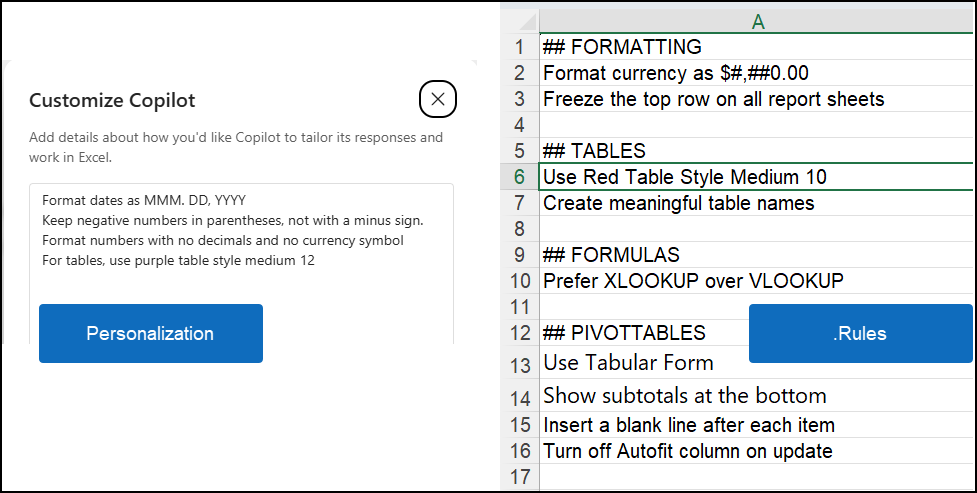
Excel Copilot gives you two ways to customize its behavior, and they work very differently. Personalization is an account-level setting that applies quietly in the background across every workbook you open — it's best for general style preferences like table styles, number formats, or preferred formulas. Workbook Rules, on the other hand, live inside the file itself on a worksheet named .Rules, making them ideal for team standards that need to travel with the file.
Personalization
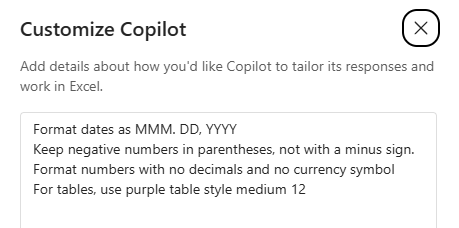
- Account-level preferences
- Private to you, not saved in the workbook
- Applies automatically across every workbook, on every prompt
- Best for general style preferences — fonts, table styles, formula choices, number formats
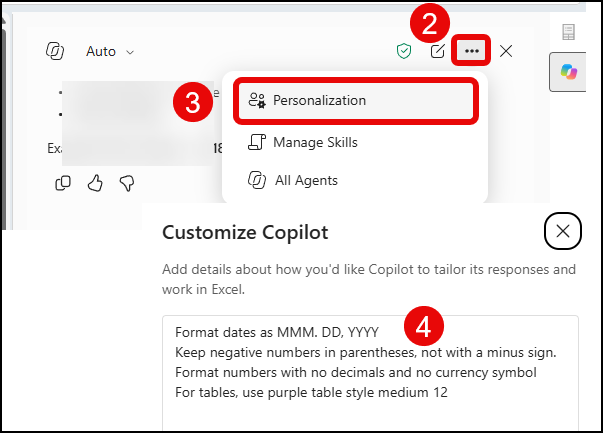
To create Personalization in Excel using Copilot:
- Click the Copilot icon
- Click Setting
- Click Personalization
- Add Personalizations
See Copilot in Action
Copilot's time-saving tricks aren't limited to Excel. Here's how it can save you hours replying to email in Outlook:
Workbook Rules
- File-level instructions, one rule per cell in column A
- Saved inside the workbook — visible to anyone who opens the file
- Best for team standards and file-specific conventions
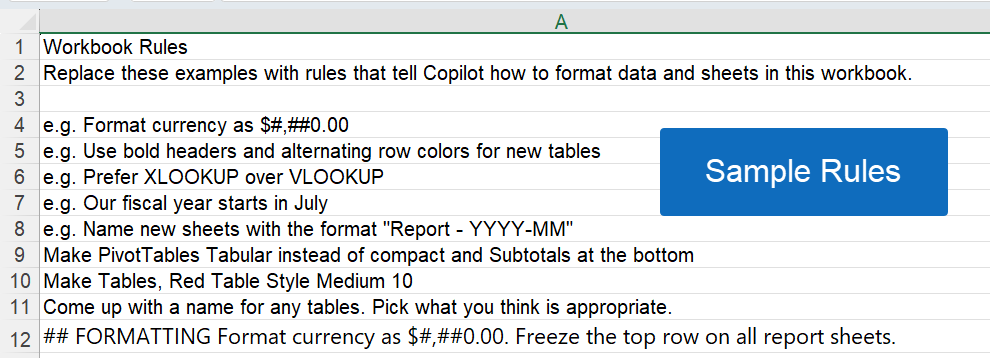
To create a Rules worksheet in Excel using Copilot:
- Click the Copilot icon
- Click Add sources, skills, and more (The plus sign)
- Click Create workbook rules
- A new worksheet will automatically be generated with sample rules. The worksheet is called ".Rules".
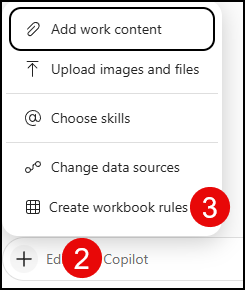
Personalization vs. Rules Comparison
Here's what both look like in Excel — Personalization settings on the left, a .Rules worksheet on the right:
The Real Priority Order
After testing, here's the actual hierarchy:
- Direct prompt instruction — always wins, no exceptions
- Workbook Rules — win, but only when the prompt references them in some clear way
- Personalization — the default that applies to everything else
That middle point surprised me. Workbook Rules don't apply automatically just because they exist in the file — Copilot needs to be pointed at them.
Grab the Cheat Sheet
Four Tests, Four Confirmations
Test 1: No Rules Mentioned → Personalization Wins
Prompt: "Create a sample HR worksheet... make sure to make it a table."
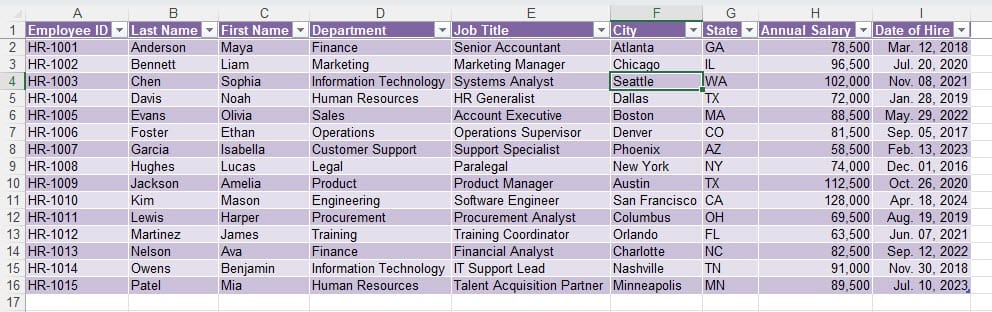
Result: Copilot used Purple Medium 12 table style and no-currency, no-decimal number formatting — both straight from my Personalization settings. The .Rules sheet, which specified Red Table Style Medium 10 and currency formatting, was ignored entirely.
Image for Test 1 - Personalization
Notice in the image below, Excel used Personalization. Annual salary in column H has no dollar symbols and no decimal places, and it used the exact table style I asked for in personalization.
Test 2: ".rules" Named Explicitly → Rules Win
Prompt: "Use the .rules worksheet and create a sample vendor table..."
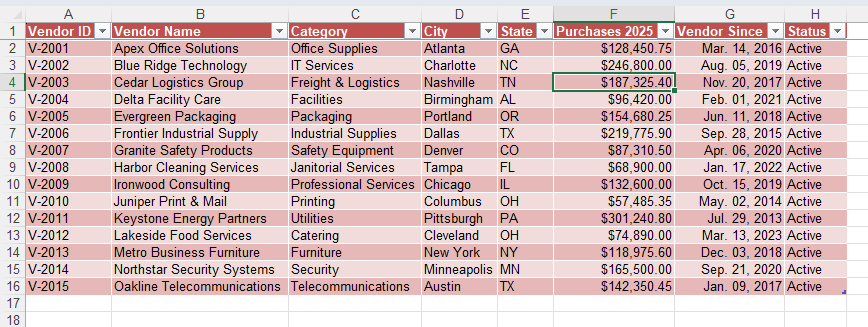
Result: Copilot used Red Table Style Medium 10 and currency-formatted numbers — both from the Rules sheet, overriding the conflicting Personalization settings.
Image for Test 2 - RULES
In the image below, notice column F is using currency with two decimal places, and the table is Red Table Style Medium Ten
Test 3: Explicit Prompt Formatting → the Prompt Wins
Prompt: "Create another HR sample data worksheet. Put it in a table format. Use annual salary field for sure. Format the numbers with three decimal places. Also give me date of hire, and for the date of hire, I want MM-DD-YY. I need at least 20 records."
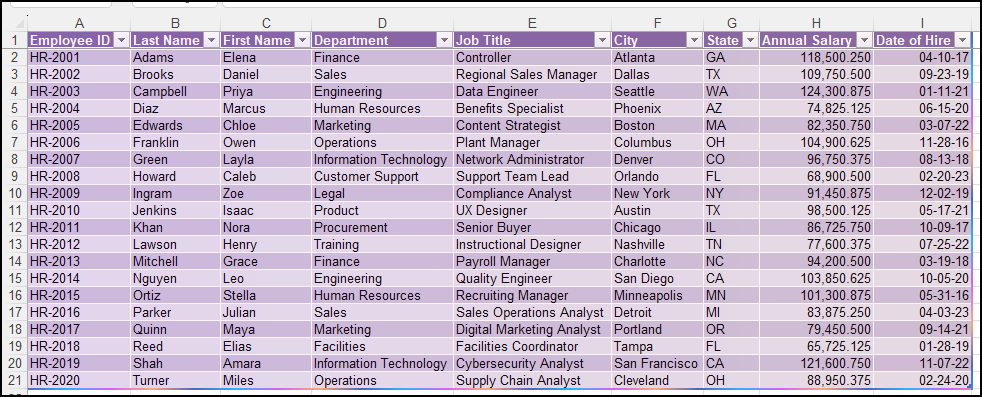
Result: Copilot applied three decimal places to salary and MM-DD-YY dates — the exact formats stated in the prompt.
- Overrode Personalization: which called for no decimals/no currency symbol and dates as MMM. DD, YYYY.
- Overrode Workbook Rules: which called for currency formatted as $#,##0.00 (no date rule was specified, so only the currency rule was in conflict).
Direct prompt instructions beat both settings whenever there's a conflict.
Image for Test 3 - Prompt wins
Notice in the image below, column H has three decimal places, and column I (date of hire) has the date format I requested, overriding both personalization and workbook rules.
Test 4: "Use the Workbook Rules" (No Literal Filename) → Rules Still Win
Prompt: "Make sure to use the workbook rules." (no ".rules" mentioned by name)
Result: Copilot correctly identified and named all four rules — currency as $#,##0.00, Red Table Style Medium 10, a meaningful table name, and a frozen top row — and applied them. This confirms Copilot recognizes a natural reference to "workbook rules," not just the literal .rules filename.
Practical Takeaway
Don't assume Workbook Rules apply automatically the way Personalization does. If you want a workbook's rules enforced, your prompt needs to point Copilot at them in some clear way — a natural phrase like "use the workbook rules" is enough; you don't need to type ".rules" literally. Otherwise, your personal Personalization settings will quietly take over, even inside a workbook that has its own .Rules sheet.
And if your prompt gives explicit formatting instructions, that always wins over both — so be specific in the moment whenever precision matters.



