
How Copilot Chat Finds the Best Excel Function for Any Task


Not sure which Excel function to use? Copilot Chat can figure it out for you. Instead of searching through documentation, describe what you want to do in plain English and Copilot will suggest the right function — complete with the formula and an explanation of how it works.
This works in the free version of Copilot too — you don't need a paid license for this feature.
The Problem: Comparing Two Lists
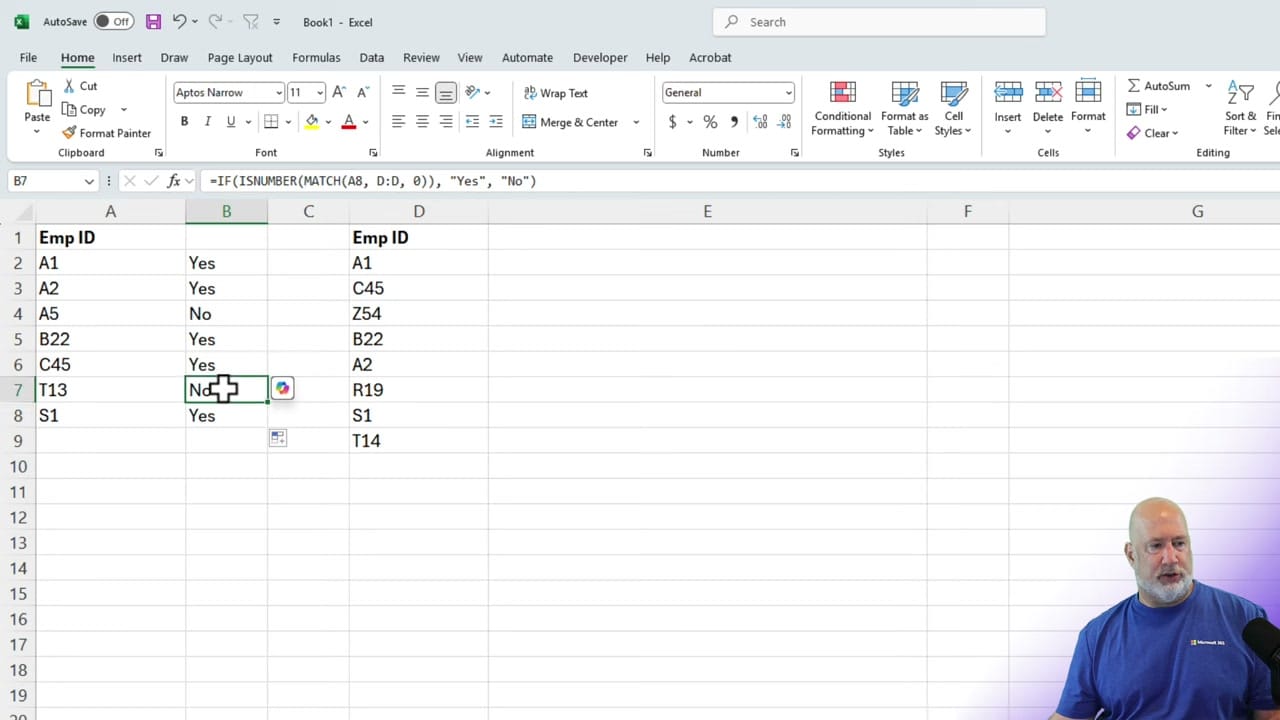
The example starts with two columns of employee IDs. The goal: check whether each ID in column A also appears in column D, and return "Yes" or "No." If you don't know which function handles this kind of lookup, Copilot can tell you.

Copilot's Solution: IF + ISNUMBER + MATCH
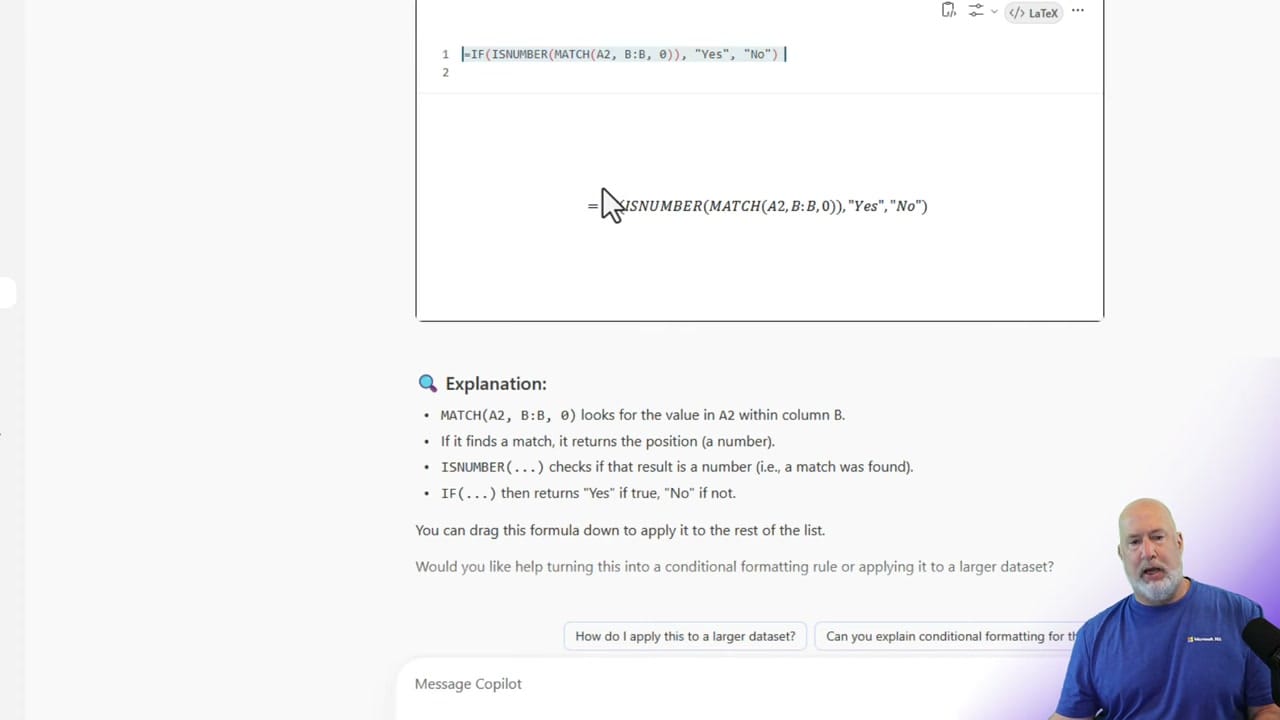
Copilot suggests the formula =IF(ISNUMBER(MATCH(A2, B:B, 0)), "Yes", "No") and breaks down how each part works:
- MATCH(A2, B:B, 0) — Looks for the value in A2 within column B. Returns its position if found
- ISNUMBER(...) — Checks if MATCH returned a number (meaning a match was found)
- IF(...) — Returns "Yes" if true, "No" if not
Implementing and Verifying
After pasting the formula into Excel, it correctly identifies which employee IDs exist in both lists. The formula can be dragged down to compare entire columns.
Tips
- Copilot Chat works for any Excel function question — describe what you want, not which function to use
- It also suggests follow-up actions like turning results into conditional formatting rules
- The free version of Copilot Chat handles these function lookups — no M365 Copilot license required
- You can also use Copilot to optimize existing formulas you've already written
Related guides
 Chris Menard
 Chris Menard
 Chris Menard
 Chris Menard
Want to learn more? Visit courses.chrismenardtraining.com for online training courses.



