Automate Microsoft Teams Transcripts and Meeting Summaries with Power Automate
Build a Power Automate flow that checks on a schedule for new Microsoft Teams meeting transcripts and saves a timestamped VTT file and a structured Word meeting summary to OneDrive.

When I'm the organizer of a Microsoft Teams meeting and I record or transcribe it, I no longer go hunting for the transcript afterward. A Power Automate flow runs every 15 minutes, finds the new transcript, and saves two files to my OneDrive: a VTT file with every word and timestamp, and a Word document with a structured meeting summary.
Here's how the automation works, what you need to set it up, and what the finished files look like after a real Teams meeting.
What you need
I wrote up every step I took in a document. It's 15 pages, and it's the most important part of this whole thing. I built the automation with help from Microsoft Copilot, the one that comes with the premium license. I didn't use Cowork or Code, just Microsoft Copilot chat.
Along the way I also needed:
- Microsoft Entra, for a few minutes, to set up access.
- Windows PowerShell, run as an admin, with the MicrosoftTeams module.
- Power Automate Premium. I had to pay for this because it wasn't part of my business license. The plain HTTP action is a Premium action, and the Run a prompt action needs AI capacity (credits).
- Word desktop to build the summary template, and OneDrive for Business to store everything.
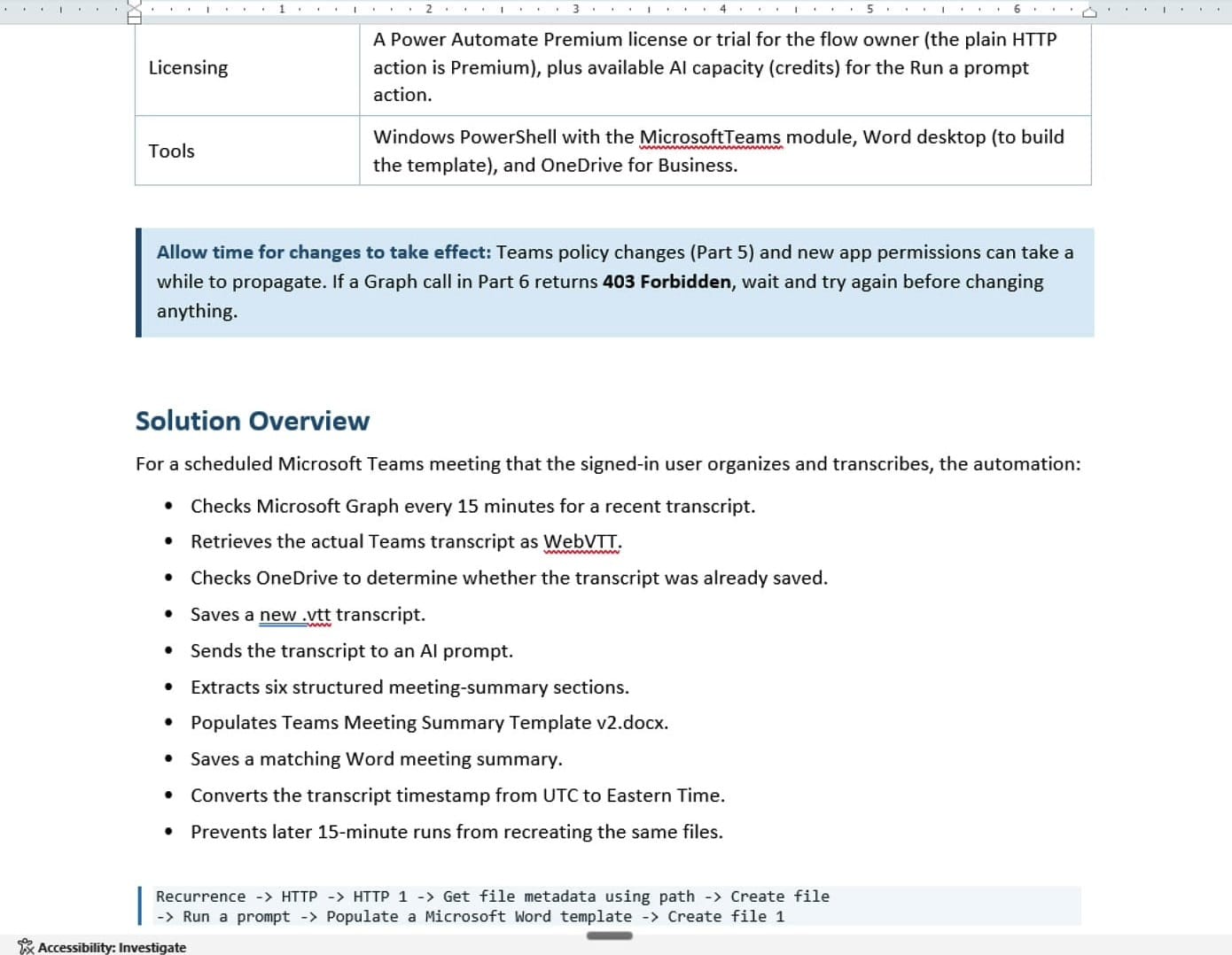
Each time it runs, the automation checks Microsoft Graph for a recent transcript, retrieves it as a WebVTT file, checks OneDrive to see if it was already saved, saves the new .vtt file, sends the transcript to an AI prompt, fills in a Word template with the summary, and saves that Word document next to the transcript. It also converts the timestamp from UTC to Eastern Time, and it won't recreate the same files on later runs.
The Power Automate flow
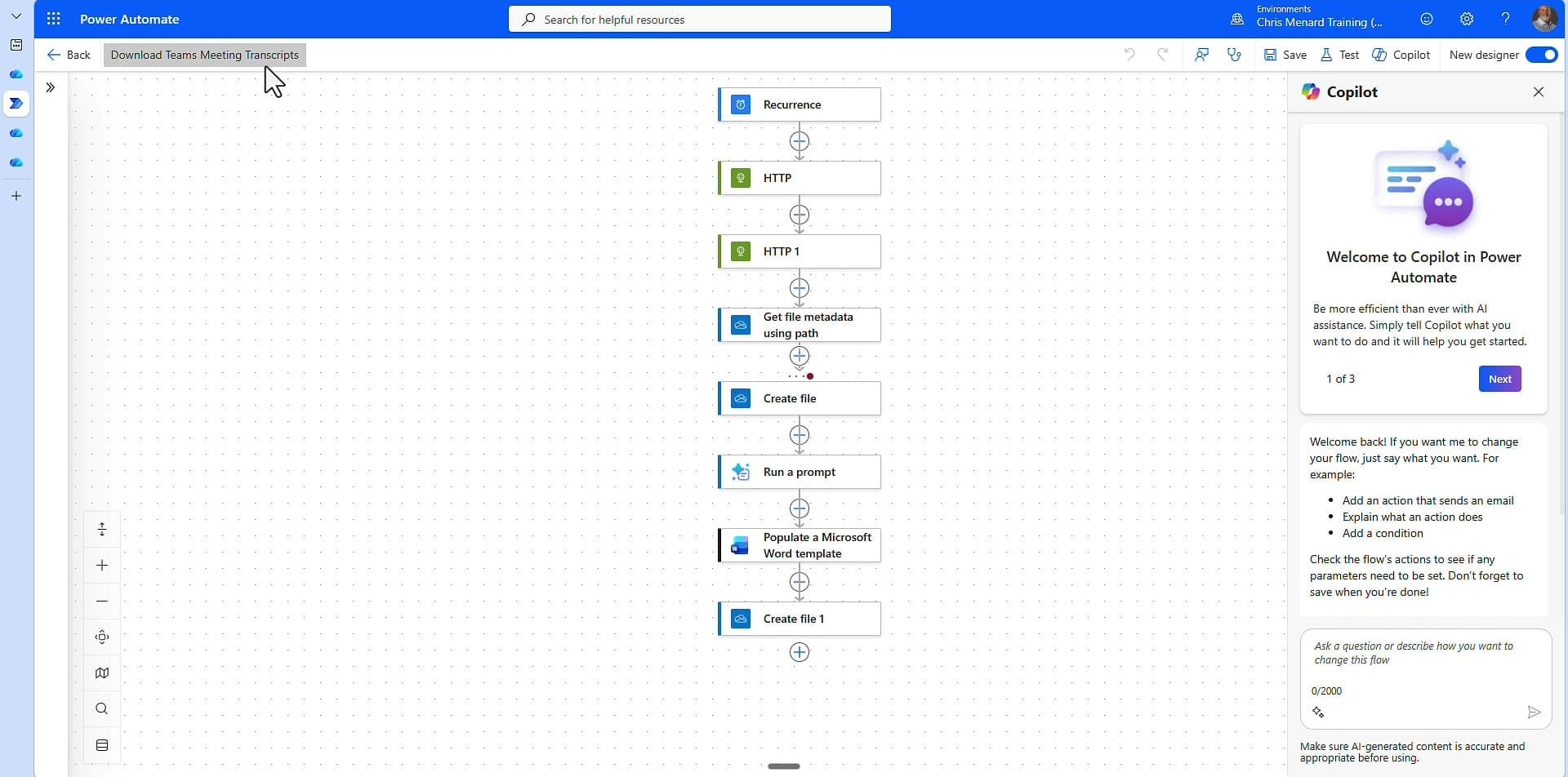
In Power Automate, I named the flow Download Teams Meeting Transcripts. These are the actions, in order:
- Recurrence
- HTTP and HTTP 1
- Get file metadata using path
- Create file (the .vtt transcript)
- Run a prompt (the AI summary)
- Populate a Microsoft Word template
- Create file 1 (the Word summary)
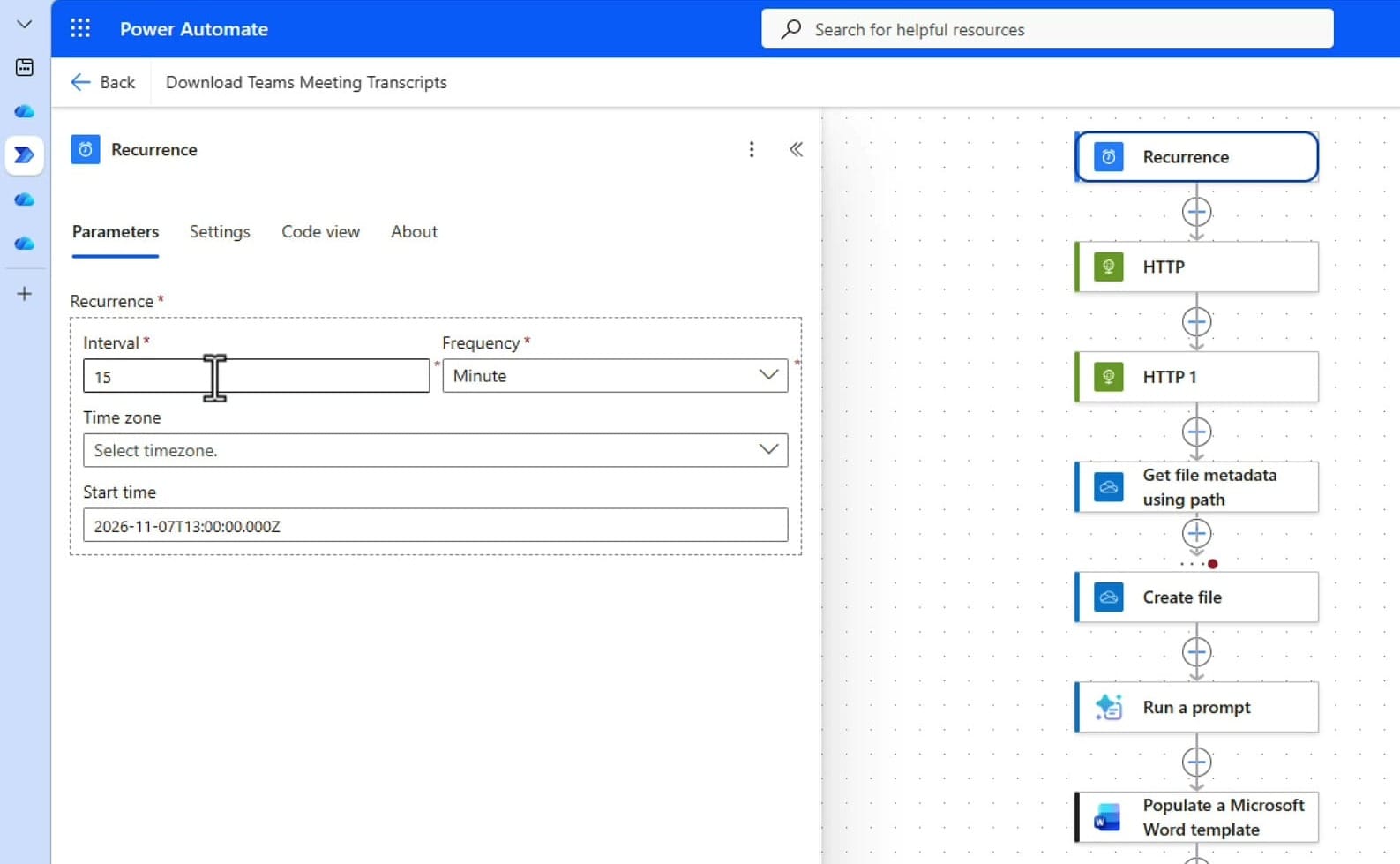
The Recurrence trigger is set to an interval of 15 and a frequency of Minute, so the flow checks for new transcripts every 15 minutes.
The setup guide covers what goes into each of the other actions, so I won't repeat all of it here.
Plan for some setup time
Getting this working took a lot of tweaking. It took me three to four hours the first time. Part of that is because I don't usually live in PowerShell, and I don't usually need to go into Entra. Now that I know what to do, it wouldn't take nearly that long to do it again. The good news: more than two weeks later, it's still running.
Record or transcribe a Teams meeting
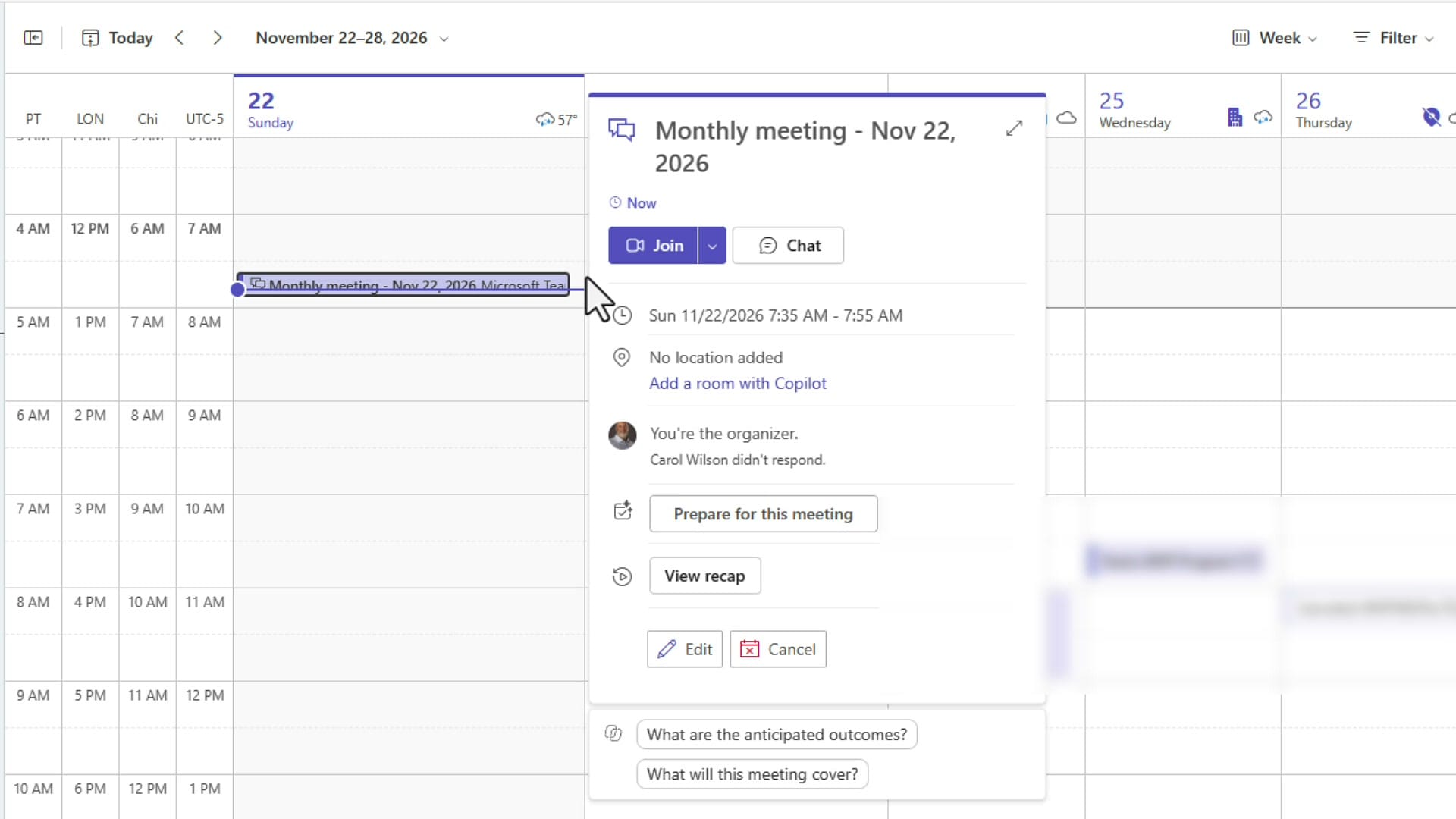
To test it, I went to my Teams calendar and opened a meeting I organized, then clicked Join. I left my camera off and my mic muted, then clicked Join now.
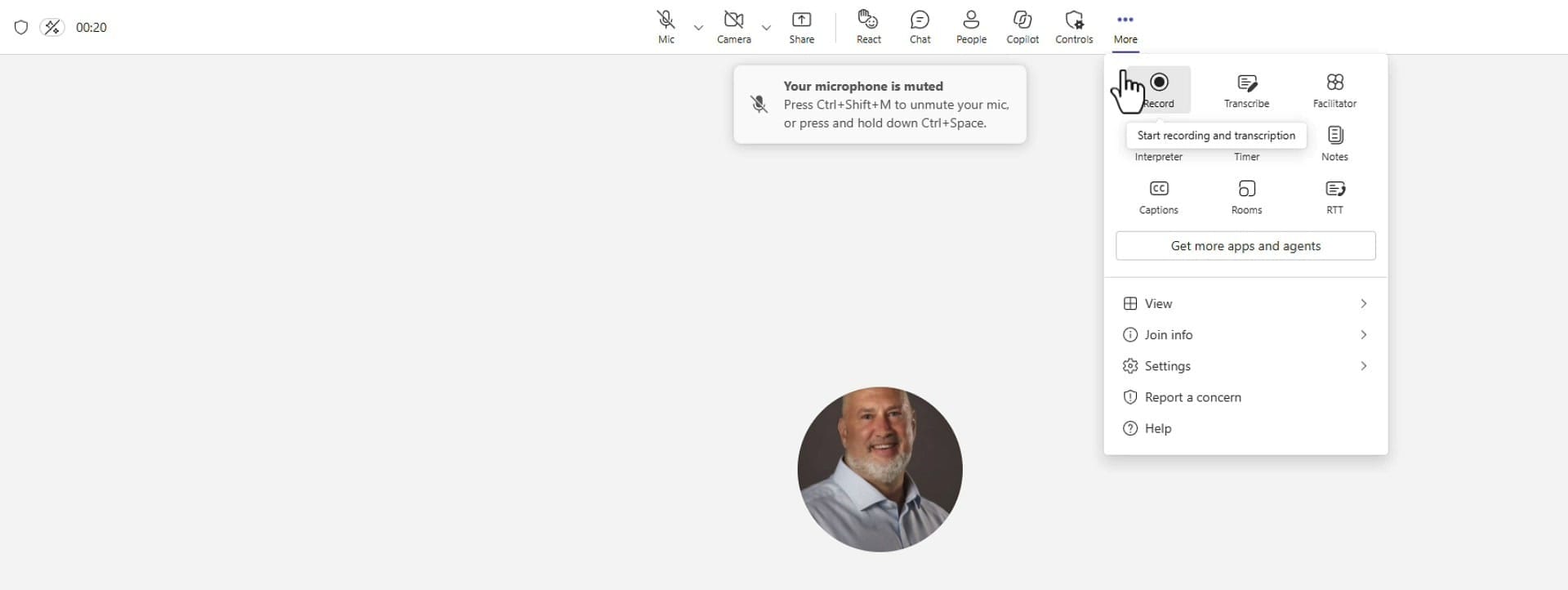
Once you're in the meeting, this is the part that matters: you have to record the meeting, or at least turn on the transcription. Click More, then click Record (the tooltip says "Start recording and transcription") or Transcribe. No transcript, nothing for the flow to pick up.
Then I turned my mic on and ran a short sample meeting: the budget for the coming year and Q1, new hires in the Chicago, Las Vegas, and San Antonio offices, candidates for a new chief information officer, an update from our CFO, the training schedule, and where to hold the annual retreat (Orlando, Atlanta, or Nashville).
Stop and restart the recording mid-meeting
Here's something you may not know. If you stop the recording, the meeting doesn't have to end for that recording to get transcribed. Click Stop and the transcript becomes available while the meeting keeps going.
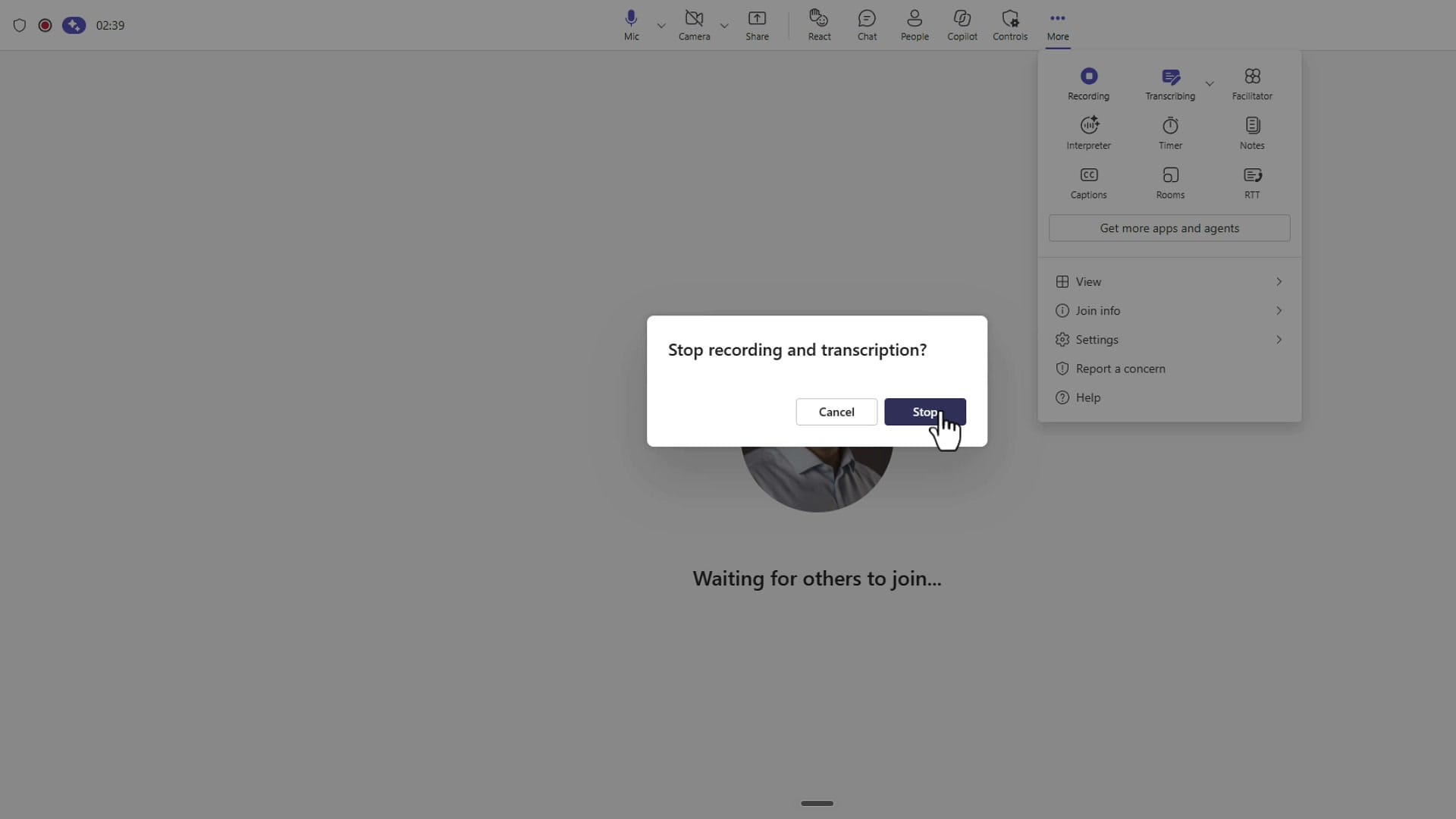
So if you record, stop because you need to discuss something confidential that you don't want recorded, and then record again, you end up with two transcripts. The flow picks up each one on its next 15-minute run, even while the meeting is still going.
Check the new files in OneDrive
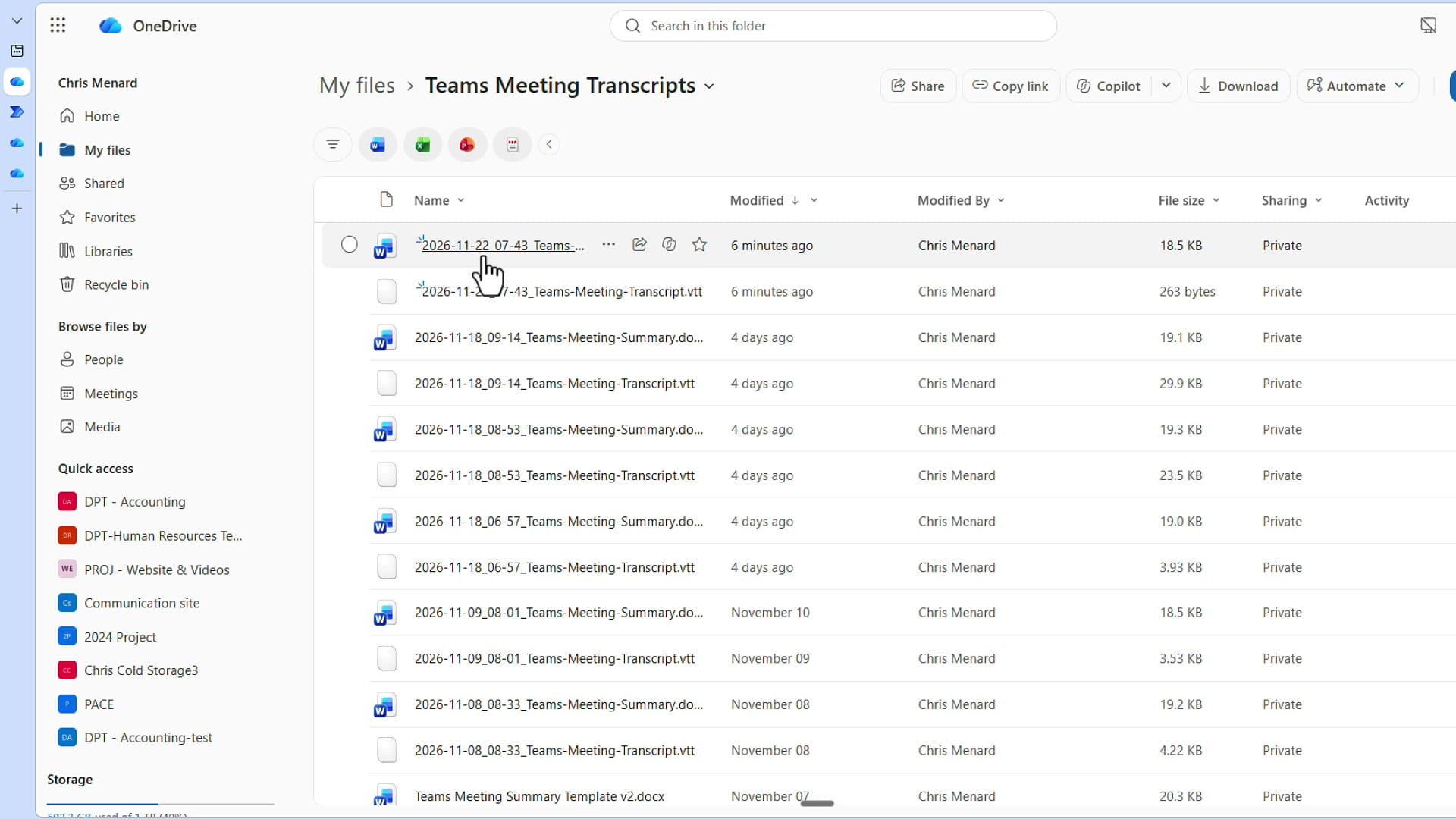
All the files go into a OneDrive folder called Teams Meeting Transcripts. My earlier practice meeting was already there. I always get two files per meeting, named with the date and time:
- Teams-Meeting-Transcript.vtt, which shows exactly when someone said something.
- Teams-Meeting-Summary.docx, the meeting summary.
Build the meeting summary Word template
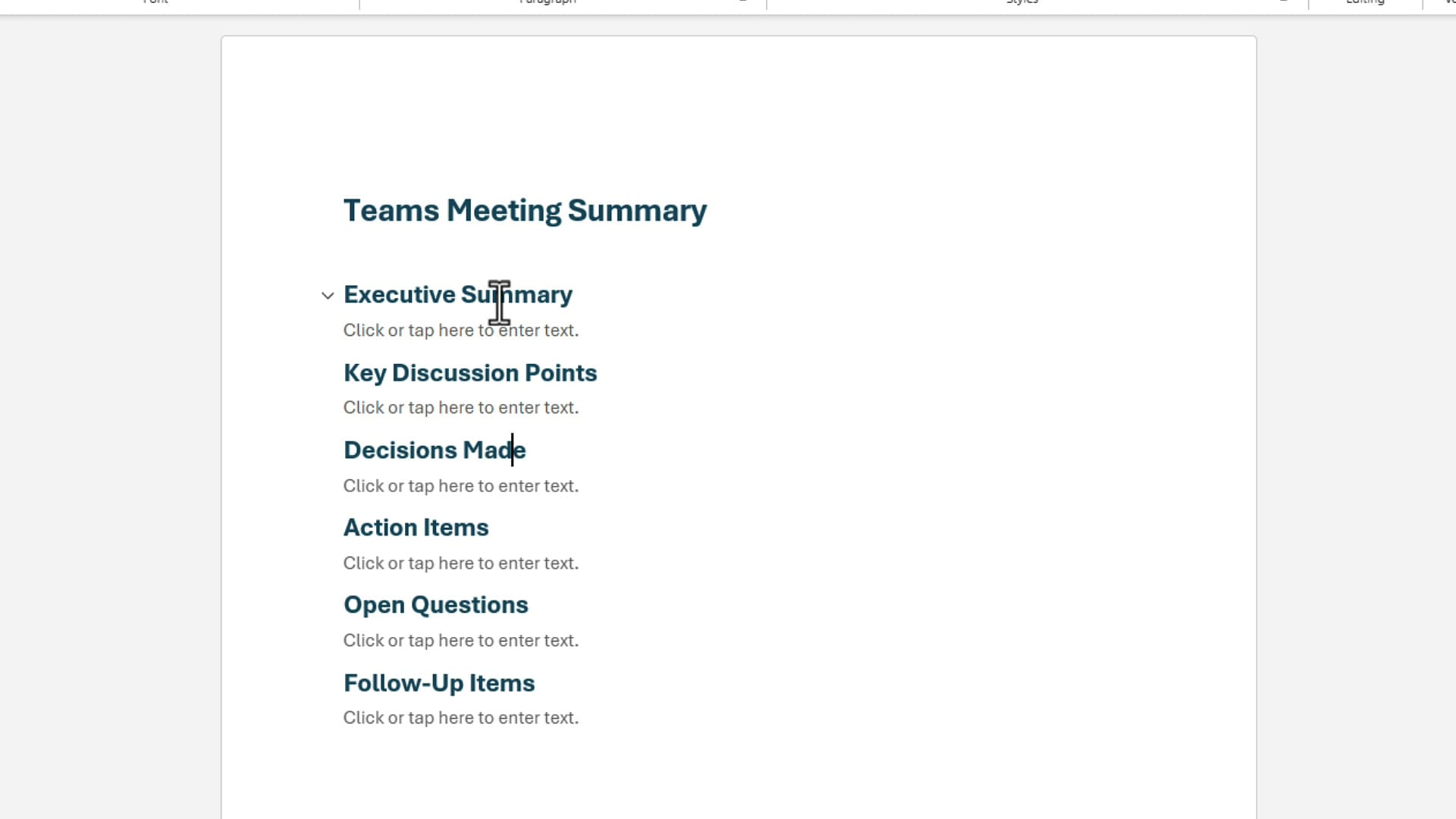
I didn't want a really long Word document. I wanted an actual meeting summary, broken into sections. So I created a Word template called Teams Meeting Summary Template v2 with these sections, each formatted as Heading 2:
- Executive Summary
- Key Discussion Points
- Decisions Made
- Action Items
- Open Questions
- Follow-Up Items
Under each heading there's a placeholder ("Click or tap here to enter text") that the flow fills in.
Connect the template in Power Automate
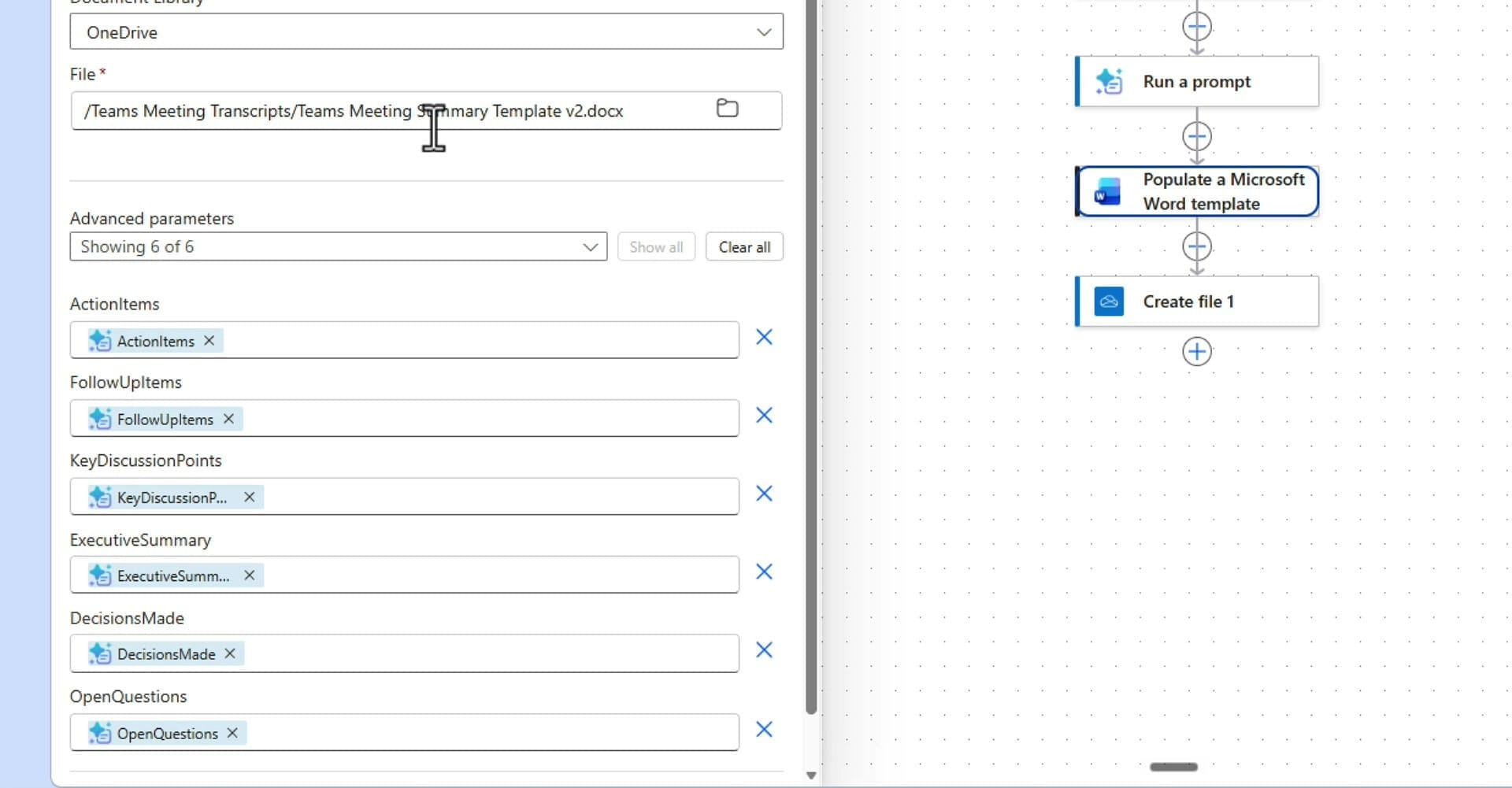
Back in Power Automate, click the Populate a Microsoft Word template action. In the File box, point it to exactly where the template is saved in your OneDrive. In my case that's /Teams Meeting Transcripts/Teams Meeting Summary Template v2.docx. Below that, the same six sections from the Word template show up as fields, and each one is filled from the output of the Run a prompt action.
Two tips here:
- Don't delete the template. The flow needs it every time it runs.
- Keep the template in the same folder as your transcripts. You can put it somewhere else, but keeping everything together makes it hard to forget what the file is for.
You can delete the older transcripts and summaries from the folder whenever you like. Just leave the template.
Review the VTT file and the meeting summary
The flow runs on the quarter hour, so I waited until 8:00. After a quick refresh, the meeting I had just recorded was in the folder, with its two files.
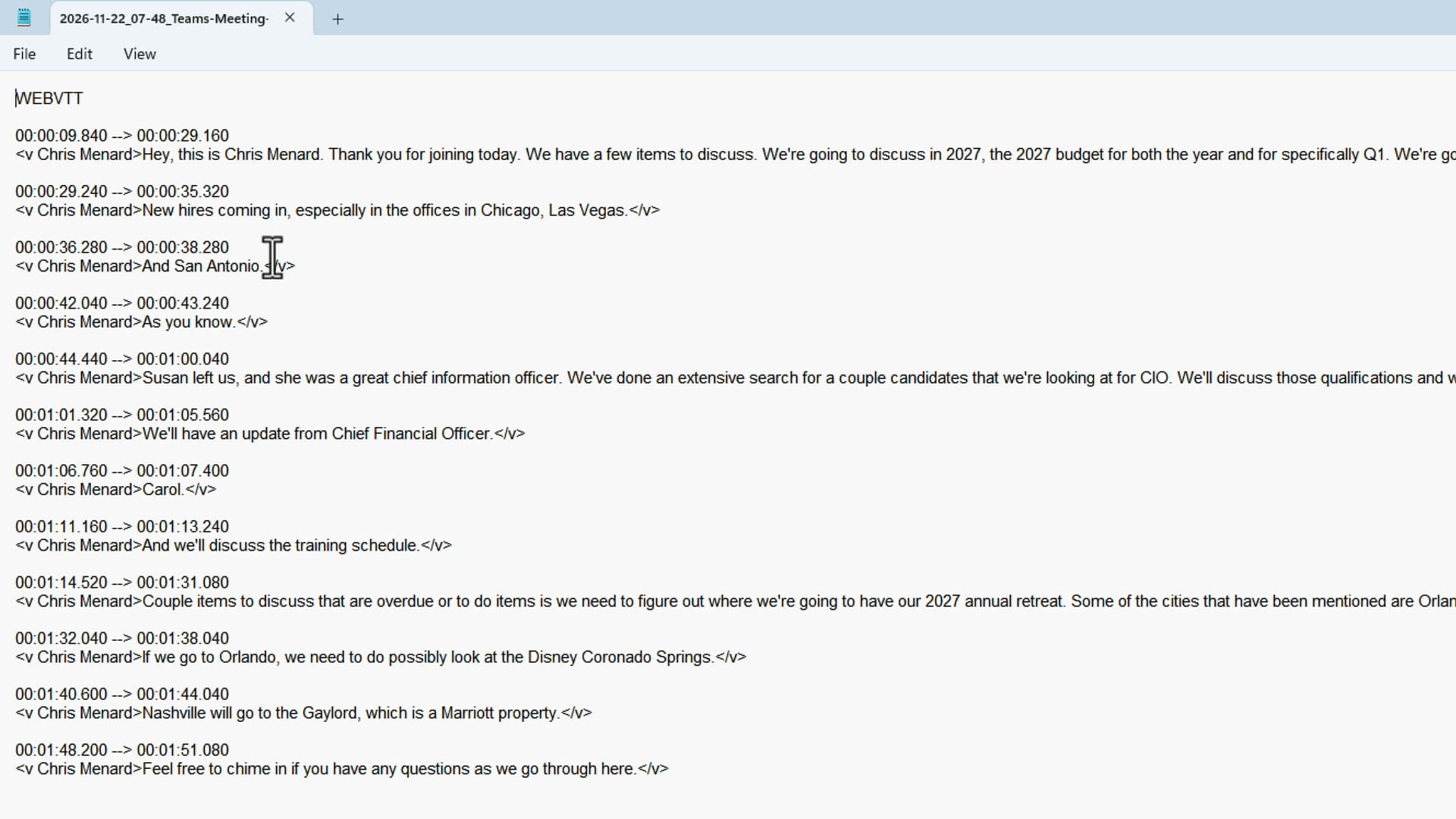
The VTT file has the timestamps for everything that was said. That's what this file type is meant for, things like bookmarks and closed captions, but I like it because everything I said is in there.
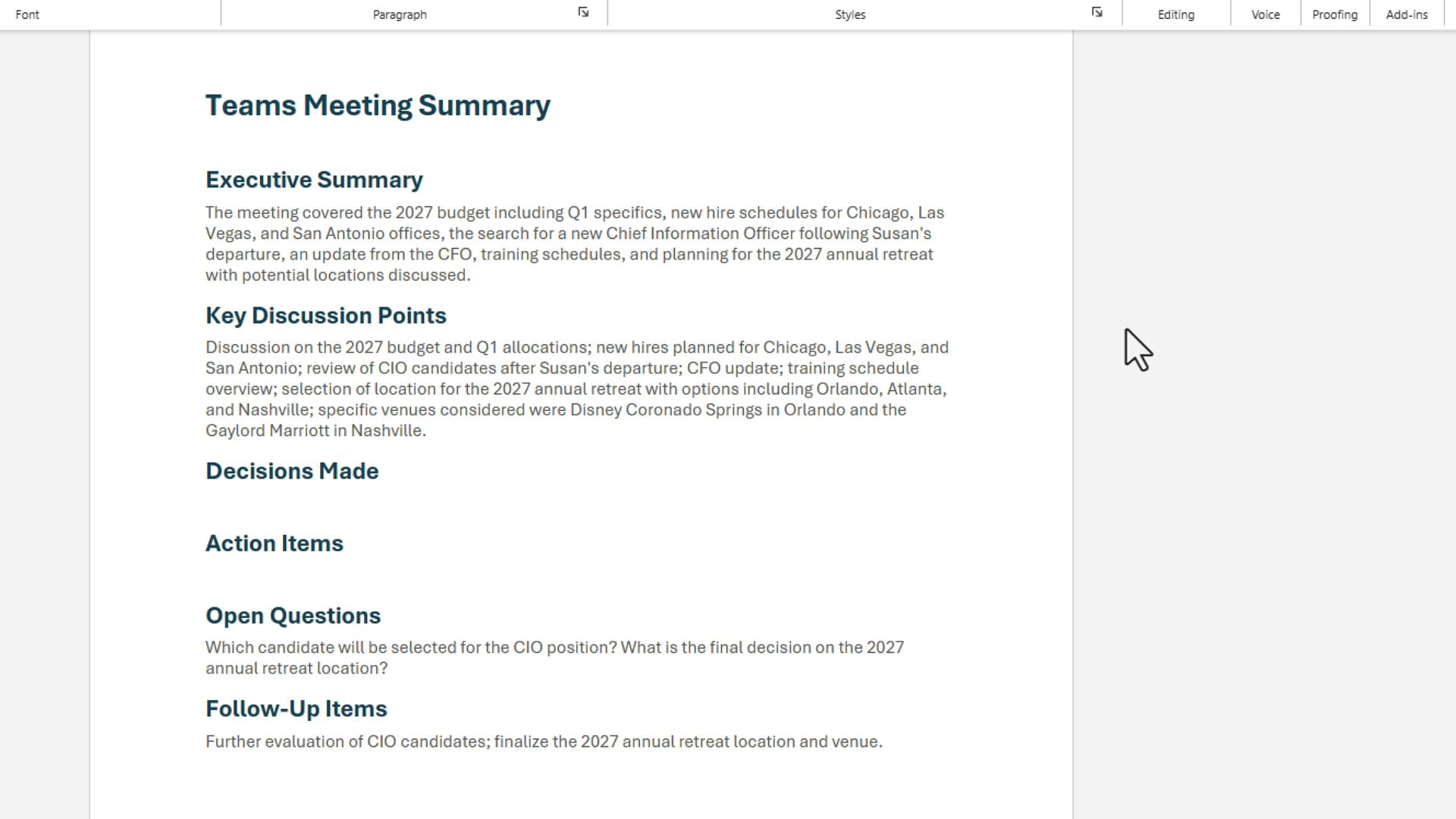
The Word summary follows my template. Executive Summary, Key Discussion Points, Open Questions, and Follow-Up Items are all filled in. Decisions Made and Action Items are empty, and that's fine, because in this meeting no decisions were made and there were no action items. This is exactly how I wanted it laid out.
Why a summary instead of the full transcript
Teams also creates a Word document with the full transcript, which right now you have to go get manually. I could have had the flow save that too. I chose the meeting summary instead, because the VTT file already gives me every word that was said. Between the two files I have the full record and the short version.
If you'd rather not record or transcribe a meeting at all, you can still use Copilot in Teams meetings without transcription, but this flow needs a transcript to work.
The most important thing to get is the Word setup guide. It walks you through everything I did. I hope this helps.
Related guides
 Chris Menard
 Chris Menard
 Chris Menard
 Chris Menard
 Chris Menard