
New Microsoft Teams Meeting Recap Features with Copilot (Speaker Summary, Executive Report, Audio Recap)

Microsoft Teams has rolled out new recap features for recorded meetings that work with a Microsoft 365 Copilot license. Alongside the AI summary and transcript we have had for a while, there is now a Custom summary section with three options — Speaker summary, Executive report, and Create template — plus an improved Audio recap with chapters and a full narrated walkthrough. Here is what each one does and when to use it.
Opening the Meeting Recap
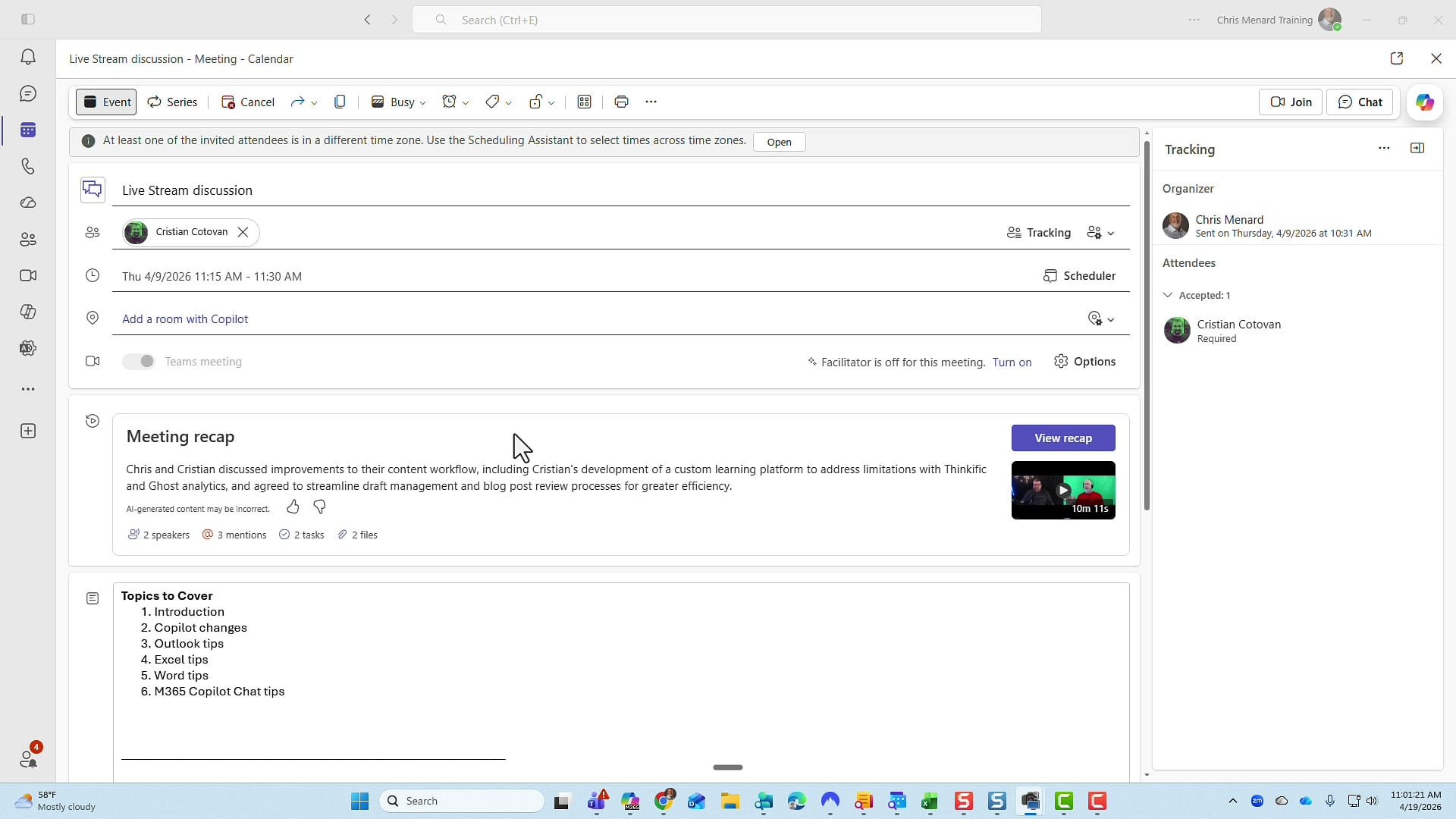
Open your Teams calendar and click the meeting you want to review. If it was a recorded meeting, you will see a Meeting recap card with a short summary of what was discussed, the number of speakers, mentions, tasks, and files generated during the meeting. Click View recap to open the full recap panel.
Note: the "mentions" count here is not the traditional @mention from Outlook or Teams chat — these are instances of attendees saying another person's name out loud during the meeting.
What Has Not Changed: Notes, AI Summary, Mentions, Transcript
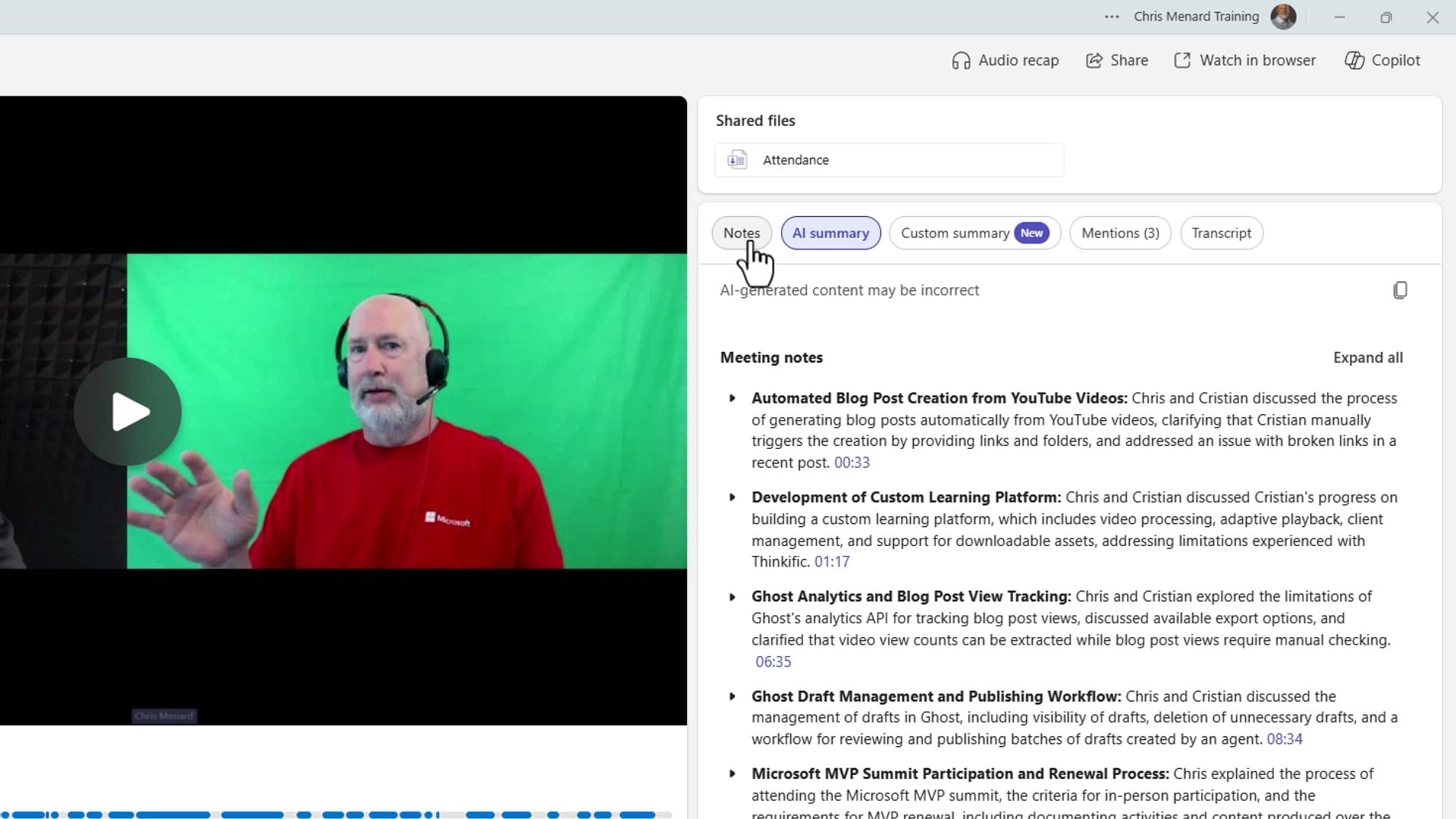
The recap panel opens with familiar tabs — Notes, AI summary, and Transcript. The AI summary groups the meeting into topic sections with timestamps. Click any timestamp to jump to that exact spot in the recording. Follow-up tasks identified by Copilot appear at the bottom.
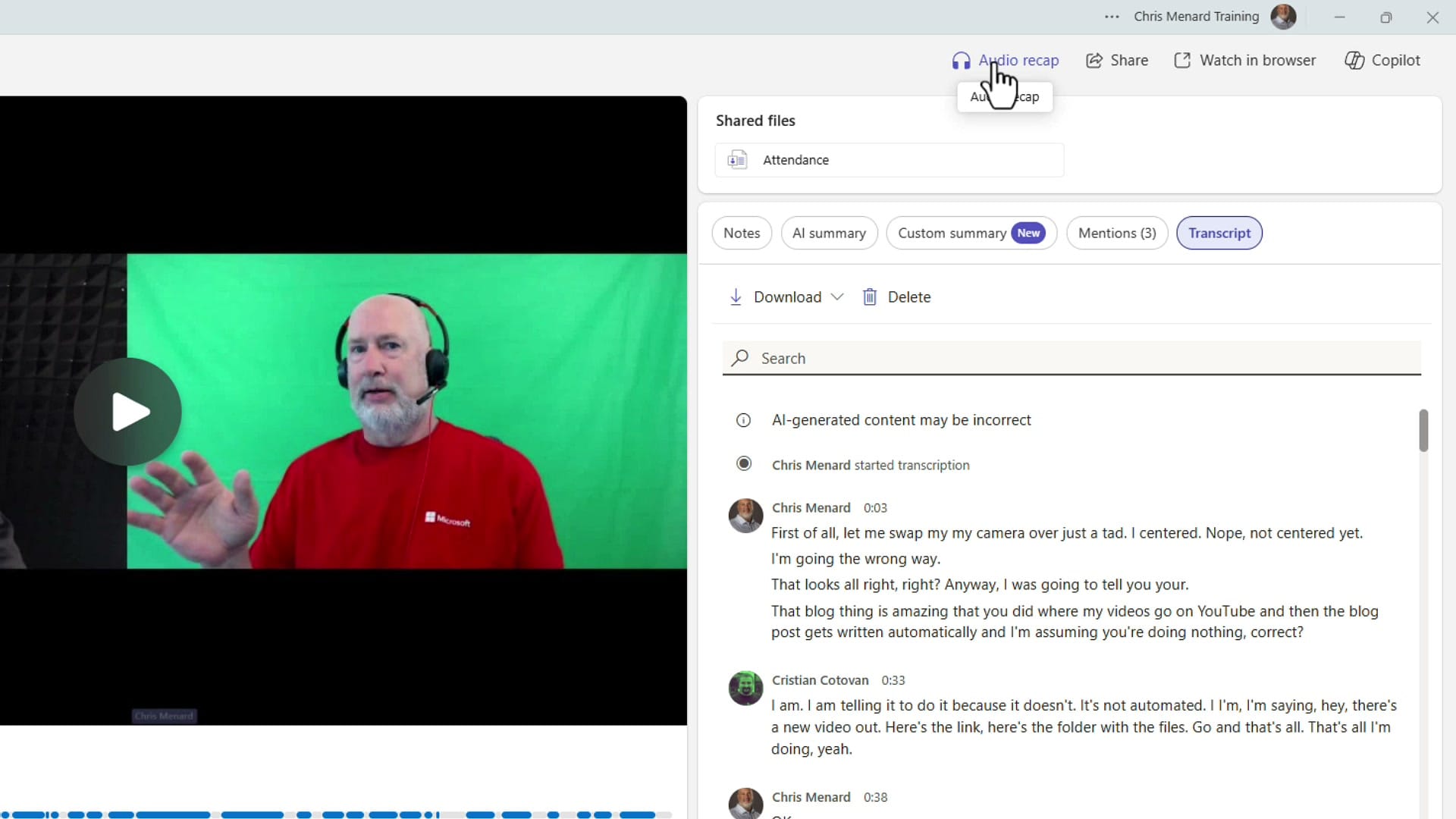
The Transcript tab is also unchanged. You can search it, download it, and click any line to jump to that point in the video.
What's New: The Custom Summary Tab
Click Custom summary (marked with a New badge) and you get three options that were not there before: Create template, Speaker summary, and Executive report.
Speaker Summary
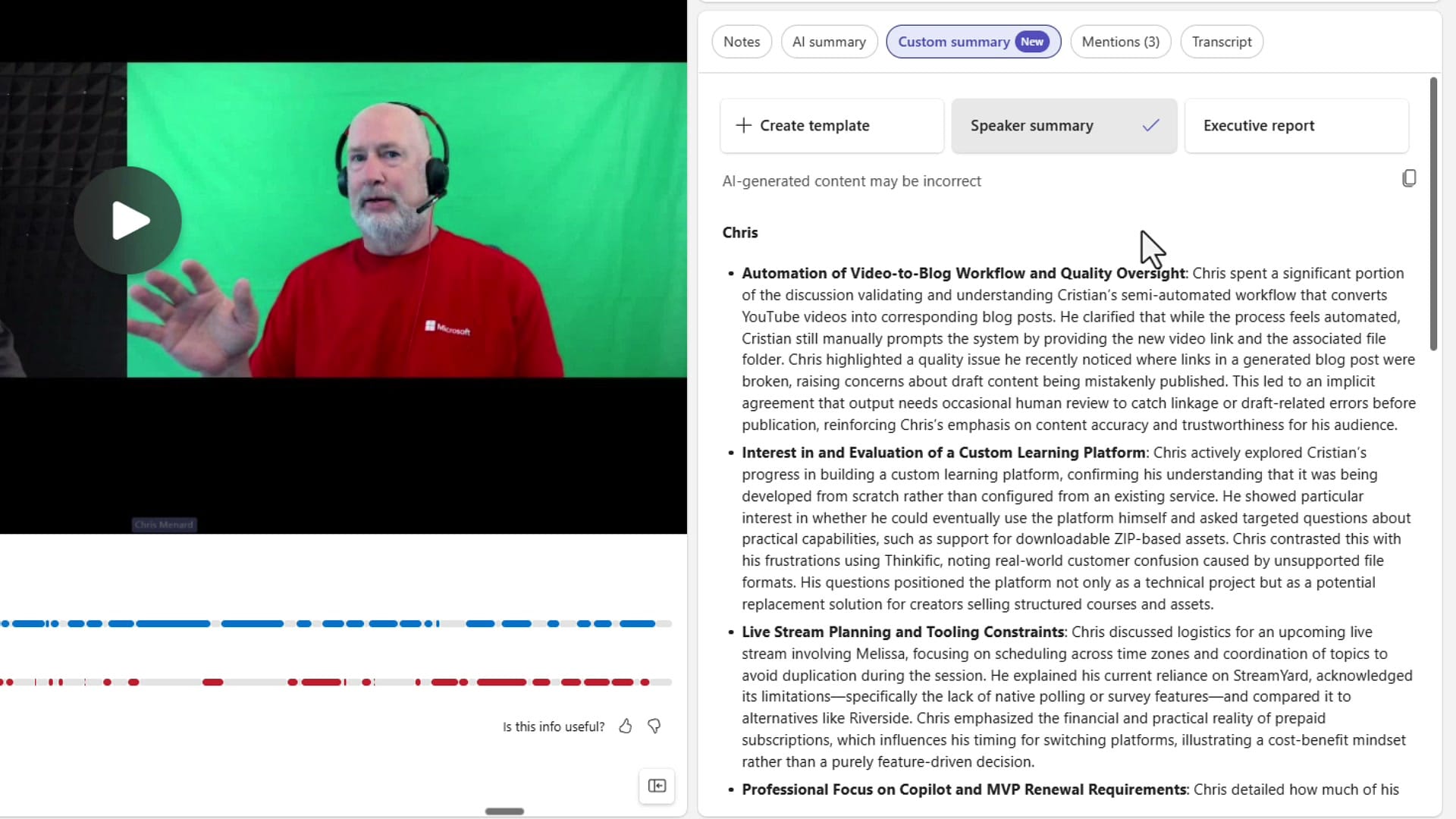
The Speaker summary breaks down the meeting by attendee. Each speaker gets their own section with a summary of what they specifically said, scrollable down the page. There is a copy icon at the top right so you can grab any speaker's summary and paste it wherever you need.
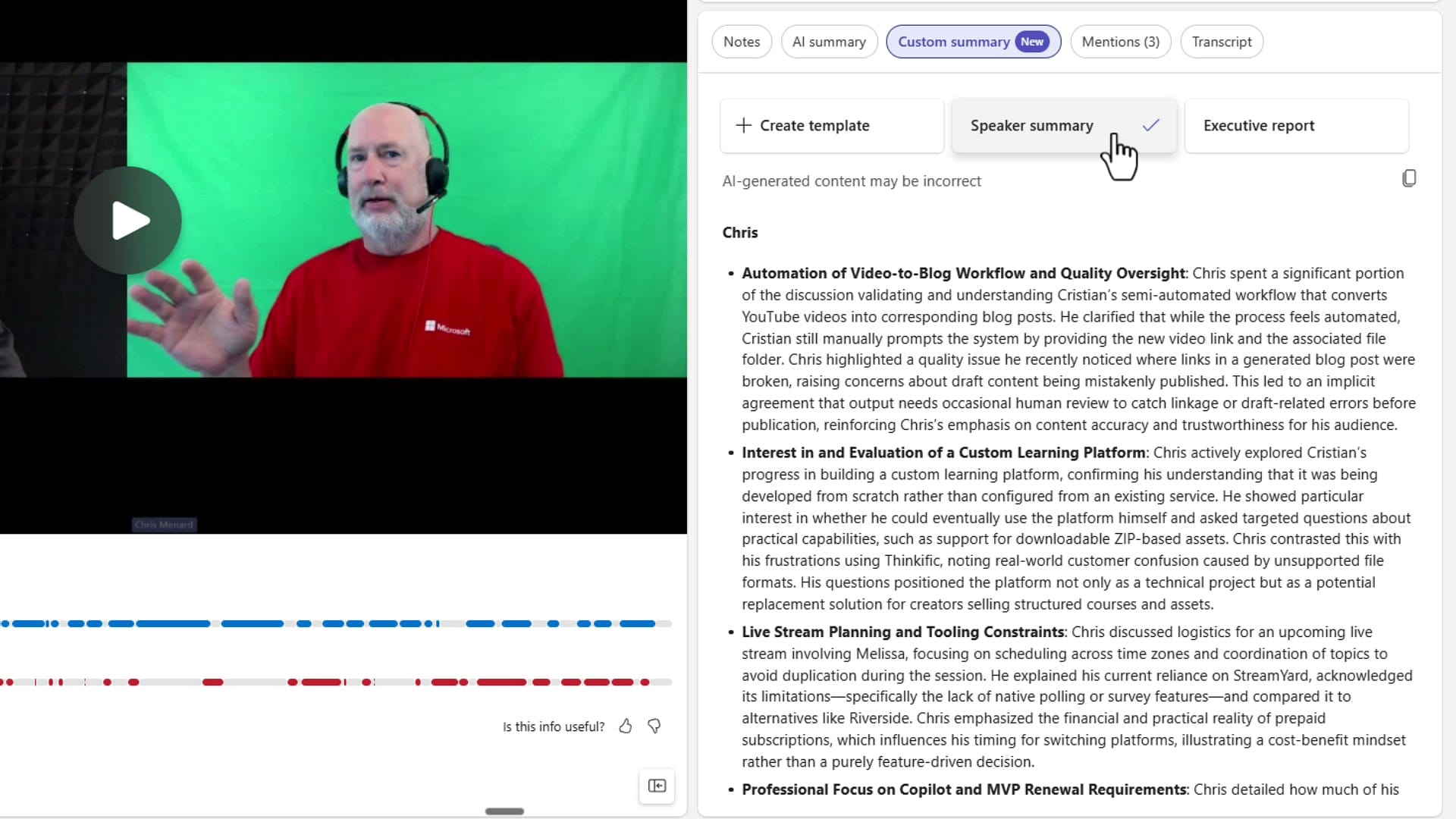
Scroll down and each additional speaker gets their own detailed breakdown — ideal for meetings with multiple contributors where you want to track who said what.
Executive Report
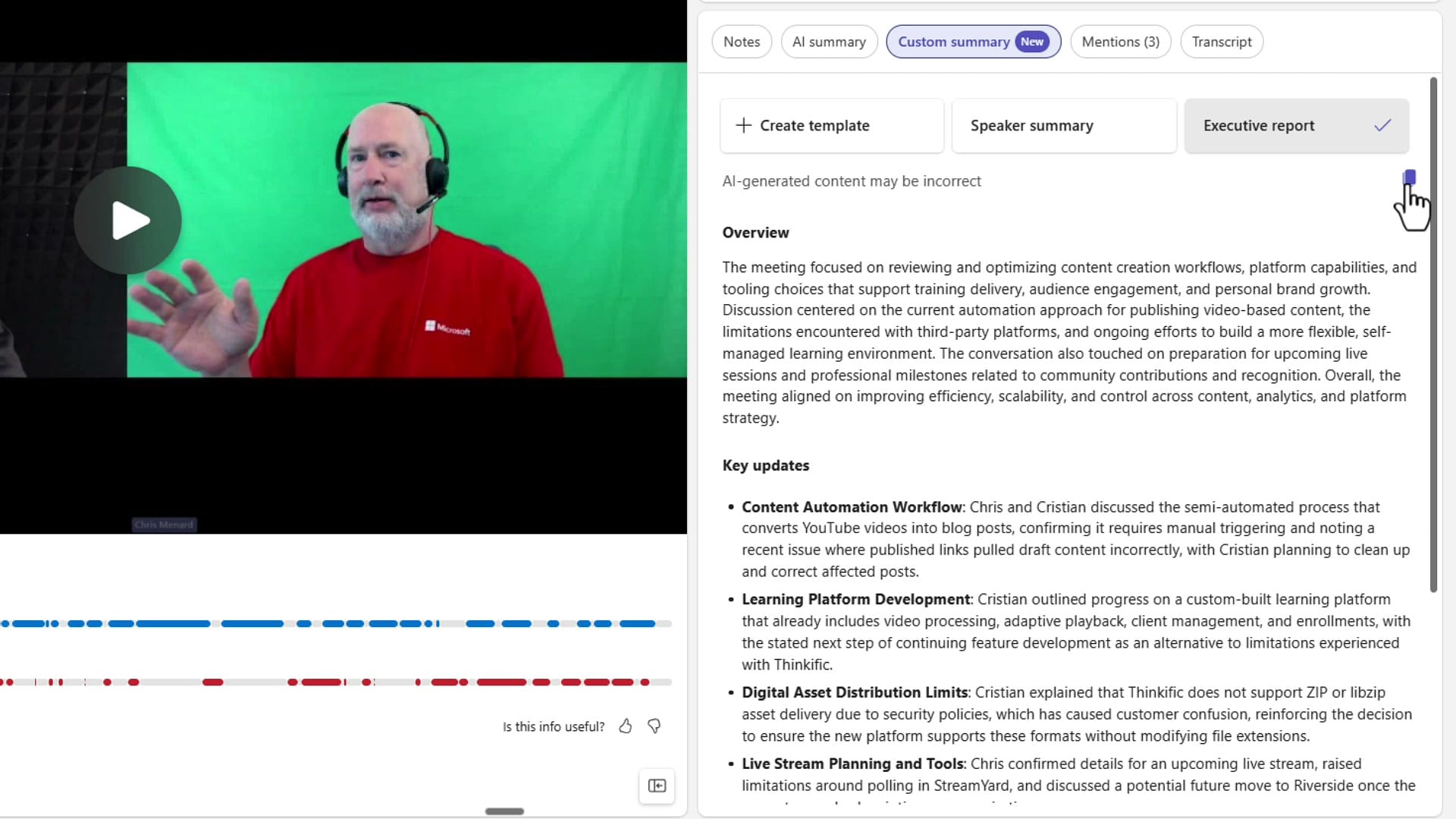
The Executive report takes the same meeting content and reformats it into an executive-style overview. You get an Overview paragraph at the top followed by Key updates as bullet points. Same information as Speaker summary, but organized by topic instead of by person — perfect for sending up to leadership.
Create Template
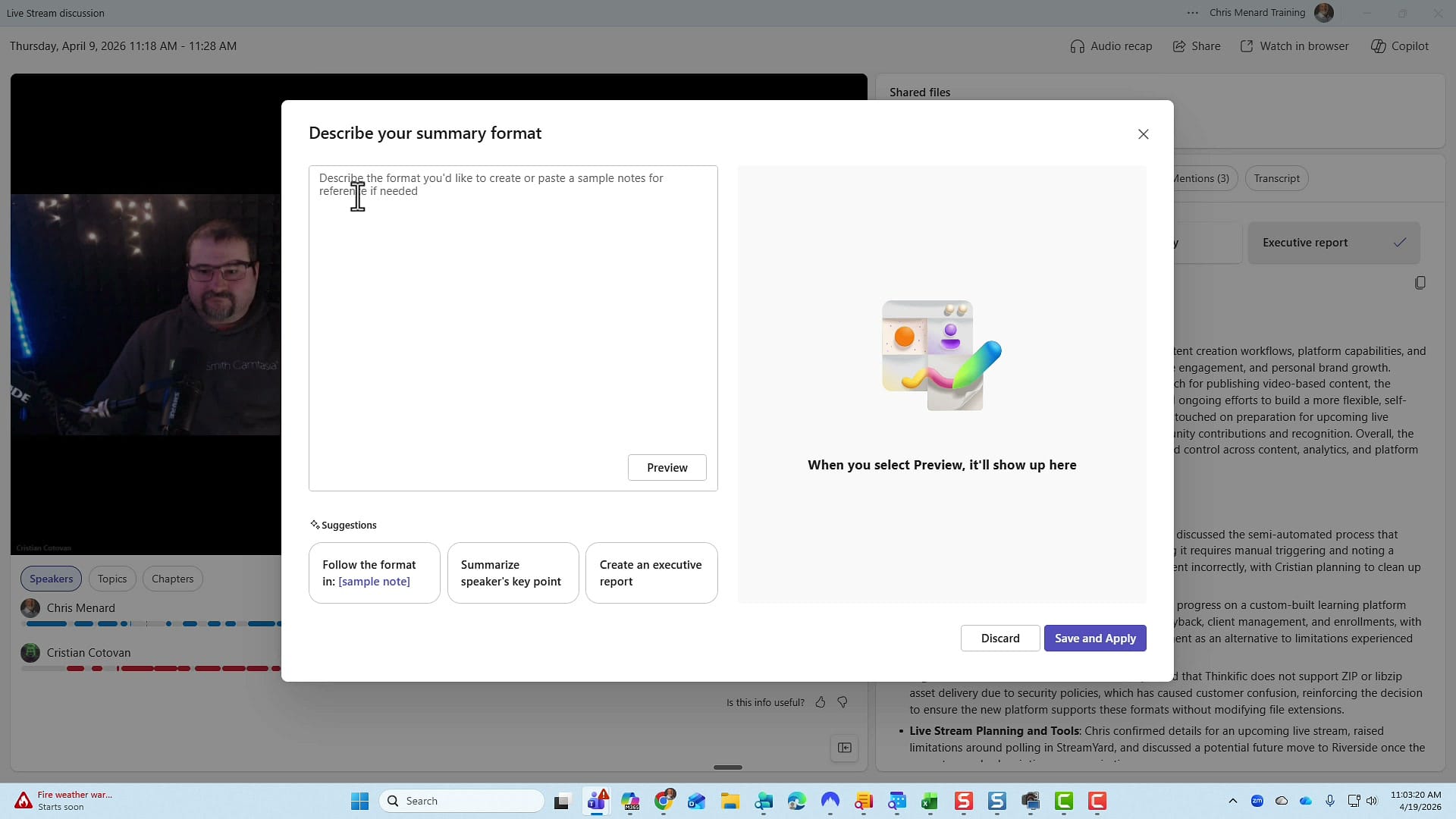
The third option is Create template. This lets you define your own summary format. Describe how you want the report to look, or paste a sample note as a reference. Teams gives you suggestions at the bottom like "Follow the format in [sample note]" or "Summarize speaker's key points." Click Preview to see the result, then Save and apply.
What's New: Improved Audio Recap
Audio recap has been in Teams for a while, but it has been improved. Click Audio recap at the top of the recap panel to open the new player. What is new is the Chapters view — the audio recap is now broken into a full intro, topic-based chapters with timestamps, and an outro. Click any chapter to jump to that section of the audio narration.
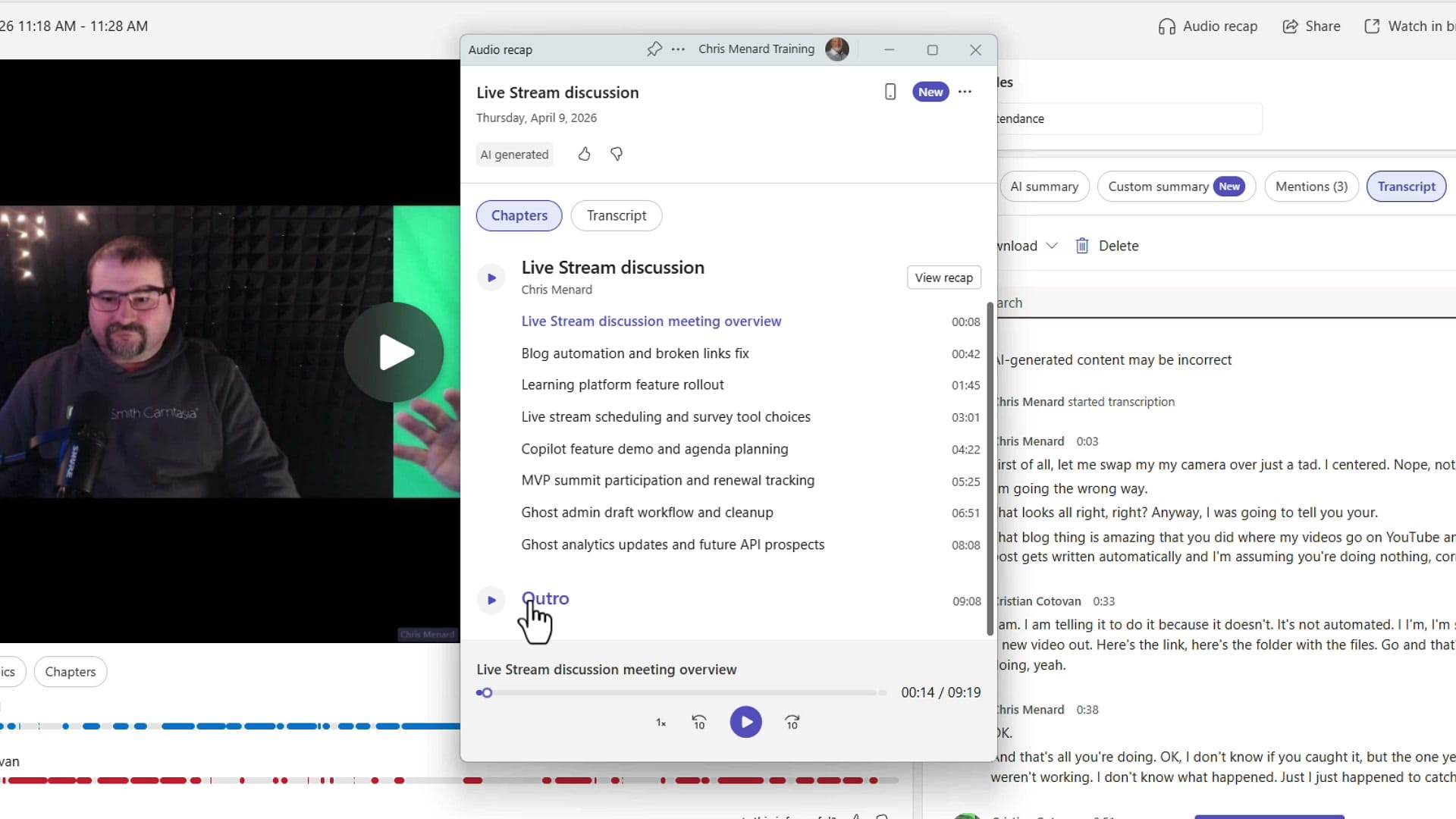
You can speed up, slow down, pause, or scrub through the recap. The full transcript of speaker 1 and speaker 2 is also visible alongside the audio.
Coming Soon: Video Recap
One more feature is coming that was not yet available when I recorded this — Video recap. Instead of watching a full 30-minute recording of a meeting you missed, you will get a short video recap (a few minutes long) summarizing the key moments. It will appear in the recap panel once it rolls out. I will cover it in a separate video when it is live.
Quick Reference
| Feature | Status | What it does |
|---|---|---|
| AI summary with timestamps | Existing | Topic-based summary, click to jump to that moment |
| Mentions | Existing | Instances of attendees saying someone's name |
| Transcript (searchable, downloadable) | Existing | Full speaker-labeled transcript |
| Speaker summary | New | Per-speaker breakdown of what each person said |
| Executive report | New | Overview + Key updates reformatted for leadership |
| Create template | New | Define your own custom summary format |
| Audio recap with chapters | Improved | Chapter-based audio narration with timestamps |
| Video recap | Coming soon | Short video summary of a full meeting |
All of this requires a Microsoft 365 Copilot license — without it, you still get the basic recap but not the Custom summary or improved Audio recap features.
Related Microsoft Teams and Copilot Tutorials
 Chris Menard
 Chris Menard
 Chris Menard
 Chris Menard
 Chris Menard
Want to learn more? Visit courses.chrismenardtraining.com for online training courses.



