
Copilot in Teams Control Access: Manage Recordings, Transcriptions & AI Insights

If you're a Microsoft Teams user with Copilot, exciting new features have been rolled out. You can now manage who has access to meeting recordings, transcriptions, and AI-generated insights as the meeting organizer. This enhances security and privacy in your Teams meetings.
In this article, we will explore how to set up and use these new access control features in Microsoft Teams.
YouTube Video - Copilot in Teams: Manage Access to Recordings, Transcriptions & AI Insights
Accessing Meeting Options
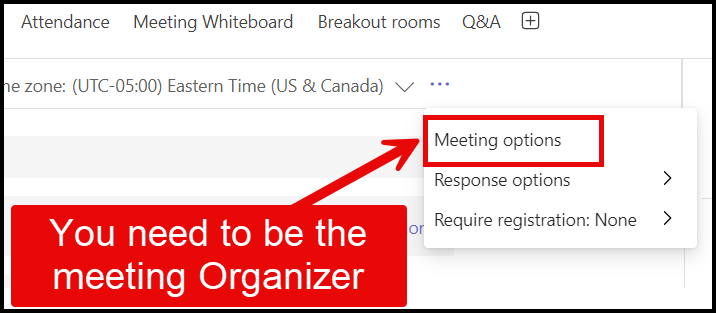
To begin managing access to your meeting content, you need to access the meeting options. This is a straightforward process that starts with pulling up a scheduled meeting.
As the meeting organizer, double-click to enter edit mode. Here, you will see the list of invited attendees. Note that some may not be part of your tenant.
Copilot in Teams - manage access
New Access Control Settings
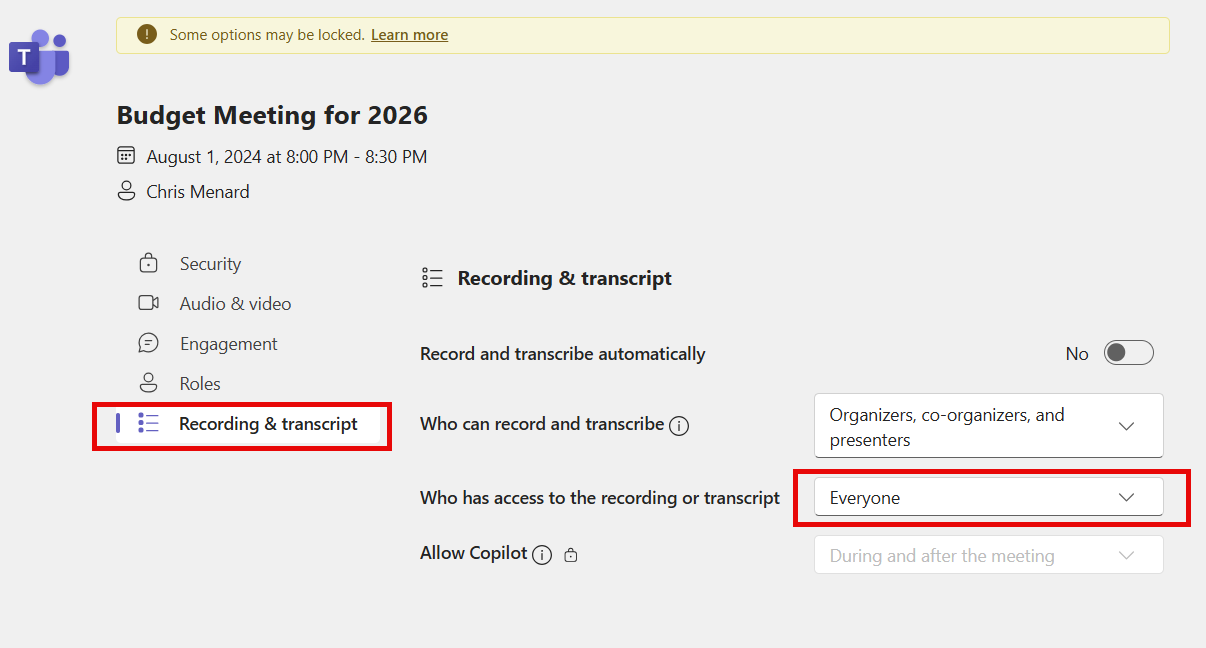
Once in edit mode, navigate to the meeting options. You will find these under the 'Recording and Transcript' section. By default, access to recordings and transcriptions is set to everyone.
Here's where the new feature comes into play. Previously, access was always set to everyone. Now, you have more control.
Teams - Recording and transcript
Choosing Who Can Access
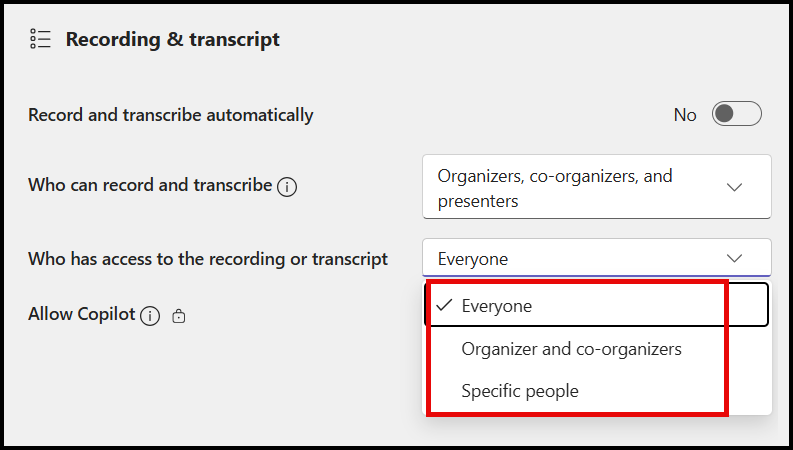
You can now choose between several options for access control:
1. Everyone 2. Organizer and co-organizers 3. Specific people
Access - 3 Options
If you select 'Specific people,' note that only individuals within your tenant or organization will be listed. External invitees will not appear.
Saving and Closing
After selecting the desired access control settings, save your changes. This is a simple process that ensures only the designated individuals have access to your meeting recordings, transcriptions, and AI-generated insights.
Close the webpage to finalize the process. It's that straightforward to control access with the new Copilot features in Teams.



