Optimizing Excel Formulas with Copilot: A Comprehensive Guide


Excel has always been a powerhouse for managing data, and with the introduction of Copilot, it's become even more powerful. Copilot in Excel is like having a personal assistant, one that's well-versed in excel formulas with copilot, making data management and analysis effortlessly efficient. This feature is designed to help users navigate through Excel's complex functionalities with ease, making it perfect for both beginners and seasoned pros.
What can Copilot do in Excel?
1. Sort 2. Filter 3. Create Charts 4. Highlight data 5. Analyze data with PivotTables 6. Create PivotCharts 7. Add formulas
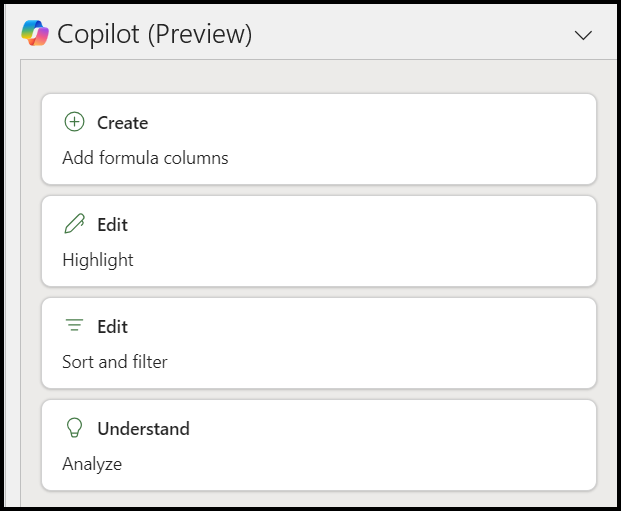
**Copilot features in Excel**
Setting Up Your Data
Before diving into the capabilities of Copilot, it's essential to set up your data correctly. Your data must be saved as a table and stored in either Microsoft OneDrive or SharePoint to enable Copilot functionalities. AutoSave must be turned on. This integration ensures that all Copilot features are readily available and that your data is accessible from anywhere, at any time.
1. Saved to OneDrive 2. AutoSave turned on 3. Range converted into a Table
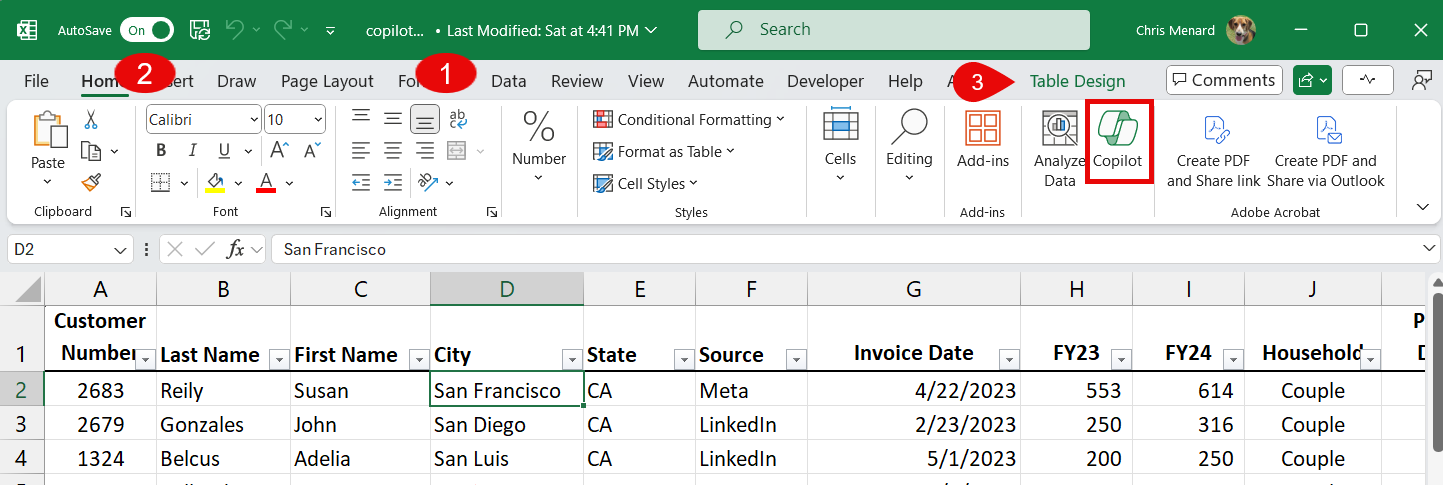
**Copilot in Excel - Writing Formulas**
**YouTube Video - Copilot create formulas**
How to Write Excel Formulas with Microsoft Copilot - YouTube
Using Formulas with Copilot
The real magic of Copilot in Excel shines when using formulas. Copilot simplifies the process of adding and managing formulas within your spreadsheets. For instance, adding a new column to compare revenue and cost becomes a task of a few clicks. Copilot suggests formulas based on your data's context, making it incredibly easy to perform complex calculations without memorizing or looking up formulas. Moreover, Copilot's ability to explain formulas ensures that you not only apply the formula but also understand how it works.
In sum, Copilot in Excel is revolutionizing the way we interact with data in spreadsheets. By simplifying data setup, enhancing formula management, and providing real-time assistance, Copilot makes Excel more accessible and powerful for everyone.
Understanding Formulas Made Easy
Another aspect where Copilot shines is its ability to explain formulas. This feature is particularly useful for those who wish to learn and understand what each formula does. By selecting 'Explain Formula,' Copilot breaks down the components of the formula in an easy-to-understand manner. This not only helped me verify that the suggested formula was correct but also served as a learning tool.
Example of Copilot adding formula columns - Numbers
I have a two fields with numbers. FY23 and FY24. In the Copilot prompt box I typed
1. **calculate the percentage difference from FY23 to FY24 in a new column** 2. Copilot came back with the correct formula **=(\[@FY24\] - \[@FY23\]) / \[@FY23\]** and I can preview the results. 3. I clicked Insert Column, and the Percentage Difference shows in column J.
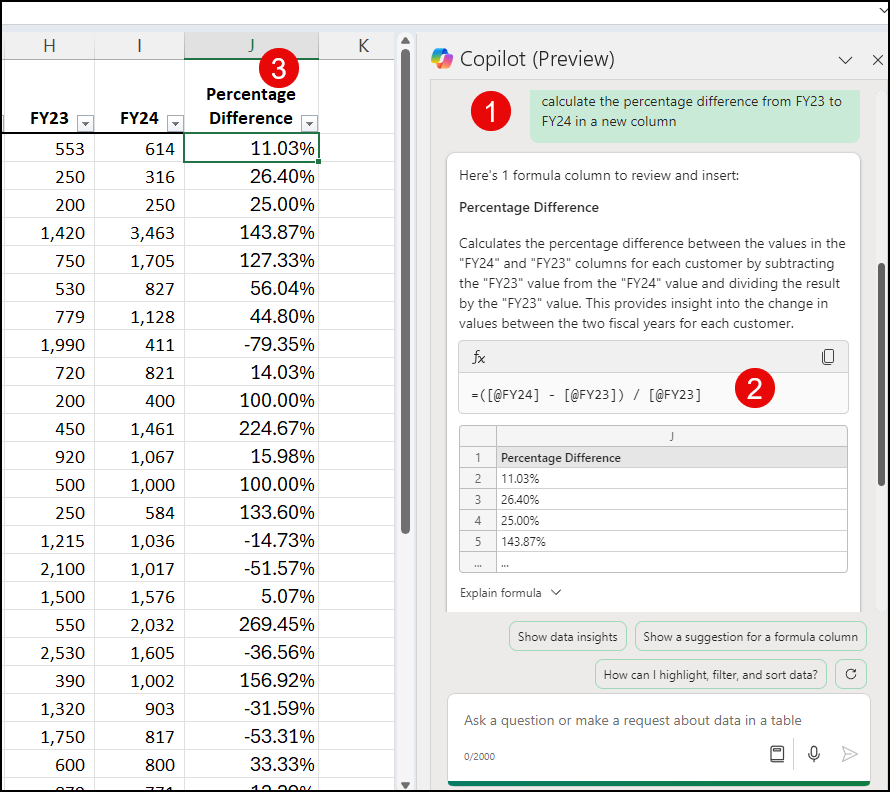
**Copilot Explains the Formula in Excel**
Example of Copilot adding formula columns - Dates
I have a Invoice Date field (column G),. I want the month in a column and I want the month as a three letter abbreviation. January is Jan, February is Feb. In the Copilot prompt box I typed
1. **Add a column showing the Invoice Date as a three letter month** 2. Copilot came back with the correct formula **=TEXT(\[@\[Invoice Date\]\],"mmm")** and I can preview the results. 3. I clicked Insert Column, and the Month shows in column K.
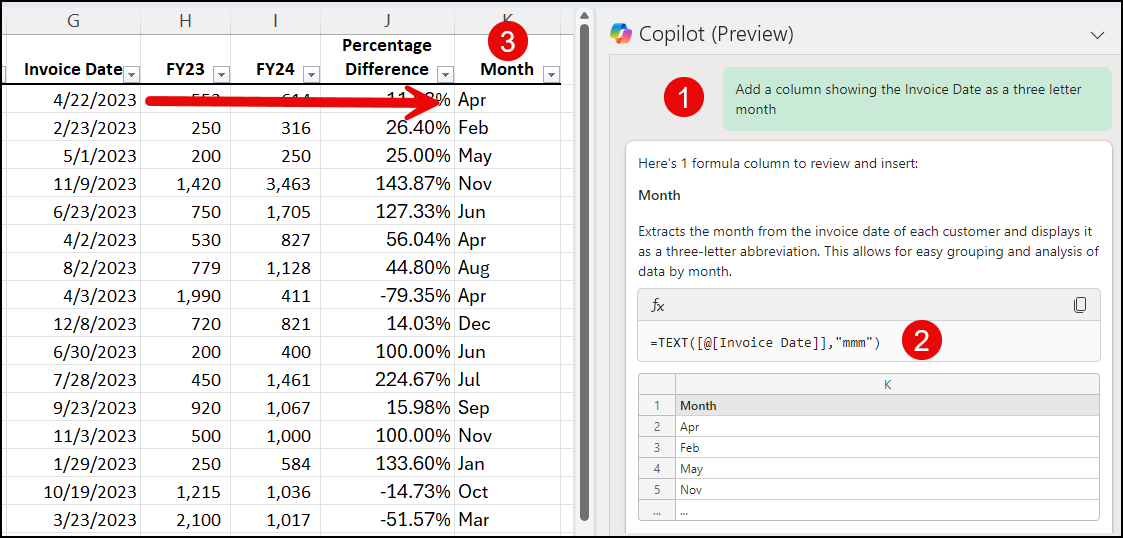
**Copilot Formulas in Excel - working with DATES**
Example of Copilot adding formula columns - Text
I have First name and Last Name is two separate columns. I want the names combined.
1. In the prompt box I type **Add a column combining the First Name and the Last Name. Name the column Full Name**. 2. Copilot correctly uses Concatentate fucntion to combine the names.
Notice is this example, I added to the prompt what I wanted the column named.
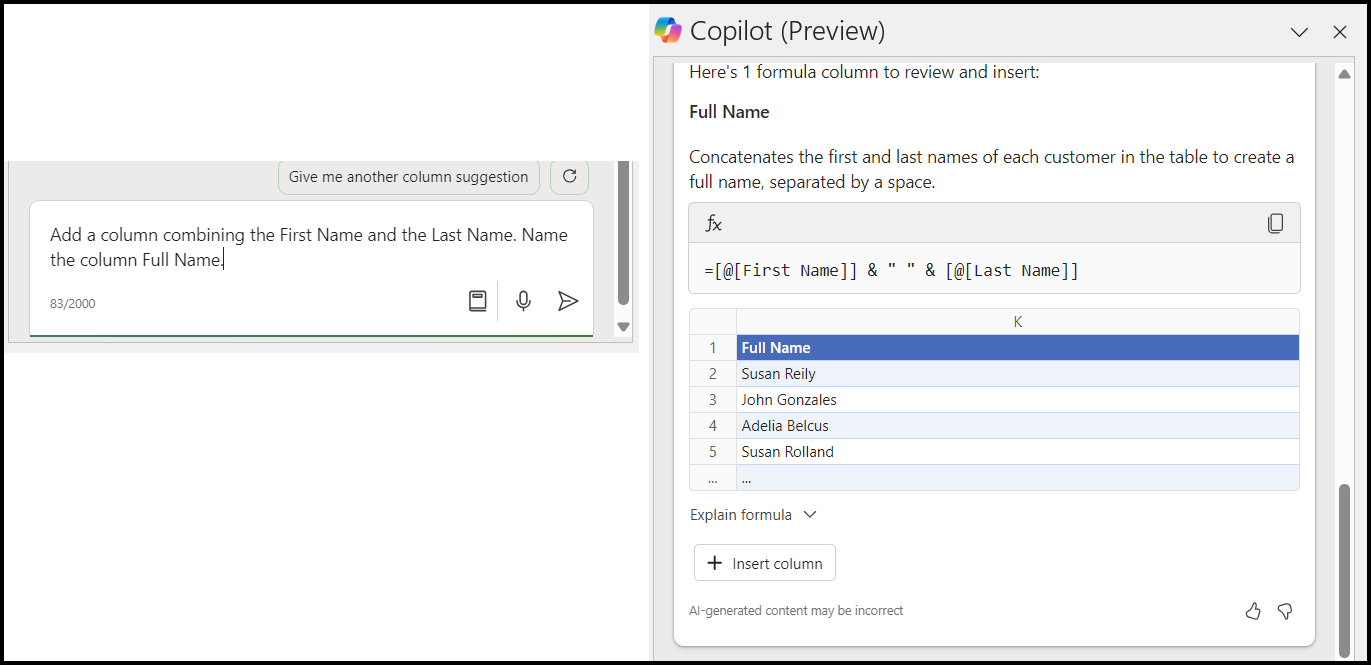
**Copilot combining names**