
Copilot in Word: Summary Differences Between Word for the Web and Word Desktop

Microsoft 365 Copilot can summarize a Word document in seconds, and it is one of the most popular features for licensed users. What is not obvious is that the summarize experience differs between Word Desktop and Word for the Web.
The summary itself is identical in both, but Word for the Web adds three extra tabs — Discussion, Activity, and Insights — that Desktop does not have. Here is exactly where they match, where they differ, and why you may want to open summaries in the browser.
Open a Document in Word Desktop
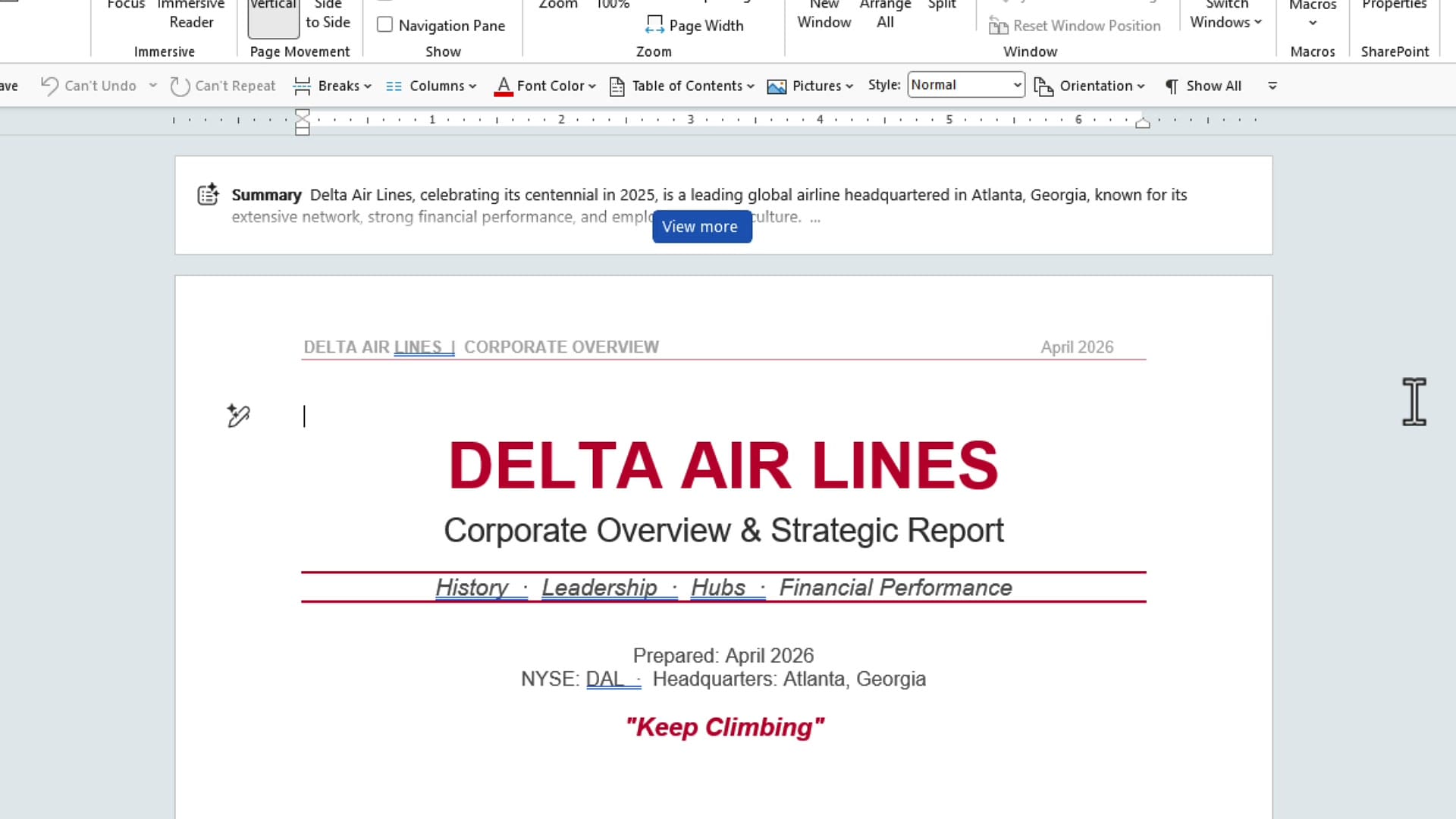
For this example, I created a Delta Air Lines corporate overview — a nine-page document stored in OneDrive. From OneDrive, click the three dots next to the file and choose to open it in the Word Desktop app.
At the top of the document, you will see a Summary banner with two lines generated automatically. This happens because the file is stored in the cloud. If you opened the document from your Downloads folder or another local location, you would see a Generate Summary button instead, and you would need to click it to create the summary.
Brief, Standard, and Detailed — Identical in Both Versions
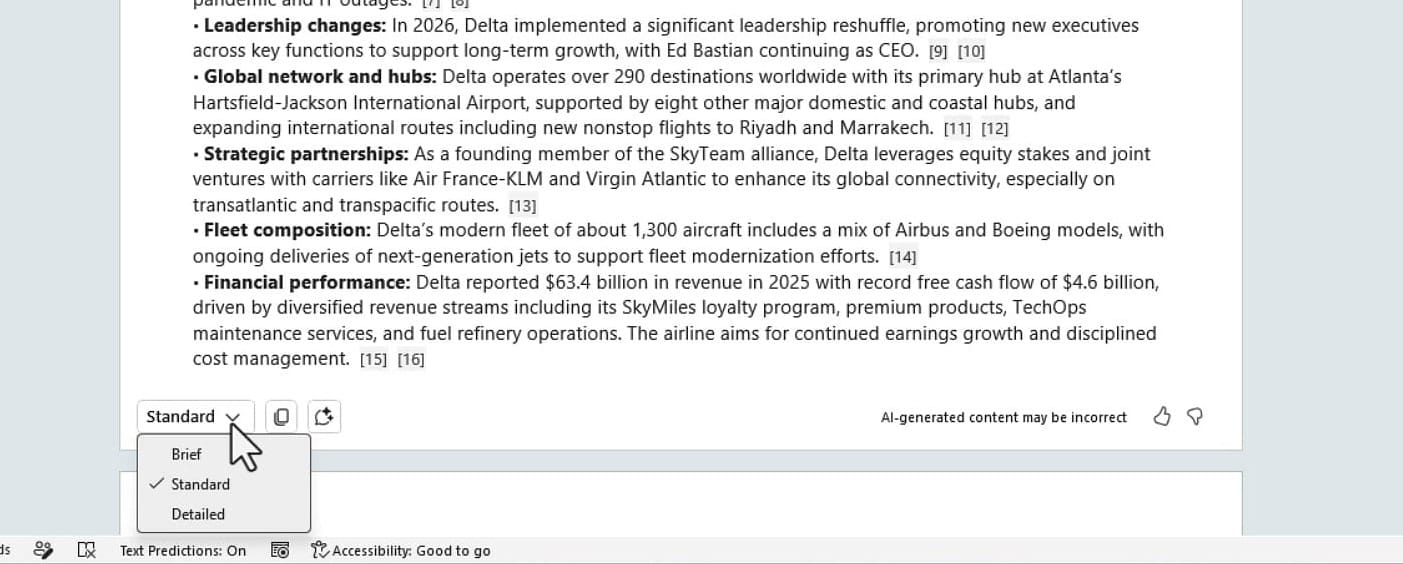
Click View more to expand the summary. The dropdown at the bottom left lets you choose the length: Brief, Standard, or Detailed. This part works exactly the same in Word Desktop and Word for the Web — same output, same options, same formatting.
If all you need is a summary, you can stop here. But Word Desktop ends at the summary — there are no additional tabs or features. This is where the two versions diverge.
Open the Same File in Word for the Web
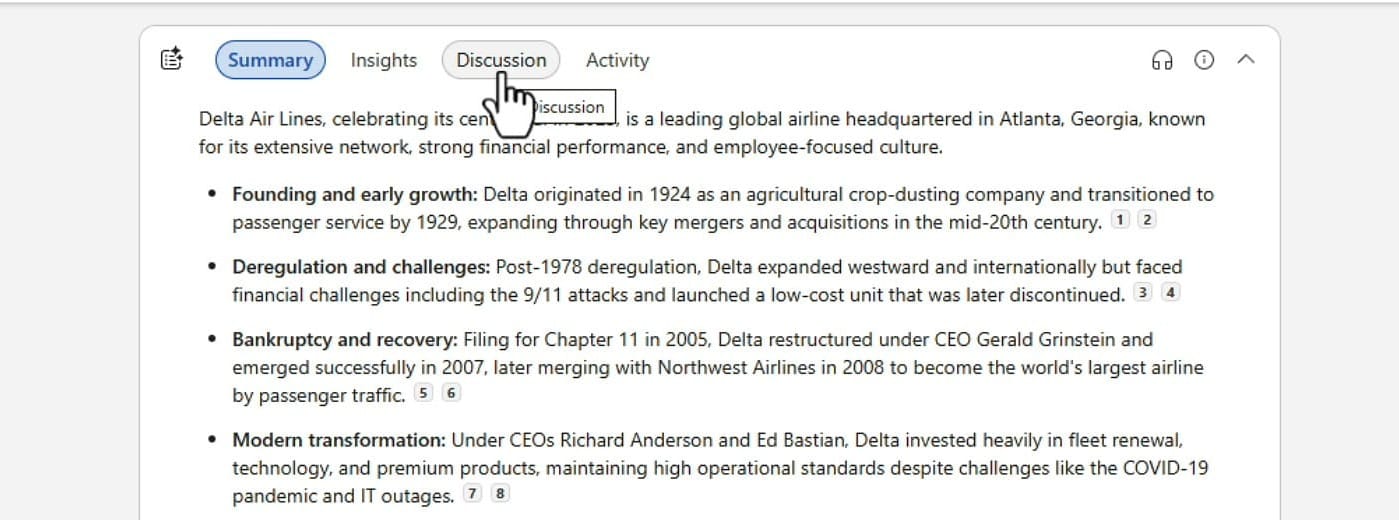
Go back to OneDrive, click the three dots on the file, and choose Open in Browser. Word for the Web opens with the same two-line summary at the top. But look right above the summary — you now see four tabs: Summary, Insights, Discussion, and Activity.
The Discussion Tab
The Discussion tab pulls in any comments that have been added to the document. If multiple people have worked on the file, you will see all their comments summarized here. In this example, I added a comment requesting more details about Atlanta, and Copilot surfaced it as a discussion point.
The Activity Tab
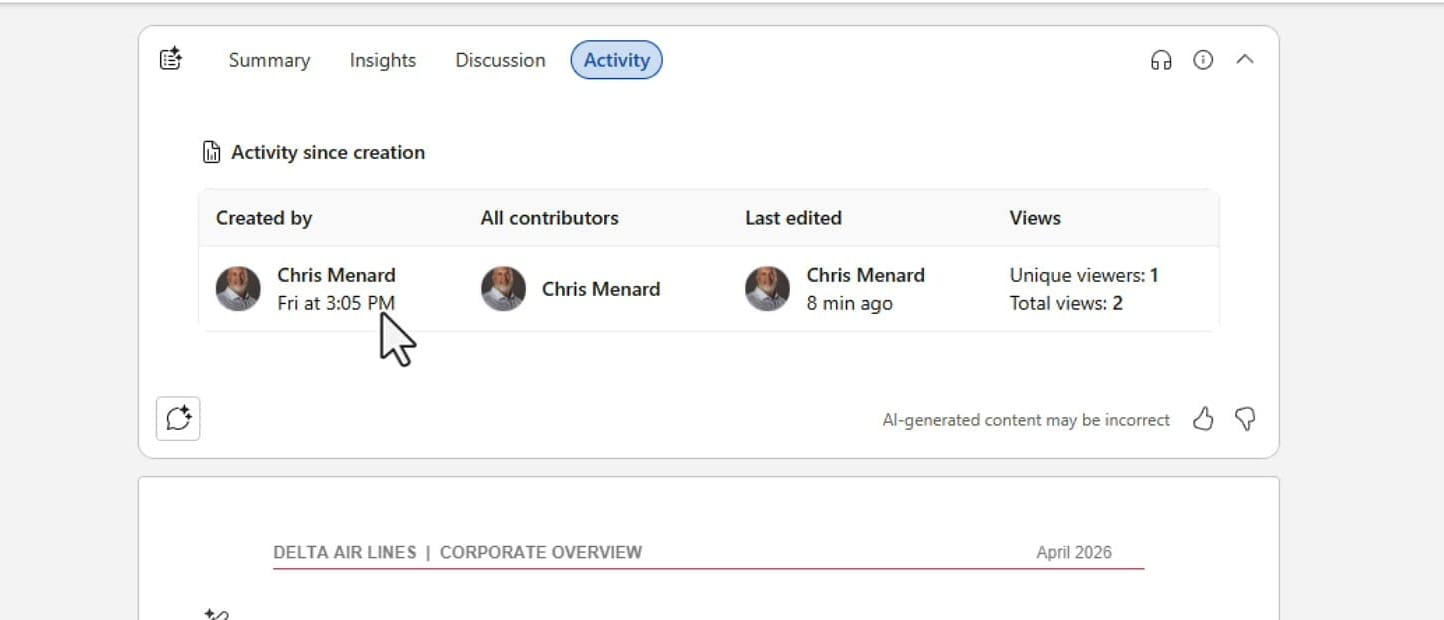
The Activity tab shows who has been in the document, when it was created, who contributed, when it was last edited, and how many unique viewers and total views it has. This is useful when working on a shared document and wanting to know who has opened it.
The Insights Tab
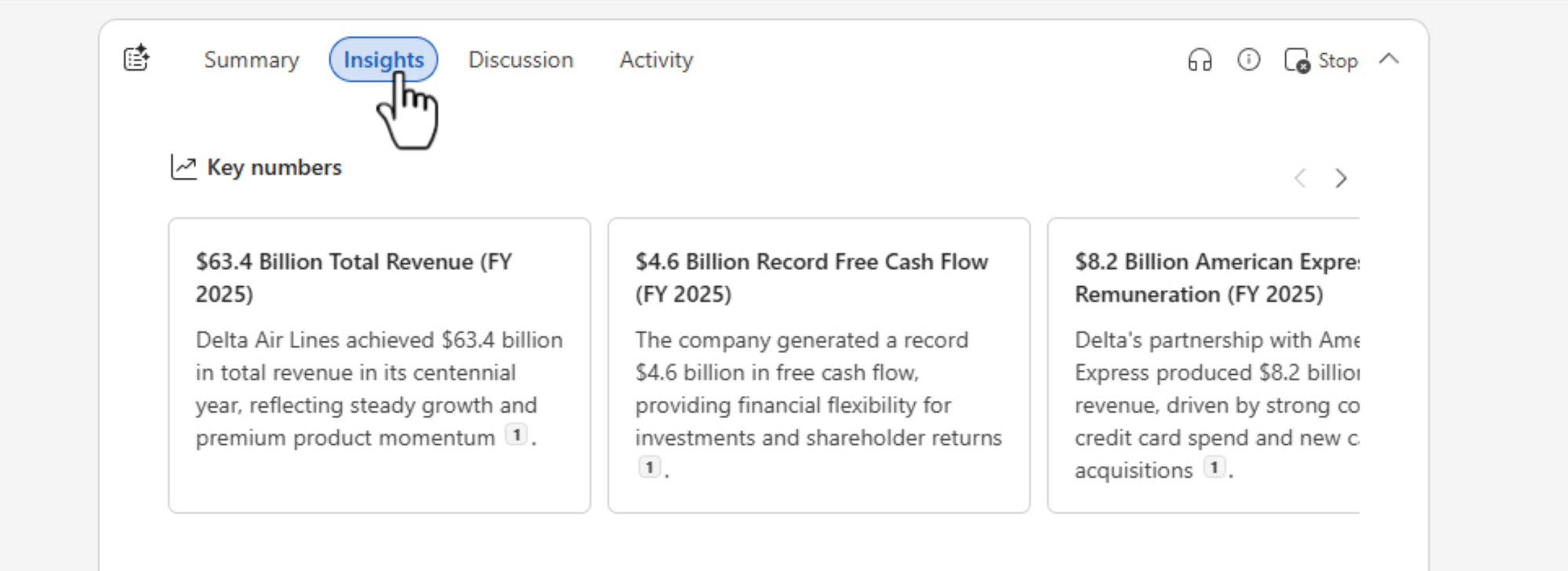
The Insights tab is my favorite. It extracts key numbers from the document and pulls them to the top — things like revenue figures, dates, and percentages. It also surfaces suggested Q&A based on the document's content, so you can click through expandable questions that are likely relevant.
Generate a Podcast-Style Recording
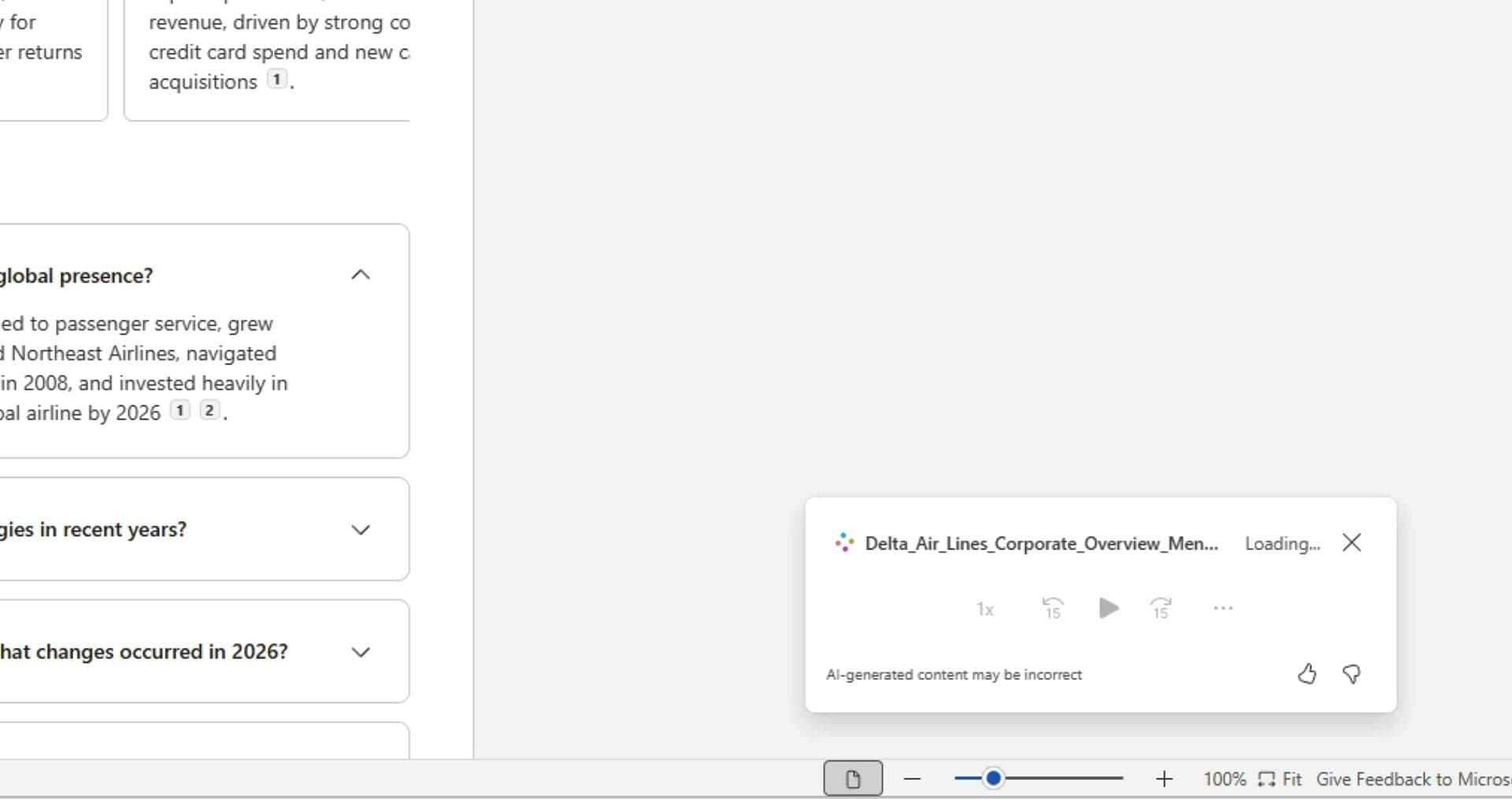
From the Insights tab, you can also generate a podcast-style audio recording of the document. This turns the content into a listenable audio summary that plays in a small window at the bottom right. You can also trigger this same feature from Microsoft OneDrive directly.
Generating a Summary from a Local File
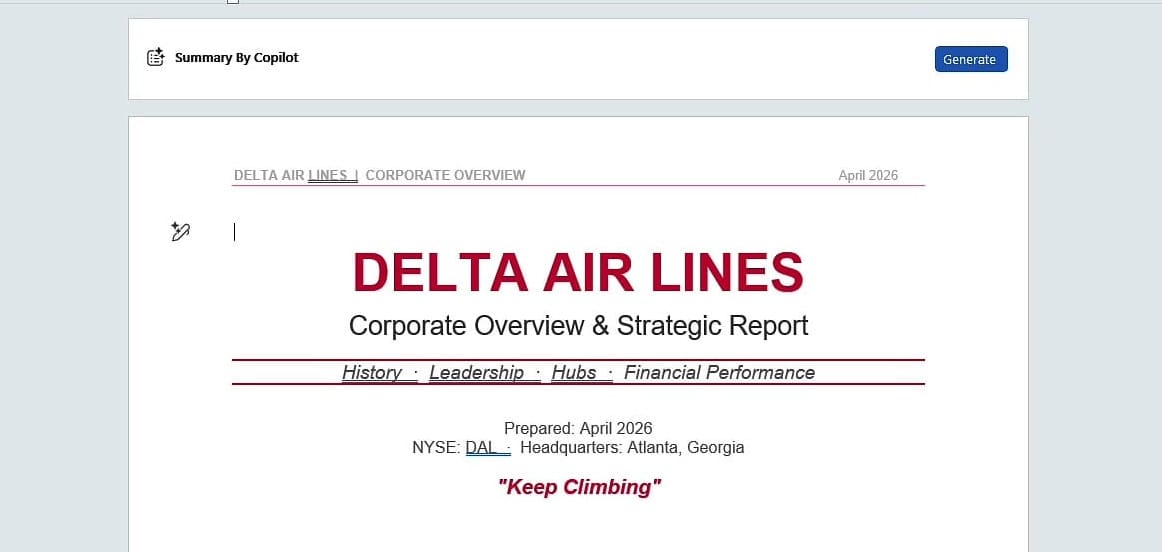
One more thing worth knowing: if you open a document from a local folder (like Downloads) rather than the cloud, the summary does not generate automatically. You will see a Summary by Copilot banner with a Generate button. Click Generate, and you get the same Brief / Standard / Detailed options.
Quick Reference: Word Desktop vs Word for the Web
| Feature | Word Desktop | Word for the Web |
|---|---|---|
| Two-line auto summary (cloud files) | Yes | Yes |
| Brief / Standard / Detailed summary | Yes | Yes |
| Generate Summary (for local files) | Yes | Yes |
| Discussion tab | No | Yes |
| Activity tab | No | Yes |
| Insights tab with key numbers + Q&A | No | Yes |
| Podcast-style audio recording | No | Yes |
If you only need a text summary, Word Desktop is fine. But for collaborative documents, key data extraction, Q&A, and audio overviews — open it in Word for the Web to get the full Copilot experience.
Related Microsoft Copilot Tutorials
 Chris Menard
 Chris Menard
 Chris Menard
 Chris Menard
 Chris Menard
Want to learn more? Visit courses.chrismenardtraining.com for online training courses.



