How to Use the Copilot Legal Agent to Redline Documents in Word

Microsoft Copilot in Word has a great new feature that just rolled out: the Legal Agent. It can review a contract, leave clause-level comments, and apply insertions and deletions with track changes — all from a prompt inside Word.
I am not an attorney, so consider this a demo of the feature, not legal advice.
Let's run through how it works on a sample nondisclosure agreement.
Two requirements before you start
The Legal Agent is not on by default. Before it shows up in Word, two things must be true:
- Your organization is enrolled in the Frontier Program — that is just Microsoft's early preview track for Copilot features.
- Anthropic is enabled in your Microsoft 365 tenant.
Both of these are admin-only settings. As an end user, you can't turn them on yourself — somebody on your IT/admin team has to flip them on. Once both are in place, the Legal Agent appears as an option inside the Copilot task pane.
Step 1: Ask Copilot Chat for prompt ideas
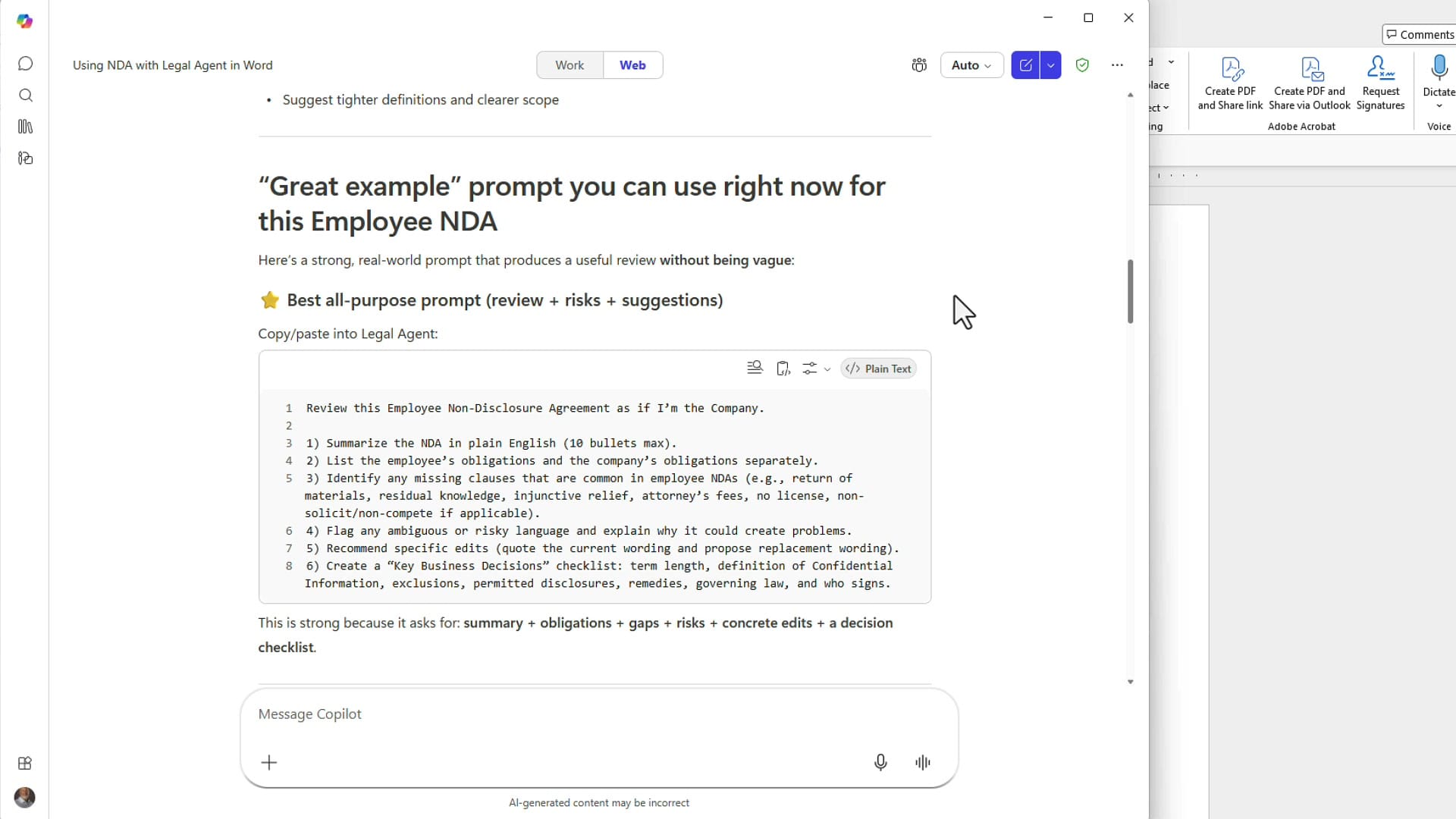
Before opening Word, I jumped over to Copilot Chat on the web and asked it for good prompts to use with the Legal Agent on this NDA. It came back with several solid options, including an all-purpose review-and-suggest prompt. Anyone with Copilot Chat can do this part — it doesn't require Frontier or the Legal Agent.
Step 2: Pick the redliner prompt
Out of the prompts Copilot Chat gave me, I went with the one that asks the Legal Agent to act as a redliner. The exact prompt I used was:
Act as legal reviewer. Redline this NDA against a typical company-favorable employee NDA position. Call out clauses that are too employee-friendly or unclear. Suggest replacement language that is clearer and more enforceable. Where you recommend changes, provide: (a) issue, (b) risk, (c) suggested replacement text. Keep the tone professional and consistent with contract drafting.
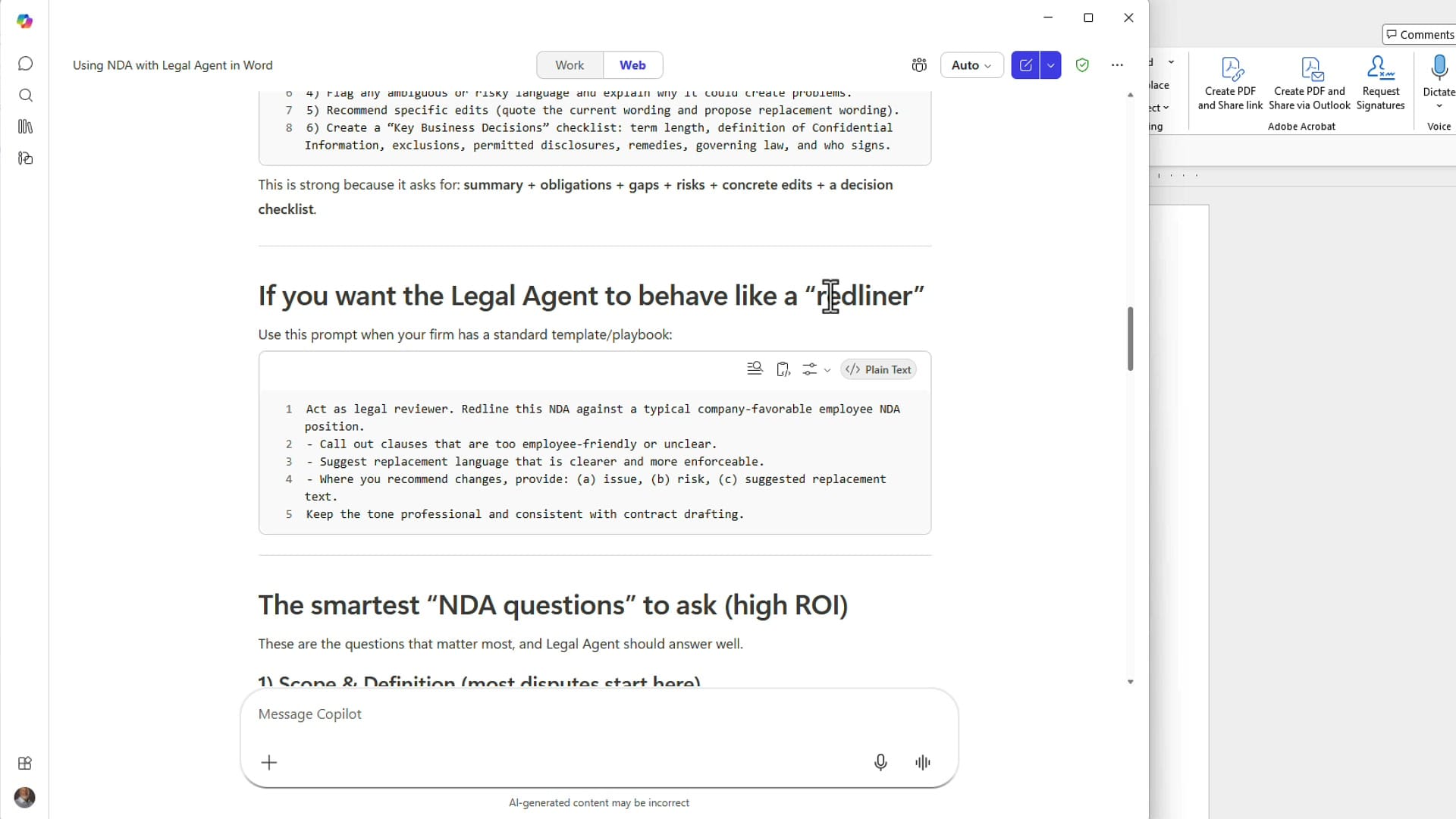
I copied it to the clipboard so I could paste it straight into the Legal Agent in a moment.
Step 3: Open the Legal Agent in Word
The Copilot icon has moved to the bottom of the screen in the latest Word. Click it, the task pane opens on the right, then click the + symbol and pick Legal Agent — you'll see "Frontier" next to it as a label.
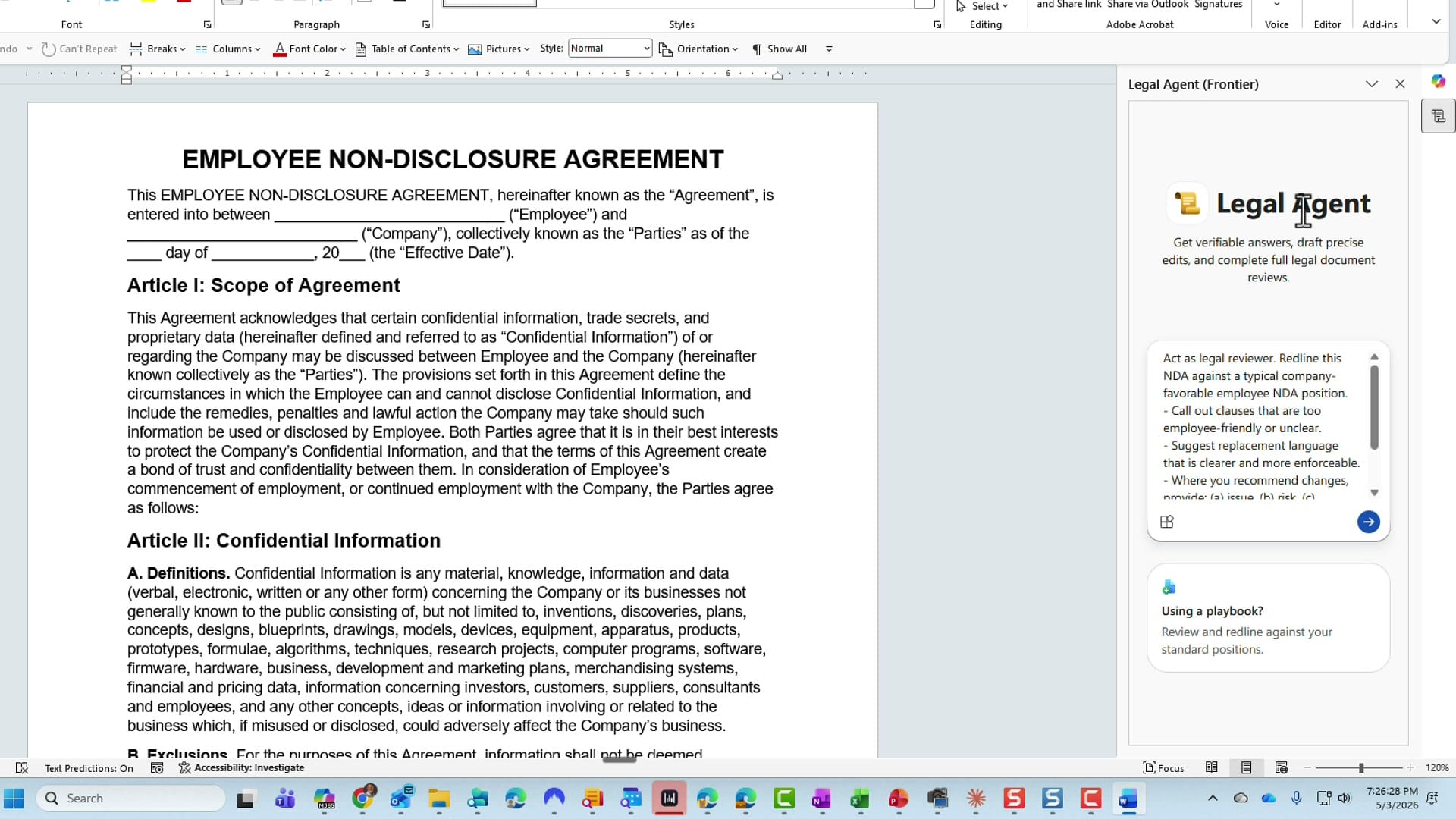
If you don't see Legal Agent in that list, you're either not in the Frontier Program or Anthropic isn't enabled in your tenant. Both have to be on.
Step 4: Paste the prompt and watch comments build
I pasted my redliner prompt into the input box and hit send. Honestly, I wasn't sure whether it would respond with comments or jump straight to track changes — turns out, by default it produces comments. On the right side of the panel, the status shows "Building comments (2)... 3... 4..." as it works through the document.
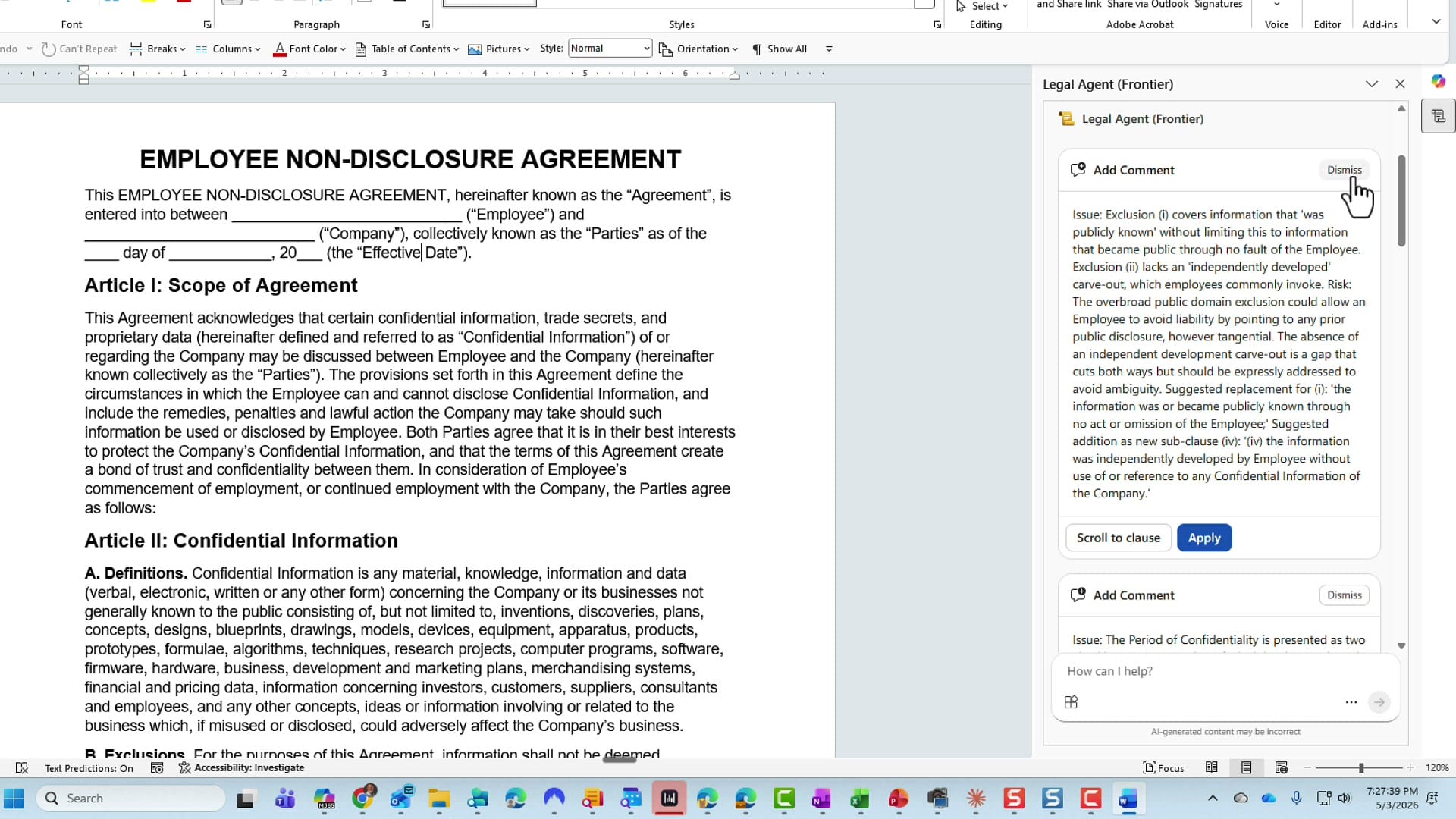
On this NDA it produced six comments, which took maybe a minute. Each comment has the issue, the risk, and a suggested replacement — exactly what I asked for in the prompt.
Step 5: Use Scroll to clause to find each suggestion in context
Reading a list of comments out of context isn't very useful. The Legal Agent gives you a Scroll to clause button on every comment — click it, and Word highlights the exact paragraph the comment is about so you can read it in place.
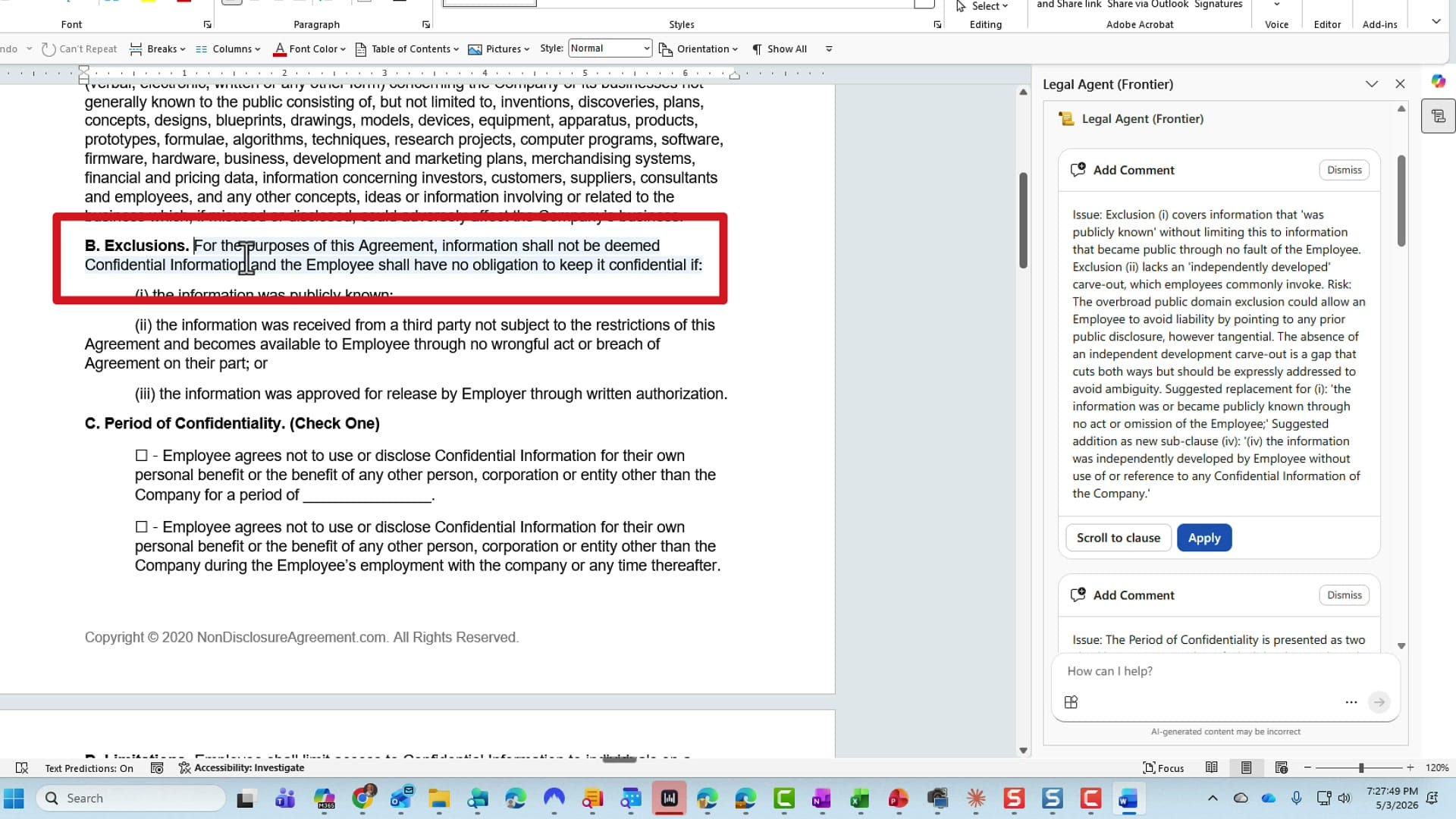
On the first comment, Scroll to clause jumped me right to letter B, Exclusions, which is what that suggestion is about.
Step 6: Apply or Dismiss each comment — or batch them all at once
For each suggestion you have two choices:
- Apply — adds the comment to the document. The comment appears in the right margin attributed to you, just like a manual review comment.
- Dismiss — removes the suggestion so it doesn't get added.
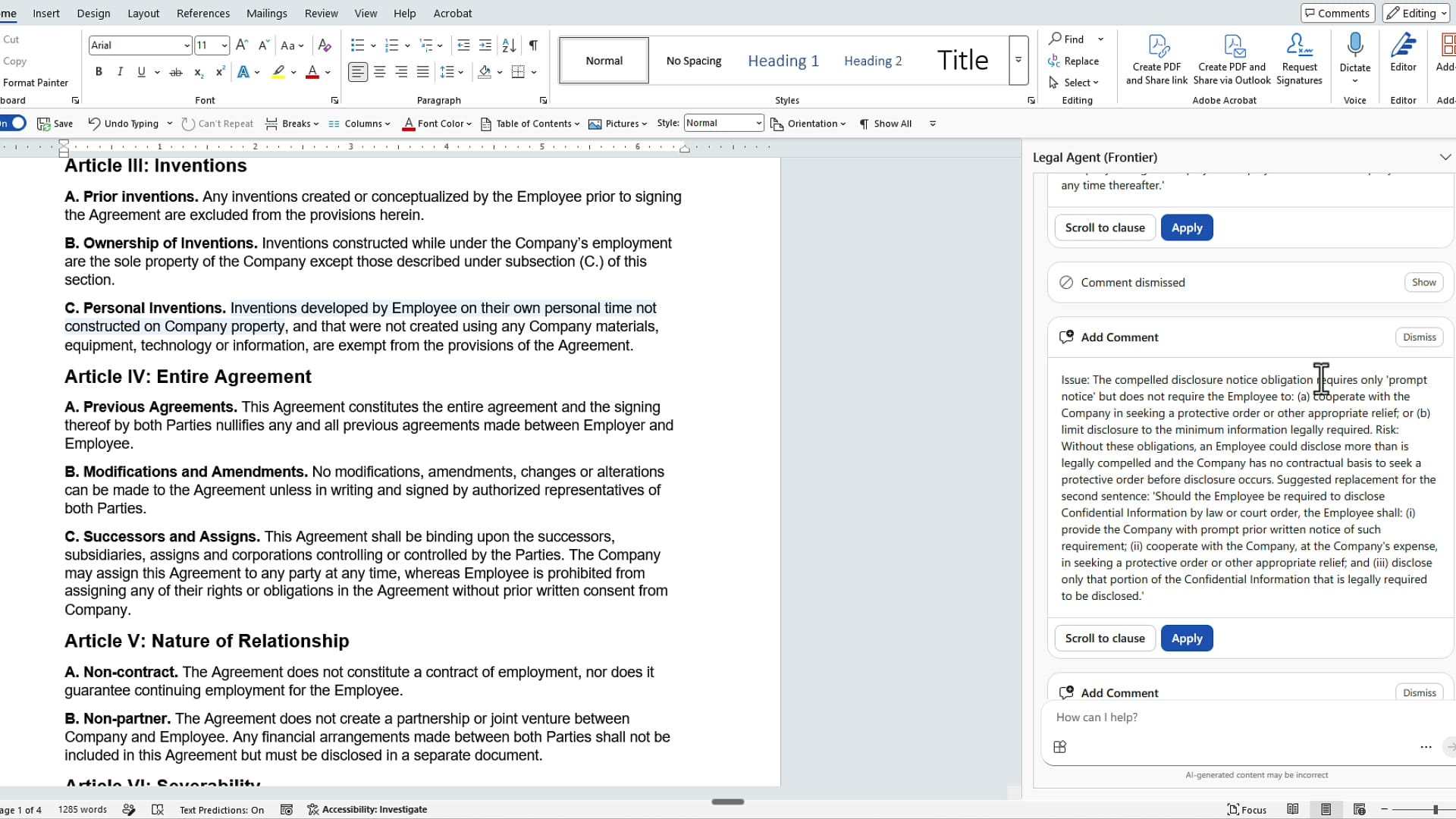
What I like is that you don't have to click Apply or Dismiss on every single one as you go. You can scroll through the full list, dismiss the ones you don't want, and then at the bottom there's an option to add all the remaining comments at one time. That's a real time-saver when the agent generates a dozen suggestions.
Step 7: Ask for track changes — insertions and deletions
Comments are useful, but on a real NDA I usually want actual suggested edits, not just margin notes. So I dropped back into the prompt box and typed:
I notice you added comments, which I'm happy with, but I would like to see some insertion of new text and deletions using track changes. Can you do that?
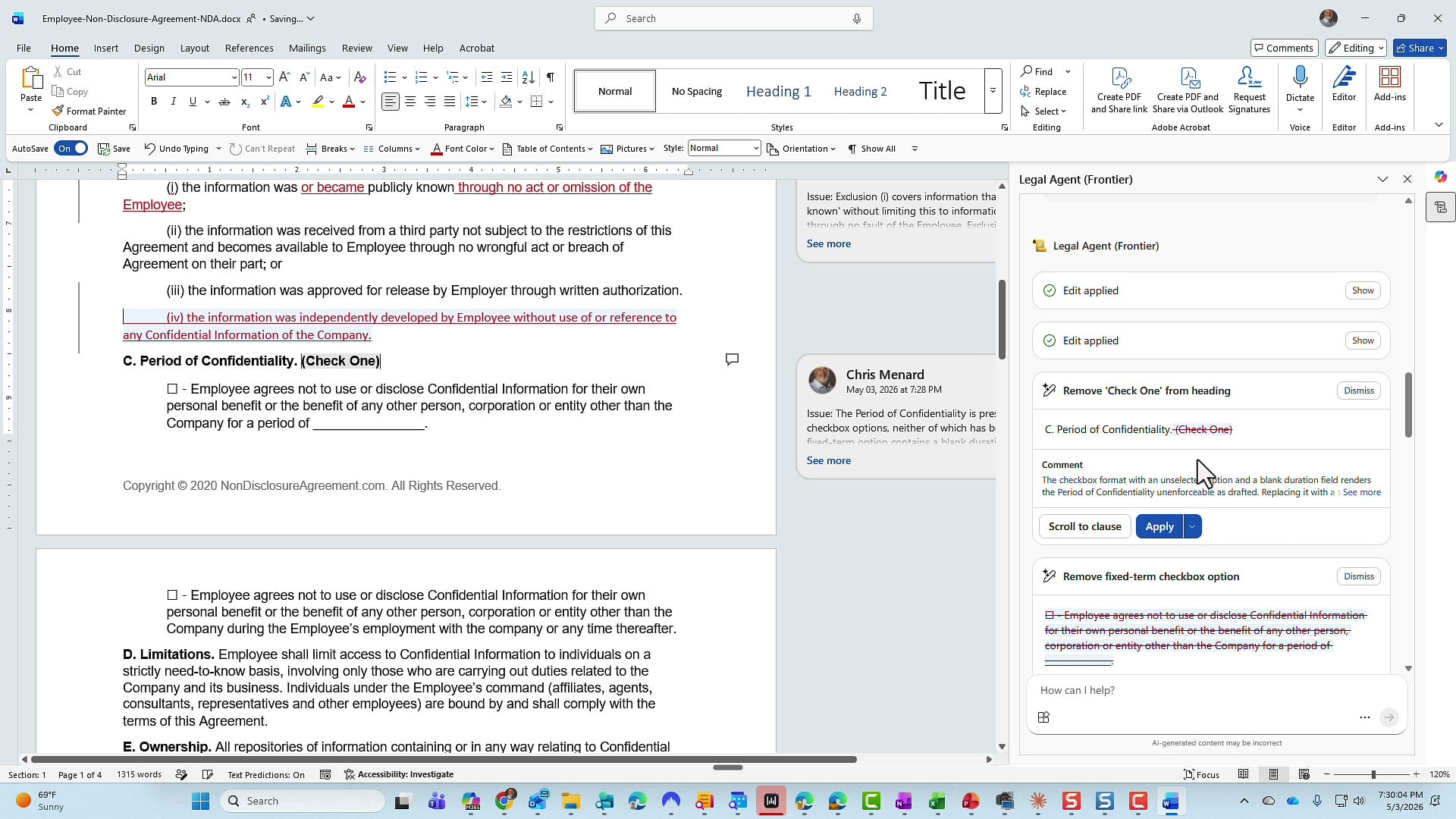
I probably didn't need to spell out "track changes" — the agent likely would have done it anyway — but that's how I naturally asked the first time. It came back with a new set of suggestions, and this time each one had an Apply option, and some had Apply edit with comment as well.
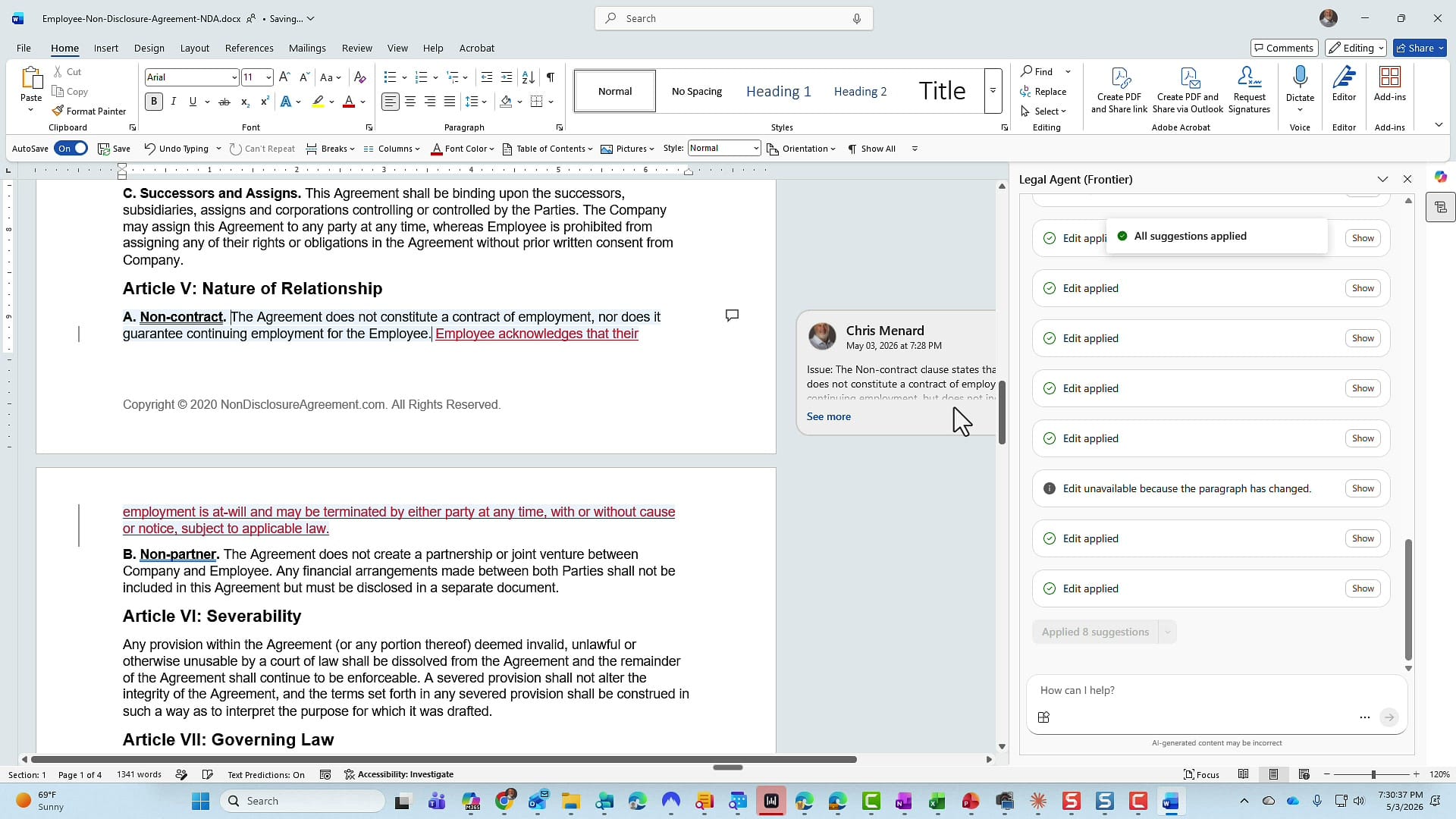
When I clicked Apply on a track-changes suggestion, the deletion showed up with strikethrough and the insertion appeared underlined — exactly the way Word's track changes feature works for human edits. Just like with comments, you can apply them one at a time or push the whole batch in at once.
My quick take
For a sample NDA, the Legal Agent did exactly what I'd want a junior reviewer to do: flag soft language, suggest concrete replacement wording, and let me triage the suggestions instead of forcing me to write them myself. The combination of comments + track changes in one workflow is what makes it useful — and being able to apply or dismiss everything in bulk is what makes it fast.
Two things to remember:
- You're still the reviewer. Read every suggestion before clicking Apply — the agent is good, but it is not your attorney.
- This is gated behind the Frontier Program + Anthropic enablement, so if you don't see it, talk to your admin.
Resources
- Microsoft's Copilot Scenario Library — Legal (official adoption guidance)
- Word Legal Agent in Frontier — Microsoft Community Hub
- LinkedIn Post on the Legal Agent in Word
Related guides