
8 Excel Right-Click Shortcuts You Should Be Using


The right-click context menu in Excel holds some powerful features that many users overlook. Here are 8 right-click techniques that can speed up your everyday Excel work — from moving columns without cut-and-paste to autofilling weekdays only.
1. Move Columns with Right-Click Drag
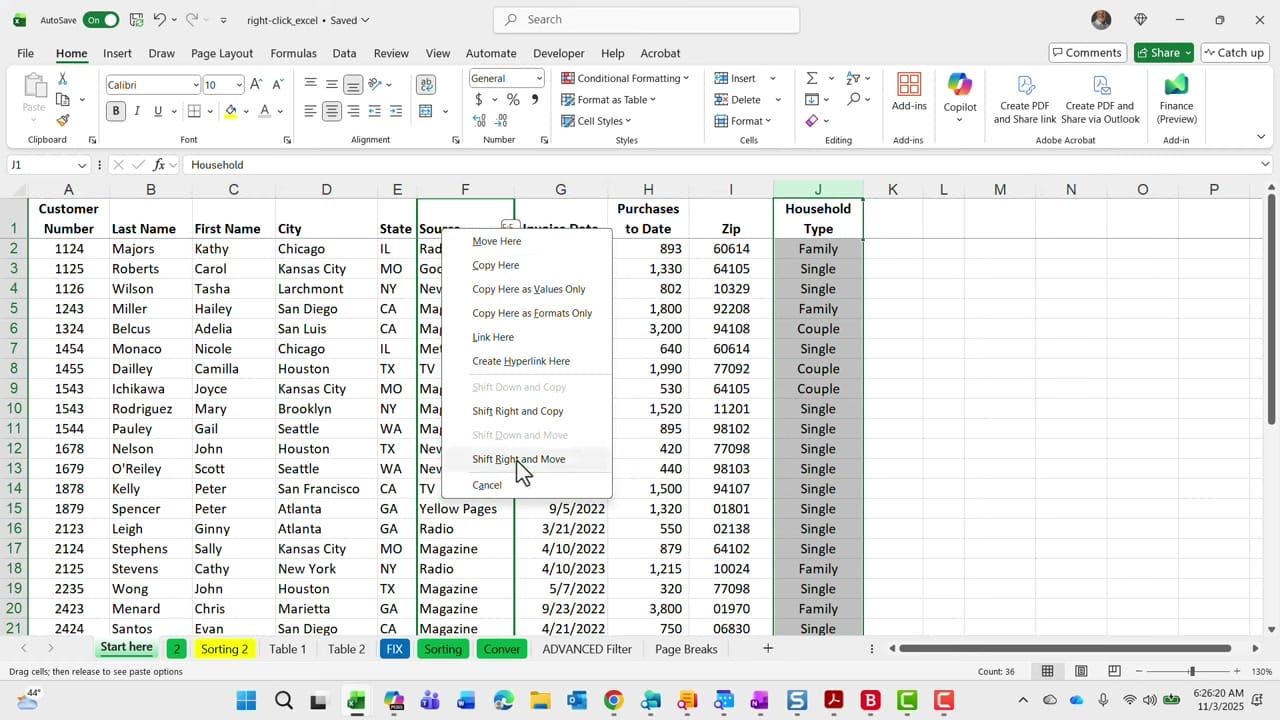
Instead of cutting and inserting columns, select a column, then right-click and drag it to a new location. When you release, a context menu appears with options like "Move Here," "Shift Right and Move," and "Shift Down and Move." This is far faster than the traditional cut-insert method.
2. Filter by Cell Color
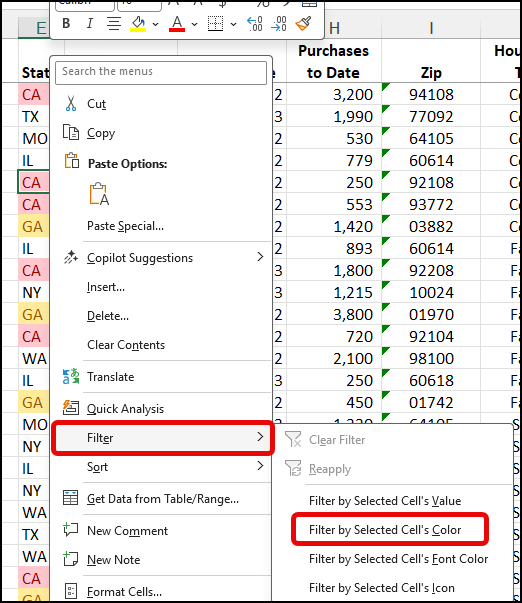
If your spreadsheet uses color coding, right-click a colored cell and choose Filter > Filter by Selected Cell's Color. Excel instantly shows only rows matching that background color — useful when cells are conditionally formatted.
3. Filter by Cell Value
Similarly, right-click any cell and choose Filter > Filter by Selected Cell's Value to instantly filter the column. This is a quick alternative to opening the filter dropdown and checking/unchecking values manually.
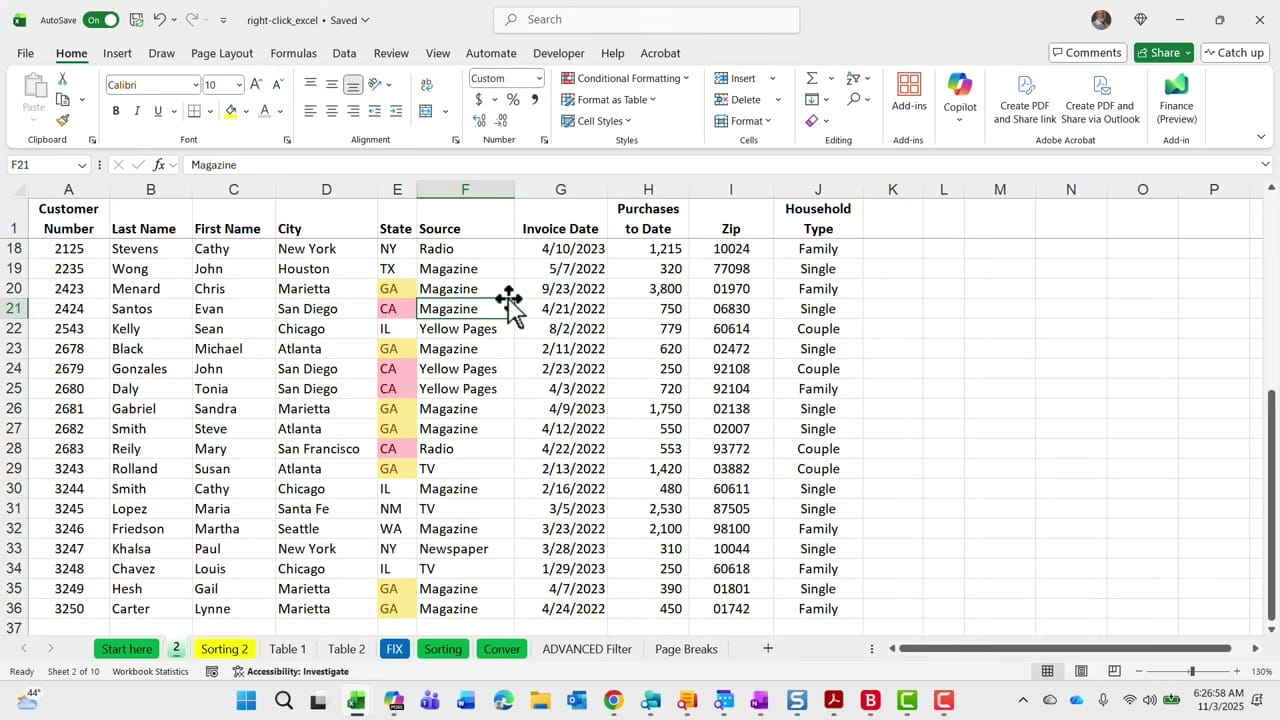
4. Sort with Right-Click
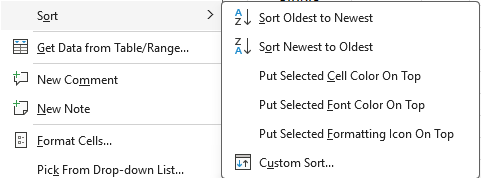
Right-click any cell and choose Sort to access ascending, descending, and custom sort options directly — no need to navigate to the Data tab.
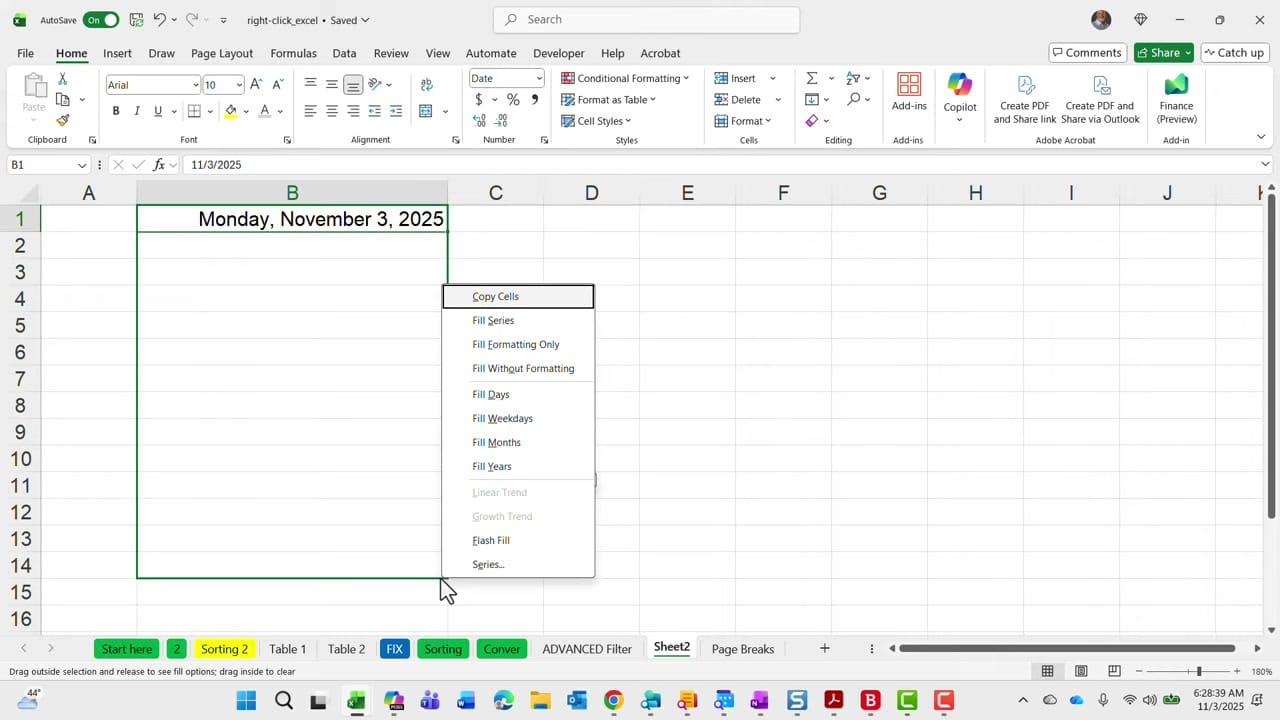
5. Autofill Weekdays Only
Type a date in a cell, then right-click and drag the fill handle down. The context menu includes Fill Weekdays — this fills dates while automatically skipping Saturdays and Sundays. You'll also see options for Fill Days, Fill Months, and Fill Years.
6. Insert Rows with Formatting
When you right-click and insert a row, Excel copies the formatting from the row above by default. If the row above has borders, colors, or number formats, the new row inherits them automatically.
7. Hide and Unhide Columns
Select columns, right-click the column header, and choose Hide. To unhide, select the columns on either side of the hidden column(s), right-click, and choose Unhide.
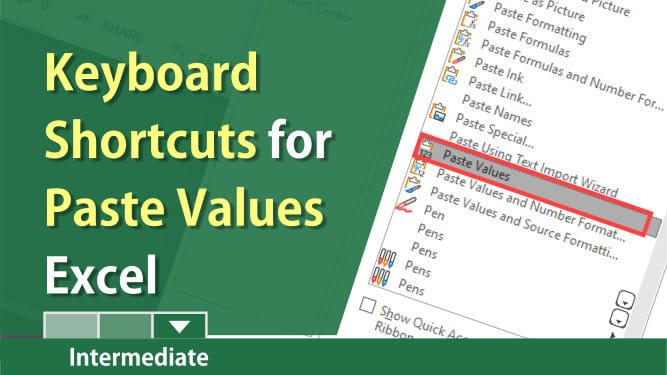
8. Paste Values Only
After copying a cell with formulas, right-click the destination and choose Paste Special > Values to paste only the calculated results — stripping formulas, formatting, and links. A quick alternative to the keyboard shortcut approach.
- Most universal:
Ctrl + Alt + V → V → Enter - Fast ribbon:
Alt → H → V → V - Context menu:
Shift + F10 → V - Fastest (365 only):
Ctrl + Shift + V
Related guides



Want to learn more? Visit courses.chrismenardtraining.com for online training courses.



