6 New Copilot Skills for PowerPoint: Join Me Live on October 20
Join Chris Menard live on October 20 at noon ET for a hands-on look at six new Copilot Skills in PowerPoint. No registration required.


Earlier this month at the Administrative Professionals Conference (APC), I demonstrated several of Microsoft's newest Copilot capabilities to hundreds of attendees. The audience response, thoughtful questions, and enthusiasm around PowerPoint Copilot were incredible. Many attendees wanted to learn more about the new skills being added to PowerPoint, which inspired me to host this livestream focused entirely on six new Copilot Skills in PowerPoint that can help you create, improve, and present slide decks more effectively.
 Chris Menard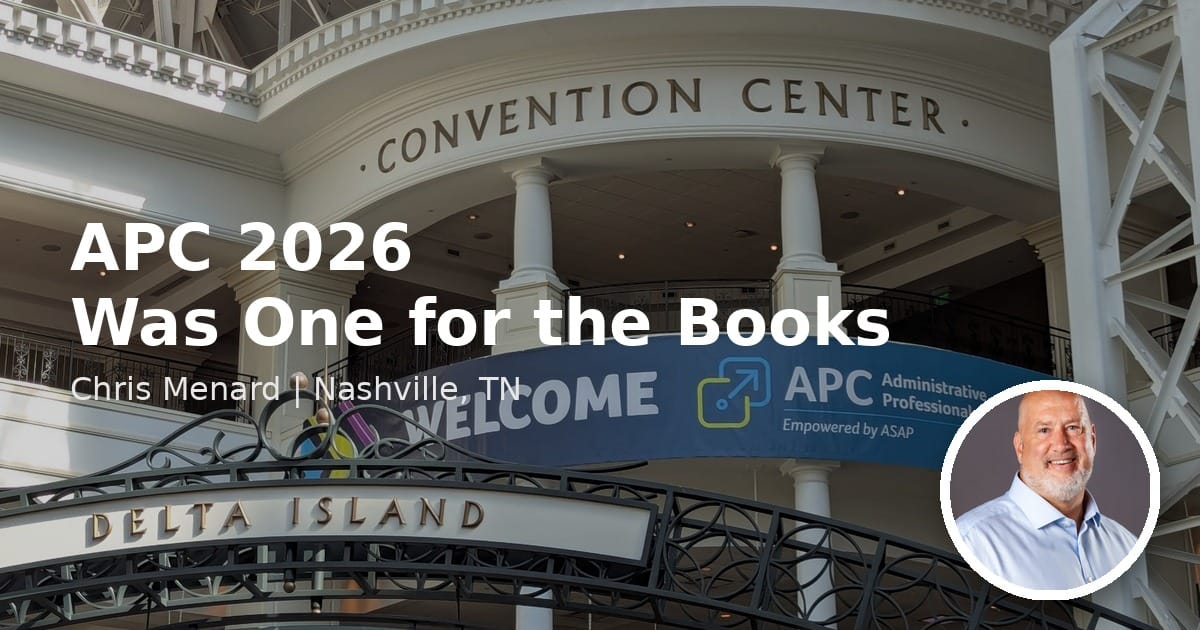
APC Conference in Nashville, TN - September 2026
Microsoft continues to add powerful new capabilities to Copilot, and PowerPoint is quickly becoming one of the most exciting AI-powered productivity applications. Whether you're building executive presentations, training materials, sales decks, project updates, or conference presentations, Copilot can save time and help you create better content faster.
On October 20, 2026, I’ll host a live stream where I’ll demonstrate 6 new Copilot skills for PowerPoint that can improve how you create, edit, and present slide decks.
As a trainer, speaker, and Microsoft MVP, I spend a lot of time building presentations. The newest Copilot features are helping users move beyond simple slide creation and into a world where AI assists with design, content development, organization, and storytelling.
What We'll Cover
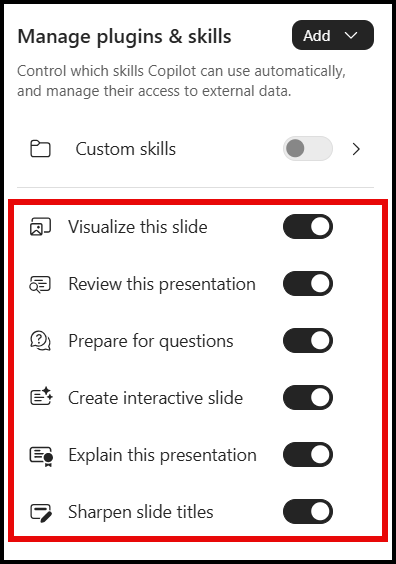
During the livestream, I'll demonstrate six practical Copilot skills you can use immediately in your own presentations.
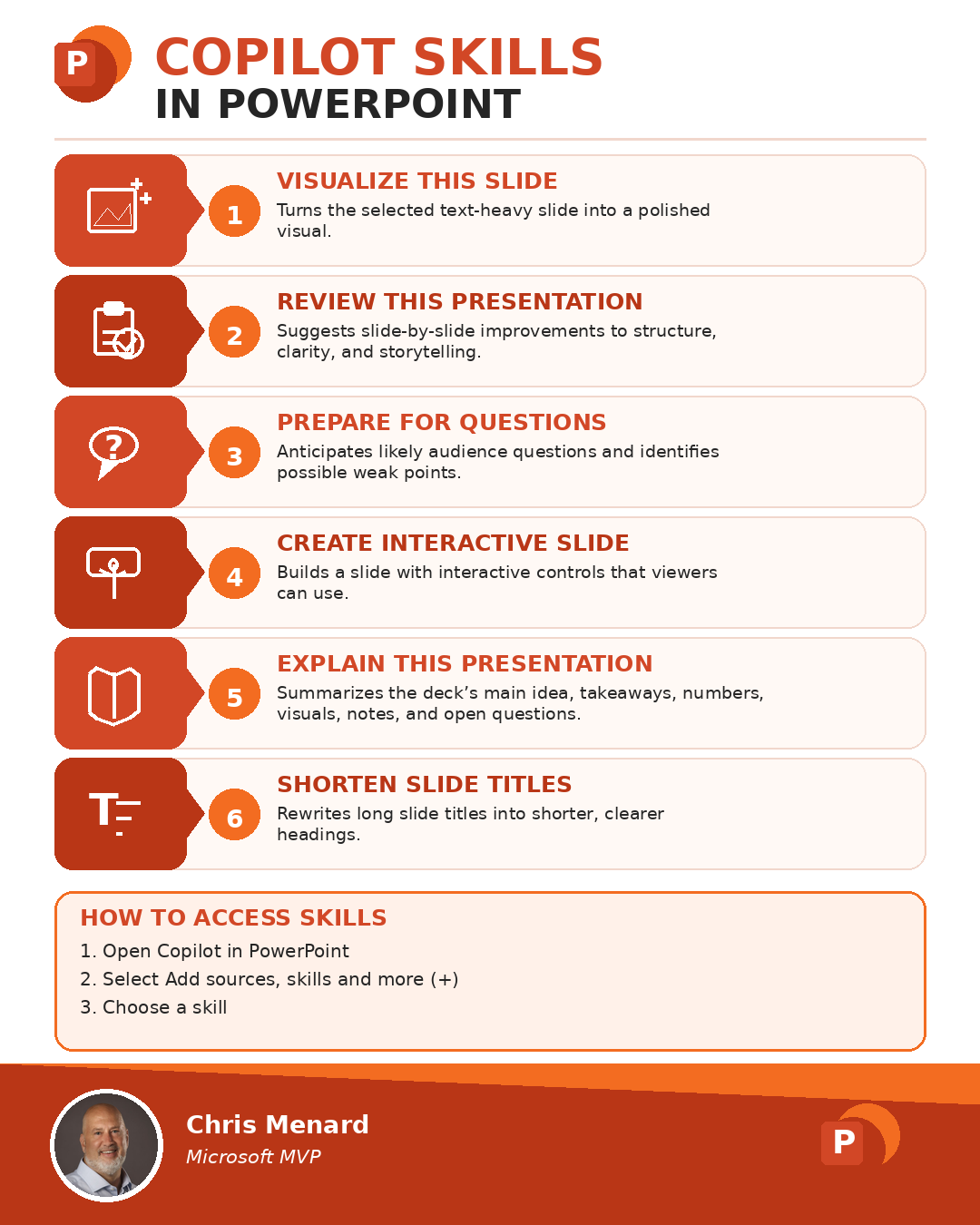
#1 - Visualize This Slide
Turn text-heavy slides into more engaging visual stories. Copilot can recommend layouts, graphics, and design improvements that make key messages easier for your audience to understand and remember.
#2 - Review This Presentation
Get a second set of AI-powered eyes on your slide deck. Copilot can identify readability issues, inconsistent messaging, crowded slides, and opportunities to strengthen your presentation before you deliver it.
#3 - Prepare for Questions
Anticipate the questions your audience may ask. Copilot analyzes your presentation content and suggests likely questions and possible responses, helping you present with greater confidence.
 Chris Menard
#4 - Create Interactive Slide
Add engagement to your presentations with interactive elements. Copilot can help create audience-focused experiences that encourage participation and improve knowledge retention. This is one of my favorites!
 Chris Menard
#5 - Explain This Presentation
Need a quick overview of a deck? Copilot can summarize the main concepts, key themes, and important takeaways, making it easier to understand a presentation at a glance.
#6 - Sharpen Slide Titles
Transform generic slide titles into clear, compelling headlines. Strong titles help guide your audience through the story of your presentation and reinforce your key messages.
Who Should Attend?
This session is perfect for:
- Microsoft 365 users
- PowerPoint creators
- Executive assistants
- Trainers and educators
- Business professionals
- Managers and team leaders
- Anyone interested in Microsoft Copilot
Whether you're new to Copilot or already experimenting with AI in Microsoft 365, you'll walk away with ideas you can use right away.
Why PowerPoint + Copilot Matters
Many people think of Copilot as a text-generation tool, but its PowerPoint capabilities are becoming increasingly impressive. Faster presentation creation, stronger visual storytelling, and fewer repetitive tasks can save hours every month.
Instead of spending time formatting slides or staring at a blank presentation, Copilot can help you get moving faster so you can focus on your message and audience.
Join Me Live
📅 Date: October 20, 2026
🎯 Topic: 6 New Copilot Skills for PowerPoint
🎤 Presenter: Chris Menard, Microsoft MVP
📺 Registration: Not required. To receive a reminder when we go live, click the LinkedIn or YouTube event link below and select Attend.
Discover the 6 New PowerPoint Copilot Skills That Can Transform How You Build Presentations
No registration is required. To receive a reminder when the livestream starts, click the LinkedIn event link below and select "Attend."