Sharpen Slide Titles with Copilot in PowerPoint
The Sharpen slide titles skill in PowerPoint Copilot rewrites vague, one-word slide titles as clear takeaways. Find the skill, use the @ mention shortcut, and review the before-and-after summary.

Copilot in PowerPoint keeps rolling out new skills, and as much as I love Copilot in Excel, I cannot get enough of Copilot in PowerPoint right now. I have already covered creating interactive slides, which is one of my favorite Copilot features in any app. This one is called Sharpen slide titles, and it fixes something I see in presentations all the time: slide titles that name a topic but say nothing about it.
You need a paid Microsoft 365 Copilot license for this skill. In the Copilot pane, mine shows as M365 Copilot (Premium).
Spot the vague titles
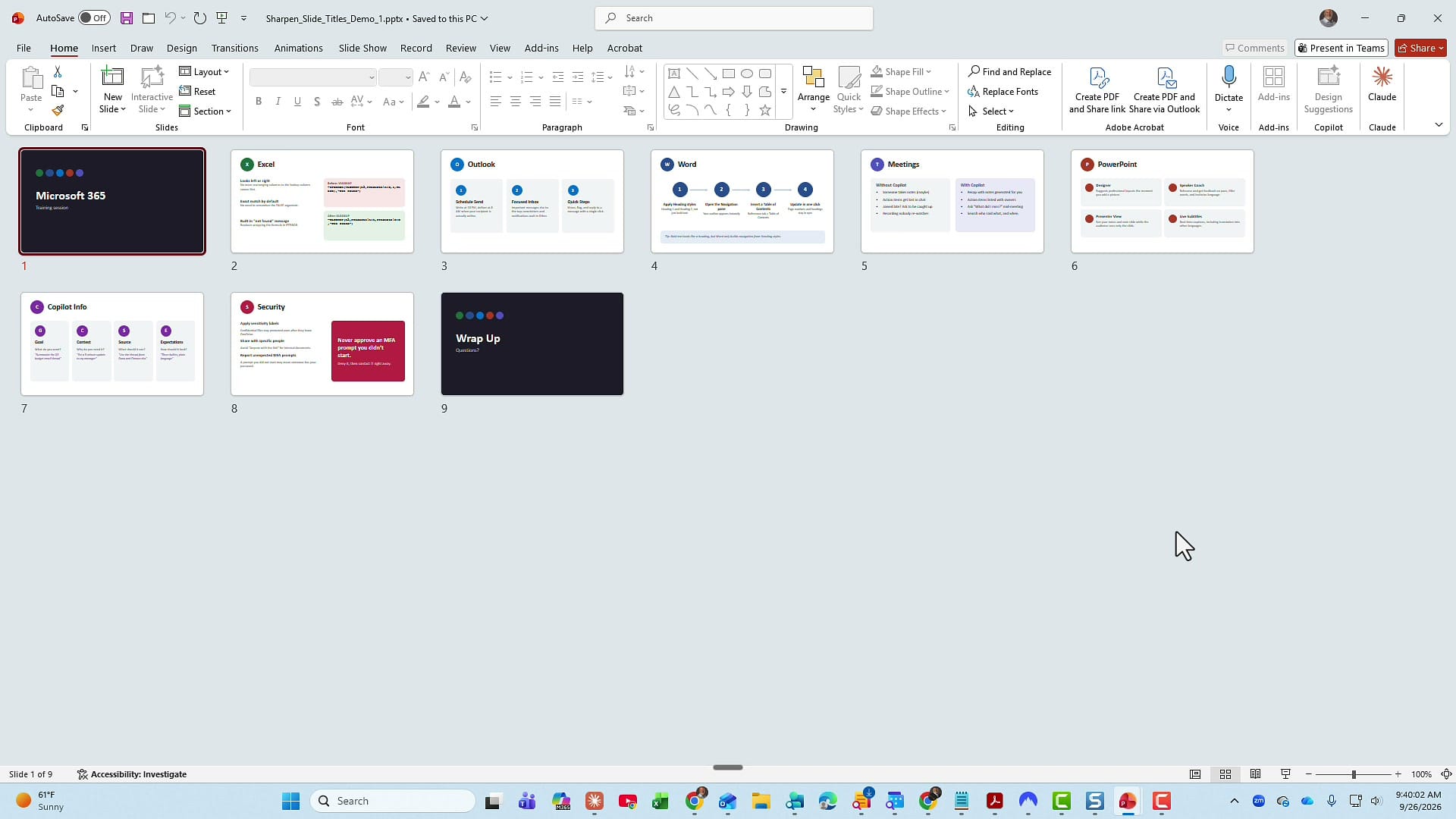
My sample presentation has nine slides. In Slide Sorter view you can see the problem right away. Slide 1 is the title slide and slide 9 is Wrap Up, and those two should not change. Everything in between has a one-word title: Excel, Outlook, Word, Meetings, PowerPoint, Copilot Info, and Security.
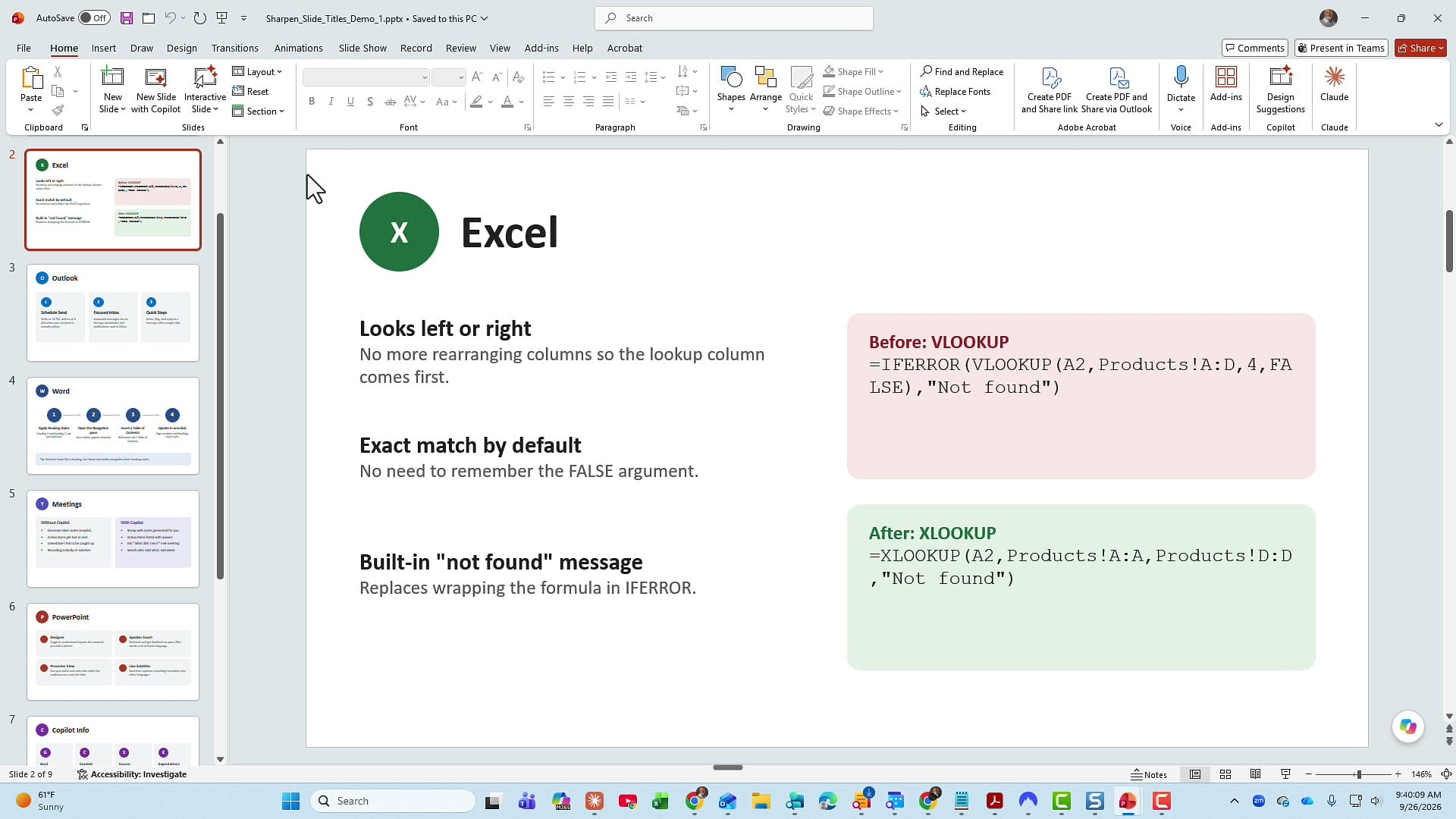
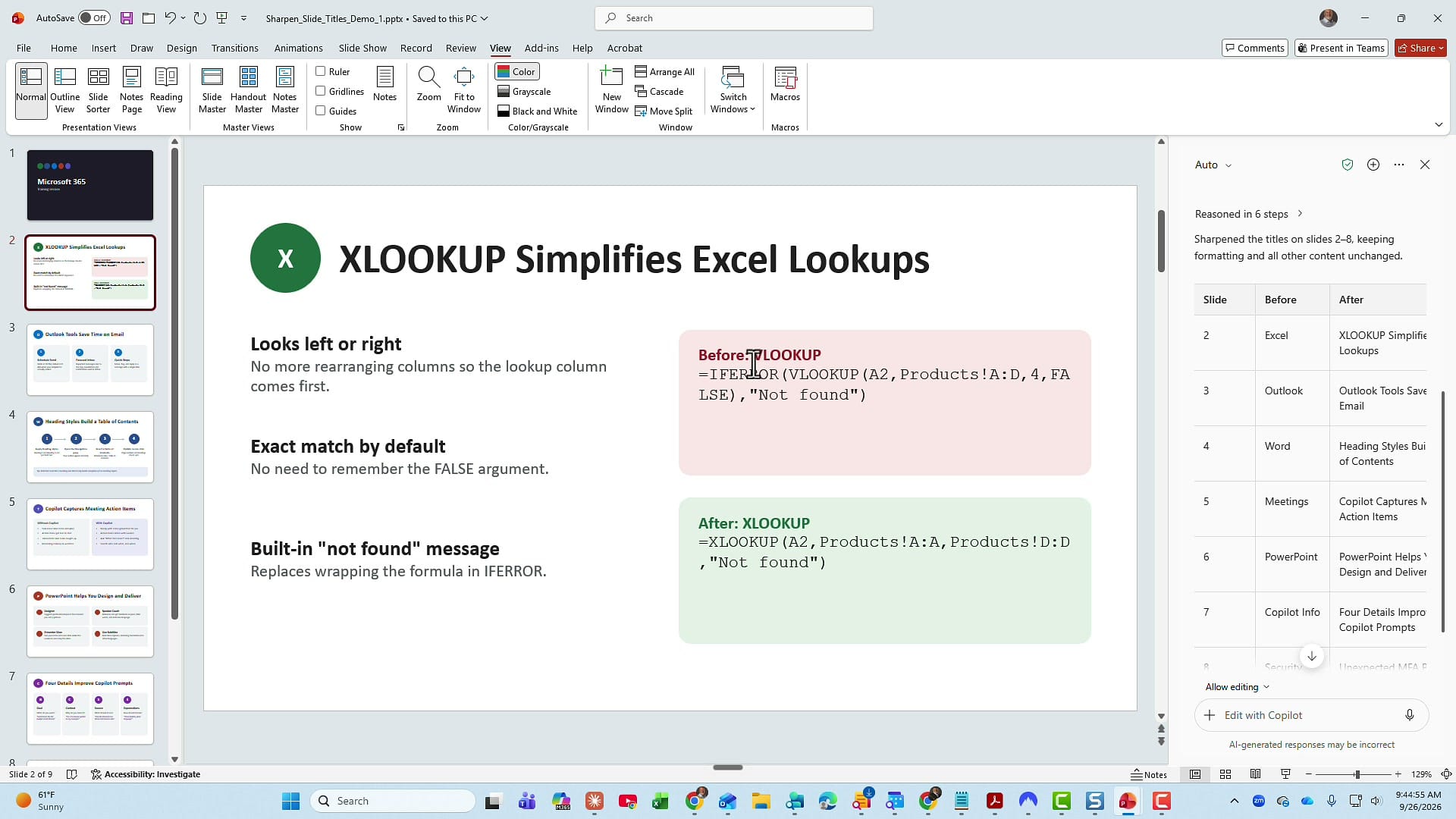
Look at slide 2. The title is Excel, and that is a horrible title for this slide. The slide is really about XLOOKUP and why it beats VLOOKUP: it looks left or right, it uses an exact match by default, and it has a built-in "not found" message. Slide 4 has the same problem. It is titled Word, but the content is about heading styles, one of the features every Word user should master. Slide 6 is just PowerPoint. I see people title slides like this all the time.
Find the Sharpen slide titles skill
Open Copilot in PowerPoint and click the plus sign in the Edit with Copilot box. The tooltip reads Add sources, skills, and more. Then click Choose skills.
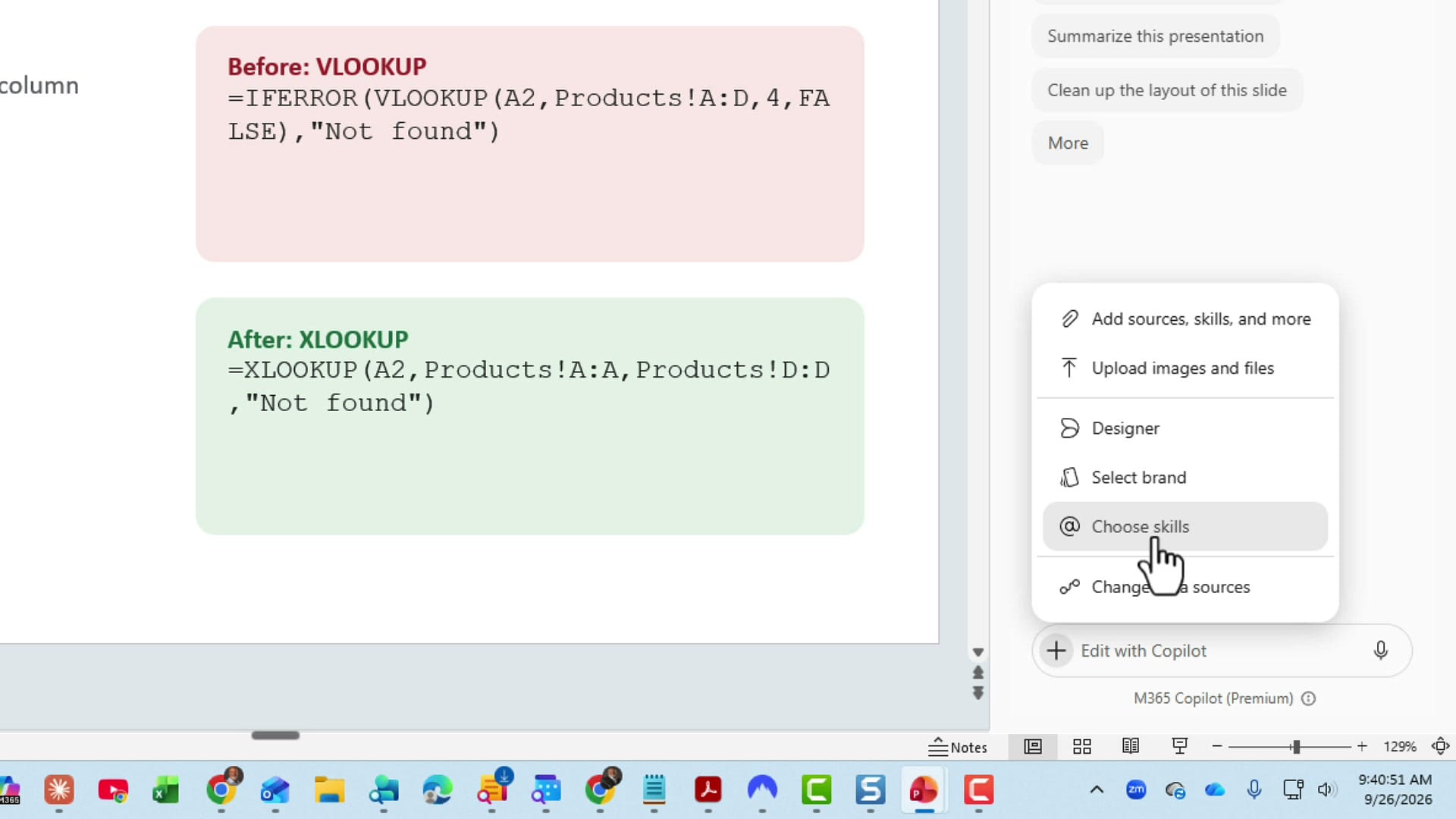
Right now I have six skills. If you have a premium Copilot license, you should already have the first three: Visualize this slide, Review this presentation, and Prepare for questions. Create interactive slide arrived for me a couple of weeks earlier, and the two newest are Explain this presentation and Sharpen slide titles. The description under Sharpen slide titles says it all: Rewrite titles as takeaways.
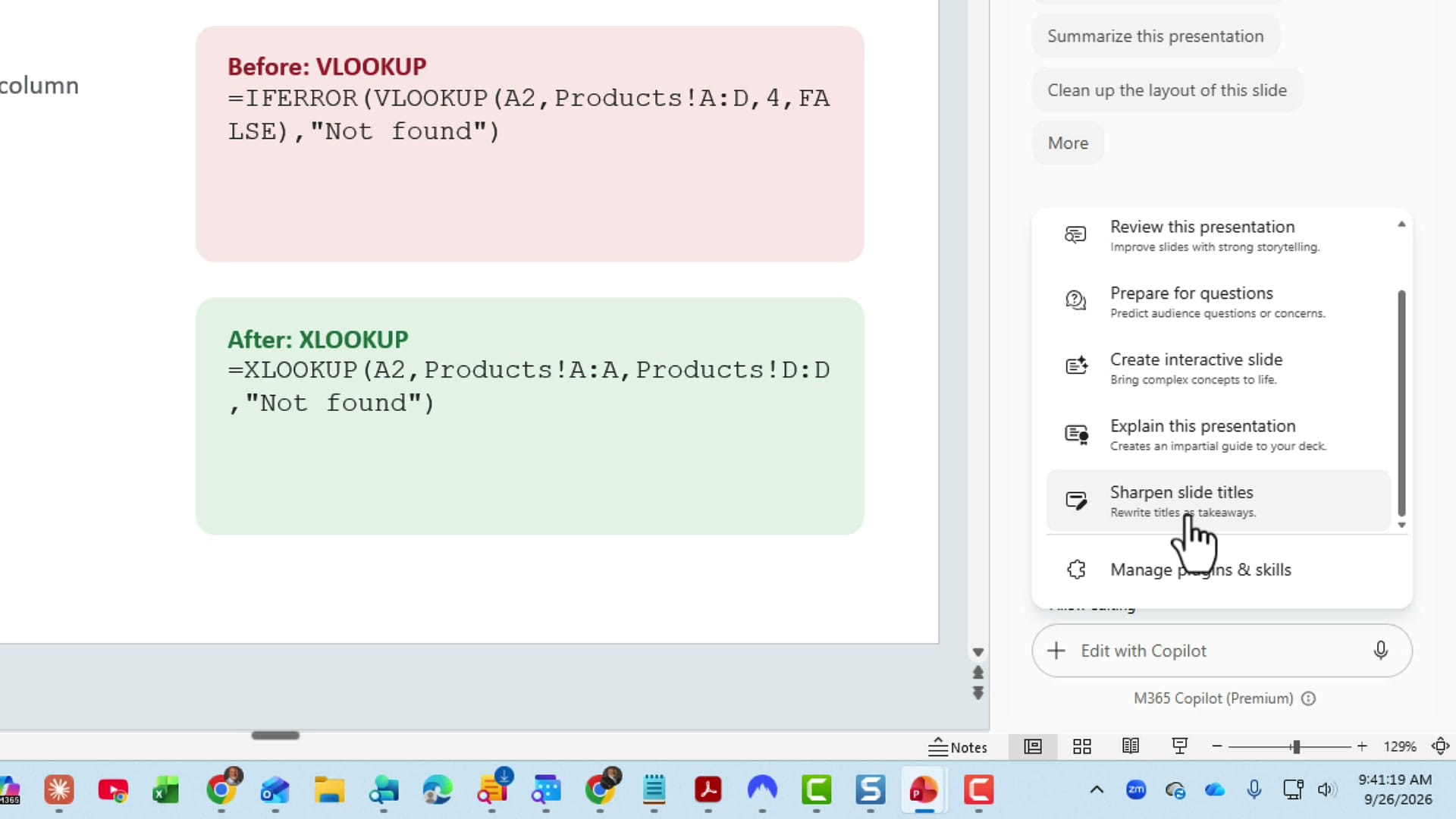
Click it and the skill drops into the Copilot box. That is it. The skill is the prompt, so there is nothing else to type.
Shortcut: use an @ mention
Here is a bonus tip. You do not have to go through the plus sign and the skills menu every time. In the Copilot box, type @ and start typing sharpen. Sharpen slide titles shows up right there. Pick it, and it is added to the box the same way.
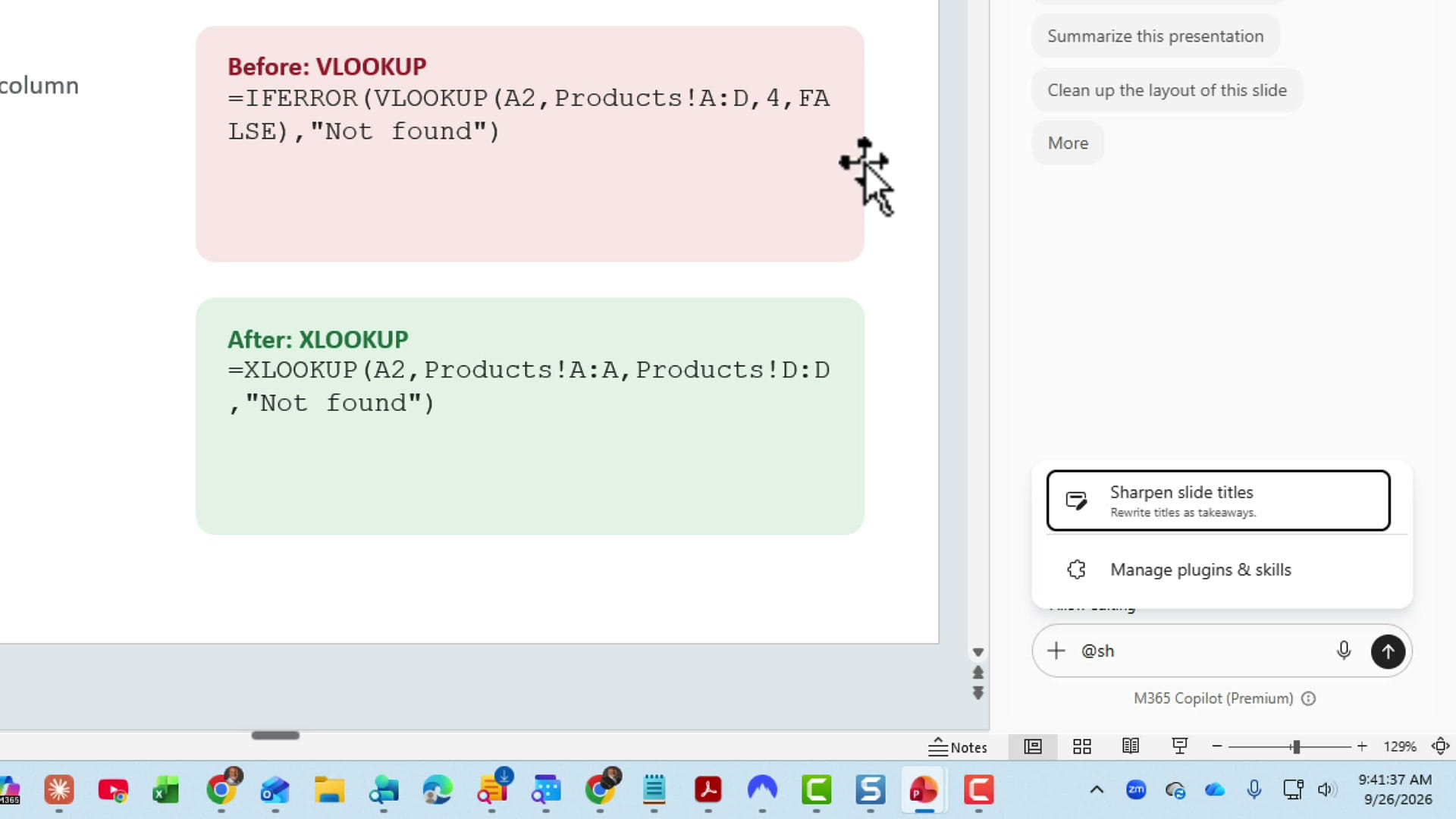
Send it off and let Copilot work through the deck.
Review the new titles
When Copilot finishes, it gives you a summary of what it did. Mine says it sharpened the titles on slides 2 through 8, keeping formatting and all other content unchanged, and it lists each slide with a Before and After column. I love this, because I can check every change in one place.
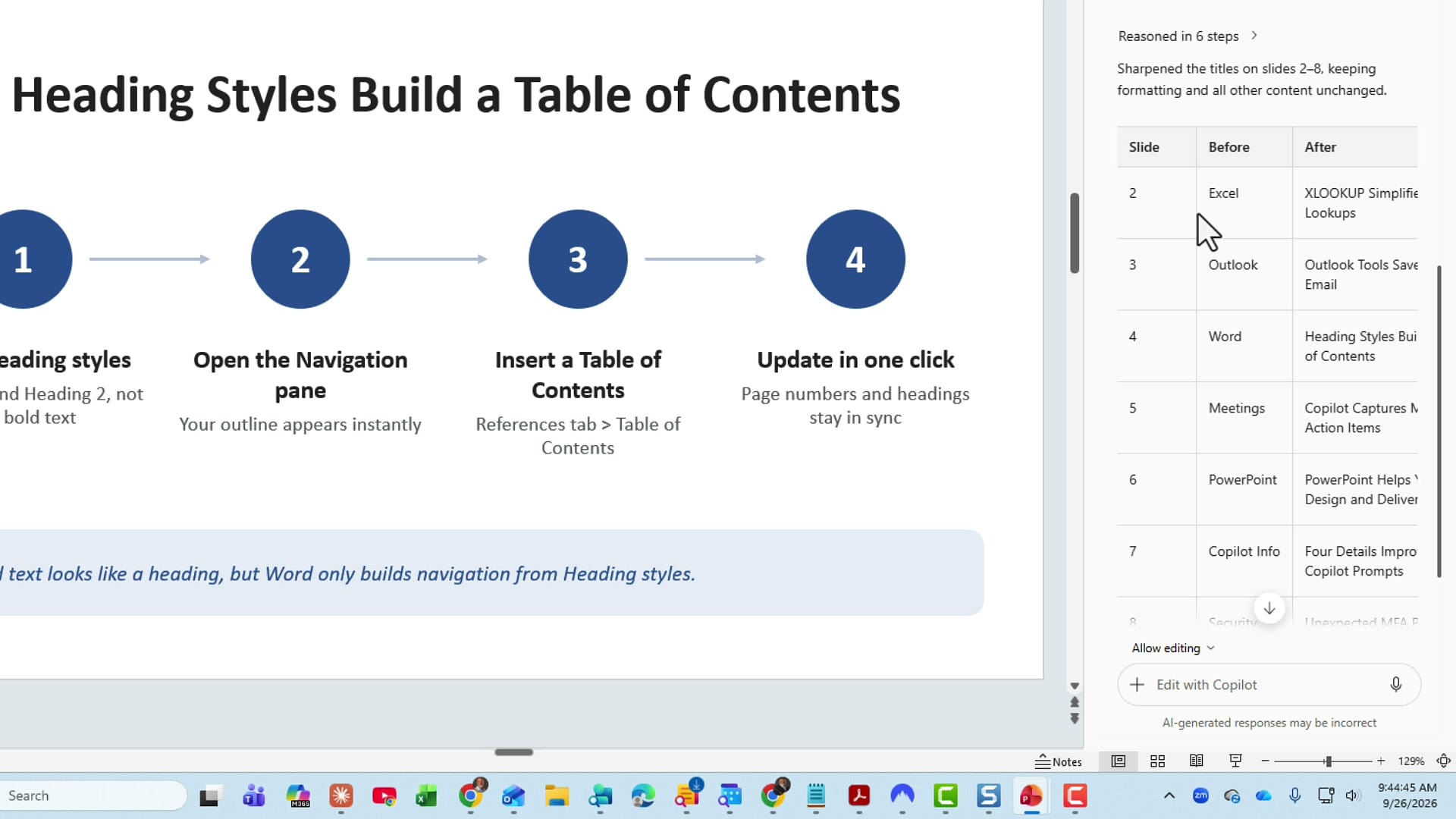
Slide 2 went from Excel to XLOOKUP Simplifies Excel Lookups, which is exactly what that slide is about. Slide 3, which covers Schedule Send, Focused Inbox, and Quick Steps, is now Outlook Tools Save Time on Email. Slide 4 changed from Word to Heading Styles Build a Table of Contents, a much better title than just Word.
Back up the deck before you run it
One thing to be aware of: the skill changes all of the titles at once. If you do not like the results, you can press Undo to get your original titles back. Even so, I recommend backing up the presentation before you run it. I keep my files in Microsoft OneDrive, so version history has me covered if I ever need to go back to an earlier copy.
Check the remaining titles and the end slides
The rest of the deck came out just as well. Meetings became Copilot Captures Meeting Action Items. PowerPoint became PowerPoint Helps You Design and Deliver, which is a great one, since that slide covers Designer, Speaker Coach, Presenter View, and Live Subtitles. Copilot Info became Four Details Improve Copilot Prompts, and the Security slide got a sharper title too.
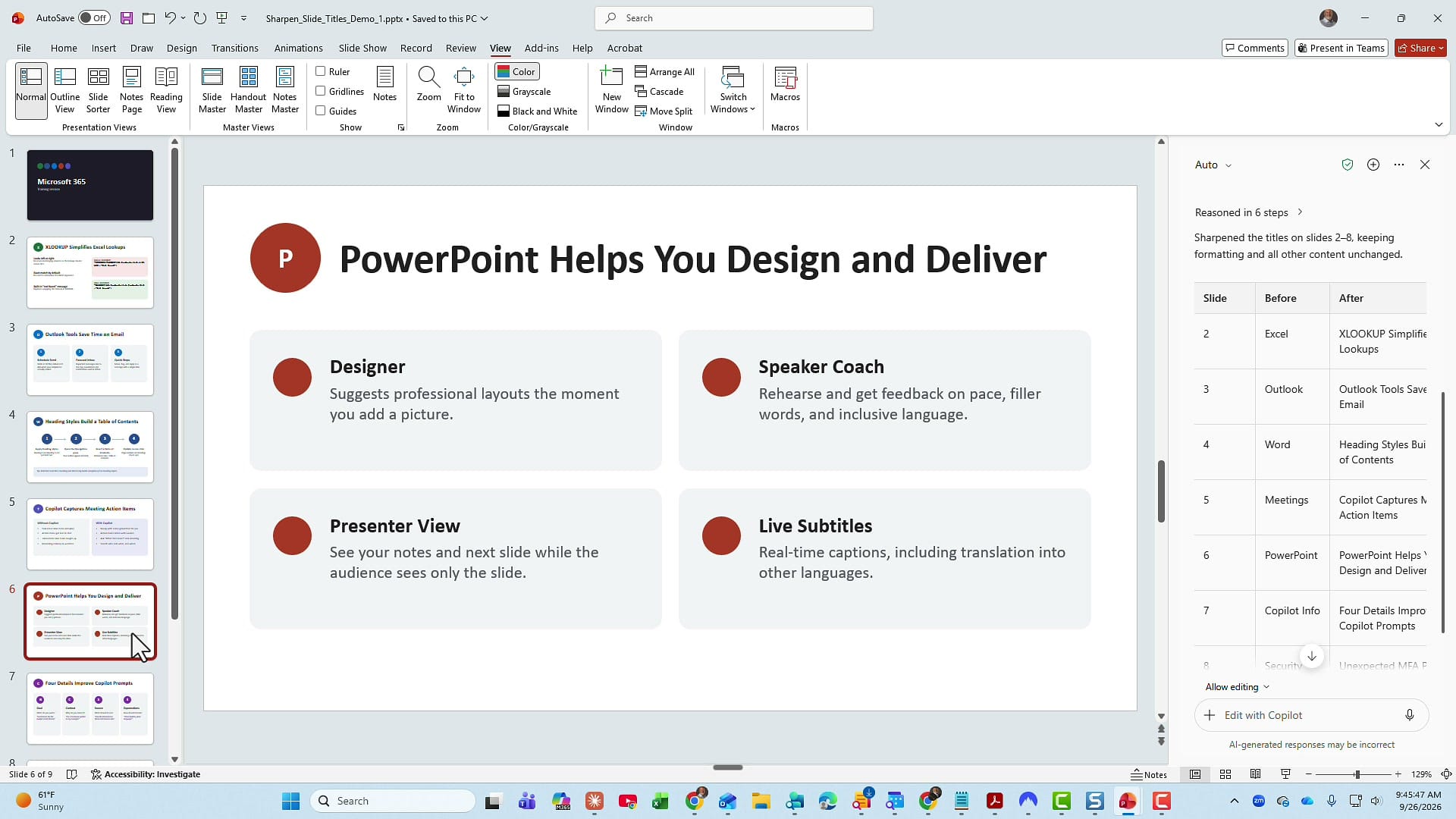
Copilot also left the first slide and the last slide alone, which is what I wanted. The title slide and the Wrap Up slide do not need takeaway titles.
Run Sharpen slide titles on one of your own decks and compare each new title against the slide content before you present. If you want to see more of the new skills in action, I am covering six new Copilot skills for PowerPoint in a live session.
Related guides
 Chris Menard
 Chris Menard
 Chris Menard
 Chris Menard
 Chris Menard