Use Copilot to Apply Your Branded Template to an Existing PowerPoint Presentation
Already built a PowerPoint presentation without your organization's template? Attach the template to Copilot, prompt it to apply the template to the existing deck, then review the slides for layout and content accuracy.


I see this all the time. Instead of opening the organization template in PowerPoint and then building the presentation, someone builds the presentation first, and the organization template never gets used. Copilot in PowerPoint can fix that for you: attach your template, tell Copilot to use it on the deck you already have, and it reformats the slides.
The Copilot pane I am using here shows M365 Copilot (Premium).
Start with your organization template
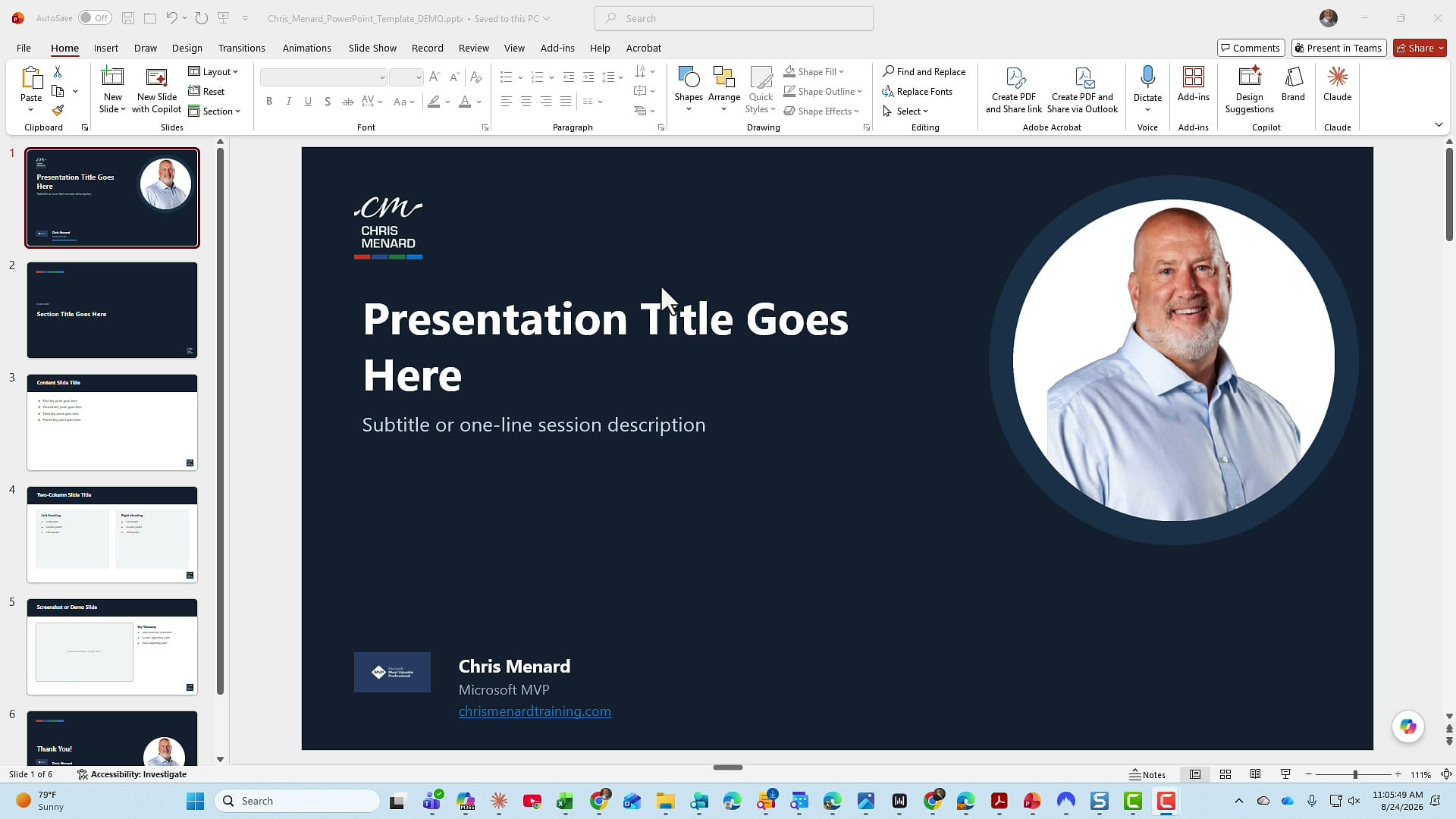
Here is the organization template I created for this example. It has a dark title slide with my logo and photo, a section slide, a content slide, a two-column slide, and a closing slide.
The presentation I want to fix is a six-slide deck about the Atlanta Braves. It was built from scratch in red, navy, and cream, and it does not follow the organization template at all.
Attach your template to Copilot
Open the existing presentation and open Copilot. In the prompt box, click the plus sign. You have two ways to bring the template in:
- Upload images and files — upload the template from your computer.
- Add work content — most likely your template is already sitting in your work content, which means you are pulling it from OneDrive.
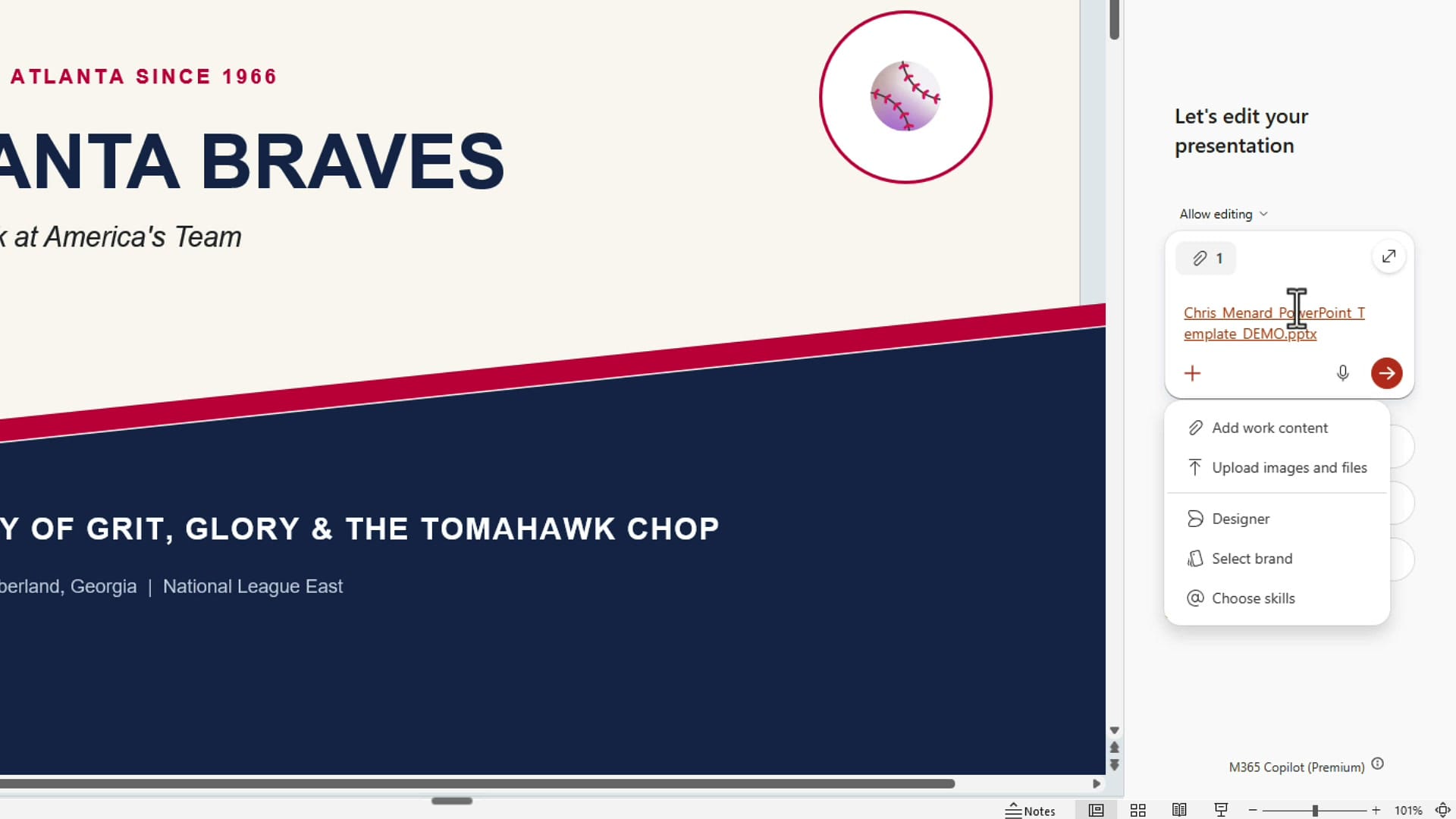
Once the file is attached, you see it in the prompt box. To be clear about the extension at the end of the file name: it can be a PowerPoint presentation or a PowerPoint template. It doesn't matter. Mine is a regular .pptx file.
Tell Copilot what you want to do
Attaching the file is not enough. You need to tell Copilot what to do with it. This is the prompt I typed in the prompt box:
Use this template on the existing presentation. If you have any questions, ask me. Don't assume anything.
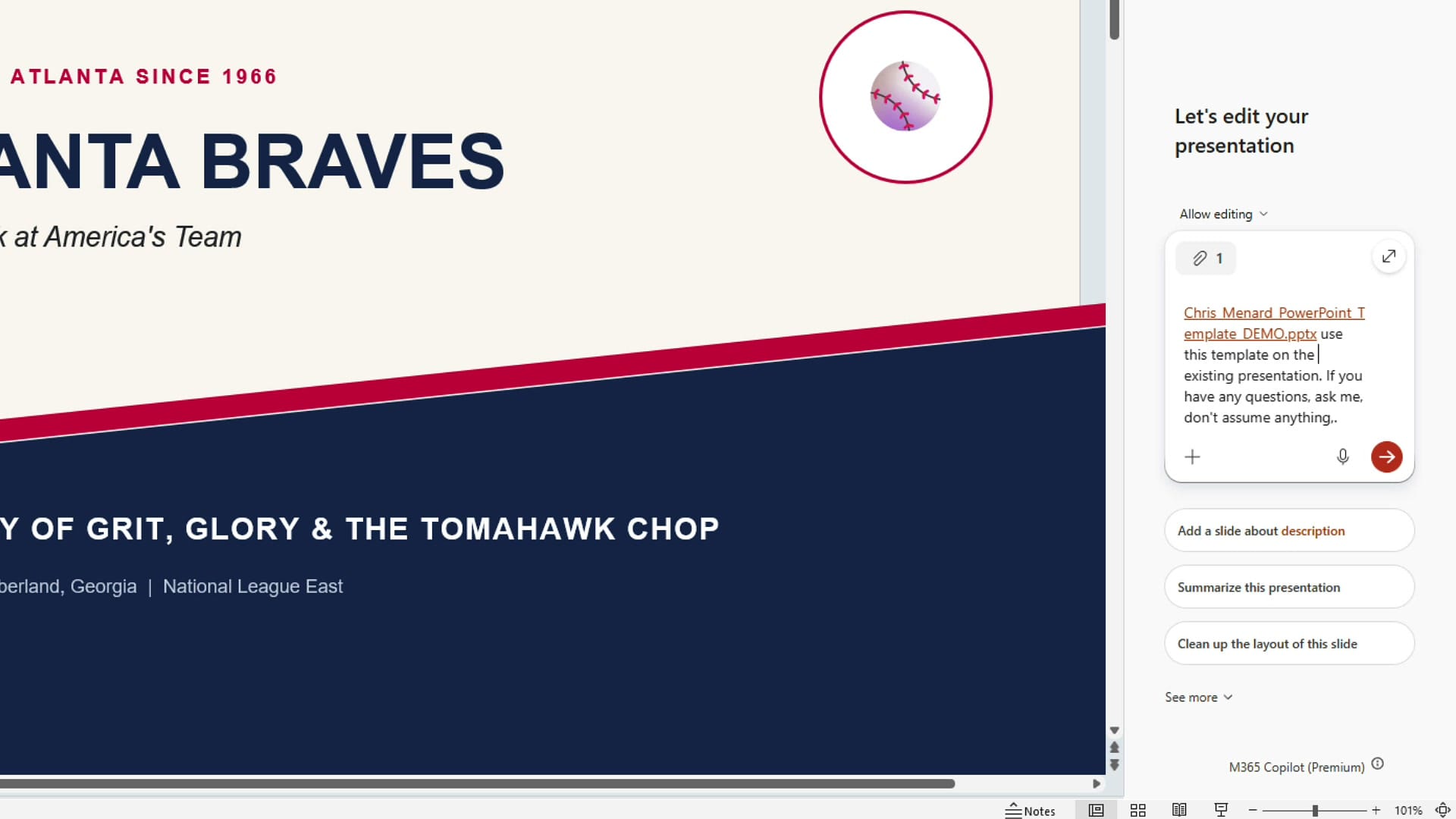
That last part matters. I would rather have Copilot ask me a question than guess. Then send the prompt off and let Copilot work.
Review the results slide by slide
When Copilot is done, don't just accept the result. Put the original next to the new version and go through the slides.
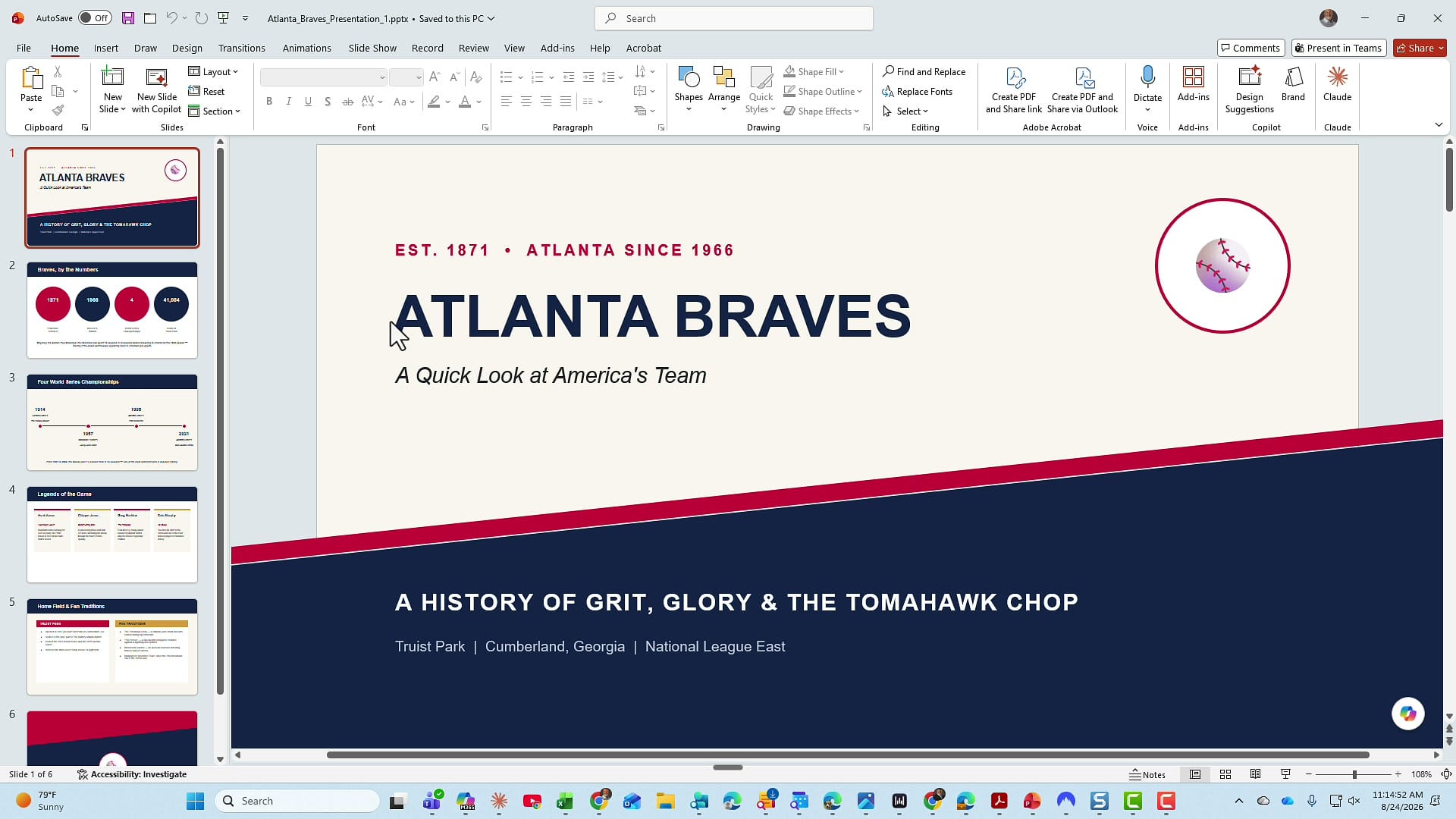
Slide 1: the title slide
The original title is Atlanta Braves: A Quick Look at America's Team.
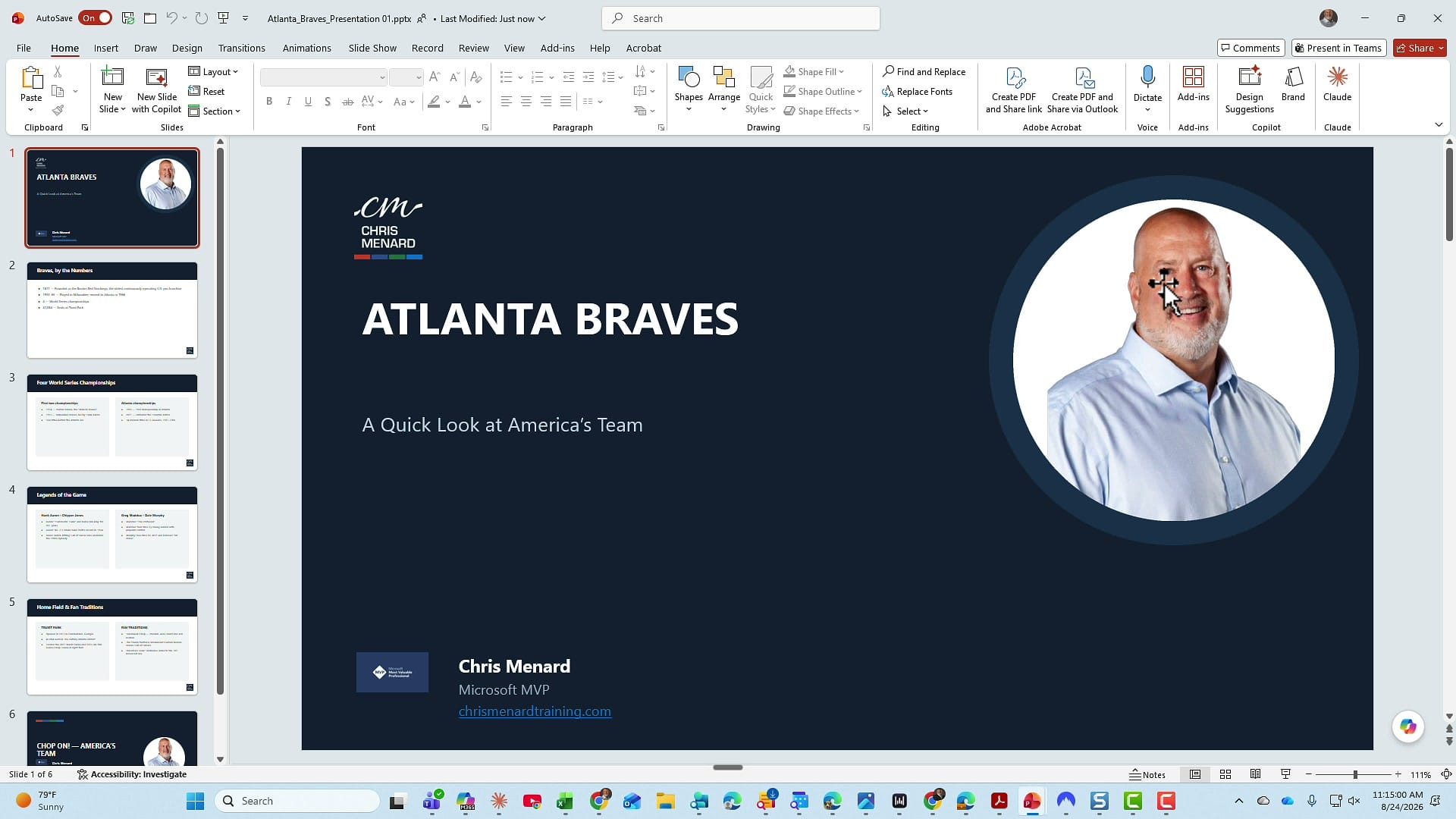
And there is my template being applied. Same title, same subtitle, now on my organization's title layout.
Slide 2: check that the numbers match
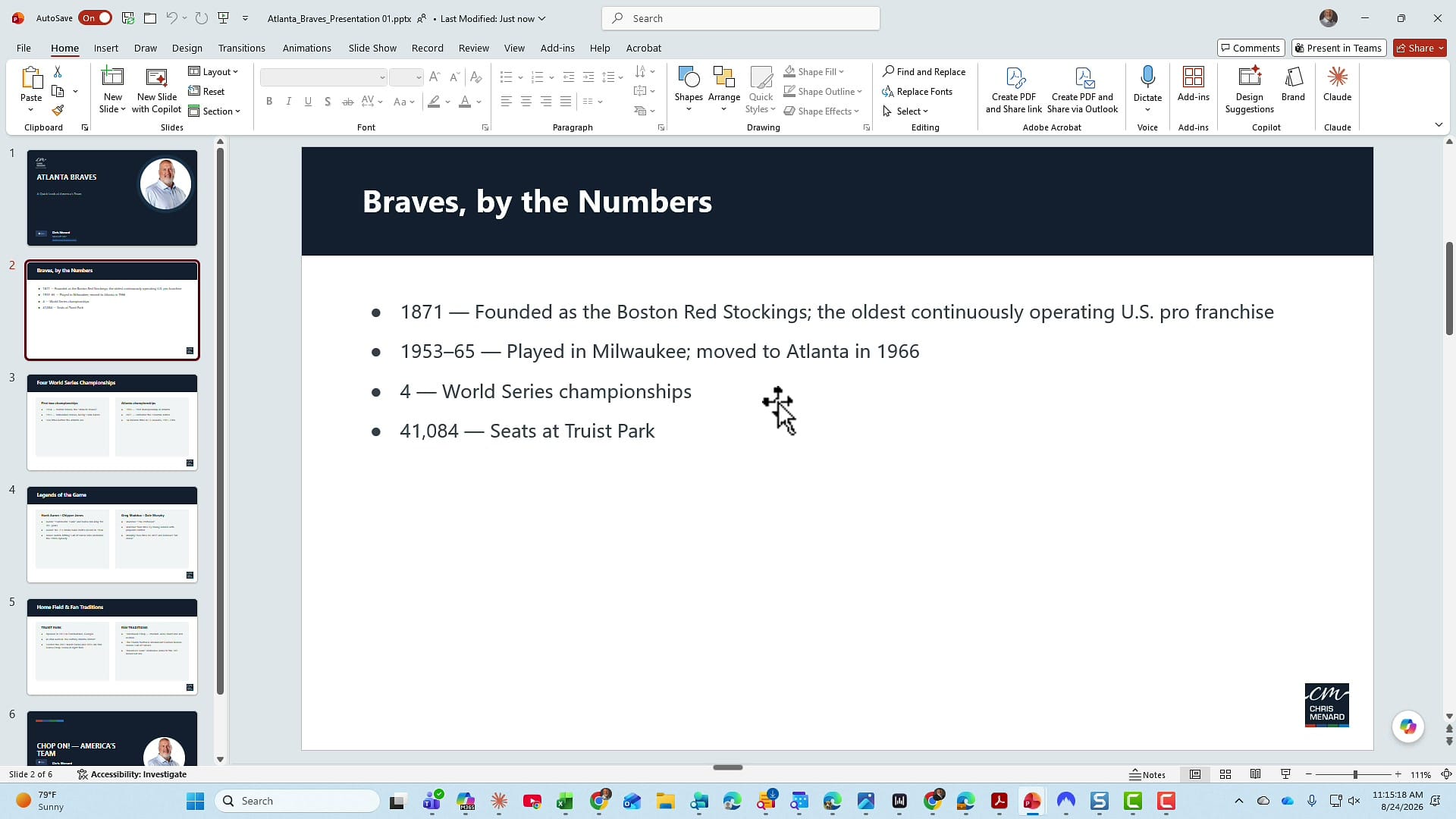
Slide 2 is Braves, by the Numbers. Honestly, the original looks a lot better on this one, with the four numbers in large circles.
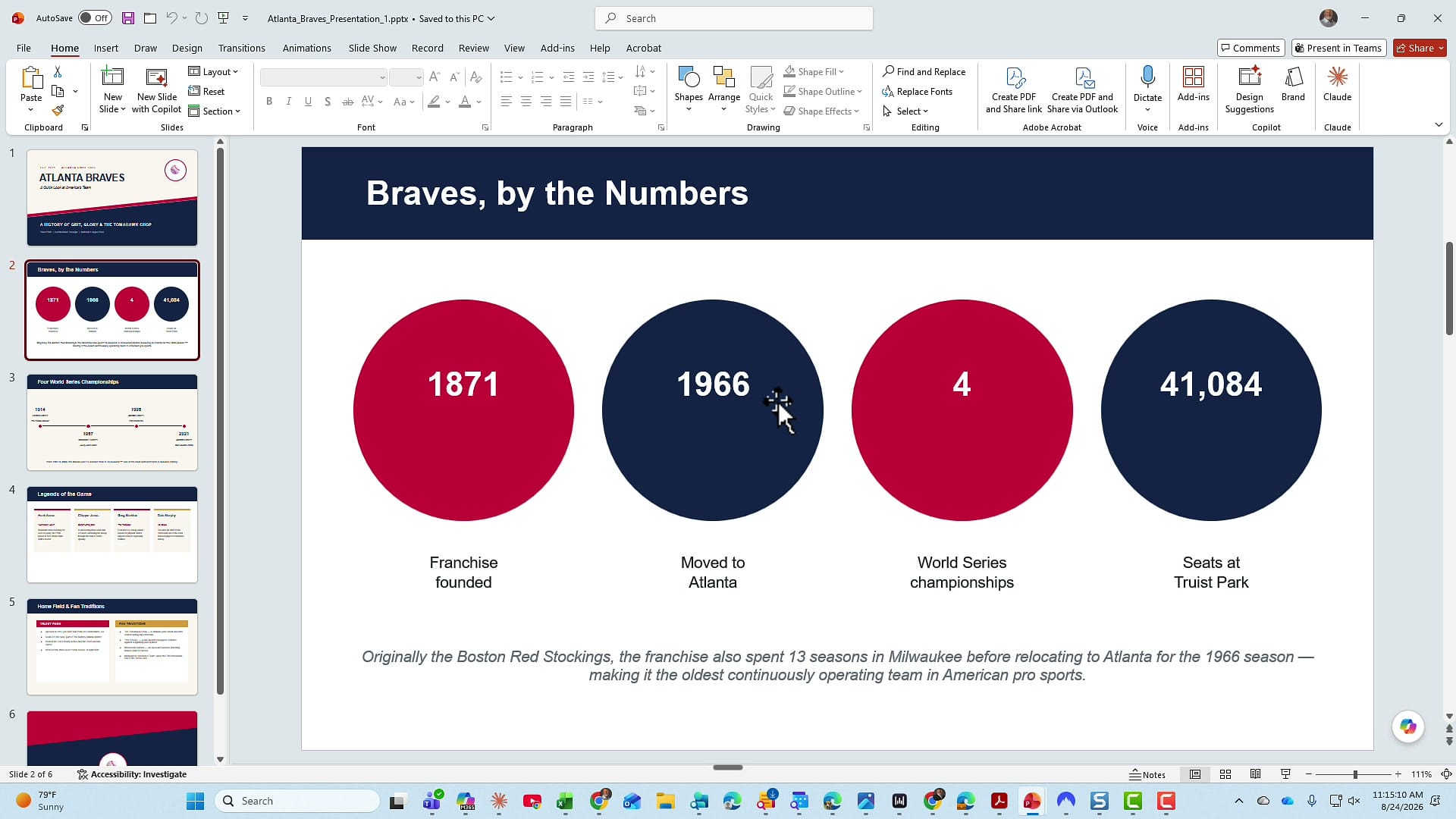
Copilot moved the content into a bulleted list on the template's content layout. I wanted to see if the numbers match, so I checked the stadium capacity: 41,084 in the original, 41,084 in the new version. It did not miss anything. If you want the visual treatment back, you can come back into Copilot in this presentation and tell it what you want to change.
Slide 3: layouts may change
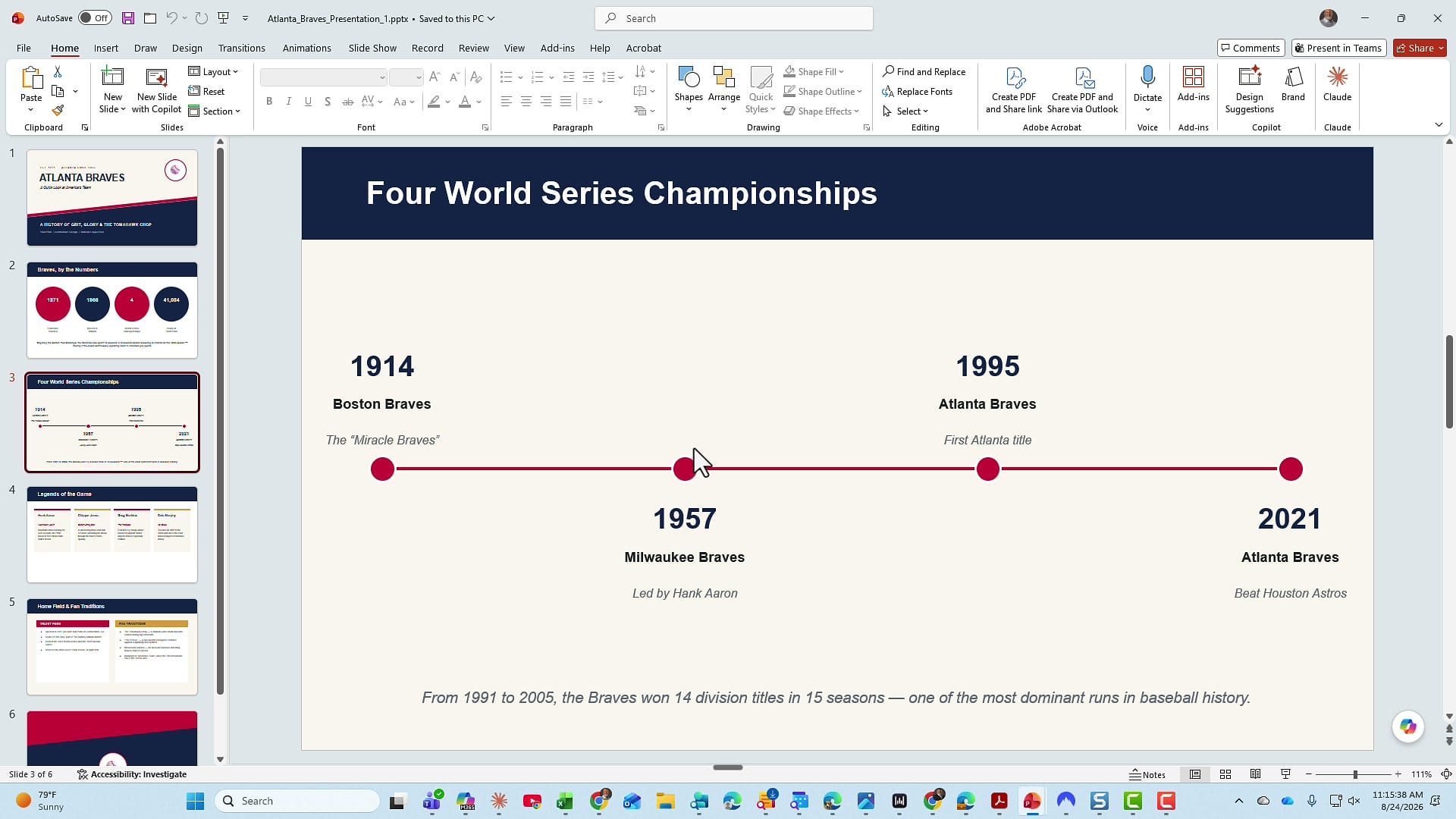
Slide 3 covers the four World Series championships. The original is a timeline.
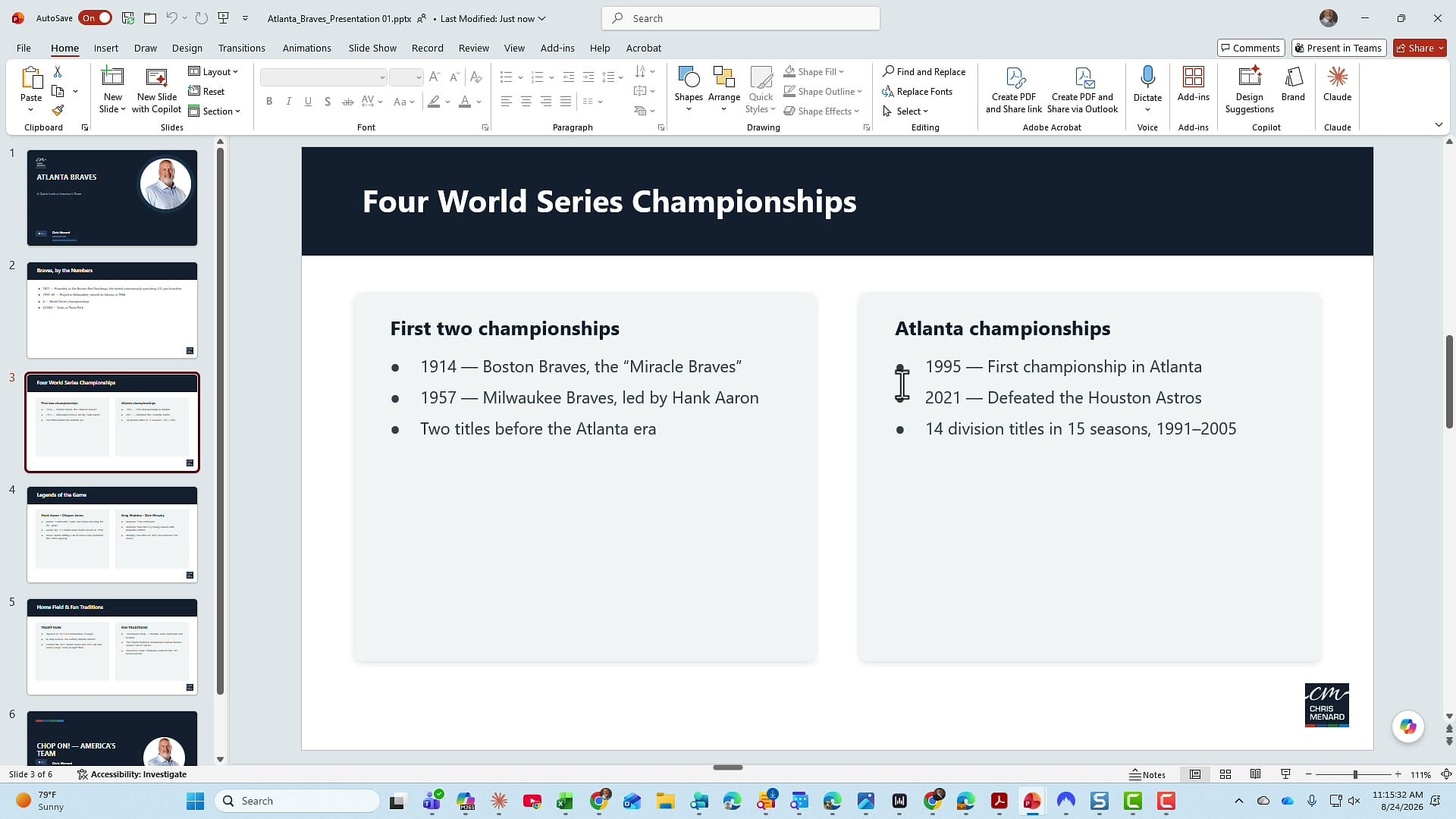
The new version splits the content into two columns: the first two championships and the Atlanta championships. Copilot didn't do the timeline, but again, you could probably tell it to add one.
Overall, yes, I am very happy with the result. The deck now uses my template, and the content came across.
Why I prefer this over the Design tab
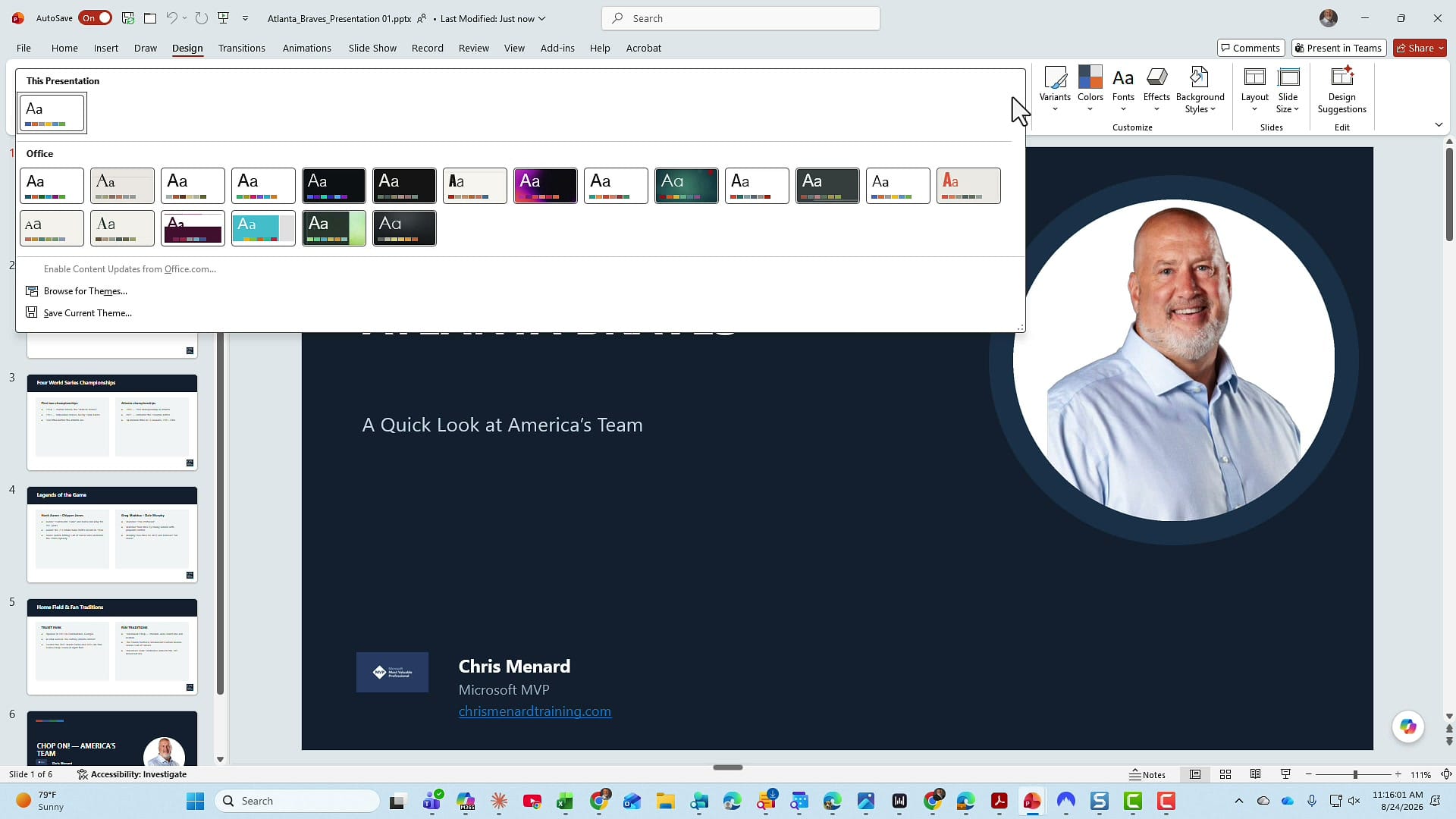
This beats manually doing it, if you were to ask me. It also beats the other option: going to the Design tab, opening Themes, and picking the theme from your template. That always seems to be hit or miss with me when it comes to an organization template.
Quick recap
- Open the presentation that is not using your organization template, then open Copilot.
- Click the plus sign and attach the template with Add work content (OneDrive) or Upload images and files. A presentation or a template file both work.
- Prompt Copilot: "Use this template on the existing presentation. If you have any questions, ask me. Don't assume anything."
- Compare the result with the original. Check that the content and numbers match, and look for layouts, like a timeline, that did not carry over.
- Go back to Copilot with follow-up prompts for anything you want changed.
I hope you enjoyed this tip. Have a wonderful day.
Related guides
 Chris Menard
 Chris Menard
 Chris Menard
 Chris Menard