Redesign Slides with Copilot's Visualize This Slide Skill in PowerPoint
Use the Visualize this slide skill in Copilot for PowerPoint to turn text-heavy slides into visual layouts. Three examples: bullets, a six-step process, and a timeline.


Copilot in PowerPoint has a new skill called Visualize this slide, and I absolutely love it. Select a text-heavy slide, run the skill, and Copilot adds a redesigned visual version of that slide right after it. I'll show you how to run it and walk through three examples: a short bulleted list, a six-step process, and a timeline slide.
Copilot skills versus prompts
If you're wondering what a skill is compared to a prompt: a prompt is something you type yourself. A skill is ready-made. It follows the same workflow instructions automatically every time, so you get a consistent result without writing a detailed prompt.
To use Visualize this slide, you need a paid Microsoft 365 Copilot license. If you have one, you have this skill.
Run Visualize this slide
Here is my first example. Slide 2 is titled What It Does, with three bullets and an image on the right. There's nothing wrong with this slide, but it's mostly text.
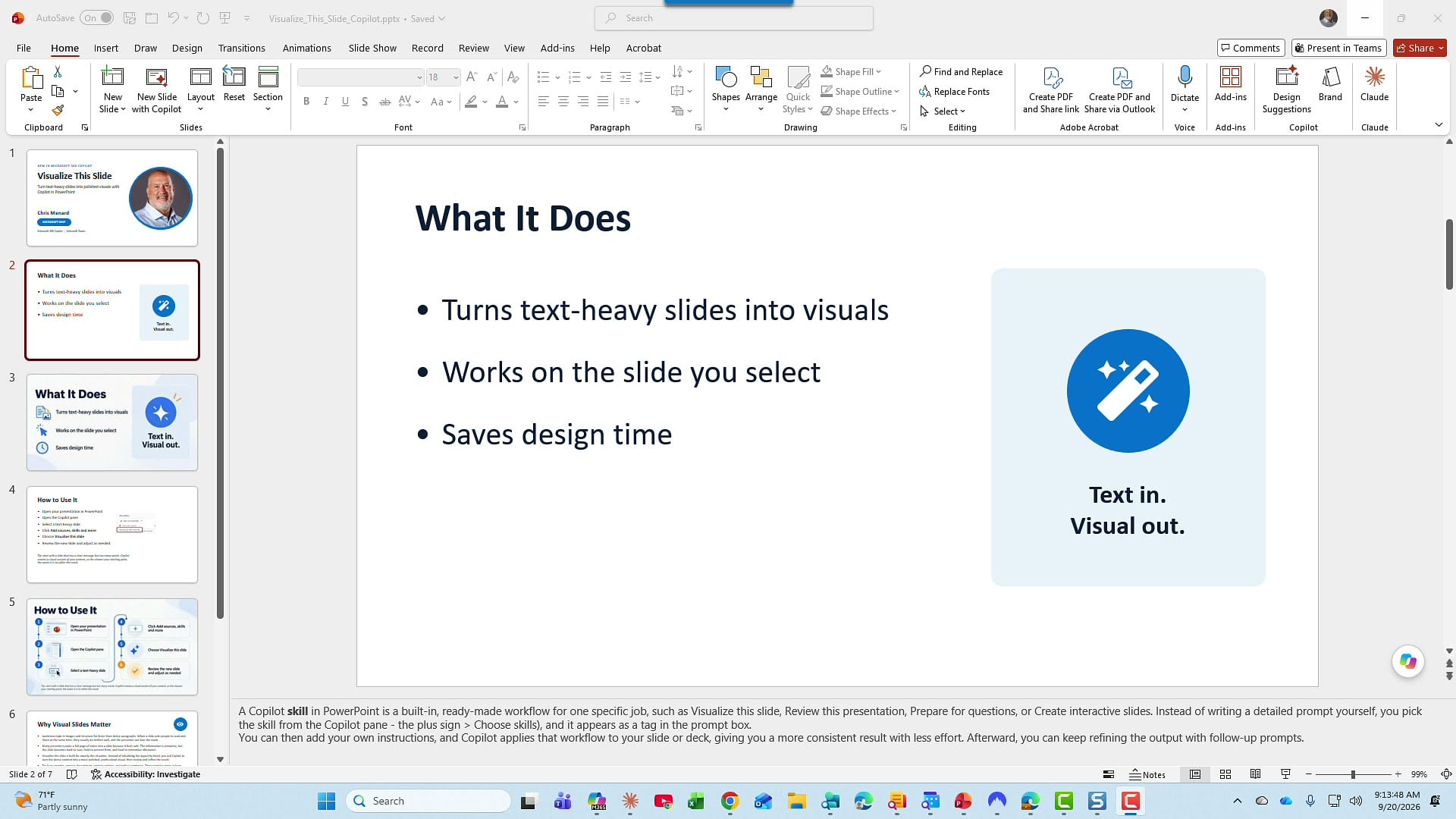
Select the slide, then click Copilot in the bottom right corner. At the bottom of the Copilot pane, make sure you're set to Allow editing. Click the plus sign (Add sources, skills and more), then Choose skills, and pick Visualize this slide.
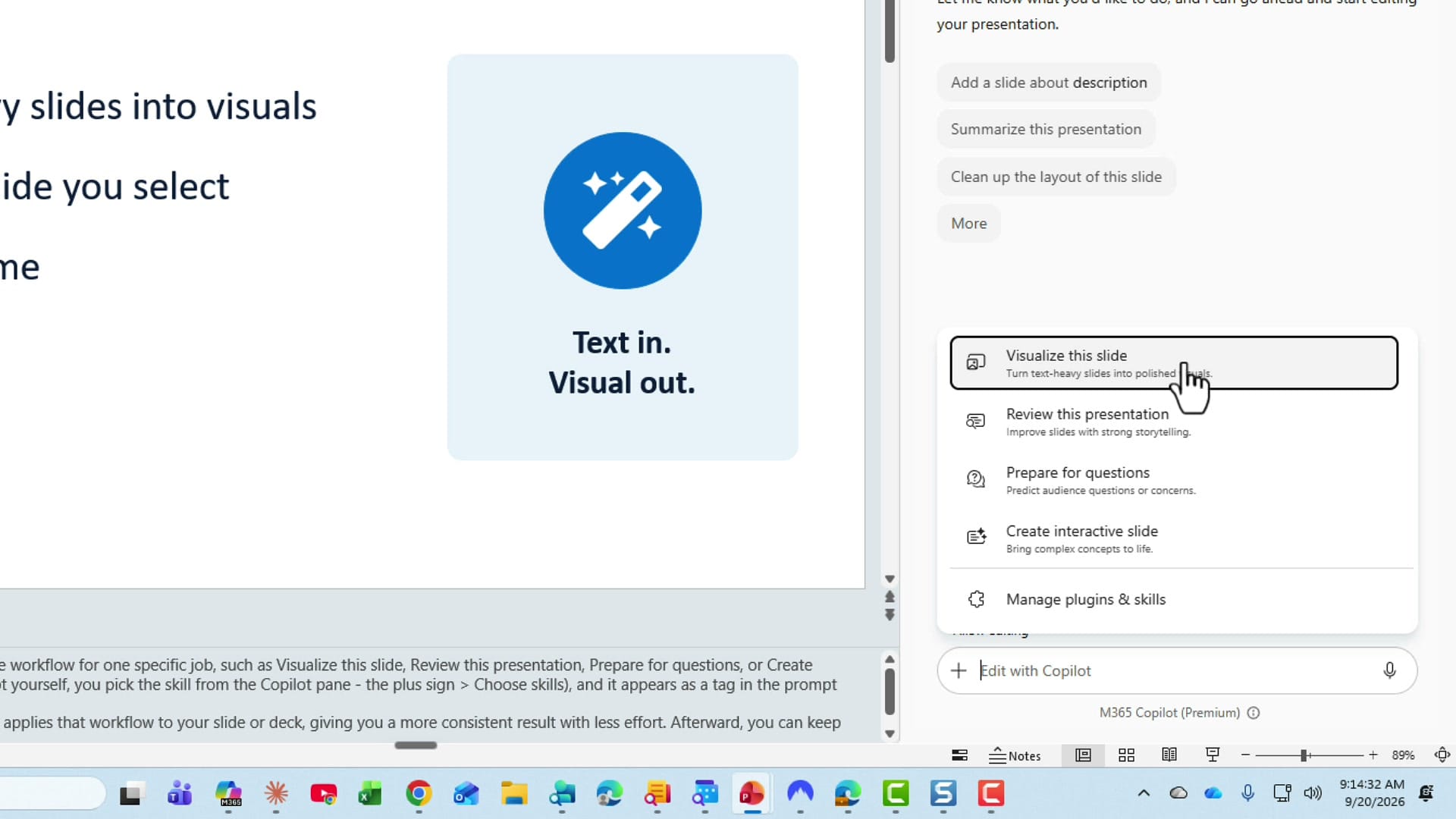
Microsoft keeps adding more skills. On this machine I have four, and on another machine I have seven. You can read about the full set in my post on the new Copilot skills for PowerPoint.
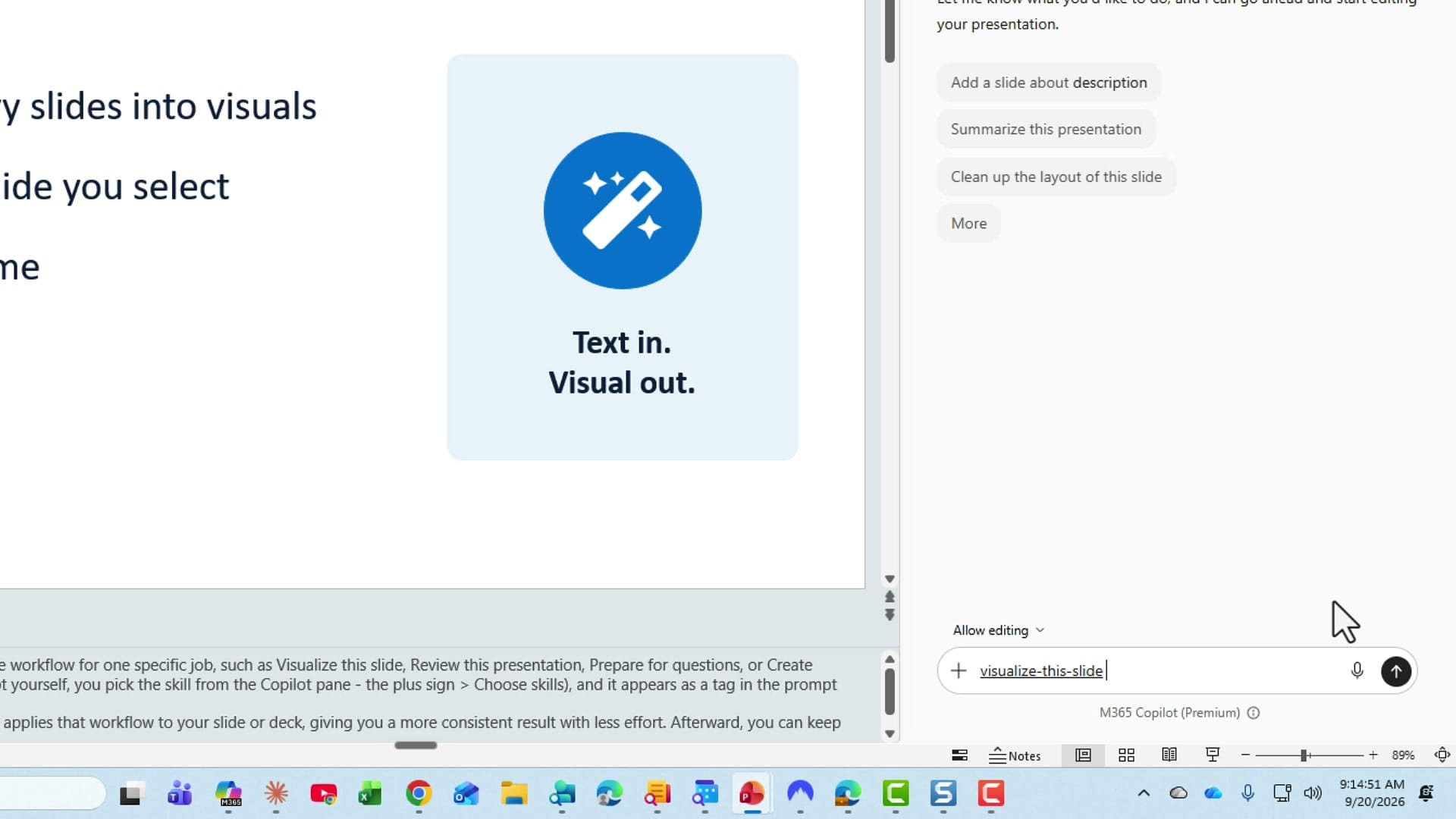
When you pick the skill, it shows up as a tag in the prompt box. That's all you need. Click Send.
Compare the original and redesigned slides
Copilot kept slide 2 and added a new slide 3 with the visual version. You have to ask yourself which one you like better. I like slide 3 better: each bullet has its own icon, and the Text in. Visual out. image is larger and bolder.
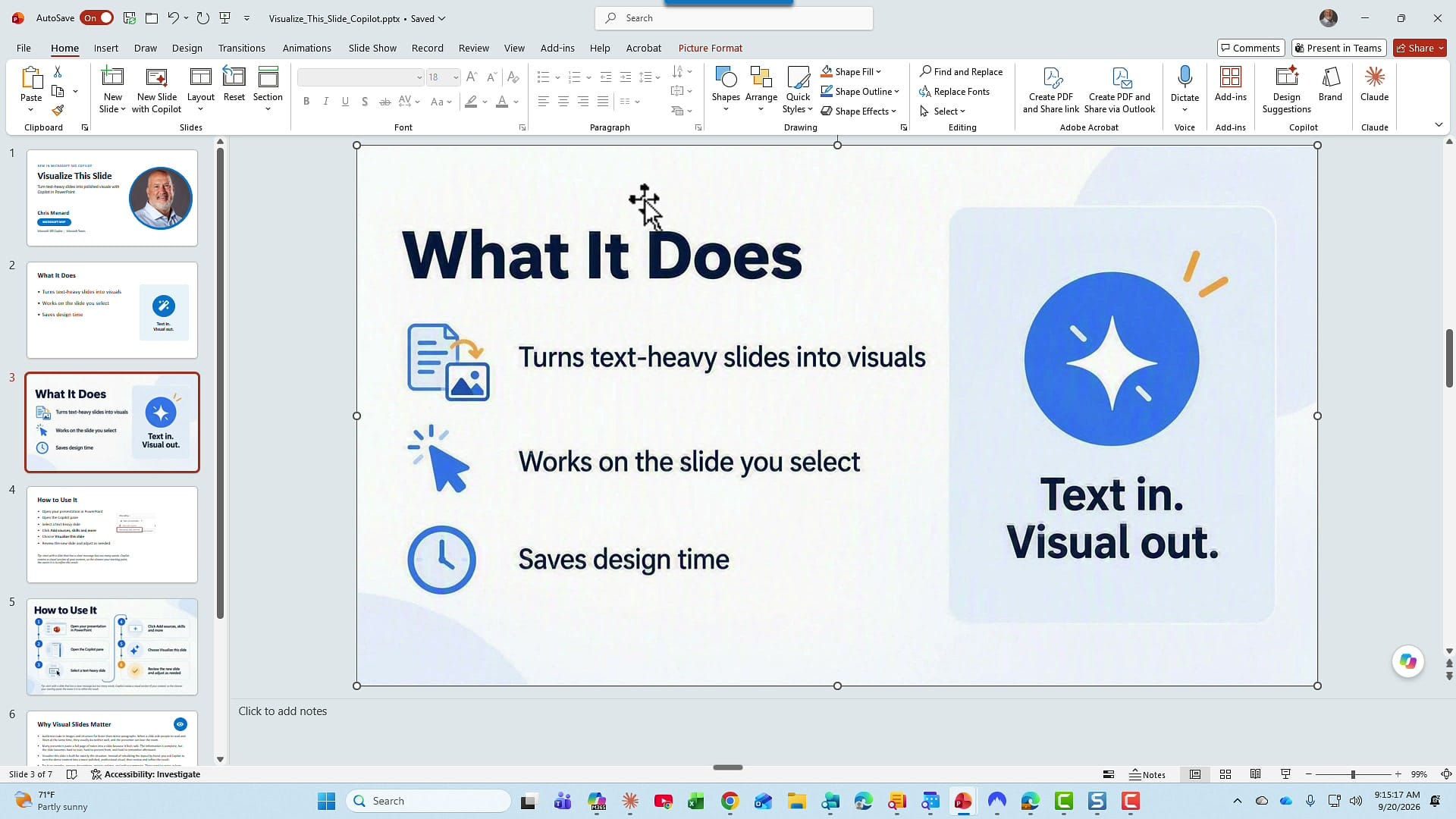
The result is a picture
One thing to keep in mind with this skill: click the new slide and look at the ribbon. The Picture Format tab appears, because the entire slide is a single image. If I press Delete, the whole thing goes away. Press Ctrl+Z to bring it back.
Bonus tip: if you want to edit portions of the slide, go back to the Copilot prompt box. This time you're not using a skill. Type a prompt asking Copilot to take the image and make it so you can edit the different sections. That worked in my testing.
Turn six steps into a visual process
My second example is slide 4, which I set up intentionally with six bullets. I added a small picture showing where Add sources, skills and more is located, plus a tip at the bottom of the slide.
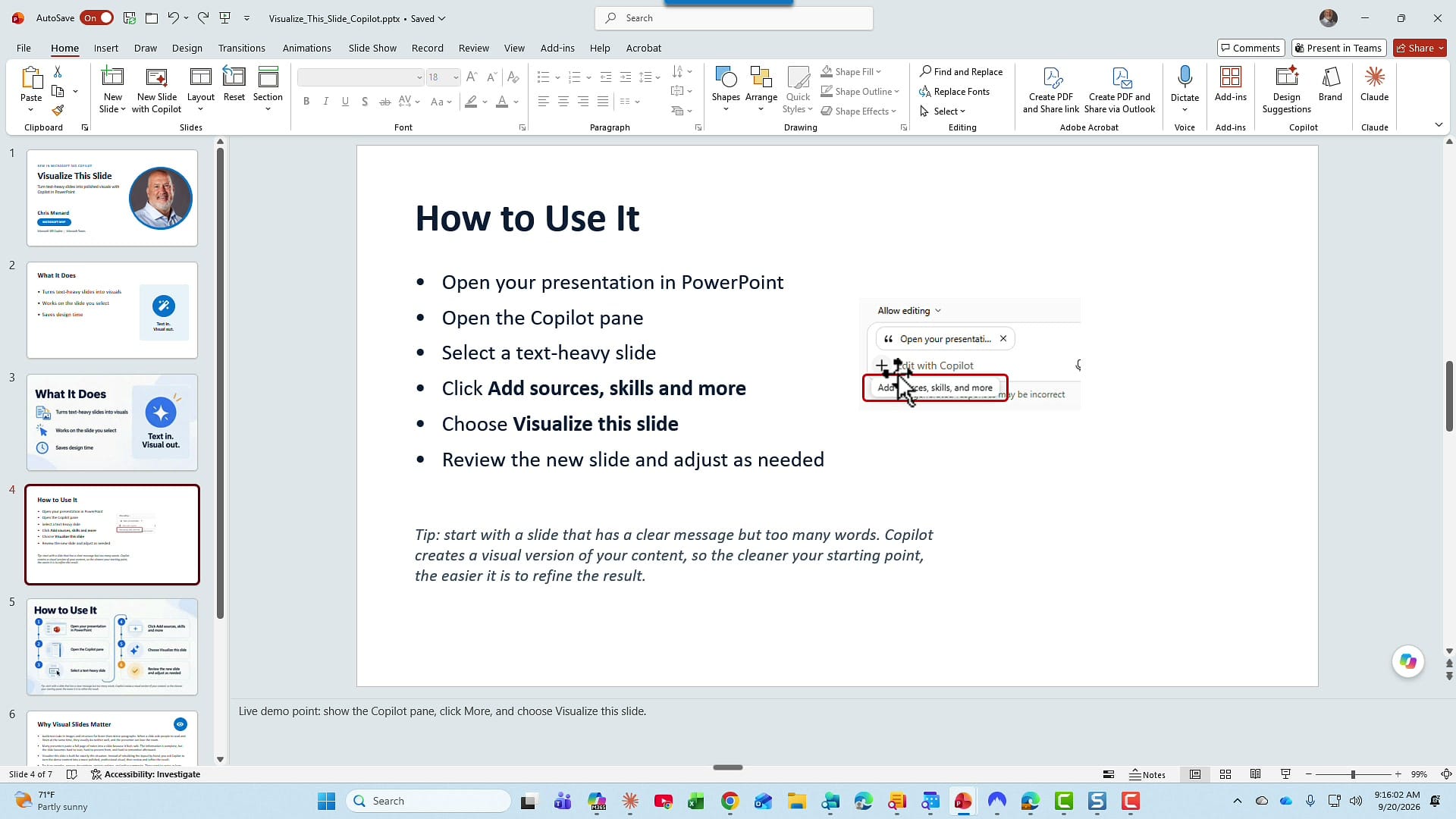
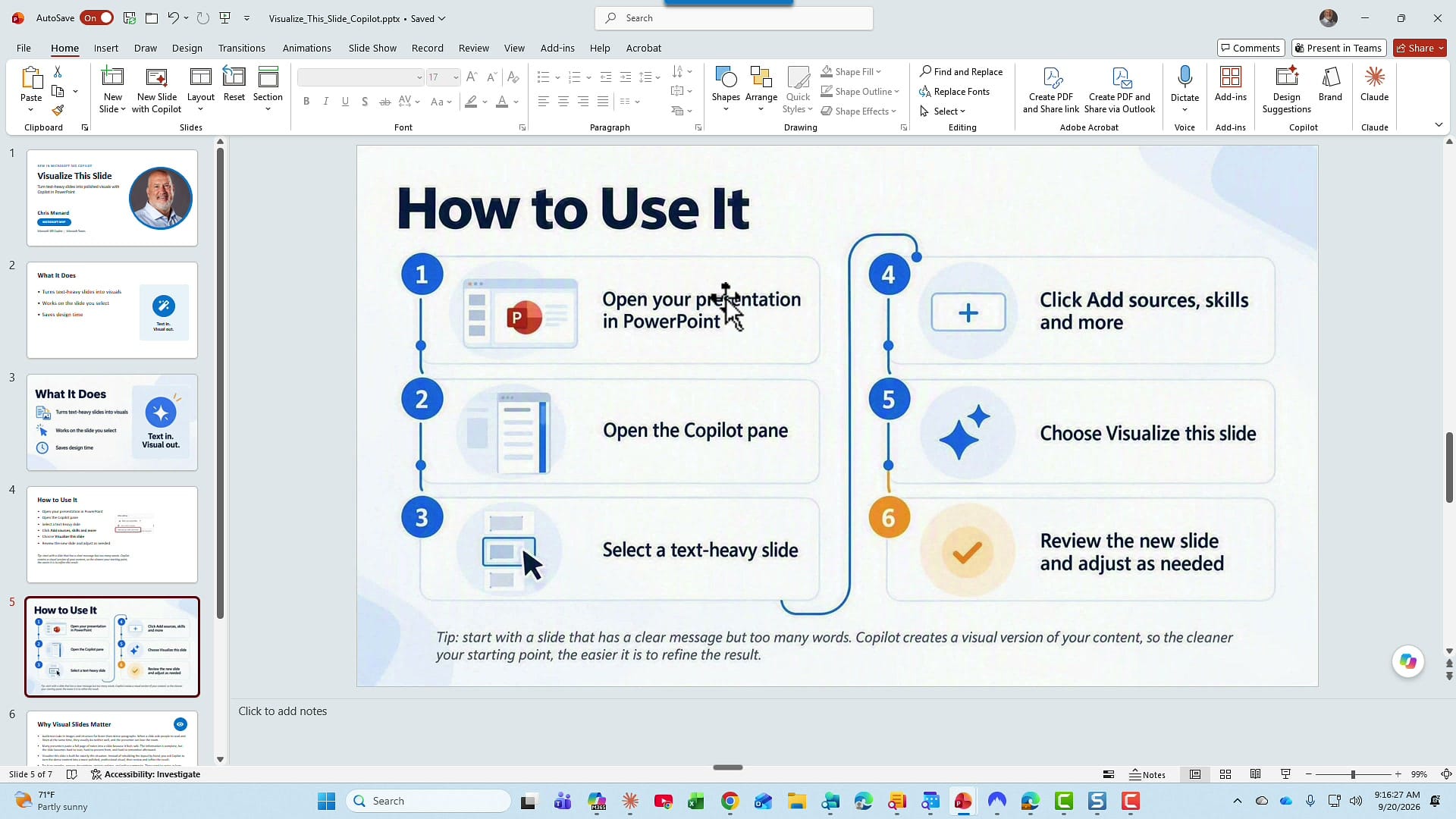
Same steps: select the slide, choose Visualize this slide, and send. Instead of six bullets, Copilot gave me a numbered process. I love that it put a PowerPoint icon next to step 1, numbered every step, and drew a line connecting steps 1 through 3 to steps 4 through 6. For step 4, Click Add sources, skills and more, it included the plus sign from my screenshot. And the tip I had at the bottom of the original slide is still at the bottom of the new one.
Visualize a history timeline slide
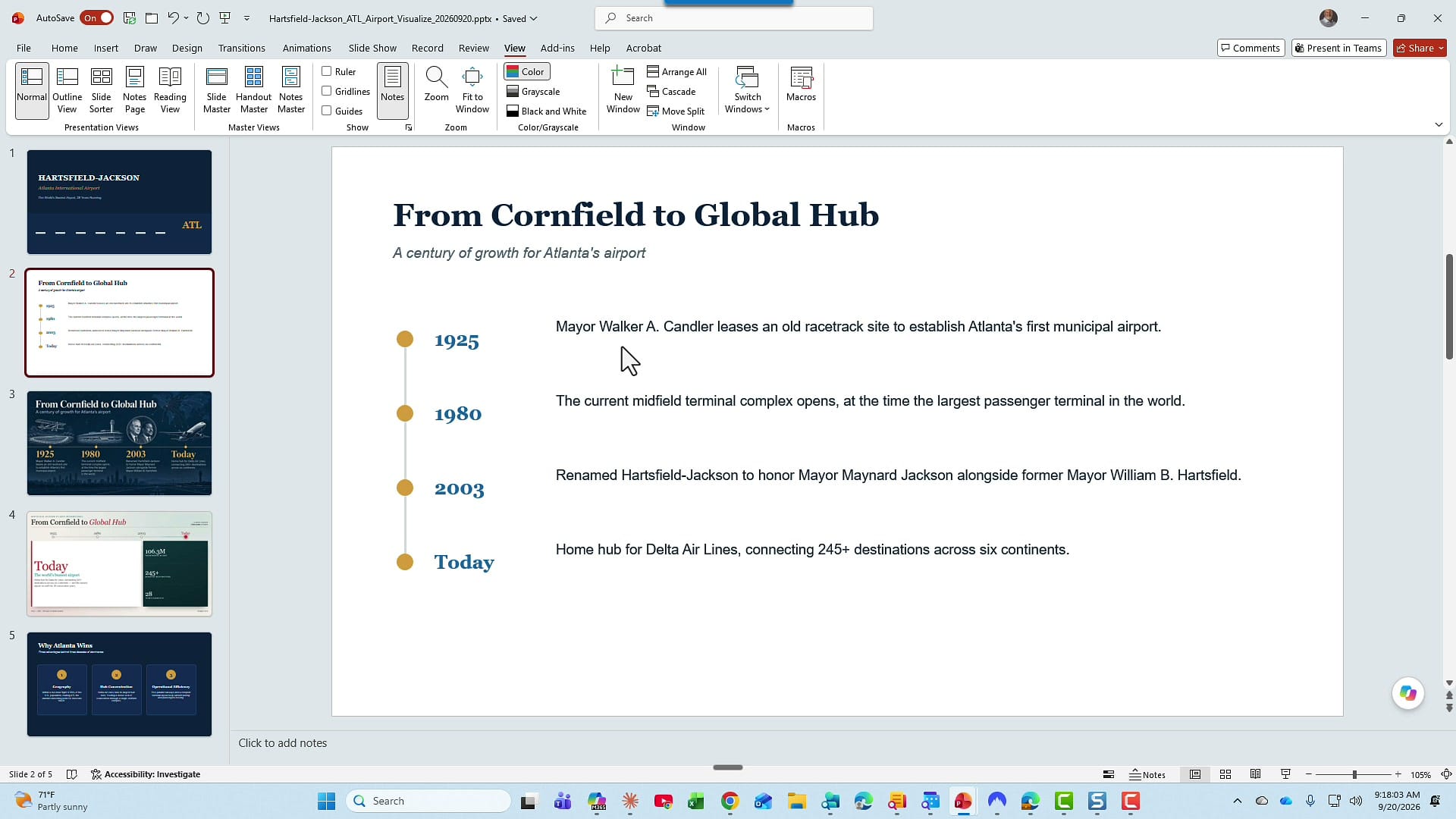
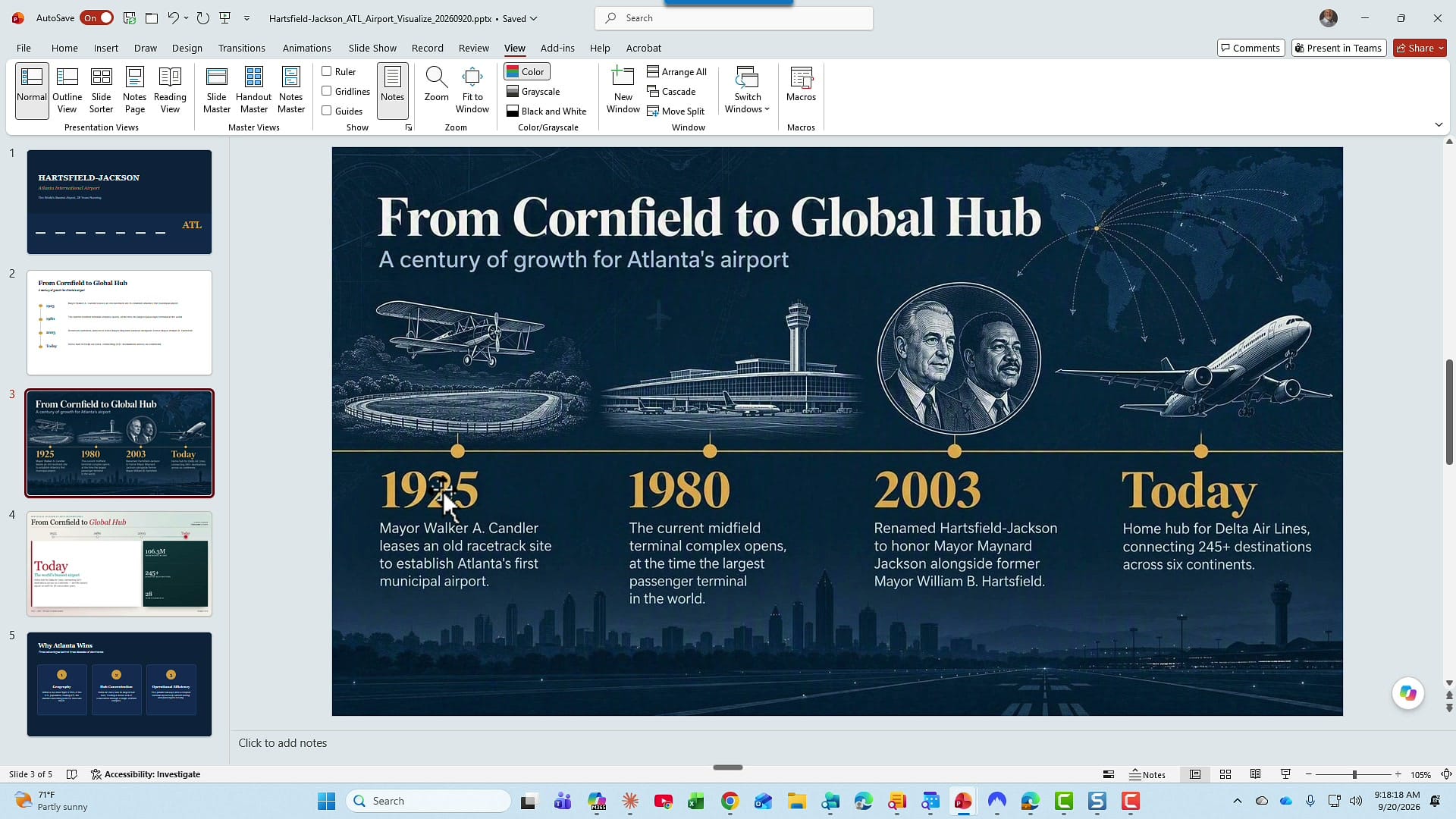
Here's a third example from a different presentation, about Hartsfield-Jackson Atlanta International Airport, one of the busiest airports in the world. The original slide is a simple timeline with 1925, 1980, 2003, and Today. It looks fine.
Then I ran Visualize this slide, and look at what came back. There's an older airplane for 1925, the terminal for 1980, the 2003 renaming to Hartsfield-Jackson to honor Mayor Maynard Jackson, and a modern jet for Today. That's a huge difference.
Redesign a slide with lengthy bullets
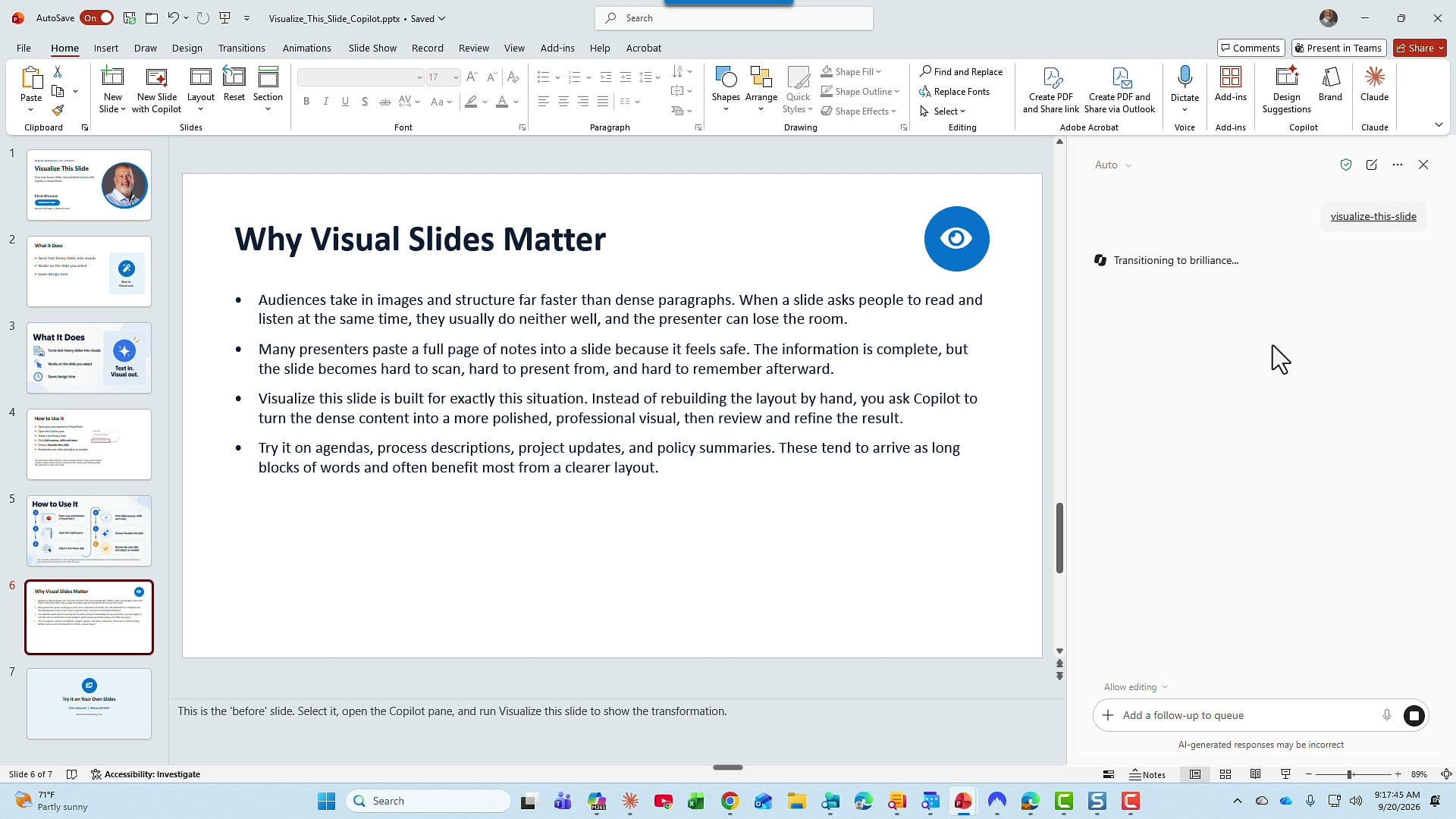
For my last test, I picked slide 6, Why Visual Slides Matter. It breaks the rule of six and six (six bullets, six words per bullet). There are only four bullets, but each one is long. I was curious how Copilot would handle it.
Same steps again. While Copilot is working, you don't have to sit and wait. You can switch to another presentation and keep working.
Review and refine the result
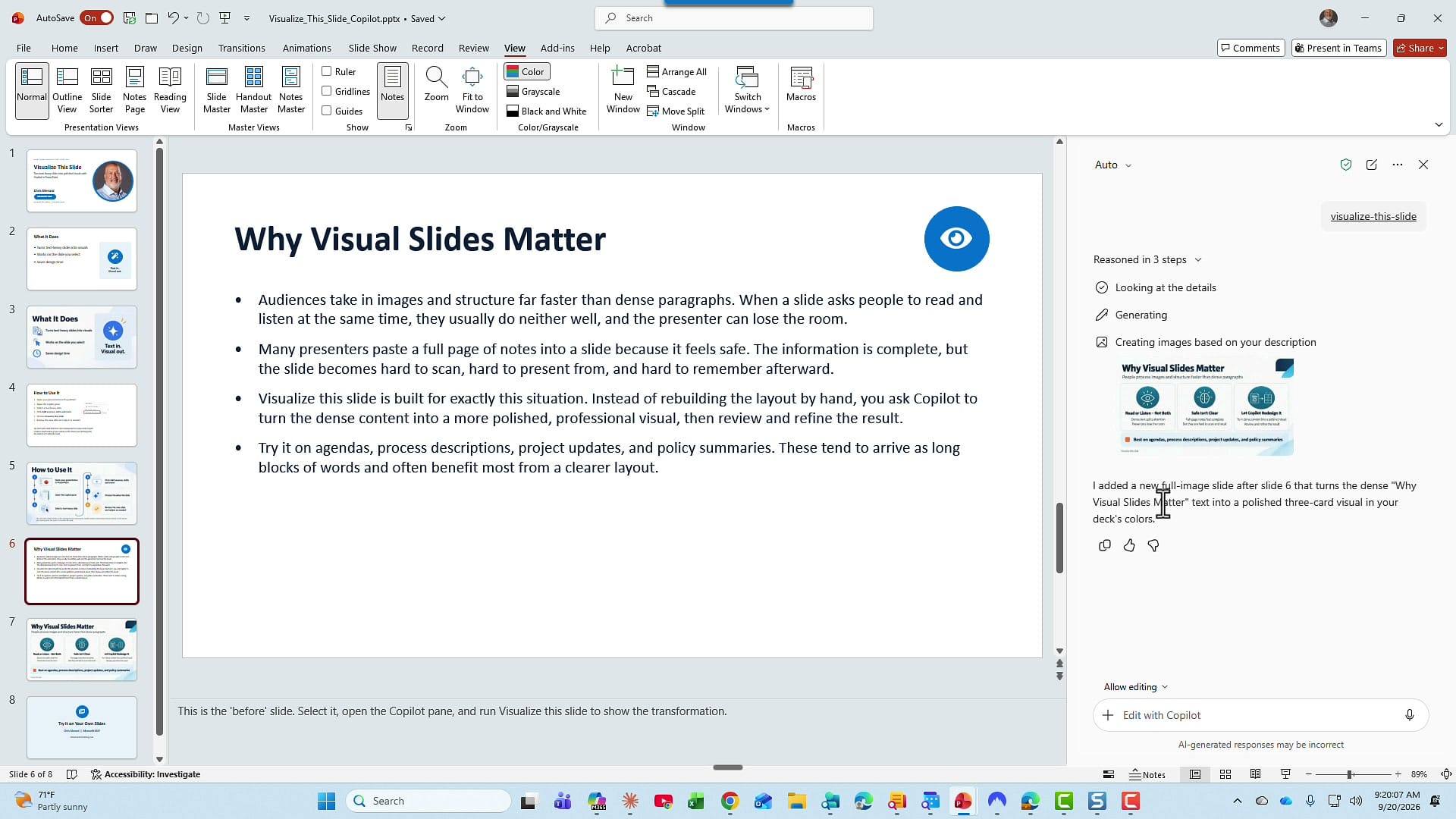
When it finishes, Copilot tells you how many steps it took. You can expand that to see the details. Here, it reasoned in three steps and added a new full-image slide after slide 6.
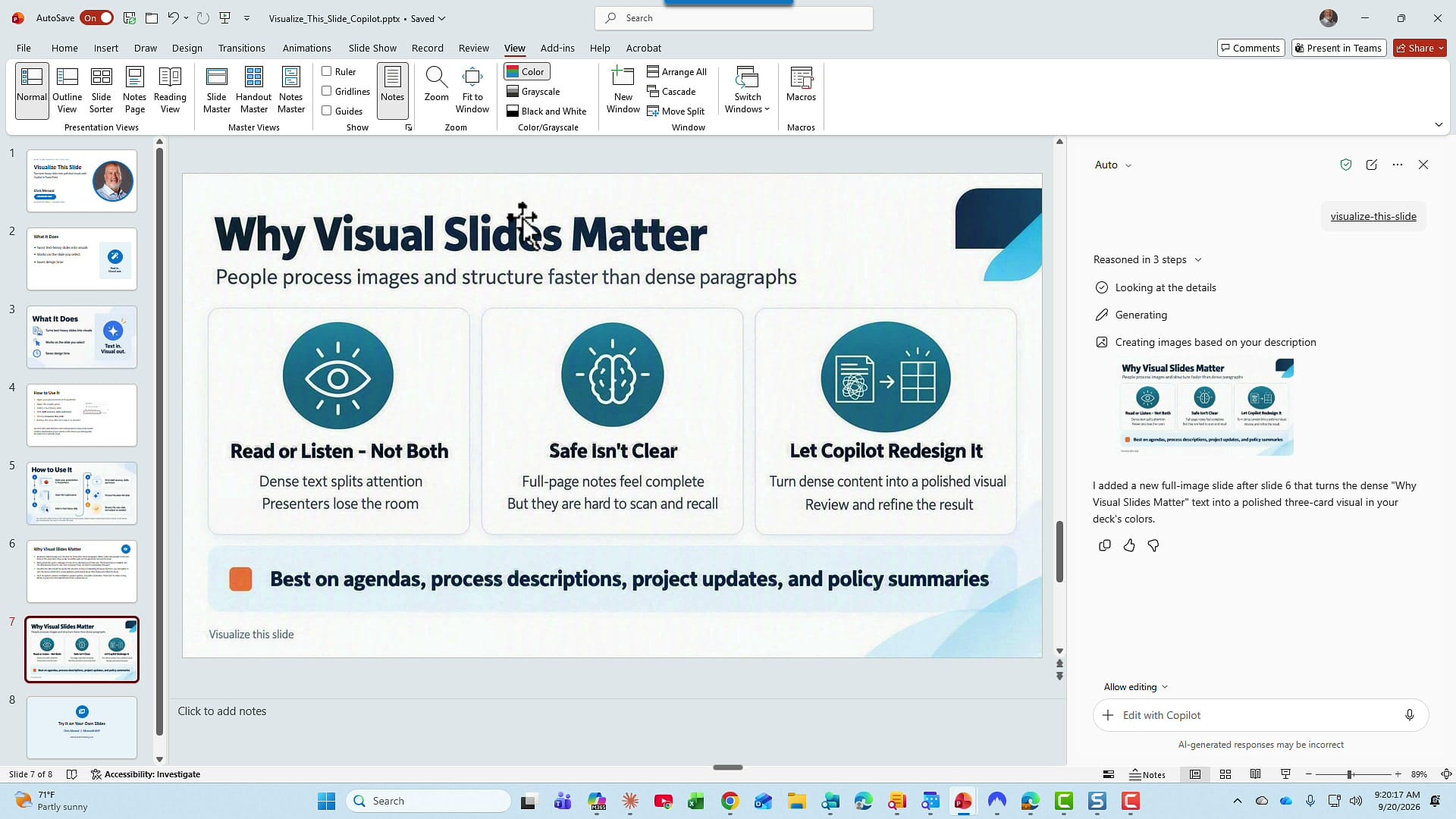
The new slide has a subtitle, People process images and structure faster than dense paragraphs, and I didn't get four icons going from left to right. I got three cards. Copilot took the fourth bullet and turned it into its own callout at the bottom: Best on agendas, process descriptions, project updates, and policy summaries. I'm okay with that, because it probably fits better than four cards in a row. It also shortened the text a lot. "Audiences take in images and structure far faster than dense paragraphs" became Read or Listen, Not Both.
If you don't like what Copilot came up with, use the prompt box to tell it what you want changed. Because the original slide stays in place, I also like to put both versions on screen at the same time and compare the two slides side by side before I decide which one to keep.
Related guides
 Chris Menard
 Chris Menard
 Chris Menard
 Chris Menard
 Chris Menard