How to Link Excel Tables Using the Data Model (Without VLOOKUP or XLOOKUP)


If you've been using VLOOKUP or XLOOKUP to pull data between Excel worksheets, there's a more efficient approach. Excel's Data Model lets you create relationships between tables so you can build PivotTables that pull from multiple sources — without duplicating data or writing complex formulas.
In this tutorial, I walk through setting up two worksheets (Customers and Orders), converting them to Excel Tables, creating a relationship between them, and building a PivotTable that combines data from both. The result is a lightweight file with no duplicated columns.
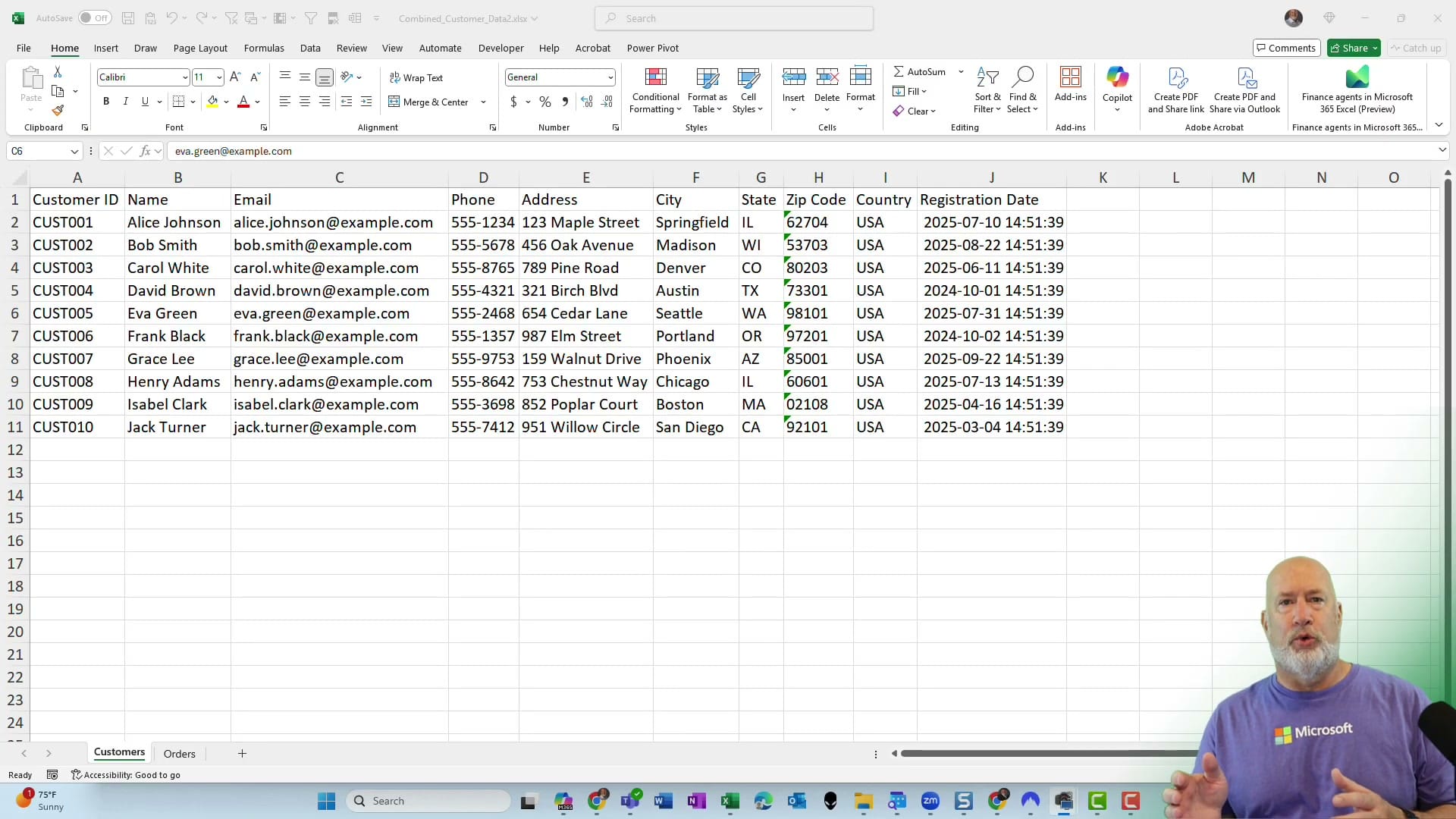
Setting Up the Worksheets
The example uses two worksheets in a single workbook:
- Customers — Contains Customer ID, Name, Email, Phone, Address, City, State, Zip Code, Country, and Registration Date
- Orders — Contains Order ID, Customer ID, Order Date, Product Name, Quantity, Unit Price, Total Amount, and Order Status
The key is that both worksheets share a Customer ID column. This is the field that links them together, similar to how VLOOKUP or Index/Match would connect data — but without any formulas.
Converting Ranges to Tables
Before creating a relationship, each worksheet's data must be formatted as an Excel Table. Select any cell in the data range and press Ctrl+T. Excel will detect the range and show the Create Table dialog.
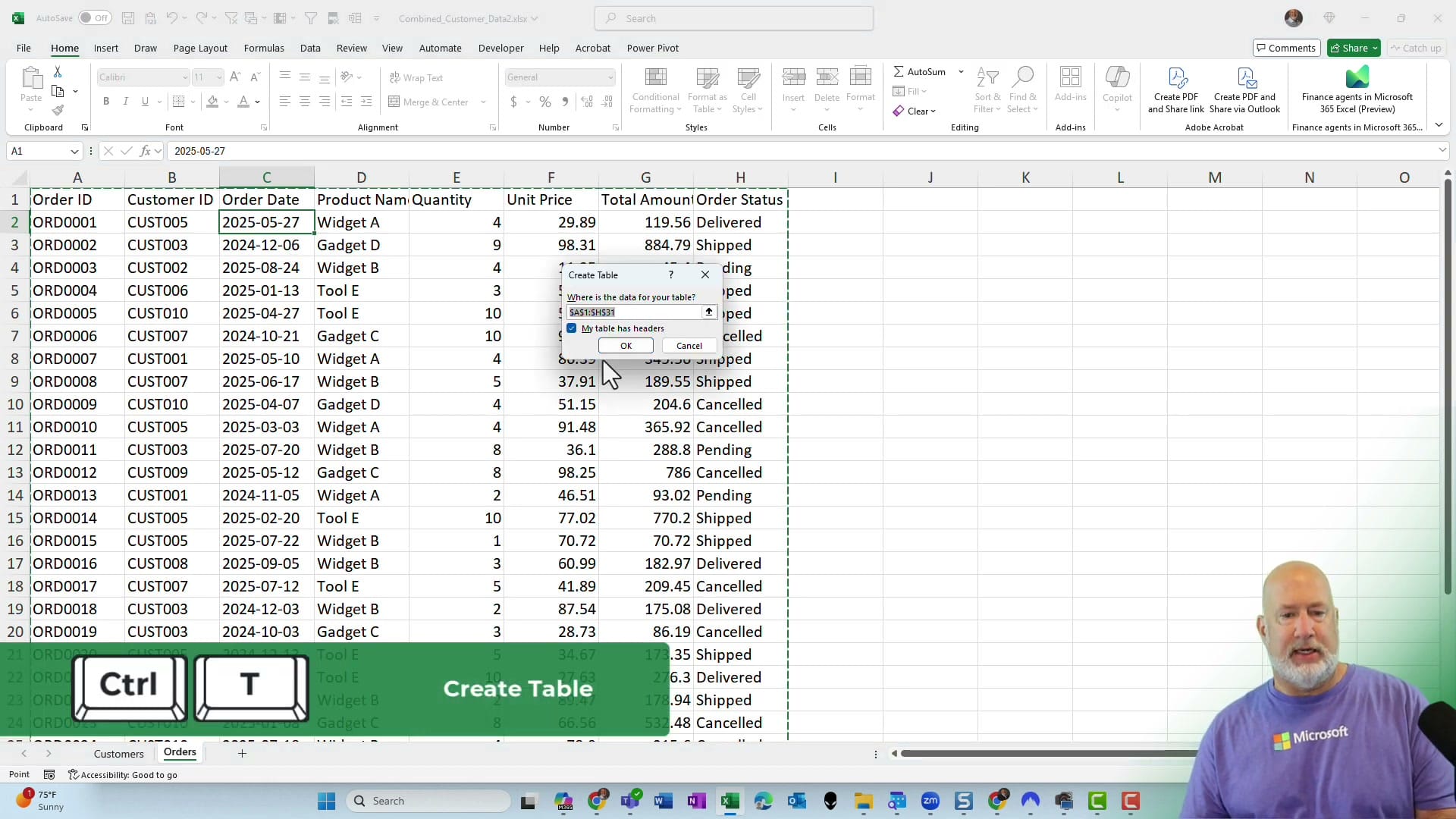
Do this for both the Customers and Orders sheets. Name each table clearly (e.g., "customers" and "orders") using the Table Name field on the Table Design tab. Clear names make relationships easier to manage.
Creating a PivotTable from the Data Model
With both tables created, insert a PivotTable from the Orders table. In the PivotTable dialog, check the option to Add this data to the Data Model. This is the key step that enables multi-table relationships.
In the PivotTable Fields pane, click All (instead of Active) to see both tables listed. When you drag fields from both tables into the PivotTable, Excel will display a yellow banner: "Relationships between tables may be needed."
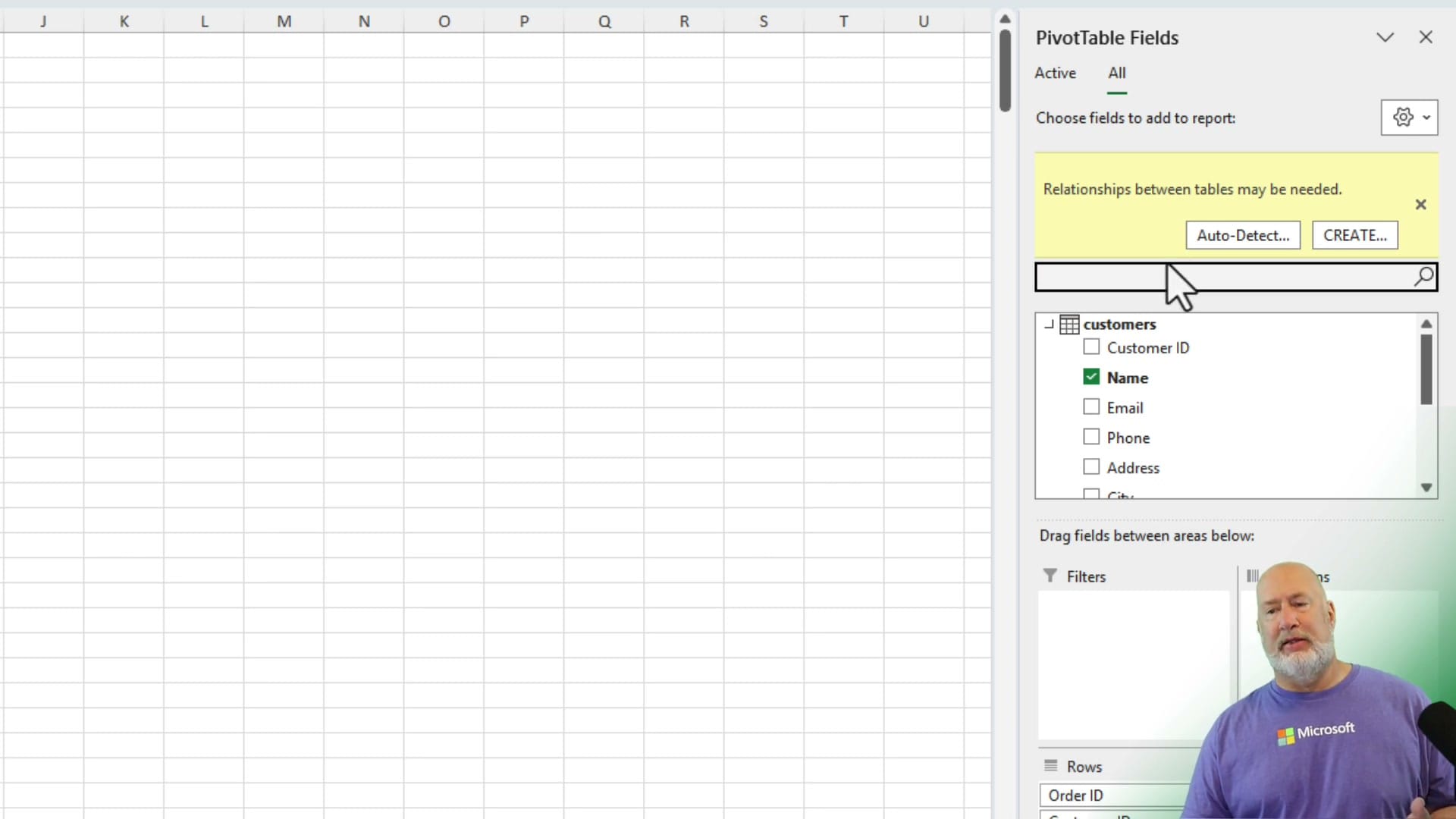
Establishing the Relationship
Click Auto-Detect or CREATE in the yellow banner. If you click Create, specify:
- Table: orders
- Column: Customer ID
- Related Table: customers
- Related Column: Customer ID
Once the relationship is established, the PivotTable can pull Customer Name from the Customers table and Order details from the Orders table — all without VLOOKUP, XLOOKUP, or duplicated data. This approach is especially useful for combining multiple tables in large workbooks.
Why Use the Data Model Instead of Lookup Functions?
- No duplicate data — Customer names aren't copied into the Orders sheet
- Smaller file size — Data stays in its original location
- Automatic updates — Add rows to either table and refresh the PivotTable
- Scales well — Works with multiple related tables, not just two
- Familiar PivotTable interface — No new formulas to learn, just use Tables as your PivotTable source
For distinct count calculations, the Data Model approach is the only built-in PivotTable option — another reason to use this method when working with related data.
Related guides
 Chris Menard
 Chris Menard
 Chris Menard
 Chris Menard
Want to learn more? Visit courses.chrismenardtraining.com for online training courses.