How to Customize the Enter Key in Microsoft Teams Chat

By default, pressing Enter in a Microsoft Teams chat sends the message immediately. If you have ever accidentally sent a half-finished message, there is now a setting to change this behavior so Enter starts a new line instead.
The Default Behavior
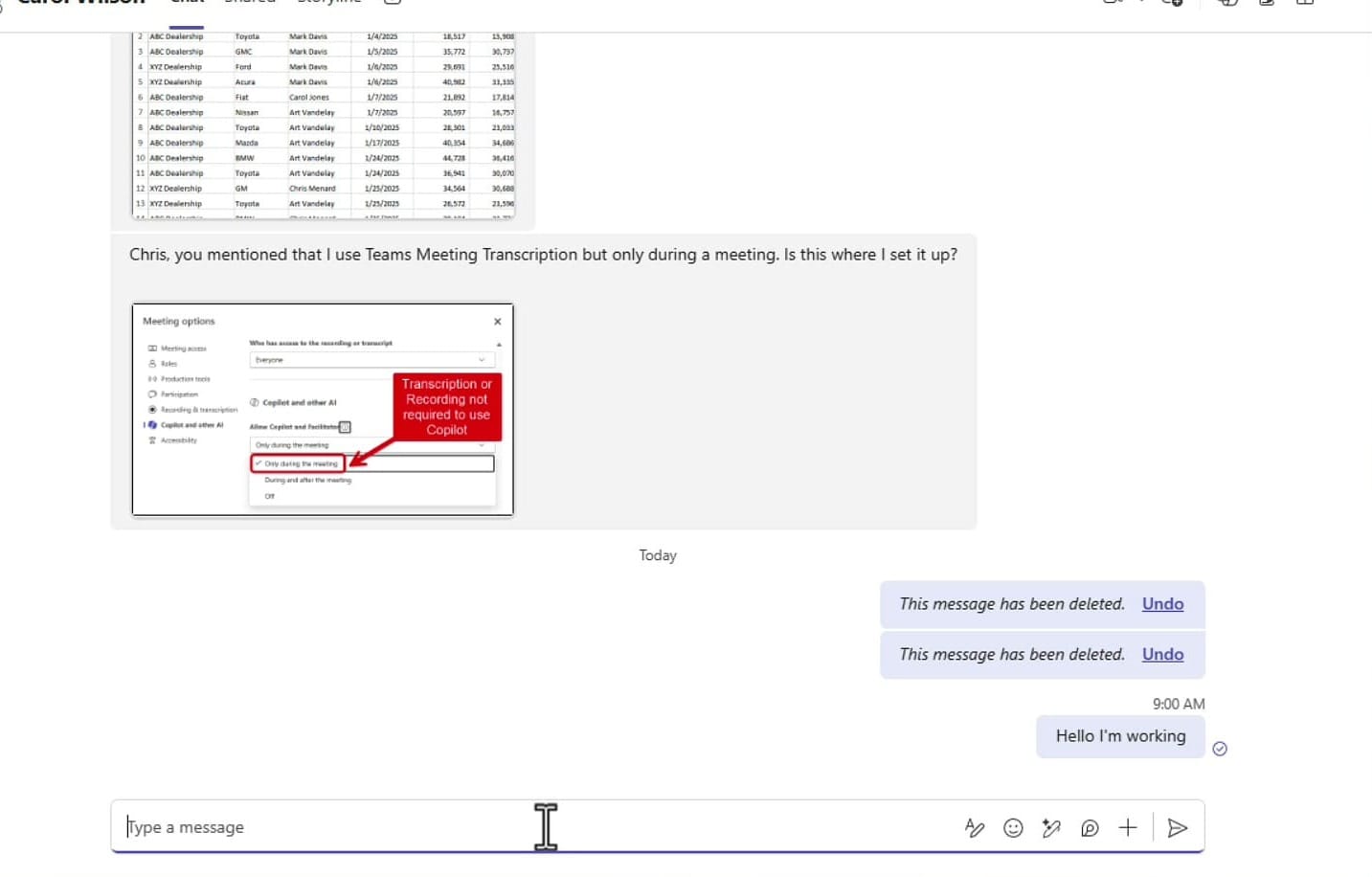
In the default Teams configuration, typing a message and pressing Enter sends it right away. If you intended to start a new line, the message is already gone. You can press the up arrow key immediately to enter Edit mode on the last sent message, but that is a workaround, not a fix.
Changing Enter to Start a New Line
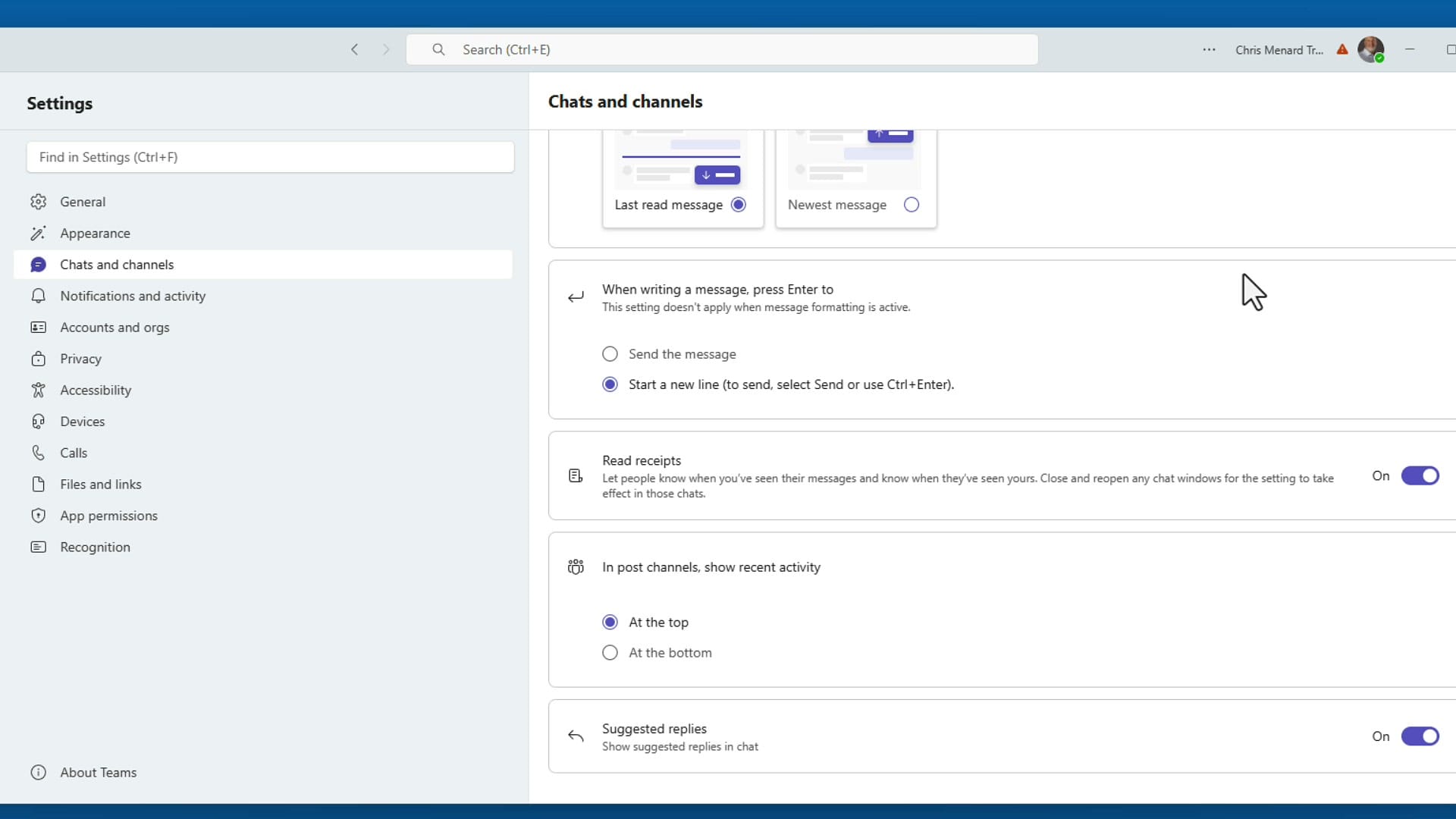
To change the behavior, go to Settings & more (the three-dot menu at the top right), then click Settings. In the left panel, select Chats and channels. Scroll down to the section that says "When writing a message, press Enter to" and you will see two options:
- Send the message — the default
- Start a new line — the new option (to send, use Ctrl+Enter)
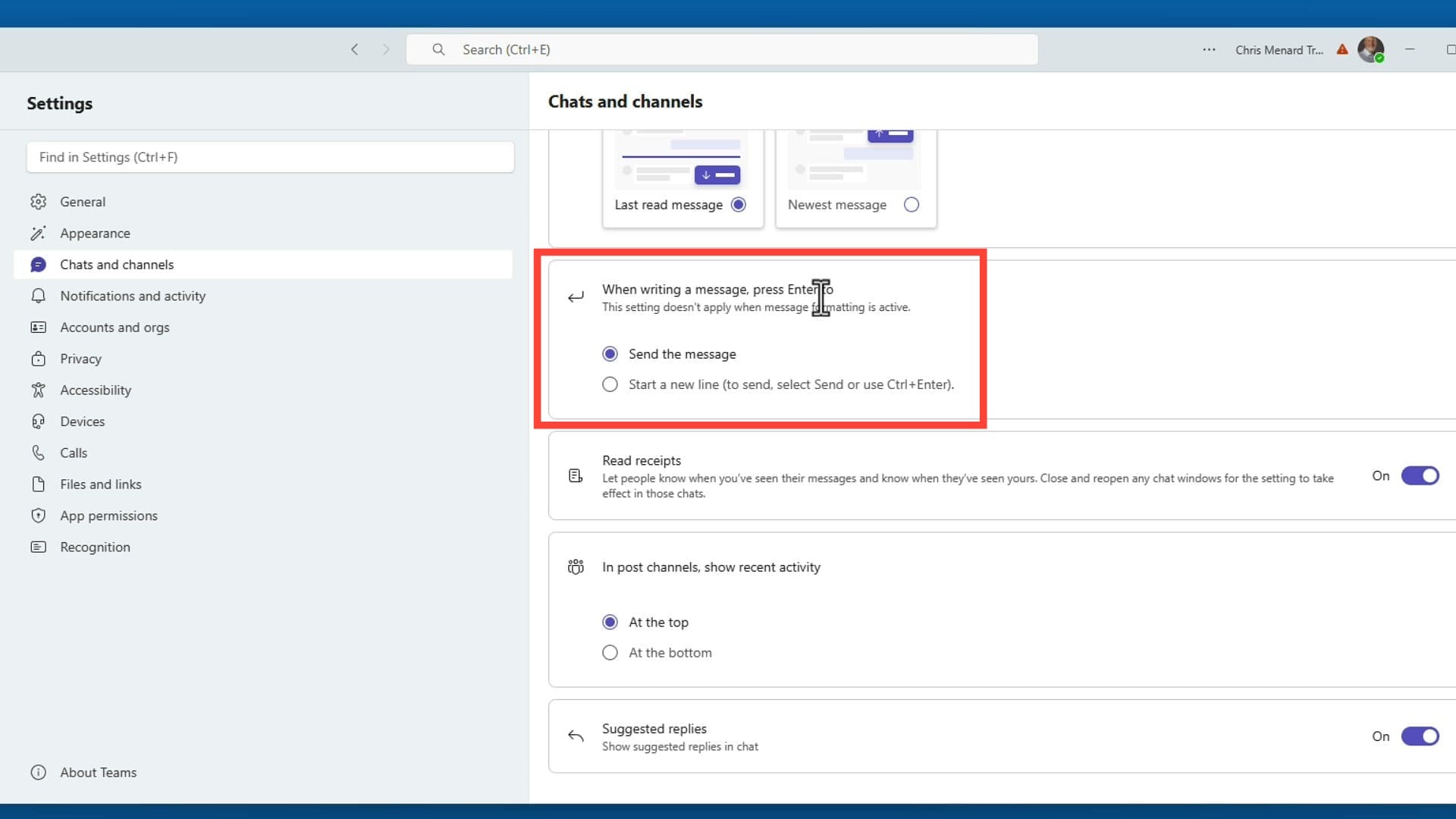
Select Start a new line. There is no save button — the setting takes effect immediately.
Using the New Setting
Now when typing a message, pressing Enter creates a new line instead of sending. You can type multi-line messages naturally — for example, a list of items you are working on. When ready to send, press Ctrl+Enter.
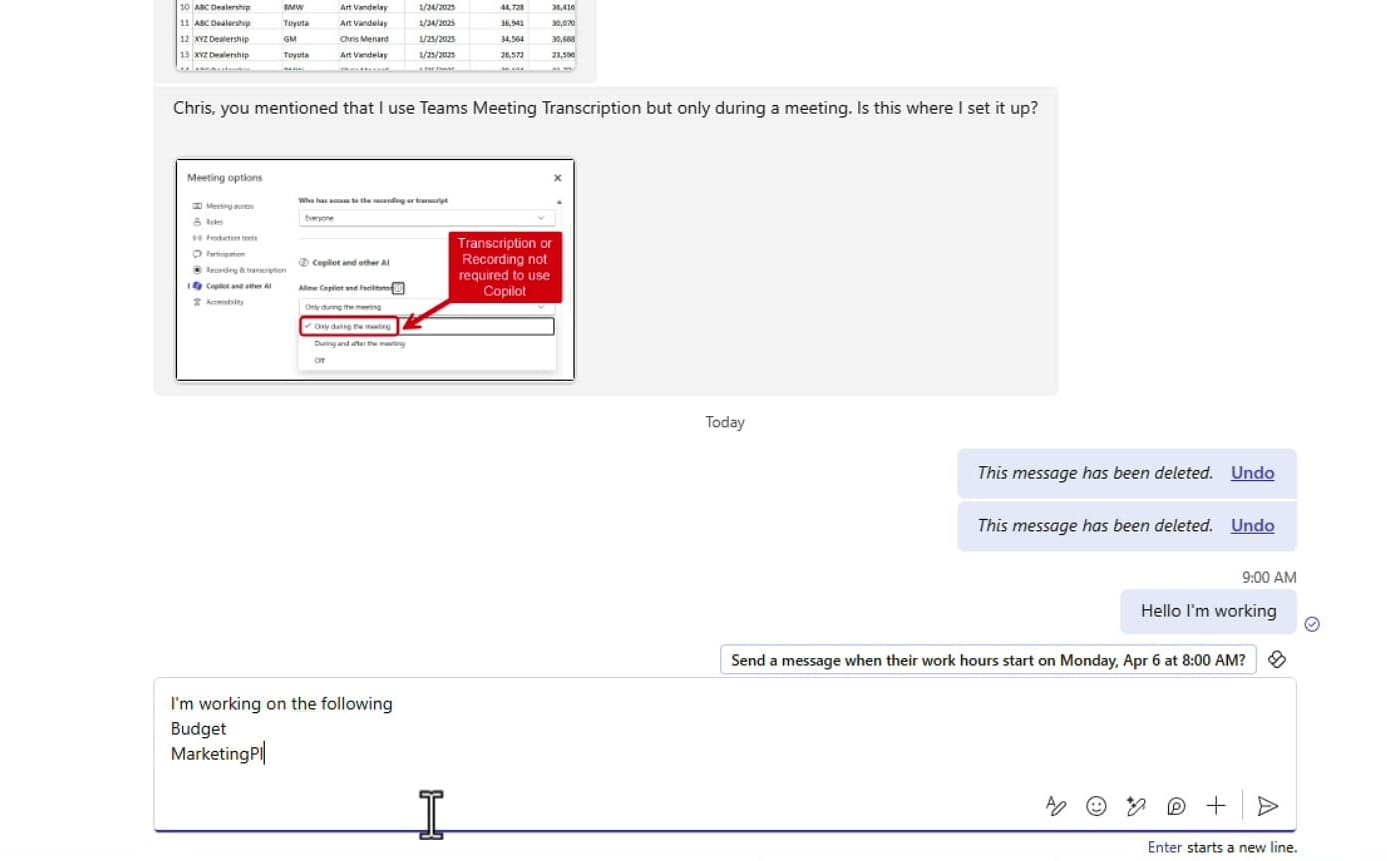
The up arrow shortcut still works the same way — pressing it with an empty compose box puts you into Edit mode on your last sent message.
Bonus Tip: Search Your Settings
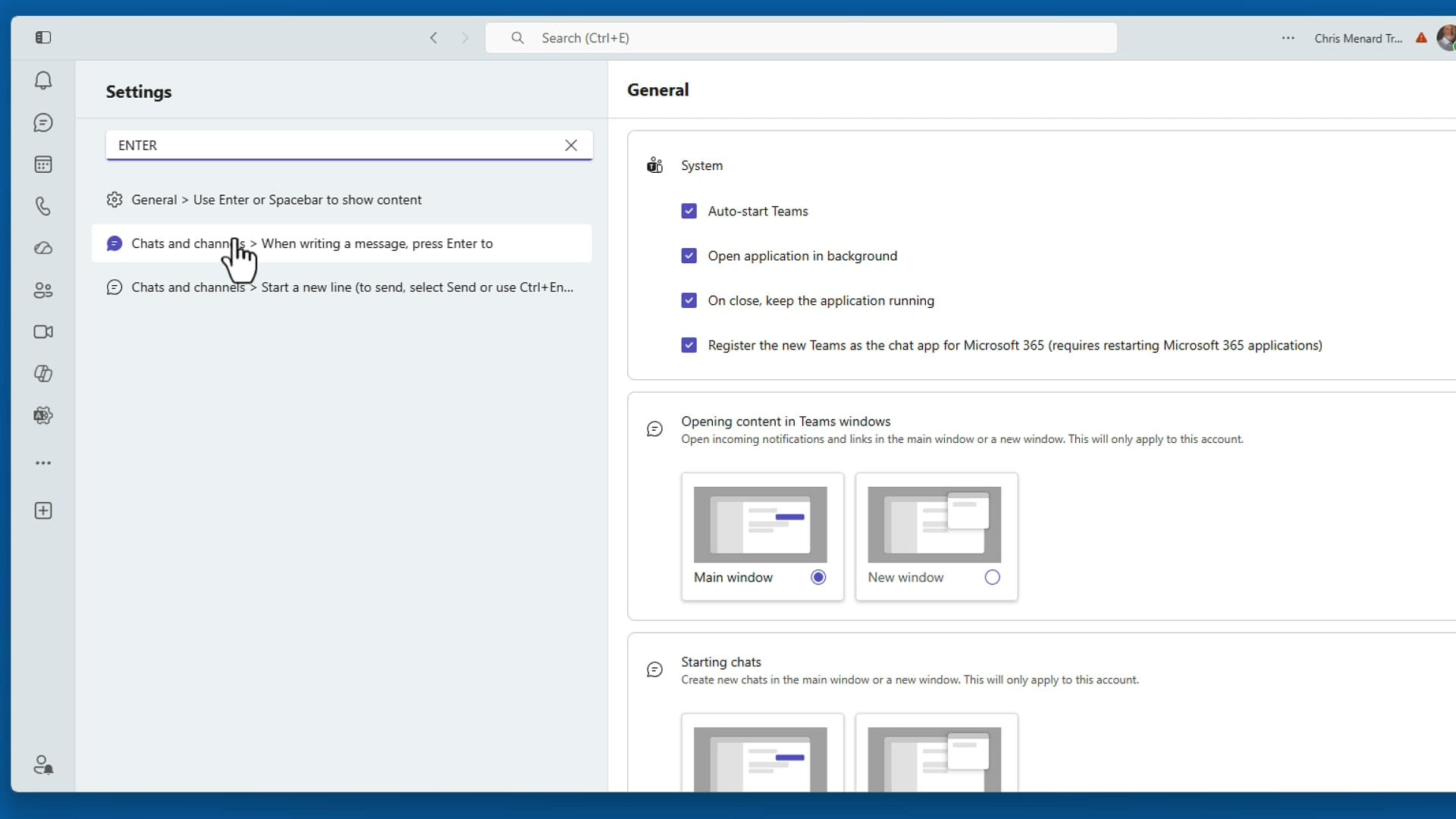
If you ever forget where a setting is, use the search box at the top of the Settings panel. Type a keyword like "Enter" and Teams filters the options to show matching settings. Select the one you need and it jumps directly to that section.
Bonus Tip: Formatting Mode with Ctrl+Shift+X
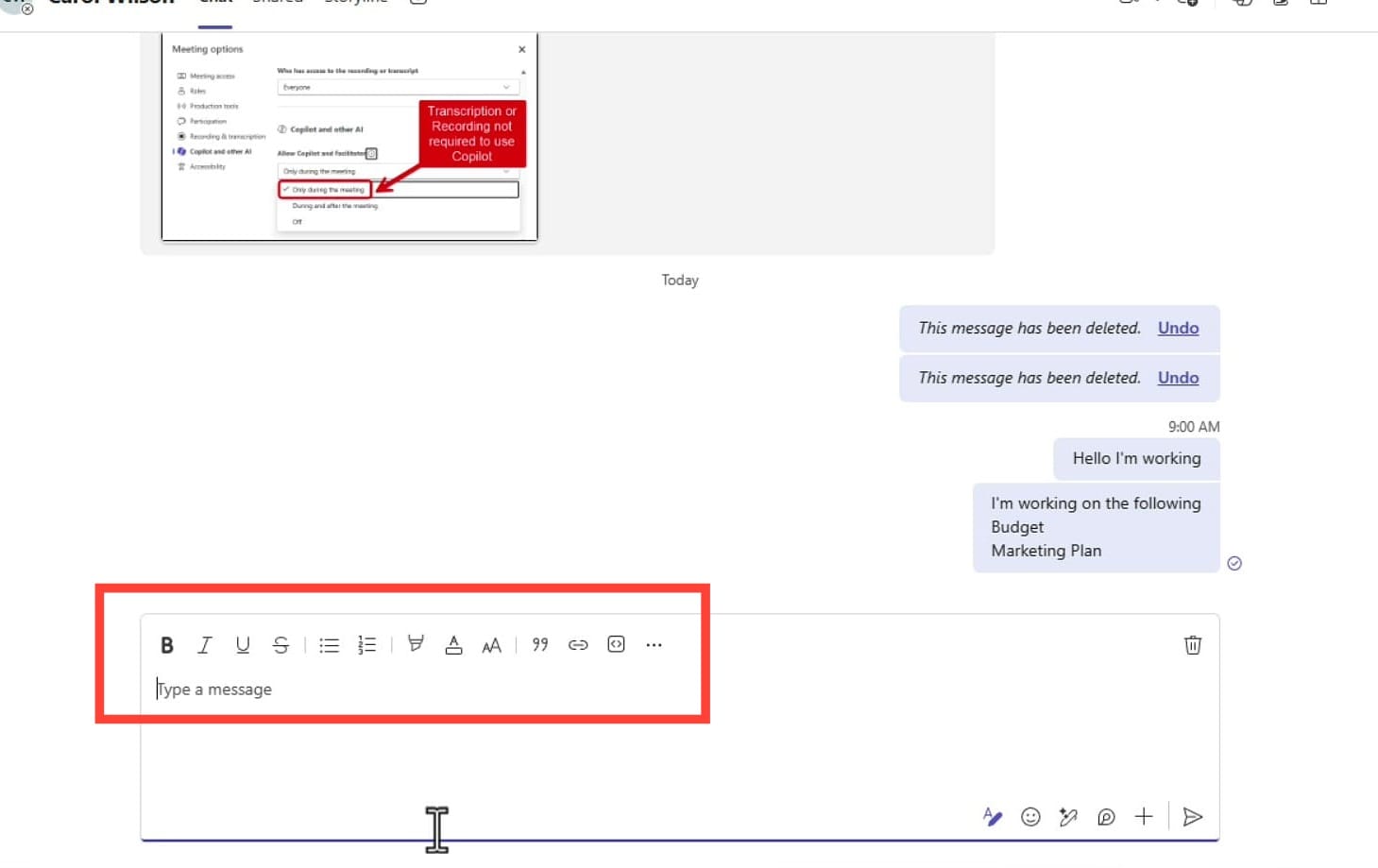
If you prefer to keep the default setting where Enter sends the message, there is another way to get multi-line support on demand. Press Ctrl+Shift+X to open the formatting toolbar. While the formatting toolbar is active, pressing Enter creates a new line instead of sending. When ready, press Ctrl+Enter to send.
Related Microsoft Teams Tutorials
 Chris Menard
 Chris Menard
 Chris Menard
Want to learn more? Visit courses.chrismenardtraining.com for online training courses.