Excel COPILOT Function Is Going Away: Can Copilot Dynamic Action Button Replace It?
The COPILOT function retires on September 14, 2026. I ran three real data tasks — sentiment ratings, ZIP code extraction, and address cleanup — through both the function and the Copilot Dynamic Action Button (DAB) in Excel to see what you actually lose.


The COPILOT function in Excel is going away on September 14, 2026. Microsoft's position is that Copilot in Excel already does everything the function did, so there is no reason to keep both. I will be honest with you: I loved that function, and I know I was in the minority on that. It was very good at reading text and handing back a result right in the grid.
Copilot in Excel is officially called the Copilot Dynamic Action Button.
So rather than take Microsoft's word for it, I ran three real data tasks side by side — once with the COPILOT function while I still have it, and once with Copilot in Excel — and compared speed, accuracy, and what you actually end up with in the workbook.
Copilot Function is going away - Can Copilot Replace It?
Example 1: Rate survey feedback as positive or negative
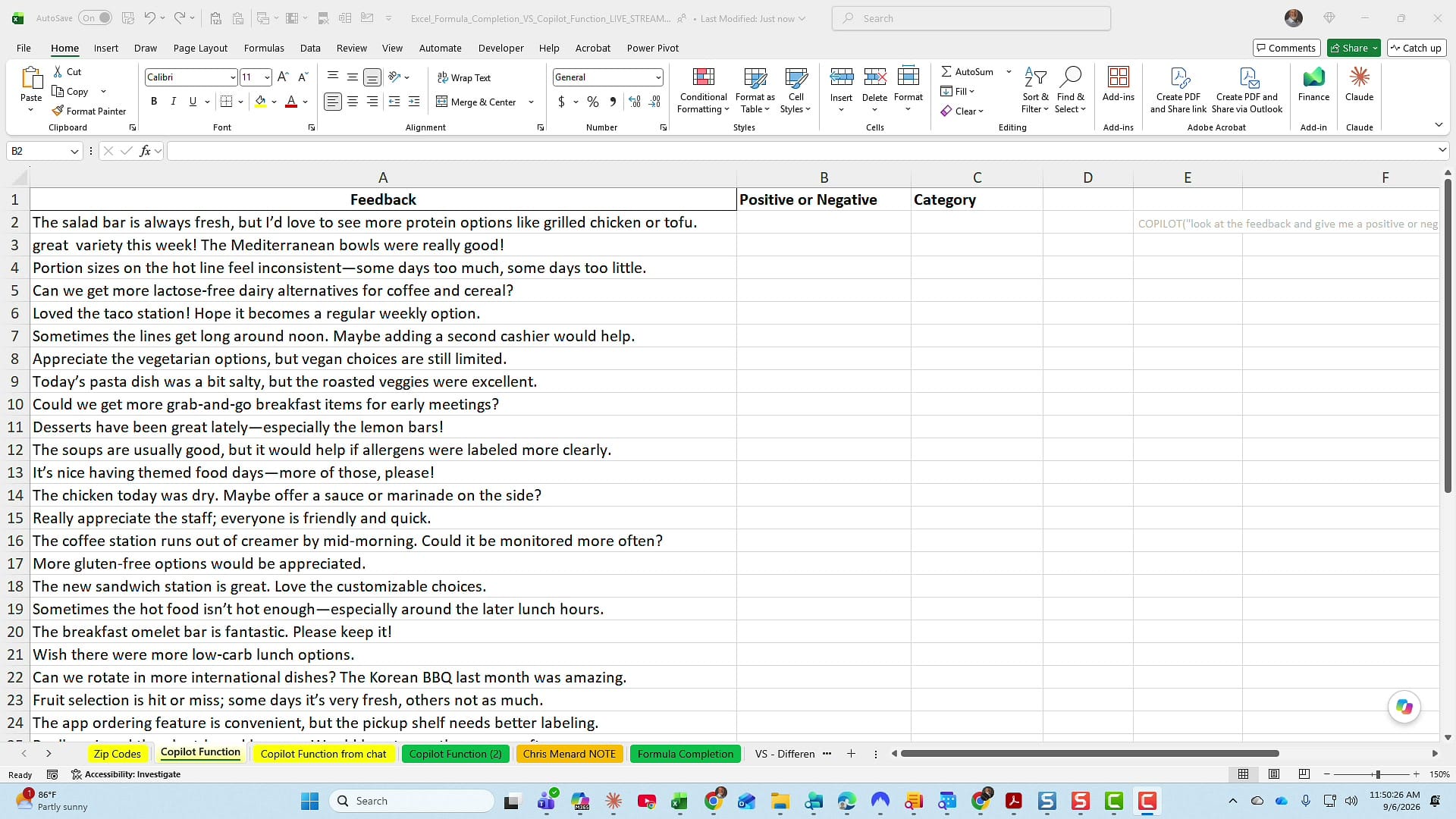
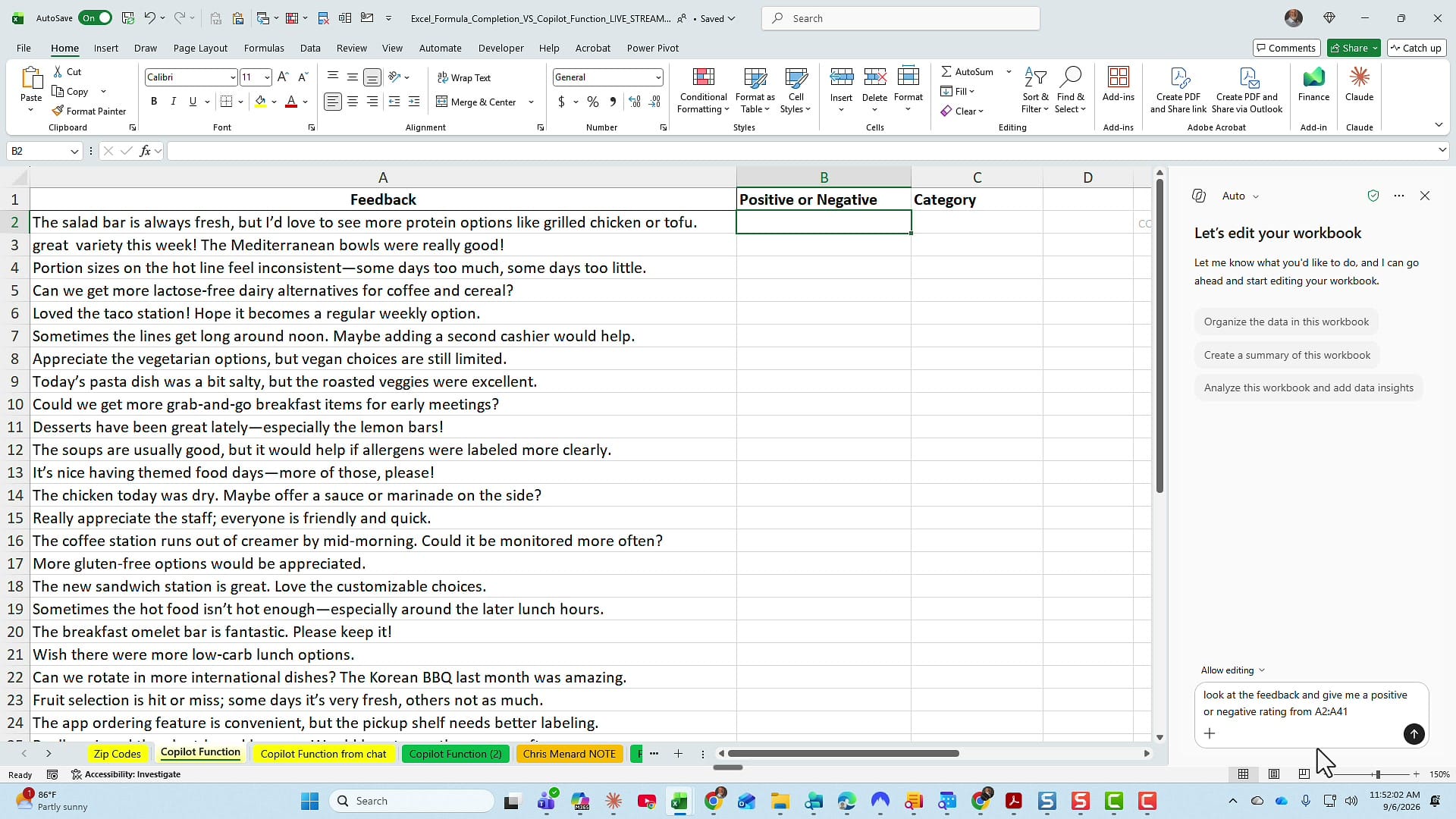
Column A holds 40 comments from a cafeteria feedback survey — things like "The salad bar is always fresh, but I'd love to see more protein options" and "Portion sizes on the hot line feel inconsistent." I want a Positive or Negative rating for each one starting in column B.
The COPILOT function version
Here is the formula I put in B2:
=COPILOT("look at the feedback and give me a positive or negative rating",A2:A41)The prompt goes inside double quotes, then a comma, then the range. As soon as you press Enter you get #BUSY! in the cell while the function calls out and thinks.
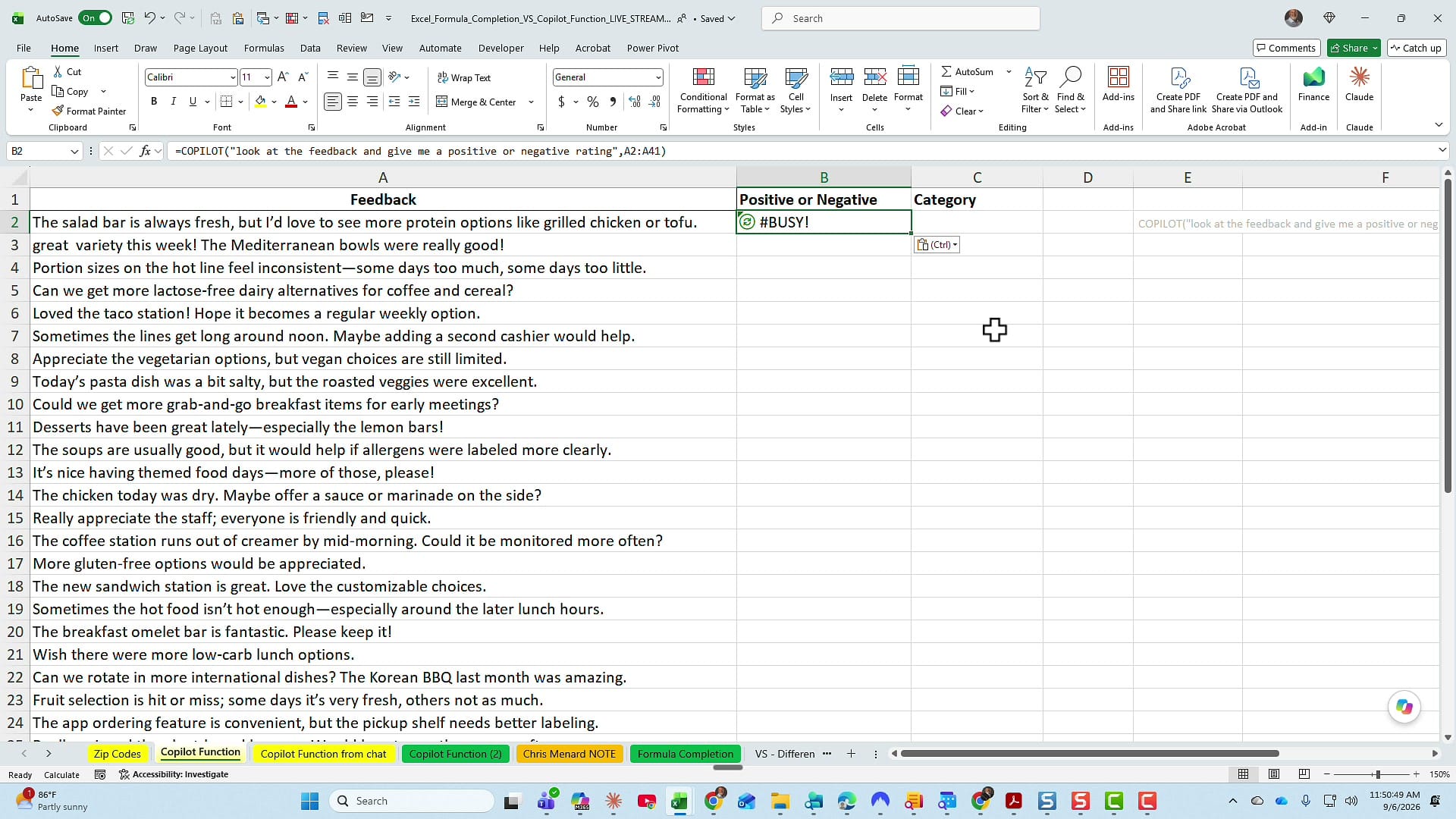
About 30 seconds later the results spilled down the column. Spot-checking a few: A2 reads positive to me, A5 is positive, and A4 — the complaint about inconsistent portion sizes — came back negative. That all tracks.
The Copilot in Excel version
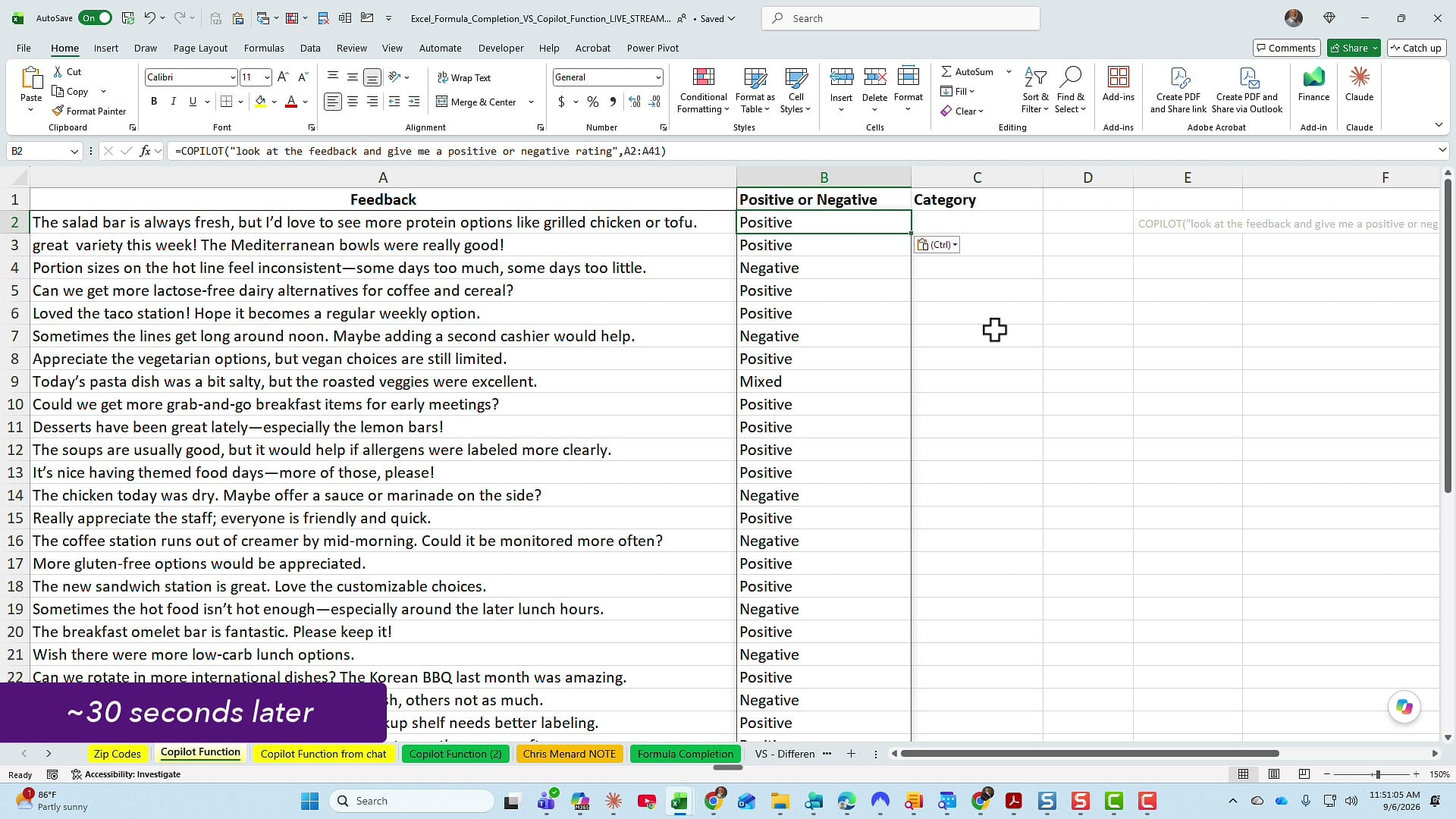
Now clear column B and open Copilot in Excel. Mine floats over the grid, but yours may be pinned to the ribbon depending on where you put it. The one thing to check before you type anything: make sure the pane is set to Allow editing. If it is not, Copilot will describe what it would do instead of writing into your worksheet.
You do not need =COPILOT here, because you are already in Copilot. The prompt is just:
look at the feedback and give me a positive or negative rating from A2:A41
It finished fast — if not faster than the function, then at least a little bit faster. And here is the first real advantage: Copilot handed back a summary I never asked for. It reasoned in two steps, confirmed it rated all 40 comments in B2:B41, and gave me the totals: 26 positive and 14 negative. With the COPILOT function you would have to go build those counts yourself.
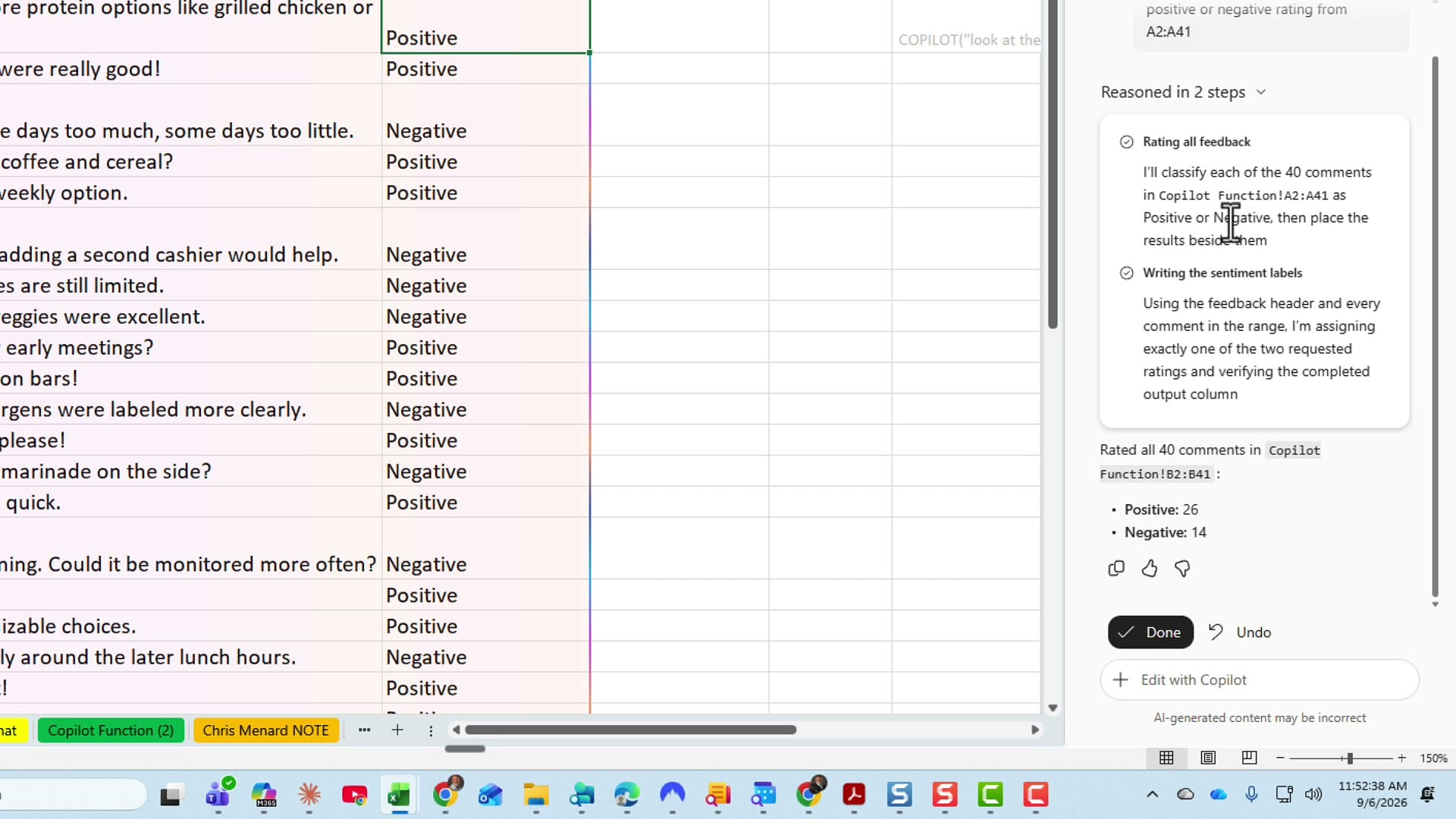
Click Done to keep the results. If you want to go further with this kind of text analysis, I have a separate walkthrough on summarizing a text column into categories with Copilot.
The one thing the function does better
Because =COPILOT() is a real function, it stays live. Change A2 to something negative and B2 flips to negative on its own. Copilot in Excel wrote static values, so it will not.
That live behavior cuts both ways, though. Editing one cell does not just recalculate that one row — it recalculates every single one of them. On a 40-row list that is a shrug. On a few thousand rows, it is not.
Example 2: Pull ZIP codes out of inconsistent addresses
Second task, and this one is messier. Column A has fictitious customer names, column B has customer numbers, and column C has customer addresses. The problem with column C is that the ZIP code is all over the place — sometimes at the end where it belongs, sometimes shoved to the front of the street address:
38412 908 Pine Ridge Dr, Fairfax, VA— ZIP at the front59 14th St NW, Dayton, OH 45410— ZIP at the end31 Forest Hill Dr, Newark, NJ 07112— ZIP at the end, with a leading zero
The COPILOT function version
=COPILOT("pull out the zip code from the addresses listed here. They should be five consecutive digits",C2:C27)That one worked quickly — about 20 seconds — and pulled clean five-digit ZIPs into column D for all 26 rows.
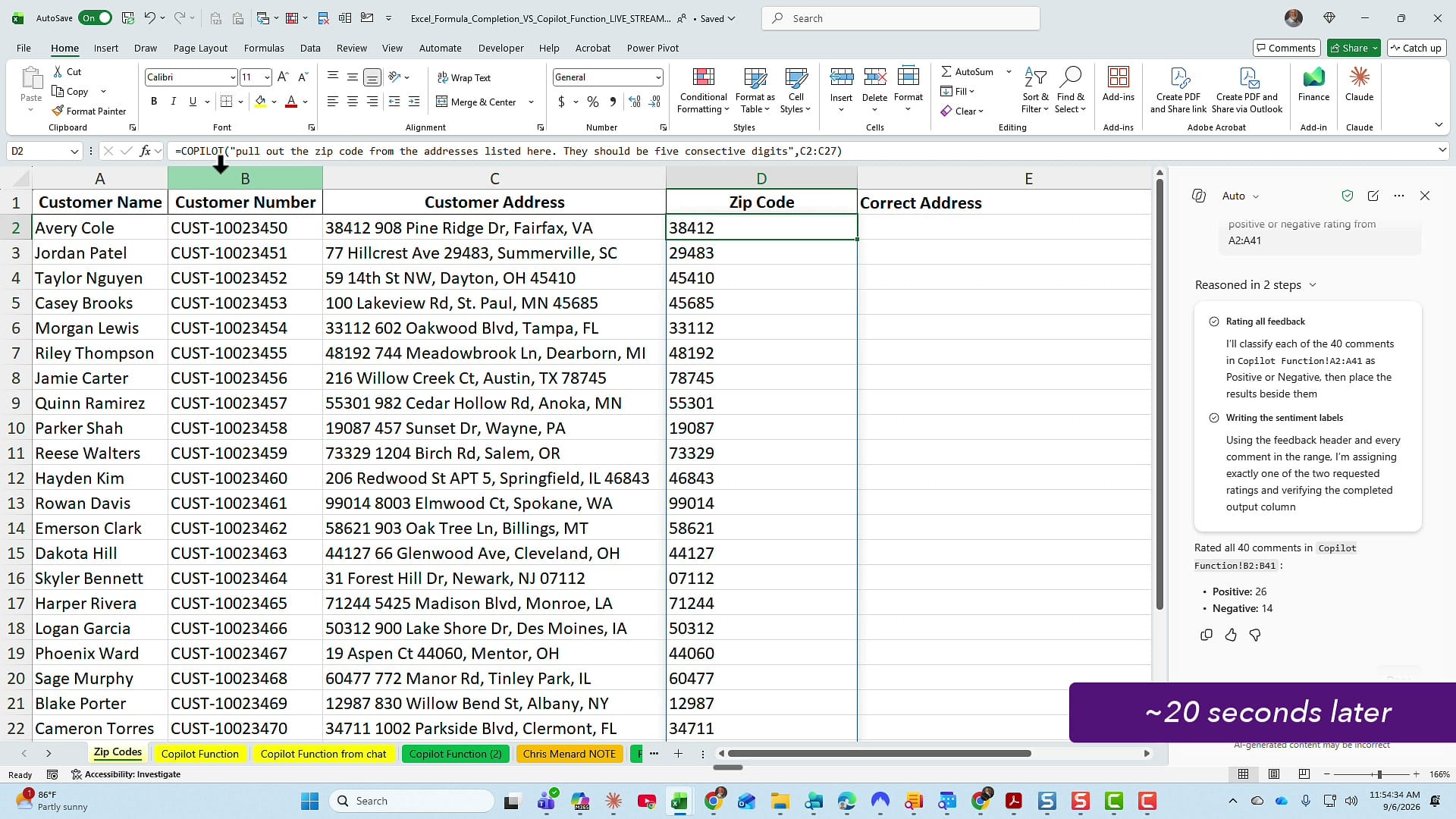
One gotcha worth flagging: it can get confused when a cell contains both a five-digit street address and a five-digit ZIP. There is no way for the formula to know which five digits you meant. In this data set it was fine, but that is exactly the kind of thing you need to check on your own file.
The Copilot in Excel version
Here is where I could be smarter about the prompt, because Copilot can ask me a question back:
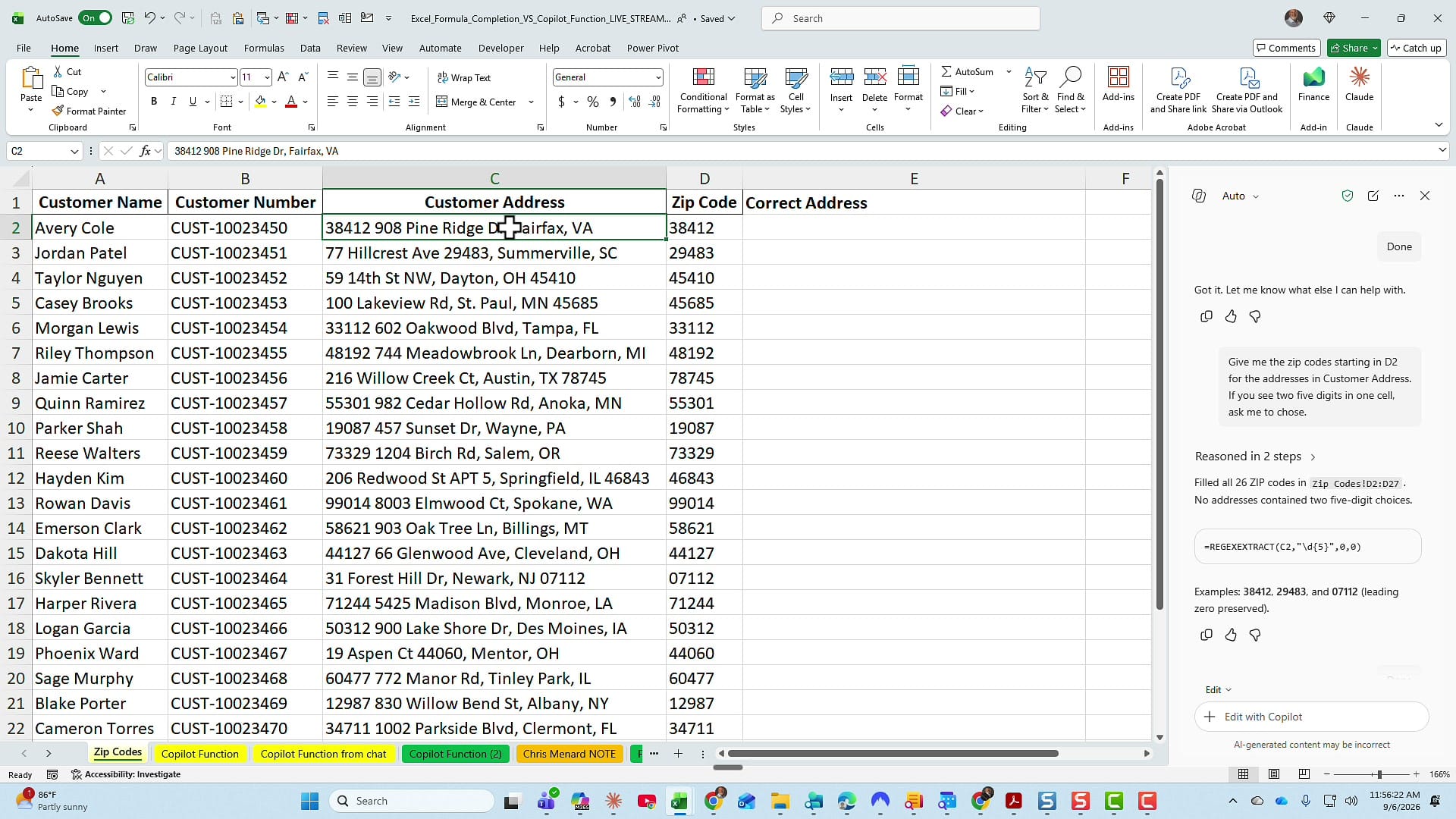
Give me the zip codes starting in D2 for the addresses in Customer Address. If you see two five digits in one cell, ask me to chose.
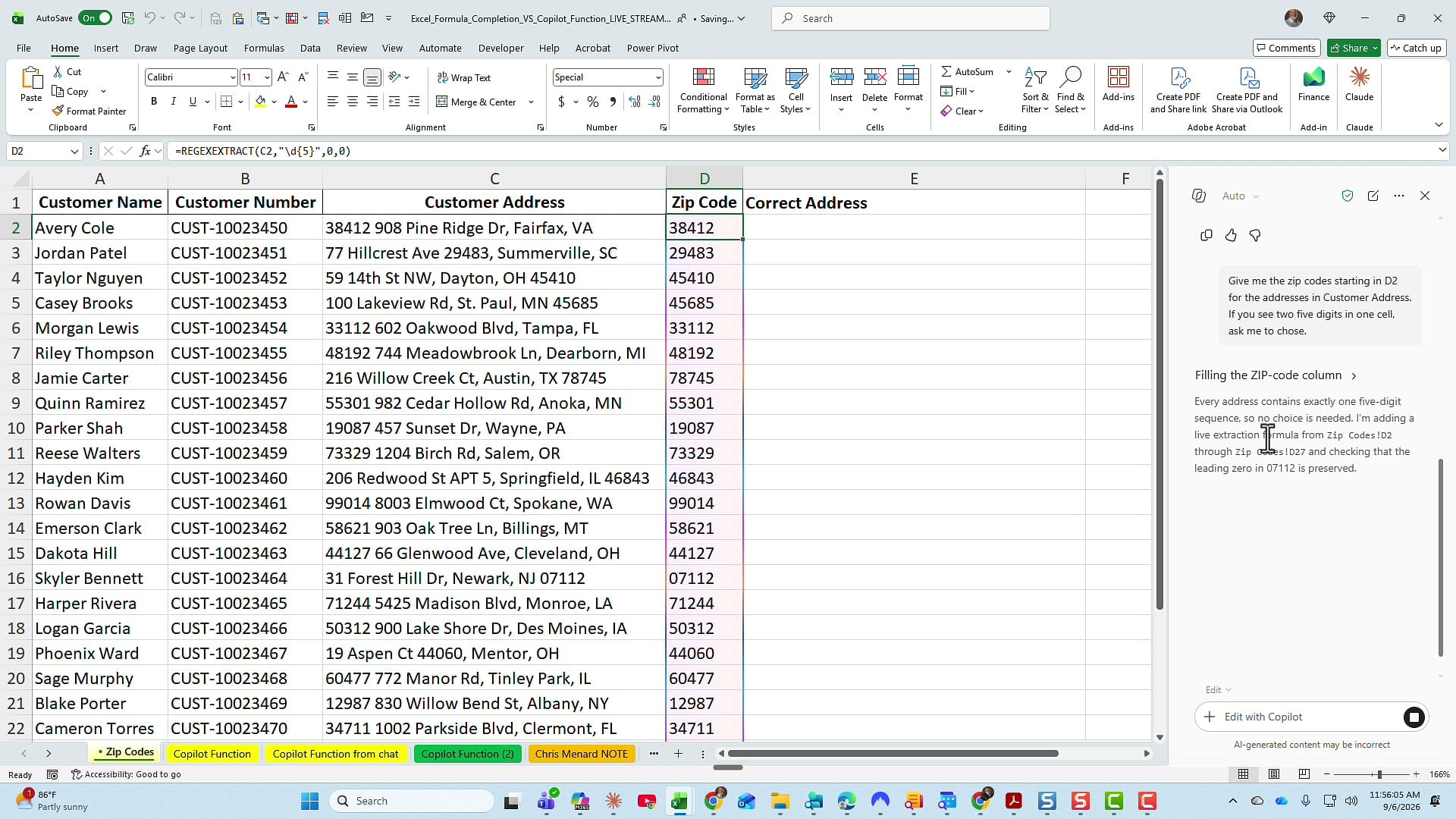
That was very fast, and this time Copilot did something the function cannot. Instead of writing static text, it wrote a real formula into column D:
=REGEXEXTRACT(C2,"\d{5}",0,0)So the ZIP codes are now live. Change an address in column C and column D updates with it. Copilot also reported back that it filled all 26 ZIP codes, that no address contained two five-digit choices, and — the detail I appreciated most — that the leading zero in 07112 was preserved. If you want the manual version of this, I have a full walkthrough on extracting ZIP codes from text with REGEXEXTRACT.
Example 3: Standardize the whole address
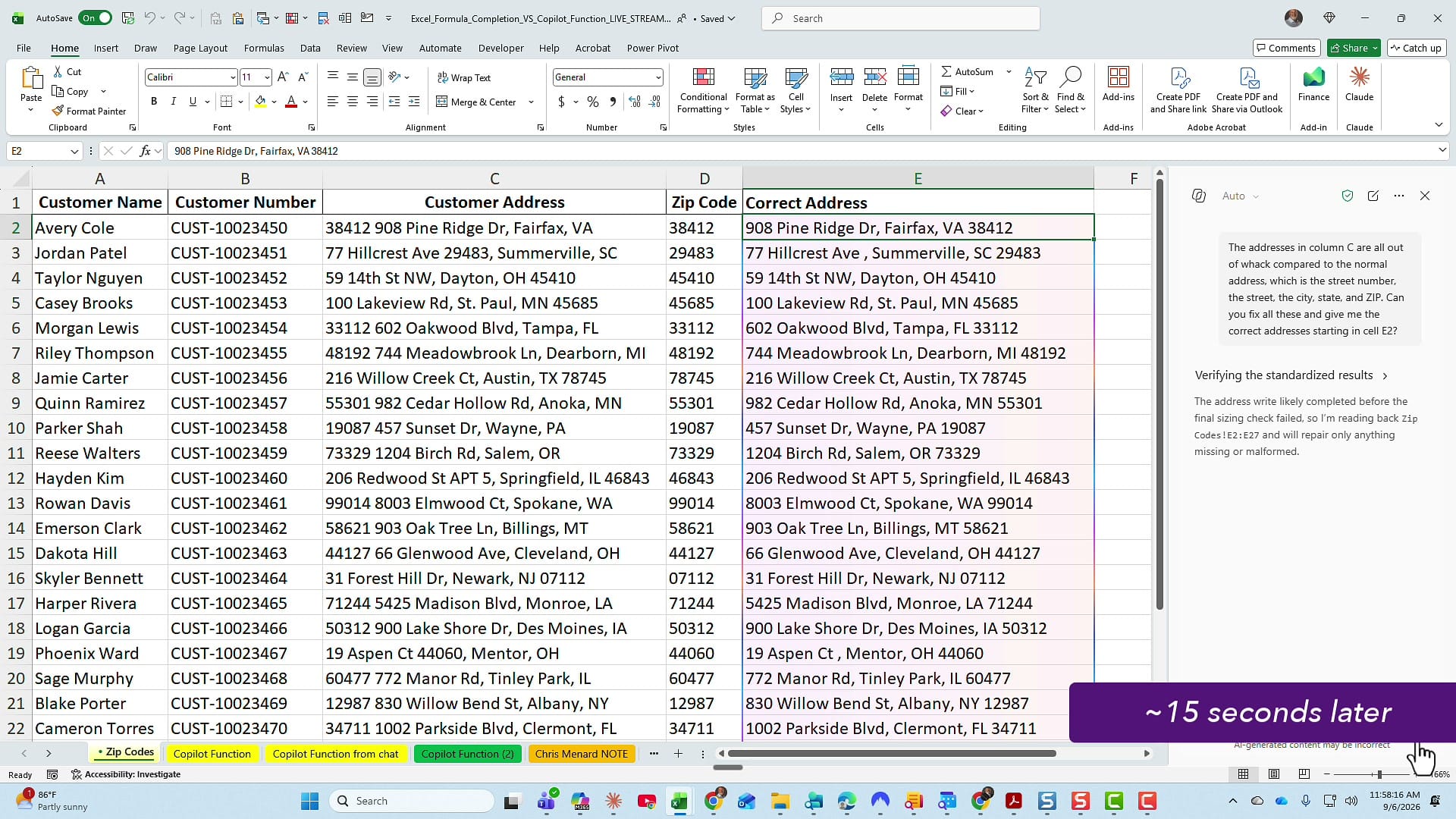
Last one. I want every address rewritten into the normal order — street number, street, city, state, ZIP — in a new Correct Address column starting at E2. With the COPILOT function this would be another =COPILOT("...", C2:C27) formula asking it to fix the addresses. Let's give the task pane a turn instead:
The addresses in column C are all out of whack compared to the normal address, which is the street number, the street, the city, state, and ZIP. Can you fix all these and give me the correct addresses starting in cell E2?
About 15 seconds later, column E was filled. C2 was definitely wrong and is now 908 Pine Ridge Dr, Fairfax, VA 38412. C3 was wrong and is now 77 Hillcrest Ave, Summerville, SC 29483. In real life I would check far more than a couple of rows, but on a spot check this held up well.
Bonus: let Copilot check its own work
This is the part that sold me. After hitting Done, I asked Copilot to audit the column it had just written:
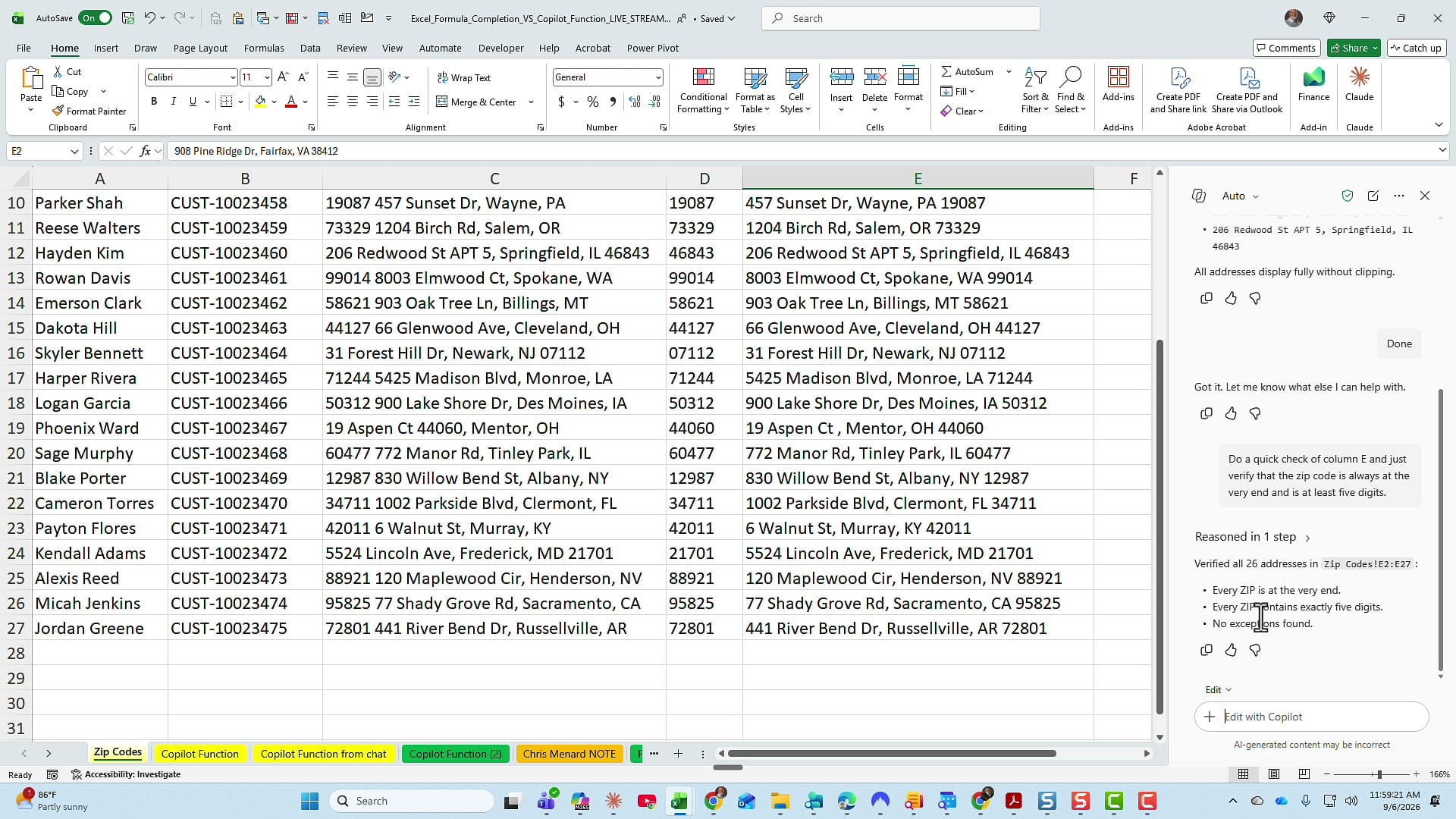
Do a quick check of column E and just verify that the zip code is always at the very end and is at least five digits.
It came back verifying all 26 addresses in E2:E27: every ZIP is at the very end, every ZIP contains exactly five digits, no exceptions found. I do have 26 rows, so the count matched. Using Copilot as a data validator on top of a data cleaner is something the function was never going to do for me.
So which one wins?
As much as I loved the COPILOT function, I have to admit Microsoft is right on this one. There was no need for the redundancy. Here is how the three tasks shook out:
- Speed: Copilot in Excel was as fast or faster on all three tasks.
- Extras you did not ask for: Copilot gave me totals, counts, and confirmations. The function gives you exactly what you asked for and nothing else.
- Live results: This used to be the function's edge, but Copilot can write real formulas like REGEXEXTRACT, which stay live and do not force a full-column recalculation.
- Follow-up questions: You can tell Copilot to come back and ask you when it hits an ambiguous cell. A formula cannot do that.
- Checking your work: Copilot will audit the column it just wrote. That alone is worth the switch.
Related guides
 Chris Menard
 Chris Menard
 Chris Menard
 Chris Menard
 Chris Menard