
Wispr Flow: AI Dictation That Removes Filler Words Automatically

One of my favorite productivity tools right now is Wispr Flow. It's an AI dictation tool, but it does a lot more than just transcribe what you say. It strips out filler words automatically, handles mid-sentence corrections, and even formats your text into bullet points when it thinks that's what you wanted.
You might be thinking, "Chris, why don't I just use the built-in microphone and dictate?" You can. I've done it. But the moment you say "um," "uh," or "scratch that, I meant Wednesday," the built-in dictation will dutifully type all of that into your message. Wispr Flow won't.
How Wispr Flow Handles Mid-Sentence Corrections
Here's a quick example. If I say, "Hey, can we meet on Tuesday? Scratch that, I think I'd rather meet on Wednesday," Wispr Flow doesn't put "can we meet on Tuesday? Scratch that" into my text. It understands that I want to meet on Wednesday and only types that.
That alone is a huge difference from traditional dictation. You can think out loud, change your mind, and the final text is clean.
Pricing and Where It Works
Wispr Flow has a free tier and a paid tier. I'm using the free version in the examples below, so you don't need to upgrade to follow along.
It also works almost anywhere you can click into a text box. That means Microsoft Teams, Gmail, Slack, Outlook, your browser address bar — wherever there's a "type a message" or "type here" field, Wispr Flow will work.
Activating Wispr Flow with a Keyboard Shortcut
You turn Wispr Flow on with a keyboard shortcut. The default on Windows is Control + Windows key. Hold both, start talking, and release when you're done. The text gets typed into whatever box your cursor is in.
If you've used the built-in Windows H dictation in Teams before, the workflow feels similar — but the output is dramatically cleaner because of the filler word removal.
Privacy Mode and US-Based Servers
I know I'll get questions about this, so let me cover it up front. Wispr Flow is based in the US and all of their servers are in the US. There's also a privacy mode you can turn on. With privacy mode enabled, absolutely nothing is stored on their servers.
One thing to know: you do need an internet connection for Wispr Flow to work. The processing happens on their servers, not on your device.
Demo 1: Wispr Flow in Microsoft Teams Chat
Let's jump into a real example. I pulled up my colleague Carol Wilson in Microsoft Teams and clicked into the "Type a message" box. Then I held down Control and the Windows key to activate Wispr Flow. You'll see the recording bar appear at the bottom of the screen.
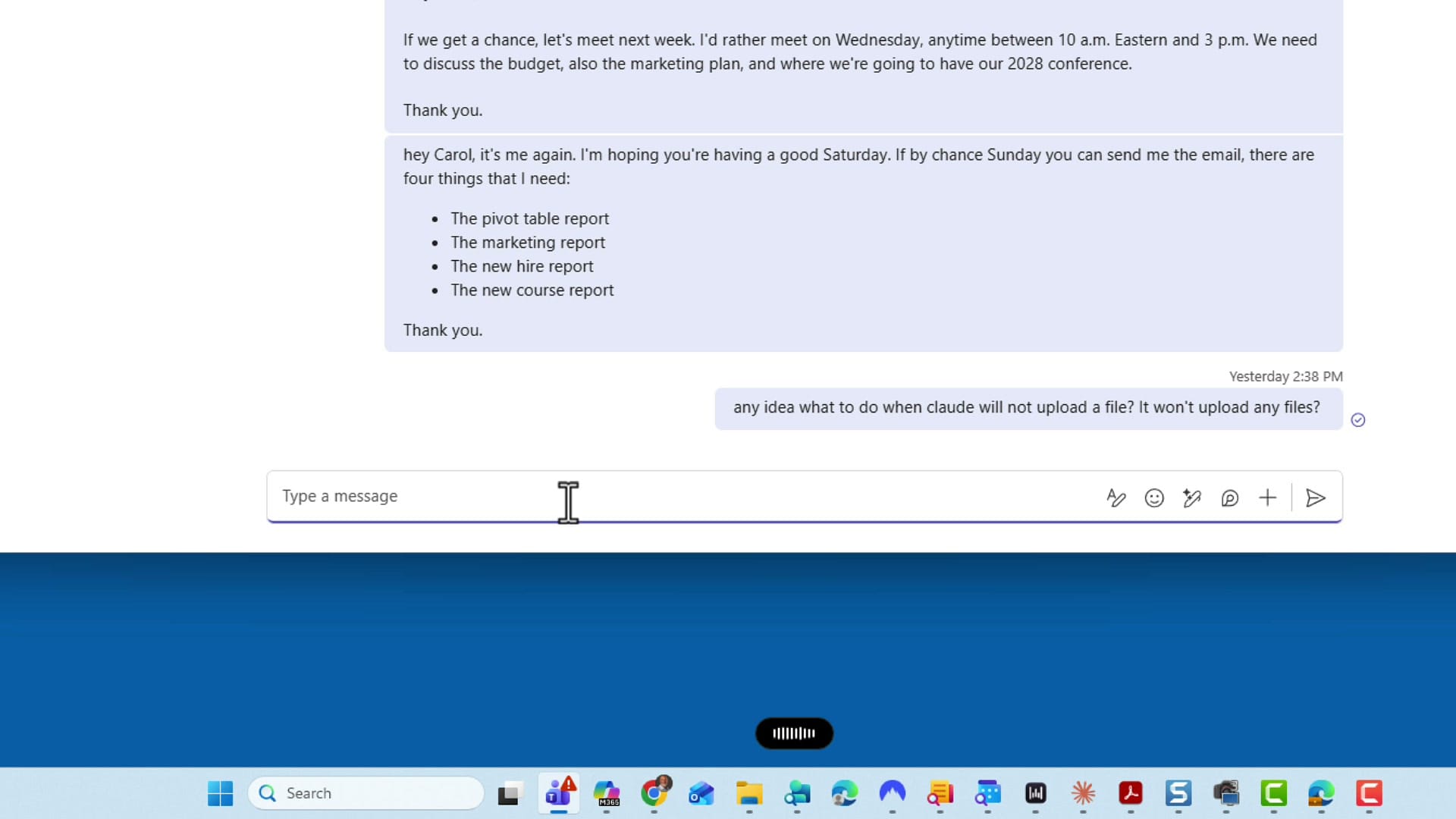
Here's what I dictated, intentionally including filler words and a mid-sentence correction:
"Hey Carol, it's Chris. I hope you're having a great Sunday. If we can, I want to get together next Tuesday to discuss... You know what? I don't want to get together on Tuesday. I want to get together on Wednesday. Here's what I would like to discuss: the budget for 2027, the training plan for quarter four of this year, the different conference locations for 2027 annual retreat, and I specifically want to discuss a couple cities for next year, Chattanooga, Nashville, and San Diego. I guess that's actually three and not a couple. Have a great rest of your Sunday. Talk to you next week."
I released the keyboard shortcut, and here's what showed up in the chat:
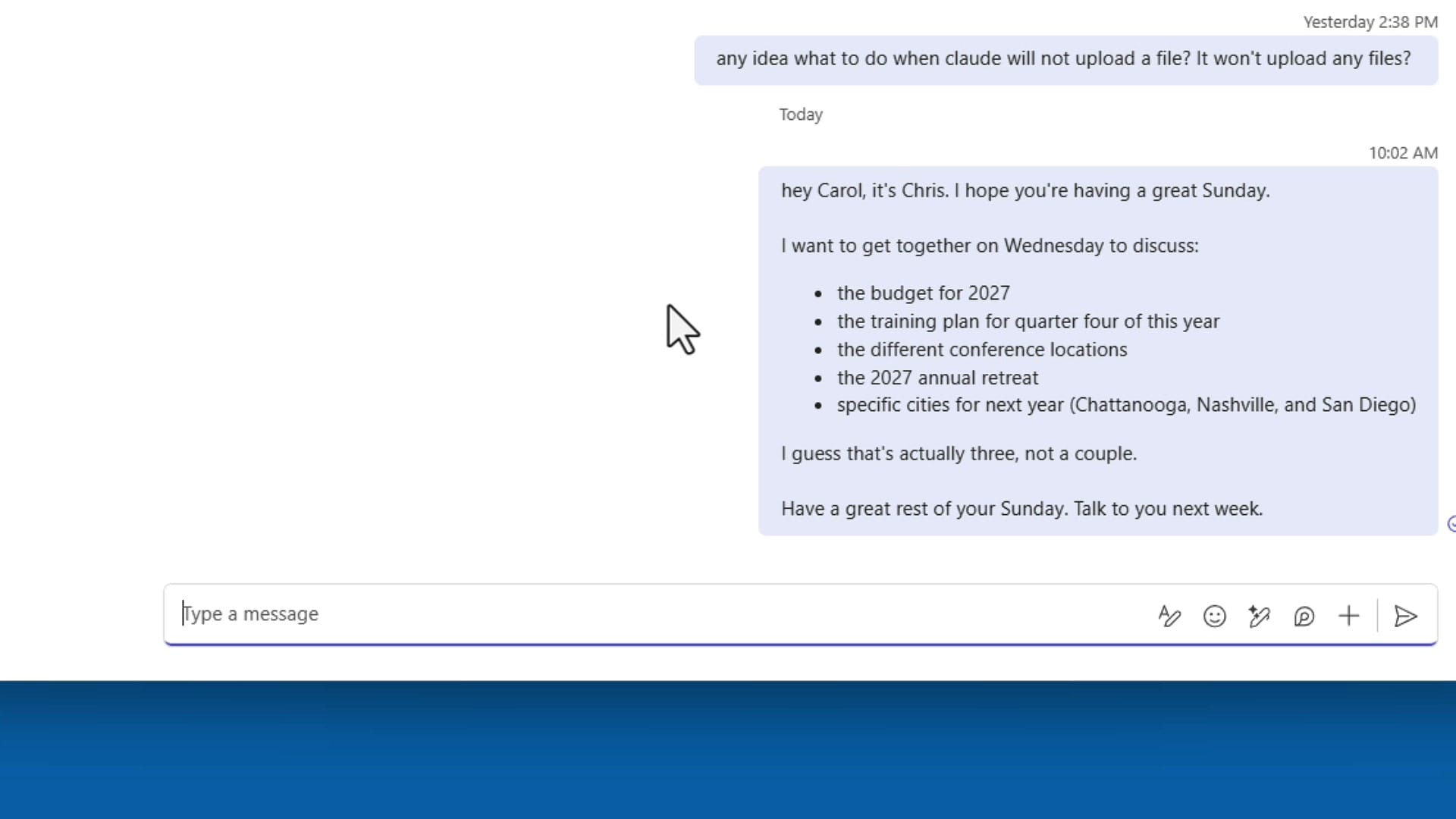
Three things to notice in the output:
- The Tuesday mention is gone. Wispr Flow understood that I corrected myself to Wednesday and dropped the original.
- The discussion items became a bulleted list. I didn't ask for bullets — Wispr Flow recognized the pattern and formatted it.
- The "actually three, not a couple" sentence stayed. That was a judgment call, and I think the right one. It's part of what I meant.
Demo 2: Filler Word Removal in Action
Let me run another quick test, this time intentionally peppering the dictation with "um" and "uh."
"If we get a chance, um, uh, let me think about this. If we get a chance, can we, um, take a look at the hiring plan for quarter three for this year? And also, I know we've got some new marketing material. Um, um, I'd like to look at that."
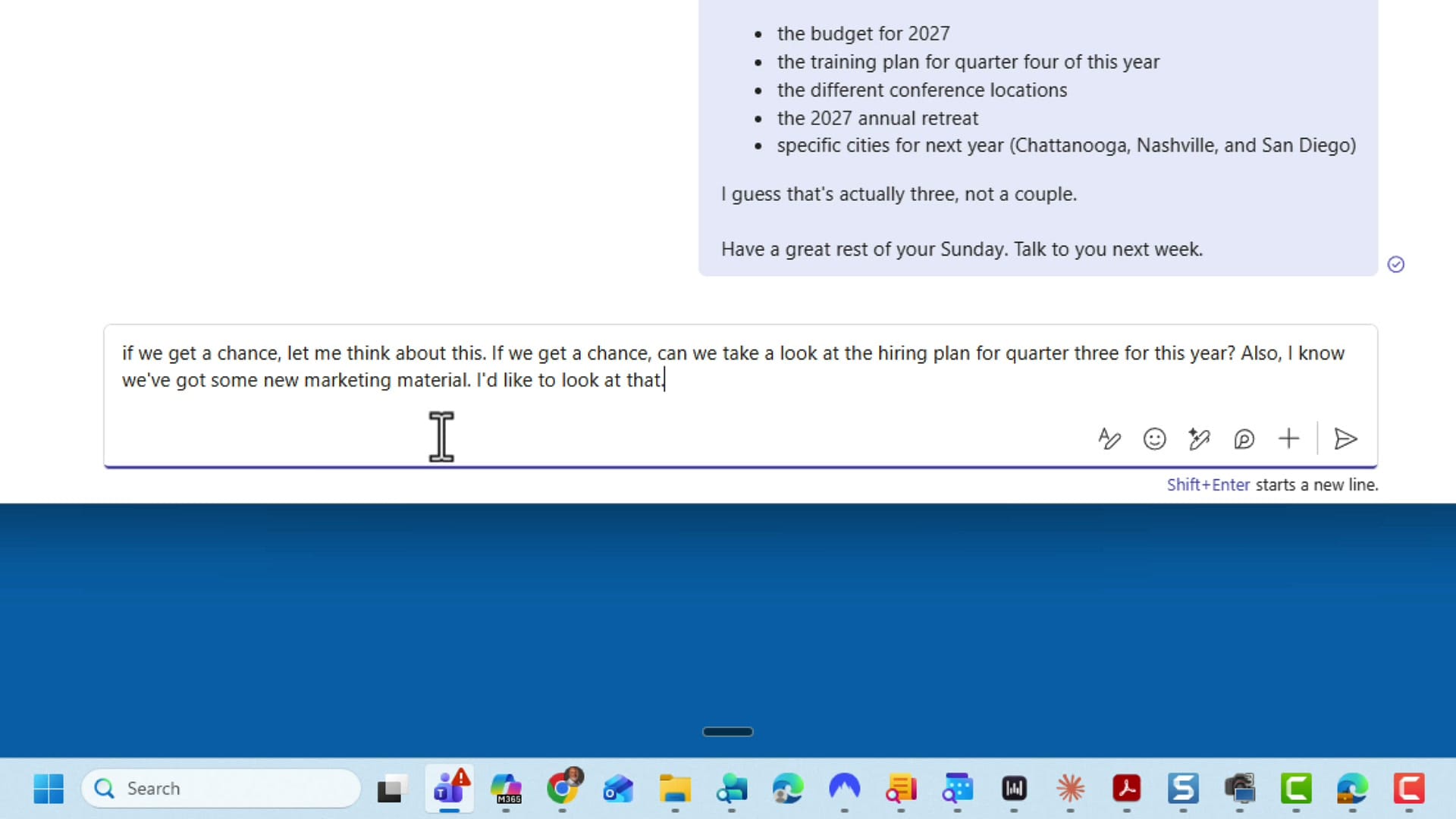
Every "um" and "uh" was stripped. The phrase "let me think about this" did make it into the final text — that's something I can manually delete with one keystroke if I want it gone. But the filler words I was specifically testing for were all removed automatically.
For comparison, if you've used the built-in dictation in Word and Outlook or the voice commands in Outlook, you know that filler words go straight into your text. Wispr Flow handles them differently, and once you've used it for a few hours, it's hard to go back.
Demo 3: Wispr Flow with Microsoft 365 Copilot
The other huge advantage is how much faster it is to talk than to type, especially for longer prompts. Let me show you Wispr Flow inside M365 Copilot. I want Copilot to create an Excel file from scratch, so I'm going to dictate the whole prompt with Wispr Flow.
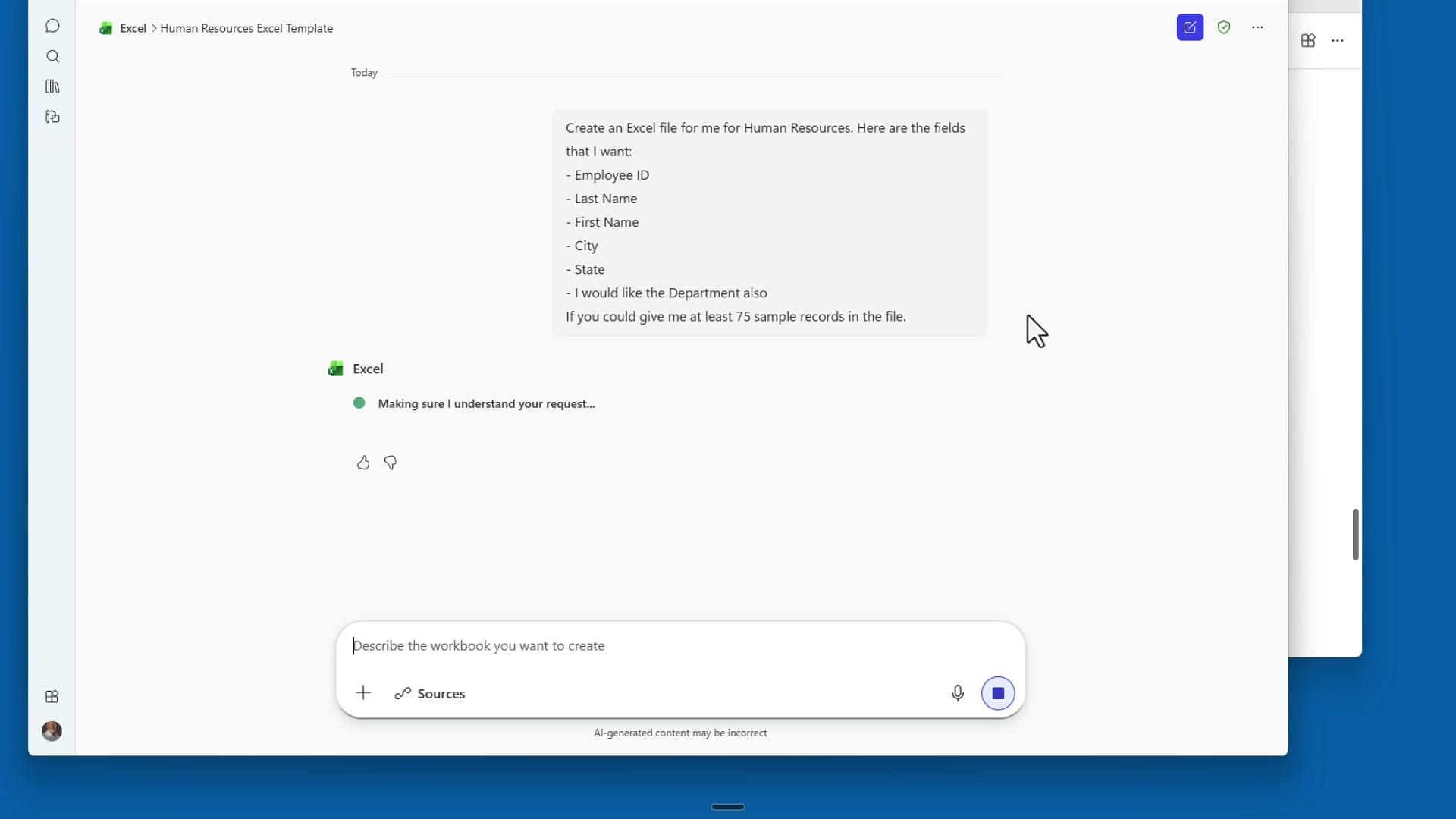
That's a complete Copilot prompt — the file purpose, the fields I want (Employee ID, Last Name, First Name, City, State, Department), and the sample record count (75) — dictated in seconds. Copilot picks it up and generates the Excel file from there.
Why I Keep Coming Back to It
It's so much easier to talk than to type, and Wispr Flow makes the output clean enough that I don't have to spend time editing afterward. For Teams chats, Outlook replies, Copilot prompts, even quick notes — it's a real time-saver.
If you give it a try and have questions, drop them in the comments on the YouTube video and I'll get back to you.



