
Outlook Speed Up Emailing by Using Voice Commands and Dictation

The Dictate feature in Microsoft is great. Outlook has a new feature with Dictate. You can now dictate the subject, add people to the To, CC, and BCC line, and at mention people. Several commands you can use are "add \[Name\] to email", "add \[Name\] to bcc", and "send email".
Dictate in Outlook
YouTube video
Outlook Speed Up Emailing by Using Voice Commands and Dictation
Video Chapters / Bookmarks
- 0:00 Intro to email voice commands - 0:28 Dictate in body of email - 1:05 Dictate CC in email - 1:23 Dictate subject line in Outlook - 1:54 Send email with Dictate
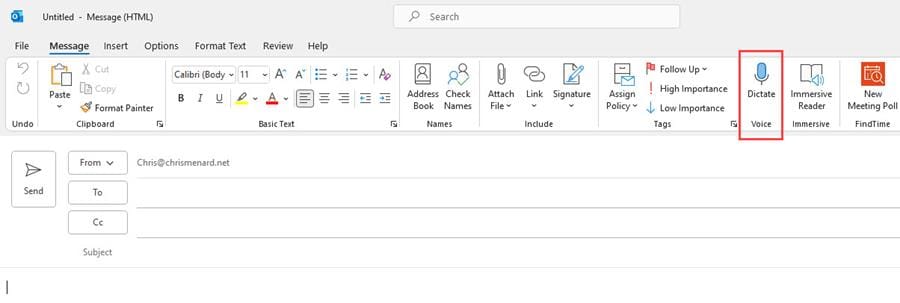
Turn on Dictate in Outlook
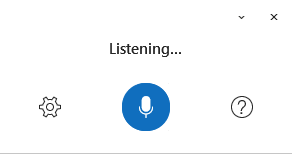
1. Start a **new email.** 2. Click **Dictate** on the Message tab.. 3. Start speaking.
Dictate in Outlook
Outlook Dictate Commands
- add \[name\] to email - add \[name\] to cc line - add \[name\] to bcc line / “bcc \[name\] - change the subject line to \[new subject\] - send email” (you will see a confirmation dialog, then say “Yes"
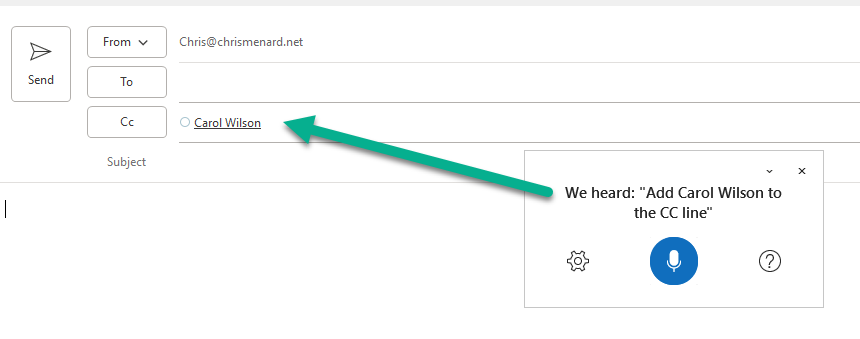
**Dictate commands in Outlook**
Availability of Voice Commands for TO, CC, BCC, and Send email:
- For Windows: Version 2107 (Build 14228.20044) or later - For Mac: Version 16.52 (Build 21072100) or later



