Microsoft Teams Update: When to Click It and When to Wait
When the word Update appears in the top-right corner of Teams desktop, click it — except in two situations. Here's where the button lives, how to update, and what happens.


In the Microsoft Teams desktop app, you'll occasionally see the word Update appear in the top-right corner. When it shows up, my advice is simple: click it. Keeping Teams current gives you the newest features, fixes for odd bugs, and the latest security patches — and applying the update only takes a few seconds.
There is a catch, though: clicking Update restarts the app. That means there are two moments when you should wait. Below I'll show you exactly where the Update button lives, when to click it, when to hold off, and what happens when you do.
Where the Update button appears
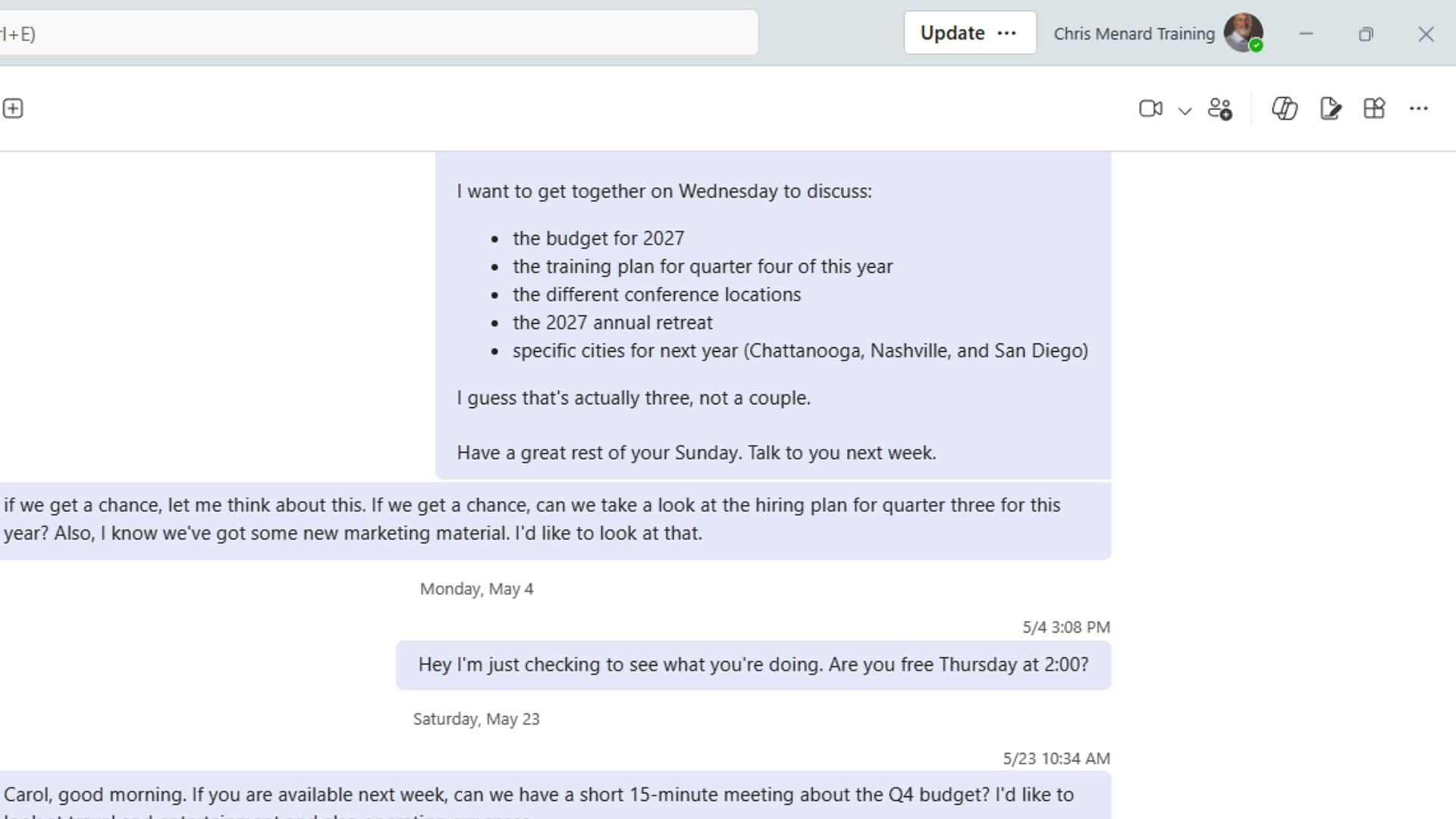
The Update button sits in the top-right corner of the Teams desktop window, just to the left of your name and profile picture. If you don't see it, there's nothing to do — it only appears when a new version is ready.
One important note: you'll only ever see Update in the desktop app. You won't see it on the Teams mobile app or on Teams on the web — those stay current on their own in the background. The Update prompt is strictly a desktop thing.
The two times to wait before updating
Because clicking Update restarts Teams, there are exactly two situations where I'd wait:
- You're demoing Teams for someone. A restart in the middle of a demo is awkward, and the interface can shift slightly afterward.
- You're in a Teams meeting. You don't want the app to close and reopen while you're on a call or presenting.
Outside of those two cases, go ahead and update. There's no reason to keep putting it off.
How to update Teams
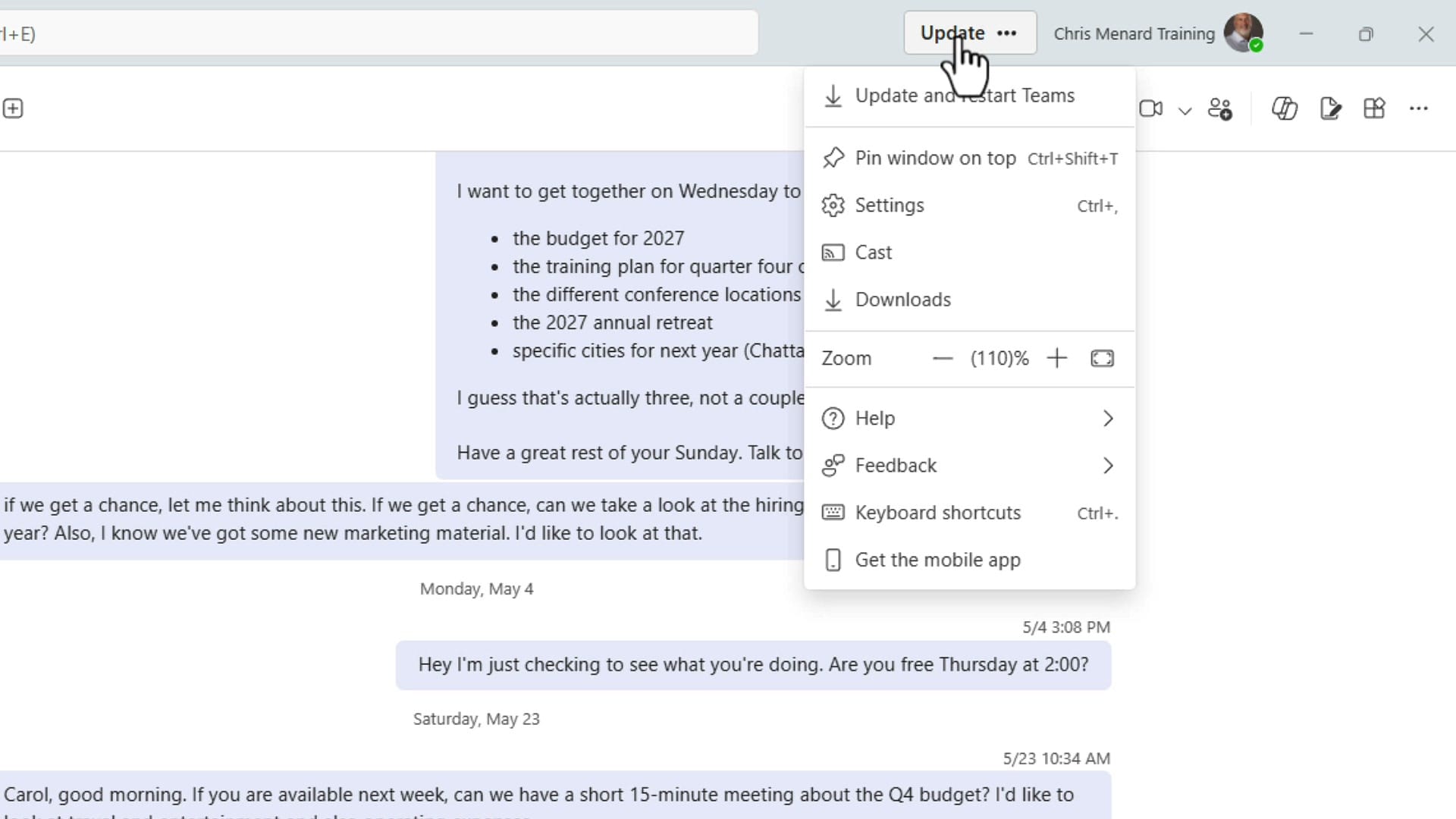
When you're ready, click Update in the top-right corner. That opens a short menu — choose Update and restart Teams at the very top. The update happens quickly because Teams has already downloaded the new version in the background. All this click does is apply it and relaunch the app.
What happens after you click
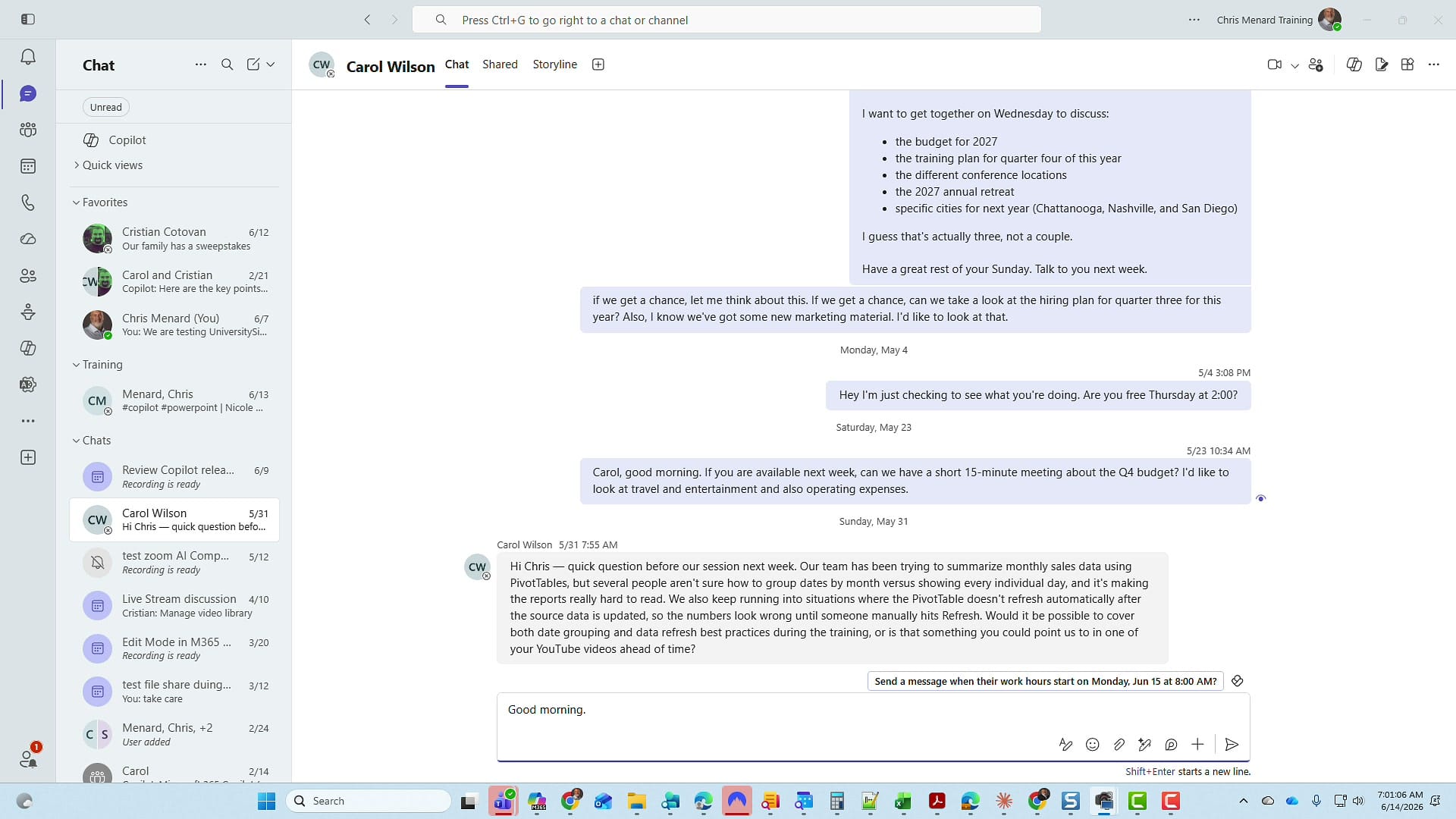
Teams closes and reopens within a few seconds. In most cases you won't even need to sign back in. Once it's back, notice that the Update word is gone from the top-right corner — that's your confirmation that you're now running the latest version. That easy.
Why I keep Teams updated
Every update brings the latest features and interface changes, fixes for behavior that newer builds quietly correct, and security patches. If you train or present on Teams the way I do, staying current matters even more — you'll want to see new additions like the dedicated meeting chats section the moment they roll out. It's also why my Microsoft Teams course is getting a full refresh: I keep my own app current so I can capture every change as it ships.
If you have any questions, drop them in the comments. Have a great day.
Related guides
 Chris Menard
 Chris Menard
 Chris Menard
 Chris Menard