How to Use AutoRefresh for PivotTables in Excel

Share
How to Use AutoRefresh for PivotTables in Excel


Excel now includes a built-in AutoRefresh option for PivotTables. When enabled, the PivotTable updates automatically any time the underlying data changes — no manual refresh needed.

The Source Data

Start with a table of customer data that includes columns for customer number, last name, first name, city, state, and purchase amounts for 2024 and 2025.
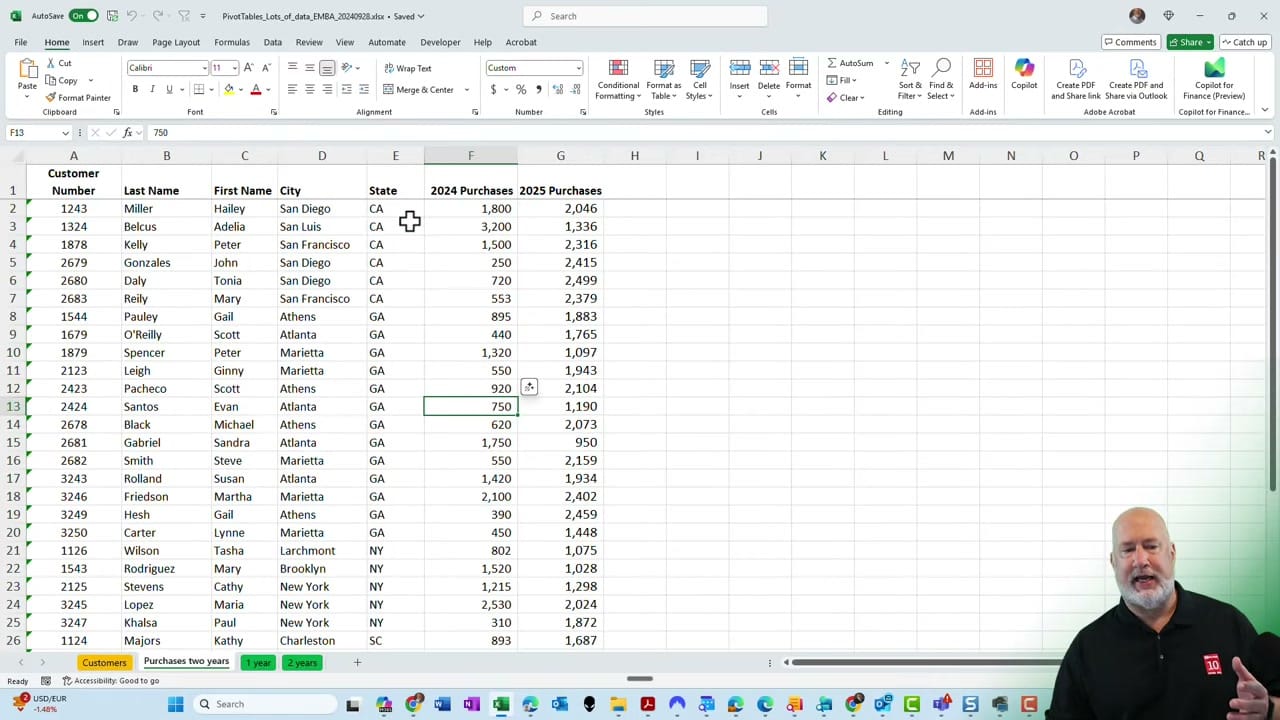
Excel spreadsheet showing customer purchase data with columns for Customer Number, Last Name, First Name, City, State, 2024 Purchases, and 2025 Purchases
The source data: a customer table with purchase amounts by year

Creating the PivotTable

Select the data, go to Insert > PivotTable, and place it on a new worksheet. Drag State into the Rows area and Sum of 2025 Purchases into the Values area. The PivotTable now shows total purchases grouped by state.
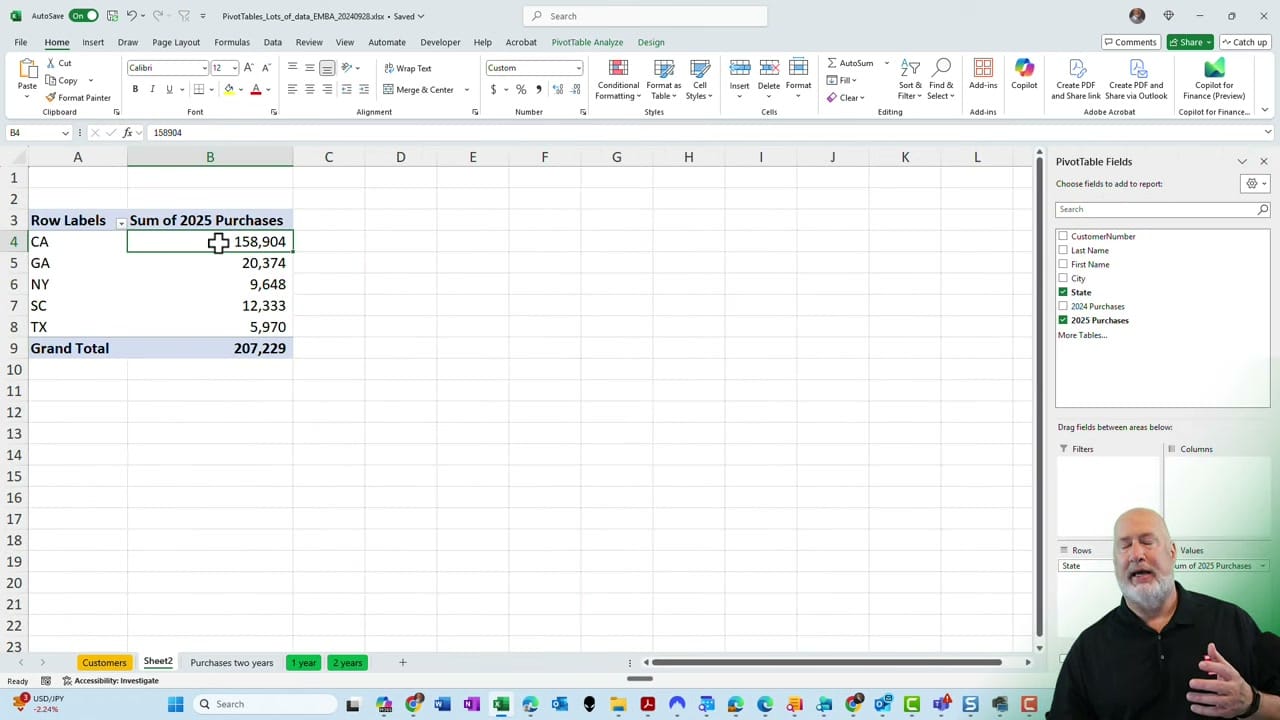
PivotTable showing Sum of 2025 Purchases by state with the PivotTable Fields pane open
The PivotTable summarizes 2025 purchases by state — CA leads with 158,904

Testing AutoRefresh

Go back to the source data and change a value — for example, update a purchase amount. Switch to the PivotTable sheet and you'll see the totals update automatically. There's no need to click Refresh or press any shortcut. The PivotTable stays in sync with the data.

YouTube Video

Where to Find the AutoRefresh Toggle

Click inside the PivotTable, then go to the PivotTable Analyze tab on the ribbon. In the Data group, you'll see the Auto Refresh button. It's enabled by default for new PivotTables. If you need to turn it off — for example, when working with very large datasets where constant refreshes slow things down — click the button to toggle it off.
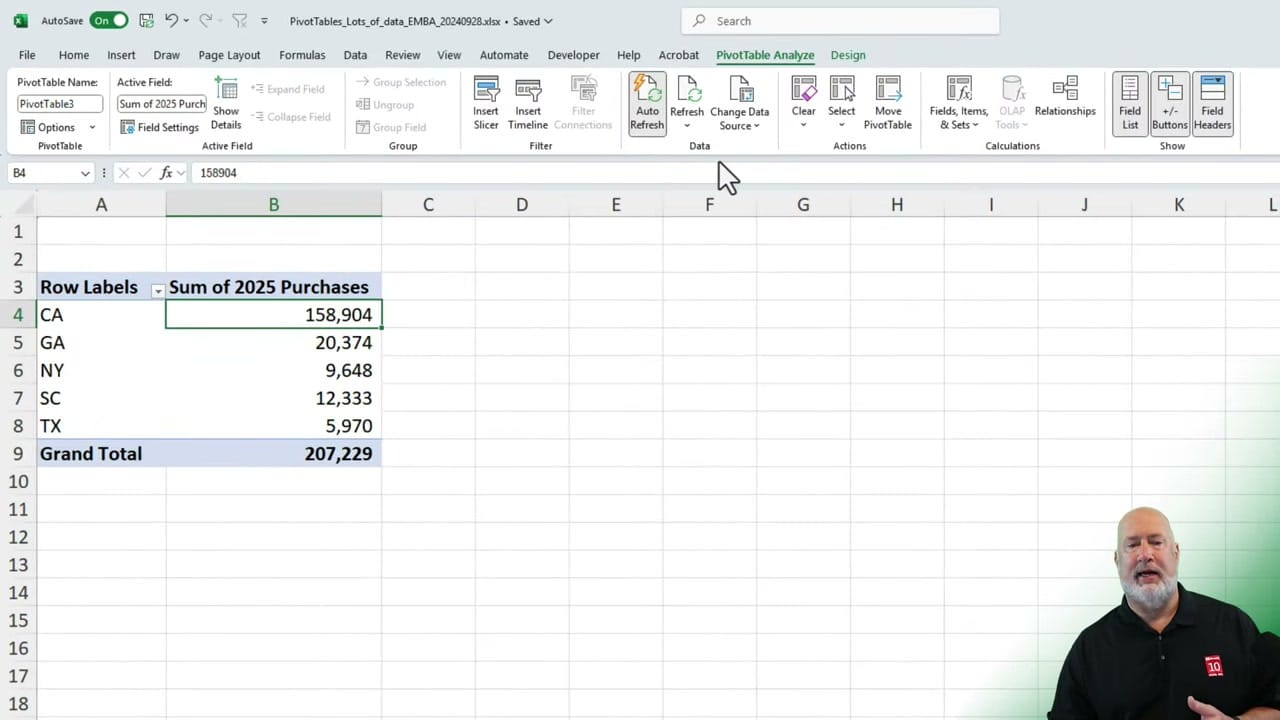
PivotTable Analyze ribbon showing the Auto Refresh button in the Data group
The Auto Refresh button on the PivotTable Analyze tab — toggle it on or off as needed
Excel - Turn on Multiple Filters in a PivotTable
Excel - Share a PivotTable without the Source Data or Underlying Data: Chris Menard Training
How to Add Filter by Selection to Excel's Quick Access Toolbar
Excel Five Great Tips for Filtering Data
Join Me at the Administrative Professional Conference (APC) 2026 in Nashville for M365 Copilot Essentials
I’ll be presenting in-person on M365 Copilot at the APC Conference on September 13-16, 2026, in Nashville, where I’ll show how Copilot works across Excel, Word, PowerPoint, Teams, Outlook, and OneDrive to help administrative professionals work faster and smarter.

Read more

Copilot Skills in PowerPoint - Live Stream on October 20, 2026

Copilot Skills in PowerPoint - Live Stream on October 20, 2026

𝗠𝗼𝘀𝘁 𝗣𝗼𝘄𝗲𝗿𝗣𝗼𝗶𝗻𝘁 𝘂𝘀𝗲𝗿𝘀 𝗸𝗻𝗼𝘄 𝗖𝗼𝗽𝗶𝗹𝗼𝘁 𝗰𝗮𝗻 𝗰𝗿𝗲𝗮𝘁𝗲 𝘀𝗹𝗶𝗱𝗲𝘀. 𝗙𝗮𝗿 𝗳𝗲𝘄𝗲𝗿 𝗸𝗻𝗼𝘄 𝗮𝗯𝗼𝘂𝘁 𝘁𝗵𝗲 𝟴 𝗯𝘂𝗶𝗹𝘁-𝗶𝗻 𝗖𝗼𝗽𝗶𝗹𝗼𝘁 𝗦𝗸𝗶𝗹𝗹𝘀 𝘁𝗵𝗮𝘁 𝗰𝗮𝗻 𝗰𝗼𝗺𝗽𝗹𝗲𝘁𝗲𝗹𝘆 𝗰𝗵𝗮𝗻𝗴𝗲 𝗵𝗼𝘄 𝘆𝗼𝘂 𝗯𝘂𝗶𝗹𝗱, 𝗶𝗺𝗽𝗿𝗼𝘃𝗲, 𝗮𝗻𝗱 𝗽𝗿𝗲𝘀𝗲𝗻𝘁 𝗮 𝗱𝗲𝗰𝗸. Join me live on October 20, 2026, at Noon Eastern as I demonstrate each Copilot Skill and show practical ways to use them in your presentations. PDF of the 8 Copilot Skills in Pow

By Chris Menard