
Excel - Share a PivotTable without the Source Data or Underlying Data: Chris Menard Training


When you share a PivotTable in Excel, even if you delete the data source worksheet, the data source is still attached to the PivotTable.It is called PivotTable cache. It is possible to share PivotTable results without the underlying data. You need to use Paste Special along with Paste Formats.
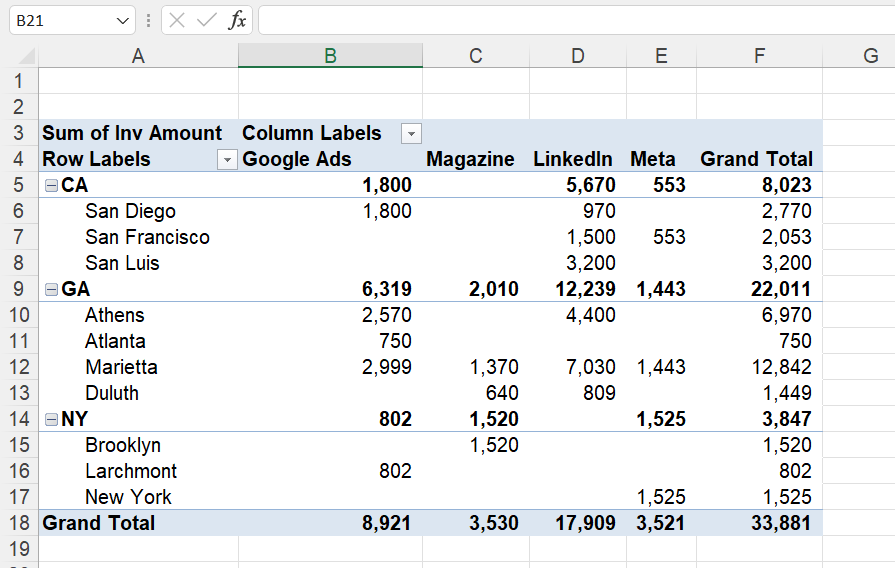
Excel - Share a PivotTable without the Source Data or Underlying Data
YouTube video
Excel - Share a PivotTable without the Source Data or Underlying Data.
Chapters
- 0:00 Intro - 0:13 Delete the data tab - 0:52 Show data - 1:44 Copy, Paste Values and Paste Format - 2:40 Summary
Steps to share a PivotTable without the Source Data
You can't copy and paste a PivotTable to a new file. The underlying souce can be seen by double clicking the total in the PivotTable.
Select the entire PivotTable by clicking the PivotTable Analyze tab, cilck Select, and click Entire PivotTable.
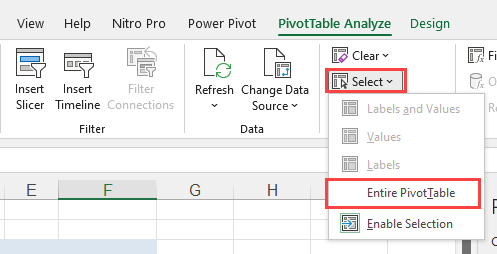
Select the entire PivotTable
Next, Copy the selection.
Create a new file (CTRL + N).
**Paste Values**, and then Paste Formats
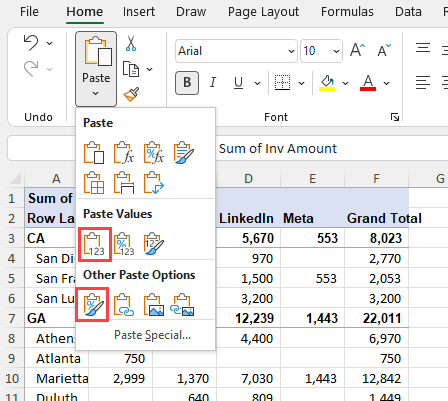
Paste Values and Paste Formats



