
Excel Five Great Tips for Filtering Data


Filtering data is one of the most popular Excel features. Here are five great filtering tips for Excel.
1. Filter by selected cells value 2. Copy and paste filtered data 3. Delete filtered data 4. Auto-calculate filtered data 5. Search for filtered data
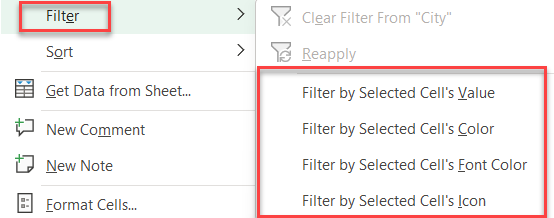
**Excel - Filter data tips**
Tip #1 - Filter by Selected Cell Value
Select the cell you want to filter by, right-click and select **Filter by Selected Cell Value**.
YouTube video
Excel Five Great Tips for Filtering Data
Tip #2 - Copy and Paste Filtered Data
After filtering data, you can copy and paste just the filtered data. The hidden rows do not get included in the copy/paste.
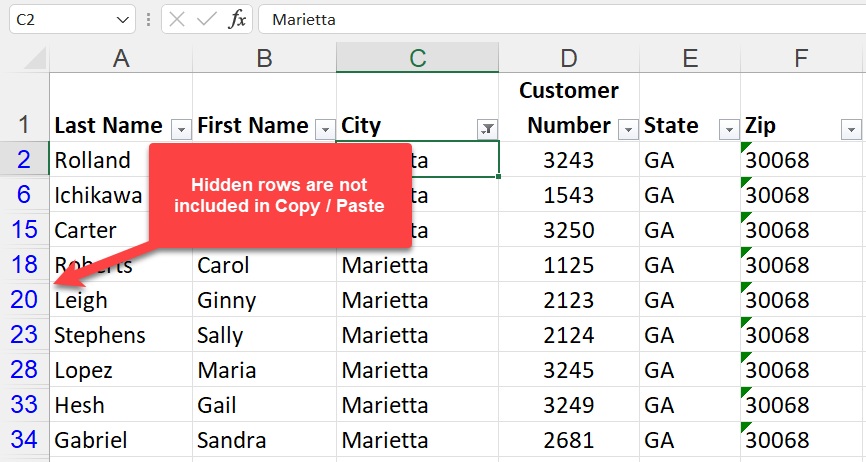
**Copy - Paste Filtered data**
Tip #3 - Delete filtered data
To delete a set of data, filter the data, select it, and delete it. Only the filtered or visible rows get deleted.
Tip #4 - AutoCalculate Filtered Data
When data is filtered, select a range of numbers, and in the bottom right of the screen, the status bar calculations are correct for what is visible.
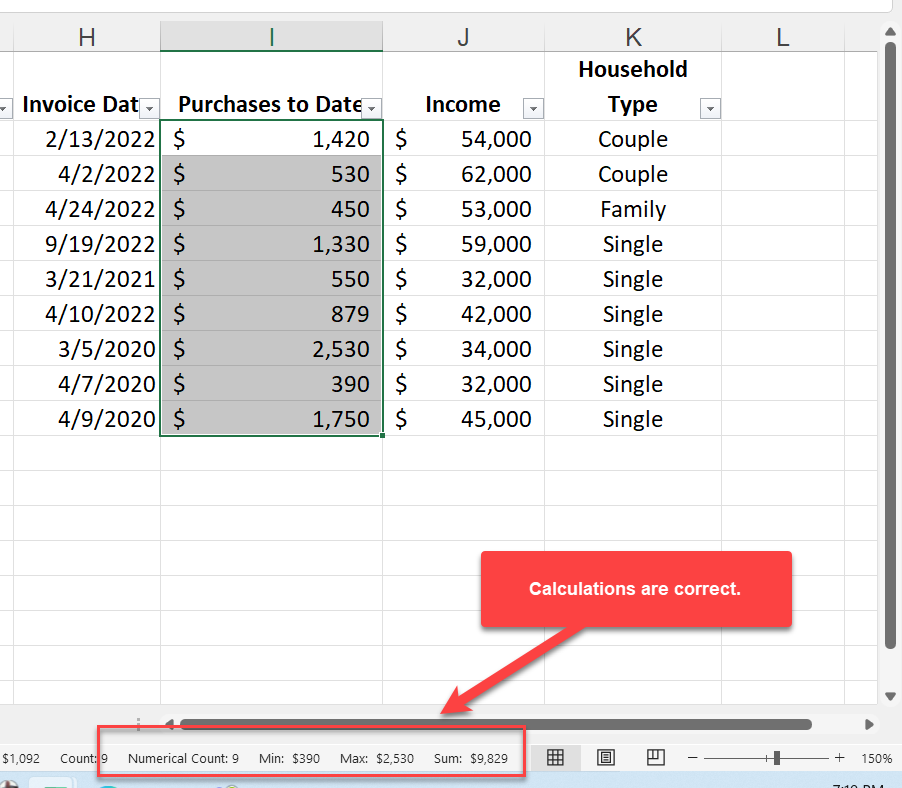
**Autocalculate filtered data**
Tip #5 - Search filtered data
Use the Search feature to quickly find account numbers, names, and other text fields. You can do partical searches in the search box.
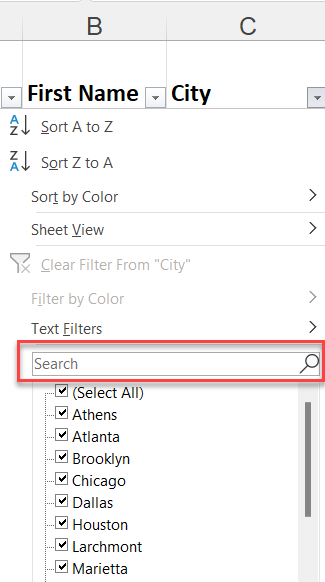
**Search box in filters**