How to Create and Edit AI Images in Microsoft Copilot
Copilot can create images from a prompt. Start from Apps and more > Create or from a new chat, open the result in the image editor, and refine it with a follow-up prompt.

Copilot has a great feature that a lot of Copilot users don't know about: the ability to create images. There are two ways to start one, and once you have an image, you can edit it or ask Copilot to change it with a follow-up prompt.
I am signed in with M365 Copilot (Premium) for these examples.
Method 1: Create an image from Apps and more
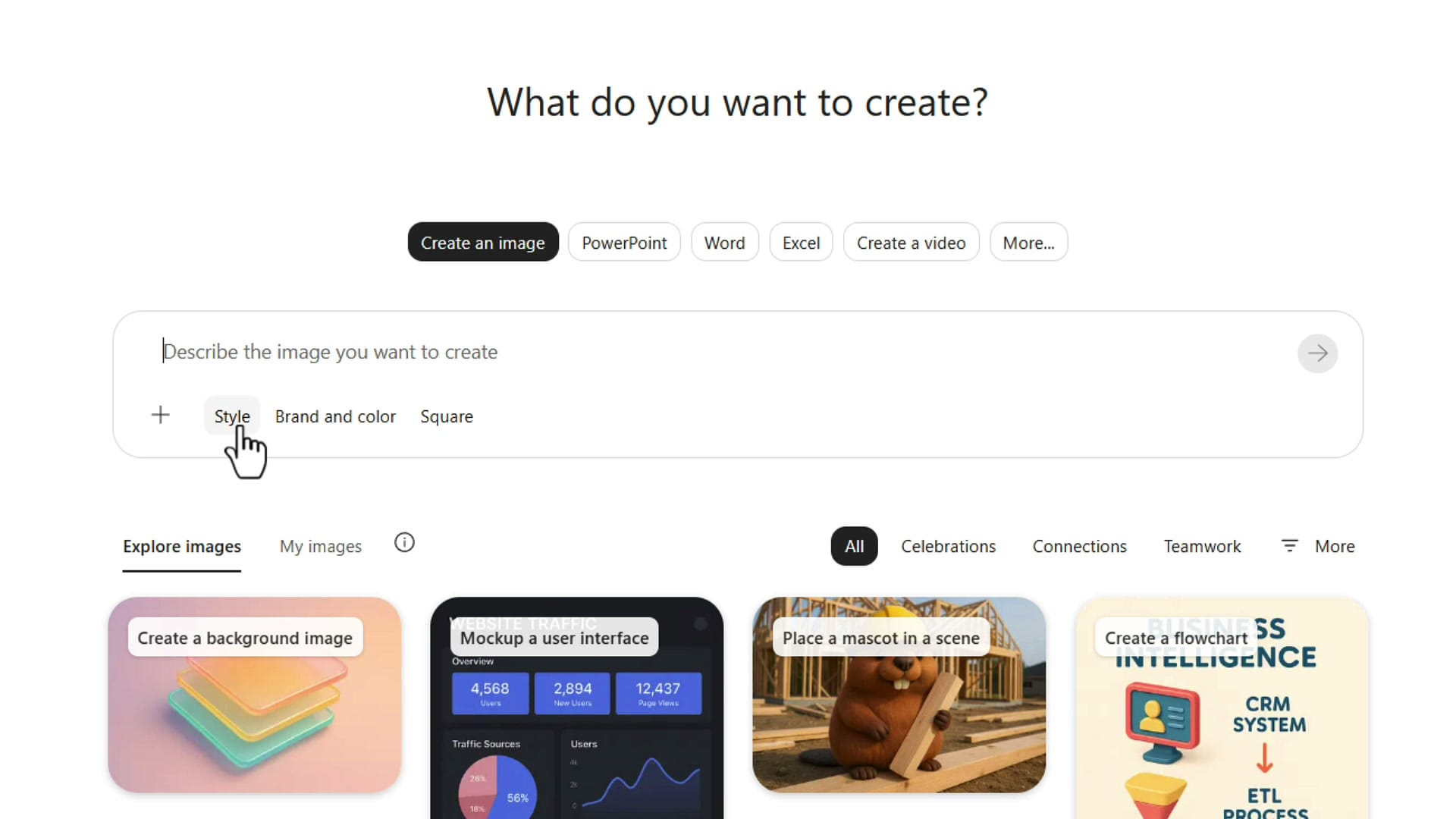
This is not the method I usually use, but it has one advantage. Come up to Apps and more at the top of Copilot and click Create.
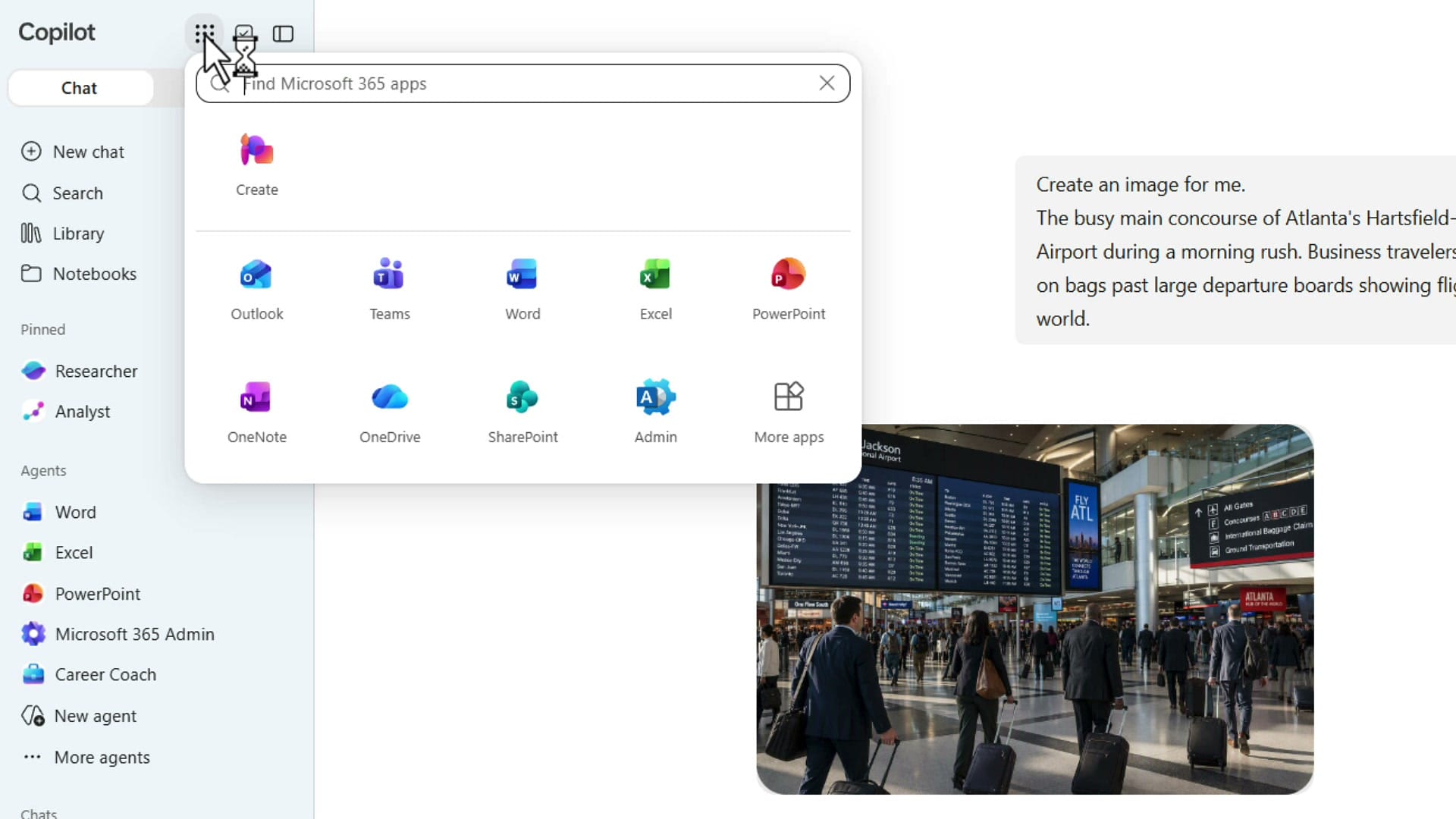
You have a lot of options here, including PowerPoint, Word, Excel, and Create a video. The one you want is Create an image.
The advantage of starting here is the options under the prompt box. You can pick the Style, the Brand and color, and whatever size you want. The size is set to Square until you change it.
Method 2: Create an image in a new chat
I am usually just making an image from scratch, so I start in a regular chat. Click New chat and type what you want in the prompt box. This is the prompt I used:
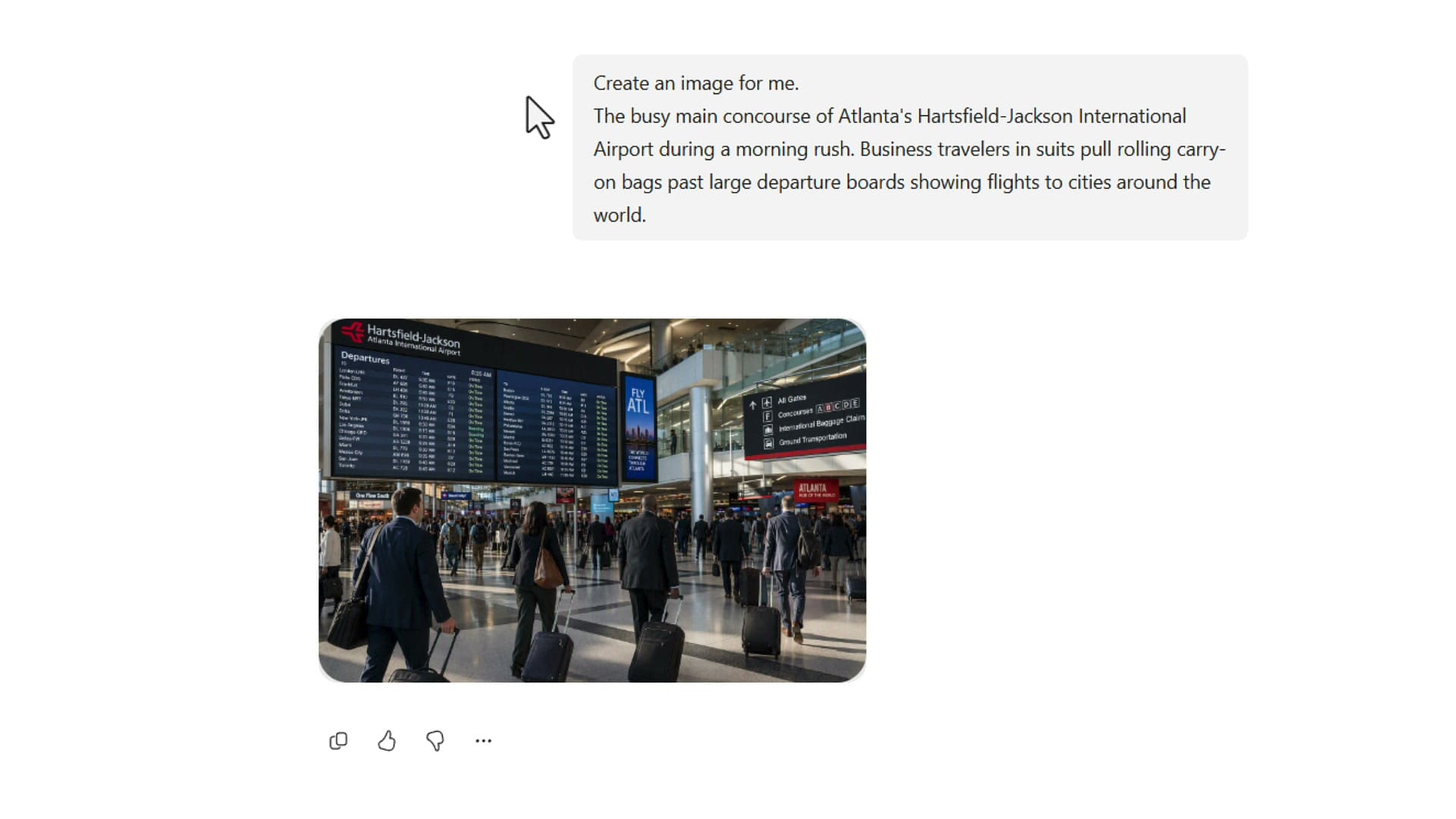
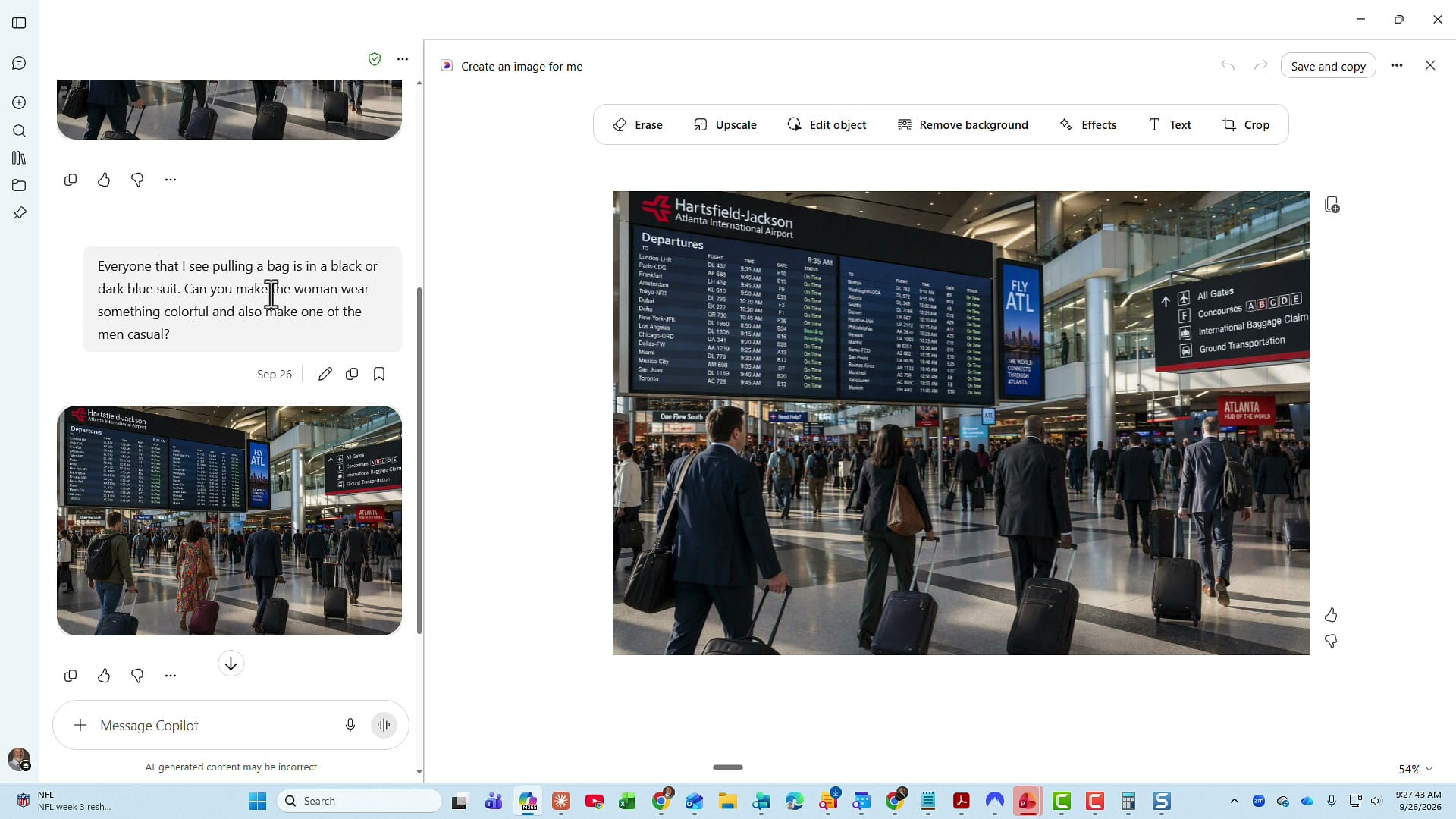
Create an image for me. The busy main concourse of Atlanta's Hartsfield-Jackson International Airport during a morning rush. Business travelers in suits pull rolling carry-on bags past large departure boards showing flights to cities around the world.
Copilot came back with this image.
Download, copy, or edit the image
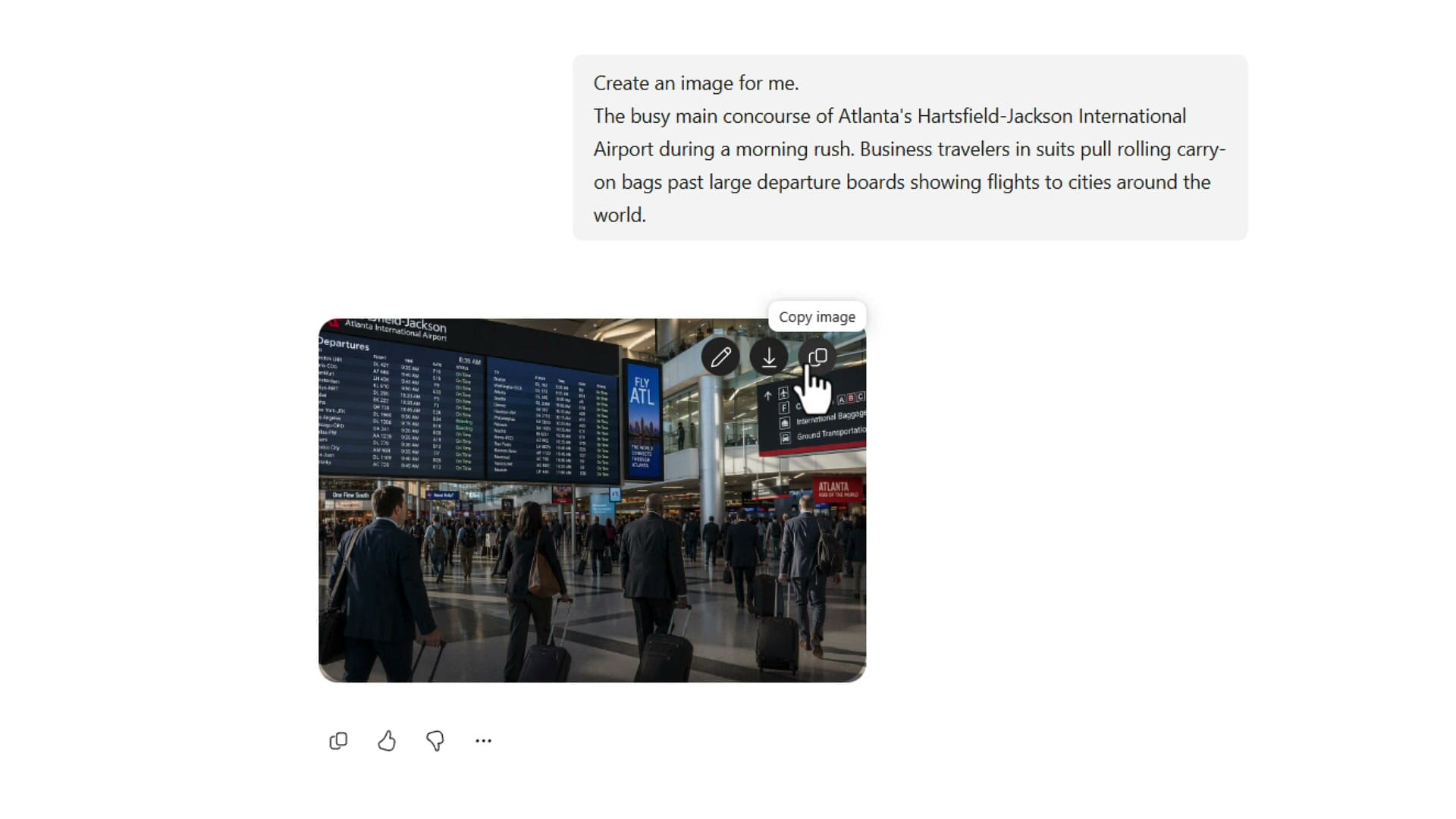
Hover over the image and you have three buttons in the corner. You can edit it, you can download it, and you can copy it.
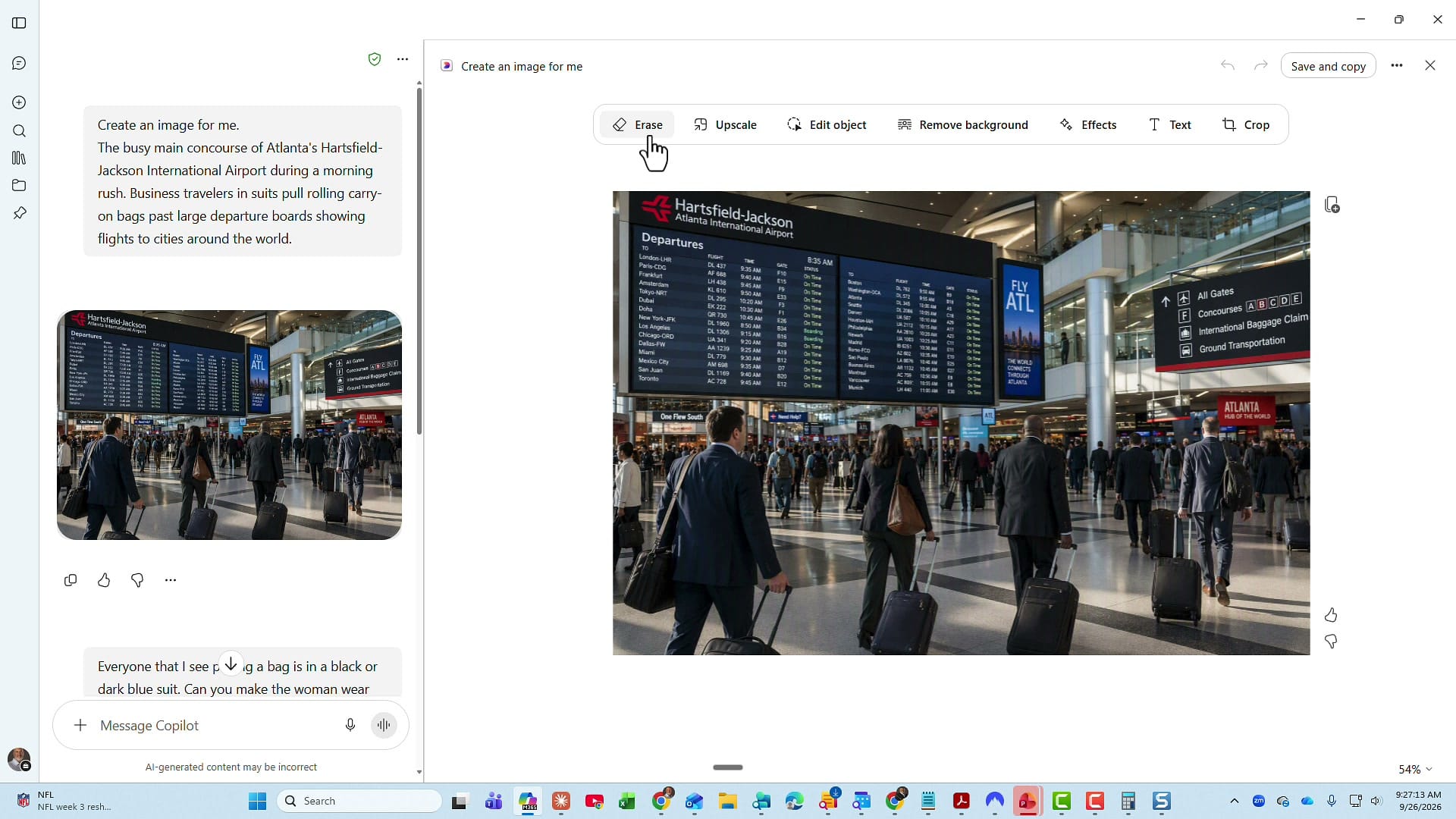
You can also just click the image. When you click it, Copilot opens the image in an editor. This is a new feature in Copilot. You have a lot of tools across the top:
- Erase
- Upscale
- Edit object
- Remove background
- Effects
- Text
- Crop
Refine the image with a follow-up prompt
If you read my prompt, Copilot did exactly what I asked for. That was the problem. I asked for business travelers in suits, so everyone is a business person. When I go to Hartsfield-Jackson to fly, not everyone is a business person, including me. Usually when I'm flying, I'm kind of casual.
So I stayed in the same chat and tweaked the request:
Everyone that I see pulling a bag is in a black or dark blue suit. Can you make the woman wear something colorful and also make one of the men casual?
Copilot came back with a new version. The woman is now in a colorful dress, and one of the men is casual, with a jacket and a backpack. The rest of the scene is the same.
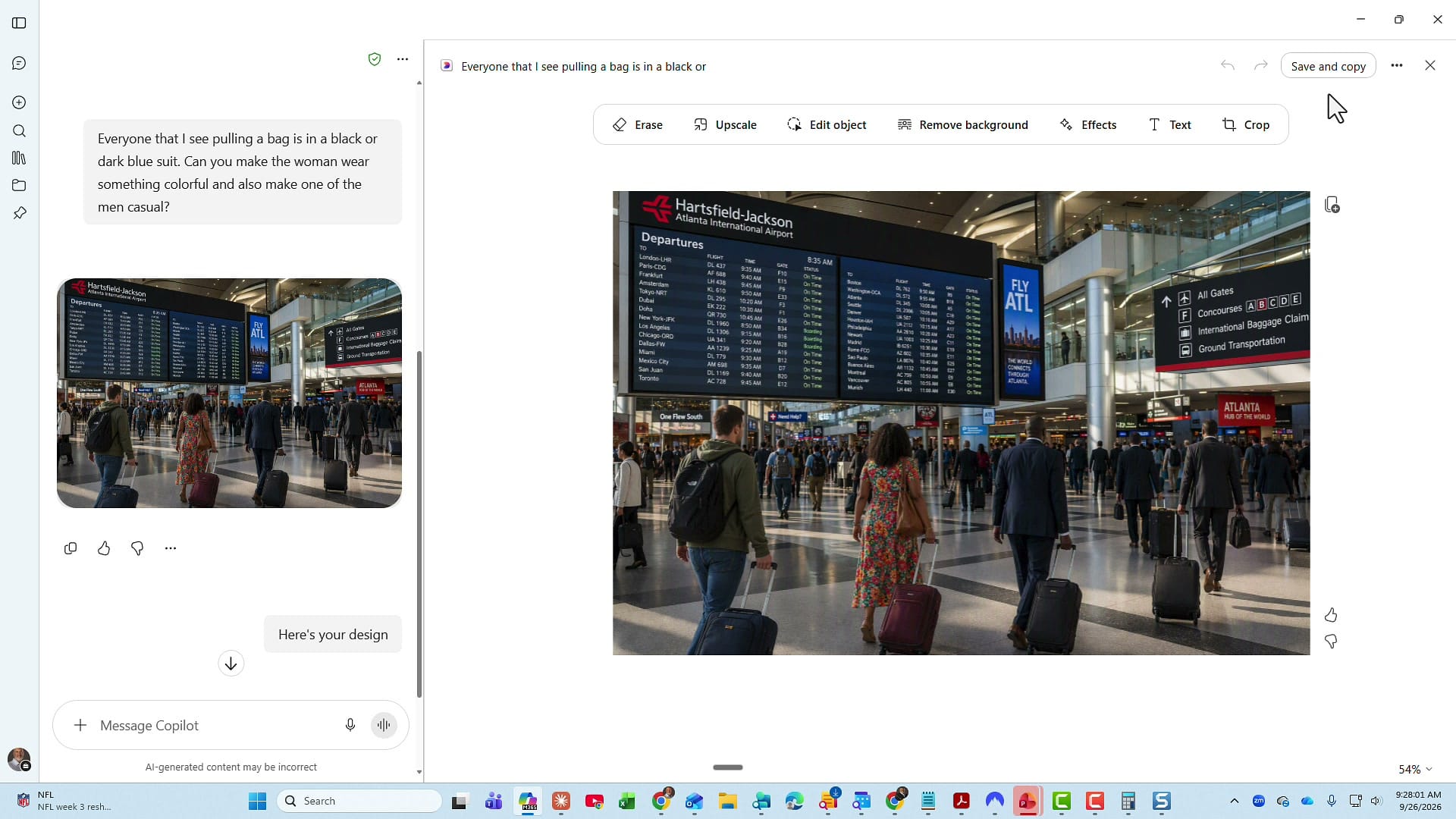
Both images stay in the chat, so you can save multiple images and use them wherever you want to. I'm also really impressed with the Hartsfield-Jackson sign Copilot came up with, because I really do believe that's the logo.
Quick recap
- Apps and more > Create > Create an image lets you pick the style, brand and color, and size before you write the prompt.
- For an image from scratch, click New chat and start your prompt with "Create an image for me."
- Hover over the result to edit, download, or copy it. Click the image to open the editor with Erase, Upscale, Edit object, Remove background, Effects, Text, and Crop.
- Copilot gives you what you ask for. If the result is not quite right, tell it what to change in a follow-up prompt.
Thank you for your time. Have a wonderful day.
Related guides
 Chris Menard
 Chris Menard
 Chris Menard
 Chris Menard