Copilot Chat: How to Toggle Between Work IQ and the Work and Web View
Licensed Copilot Chat now has a toggle to switch between the new Work IQ look and the classic Work and Web view. Here is where it lives and how it works.

If you have a licensed copy of Microsoft Copilot Chat, you have probably already been moved to the new look built around Work IQ. Here is the part a lot of people have been asking for: there is now a toggle that lets you switch back to the classic Work and Web view whenever you want.
I want to show you exactly where that toggle lives, what changes when you flip it, and one important catch about how long the toggle is going to stick around.
How to tell you have the new Work IQ look
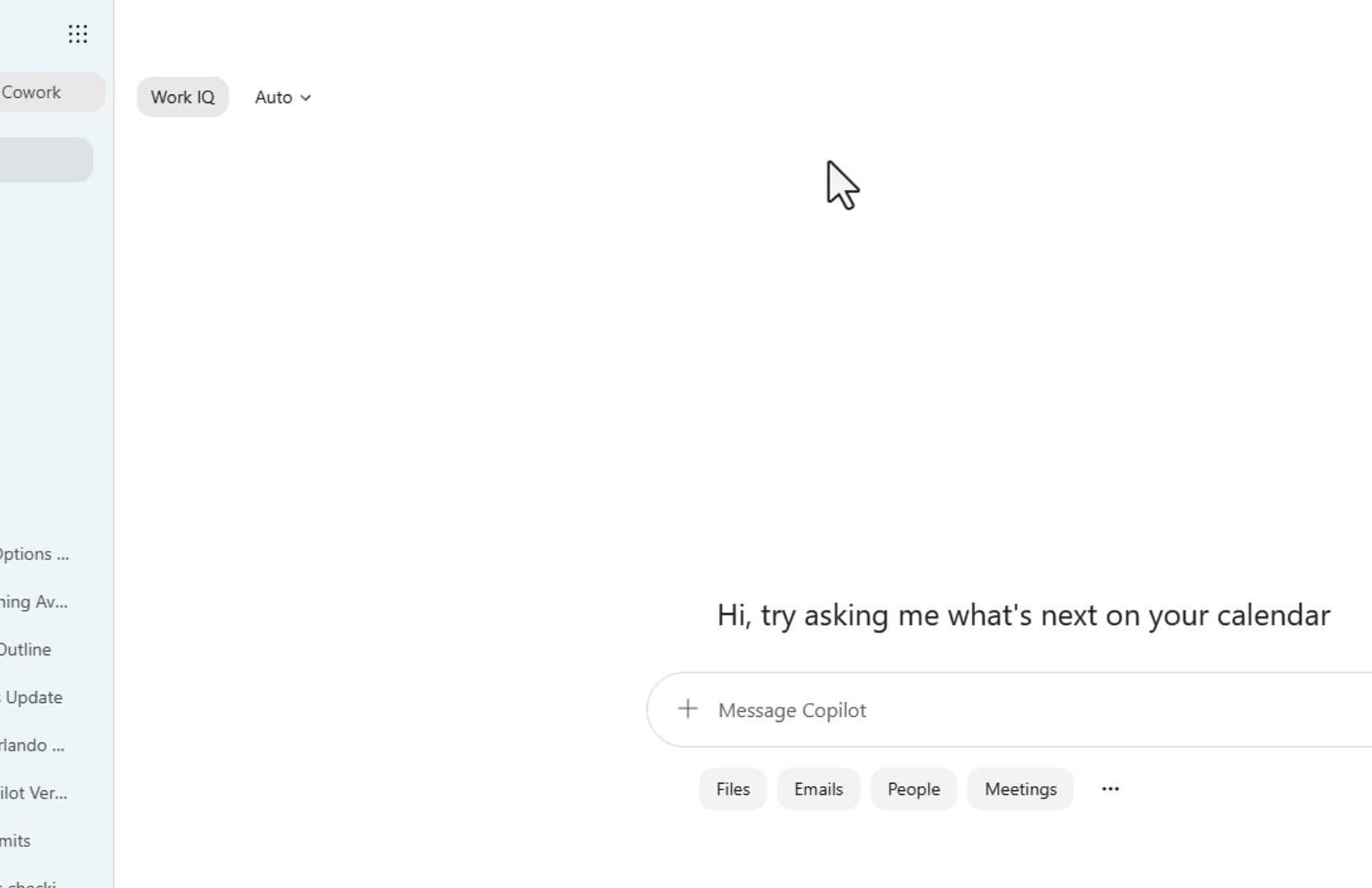
The quickest way to confirm you are on the redesigned interface is to look at the top of the Copilot Chat window. If you see Work IQ in the upper-left area, along with an Auto model picker for choosing between the different models, you are on the new licensed layout. This is the look that is rolling out to everyone, including people on a business or enterprise license with the free version.
One quick note on licenses: if you are on the free Copilot Chat rather than a paid Copilot license, you will not see Work IQ at all. If you want a deeper explanation of what Work IQ actually does, I covered that in my Work IQ explainer.
Where the toggle lives
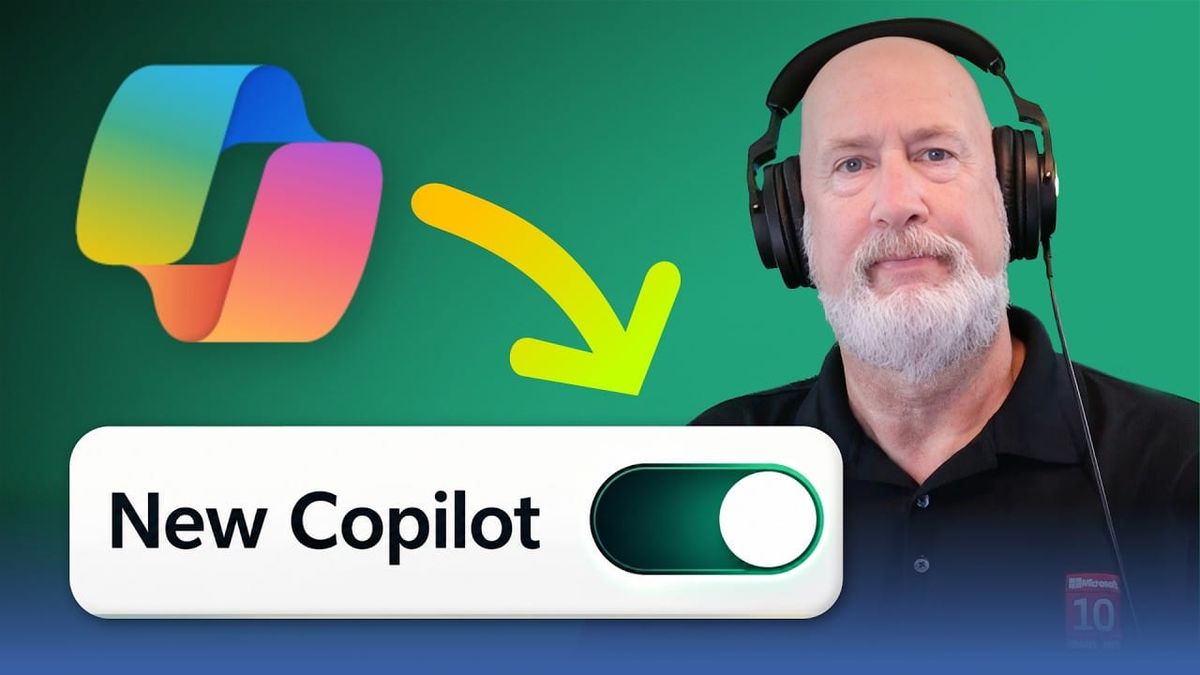
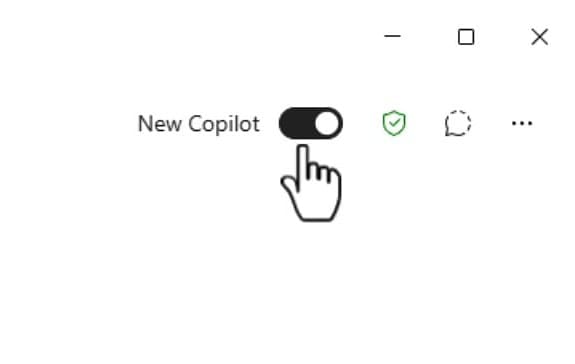
Look to the far top-right corner of the window. You will now see a New Copilot toggle. When it is switched on, you get the new Work IQ layout. The toggle appeared for me after I noticed the word Upgrade in that corner, clicked it, and let Copilot relaunch once. After that, the toggle stayed put.
Switching back to Work and Web
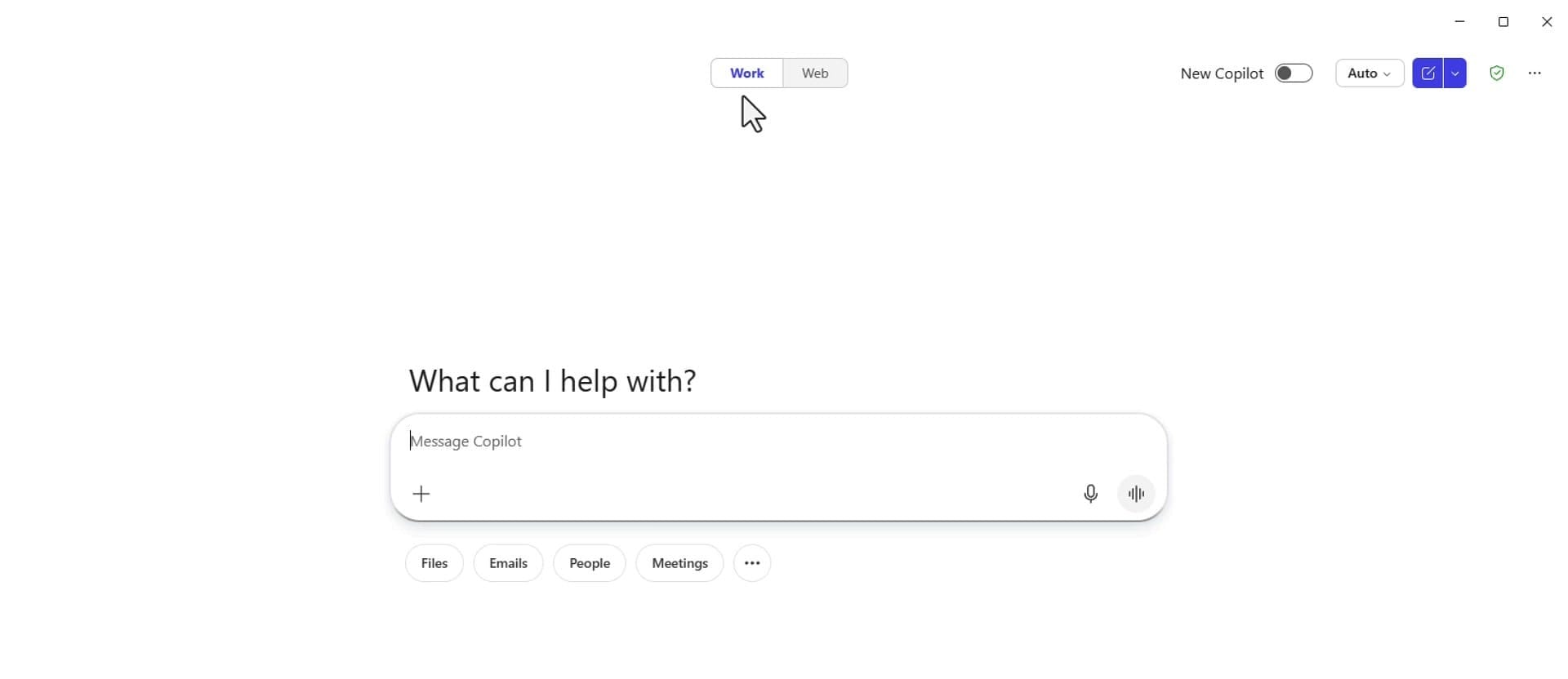
Turn the New Copilot toggle off and the classic view comes right back. Work IQ disappears, and the familiar Work and Web tabs return to the top center so you can force work-only or web-only answers again. Your model picker is still there, just moved over to the right instead of sitting on the left.
The part I really appreciate is that flipping the toggle switches instantly. Copilot does not close and relaunch, it just redraws the interface on the spot, so you can bounce between the two looks without losing your place.
The catch: this toggle is temporary
Here is the one thing to keep in mind. I have been told, though not given a firm date, that this toggle is only temporary. At some point the Work and Web view goes away entirely, the toggle disappears with it, and everyone stays on the new Work IQ layout. So enjoy the ability to switch back while it lasts, but do not count on it forever.
If you want the full breakdown of what changed when Work IQ replaced the old toggle, I walk through every difference in my guide on the new Copilot Chat interface.
My take
Personally, I like Work IQ. It feels faster to me, and I have gotten comfortable with the new layout quickly. A few of my coworkers do not care for it as much, so preferences vary. Try the toggle both ways and see which one fits how you work. Let me know which look you prefer.
Related guides