
Outlook: Reactions, Notifications, and At Mentions Explained

Microsoft Outlook has added several social features to email — reactions, @mentions, and a notification bell. These features help you communicate faster without writing a full reply. In this tutorial, Chris Menard walks through how each one works.
Watch the full tutorial: Outlook: Reactions & Notifications & At Mentions
Email Reactions
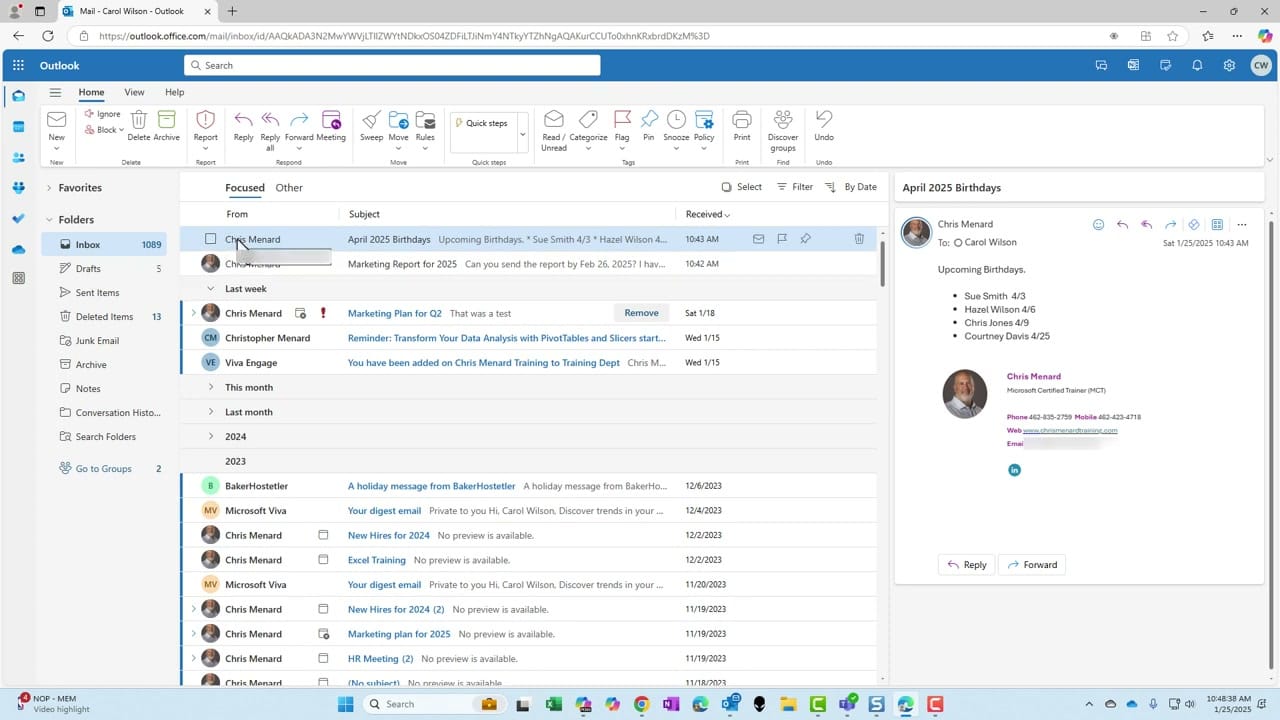
Outlook now supports emoji reactions on emails — similar to reactions in Teams or Slack. To react to an email:
- Hover over the email in your inbox (or open it)
- Click the reaction icon that appears
- Choose an emoji: thumbs up, heart, celebration, laugh, surprise, or sad
Reactions appear next to the email in the message list, and the sender gets a notification. This is perfect for quick acknowledgments like "got it" or "nice work" without cluttering the thread with one-word replies.
At Mentions (@Mentions)
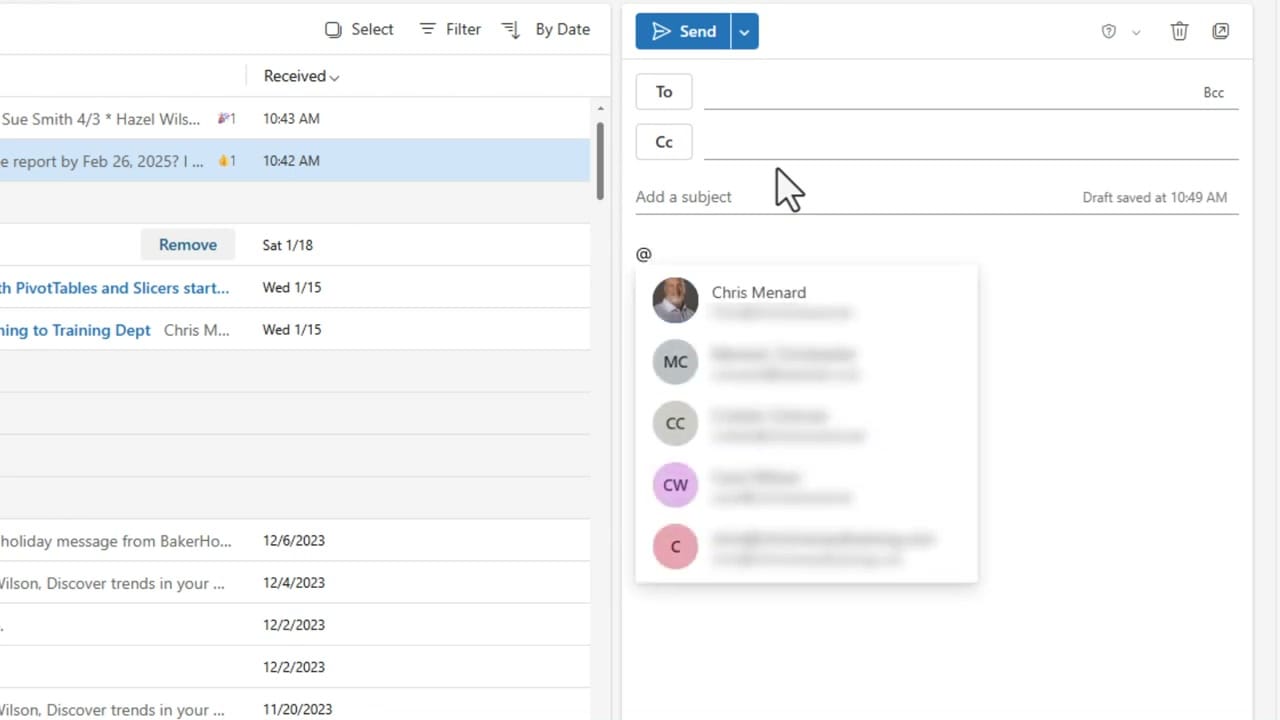
When composing or replying to an email, type @ followed by a person's name to mention them directly. Outlook shows a dropdown of matching contacts — select the person, and their name becomes a clickable link in the email.
Why use @mentions?
- The mentioned person is automatically added to the To line if they aren't already a recipient
- Their name appears in bold in the email body, drawing attention to their specific action item
- They receive a notification via the bell icon that they were mentioned
- In busy group emails, @mentions make it clear who needs to do what
The Notification Bell
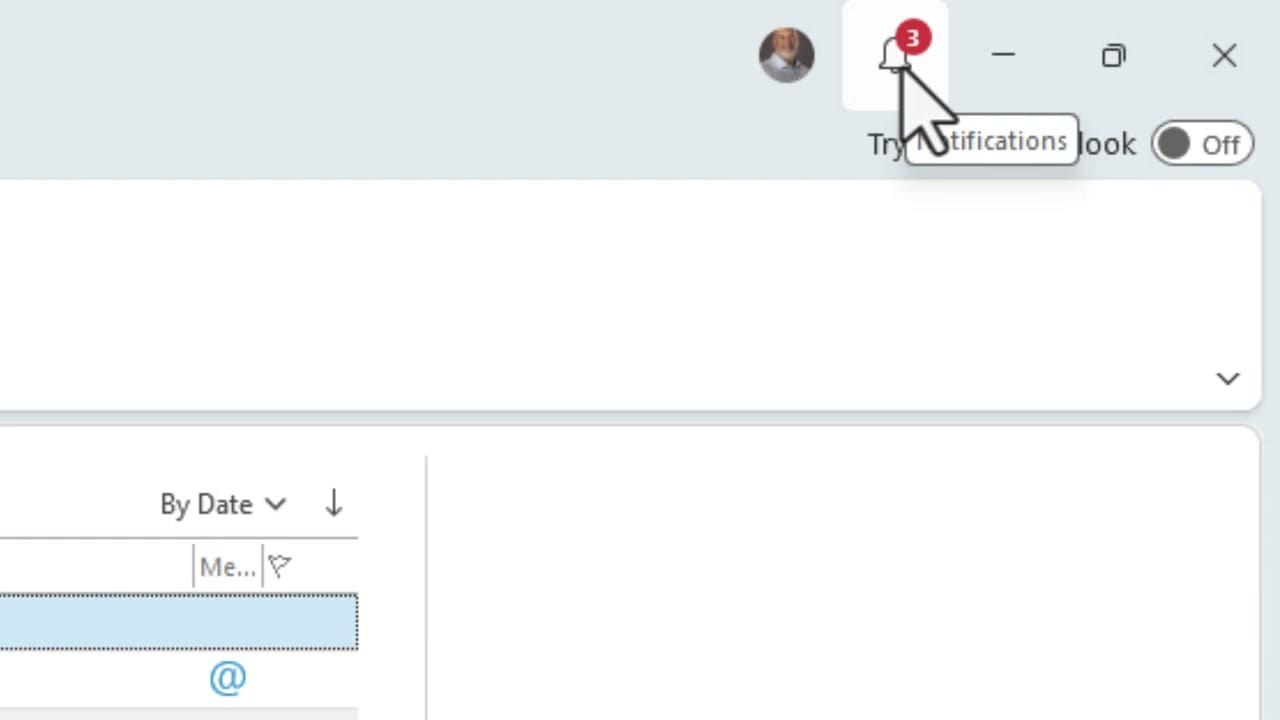
The bell icon in the top-right corner of Outlook collects all your notification activity in one place. It shows counts for:
- Reactions to your emails
- @mentions of your name
- Other relevant activity
Click the bell to see a feed of recent notifications. This is especially useful if you want to quickly see who reacted to something you sent or where you were mentioned, without searching through your inbox. You can also customize or turn off Outlook notifications if you find them distracting.
Related guides
- Turn Off Outlook Notifications and Alerts
- 5 Outlook Inbox Tips to Be More Productive
- Create a Poll in an Outlook Email
- Outlook: Manage Your Inbox Using Ignore, Archive, Block, Delete, and Clean Up
Want to learn more? Visit courses.chrismenardtraining.com for online training courses.



