
5 Outlook Inbox tips to be more productive


A lot of our time is spent in Outlook. Here are five inbox tips to be more productive. Tip 1 - Turn on Focus Mode. Tip 2 - Create a meeting from an email message. Tip 3 - Create a task from an email message. Tip 4 - Send an email to Microsoft Teams. You can send it to a Teams chat or channel. Tip 5 - Use the Immersive Reader for long emails.
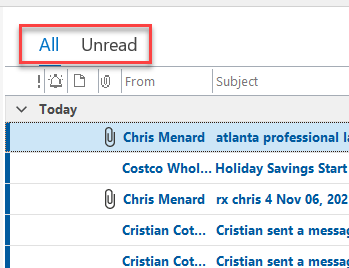
All and Unread in Outlook
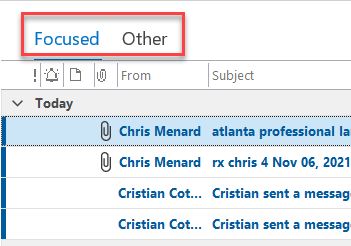
Focused and Other
**Focused Inbox** separates your inbox into two tabs—Focused and Other. Your most important email messages are on the Focused tab while the rest remain easily accessible—but out of the way—on the Other tab.
Tip #1 - Turn Focused Inbox on
1. In Outlook, select the **View** tab. 2. Select **Show Focused Inbox**.
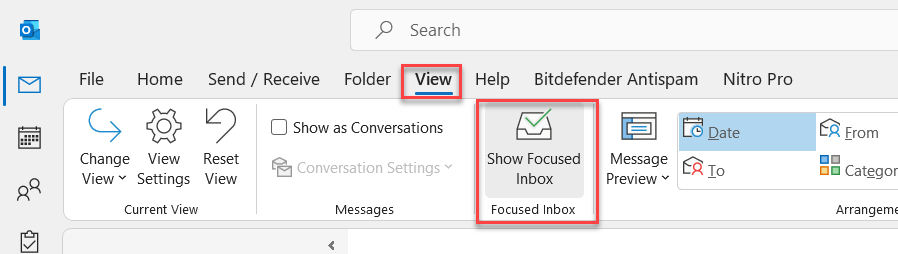
Turn on Focused Inbox in Outlook
YouTube video
5 Outlook Inbox tips to be more productive
Chapters / Timestamps
- 00:00 Intro
- 00:21 Tip 1 [Focus Mode]
- 01:12 Tip 2 [Create meeting from email]
- 01:50 Tip 3 [Create a task from email]
- 02:43 Tip 4 [Send email to Teams]
- 03:09 Tip 5 [Immersive reader]
Tip #2 - Create a meeting from an email
1. Open an email and select **Reply with Meeting**. 2. The information from the email will go in a meeting request.
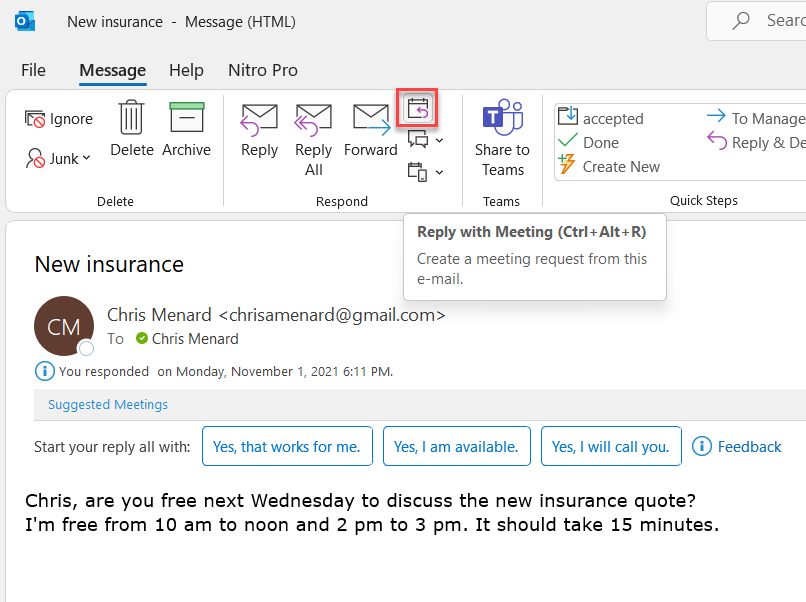
Reply with Meeting in Outlook
Tip #3 - Create a Task from an Email
Drag an email to **Task**. Fill out the details of the Task.
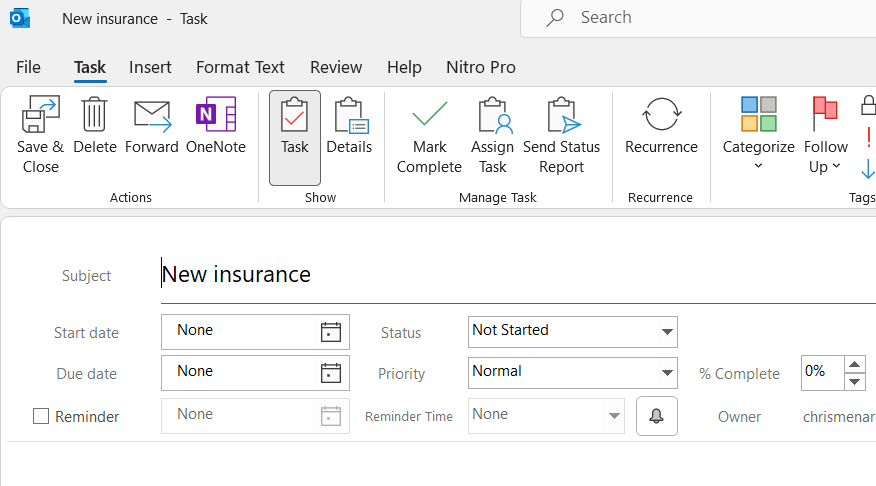
Drag an email to Task in Outlook
Tip #4 - Send an email to Teams
Select an email and click **Send to Teams** on the Home tab.
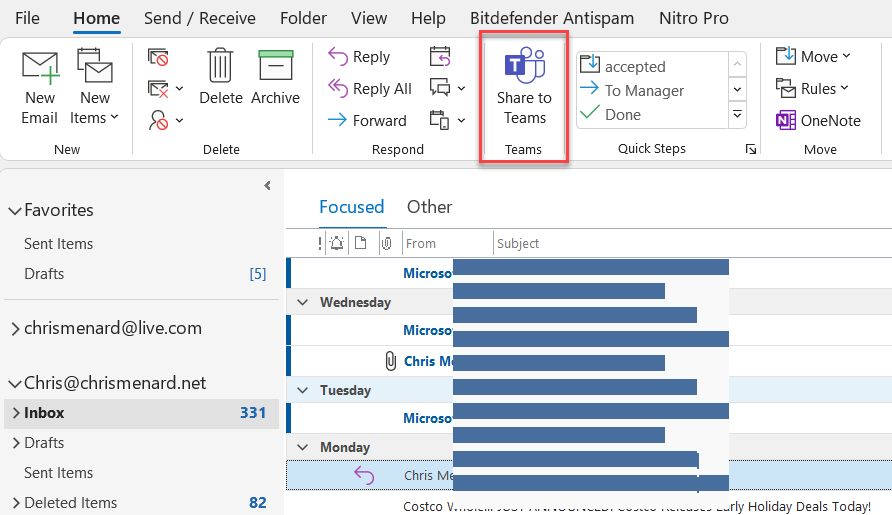
Send to Teams
Share an email from Outlook to Teams - New Feature April 2021
Tip #5 - Use Immersive Reader
Immersive Reader in Outlook for the web and Outlook desktop allows you to adjust the text of an email to read in the way that works best for you. Use Read Aloud to hear emails read to you as each word is highlighted, or modify spacing, color and more for a comfortable and easy to process email experience.
Select **View**, click **Immersive Reader**. Immersive Reader will launch in your email pane.
Choose the Immersive Reader options that work for you from the ribbon
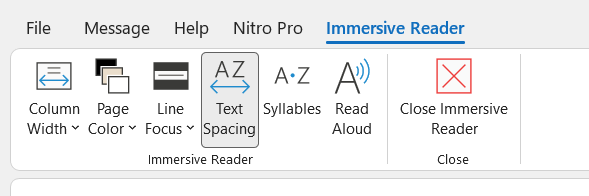
Immersive Reader



