How to Use AutoRefresh for PivotTables in Excel


Excel now includes a built-in AutoRefresh option for PivotTables. When enabled, the PivotTable updates automatically any time the underlying data changes — no manual refresh needed.
The Source Data
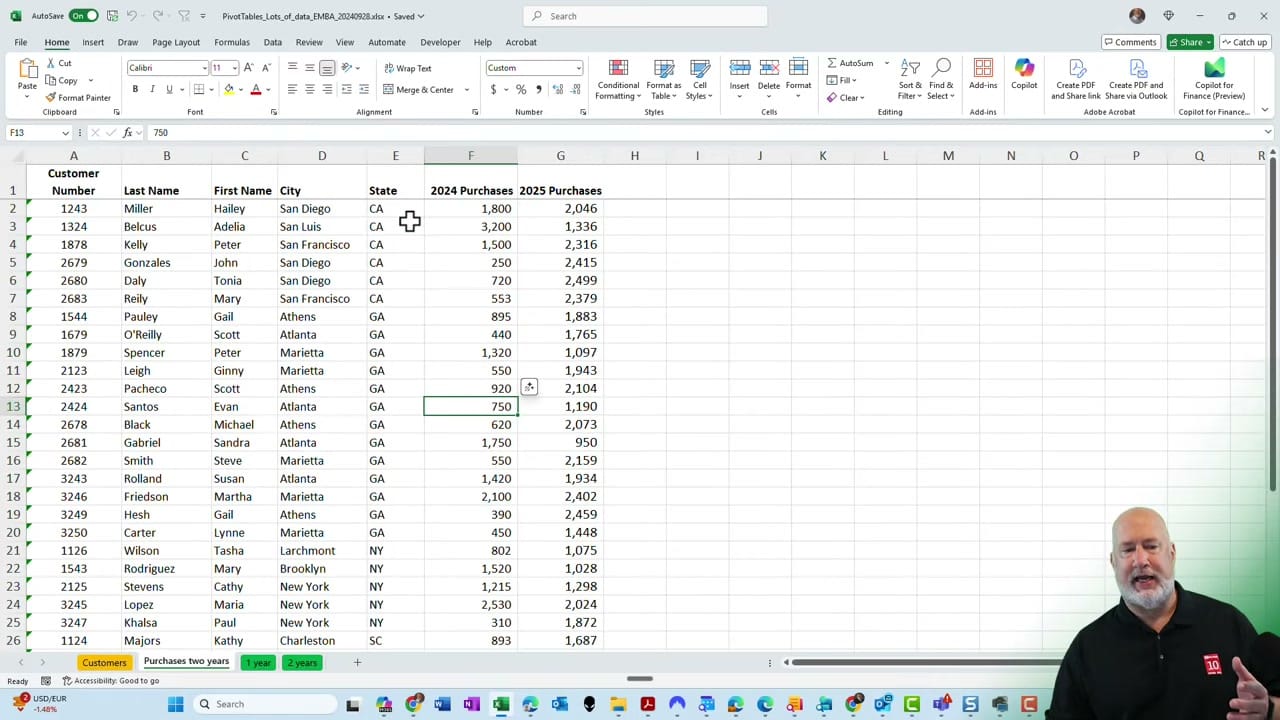
Start with a table of customer data that includes columns for customer number, last name, first name, city, state, and purchase amounts for 2024 and 2025.
Creating the PivotTable
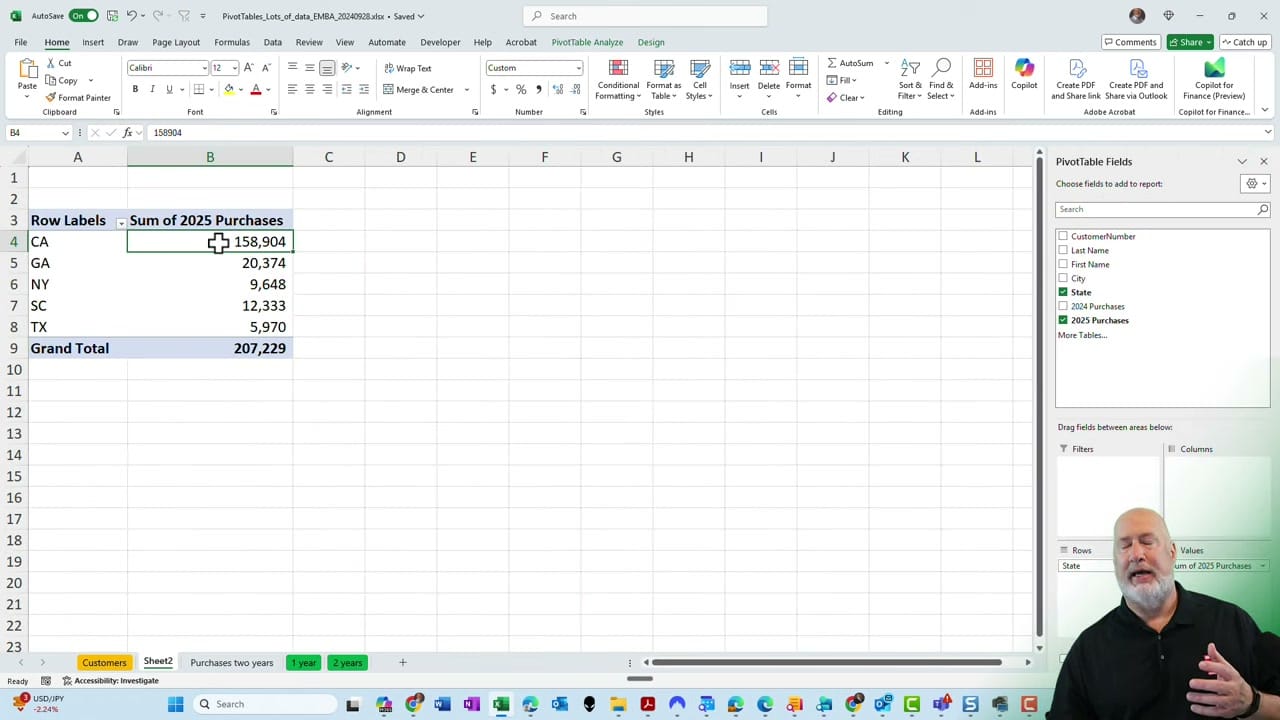
Select the data, go to Insert > PivotTable, and place it on a new worksheet. Drag State into the Rows area and Sum of 2025 Purchases into the Values area. The PivotTable now shows total purchases grouped by state.
Testing AutoRefresh
Go back to the source data and change a value — for example, update a purchase amount. Switch to the PivotTable sheet and you'll see the totals update automatically. There's no need to click Refresh or press any shortcut. The PivotTable stays in sync with the data.
YouTube Video
Where to Find the AutoRefresh Toggle
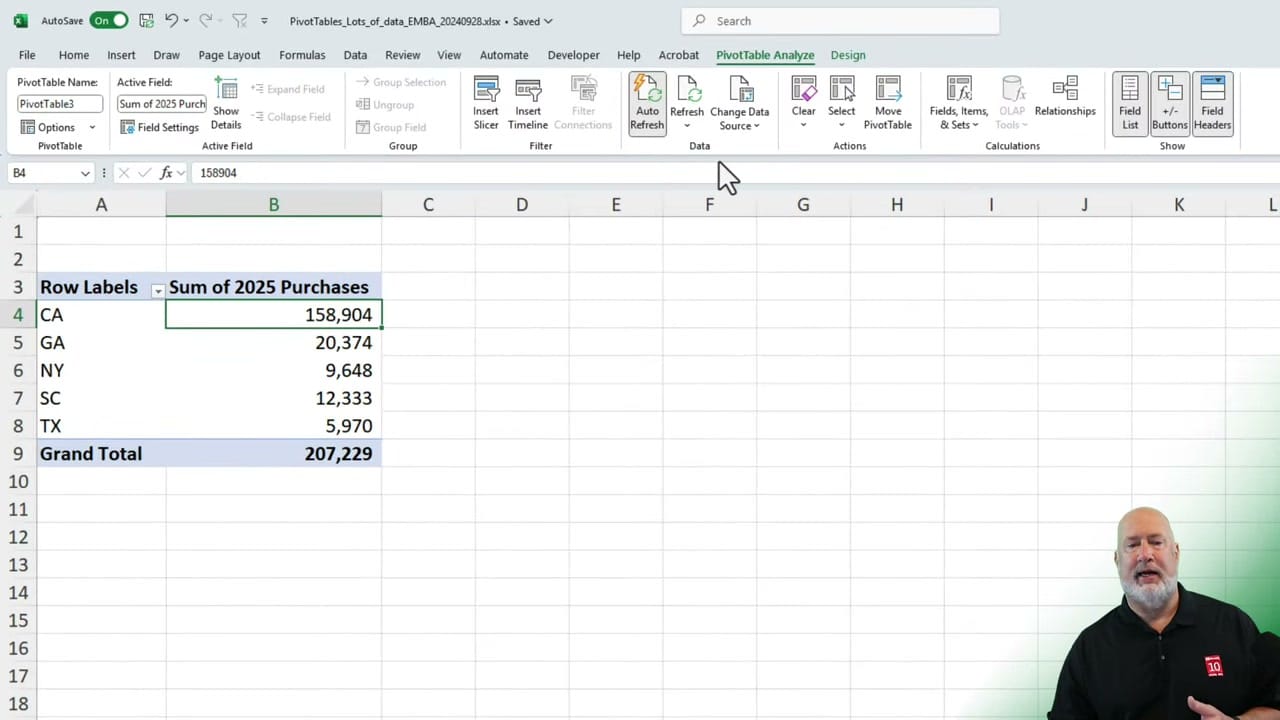
Click inside the PivotTable, then go to the PivotTable Analyze tab on the ribbon. In the Data group, you'll see the Auto Refresh button. It's enabled by default for new PivotTables. If you need to turn it off — for example, when working with very large datasets where constant refreshes slow things down — click the button to toggle it off.
Related Excel Tutorials
 Chris Menard
 Chris Menard
 Chris Menard
 Chris Menard
 Chris Menard