How to Test Your Mic and Speaker Before a Microsoft Teams Meeting
Microsoft Teams now lets you test your microphone and speaker right from the join screen. Here's where the Test mic and speaker link is and how to run both checks in seconds.

A new feature is rolling out in Microsoft Teams that I love: you can test your microphone and your speaker right before you join a meeting. No more wondering whether people will hear you — or whether you'll hear them. You run a quick check on the join screen, see two green checkmarks, and step into the meeting knowing your audio works.
The old way still works — but you don't need it
For years, the way to check your audio was to go to Settings and more (the three dots), then Settings, then Devices, and finally Make a test call. That still works if you like it. But now there's no need to dig through menus before every meeting — the test lives right where you join.
Start a meeting (scheduled or Meet now)
It doesn't matter whether it's a meeting that's already on your calendar or one you spin up on the spot. I'll use Meet now and click Start meeting. Either path lands you on the same pre-join screen.
Find the Test mic and speaker link
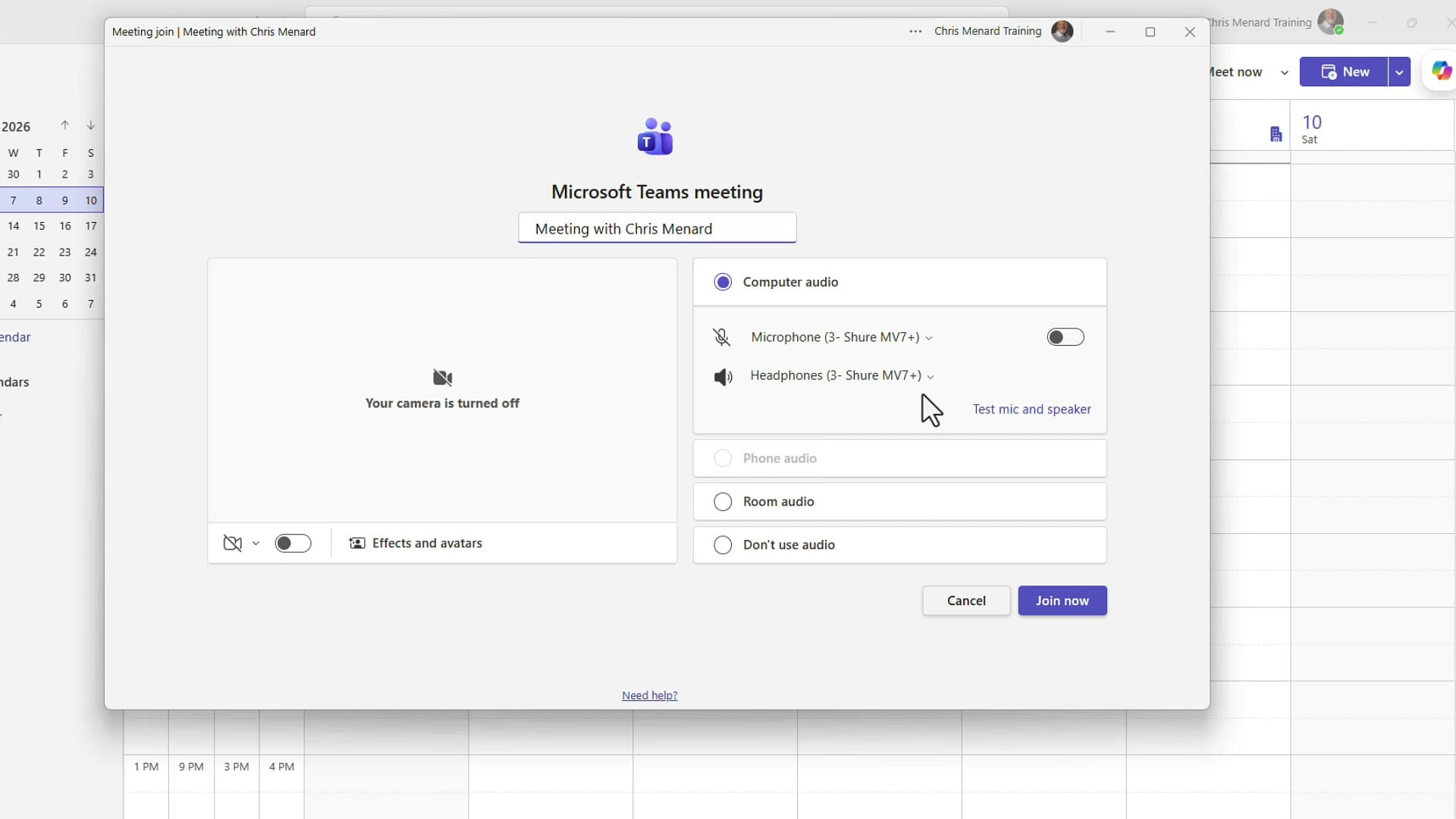
When you reach the pre-join screen, look in the audio section on the right. Just under your microphone and speaker devices, you'll see a link that says Test mic and speaker. That single link runs both checks for you.
Step 1: Test your speaker
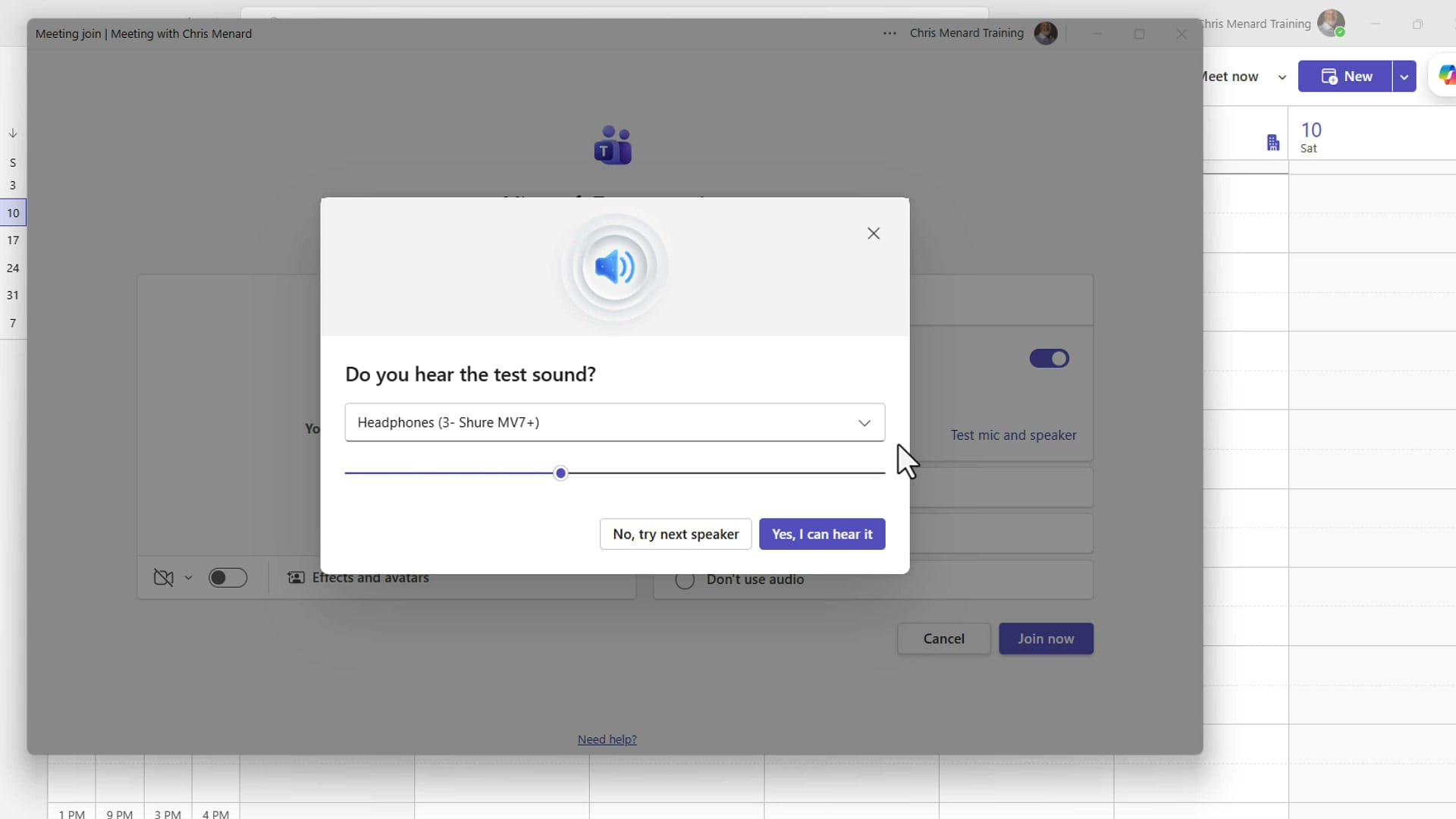
Click Test mic and speaker and Teams starts with your speaker. You'll hear a test sound and see the prompt Do you hear the test sound? If your speaker or headphones are working, click Yes, I can hear it. If you hear nothing, use the dropdown to switch to a different output device, or click No, try next speaker and Teams moves to the next one.
Step 2: Test your microphone
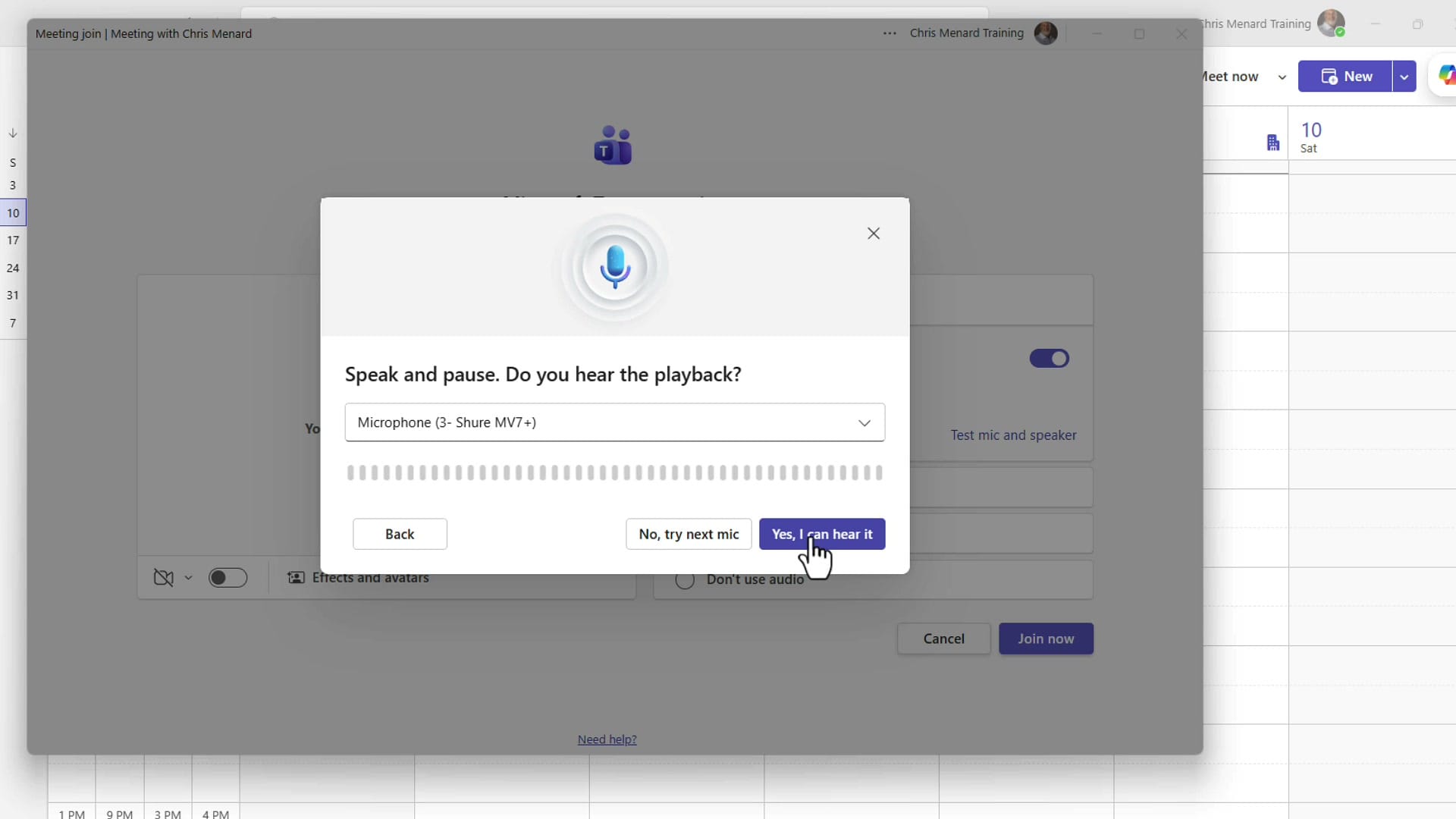
Next, Teams checks your mic. You'll see Speak and pause. Do you hear the playback? Say a few words, then stop — Teams records that snippet and plays it back to you. If you hear yourself clearly, click Yes, I can hear it. If not, choose a different microphone from the dropdown or click No, try next mic.
Step 3: Confirm you're ready
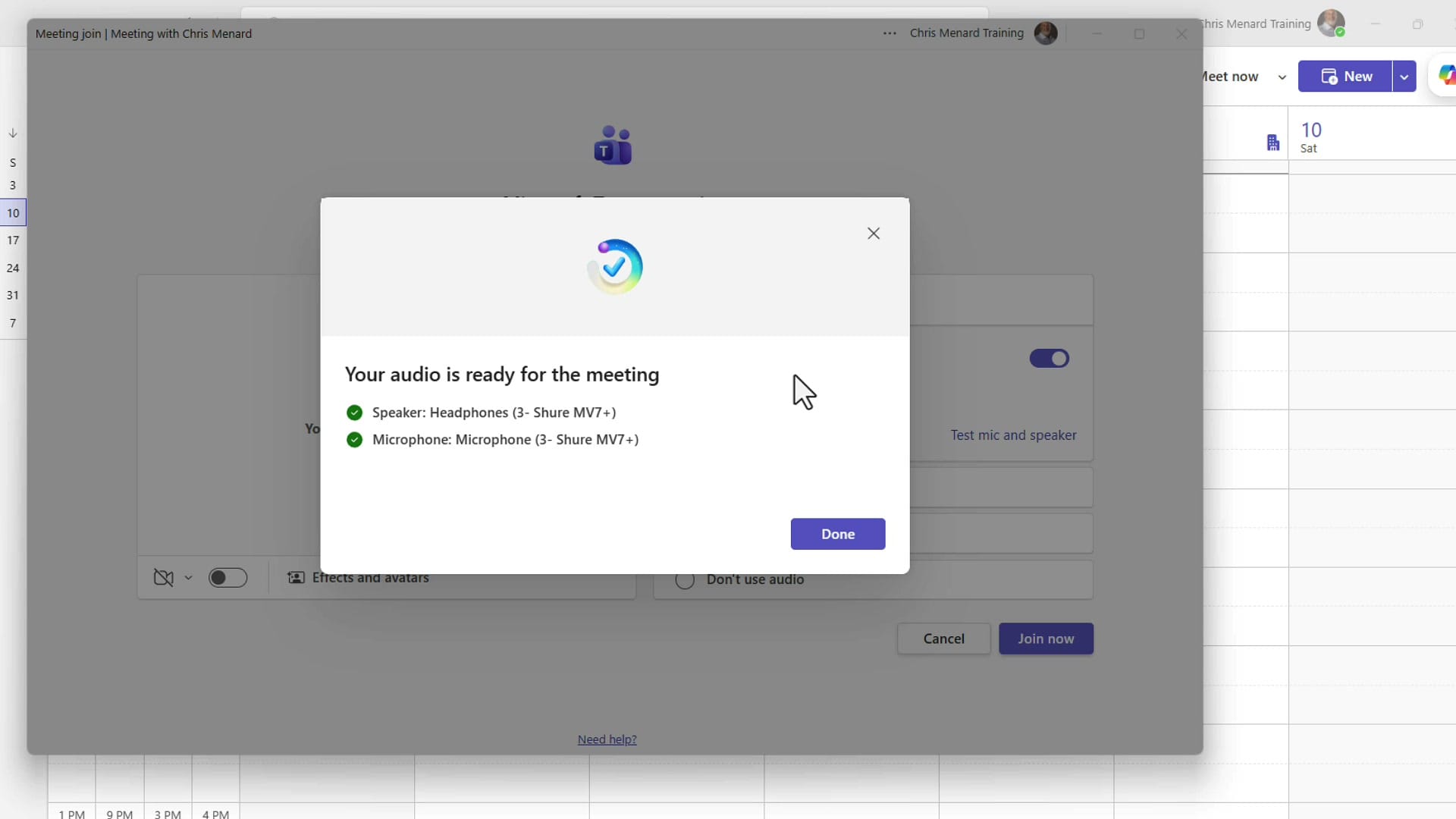
Once both checks pass, Teams shows a confirmation screen: Your audio is ready for the meeting, with a green checkmark next to your speaker and another next to your microphone. Click Done and join.
Why this is worth 15 seconds
Especially before an important meeting, this quick check saves you from the classic scramble of "Can everyone hear me?" You walk in already knowing your speaker and microphone are working correctly — right before the meeting, exactly when it matters.
Related guides
 Chris Menard
 Chris Menard
 Chris Menard
 Chris Menard