
How to Use the Countdown Timer in Microsoft Teams Meetings


Microsoft Teams now has a built-in countdown timer for meetings. Available starting July 2025, it lets you set a visible countdown that all participants can see — useful for keeping presentations, breakout discussions, and Q&A sessions on schedule.
How to Access the Timer
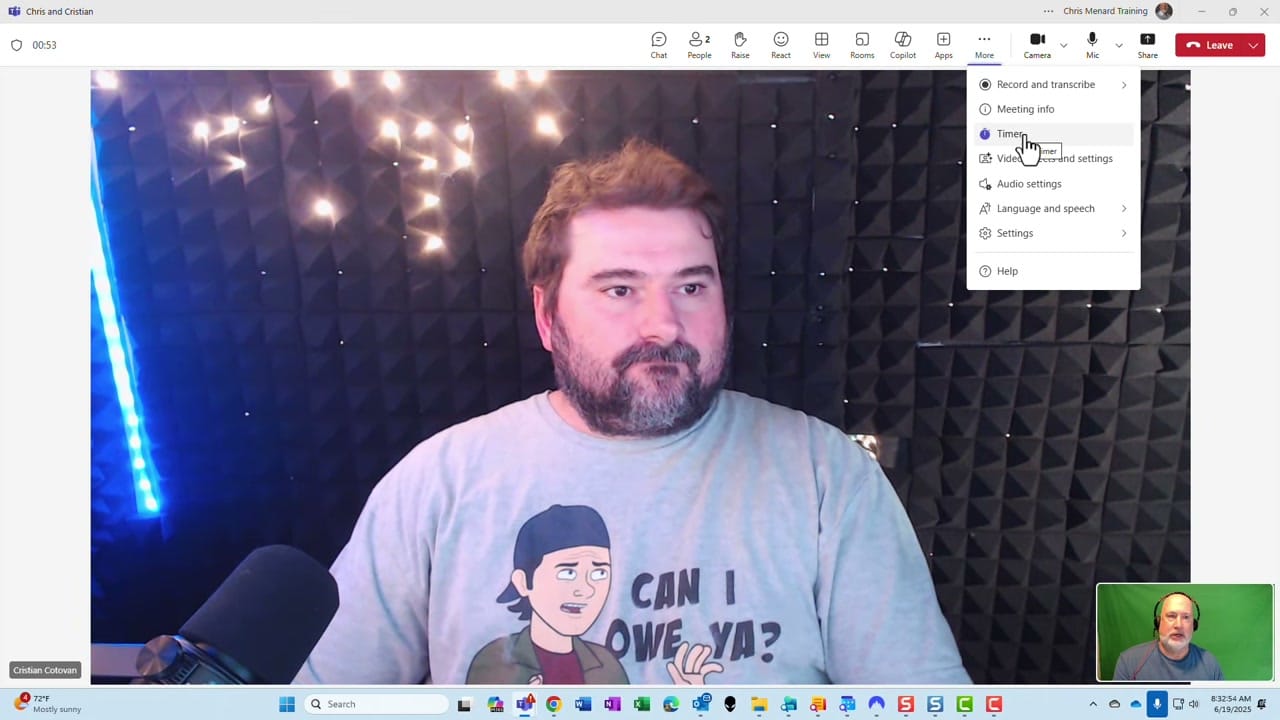
During a Teams meeting, click the More menu (the three dots ... in the meeting toolbar) and select Timer. This opens the timer panel where you can set the countdown duration.
Setting and Managing the Timer
The timer panel lets you set minutes and seconds. Quick-add buttons (+1, +2, +10) make it easy to adjust on the fly. Once started, a progress bar appears at the top of the meeting window showing the remaining time.
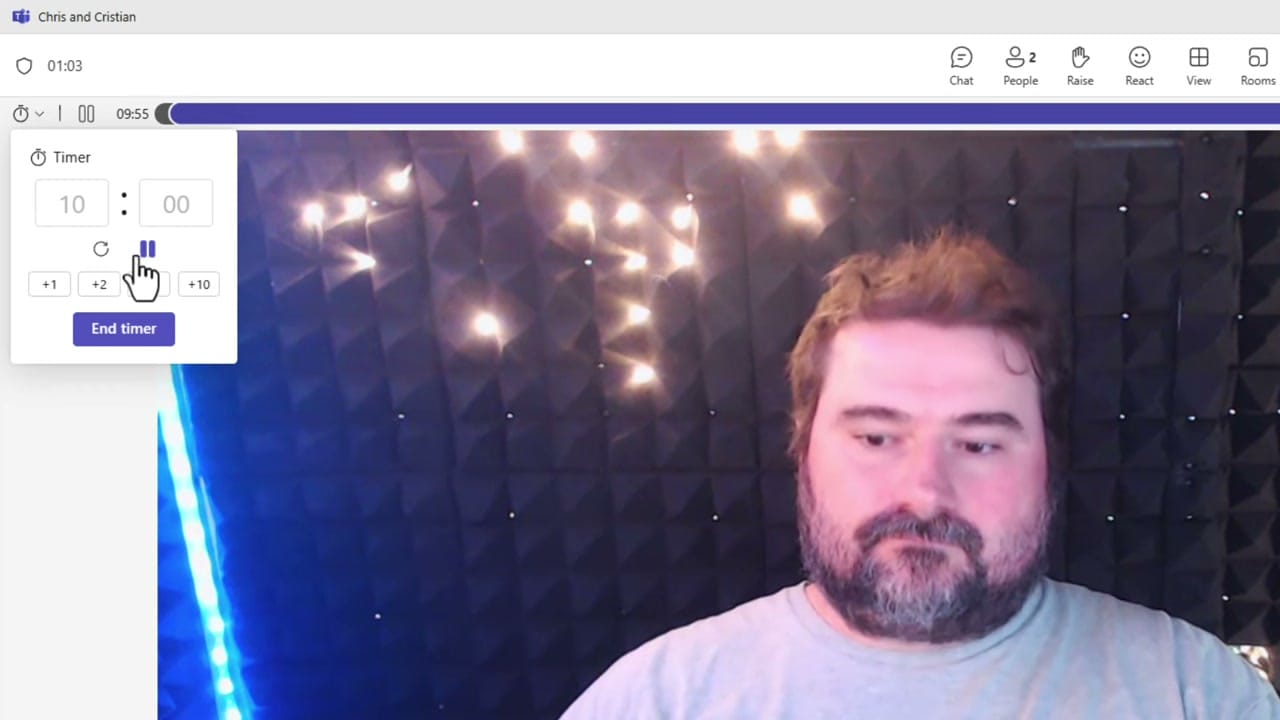
Key controls:
- Pause/Resume — Temporarily stop the countdown without resetting
- Reset — Return to the original time
- +1, +2, +10 — Add extra minutes without stopping the timer
- End timer — Stop and dismiss the countdown
What Participants See
Every participant sees a progress bar at the top of their meeting window. The bar changes color as time runs low — shifting from blue to yellow to red. When the timer reaches zero, it chimes to alert everyone.
Each participant can individually choose to show or hide the timer on their screen, so it's flexible for different preferences.
Practical Uses
- Presentations — Give each speaker a set time limit
- Breakout discussions — Set a timer for group work before reconvening
- Stand-ups — Keep daily check-ins within a fixed window
- Q&A sessions — Allocate time for questions at the end of a meeting
- Training — Time exercises and activities
The timer works in both scheduled meetings and impromptu calls. Any participant can start a timer — it's not limited to the organizer.
Related guides
Want to learn more? Visit courses.chrismenardtraining.com for online training courses.



