
How to Search Files in Microsoft Teams Channels: New Shared Tab Tutorial


Microsoft Teams is rolling out a redesigned file search experience for channels. The old Files tab has been replaced with a new Shared tab that combines files, links, and recent activity in one place — with keyword filtering and direct access to your SharePoint document library.
In this tutorial, Chris walks through the new file search features in both chat and channel views, explains the difference between OneDrive (chat) and SharePoint (channel) storage, and shows how filters make it easier to find the documents you need.
Chat Files vs. Channel Files
Before diving into the new features, it helps to understand where Teams stores files. Files shared in one-on-one or group chats are saved to your personal OneDrive. Files shared in channels are stored in the team's SharePoint document library. This distinction matters because it determines where you search and what filters are available.
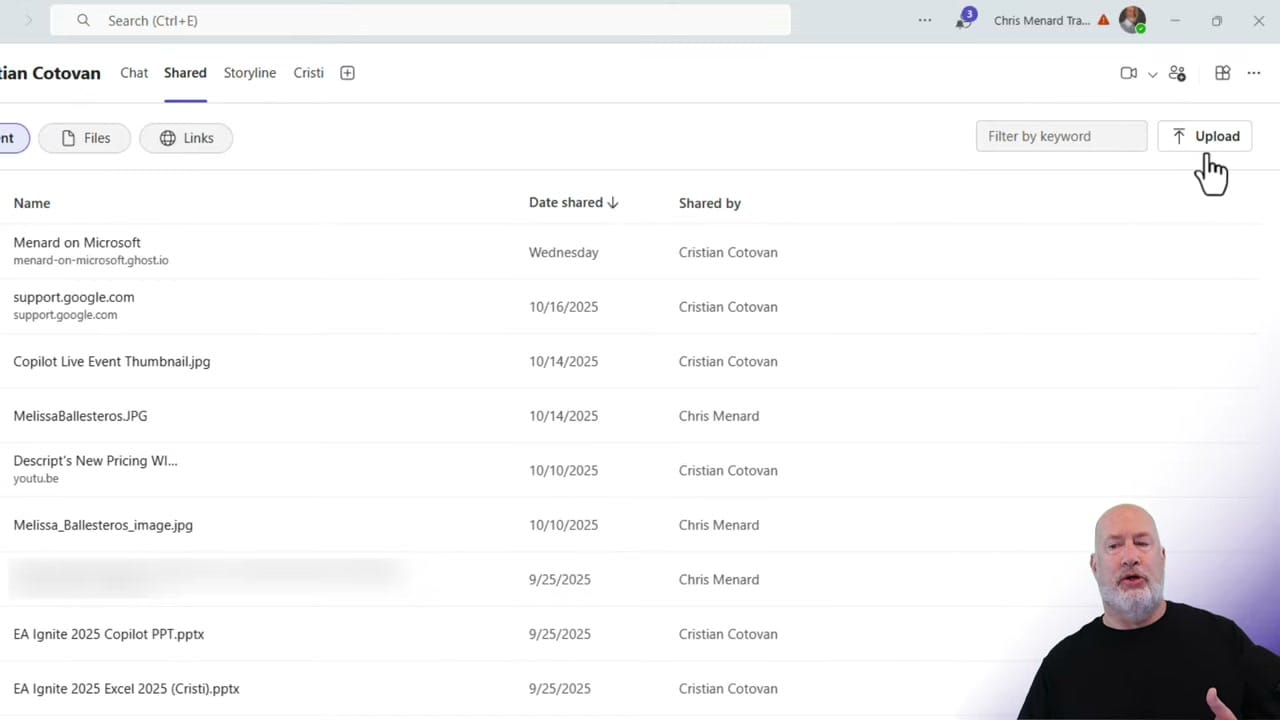
In chat, the Shared tab (formerly Files) now shows both files and links that have been shared in the conversation. You can toggle between Files and Links views and use the keyword filter to search by filename.
Accessing the SharePoint Document Library
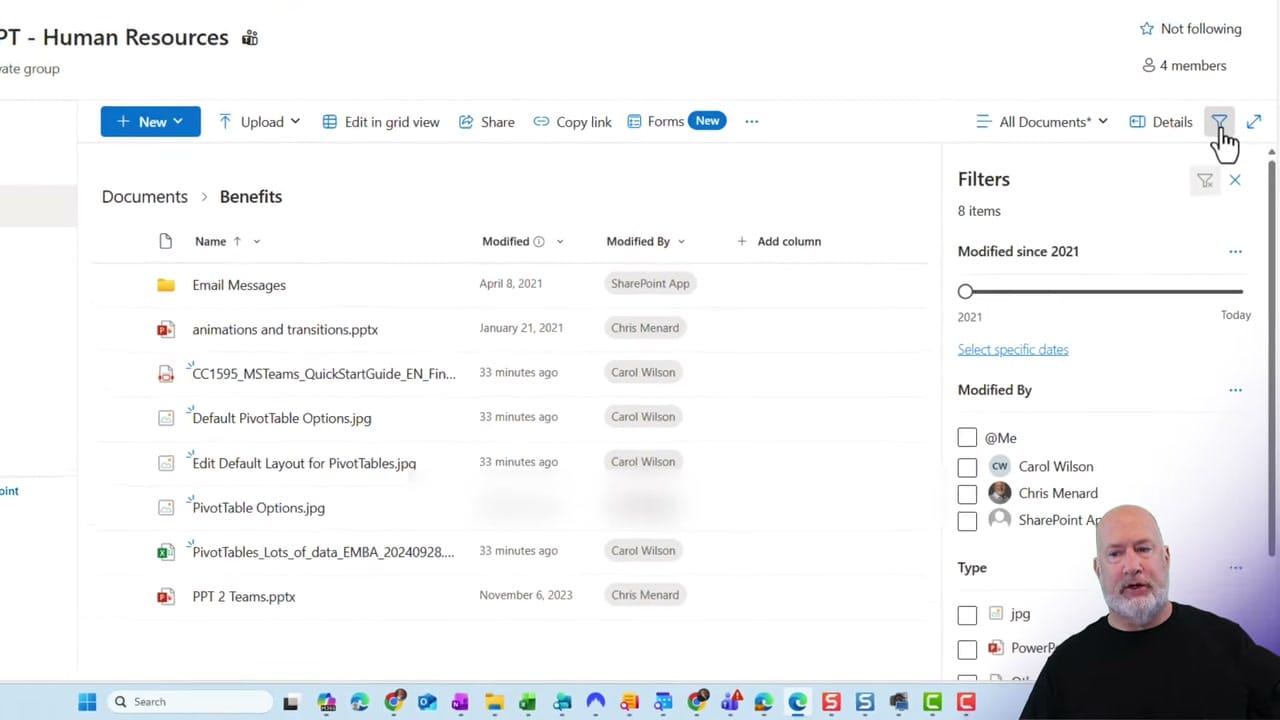
For channels, clicking the Files tab (or Shared tab in Teams web) opens the team's SharePoint document library directly inside Teams. You get the full SharePoint experience — folder navigation, column sorting, and the ability to upload, share, and manage files without leaving Teams.
The SharePoint view includes powerful filter options. Open the filter panel to narrow results by date range (with a slider from the earliest modification date to today), by person (filter by who last modified the file), and by file type (JPG, PowerPoint, Excel, etc.). These filters are especially useful in channels with hundreds of shared documents.
The New Shared Tab in Teams Web
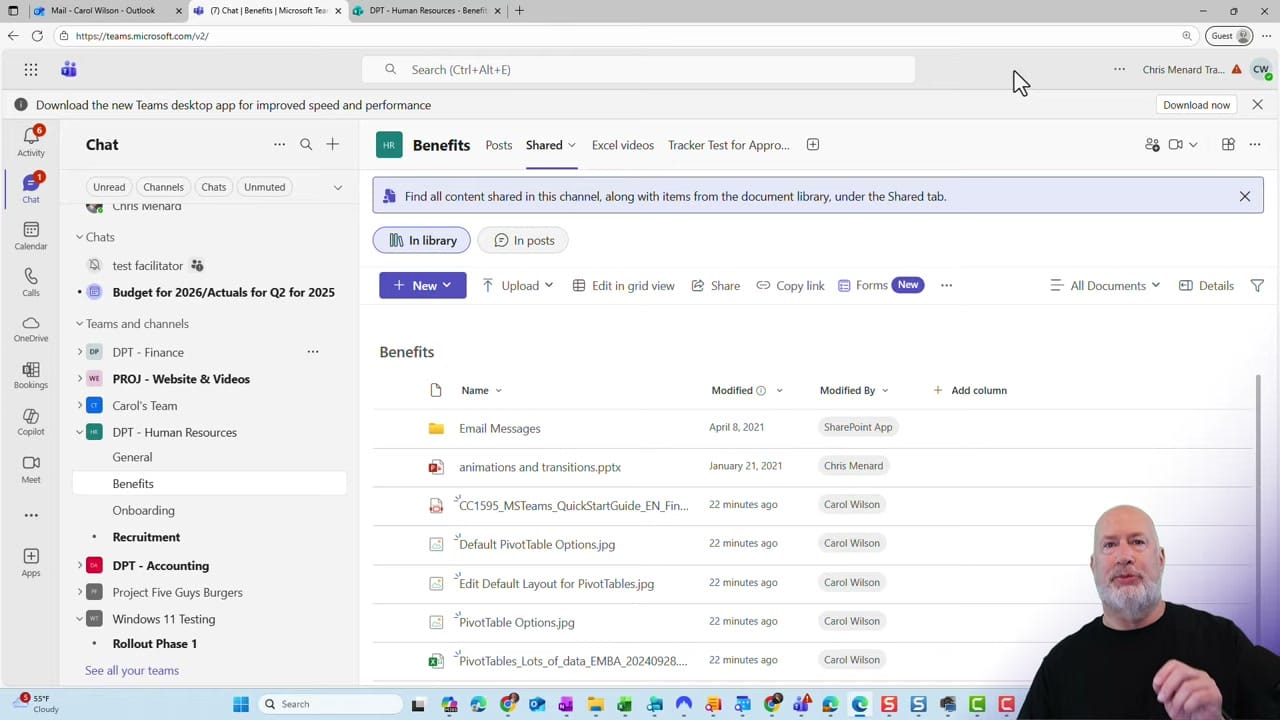
The Teams web version already has the updated Shared tab for channels. It offers two views: In library (the full SharePoint document library) and In posts (files and links shared within channel conversations). The In posts view further splits into Recent, Files, and Links sub-tabs, each with its own keyword filter.
This means you can quickly find a link someone shared in a channel post weeks ago, without scrolling through the entire conversation history. The feature is currently live in the Teams web app and rolling out to the desktop app.
Related guides




Want to learn more? Visit courses.chrismenardtraining.com for online training courses.



