How to Find and Remove Extra Spaces in Excel with Conditional Formatting


Extra spaces in Excel data cause real problems — inconsistent sorting, broken lookups, and formulas that return unexpected results. The tricky part is that extra spaces are invisible. Here's how to use conditional formatting with the TRIM function to find them, and then fix them.
The Problem: Hidden Extra Spaces
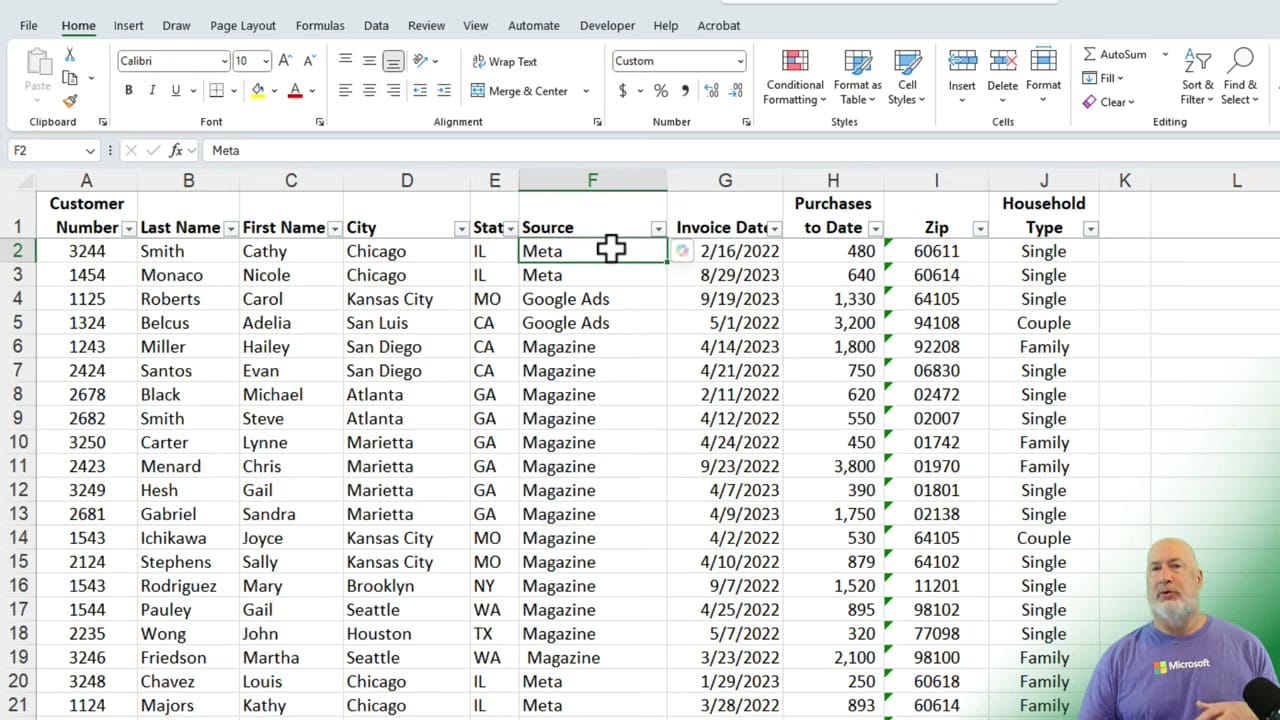
Look at a dataset with a Source column containing values like "Meta," "Google Ads," "Magazine," and "Newspaper." Everything looks fine at first glance, but some cells have leading or trailing spaces that you can't see. This causes problems when sorting — entries that should group together end up separated.
Using Conditional Formatting to Find Extra Spaces
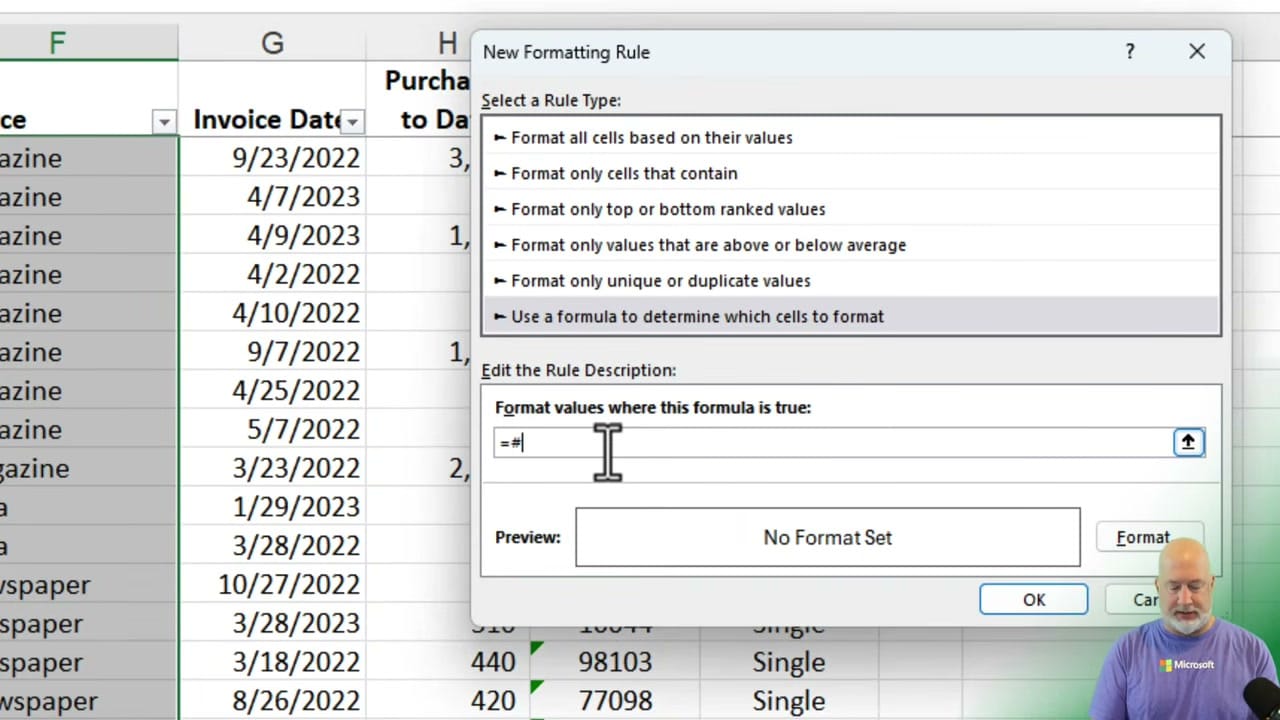
Select the column you want to check. Go to Home > Conditional Formatting > New Rule. Choose "Use a formula to determine which cells to format." Enter the formula:
=F2<>TRIM(F2)
This compares each cell to its TRIM'd version. If they're different, the cell has extra spaces. Set the format to a highlight color (like yellow) and click OK.
Seeing the Results
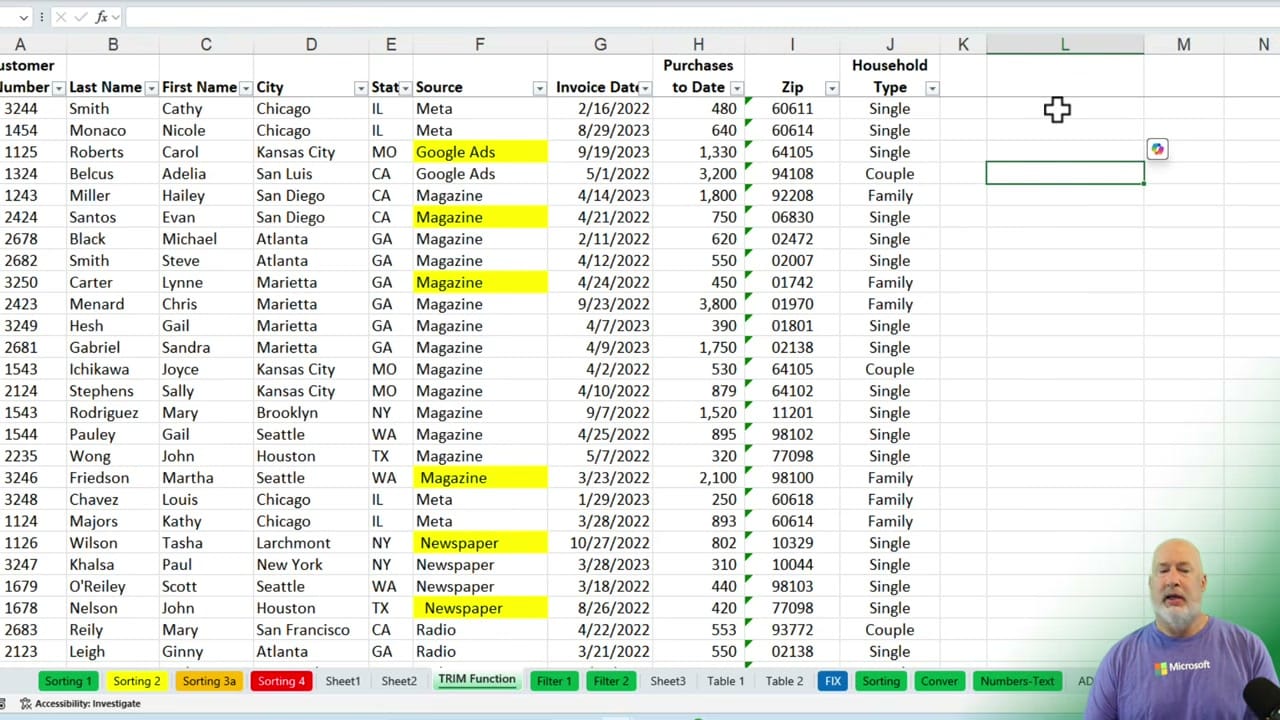
After applying the rule, cells with extra spaces are highlighted immediately. In this example, several "Magazine" and "Newspaper" entries light up — they have leading spaces that weren't visible before.
Fixing the Data with TRIM
To fix the extra spaces, create a helper column with the formula =TRIM(F2). This returns the cleaned version of each value. Copy the TRIM'd values, paste them back over the original column using Paste Special > Values, and then delete the helper column.
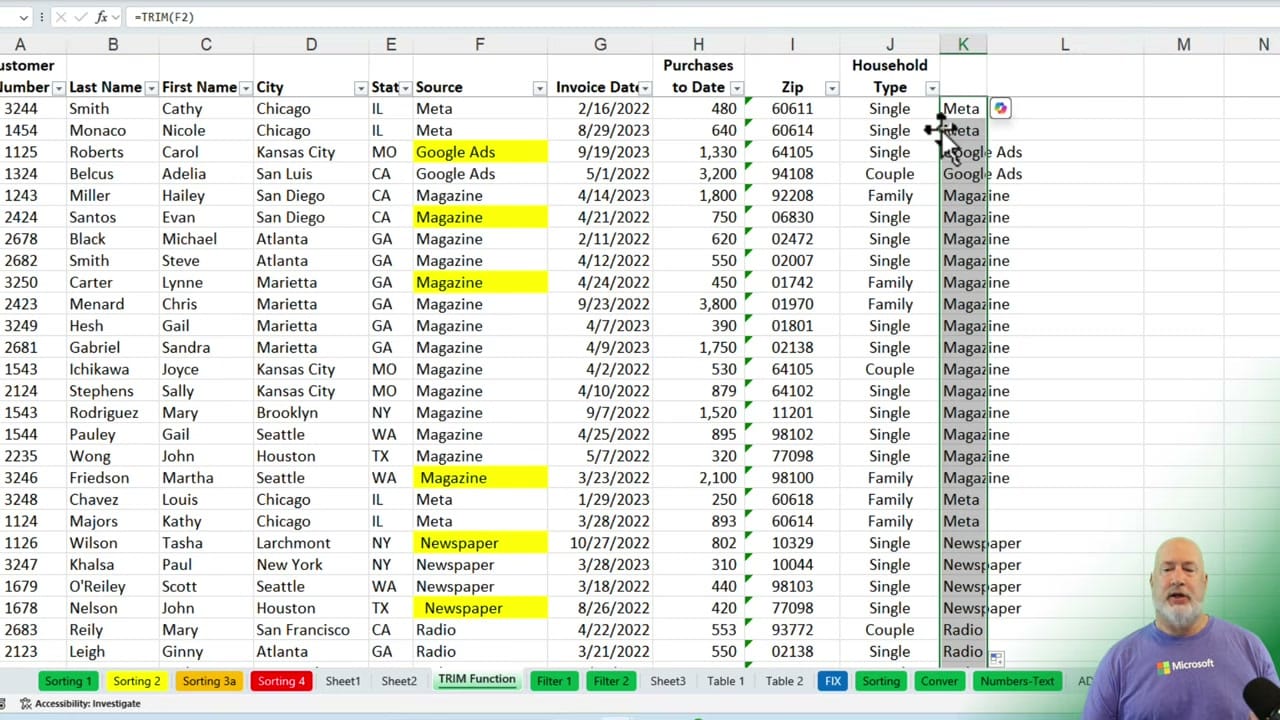
After the fix, the conditional formatting highlights should disappear, confirming that all extra spaces have been removed.
Related Excel Tutorials
 Chris Menard
 Chris Menard
 Chris Menard
 Chris Menard