Using CoPilot in Excel for Conditional Formatting: Step-by-Step Guide


Ever wondered how to make Excel work smarter for you? Meet Excel's Copilot, a feature that feels like having an expert sitting right next to you. Copilot in Excel is a game-changer for those of us who spend a lot of time analyzing data. It's like having a personal assistant who's really good at Excel. This feature helps you perform complex tasks, such as conditional formatting, with ease.
Imagine wanting to highlight important data points by using different colors, but the thought of setting this up manually feels daunting. This is where Copilot shines. With just a few instructions from you, Copilot can apply multiple conditional formatting rules all at once. It simplifies the process, saving you time and reducing the chance of errors.
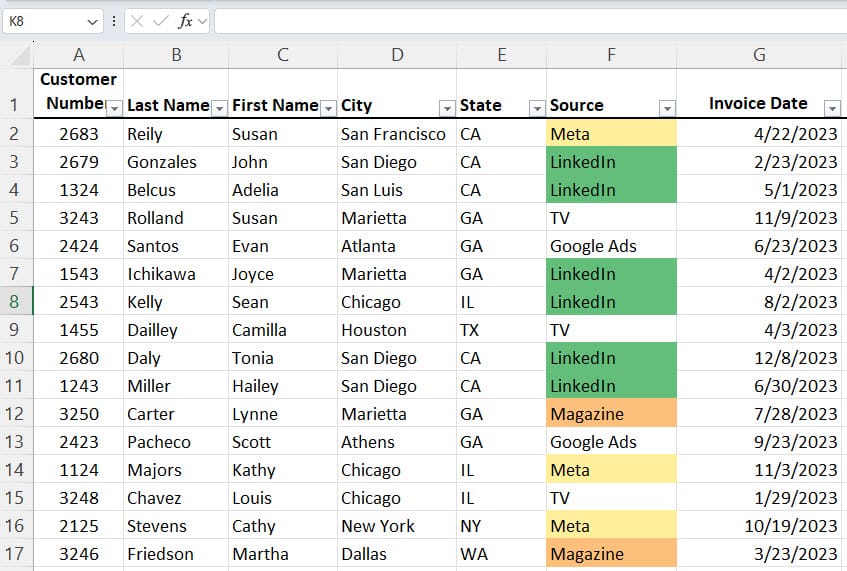
**Copilot in Excel - Multiple Conditional Formats**
What's impressive about Copilot is its ability to understand and execute commands. You tell it what you need, like changing background colors based on specific criteria, and it does the heavy lifting. After it's done, Copilot even confirms the actions it has taken. This feedback loop ensures that your data looks exactly how you envisioned it. Plus, if you're curious about what Copilot did, you can easily check the formatting rules it applied.
Adopting Copilot in your Excel workflow can dramatically improve how you handle data visualization and analysis, making your spreadsheets not only more functional but also more visually appealing.
Video - Copilot in Excel applying multiple conditional fomats at one time
Multiple Conditional Formatting with Copilot in Excel - YouTube
1. Identify Your Data Range
First things first, you need to know which part of your spreadsheet needs the conditional formatting. For me, it was column F. This column contained various sources of data, and I wanted to visually differentiate them with colors.
2. Decide on Your Conditions and Colors
Next, decide on the conditions and the corresponding colors you want to apply. My goal was to highlight data from different sources in different colors. Specifically, I wanted:
- Anything marked as "Meta" to be yellow, - Anything from "LinkedIn" to be green, and - Any "Magazine" entries to be orange.
Your conditions will depend on your specific data needs.
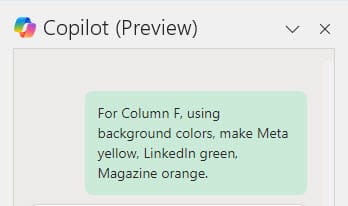
Copilot in Excel - Prompt Box - Multiple Conditional Formats
3. Activating Copilot
With your conditions ready, it's time to bring in Copilot. Click into your data and pull up Copilot.
4. Giving Instructions to Copilot
Here's where you get specific. I told Copilot, "For column F, using background colors, make Meta yellow, LinkedIn green, and Magazine orange." The trick is to be clear about your conditions and desired outcomes. Copilot is smart, but it follows your commands, so clarity is key.
5. Let Copilot Do Its Magic
After sending my command, Copilot got to work. In a moment, it applied the conditional formatting rules across column F, exactly as I had instructed. The best part? Copilot confirmed its actions, telling me it was "done" and even showing exactly what it had applied. This feedback is great for peace of mind.
6. Review and Test
Curious about what Copilot did? You can easily check. Just go to the "Conditional Formatting" option in Excel, and select "Manage Rules". There, you'll see all the rules Copilot set up for you. I tested it by changing a cell's content to "LinkedIn", and it turned green - just as expected!
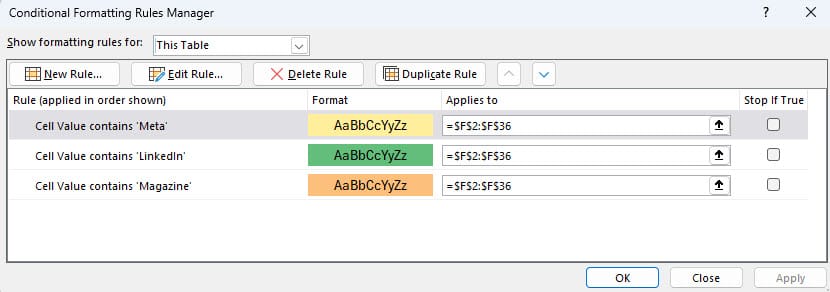
Conditional Formatting - Manage Rules - Copilot did this!