
Excel Copilot: Conditional Formatting Suggestions That Actually Understand Your Data


Excel's Copilot now suggests conditional formatting rules based on your data. Instead of manually writing formatting rules, Copilot analyzes your dataset and offers one-click suggestions — like highlighting dates in a specific year or cells matching certain text.
How It Works
Open a spreadsheet with data, click in the data range, and open the Copilot panel. Copilot automatically detects your data structure and suggests relevant conditional formatting rules. In this example, the dataset contains dates, locations, and countries — Copilot offers suggestions tailored to those column types.
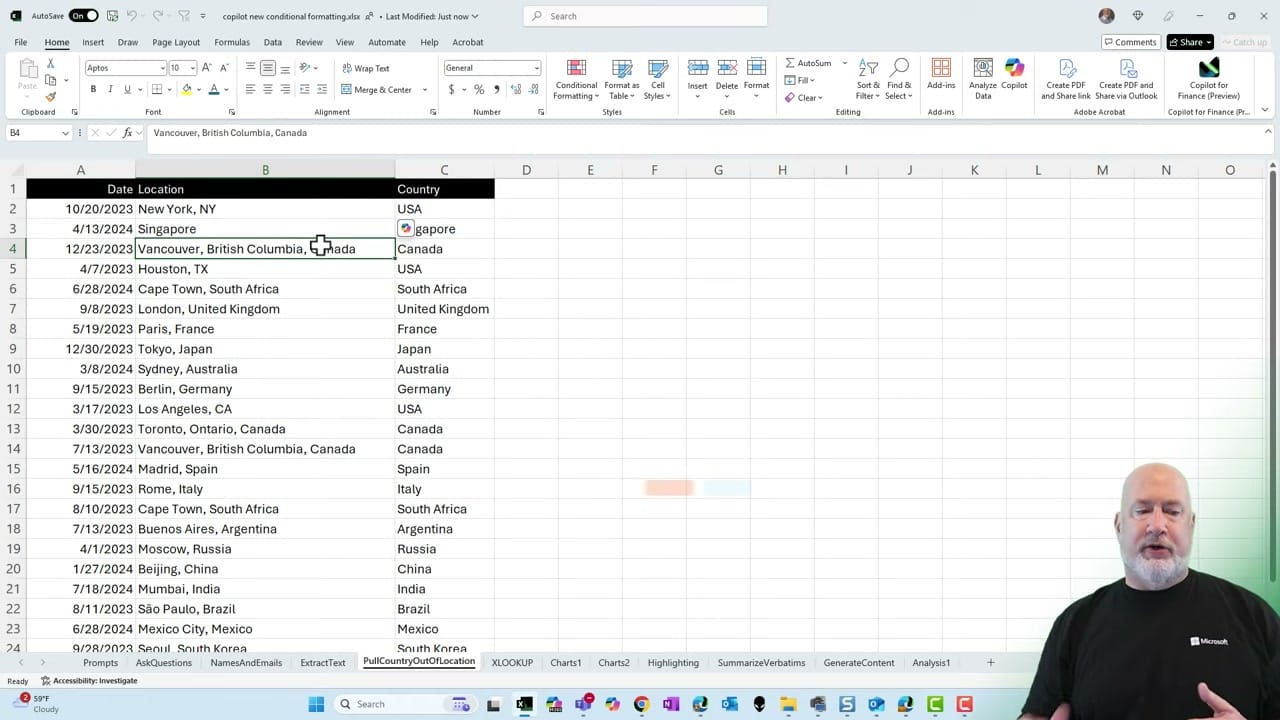
Copilot's Suggestions
Copilot offers context-aware suggestions like:
- Highlight duplicate cells in column 'Location'
- Highlight dates in the year 2023 in column 'Date'
- Highlight dates after 7/1/2023 in column 'Date'
- Highlight dates equal to 6/28/2024 in column 'Date'
- Highlight cells equal to 'South Africa' in column 'Country'

Click any suggestion and Copilot shows you the formula it will use (like =YEAR($A2) = 2023), the formatting style, and an Apply button. You can preview the result before committing.

Works with Tables Too
Copilot's conditional formatting suggestions also work when your data is formatted as an Excel Table (Ctrl+T). The suggestions adapt to the table structure and column names.
Key Points
- Suggestions are context-aware — Copilot reads your column types and data values to offer relevant rules
- You can apply multiple rules — Click several suggestions to layer formatting
- The formula is visible — You can see exactly what Copilot will apply before clicking
- Works with both ranges and tables
- Check out more ways to use Copilot for advanced conditional formatting
Related guides
 Chris Menard
 Chris Menard
 Chris Menard
Want to learn more? Visit courses.chrismenardtraining.com for online training courses.



