How to Create and Share Sheet Views in Excel


When multiple people work on the same Excel file, filtering and sorting can cause conflicts — one person's filter changes what everyone else sees. Sheet View solves this by allowing each person to create a personalized view of the data without affecting anyone else.
What Is Sheet View?
Sheet View is a feature in Excel for the web and Excel desktop that lets you apply filters, sorts, and other view changes to a shared workbook without impacting your collaborators. Each person can have their own view running simultaneously.
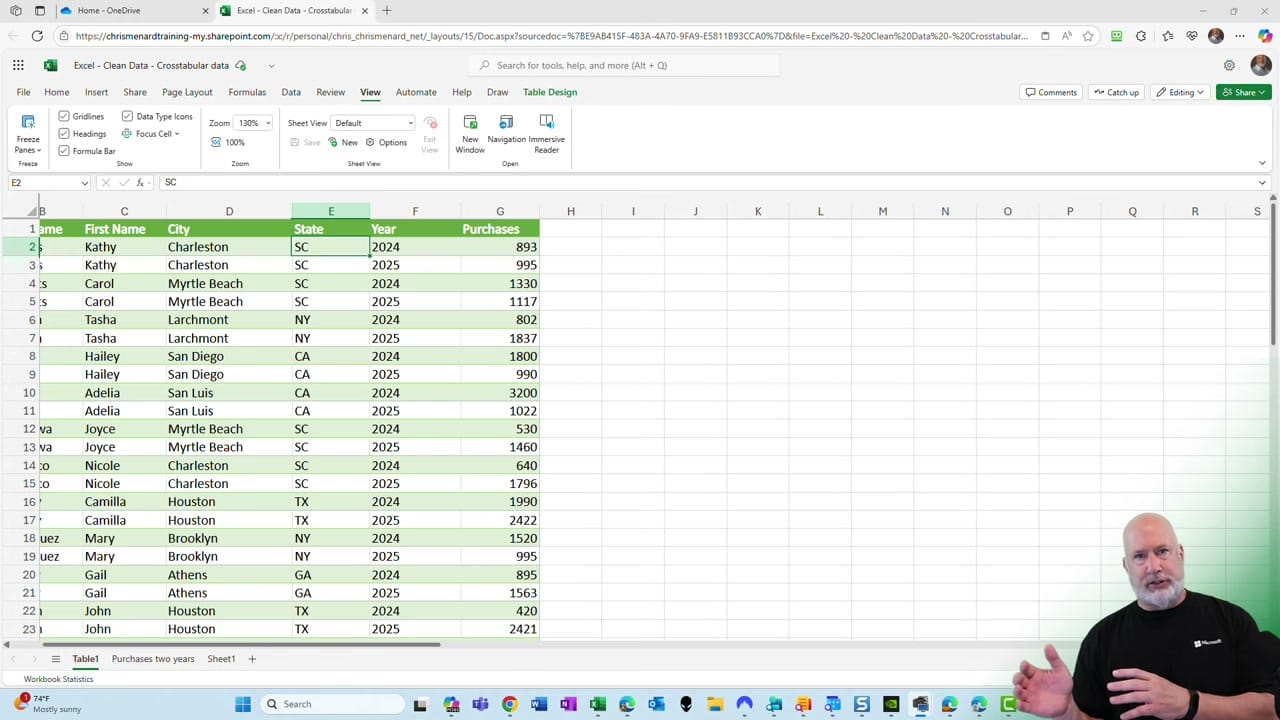
Creating a Sheet View
Go to the View tab and click New Sheet View. A new Sheet View is created instantly — you'll see a confirmation notification and the Sheet View dropdown in the ribbon now shows your view name (e.g., "View1"). You can rename it for clarity.
YouTube Video
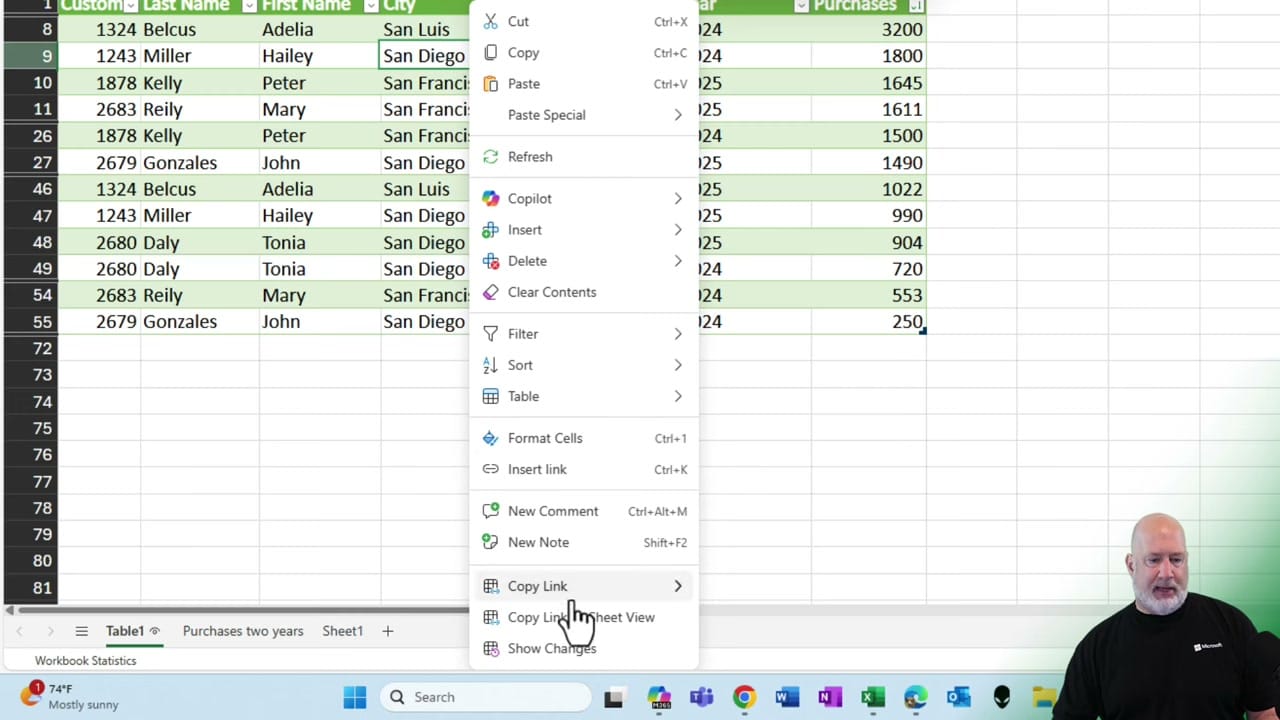
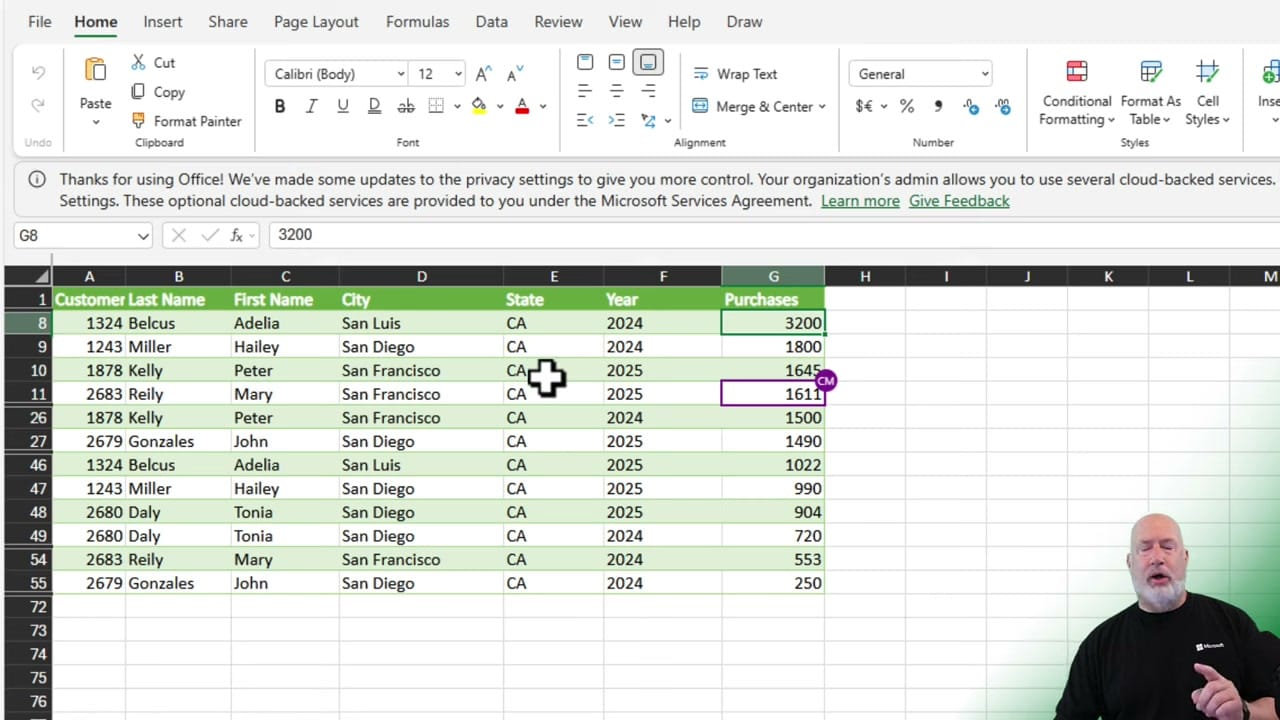
Now apply any filters or sorts you need. For example, filter the State column to show only records for "CA". These changes only appear in your Sheet View — other collaborators still see the full unfiltered data.
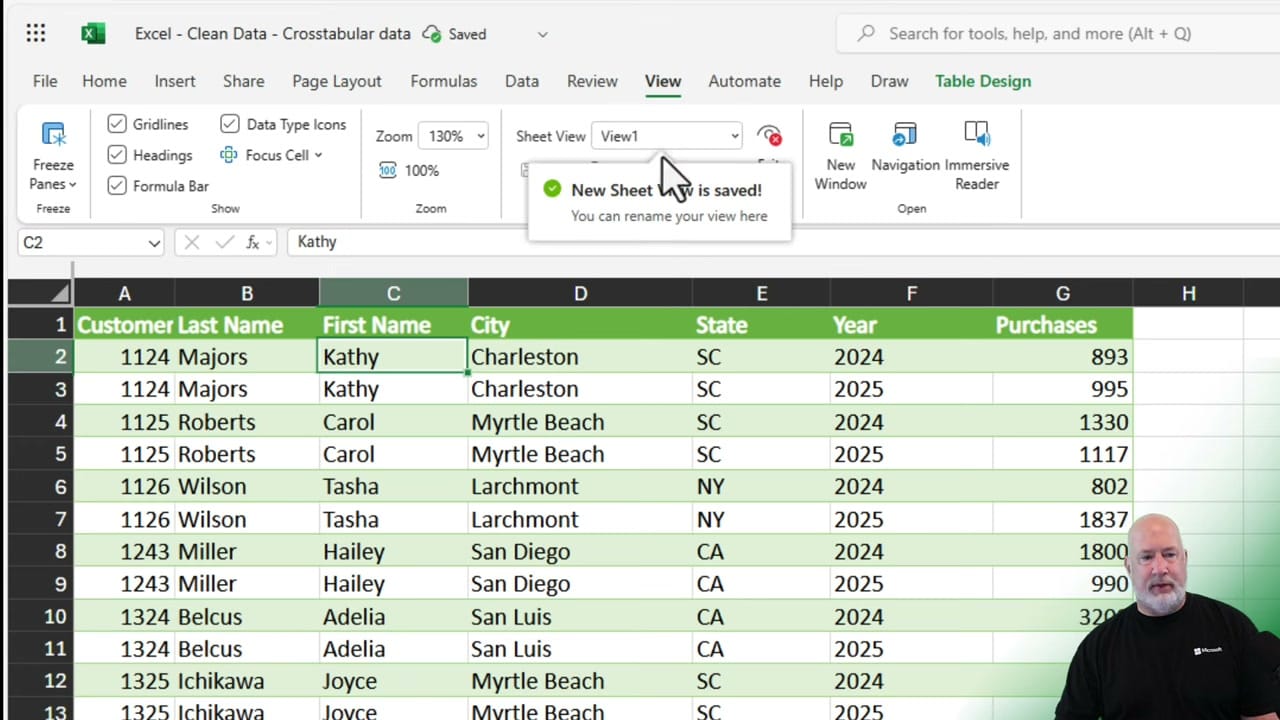
Sharing a Sheet View
To share your filtered view with a colleague, right-click inside the sheet, look for Copy Link > Copy Link to Sheet View. Send that link, and the recipient opens the workbook with your exact same filters applied — but they can switch back to their own view at any time.
Sheet View in Excel Desktop
Sheet View also works in the Excel desktop app, but only for files stored on OneDrive or SharePoint. The interface is slightly different — look for the Sheet View options on the View tab. The core functionality is the same: create personal views that don't affect your colleagues.
Related Excel Tutorials
 Chris Menard
 Chris Menard
 Chris Menard
 Chris Menard